How to fix
7.1 Surround Sound not working
on Windows
Fix 7.1 Surround Sound issues on Windows 10 or 11 effortlessly. Enjoy immersive audio with expert-tested solutions that work fast and reliably!

What causes How to fix 7.1 Surround Sound not working in Windows?
- Motherboard does not support 7.1 surround sound
- Sound card does not support 7.1 surround sound
- Improper configuration of audio settings
- Outdated audio drivers
- Issues with the audio output device
Repairs Windows system files, removes malware, and restores a clean OS state — without reinstalling.
Hello. I tried to set up my new headphones to use 7.1 Surround Sound on Windows but it does not work. How can I fix this?
Windows is one of the most popular operating systems in the world, especially among gamers. Microsoft first created APIs which would allow apps to gain full direct control over the screen and video hardware. And then in 1995 they acquired a UK company called Rendermorphics and used their technology for what later became DirectX.[ref en-1] Games sold PCs, and PCs sold graphics cards.
With this in mind, users are always looking for ways to make gaming a more immersive experience. 5.1 or 7.1 surround sound can help achieve that. Surround sound is an audio system that can recreate sounds at different angles and distances, allowing the listener to visualize an object’s position with sound.
By using a headset that features 7.1 surround sound gamers are able to hear every footstep, explosion, and gunshot. This provides a sound stage that is highly advantageous when playing various FPS games, allowing people to hear sounds further away with greater clarity, giving them a competitive edge.
However, some people run into issues when trying to use a new audio output device that supports surround sound. We previously wrote about 5.1 Channel Surround Sound not working on Windows 10. Now, some users report that 7.1 surround sound does not work in Windows. If you experience this issue, first of all, you should check if your motherboard and sound card supports this technology.
If yes, the issue may be caused by improper configuration. In this guide, you will find 7 steps that should help you fix 7.1 Surround Sound not working in Windows. Unfortunately, manual troubleshooting can be a lengthy process, so you can use a maintenance tool like [d1]. It can fix most system errors, BSODs,[ref en-2] corrupted files, and registry[ref en-3] issues.
Solution 1. Configure 7.1 Sound
- Press the Windows key + R to open the Run box and
- Type mmsys.cpl and hit Enter to open the Sound Properties
- Go to Playback and select your playback device that is capable of outputting 7.1 sound
- With the speakers selected, click on Set Default and then hit the Configure button
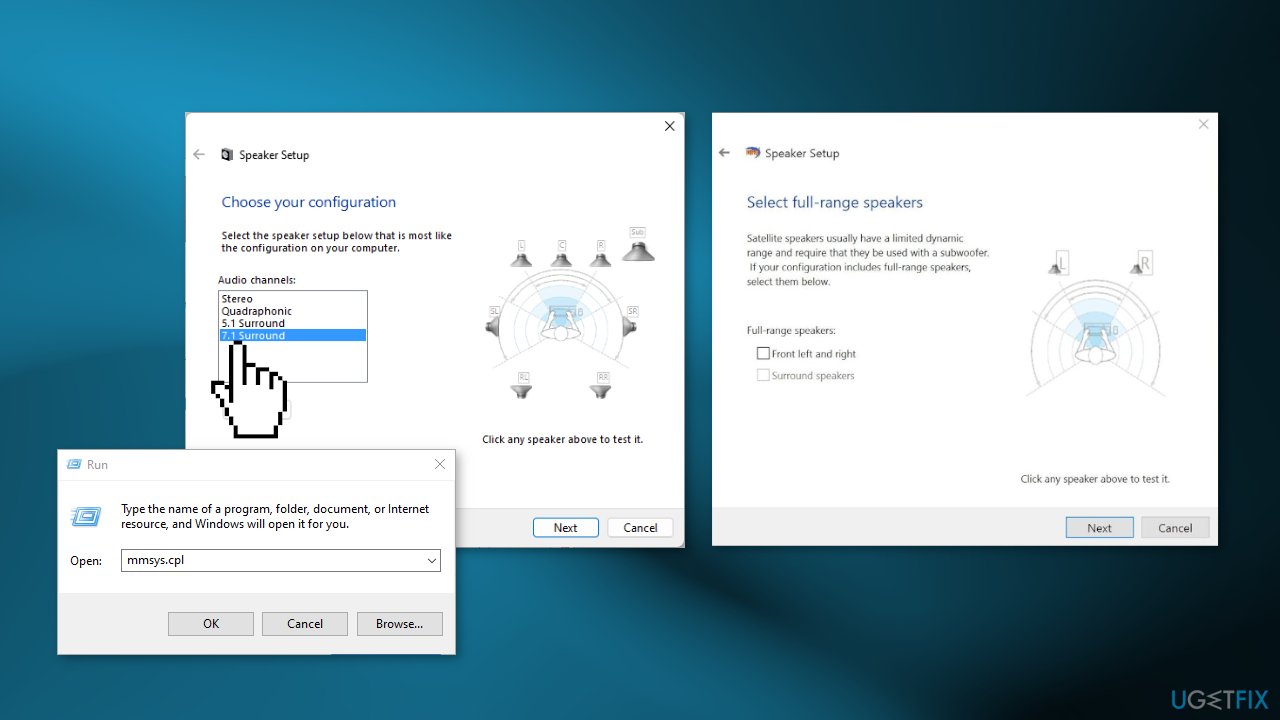
- In the Speaker Setup window, select 7.1 Surround and hit Next. If you see multiple 7.1 Surround entries, select the one that resembles more closely how have placed your speakers
- Make sure all the boxes under Optional speakers are set and hit Next
- Check the boxes under Full-range speakers if applicable and hit Next
- If the configuration completes successfully, hit the Finish button and move to the testing section
Solution 2. Use Windows Audio Troubleshooter
- Tap on the Windows key to open the Start menu
- Type Troubleshoot settings and open it
- Click on Additional Troubleshooter
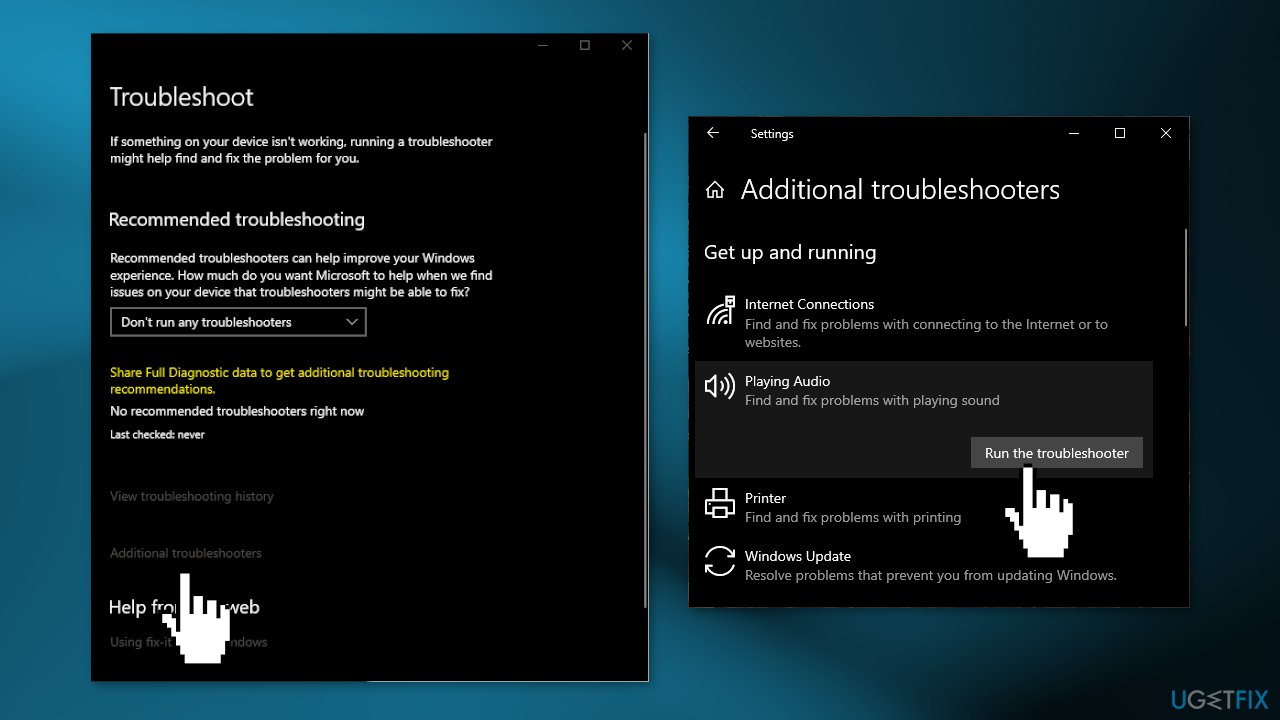
- Click on the box with content Playing Audio and click on Run Troubleshooter
- Once done, click on Close
Solution 3. Install Windows Updates
- Press the Windows key to open the Start menu
- Type Check For Updates
- Click on Check for Updates
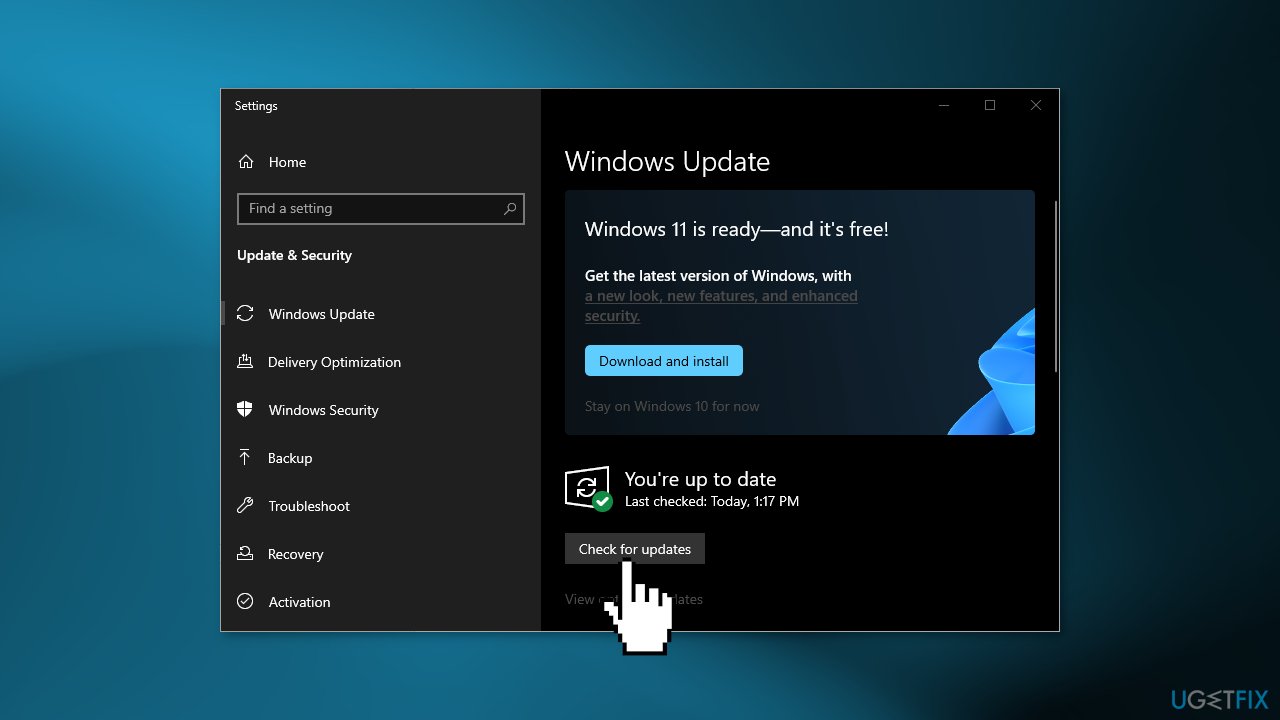
- Install any available recommended updates
Solution 4. Enable Speaker Fill
- Press the Windows key + R key to open the Run dialog box
- Type mmsys.cpl and hit the Enter
- In the Playback tab click on Speakers and Properties
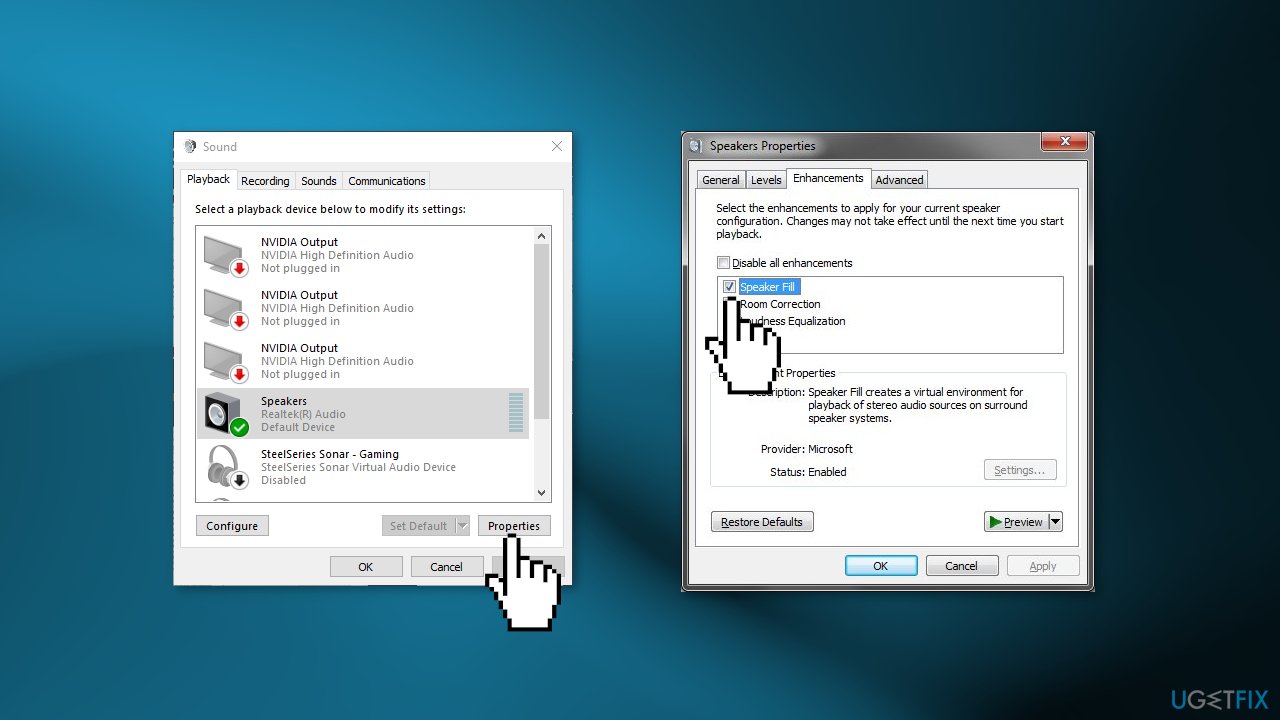
- In the speaker properties dialog box, click on the Enhancements tab and uncheck the Disable all sound effects check box
- Click Ok to apply settings
- Reboot your computer
Solution 5. Change Audio Format
- Press the Windows key + R key to open the Run dialog box
- Type mmsys.cpl and press Enter
- Click on Properties and choose Advanced
- Inside Default format box, click on the drop-down menu as shown in the image below
- Select the 24 Bit, 96000 Hz (Studio Quality) option
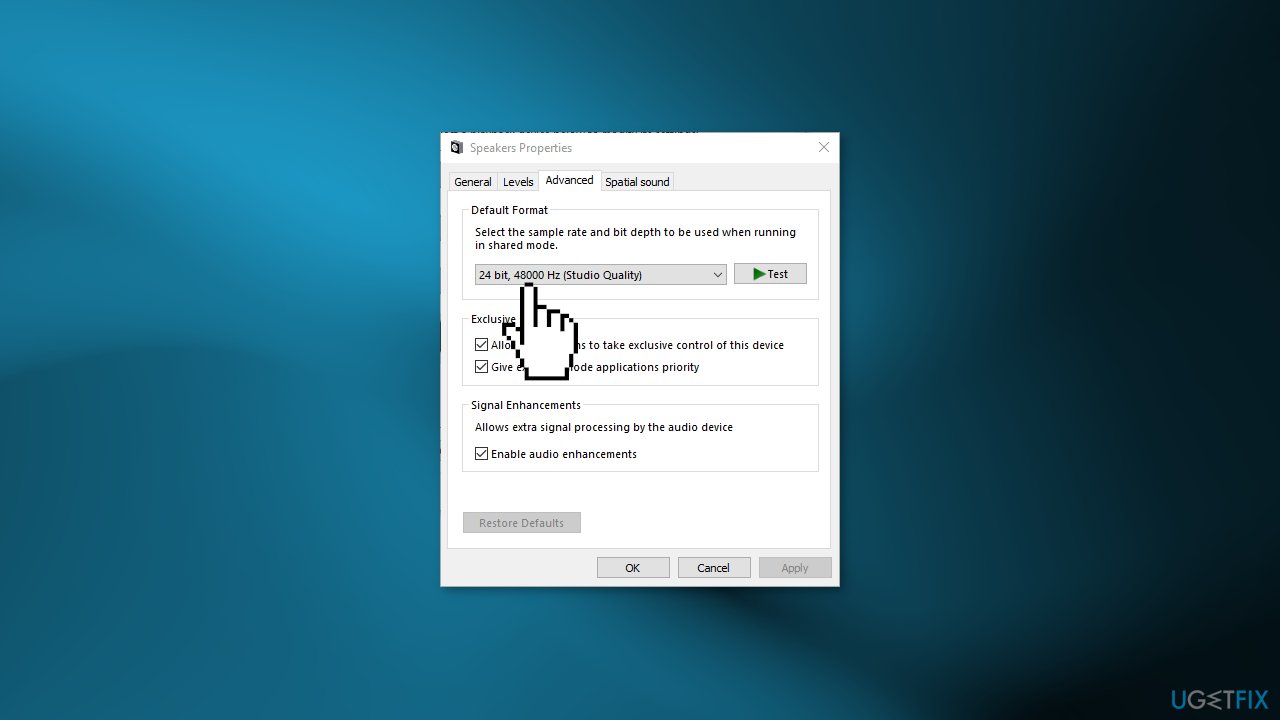
- Click on Ok to apply the settings
Solution 6. Restart Audio Services
- Press the Windows key to open the Start menu
- Type CMD and open the Command Prompt as an administrator
- Paste the following commands to restart audio services:
net stop Audiosrv
net start Audiosrv
net stop AudioEndpointBuilder
net start AudioEndpointBuilder
net stop RpcSs net start RpcSs
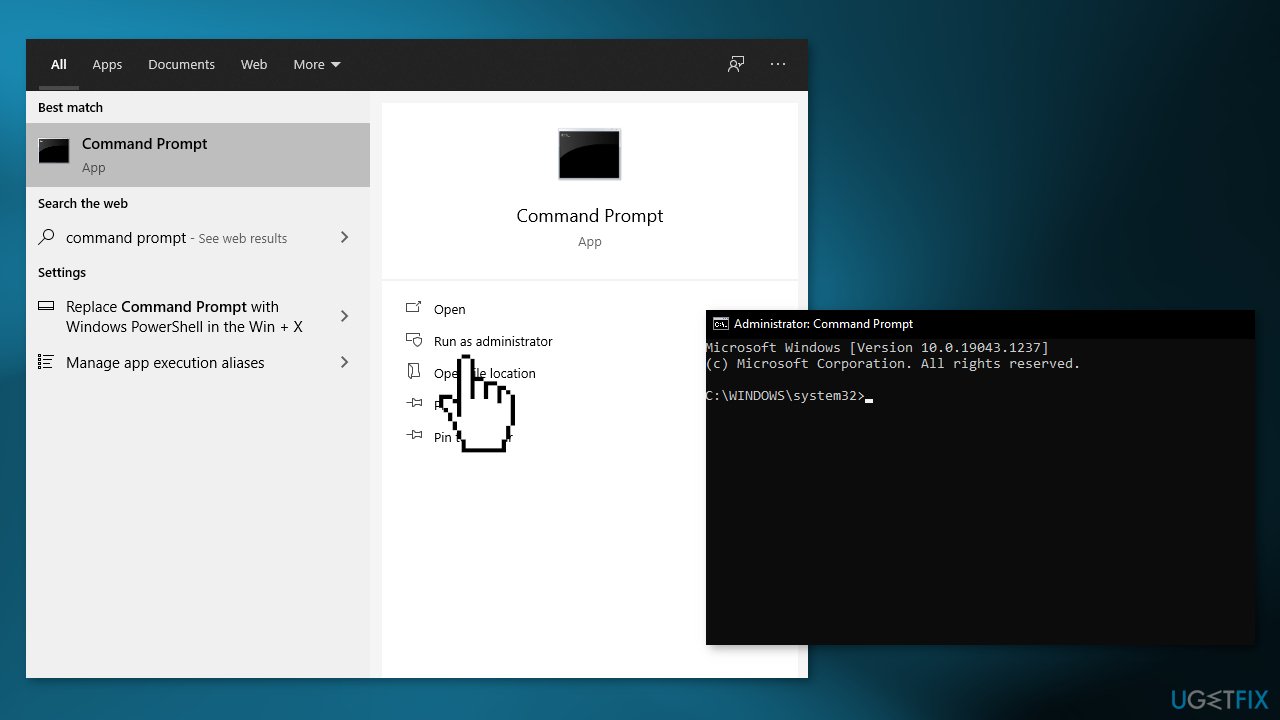
- Once all of the services have been restarted, Reboot your computer
Solution 7. Enable the Mono Audio Feature
- Press the Windows key to open the Start menu
- Type Settings and open it
- Click on Ease of access, and on the left side of your screen, select Audio
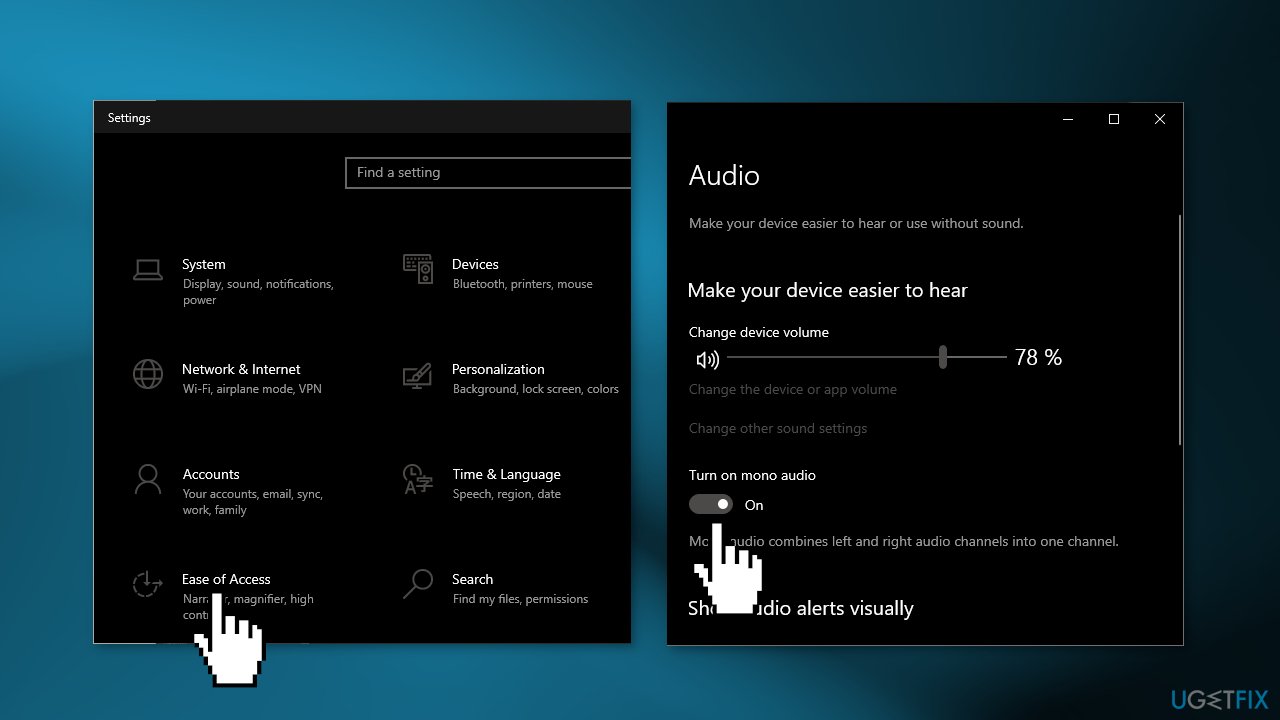
- Toggle the Mono audio switch to on
Bottom line
To fix 7.1 Surround Sound not working in Windows, you should check your motherboard and sound card compatibility, configure the sound settings properly, and ensure that your audio drivers are up to date. If these steps do not resolve the issue, consider using a maintenance tool to fix system errors.
Frequently asked questions
Ensure that your audio drivers are up-to-date and check your sound settings to make sure 7.1 Surround Sound is selected as the default playback device.
Try running the built-in audio troubleshooter in Windows 11, which can help identify and fix common sound problems.
Verify that all speaker connections are secure and that the audio format settings in the playback device properties are correctly configured.




Report an issue
What's wrong with this guide? We review every report and update or remove content.
Report received — thank you. We'll review and fix it.
You need a free account to submit a report.
Be the first to comment