How to fix
All browsers are lagging after Windows update
on Windows
Discover effective fixes for browser lagging issues after a Windows 10 or 11 update. Get your web browsing speed back, expert-tested solutions available.

What causes How to fix all browsers are lagging after Windows update?
- Windows updates causing system malfunctions
- Outdated graphics drivers
- Hardware acceleration in browsers
- Corrupted files or registry issues
- Cookies and cache causing malfunctions
Repairs Windows system files, removes malware, and restores a clean OS state — without reinstalling.
Hello. I have updated my Windows computer, and I noticed that all of my browsers became slow. How do I fix all browsers lagging?
Windows is one of the most popular operating systems in the world developed by Microsoft. It offers a user-friendly interface, customization abilities, built-in troubleshooters, and many other functions. As with any other operating system, keeping it up to date and installing the latest updates and security patches is important. However, Windows updates can sometimes become the cause of many system malfunctions.
Recently, some users have run into an annoying problem after updating their Windows devices - all the browsers have become slow and started lagging. People report having even a 30-second mouse latency. It is not exactly clear why this could be happening, but it has definitely something to do with the Windows updates as all the users report it having an effect.
In this guide, you will find 3 steps that could help you fix the browser lagging issue after the Windows update. You can also get a maintenance tool, like [d1] that can fix most system errors, BSODs,[ref en-1] corrupted files, and registry[ref en-2] issues. This powerful software can also automatically clear cookies and cache[ref en-3] which are often the culprits of many malfunctions. Otherwise, follow the guide below carefully.
Solution 1. Install New Graphics Drivers
- Press Windows key + R to open the Run box
- Type devmgmt.msc and press Enter
- Under Display adapters, right-click on your graphics card and select Properties
- Go to the Driver tab
- Click Uninstall device
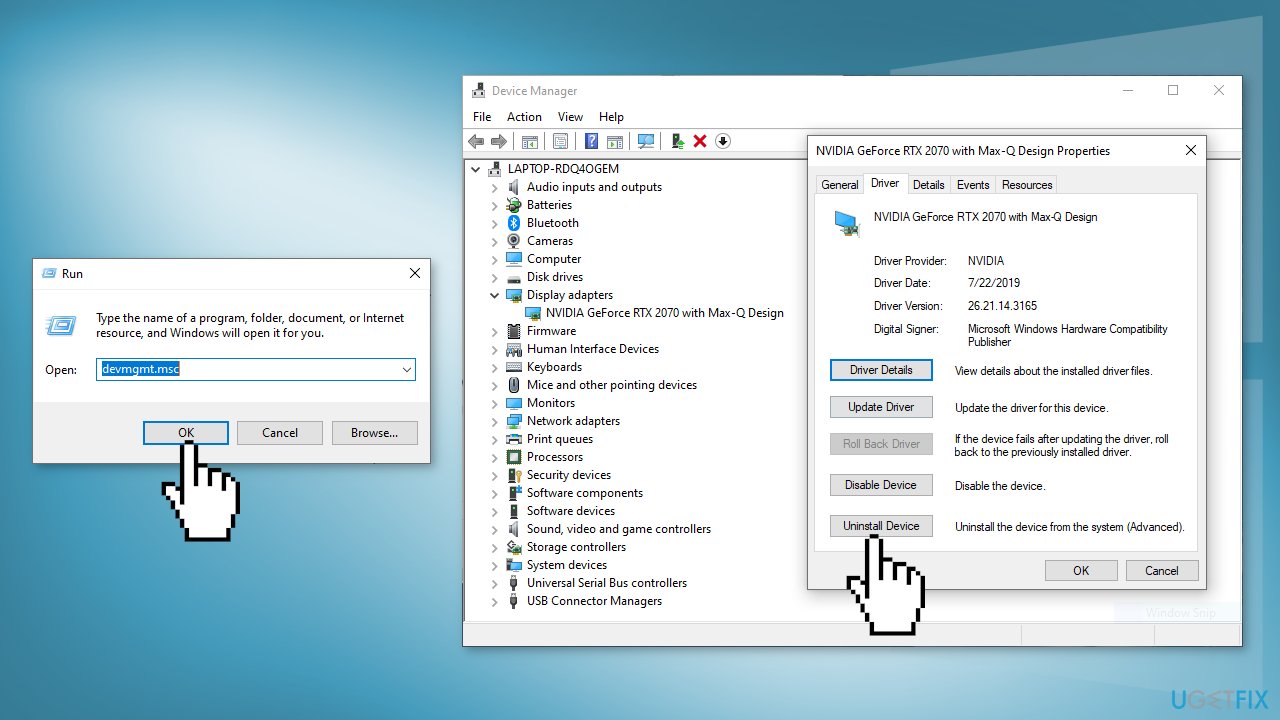
- Restart your PC, and the driver should install automatically
- Follow the on-screen instructions
- You can also use a dedicated tool to find the best drivers and install them, like [rev id="DriverFix"] or install the drivers directly from the manufacturer's website. For more detailed instructions, read our guide How to reinstall Graphics drivers in Windows?
Solution 2. Disable Hardware Acceleration in Browsers
Chrome:
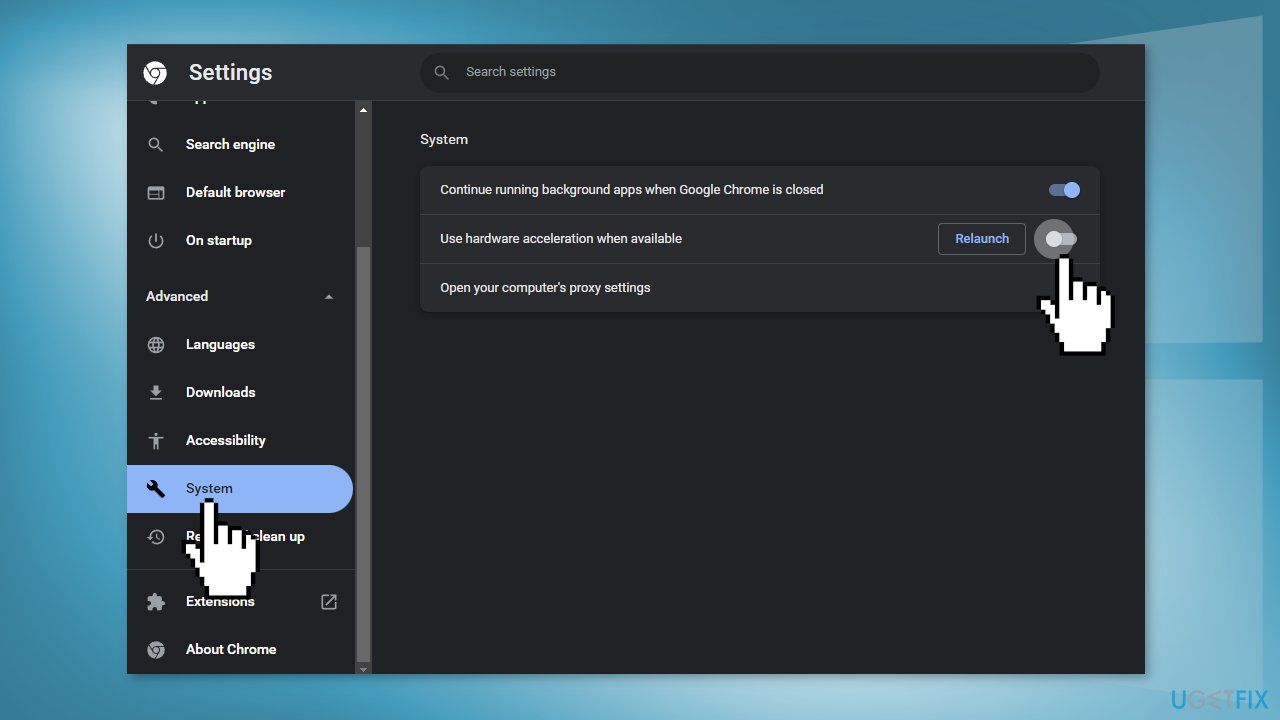
- Launch the browser and open the Settings
- Scroll down and click Advanced
- Under System, uncheck the box Use hardware acceleration when available
- Restart Chrome
MS Edge:
- Open Microsoft Edge
- Click on the menu button with three dots
- Select Settings
- In Settings, click on System and performance
- On the right, turn off the toggle option Use hardware acceleration when available
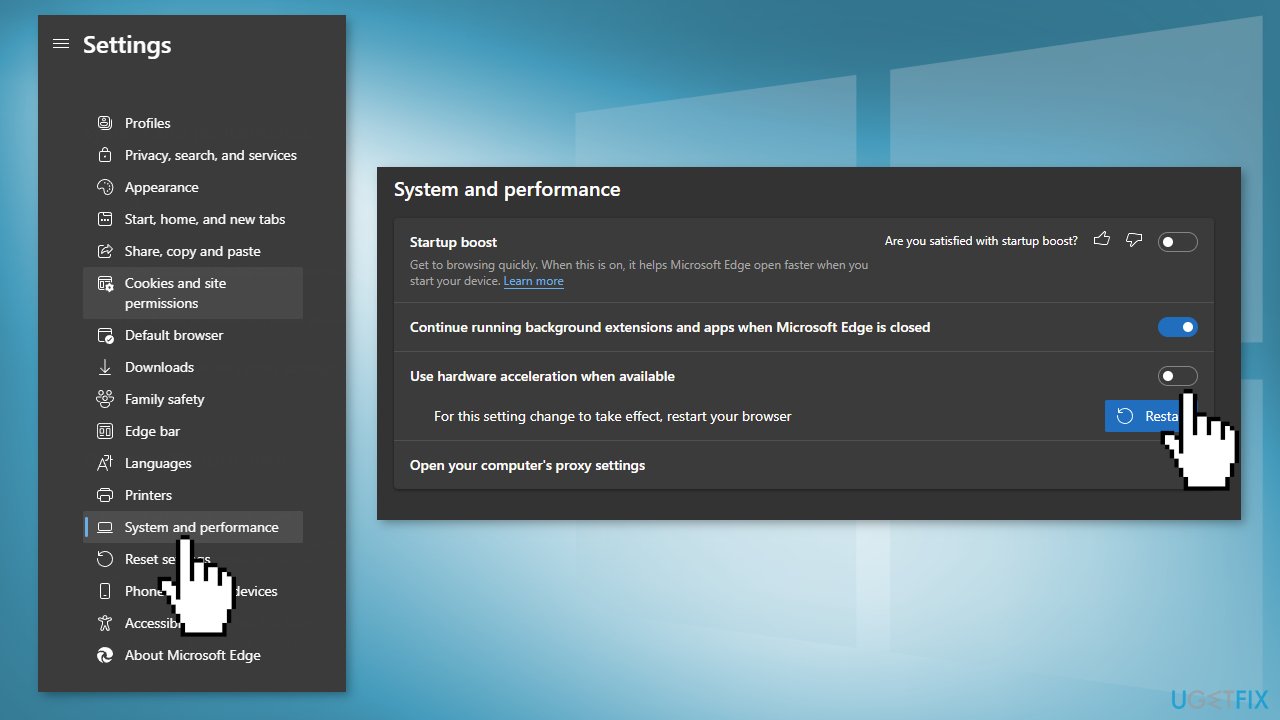
- Now click on the Restart button
Firefox:
- Open the browser and go to Options
- Under the General section, scroll down to Performance
- Uncheck the Use hardware acceleration when available option
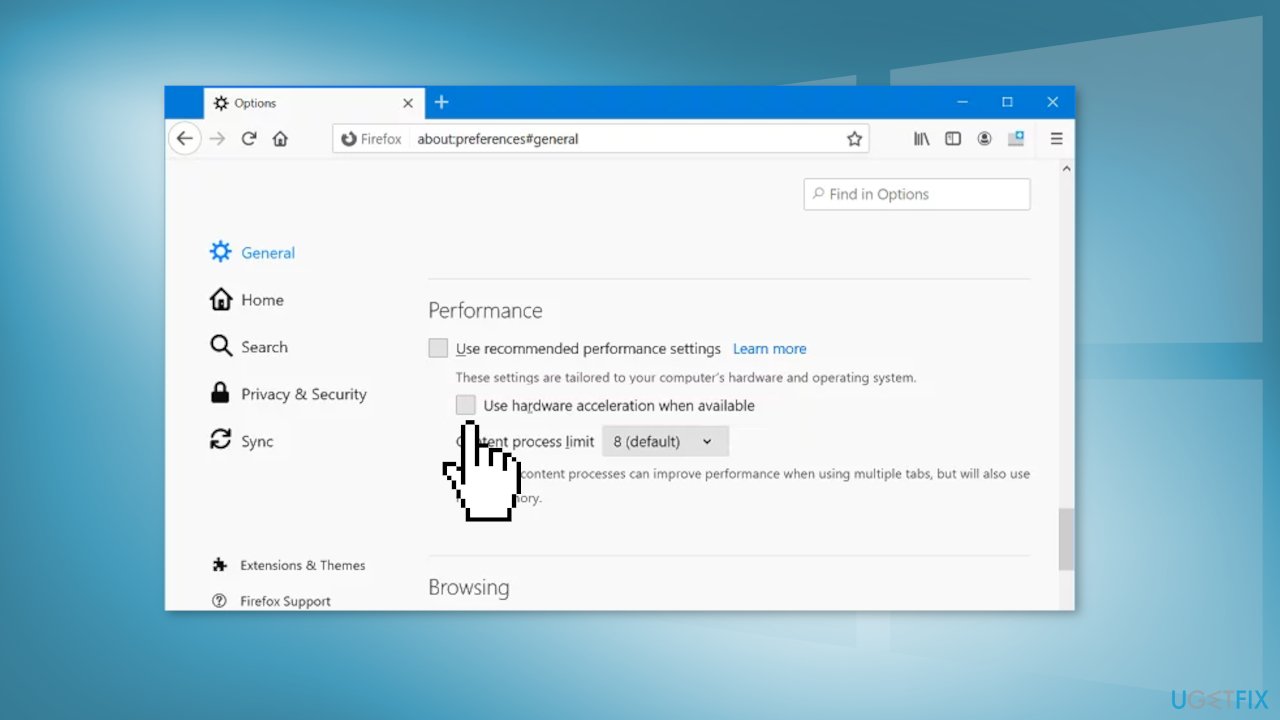
- Restart Firefox
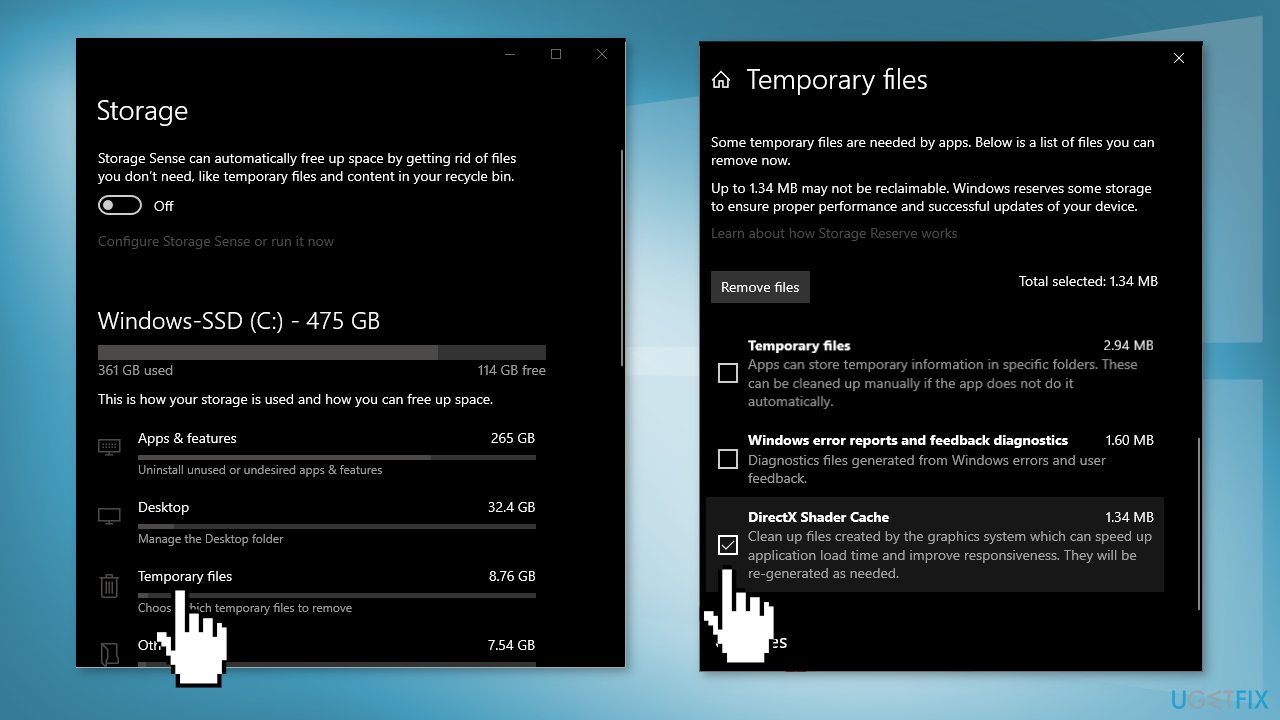
Solution 3. Delete DirectX Shader Cache
- Go to This PC, then Storage
- Click on Temporary Files
- If there is DirectX shader cache in the list, delete it
Bottom line
To fix the lagging issue in browsers after a Windows update, you can install new graphics drivers and disable hardware acceleration in your browsers. If these solutions do not resolve the problem, consider using a maintenance tool to address system errors or consult further troubleshooting guides.
Frequently asked questions
Try resetting your network settings by going to Settings > Network & Internet > Status, then click on 'Network reset'. This can help resolve connectivity issues causing browser lag.
Disable all extensions by going to your browser's settings, then re-enable them one by one to identify the culprit that may be causing the lag.
Yes, you can go to Settings > Update & Security > Windows Update > View update history, then select 'Uninstall updates' to revert the last update that may have caused the issue.




Report an issue
What's wrong with this guide? We review every report and update or remove content.
Report received — thank you. We'll review and fix it.
You need a free account to submit a report.
Be the first to comment