How to fix
“An unspecified error occurred during system restore 0x80070780”
on Windows
Resolve the "An unspecified error occurred during system restore 0x80070780" on Windows 10/11 quickly and effectively. Expert-tested solutions await.


What causes How to Fix “An unspecified error occurred during system restore 0x80070780” on Windows?
- Disk errors
- Corrupt system files
- Antivirus interference
- Insufficient disk space
- Inability to access certain files
Repairs Windows system files, removes malware, and restores a clean OS state — without reinstalling.
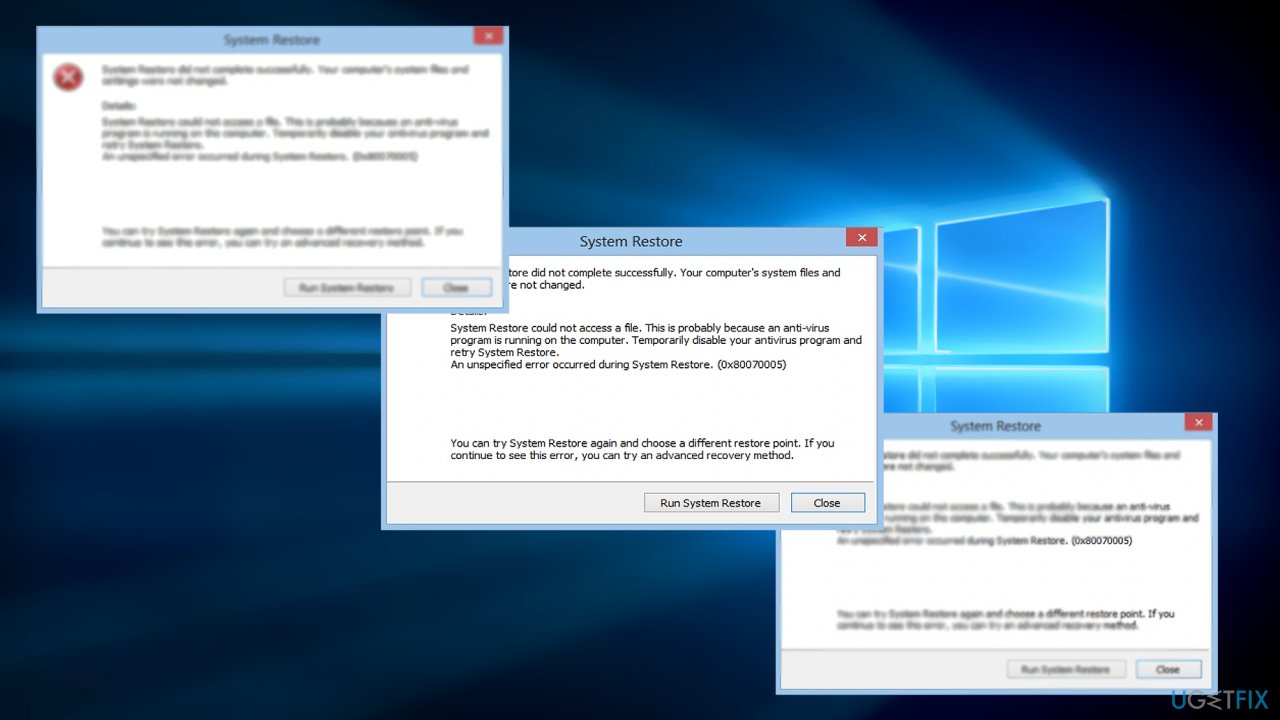
When I try to perform System Restore, the process begins, and it goes up to approximately 30% or 70%, but it stops then, the system restarts. After that, the message appears "System Restore did not complete successfully. An unspecified error occurred during system restore 0x80070780". I'd be grateful for any advice.
System Restore is a robust feature in Microsoft Windows designed to revert system files and settings to a previous point in time, hence providing a solution when the system becomes unstable or malfunctioning. As an integral part of the Windows operating system, it creates "restore points" at regular intervals or at significant system events such as software or driver installations.
These restore points act as snapshots of the system settings and files at a specific point in time, enabling users to revert to them when things go awry. By employing System Restore, users can effectively recover their systems from system failures without losing personal data, thereby mitigating the risk of data loss or tedious troubleshooting processes.
Despite the utility of System Restore, some users may encounter a specific error: "An unspecified error occurred during system restore (0x80070780)".[ref en-1] This cryptic message that is displayed when System Restore does not complete successfully can be particularly frustrating for users attempting to resolve system instability or malfunctions.
The error code 0x80070780 primarily denotes an issue related to the inability of the system to access certain files. It could be triggered due to various reasons, including disk errors, corrupt system files, antivirus interference, or even insufficient disk space in the system partition for creating or utilizing restore points.
The approach to resolving the 0x80070780 error primarily depends on the underlying cause. For instance, if the issue arises due to disk errors, running a disk check using built-in Windows utilities may prove beneficial. If corrupt system files are the culprits, using the System File Checker (SFC) tool or DISM (Deployment Image Servicing and Management) might be useful. For antivirus interference, temporarily disabling the antivirus[ref en-2] might work, while clearing some space or enlarging the system partition could resolve the issue in the case of insufficient disk space.
Additionally, using a reliable PC repair tool like [d1] can be advantageous. While it may not directly rectify this particular System Restore error, it can enhance overall system performance and health, which indirectly contributes to a smoother, more stable computing experience.
Option 1. Check for corrupted system files
Both System File Checker (SFC) and Deployment Image Servicing and Management (DISM) are in-built utilities in Windows designed to repair system file corruption. SFC scans for corrupt system files and replaces them. If SFC can't fix the issues, DISM, which fixes Windows system corruption when the SFC isn’t able to, is used.
- Type cmd in Windows search.
- Right-click on Command Prompt and select Run as administrator.
- When User Account Control window shows up, click Yes.
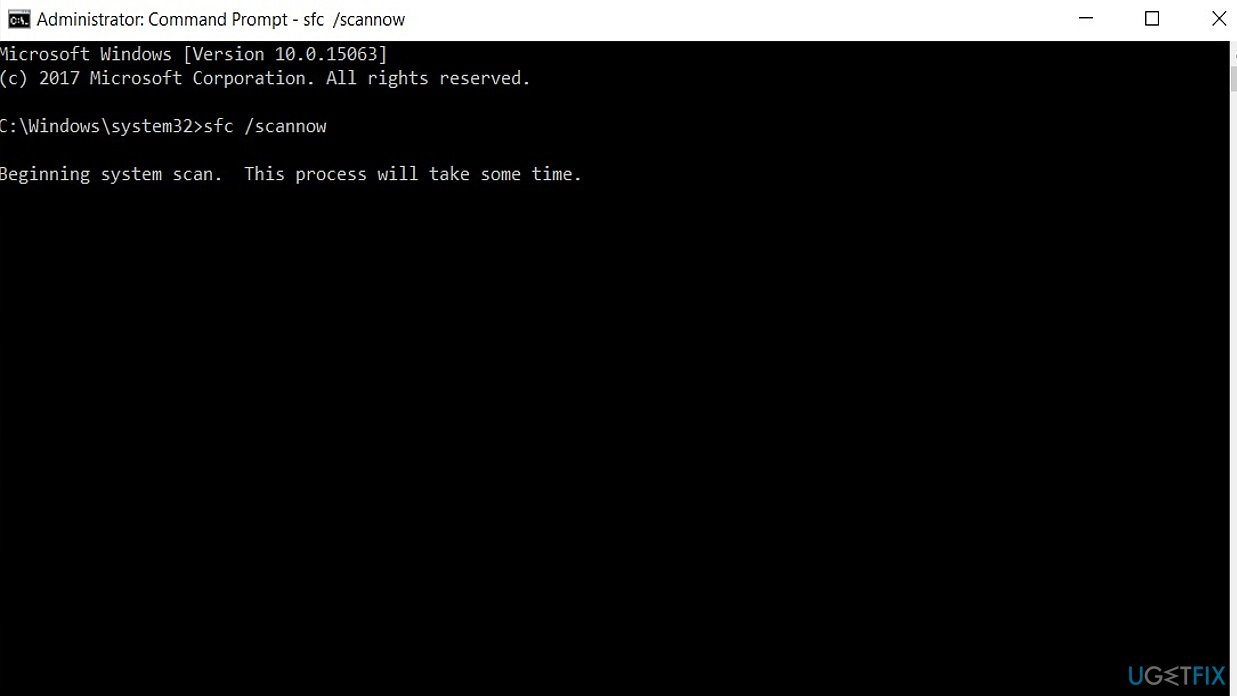
- Paste the following command into the new window:
sfc /scannow - Press Enter and wait till the scan is executed.
- Once done, run this set of commands, pressing Enter after each:
DISM /Online /Cleanup-Image /CheckHealth
DISM /Online /Cleanup-Image /ScanHealth
DISM /Online /Cleanup-Image /RestoreHealth - Restart your PC.
Option 2. Disable the third-party anti-virus app
Antivirus software can sometimes interfere with System Restore. Temporarily disabling it might help in resolving the error.
- Open your antivirus software.
- Locate and click on the disable button (usually in settings).
- Run System Restore again.
Option 3. Run System Restore in Safe Mode
Running System Restore in Safe Mode can sometimes bypass problems that prevent the restore process from completing normally. Safe Mode starts your computer with a minimal set of drivers and services, which can help avoid conflicts with software that may be causing the problem.
- Press the Windows key + I to open Settings.
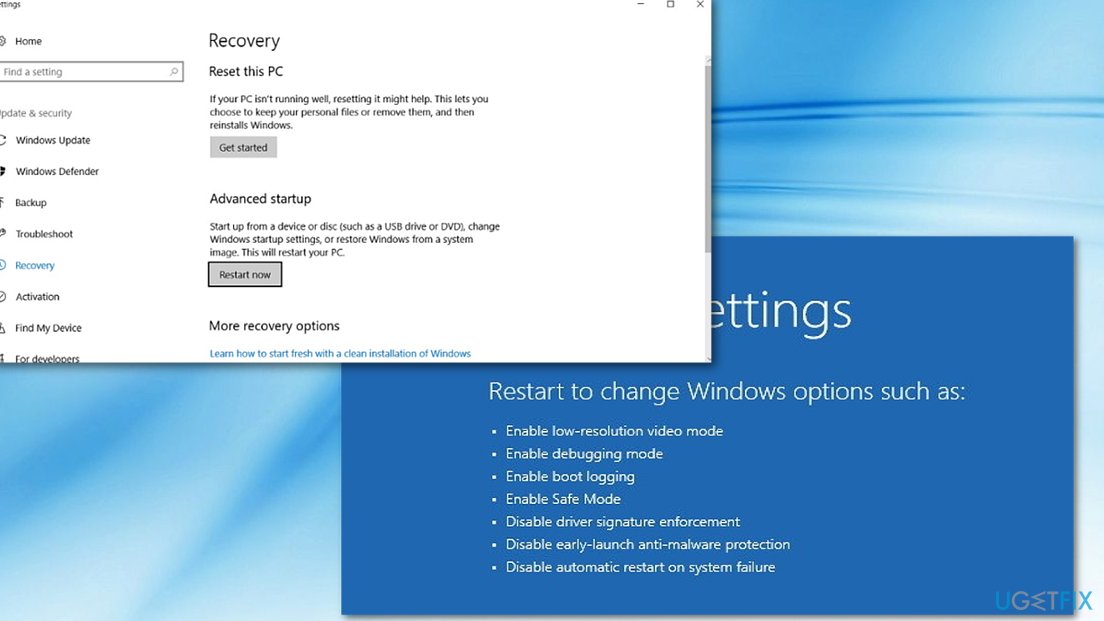
- Navigate to Update & Security and select Recovery.
- Under Advanced startup, click on Restart now.
- Your PC will restart in the Windows Recovery Environment (WinRE).
- On the Choose an option screen, select Troubleshoot > Advanced options > Startup Settings, then click on Restart.
- After your system restarts, you'll see a list of options. Select 4 or F4 to start your PC in Safe Mode.
- Once in Safe Mode, open System Restore and try running it again.
Option 4. Increase system partition space
Insufficient disk space in the system partition can prevent System Restore from creating or using restore points.
- Press the Windows key + X and select Disk Management.
- Right-click the system partition and select Extend Volume.
- Follow the wizard to allocate more space to the system partition.
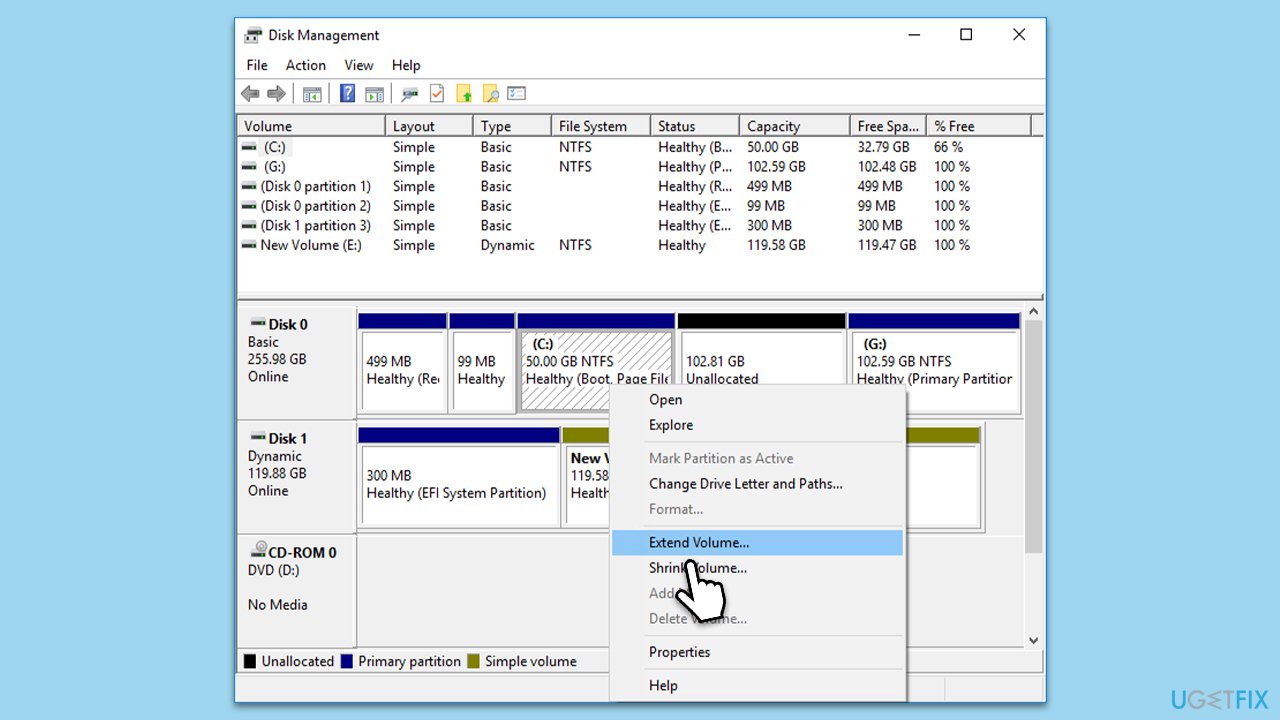
Note that Extend Volume option might not be available to you. The option is grayed out typically due to two main reasons:
- Lack of contiguous unallocated space: To extend a volume, there must be unallocated space right next to the partition. If there's no such space, the option will be grayed out.
- File system or disk type: The feature works only with NTFS or RAW file systems and on basic disks, not with other file systems or dynamic disks.
Bottom line
To resolve the 0x80070780 error, you can run a disk check, use the System File Checker (SFC) tool or DISM, temporarily disable your antivirus, or clear space on your system partition. If none of these solutions work, further investigation into the system's health may be necessary.
Frequently asked questions
The 0x80070780 error typically occurs due to corrupted system files, issues with the restore point, or problems with the Volume Shadow Copy Service.
You can resolve this error by running the System File Checker (SFC) and DISM tools, or by checking the integrity of your restore points.
To prevent the 0x80070780 error, ensure your Windows 10 or Windows 11 system is regularly updated and perform regular disk checks to maintain system integrity.




Report an issue
What's wrong with this guide? We review every report and update or remove content.
Report received — thank you. We'll review and fix it.
You need a free account to submit a report.
Be the first to comment