How to fix
Application error 0xc0000005
on Windows
Resolve Application error 0xc0000005 on Windows 10 or 11 swiftly. Get effective solutions backed by expert-tested methods for a seamless experience. Fix…


What causes How to fix Application error 0xc0000005?
- Corrupted system files
- Broken Windows registry database files
- Malware infections
- Broken hardware (usually RAM)
- Data Execution Prevention (DEP) feature
Repairs Windows system files, removes malware, and restores a clean OS state — without reinstalling.
Hello. Recently I have been bugged by an annoying error that prevents me from watching videos as they have no sound anymore. The pop-up says it's "Application error 0xc0000005." Is there anything that can be done about this? I am using my computer just like I used to before, so I don't know why this started happening... please help me.
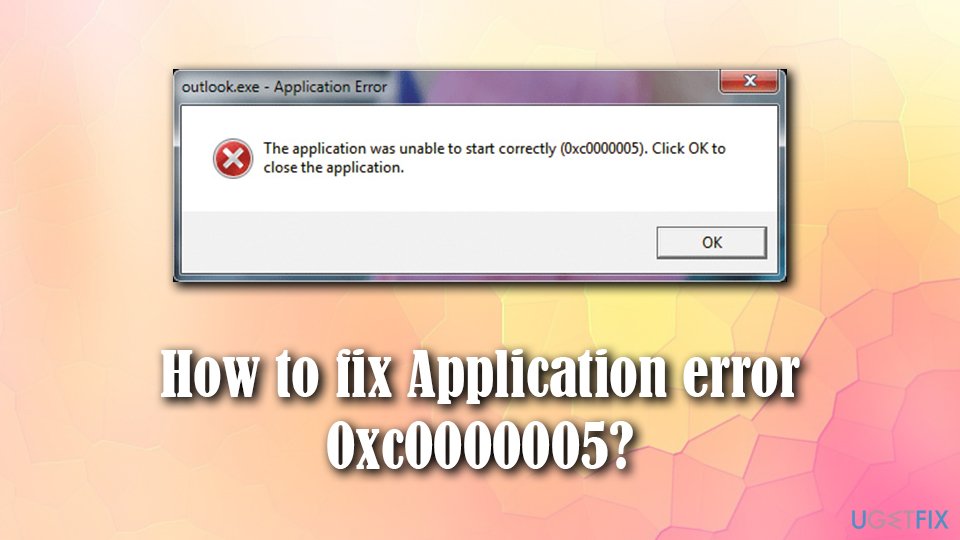
The error code 0xc0000005, otherwise known as Access Violation error or Exception Processing Message 0xc0000005 is a broad problem and usually appears when users try to open various applications on Windows operating systems. It prevents them from doing so, as all they can press is "OK" which stops the program from being run in the first place.
The particular code associated with this error also is related to a more general 0xc0000005 Windows error that is commonly seen and is mainly related to three different scenarios and types of situations: Acess violation error that is pretty rare but a broad error that prevents some Windows functions from running; Application error - the most common issue described in this article as well as Exception Processing Message 0xc0000005 - Unexpected Parameters.
The third error related to the same code is Windows Media Player error 0xc0000005 which is in particular related to DLL files and Windows 10 updates that included some bugs. After official fixes got released, Windows 10 users managed to avoid this particular message, but more recent and common errors like Exception Processing Message 0xc0000005 - Unexpected Parameters still bothers[ref en-4] people to this day.
Nevertheless, some users reported that error 0xc0000005 can occur when trying to open multiple different programs, or that it pops up when trying to use built-in Windows features, such as Windows Media Player.
The application was unable to start correctly (0xc0000005). Click OK to close the application.
The root cause of the 0xc0000005 error is that some component within the system is preventing the application from starting correctly. However, there are multiple reasons why the issue might show up, including corrupted system files, broken Windows registry[ref en-1] database files, malware infections, broken hardware (usually RAM),[ref en-2] Data Execution Prevention (DEP) feature, security software, faulty drivers, etc.
Due to the nature of the 0xc0000005 error, it can be extremely frustrating to users, and might even prevent them from using most of the installed applications on the Windows machine, prompting a full reinstall of the system, which might be extremely time-consuming.
How to fix 0xc0000005 Windows error
The error 0xc0000005 is related to three situations:
- access violation;
- application starting errors;
- Windows update installation issues.
Since these errors can differ, there are some solutions for these problems. If you're dealing with the error, you should find a fix in this article. Exception Processing Message 0xc0000005 can be caused by low memory or damaged RAM or even malware infection. This is why troubleshooting might help in the first stage. Do not skip methods until the issue is solved fully.
In this article, we will try to help you fix 0xc0000005 error. Note that if you are not an experienced user or do not have time for fixing the computer manually, we recommend you installing [d1] - the software is unique and can help users resolve many Windows errors automatically, as it uses up-to-date databases that consist of 25,000 Windows.
Thus, damaged ones can be replaced by the application without needing to even reboot the system. It can also fix the Windows registry - a part of the operating system that should rather not be touched by regular users. Make sure to keep the system updated and avoid suspicious sources to avoid anything similar to Exception Processing Message 0xc0000005 and other errors.
1. Run System File Checker
System File Checker is a built-in tool that can scan your OS to repair corrupted system files automatically. To access it, you will have to open Command Prompt with Administrative privileges:
- In Cortana's search box, type in cmd
- You should see Command Prompt in the search results - right-click and select Run as administrator
- As the new window opens, type in the following line and hit Enter
sfc /scannow
- Wait till Windows completes the scan
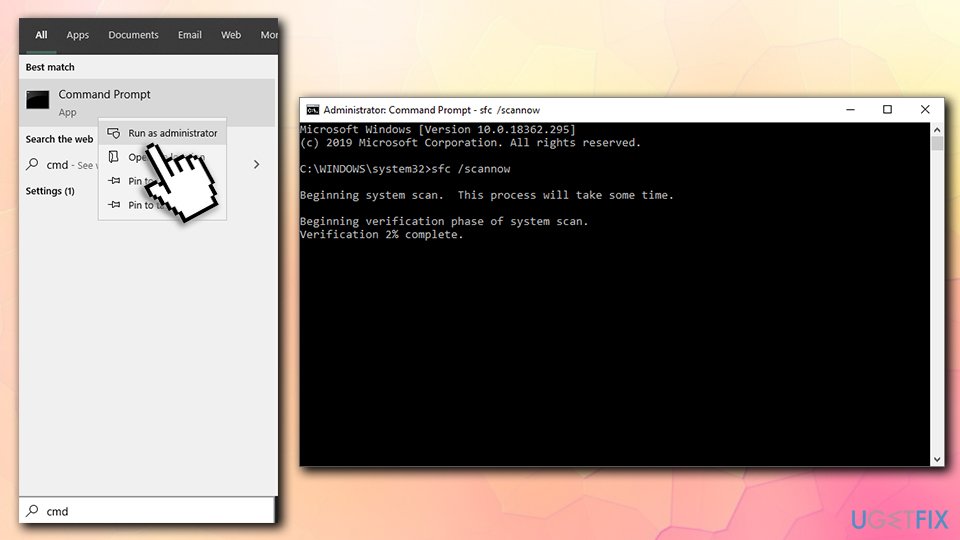
How to fix application error 0xc0000005 run sfc scan - If any type of system corruption will be found, the damaged files will be repaired automatically
- Reboot your machine and see if the 0xc0000005 error persist when trying to open the problematic application
2. Scan your computer for malware to fix Exception Processing Message 0xc0000005
Malware is a type of malicious software that can perform many tasks and is categorized into Trojans, worms, viruses, ransomware, rootkits,[ref en-3] backdoors, and many others. Depending on malware's goal, it can be programmed to do various things on the host machine, including the prevention of certain apps to be started.
Therefore, there is a chance that 0xc0000005 error is caused by a computer parasite that is lurking in your system. To check if that is (not) the case, you should employ security software and perform a full system scan. You can use a built-in Windows defender or invest in a reputable third-party tool.
3. Temporarily disable your antivirus software
Security software can sometimes cause problems due to incompatibility and other issues. Therefore, when dealing with various Windows errors, it is advisable turning off the anti-malware program protection temporarily and check if the problem persists. Disabling AV can usually be done by clicking the icon at the bottom-right corner and selecting Disable or Exit.
4. Turn off Data Execution Prevention (DEP)
Data Execution Prevention (DEP) is a built-in feature that is used to protect Windows computers from viruses and malware. If the 0xc0000005 error occurs only when trying to use a particular (safe) application, you can disable the feature for it:
- Press Win + R
- Type in sysdm.cpl and hit Enter
- In System Properties window, select Advanced tab
- Pick Settings (under Performance)
- Select Data Execution Prevention tab and then click on Turn on DEP for all programs and services except those I select option
- Click Add
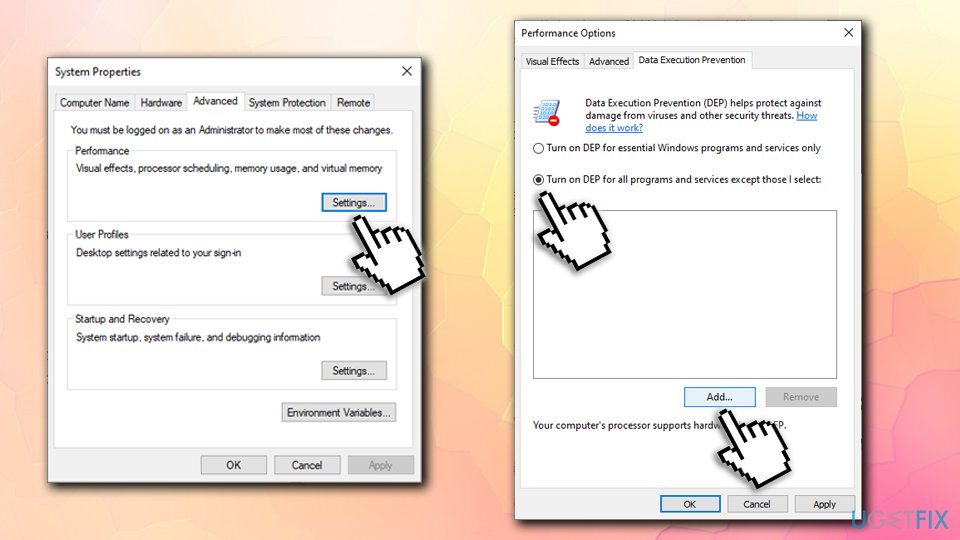
How to fix application error 0xc0000005 turn off dep - Open the executable of the program you are having troubles with
- Try open the problematic application and see if 0xc0000005 pops up again. If it did not help, proceed with the next fix
5. Modify Windows Registry to solve Access violation and other 0xc0000005 errors
- Press Windows and R keys.
- Type regedit and click Enter.
- Navigate to HKEY_LOCAL_MACHINE\\SOFTWARE\\Microsoft\\Windows NT\\CurrentVersion\\Windows location within the registry.
- Double-click LoadAppInit_DLLs and modify the value from 1 to 0.
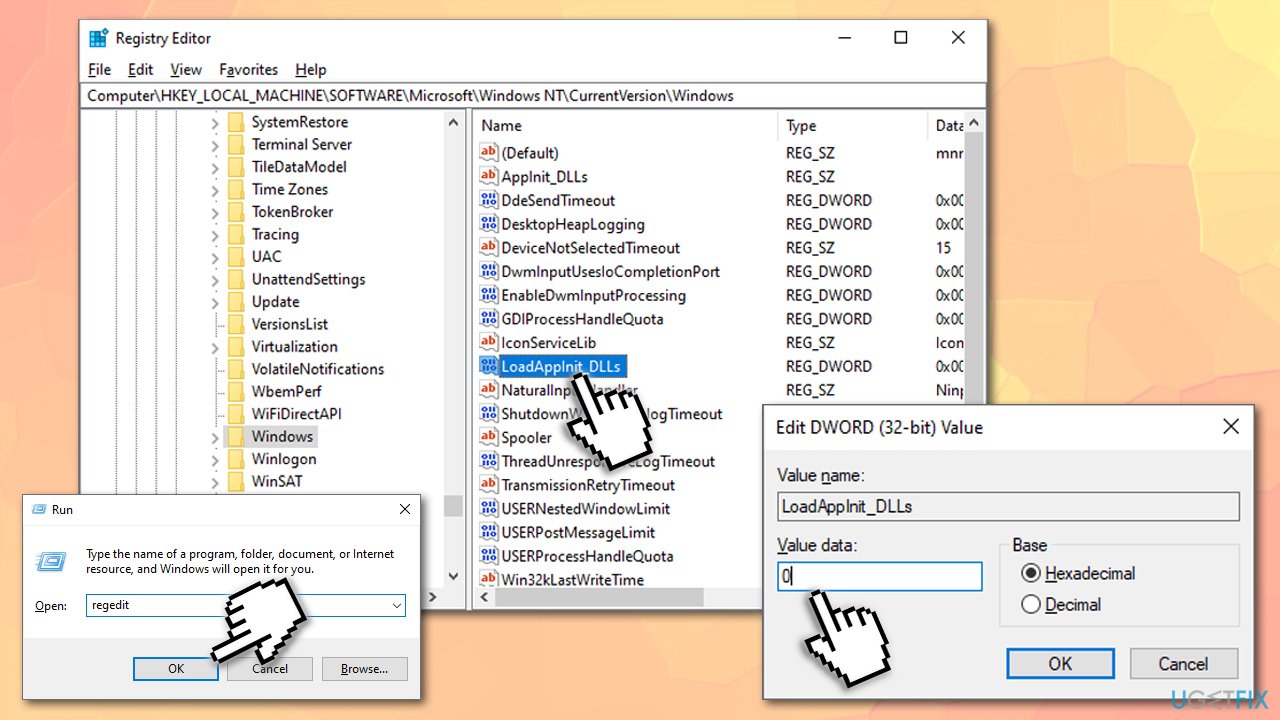
Fix application error 0xc0000005 edit registry - Click OK.
- Restart the PC.
6. Update computer drivers
Drivers are a vital part of any Windows operating system, and, if anything goes wrong, they might be corrupted, outdated, or simply broken. Thus, you should make sure all your drivers are up to date:
- Right-click on the Start button and pick Device Manager
- Expand the category of drivers that are causing your problems (if you do not know, do it for every device)
- Right-click on the device and select Update Driver
- Pick Search automatically for updated driver software
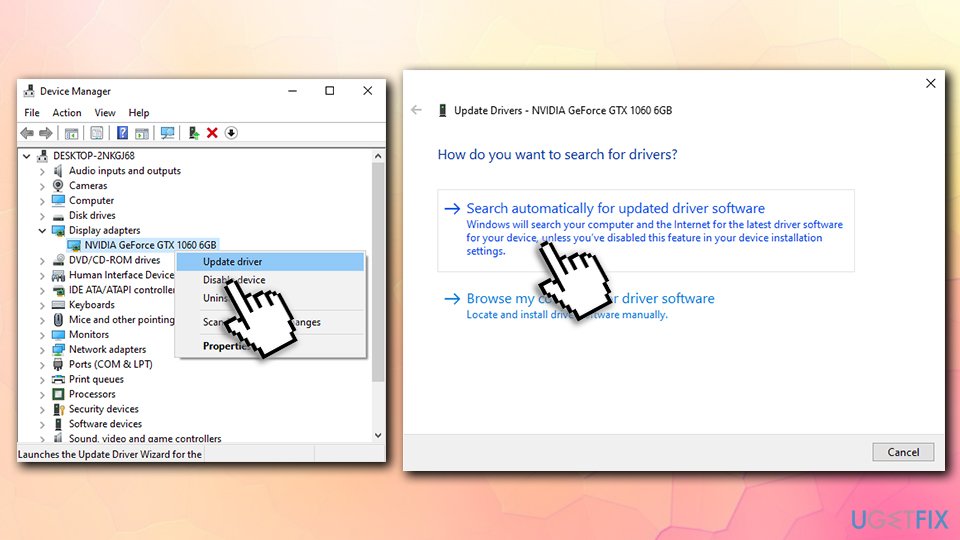
How to fix application error 0xc0000005 update drivers - Wait till Windows downloads and updates the required drivers
- Reboot your machine
- If not results, repeat for the other devices (Network adapters, Display adapters, HID, etc.).
As evident, updating all drivers can be extremely time-consuming. Besides, the Device Manager is not an optimal tool to use for driver updates, as many of them are entirely missed. Therefore, you should either download the latest versions of the relevant drivers via the device manufacturer's website or use an automatic driver updater such as [rev id="DriverFix"].
7. Check your RAM functionality
There is a chance that 0xc0000005 error fix lies within a new RAM stick(s). Just as any other computer parts, RAM can break, consequently causing Access Violation errors. If you have two RAM sticks, you should take out one of them and see if the problem persists and then repeat it with the other one.
You can also check for memory issues with Windows Memory Diagnostic tool:
- In Windows search, type in Memory and hit Enter.
- A pop-up prompt window will show up.
- In here, select the Restart now and check for problems (recommended) option.
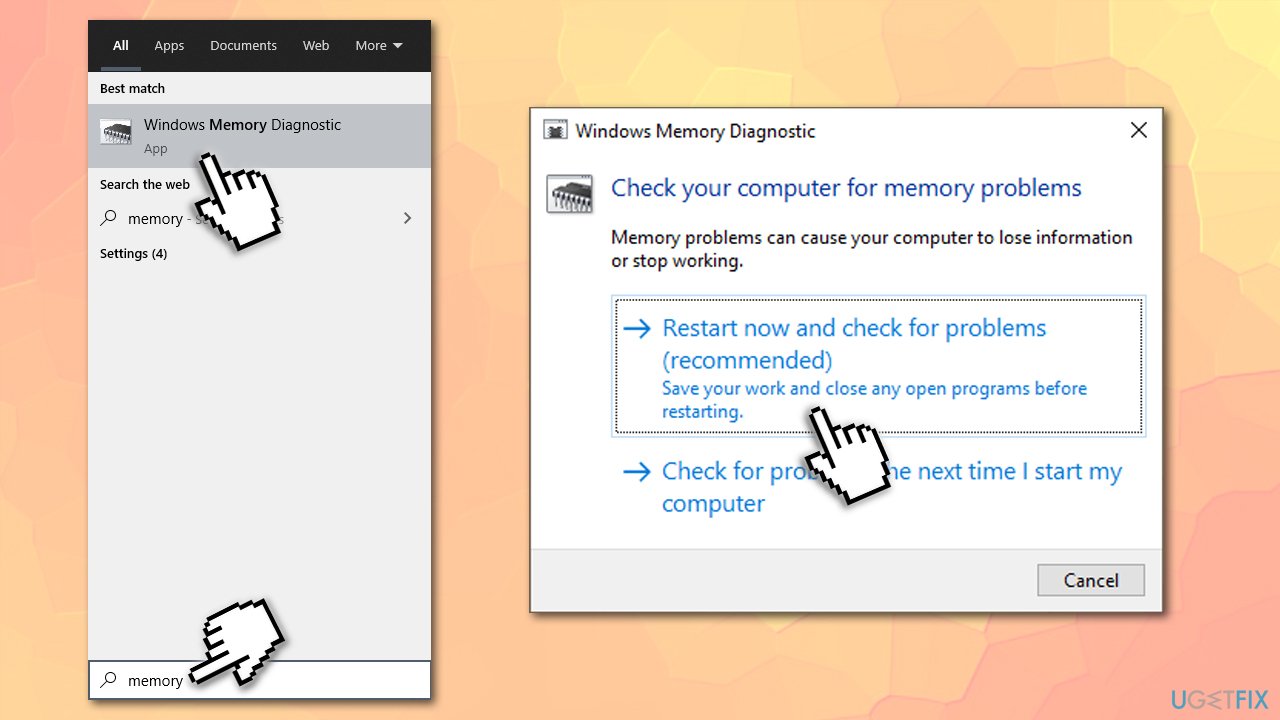
Fix application error 0xc0000005 run windows memory diagnostic - At this time, your PC will automatically restart and perform a full check afterward.
8. Run DISM
- Press Start and type the CMD into search bar.
- Right-click on the Command Prompt and choose Run as administrator.
- Then enter commands me by one and hit Enter after each one:
DISM.exe /Online /Cleanup-image /Scanhealth
DISM.exe /Online /Cleanup-image /Restorehealth
DISM.exe /online /cleanup-image /startcomponentcleanup
9. Reset your PC
Resetting the PC is your last options, as it will delete all the installed applications and you will have to reinstall them all over again. Nevertheless, it will let you keep all your personal files:
- Right-click on the Start button and pick Settings > Update & Security
- Click on Recovery on the left side
- Under Reset this PC, click on Get started
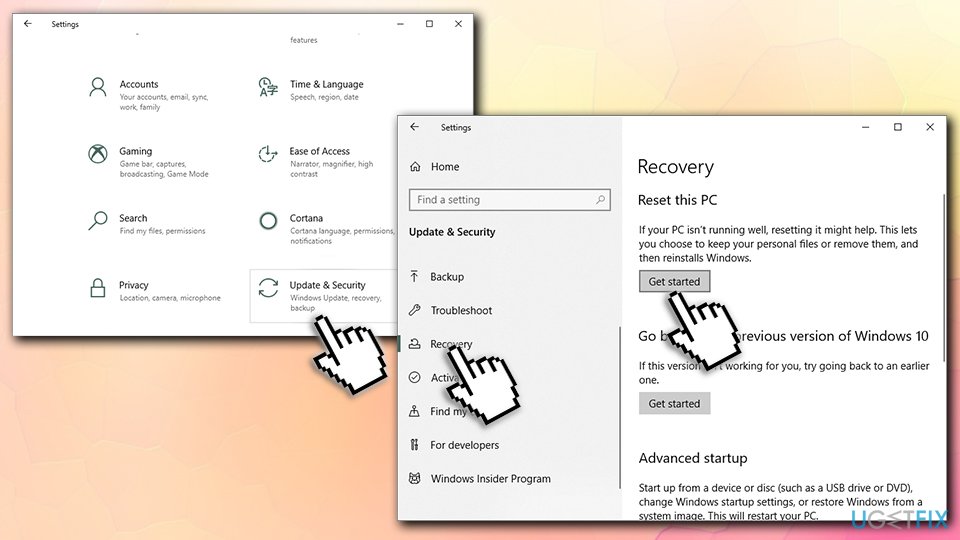
How to fix application error 0xc0000005 reset your pc - Select Keep my Files and proceed with the on-screen instructions.
10. Fix 0xc0000005 error when trying to download Windows update
If you are experiencing the error while trying to update Windows, you should run Windows update troubleshooter:
- Type in troubleshoot in Windows search and press Enter.
- If you can't see troubleshooters listed on the right, click Additional troubleshooters instead.
- There, scroll down and select Windows Update.
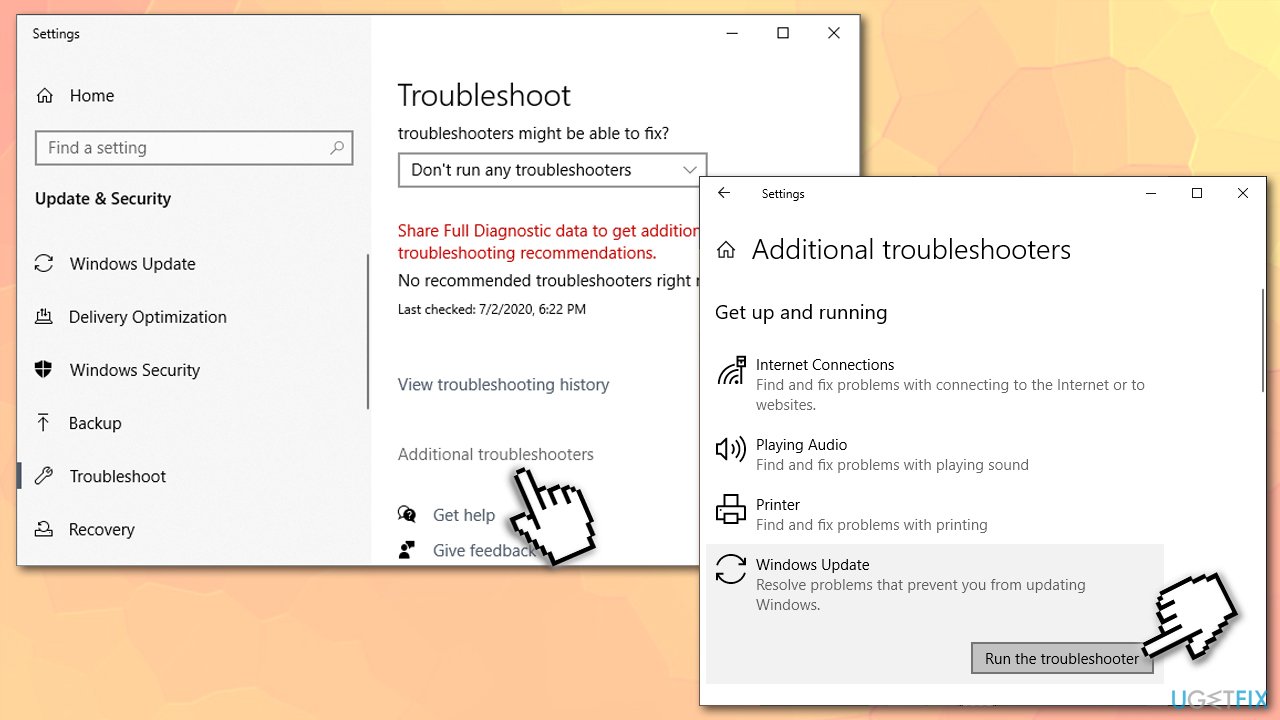
Fix application error 0xc0000005 run windows update troubleshooter - Click Run troubleshooter and wait till the scan is finished.
You can also try resetting Windows update components as follows:
- Open Command Prompt as administrator as explained in previous steps above.
- Type in the following commands, pressing Enter after each:
net stop wuauserv
net stop cryptSvc
net stop bits
net stop msiserver
ren C:\\Windows\\SoftwareDistribution SoftwareDistribution.old
ren C:\\Windows\\System32\\catroot2 catroot2.old
net start wuauserv
net start cryptSvc
net start bits
net start msiserver
- Reboot your computer and see if that helps.
Bottom line
To fix the Application error 0xc0000005, you can try repairing corrupted system files, checking for malware infections, and adjusting the Data Execution Prevention settings. If these solutions do not resolve the issue, consider checking your hardware for faults or reinstalling the affected applications.
Frequently asked questions
Application error 0xc0000005 indicates an access violation error, which means a program tried to access a memory location that it is not allowed to. This can occur due to corrupted files, incompatible software, or hardware issues.
To troubleshoot application error 0xc0000005 on Windows 11, you can try running the affected application as an administrator, disabling any third-party antivirus software, or performing a clean boot to identify conflicting programs.
Yes, check the Data Execution Prevention (DEP) settings in Windows 10, as incorrect DEP configurations can lead to error 0xc0000005. Ensure that the application is added to the exceptions list or that DEP is configured properly.




Report an issue
What's wrong with this guide? We review every report and update or remove content.
Report received — thank you. We'll review and fix it.
You need a free account to submit a report.
Be the first to comment