How to fix
AsusTPCenter.exe Bad Image error
on Windows
Resolve the AsusTPCenter.exe Bad Image error on Windows 10 and 11 quickly. Follow our expert-tested solutions for a hassle-free experience. Fixed in min…

What causes How to fix AsusTPCenter.exe Bad Image error in Windows?
- Corrupted AsusTPStrike.dll file
- Recent system changes interfering with files
- Malware disguising itself as the executable
- Issues with how the computer accesses or reads files
Repairs Windows system files, removes malware, and restores a clean OS state — without reinstalling.
Hello. I keep receiving AsusTPCenter.exe - Bad Image error constantly. I click "OK," but it doesn't help, and the issue persists. Any tips here would be great.
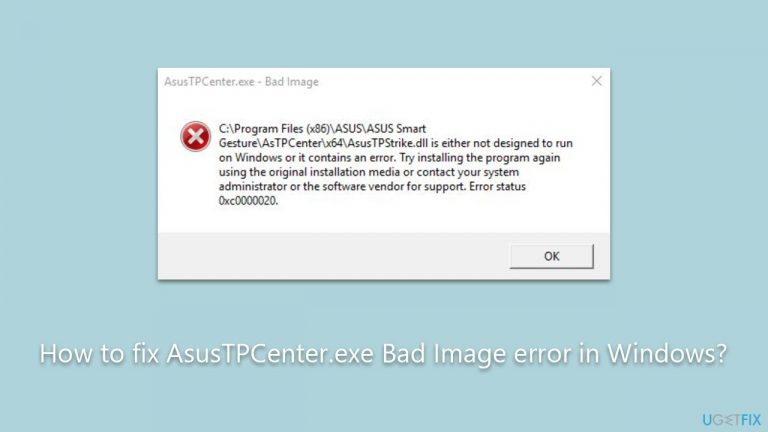
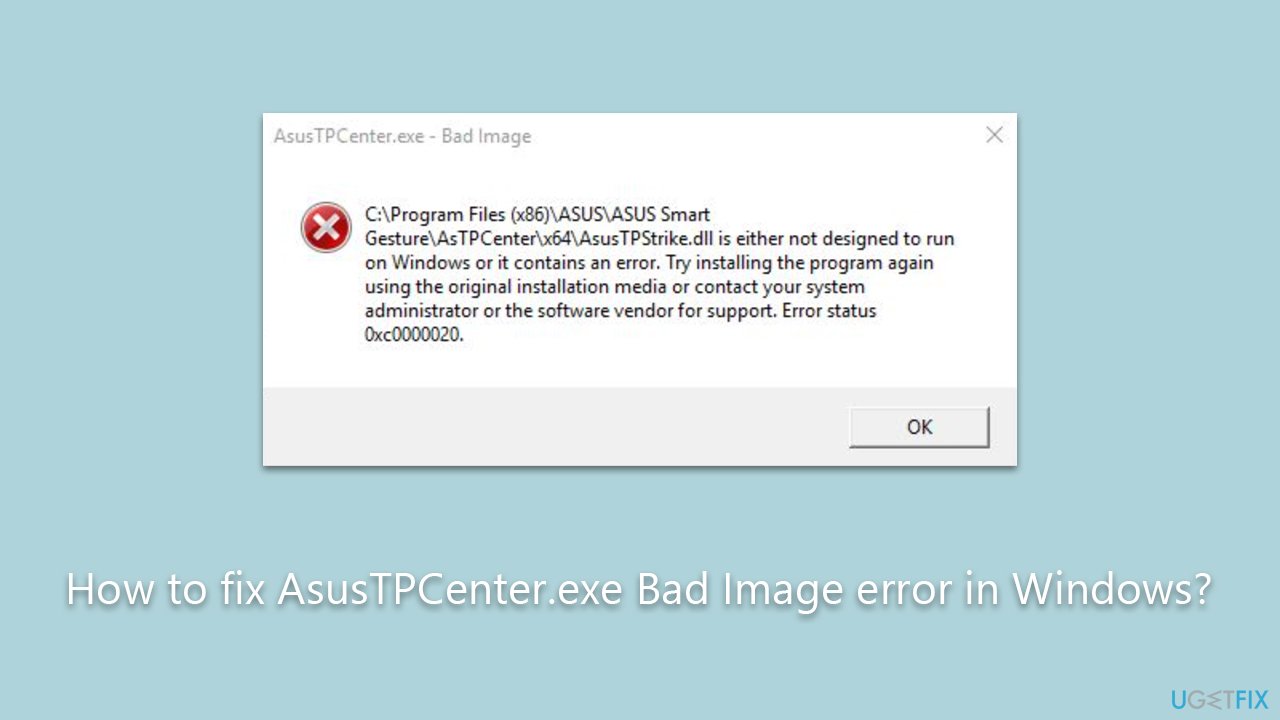
In the world of computing, users often face various errors that can range from minor glitches to major malfunctions. One such error that Windows users have increasingly reported is the "AsusTPCenter.exe Bad Image" error. Accompanied by a mention of the AsusTPStrike.dll and an error code 0xc0000020, this issue has frustrated many, causing interruptions and confusion.
For the average user, the sudden appearance of the AsusTPCenter.exe Bad Image error can be daunting. Some users find that this error crops up every time they switch on their computer. For others, it might show up sporadically during the computer's operation. However, the most troubling scenario for some is when the error message refuses to disappear, persisting even after they've clicked "OK."
To understand this error better, let’s delve into what AsusTPCenter.exe actually is. AsusTPCenter.exe is an executable file related to the software components of certain ASUS computers. This file is integral to the functioning of touchpad functionalities or other ASUS-specific utilities. The accompanying .dll file, AsusTPStrike.dll, is a dynamic link library file that the aforementioned executable might rely on to run specific operations. DLL files store multiple instructions that a program can call upon to do something.
The appearance of the AsusTPCenter.exe Bad Image error indicates a potential malfunction in how the computer accesses or reads these files. The root of this malfunction could be manifold: a corrupted AsusTPStrike.dll file, a recent system change that interfered with these files, or even malware that might be disguising itself using the name of the executable file. When the system can't access or execute the associated instructions in the DLL, it triggers this error with the code 0xc0000020.
While this error can be unsettling, there are potential solutions that users can employ to rectify it. Detailed instructions to address and resolve this error will be provided in the subsequent sections of this article. Moreover, using the [d1] PC repair tool can also be a viable alternative to manually addressing this issue, ensuring a more streamlined and efficient troubleshooting process.
Fix 1. Update drivers
Outdated or corrupt drivers can cause software components to malfunction. Ensuring that you have the latest drivers installed can help resolve such issues, as updated drivers often come with bug fixes and performance enhancements.
- Right-click the Start button and select Device Manager.
- Locate Mice and other pointing devices and expand it.
- Right-click on the ASUS touchpad device.
- Choose Update driver.
- Follow the on-screen instructions.
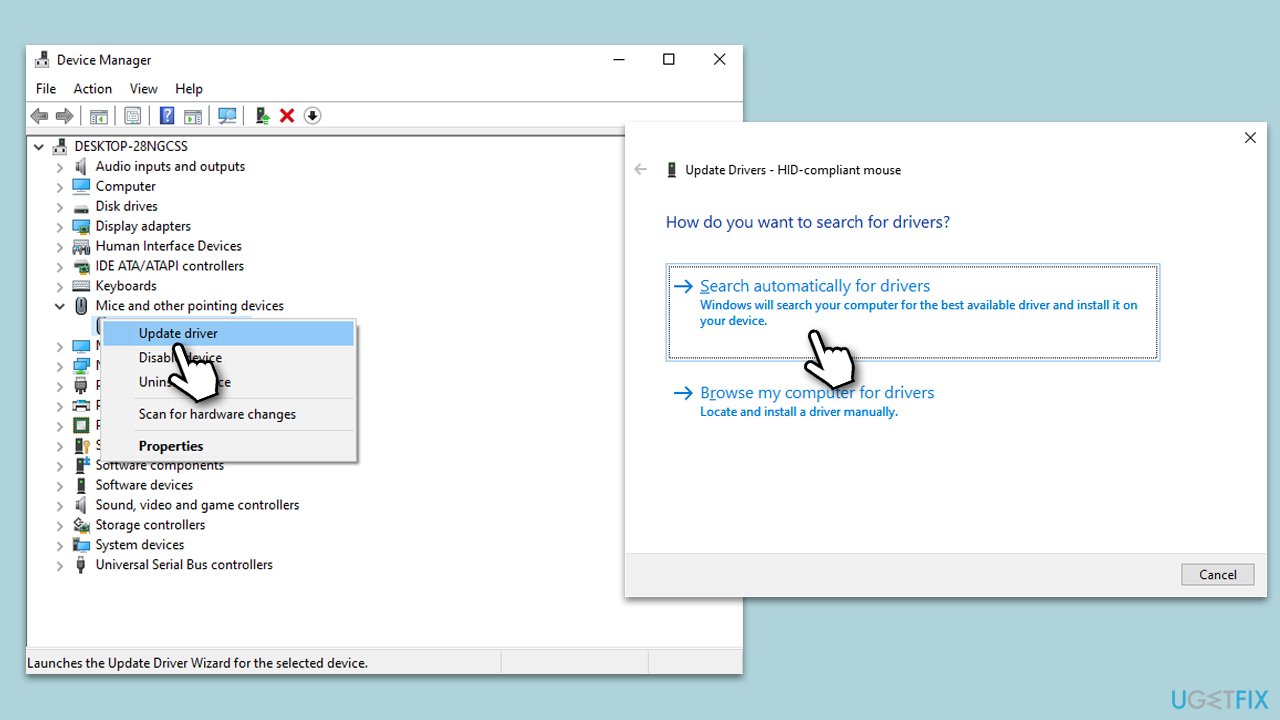
Note that using this method is not always optimal, as Windows might fail to install the latest driver. Thus, visit the official Asus website and download the driver from there or employ an automatic driver updater such as [rev id="DriverFix"].
If you have the latest driver already installed, we recommend reinstalling the driver instead.
Fix 2. Reinstall AsusTPCenter
A malfunctioning software component might be due to a corrupted installation. Reinstalling the software can provide a fresh start, eliminating any corrupt files or configurations.
- Go to Control Panel.
- Click on Uninstall a program.
- Find AsusTPCenter and uninstall it.
- Restart your computer.
- Visit the ASUS official website.
- Download the latest version of AsusTPCenter and install it.
Fix 3. Run System File Checker and DISM
Windows has built-in tools that can check and repair corrupted system files, potentially resolving the AsusTPCenter.exe Bad Image error.
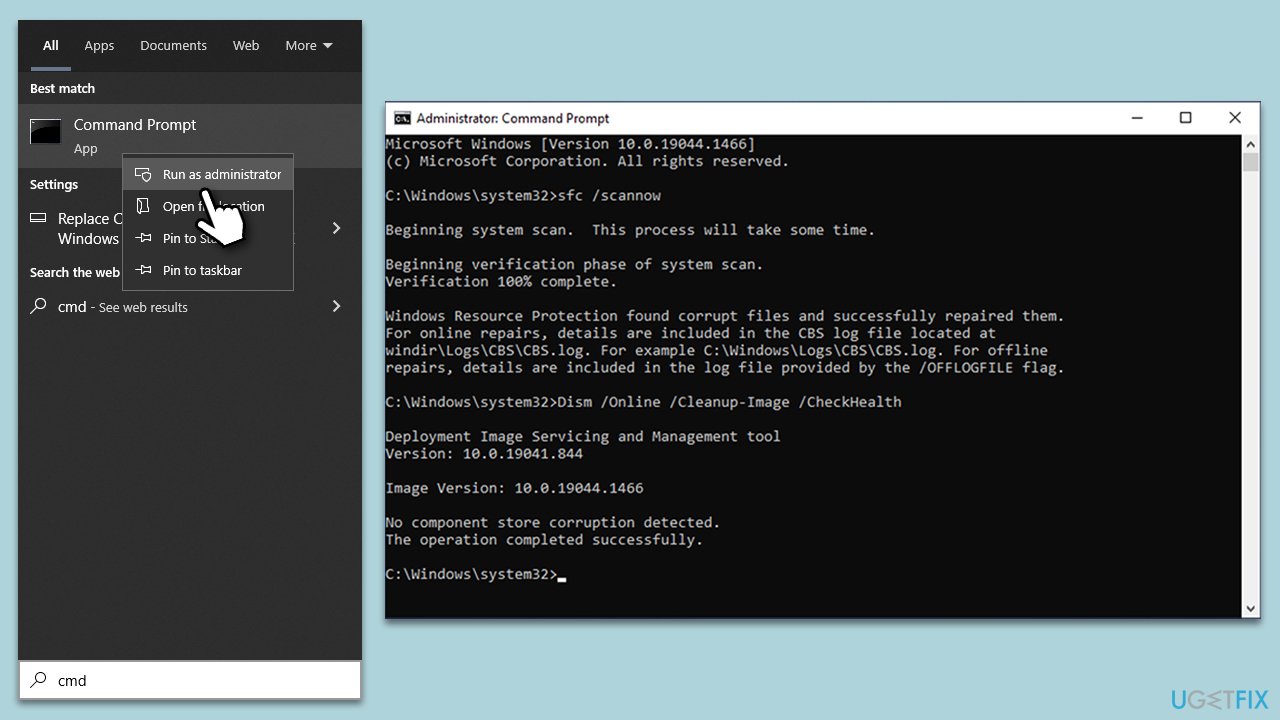
- Type cmd in Windows search.
- Right-click on Command Prompt and pick Run as administrator.
- User Account Control will ask you whether you want to allow changes – click Yes.
- Copy and paste this command and hit Enter:
sfc /scannow - Wait for the scan to finish.
- As soon as it finishes, Windows will report whether integrity violations were found and if they could be fixed. Regardless of the outcome, use these commands next, pressing Enter after each:
Dism /Online /Cleanup-Image /CheckHealth
Dism /Online /Cleanup-Image /ScanHealth
Dism /Online /Cleanup-Image /RestoreHealth - Close down the Command Prompt and restart your computer.
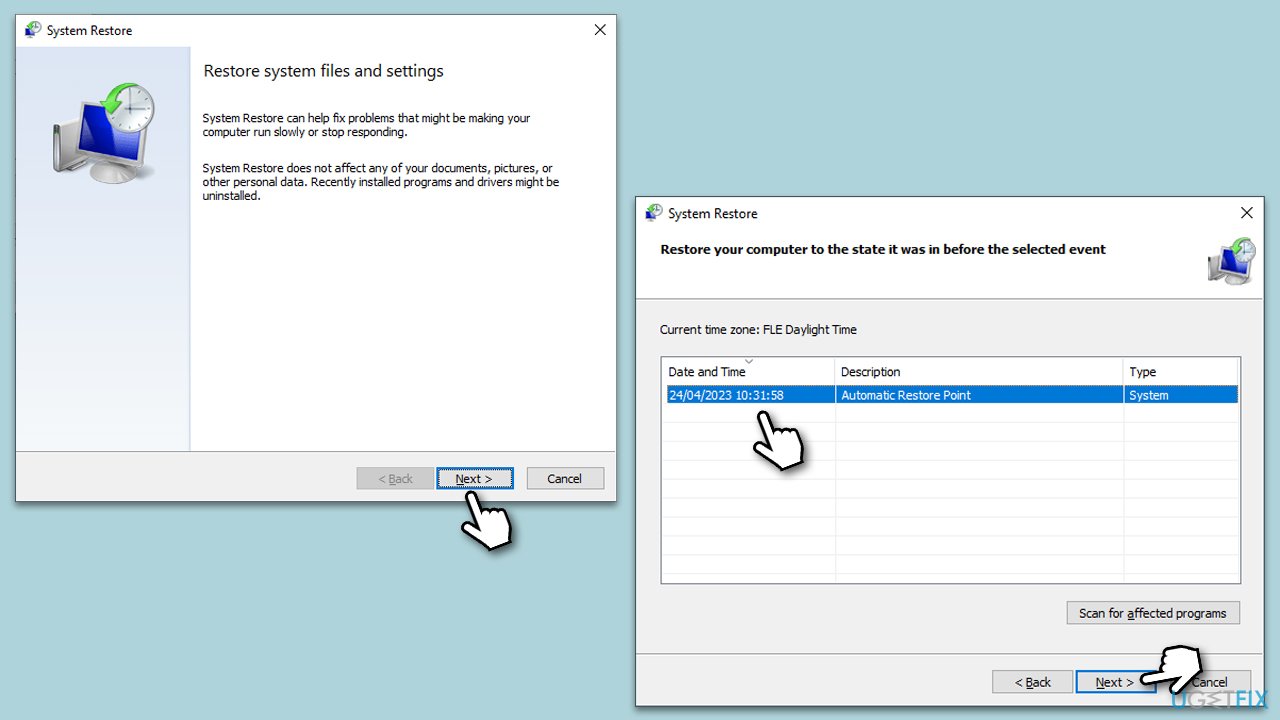
Fix 4. Restore the system to an earlier state
If the error started after a recent change, restoring Windows to a previous state might help.
- Type in Create a restore point in Windows search and hit Enter.
- Go to System Restore and click Next.
- Mark the Show more restore points option (if available).
- Pick the time when the problem did not exist and click Next.
- Finalize the process - your PC will restart.
Fix 5. Perform a Clean Boot
This allows you to start Windows with a minimal set of drivers and services, eliminating software conflicts.
- Press the Win + R to open the Run dialog.
- Type msconfig and press Enter.
- In the System Configuration window, select Selective Startup, and uncheck Load startup items.
- Go to the Services tab and check the box Hide all Microsoft services, then click Disable all.
- Click on the Startup tab and open Task Manager.
- Disable all the startup items in the Task Manager.
- Click OK, and restart the computer.
- Once the computer is restarted, try the action that was causing the error.
- If resolved, you can start enabling services and startup items one by one to identify the faulty software.

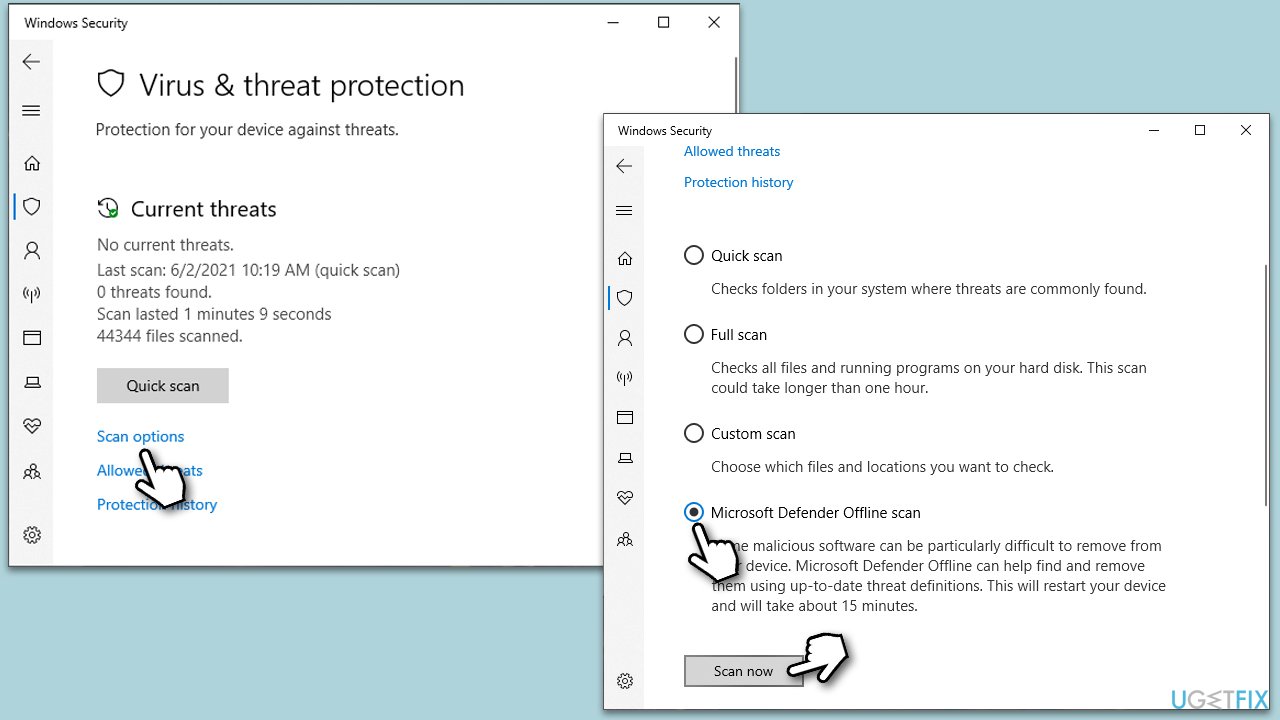
Fix 6. Scan for malware
Malicious software can sometimes disguise itself as legitimate files or cause existing files to malfunction. You can employ a third-party anti-malware, Microsoft Security Scanner, or the built-in Microsoft Defender:
- Type Windows Security in the Windows search bar and hit Enter.
- Select Virus & threat protection.
- Pick Scan options.
- Choose Microsoft Defender Offline scan and click Scan now.
- Your PC will immediately reboot and begin a deep scan.
Fix 7. Check for Windows updates
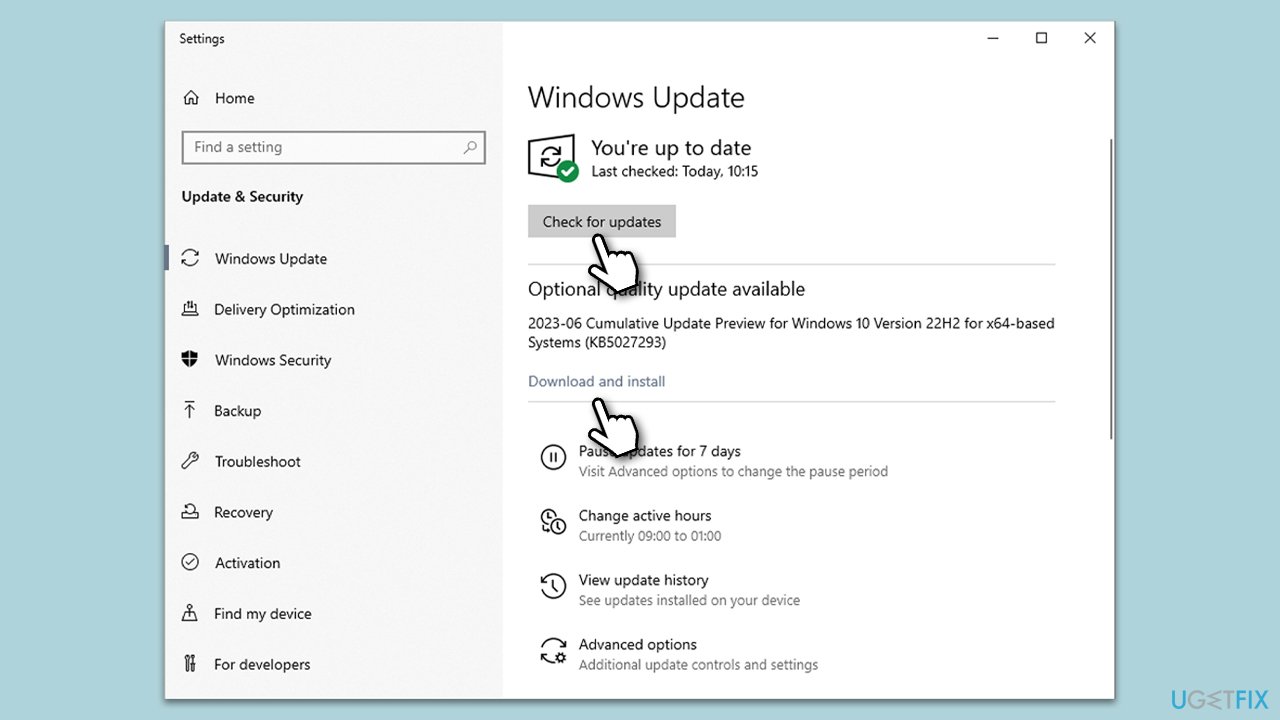
Microsoft regularly releases updates that can resolve known issues or conflicts.
- Type Updates in Windows search and press Enter.
- Here, click Check for updates.
- Wait till Windows downloads and installs all the files.
- If optional updates are available, install them as well.
- Reboot your system.
Fix 8. Reset PC
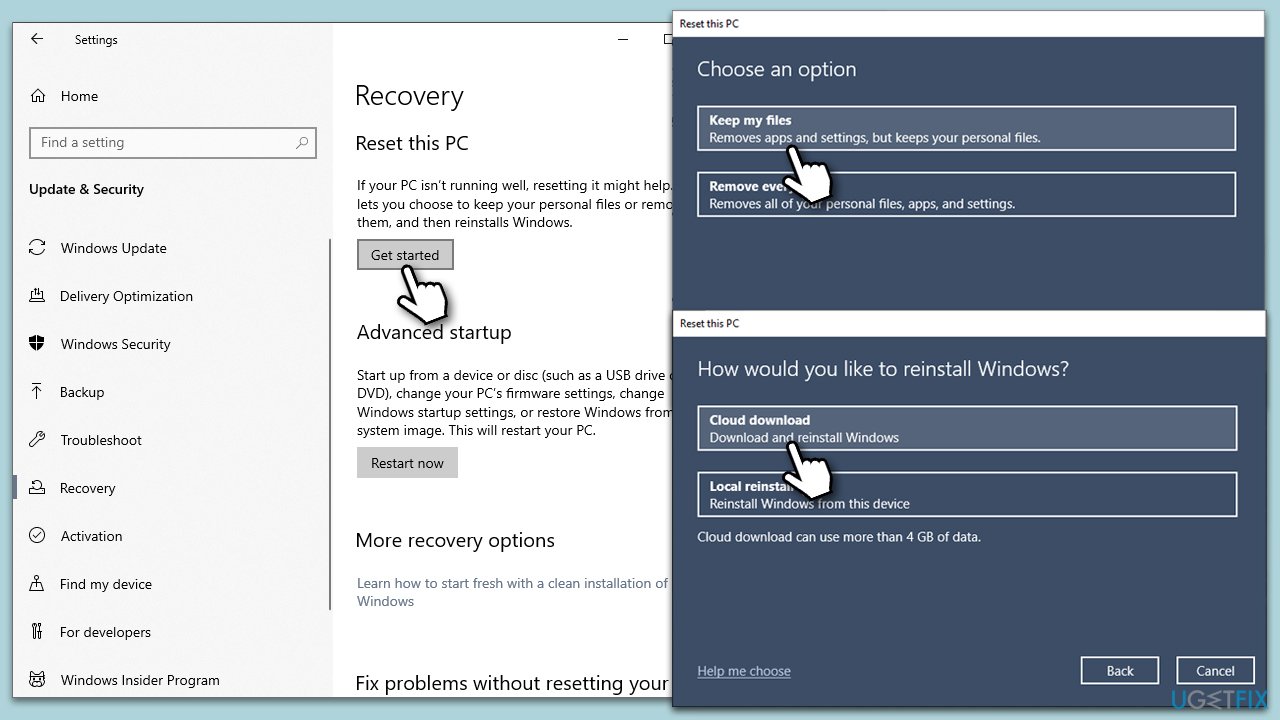
As a last resort, resetting your PC can help eliminate software conflicts and errors. This will remove installed apps but keep your personal files.
- Right-click on Start and then select Settings.
- Go to Update & Security and pick Recovery on the left side of the window.
- Find Reset this PC section and click Get Started.
- Select Keep my files and Cloud download.
- Next, pick whether you want to reinstall the apps.
- Click Reset.
- Your system will restart, and the process of Windows reset will begin.
Bottom line
To fix the AsusTPCenter.exe Bad Image error, users can attempt to replace the corrupted DLL file, perform a system restore, or run a malware scan. If these solutions do not resolve the issue, further troubleshooting may be necessary.
Frequently asked questions
The AsusTPCenter.exe Bad Image error typically occurs due to corrupted system files, incompatible software, or issues with the Asus software itself installed on your Windows system.
To fix the error on Windows 11, you can try reinstalling the Asus software, running the System File Checker, or performing a clean boot to identify conflicting applications.
While you can delete the AsusTPCenter.exe file, it's recommended to first troubleshoot the error to avoid losing functionality related to Asus features on Windows 10 or Windows 11.




Report an issue
What's wrong with this guide? We review every report and update or remove content.
Report received — thank you. We'll review and fix it.
You need a free account to submit a report.
Be the first to comment