How to fix
Audio stopped working after updating to Windows 11 version 22H2
on Windows
Resolve audio issues after the Windows 11 22H2 update quickly and effectively. Get your sound back with expert-tested solutions today!

What causes How to fix audio stopped working after updating to Windows 11 version 22H2?
- Corrupted audio drivers
- Missing audio drivers
- Malfunctions in Windows services
- Issues caused by the update process
Repairs Windows system files, removes malware, and restores a clean OS state — without reinstalling.
Hello. I recently updated my computer to Windows 11 version 22H2. After the update, the audio stopped working. How can I fix this?
There is no denying that Windows is one of the most popular operating systems in the world. People enjoy it because of its user-friendly interface, customization abilities, and built-in troubleshooters. Microsoft has recently released Windows 11 22H2 (2022 Update).[ref en-1] The update package is available as a free upgrade for devices already running Windows 11 21H2 and computers running Windows 10.
However, when people tried to install the 22H2 Windows 11 update, some of them encountered issues with audio. Many users say that audio stopped working after updating to Windows 11 version 22H2. It is unknown why exactly this might be happening. Most likely, the Windows installation has corrupted audio drivers, and they went missing. The updating process could have also caused malfunctions to Windows services.
This issue should be easily fixed by updating or reinstalling your audio drivers. In this guide, you will find 5 steps that should help you fix this issue. However, manual troubleshooting can be a lengthy process. You can use a maintenance tool like [d1] to scan your system. It can fix most system errors, BSODs,[ref en-2] corrupted files, and registry[ref en-3] issues. Otherwise, follow the step-by-step instructions below.
Method 1. Use Audio Troubleshooter
You can use an automatic troubleshooter which is capable of fixing minor problems with your Windows system. Try running the Audio troubleshooter to see if it solves the issue:
- Press the Windows key and type troubleshoot in the search bar
- Open Troubleshoot settings
- Select the Other troubleshooters option in the right pane
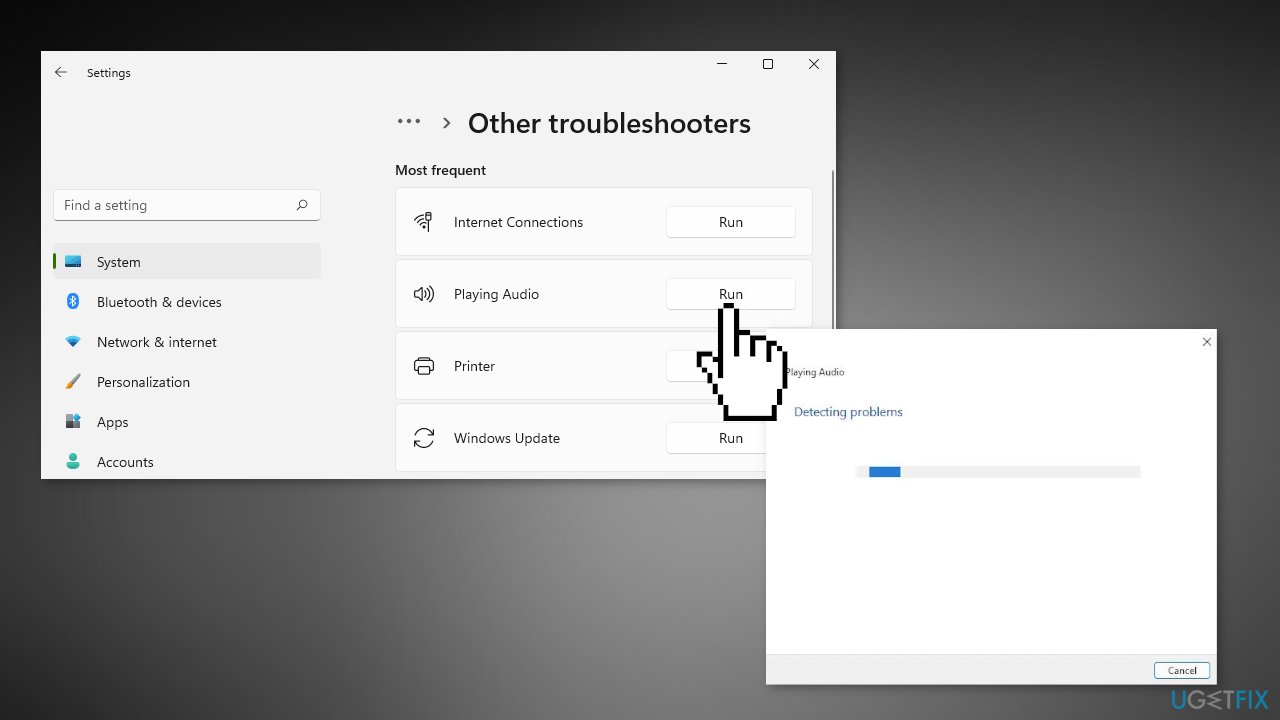
- Click on Run next to Playing Audio
Method 2. Uninstall the Sound Controller
- Click on the Start Menu, and find Device Manager
- Click the arrow pointing to Audio Inputs and Outputs
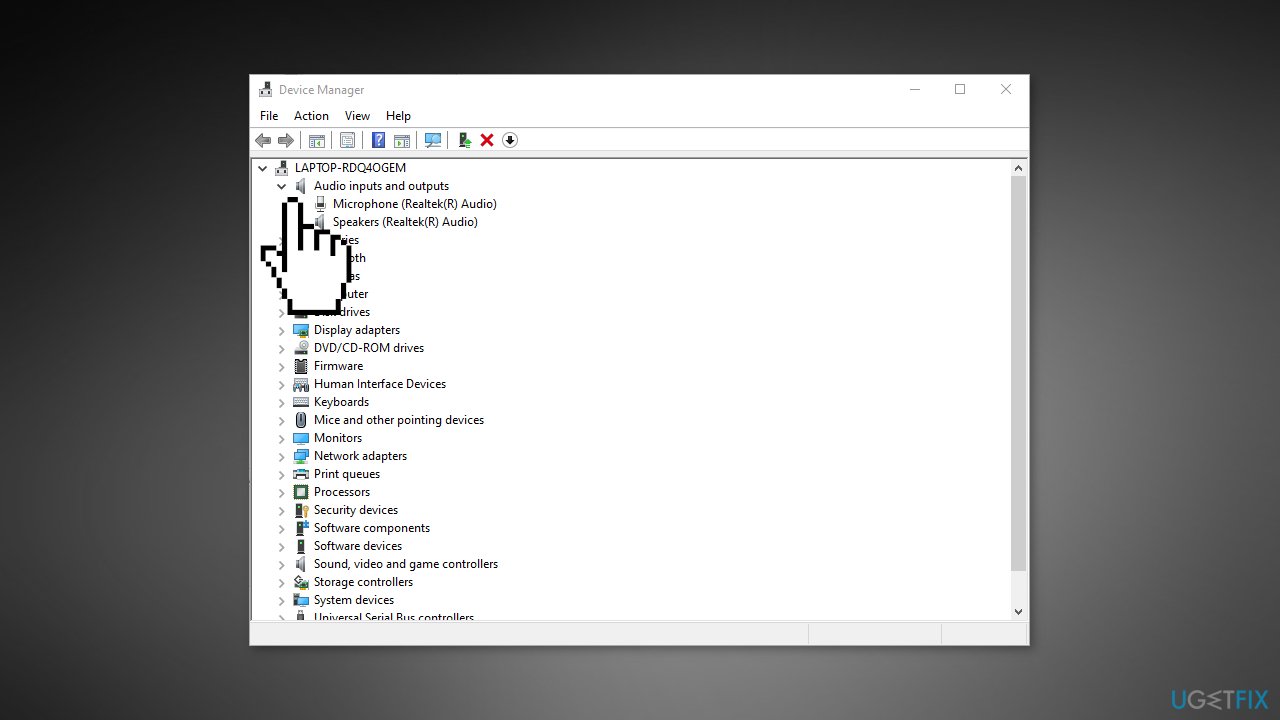
- Right-click on the installed device and click on Uninstall device
- Restart your computer
- If audio is still not working after reinstalling audio drivers, you can use an automatic solution, like [rev id="DriverFix"]. It can find the best drivers for your system and install them
Method 3. Install Another Driver Version
- Go to Device Manager
- Click the arrow pointing to Audio Inputs and Outputs
- Right-click the installed device and click Properties
- Go to the Driver tab, then click on Update Driver
- Press Browse Computer for Driver Software
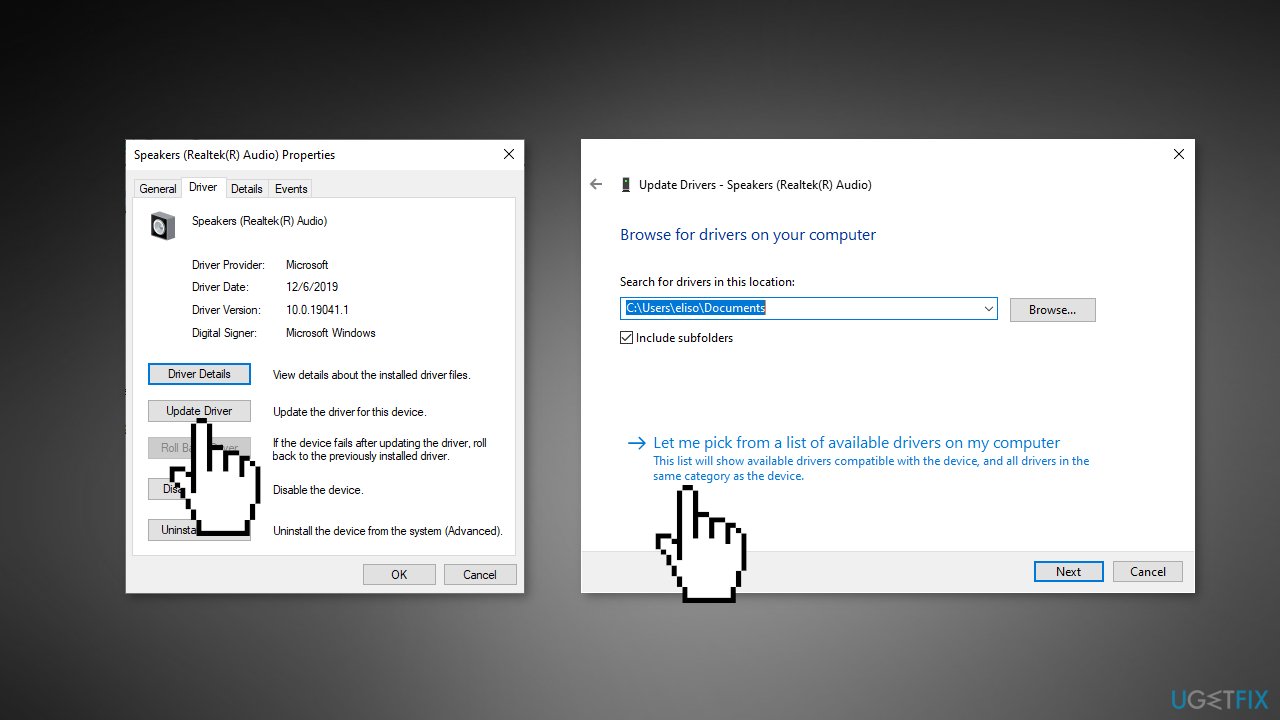
- Click Allow me to choose from a list of device drivers on my Computer
- Select High Definition Audio Device
- Click Next
- Once installed restart your PC
Method 4. Roll Back Driver
- Open Device Manager
- Click the arrow pointing to Audio Inputs and Outputs
- Right-click the installed device and click Properties
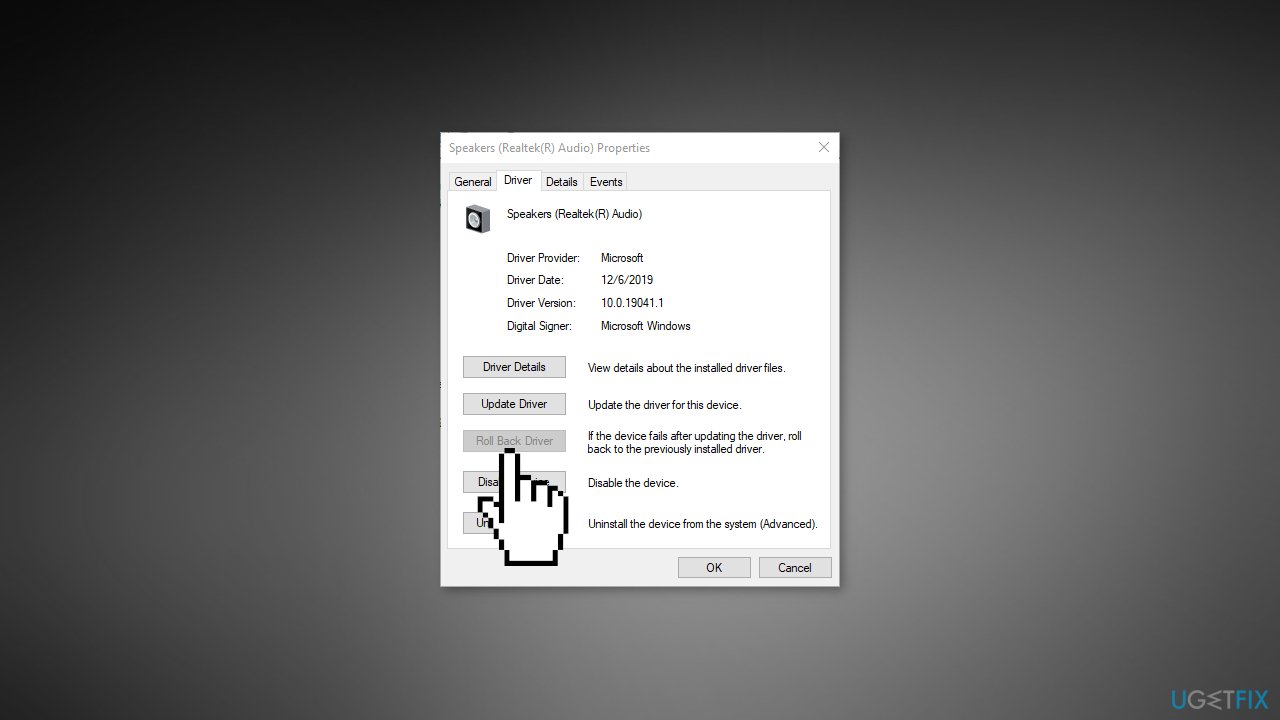
- Click on the Driver tab and see if the Revert option is available
- If so, click on it
- Restart your computer after the process
Method 5. Restart Windows Audio Service
If the Windows Audio service has stopped running, it needs to be restarted in order to fix audio issues:
- Use the Windows key + R to open the Run prompt
- Type
services.mscand hit Enter - Scroll down and look for Windows Audio service
- Double-click it and change the Startup type to Automatic, then click the Start button
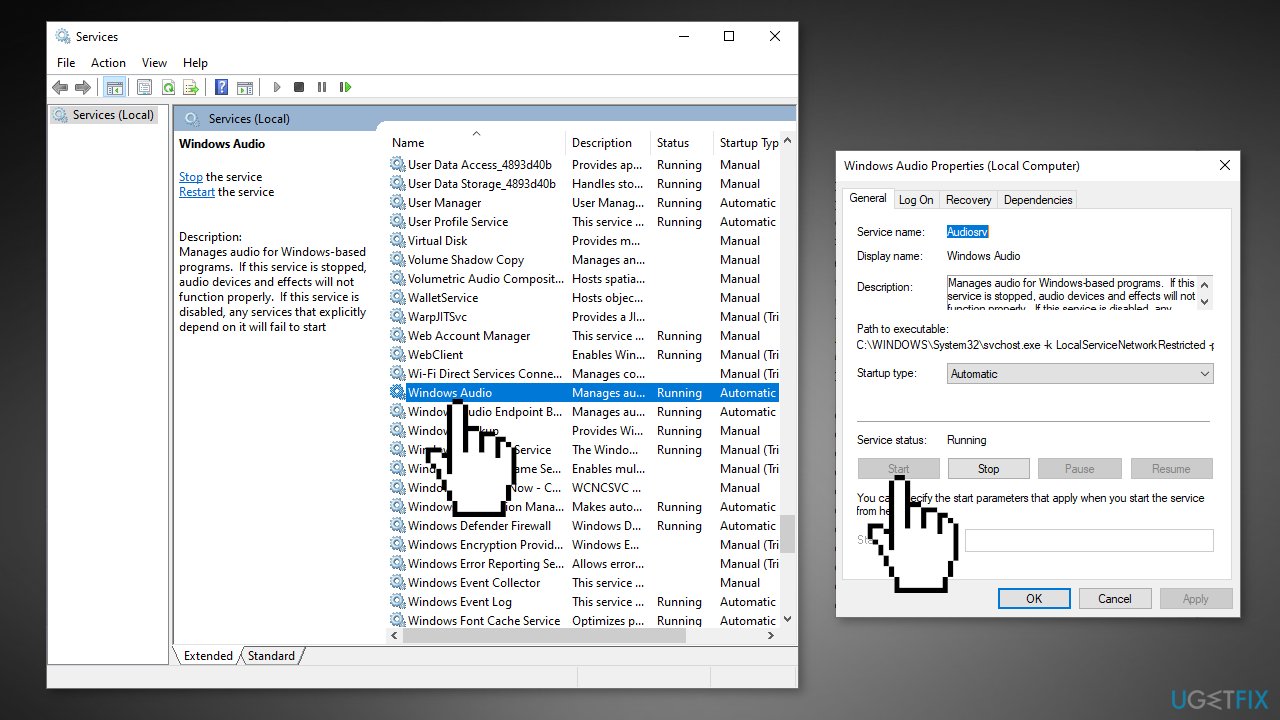
- Click on Apply and OK to save the changes
- Restart your PC and check whether the sound issue has been fixed
Bottom line
To fix the audio issue after updating to Windows 11 version 22H2, you can use the Audio Troubleshooter or uninstall and reinstall the sound controller. If these methods do not resolve the problem, consider using a maintenance tool to scan your system for errors.
Frequently asked questions
Start by checking your audio output settings in the Sound settings menu to ensure the correct device is selected. You can access this by right-clicking the sound icon in the taskbar and choosing 'Sounds'.
You can update your audio drivers by going to Device Manager, expanding the 'Sound, video and game controllers' section, right-clicking your audio device, and selecting 'Update driver'.
Yes, you can roll back the update by going to Settings > Windows Update > Update history > Uninstall updates, and then selecting the most recent update to remove it.




Report an issue
What's wrong with this guide? We review every report and update or remove content.
Report received — thank you. We'll review and fix it.
You need a free account to submit a report.
Be the first to comment