How to fix
Aw, Snap! Error Message on Google Chrome
on Windows
Resolve the Aw, Snap! error on Google Chrome in Windows 10 or Windows 11 with effective solutions. Quick fixes that are expert-tested and reliable.

What causes How to Fix Aw, Snap! Error Message on Google Chrome?
- Conflict on Google Chrome
- Low memory
- Browser cache issues
- Corrupted extensions
- Outdated browser version
Repairs Windows system files, removes malware, and restores a clean OS state — without reinstalling.
Why do I see “Aw, Snap!” crashed page on Chrome? Does it mean some Chrome bug or something? Is there something that I could do to stop this window from appearing?
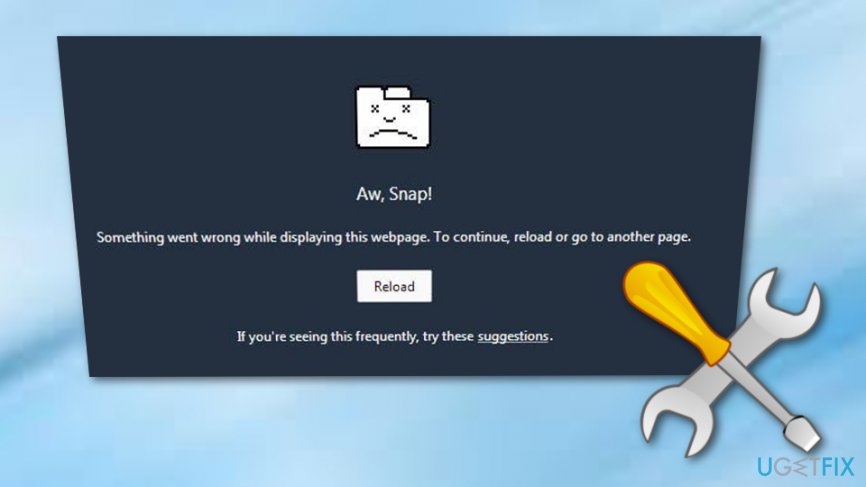
Aw, Snap! Is an error window that prevents Google Chrome users from accessing a preferred web page. The occurrence of this message does not depend on the operating system that the PC/laptop/tablet is running. Although the majority of people who reported about Aw, Snap! Error claim to be using Windows 10, Windows 8, 7, 8.1, and other versions may also encounter this problem.[ref en-1]
In fact, Mac OS, iOS, and Android[ref en-2] can also be touched by this inconvenience. This message simply means that there is some kind of a conflict on Google Chrome, which is why it cannot load a particular website. Google Chrome engineers also mention low memory as a possible Aw, Snap! Error reason. It goes without saying that continuous emergence of this crashed page is inconvenient and annoying, so we are going to mention several troubleshooting steps that have helped people to end this error up.
In this article, we are going to provide several simple steps that you should try one by one to fix Aw, Snap! Crashed page on Google Chrome. Although the majority of them are very primitive, sometimes people forget about these steps, so we are going to remind you what should be done when pages are crashing on Chrome web browser.
However, our recommendation would be to run a scan with a PC optimization tool like [d1]. This piece of software will let you know what places on your machine are problematic, including the web browser. Therefore, there is a high chance that after performing a proper PC’s optimization,[ref en-3] Aw, Snap! Error will disappear.
How to fix Aw, Snap! Error on Google Chrome?
Fix 1. Refresh the website that is crashing
To start with, click on the rounded arrow symbol, which is known as Reload. It can be found next to the address bar. Click on it once or twice and check whether Aw, Snap! window appears again. If it does, try the following methods.
Fix 2. Try to access the website in Incognito mode
Incognito mode bypasses web browsing history, caches,[ref en-4] and other browsing-related stuff that can be related to Aw, Snap! Crashes. To access Incognito Mode, you have to click on the Menu bar (three dots at the upper-right corner) and select New Incognito Window. After that, enter the address of the page you prefer visiting and hit enter. If the website is loaded normally, it means that it’s about time to clean Google Chrome’s cache and history.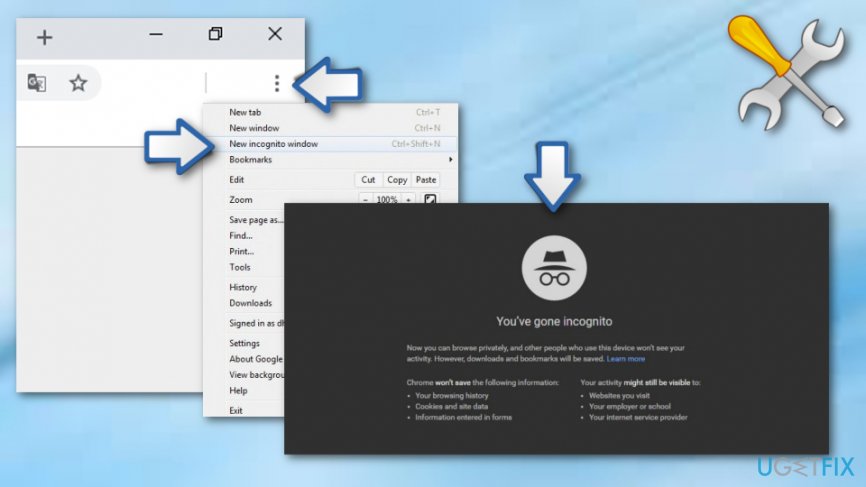
Fix 3. Open fewer tabs at once
If you have tens of tabs opened while Aw, Snap! Error emerges, it might be that all those tabs are the culprit of the problem. It might mean that Google Chrome simply cannot handle all of them due to insufficient memory or system resources. Thus, close the tabs and try to reload the web page.
Fix 4. Disable extensions
As you probably already know, there are lots of third-party plug-ins and add-ons that cause issues like web page crashes, freezes, slowdowns, and similar. Usually, such problems are triggered by third-party extensions that are downloaded from questionable resources. Thus, as soon as you start getting Aw, Snap! Bug, disable the extensions and try to reload the page. For this purpose, you have to:
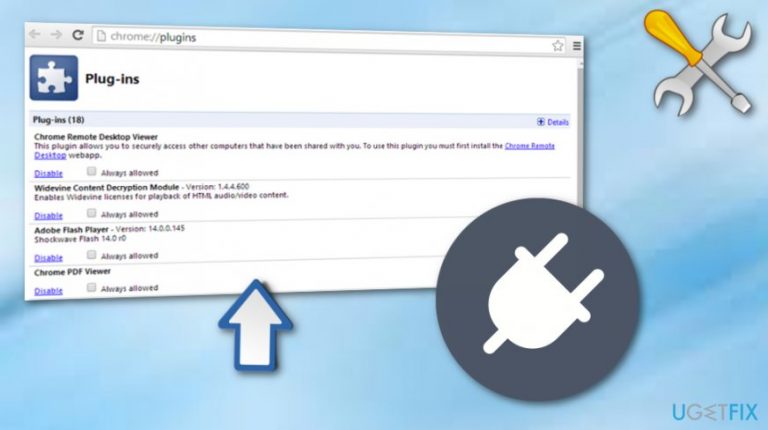
- Type chrome://plugins/ in the Chrome’s address bar and hit Enter.
- Now you see all active Google Chrome’s extensions. To turn them off, you have to click on the Disable button that is next to each extension.
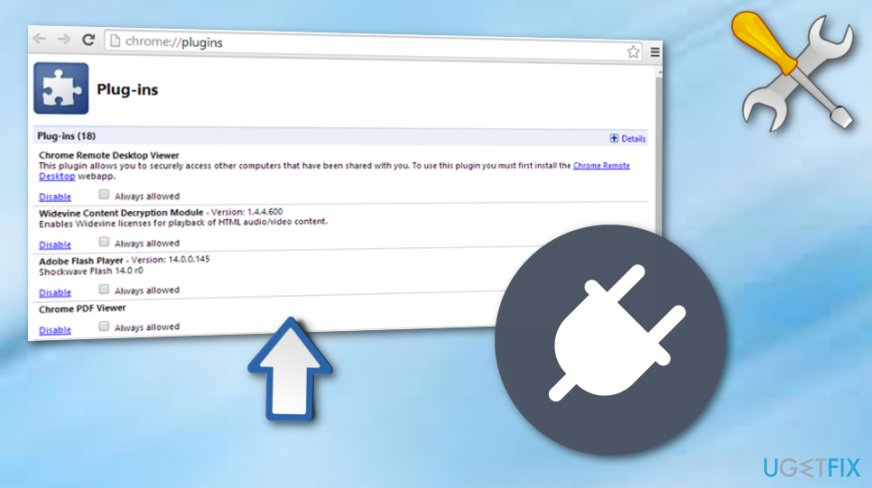
Fix method - Once this is done, reload the website.
Fix 5. Update Google Chrome to the latest version available
Since Google Chrome engineers are continuously working on errors like Aw, Snap!, updating this web browser to the latest version available may help to get rid of this irritating window permanently. To do that, perform the following steps:
- Open Google Chrome and go to the Settings.
- After that, select About and check if there is an update available. If it is, select Update now and let Chrome update to download and run automatically.
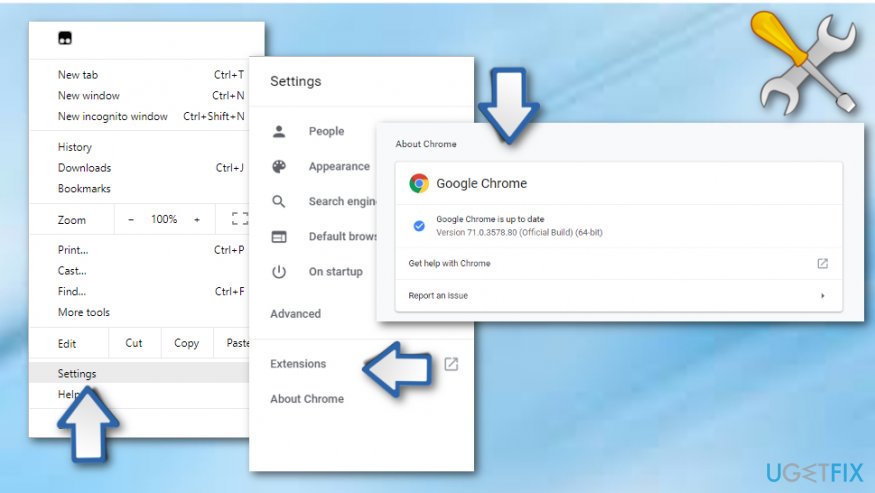
Fix method - Finally, reopen Chrome and check if websites are still crashing. If not, then you know what the culprit of this error was.
Fix 6. Use another web browser
If you have tried all the fixes mentioned above, but none of them helped, then it might be that the core of the problem is not Google Chrome itself. To check that, you just have to open Microsoft Edge, Internet Explorer, Mozilla Firefox or any other web browser that is installed on your PC and try to access the website that it’s crashing. If you managed to access it, then it means that the problem is with Chrome. If the website crashed as well, then it there is an issue with the website itself.
Bottom line
To fix the Aw, Snap! error on Google Chrome, you can try refreshing the website, clearing the browser cache, disabling extensions, or updating the browser. If none of these solutions work, consider running a scan with a PC optimization tool to identify and resolve underlying issues.
Frequently asked questions
The 'Aw, Snap!' error typically occurs due to issues like corrupted cache, incompatible extensions, or problems with the browser itself on Windows 10 and 11.
To clear the cache, open Chrome, go to Settings > Privacy and security > Clear browsing data, and select 'Cached images and files' before clicking 'Clear data'.
If disabling extensions doesn't help, try resetting Chrome settings or reinstalling the browser, which can often fix persistent issues on Windows 10 or 11.




Report an issue
What's wrong with this guide? We review every report and update or remove content.
Report received — thank you. We'll review and fix it.
You need a free account to submit a report.
Be the first to comment