How to fix
BEDaisy.sys BSOD when launching games
on Windows
Resolve the BEDaisy.sys BSOD error when launching games on Windows 10 or 11 quickly and effectively. Expert-tested with screenshots for easy following.

What causes How to fix BEDaisy.sys BSOD when launching games in Windows?
- Corrupted BEDaisy.sys file
- Issues with external peripherals
- Corrupted game files
- Problems with Battleye installation
- Corrupted system files
- Outdated network drivers
Repairs Windows system files, removes malware, and restores a clean OS state — without reinstalling.
Every time I attempt to launch DayZ, I keep getting BSOD, referencing the BEDaisy.sys file. How do I fix this? I can't play the game at all because these crashes just continue.
The infamous Blue Screen of Death (BSOD) in Windows is more than just a frustrating interruption. Despite its ominous name, the BSOD actually plays an important role in protecting your system. It signifies a serious issue that has occurred within the operating system, prompting it to halt immediately to prevent potential damage. The error message displayed is intended to provide a clue as to what might have triggered the crash.
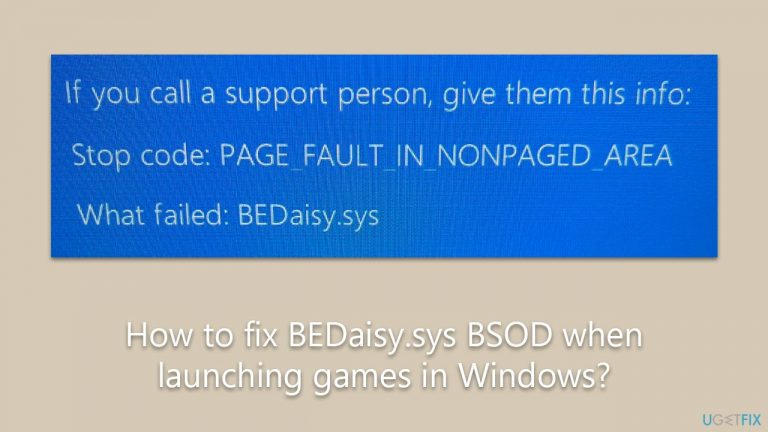
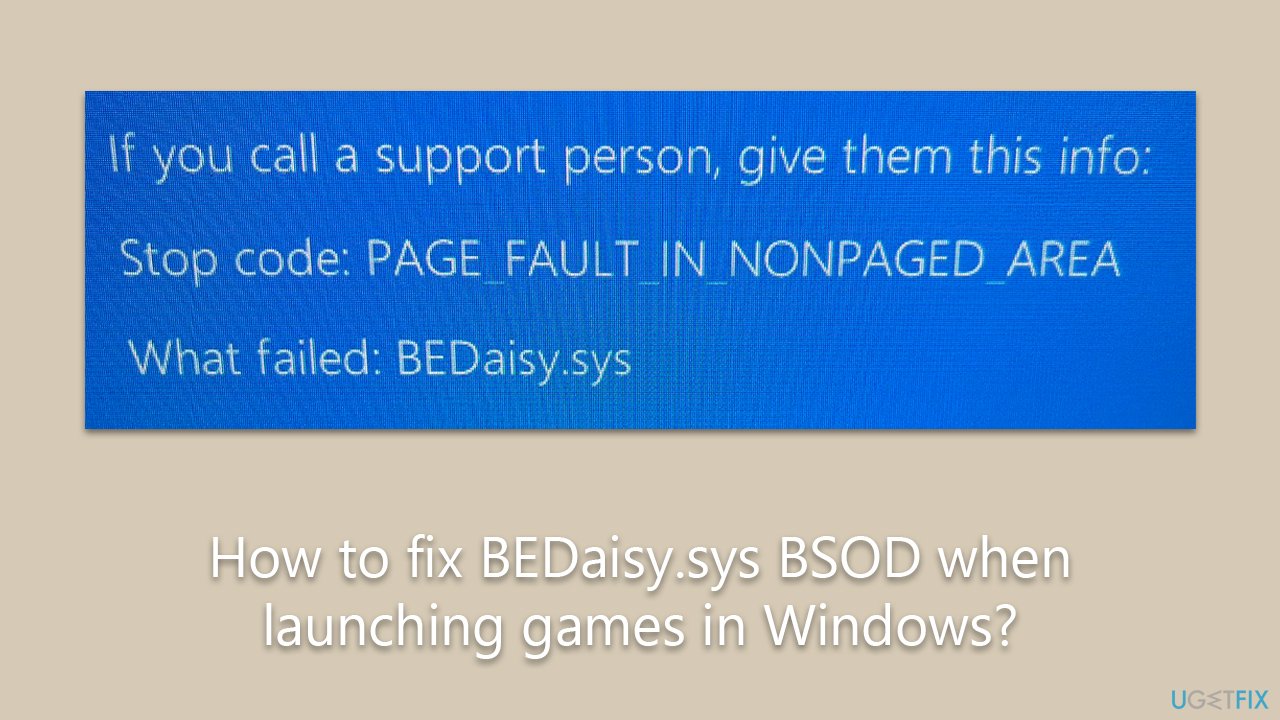
One such issue that has been causing headaches for gamers recently is a BSOD related to BEDaisy.sys. When attempting to launch games such as PUBG, Escape from Tarkov, Ark: Survival Evolved, or Mount & Blade II: Bannerlord, among others, they've encountered an unwelcome crash. Typically, the error comes with an associated code like "PAGE_FAULT_IN_NONPAGED_AREA," which provides a clue about the possible causes.
The BEDaisy.sys file is a driver associated with the Battleye anti-cheat system, which is utilized by a range of online games to prevent cheating and provide a fair gaming environment. But like any software, it's not immune to glitches. In this case, it's causing some Windows systems to crash upon launching these games.
The good news is that there are ways to resolve BEDaisy.sys BSOD. Based on the experiences of various users, several methods have proven to be effective. These include disconnecting external peripherals, reinstalling the game that's causing the crash, and reinstalling Battleye. It's also beneficial to check and fix any corrupted files on your system and reinstall your network drivers. The exact steps for performing these fixes can be found below this article.
PC repair software [d1] can be an invaluable tool when dealing with Blue Screen crashes. This software is designed to scan your system for issues, analyze error logs, and automatically repair corrupted or missing system files. By providing a thorough and detailed system analysis, PC repair software can help identify and resolve the underlying issues causing the BSOD, promoting stability and improving the overall performance of your computer.
1. Disconnect unnecessary peripherals
Some users who reported the BEDaisy.sys BSOD said they managed to fix the issue as soon as they disconnected peripherals such as gaming pedals. Sometimes, there might be some software conflicts between such devices and Battleye, which may cause the crashes.
2. Delete Driver Verifier settings
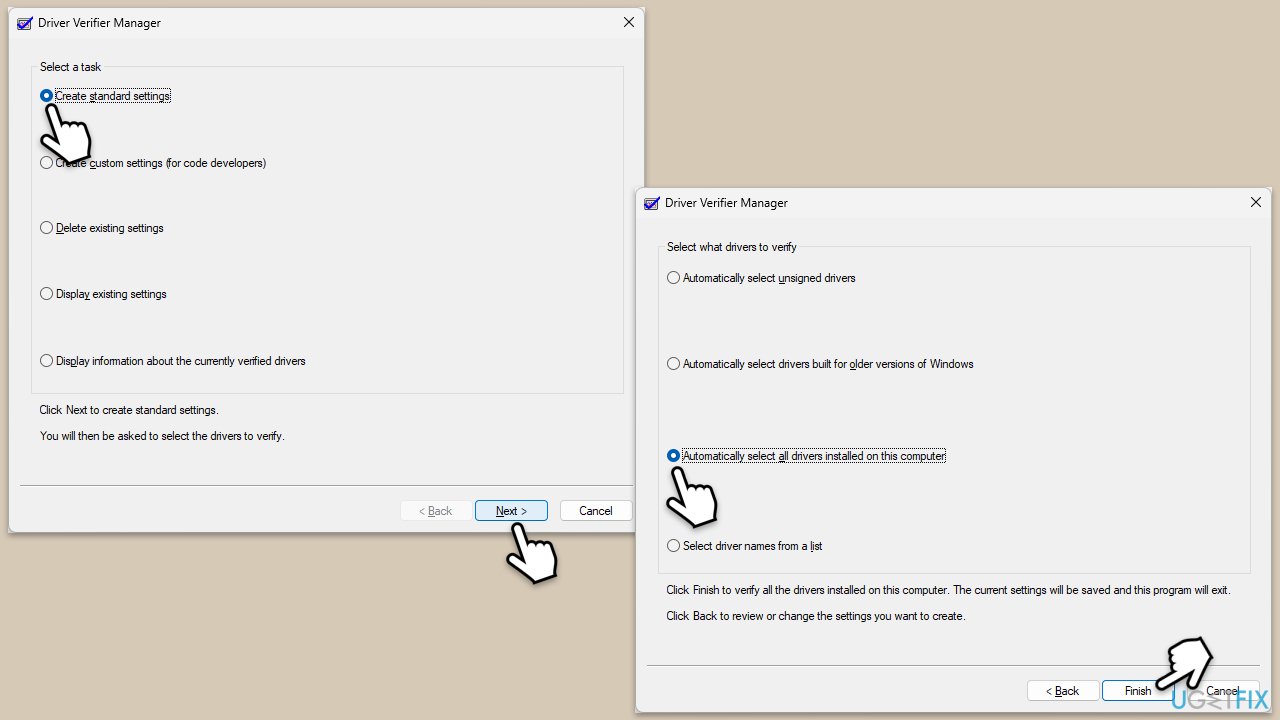
Another very common solution is to delete settings from the Driver Verifier. Follow these steps:
- Type Verifier in Windows search and press Enter
- Select Create Standard Settings and click Next
- Pick Automatically select all drivers installed on this computer and click Finish.
- Restart your computer.
- After reboot, type Verifier in Windows search again and pick Delete existing settings this time.
- Click Finish and restart your PC.
3. Check game file integrity
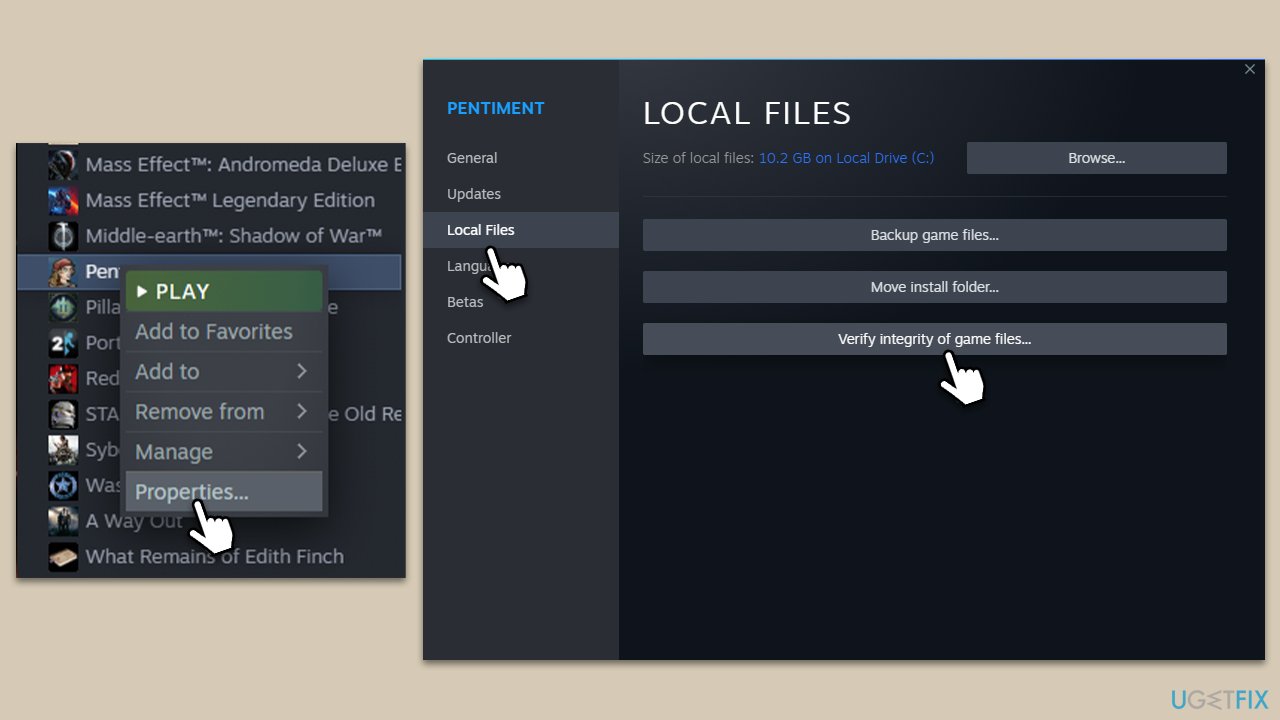
- Open Steam and go to your Library.
- Right-click on the game that causes system crashes and select Properties.
- Go to the Local Files section on the left.
- Here, click Verify integrity of game files and wait till the process is complete.
- Try launching the problematic game again.
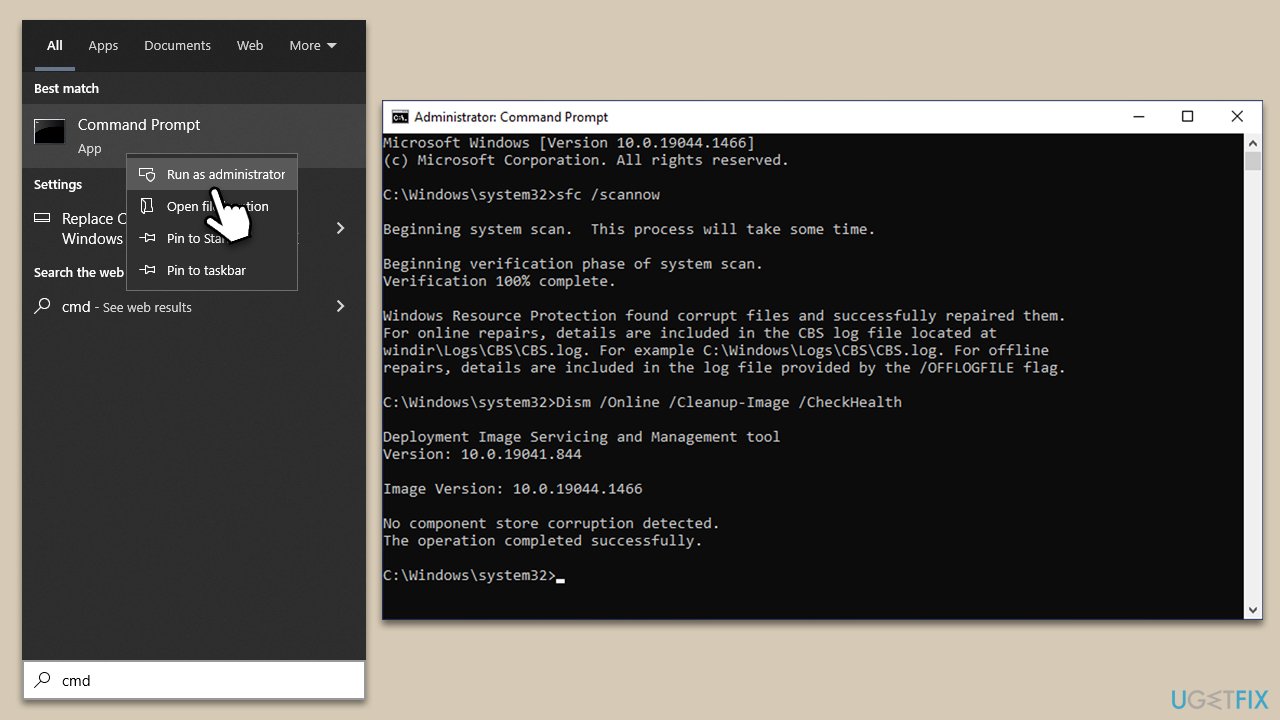
4. Run SFC and DISM
Corrupted system files are among the most common reasons for Blue Screen of Death errors. You can address this by running SFC and DISM scans as follows:
- Type in cmd in Windows search.
- Right-click the Command Prompt result and pick Run as administrator.
- User Account Control will ask whether you want to allow changes - click Yes.
- Type this command and press Enter:
sfc /scannow - Wait for the scan to finish.
- Then, use the following commands, pressing Enter after each:
Dism /Online /Cleanup-Image /CheckHealth
Dism /Online /Cleanup-Image /ScanHealth
Dism /Online /Cleanup-Image /RestoreHealth - Restart your device.
5. Reinstall the game and Battleye
Reinstalling the game is one approach to solving BEDaisy.sys-related BSOD issues. Over time, game files can become corrupted or get modified by software updates, which may lead to instability. By reinstalling the game, you're essentially resetting all the game files to their original state, thereby eliminating any potential issues arising from corrupt or outdated files. It's crucial, however, to completely uninstall the game before reinstalling it to ensure a clean setup.
Similarly, reinstalling Battleye can also prove effective. Battleye is an integral part of the games it services, and like any other software, it can sometimes face issues that cause system crashes. Reinstalling the app helps reset its configuration and replace any damaged or missing files, resolving issues that might cause a BSOD. It is always recommended to download the latest version of Battleye from the official website or through the game client to ensure you have the most up-to-date, stable version of this anti-cheat system.
6. Reinstall network drivers
The issue could be related to your network drivers, so you should reinstall them.
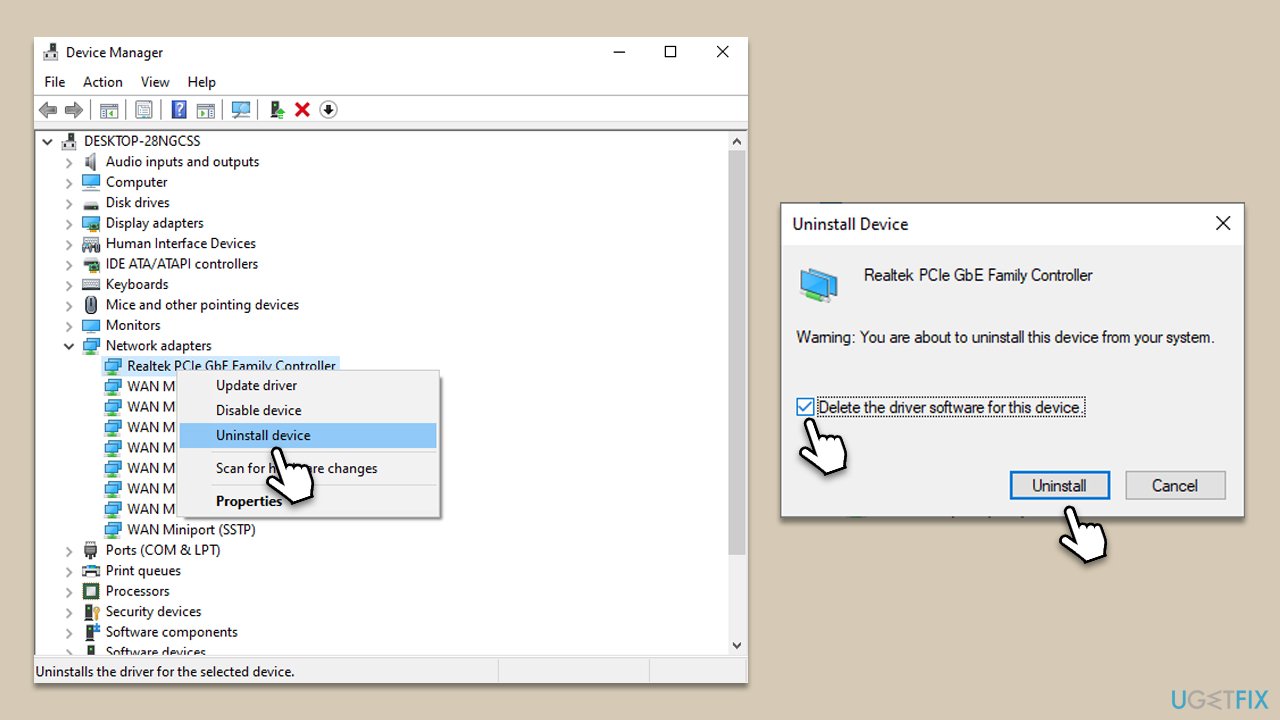
- Right-click on Start and pick Device Manager.
- Expand Network adapters.
- Right-click on the network adapter you are using and select Uninstall device.
- Mark the Delete the driver software for this device option.
- Click Uninstall once again and follow the on-screen instructions.
- Reboot your system.
Once done, use [rev id="DriverFix"] to install the latest network drivers on your system. Alternatively, you could download it from your device manufacturer's website manually. Note that you might need another device with working internet, as your system will not have it without network drivers (although Windows should install the generic version of network drivers upon booting).
7. Disable Intel Turbo Boost Technology
- Restart your computer and enter the BIOS setup.
- Once you're in the BIOS setup, look for an option named "Advanced," "Configuration," or something similar. Navigate through these options.
- Locate the "CPU Configuration" option.
- Within the CPU Configuration menu, find the "Intel Turbo Boost Technology" option.
- Change the setting for Intel Turbo Boost Technology to "Disabled."
- Finally, save your changes and exit the BIOS setup. This is often done by pressing F10 but look for a "Save and Exit" option to be sure.
- Your computer should then restart with the Turbo Boost feature disabled.
Bottom line
To fix the BEDaisy.sys BSOD, you can try disconnecting external peripherals, reinstalling the game, or reinstalling Battleye. Additionally, checking for corrupted files and updating your network drivers may help. If none of these solutions work, consider using PC repair software to analyze and repair system issues.
Frequently asked questions
The BEDaisy.sys BSOD error is often related to outdated or incompatible drivers, particularly those associated with gaming peripherals or graphics cards. It can also be triggered by corrupted system files or software conflicts.
You can update your drivers by accessing Device Manager, right-clicking on the relevant device, and selecting 'Update driver.' Alternatively, you can visit the manufacturer's website to download the latest drivers for your hardware.
To resolve BEDaisy.sys issues on Windows 11, you can perform a system file check using the 'sfc /scannow' command in Command Prompt or use the built-in Windows Memory Diagnostic tool to check for RAM issues.




Report an issue
What's wrong with this guide? We review every report and update or remove content.
Report received — thank you. We'll review and fix it.
You need a free account to submit a report.
Be the first to comment