How to fix
Bing search not working in Microsoft Edge
on Windows
Resolve Bing search issues in Microsoft Edge quickly and efficiently on Windows 10 or 11. Expert-tested solutions ensure you're back online in minutes!

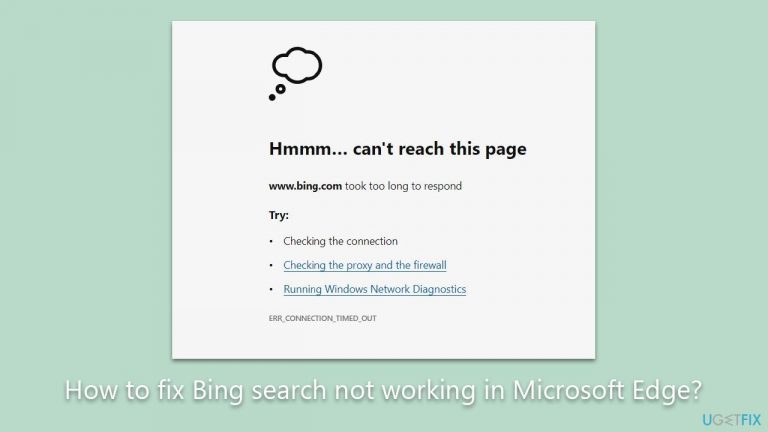
What causes How to fix Bing search not working in Microsoft Edge?
- Incorrect or outdated Edge settings
- Network interference
- Problematic extension
- Malware or virus infections
Repairs Windows system files, removes malware, and restores a clean OS state — without reinstalling.
Hello. Bing search is not working in Microsoft Edge - I keep getting timeout and other errors. Is there something that can be done to address this?
Microsoft Edge, a web browser developed by tech titan Microsoft, is widely utilized for its speed, efficiency, and integration with Microsoft's suite of applications. Bing, on the other hand, is Microsoft's flagship search engine, popular for its relevance in search results and deep-rooted integration with the Windows operating system.
These two platforms are designed to work seamlessly together, providing a smooth browsing experience. However, several users have recently reported a peculiar issue - Bing search not working specifically on the Microsoft Edge browser.
Users have described the problem as such: whenever they attempt to use Bing to conduct a search, they are greeted with error messages such as ERR_CONNECTION_TIMED_OUT. This issue is particularly perplexing since Bing operates without any hitch on other browsers like Google Chrome and Mozilla Firefox. Moreover, when using Edge, users can reach any website directly either by typing the URL in the address bar or using their Favorites, with the problem only surfacing when the Bing search engine is engaged.
Such a situation could arise due to multiple reasons. One potential cause could be incorrect or outdated Edge settings, which might have been affected during a software update. Alternatively, it could be due to some form of network interference or the presence of a problematic extension, disrupting the connection between Edge and Bing. Malware or virus infections could also lead to such unexpected problems by tampering with the browser settings without the user's knowledge.
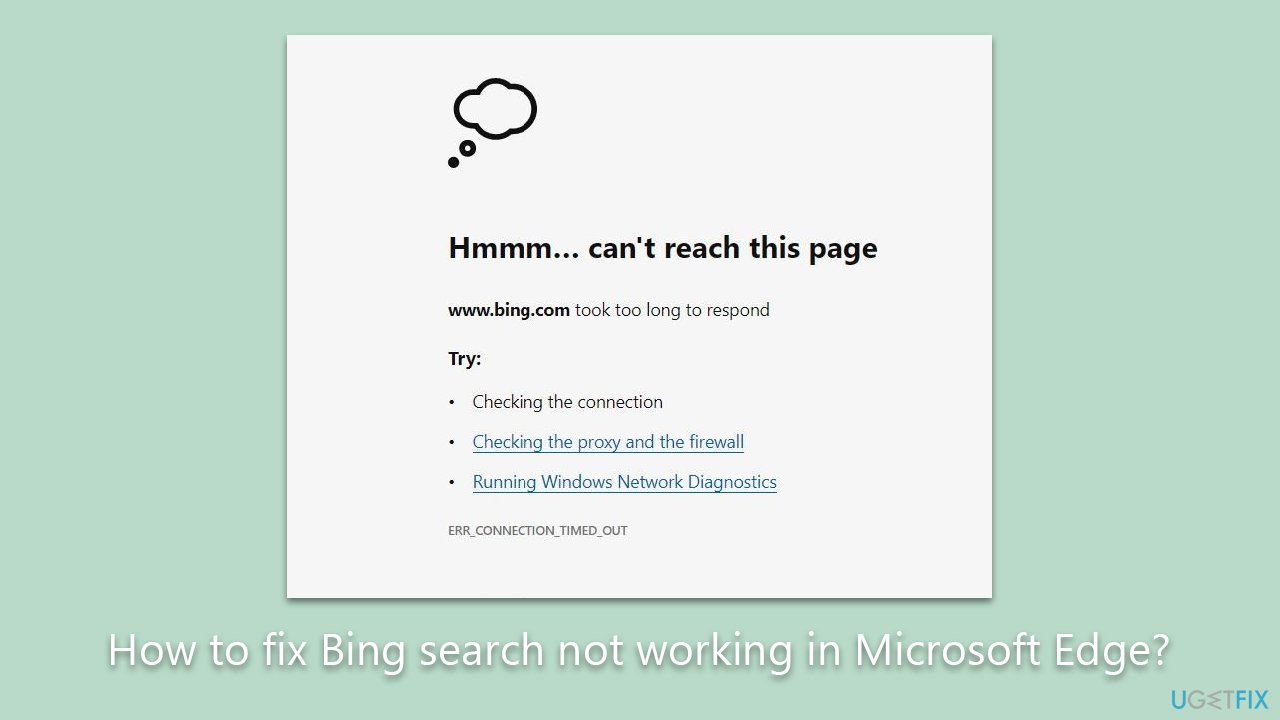
To address these issues, users might want to consider resetting their Edge settings, disabling any recently installed extensions, or clearing the browser's caches. These steps could help eliminate any potential culprits causing the connectivity issue between Bing and Microsoft Edge. In some instances, reinstalling the browser can also prove beneficial.
Additionally, using a repair tool like [d1] can assist users in fixing these issues. This tool has been specifically designed to diagnose and mend common problems users might encounter when using web browsers or related services - it can also automatically clean browser caches and other trackers for you.
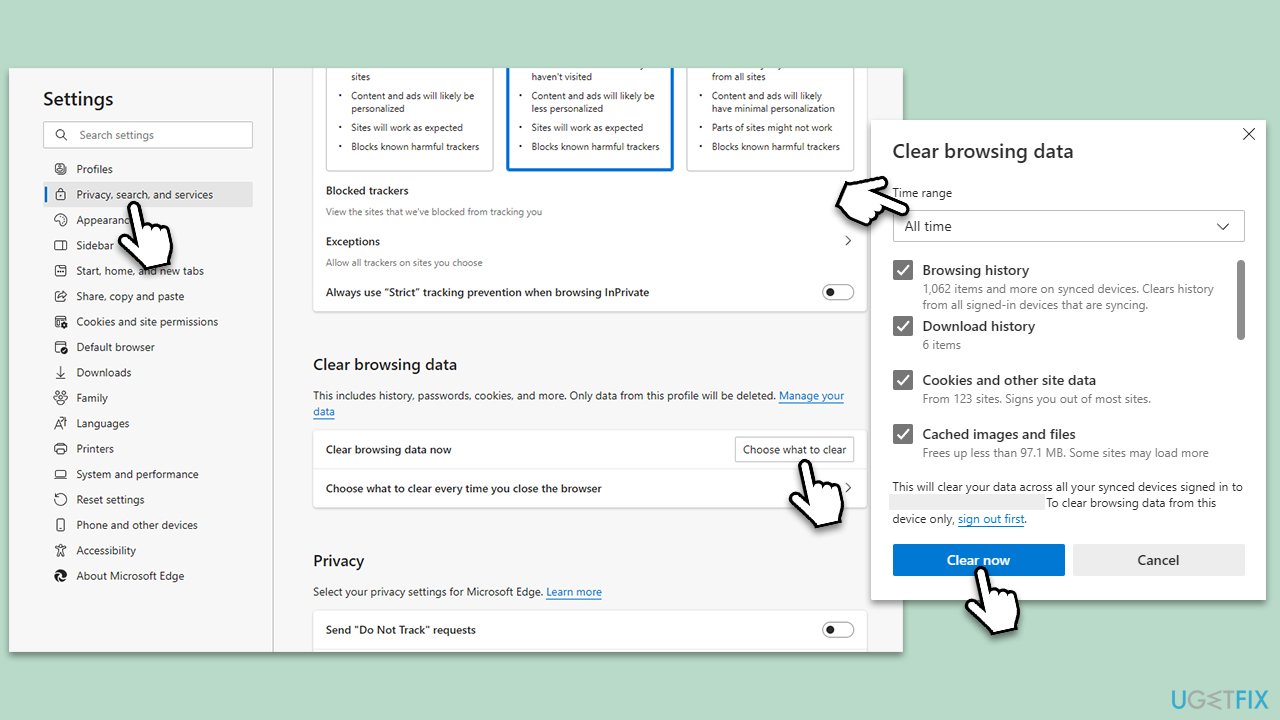
Fix 1. Clear Microsoft Edge cache files
Cache files are stored by web browsers to improve page loading times for websites you've visited before. However, these files can occasionally become corrupted or outdated, causing issues like the one you're experiencing with Bing. Clearing the cache can refresh these files and resolve these problems.
- Open Edge and click on three horizontal dots (Settings and more).
- Pick Settings.
- Click Privacy, search, and services on the left.
- On the right side of the window, scroll down to find the Clear browsing data section.
- Click Choose what to clear.
- Select All time.
- Pick all the sections and click Clear now.
Fix 2. Run a malware scan
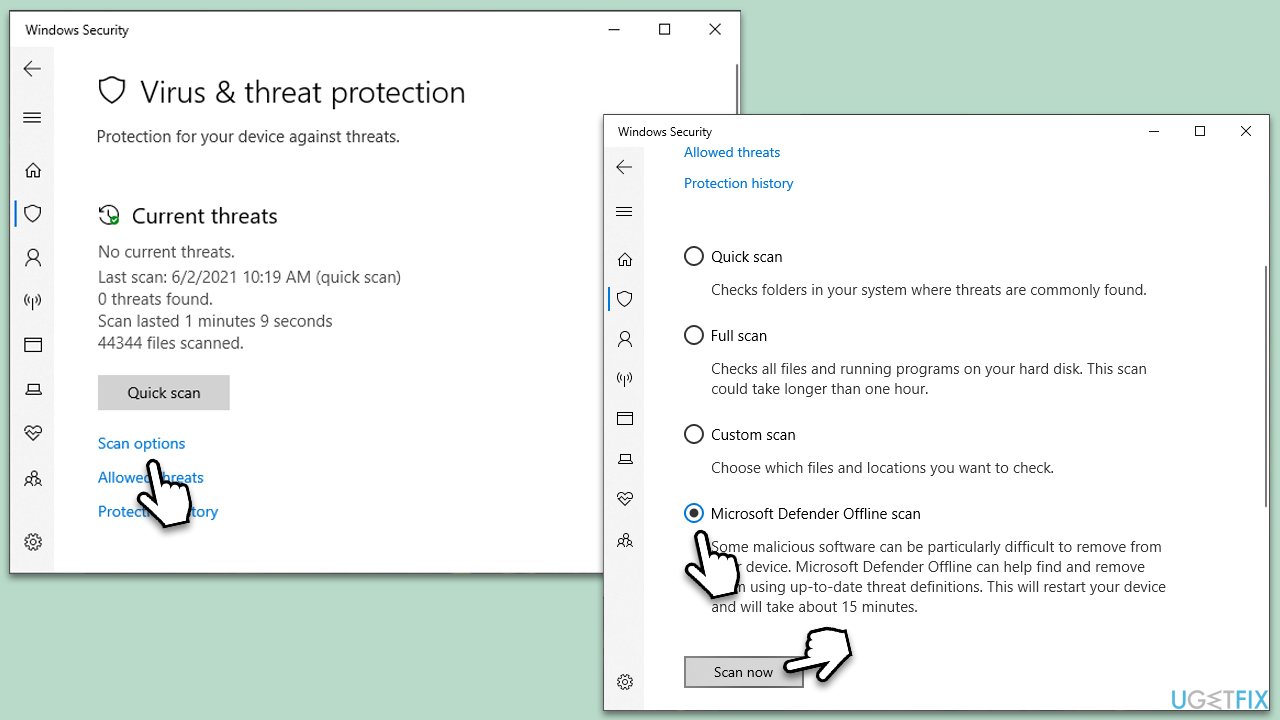
Viruses and malware can interfere with browser settings and cause unexpected problems. Running a malware scan can help detect and eliminate these issues. You can either employ a third-party tool or use the free options provided by Microsoft - Microsoft Security Scanner or Windows Defender.
- Type Windows Security in the Windows search bar and hit Enter.
- Select Virus & threat protection.
- Pick Scan options.
- Choose Microsoft Defender Offline scan and click Scan now.
- Your computer will immediately reboot and begin a deep scan.
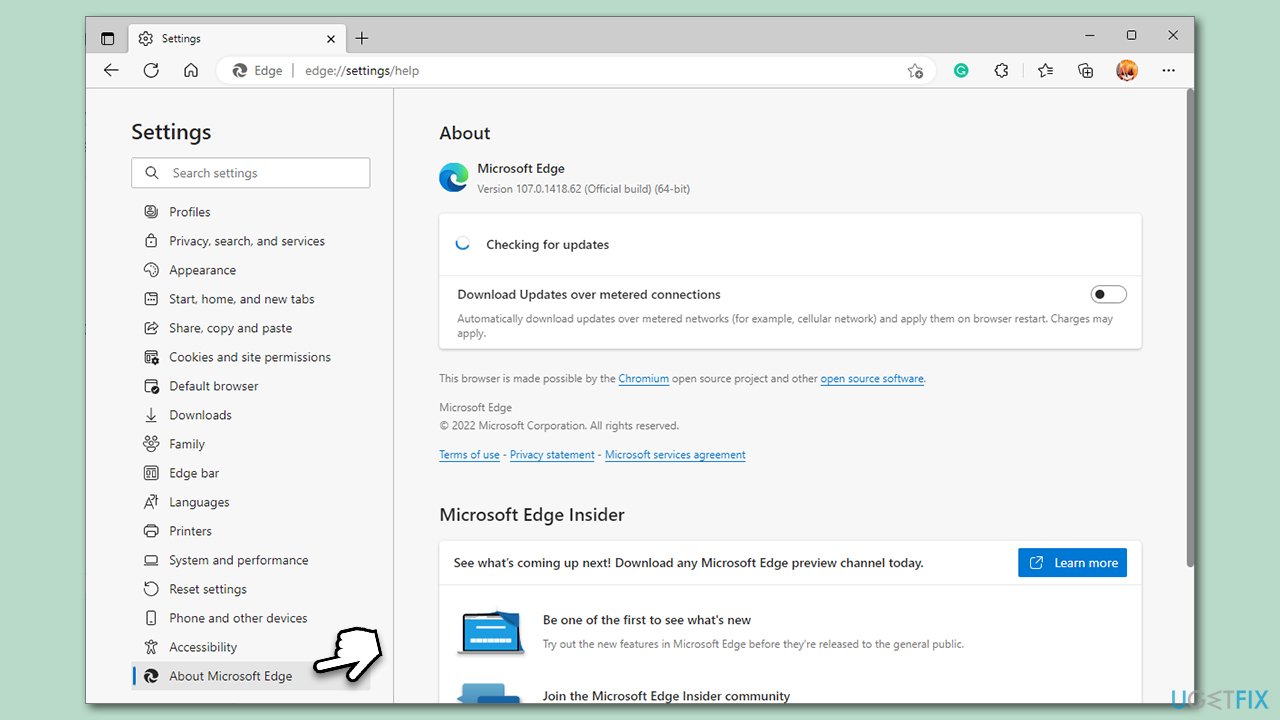
Fix 3. Update the browser
Keeping your browser updated is crucial for its smooth functioning, as updates often contain bug fixes and improvements. If Bing isn't working on your Microsoft Edge, it may be because your browser version is outdated. Here's how you can update it:
- Open Microsoft Edge.
- Click on three horizontal dots (Settings and more) at the top-right corner of the browser.
- Select Settings.
- Click on About Microsoft Edge on the left.
- The browser should now automatically be updated to the latest version.
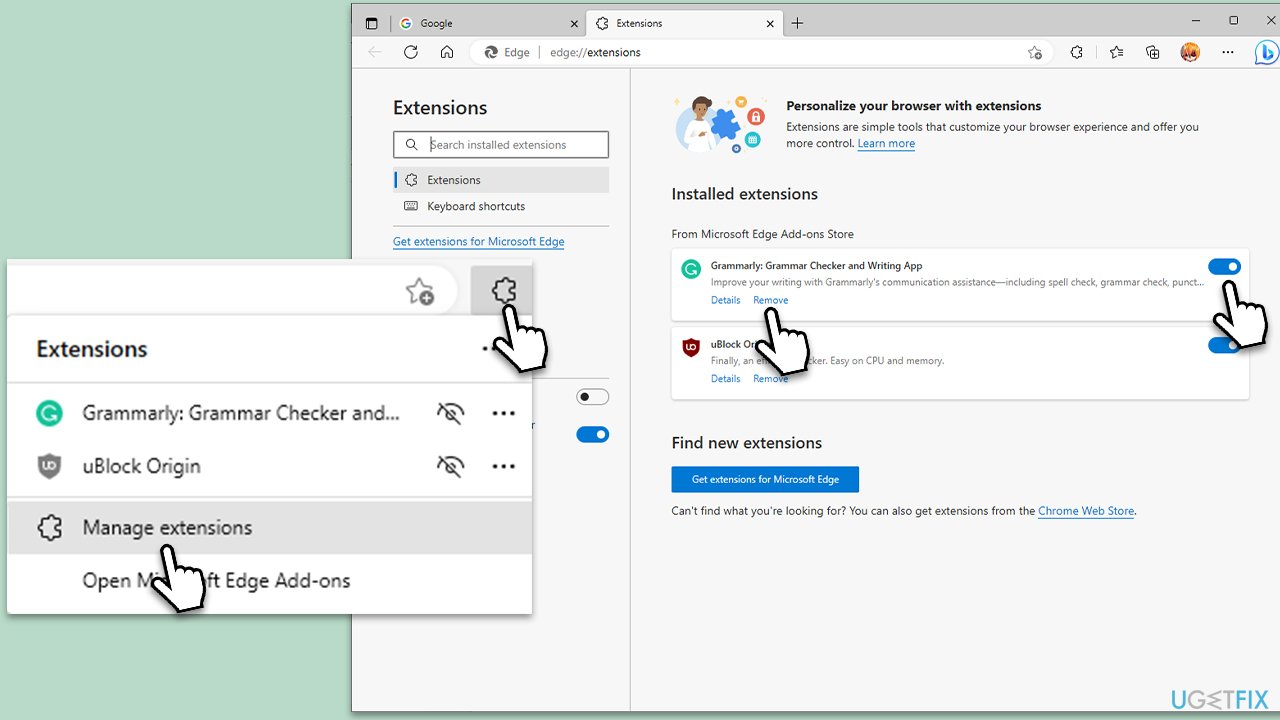
Fix 4. Disable or uninstall extensions
Newly added extensions may sometimes interfere with the functioning of a browser. By disabling these extensions, you can check if they are the root cause of Bing not working on Microsoft Edge.
- Click the Extensions button next to the address bar.
- Select Manage extensions.
- Here, you can either Remove the extension or disable it by toggling the switch.
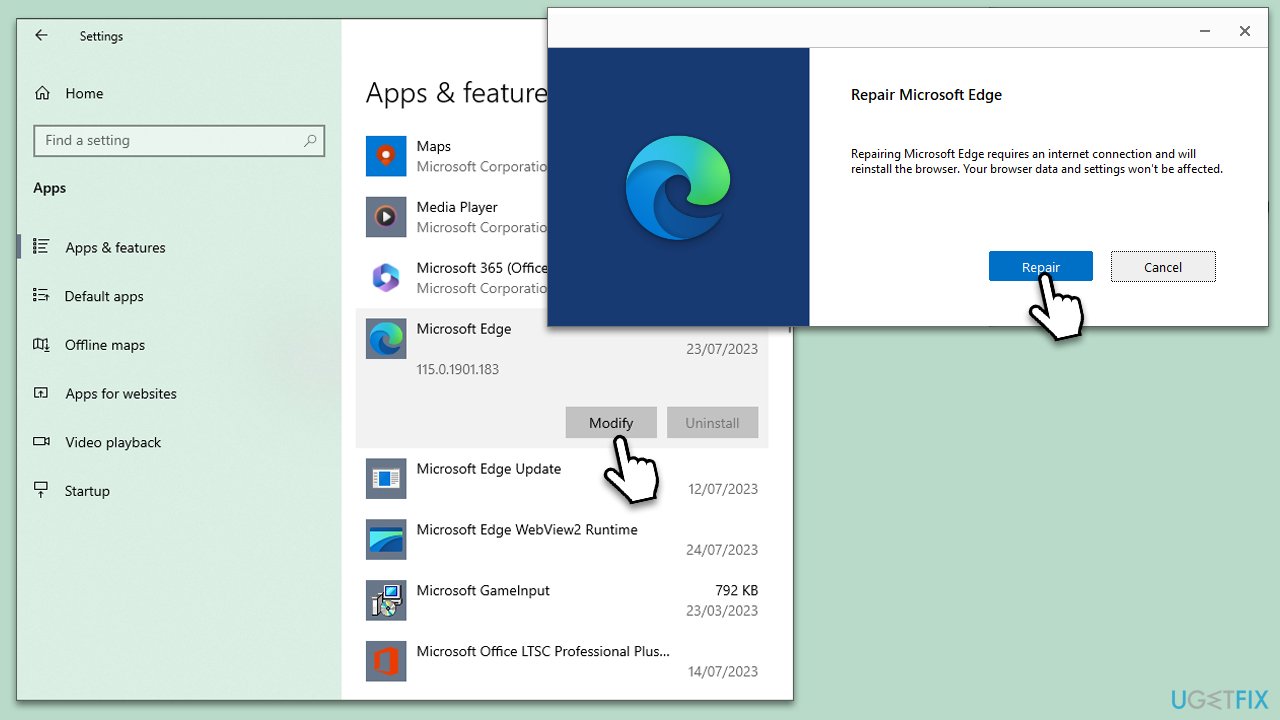
Fix 5. Repair Edge
- Make sure MS Edge is not running in the background.
- Right-click on Start and select Apps and Features.
- Scroll down to find Microsoft Edge entry.
- Select it and click Modify.
- In the new window, pick Repair and proceed with on-screen instructions.
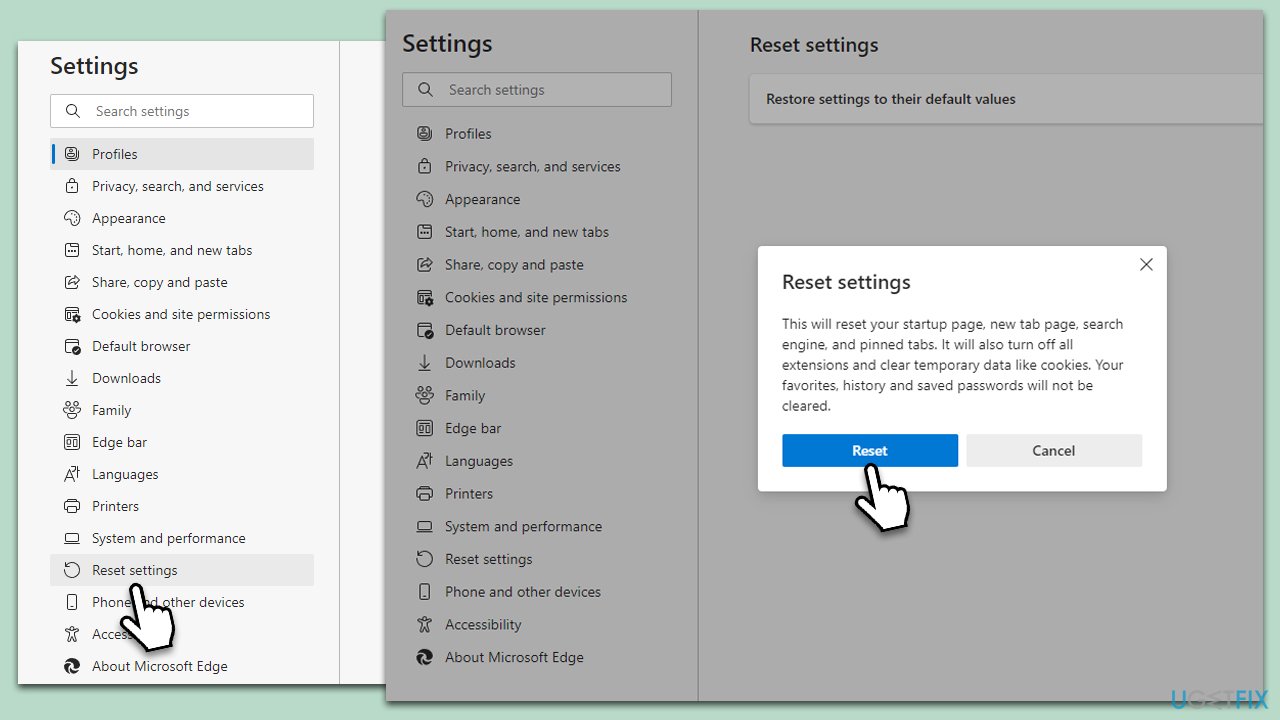
Fix 6. Reset Microsoft Edge
Resetting your Microsoft Edge settings can help clear out any settings that may have been changed or affected during a software update or by malicious software. This will return the browser to its original settings, potentially eliminating any issues with Bing.
- Click on Menu and select Settings
- On the left side, pick Reset settings
- Select Restore settings to their default values
- Confirm with Reset.
Bottom line
To fix Bing search not working in Microsoft Edge, users can reset their Edge settings, disable recently installed extensions, or clear the browser's caches. Reinstalling the browser and using a repair tool may also help. If none of these solutions work, further investigation into network settings or contacting support may be necessary.
Frequently asked questions
Try clearing your browser cache and cookies by going to Settings > Privacy, search, and services > Clear browsing data. If that doesn't work, consider resetting Edge settings to their default.
Ensure that your Microsoft Edge is updated to the latest version by going to Settings > About Microsoft Edge. Additionally, check if your internet connection is stable and try disabling any active VPN or proxy.
This issue may be caused by browser extensions or malware; disable all extensions and perform a malware scan with Windows Defender. If the problem persists, consider reinstalling Microsoft Edge.




Report an issue
What's wrong with this guide? We review every report and update or remove content.
Report received — thank you. We'll review and fix it.
You need a free account to submit a report.
Be the first to comment