How to fix
Blue Screen DRIVER_IRQL_NOT_LESS_OR_EQUAL (ndis.sys)
on Windows
Resolve the DRIVER_IRQL_NOT_LESS_OR_EQUAL (ndis.sys) blue screen error on Windows 10 quickly and efficiently. Expert-tested fixes inside!


What causes How to Fix Blue Screen DRIVER_IRQL_NOT_LESS_OR_EQUAL (ndis.sys) on Windows 10?
- Virus/malware infection
- Incorrect driver
- Missing network driver update
- Corrupted ndis.sys file
- System malfunctions
Repairs Windows system files, removes malware, and restores a clean OS state — without reinstalling.
Hi. All of a sudden I’ve started having an issue with my laptop, which goes into an infinite loop and throws a BSOD DRIVER_IRQL_NOT_LESS_OR_EQUAL (ndis.sys). I cannot use my computer properly. Any advice on how to fix it?
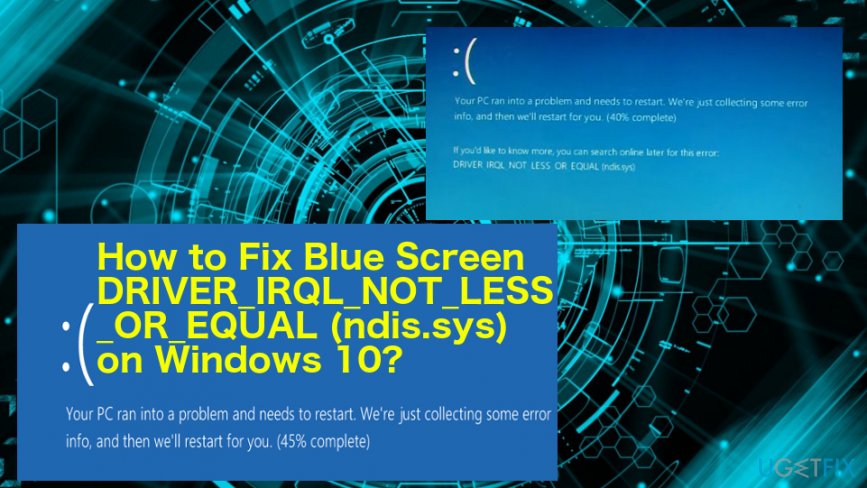
DRIVER_IRQL_NOT_LESS_OR_EQUAL (ndis.sys) is a BSOD, which typically affects the Windows 10 operating system.[ref en-1] The error may also indicate the error code 0x000000D1. While this bug is not extremely dangerous, it should be fixed ASAP as it indicates system malfunctions and may cause further damage if ignored.
The issue regarding the Blue screen of death caused by this DRIVER_IRQL_NOT_LESS_OR_EQUAL error gets reported quite often.[ref en-2] There are various symptoms to this and also a few different reasons why this BSOD appears on the screen and causes the computer to crash.
“DRIVER_IRQL_NOT_LESS_OR_EQUAL” often appears when the program crashes or the system shuts down entirely. Sometimes Windows get shut down to avoid damage to the system due to the affected file. This Blue screen also indicates that the error has a value of 0x000000D1 or often it displays "Error oxD1 This indicates that a kernel-mode driver attempted to access pageable memory at a process IRQL that was too high" too.
An error can appear during the program installation or immediately after that and while trying to run the new hardware or software. You should take note of when the BSOD occurred so the troubleshooting can give more valuable information and help to achieve the best results.
Ndis.sys is a legitimate system driver of the network interface controller. However, scammers quite often exploit the names of important system files and disguise malicious software under them.[ref en-3] Besides, files like ndis.sys are a target of viruses because once corrupted they call out errors, system crashes, freezes, which is why OS gets more vulnerable. In a nutshell, one of the DRIVER_IRQL_NOT_LESS_OR_EQUAL (ndis.sys) BSOD causes may be virus/malware infection.
In addition, this problem may occur due to the incorrect driver and memory address connection, which cannot be created because the network driver update is missing. Therefore, to fix DRIVER_IRQL_NOT_LESS_OR_EQUAL (ndis.sys) error on Windows 10, we would recommend updating/reinstalling drivers first and then check the system for malware.
Ways to fix Blue Screen DRIVER_IRQL_NOT_LESS_OR_EQUAL
A common cause of DRIVER_IRQL_NOT_LESS_OR_EQUAL error is incorrectly configured, corrupted or outdated device drivers. Also, corruption of Windows registry and software changes can cause this BSOD. Therefore, updating drivers can help to fix DRIVER_IRQL_NOT_LESS_OR_EQUAL (ndis.sys) BSOD.
But we would highly recommend scanning your PC thoroughly using a professional anti-virus before any tampering with the system since malware can be the reason too.
Make sure that the database of the antivirus that you’re using is regularly updated. If you are not sure about this, we would recommend using [d1]. This application collaborates with Avira Antivir, which is a powerful anti-malware featuring the newest virus database.
Rollback Network drivers
- Open Control Panel and navigate to Device Manager.
- Choose Network Adapters and select the device from the drop-down menu.
- Click Properties and select the Drivers tab.
- Then, click on Roll Back Driver and confirm by choosing Yes.
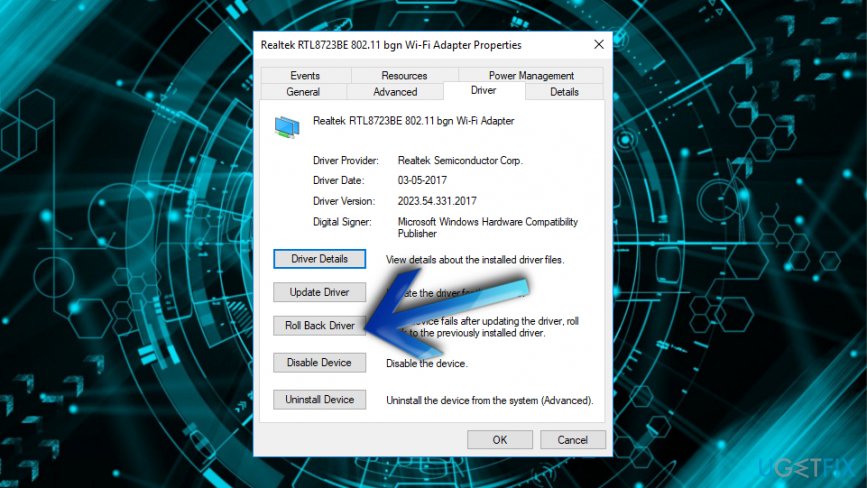
How to fix blue screen driver irql not less or equal ndis sys on windows 10 roll back drivers
Update Drivers
In case you cannot use Windows 10 normally due to the ndis.sys error, try updating/reinstalling system drivers. This can be done by following these simple steps:
- Click Win key + R, type devmgmt.msc, and press Enter.
- When the Device Manager window opens, expand Network adapters folder on the left pane, right-click on your network device, and select Uninstall.
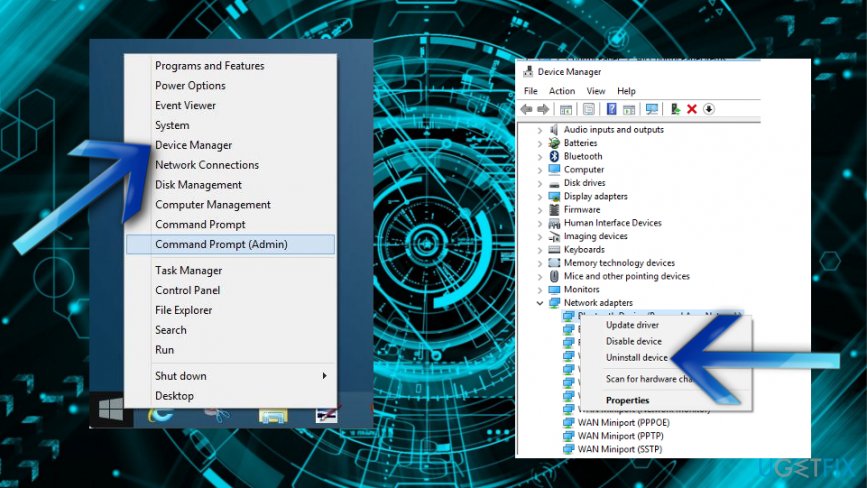
How to fix blue screen driver irql not less or equal ndis sys on windows 10 drivers - If a confirmation window pops up, click OK to proceed. In some rare cases, users are required to enter Administrator password, so if you have received such a permission, make sure that you type in the right password.
- Once the process is finished, restart your PC.
- Now you have to install the driver you have just removed. To do this, go to the Device Manager as explained above.
- Click Action tab on the toolbar.
- Select Scan for Hardware Changes and let the system detect and install the missing driver automatically.
- If for some reason this process fails, go to the manufacturer’s website and download the driver manually.
- If you have installed wireless network adapters, you should reinstall them as well. Once done, DRIVER_IRQL_NOT_LESS_OR_EQUAL (ndis.sys) bug should be fixed.
Run SFC and CHDSK scans
- Go to Command prompt with administrative rights and run System File Checker and Corrupt hard drive check.
- Run chkdsk /f /r and sfc/scannow
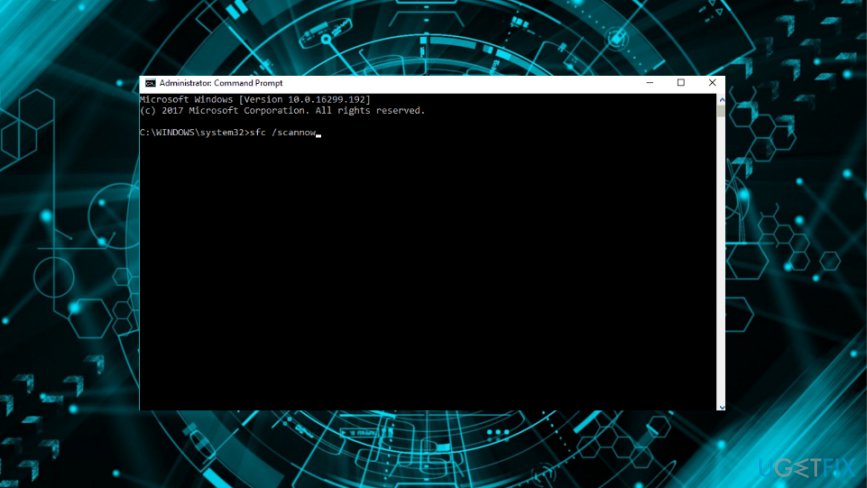
How to fix blue screen driver irql not less or equal ndis sys on windows 10 command prompt - Restart the system after each of the processes.
Restore the System
- Go to Start.
- Locate System Restore.
- Enter the administrative mode if needed.
- Follow steps, choose the restore point and restore the machine.
Bottom line
To fix the DRIVER_IRQL_NOT_LESS_OR_EQUAL (ndis.sys) error on Windows 10, it is recommended to update or reinstall the network driver. Additionally, ensure that your system is free from viruses and malware. If these solutions do not resolve the issue, further troubleshooting may be necessary.
Frequently asked questions
This error typically indicates a problem with a driver that is trying to access memory that it shouldn't, often related to network drivers in Windows 10.
You can update your network drivers by going to Device Manager, right-clicking on your network adapter, selecting 'Update driver,' and following the prompts.
Yes, performing a system restore can revert your system settings to a previous state, potentially resolving the issue if it started after a recent change.




Report an issue
What's wrong with this guide? We review every report and update or remove content.
Report received — thank you. We'll review and fix it.
You need a free account to submit a report.
Be the first to comment