How to fix
Bluetooth devices are not working
on Windows
Solve Bluetooth issues on your Windows 10 or Windows 11 device quickly with our expert-tested solutions. Fix connectivity problems in minutes!

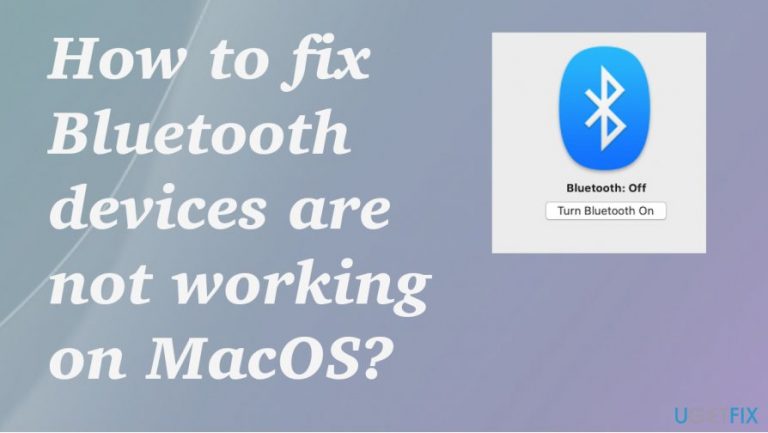
What causes How to fix Bluetooth devices are not working on MacOS?
- Catalina OS update issues
- Bluetooth connectivity problems
- Device incompatibility
- Settings misconfiguration
- Temporary software glitches
Repairs Windows system files, removes malware, and restores a clean OS state — without reinstalling.
Hello, I have an issue. Any Bluetooth devices are not working on MacOS for me. My brand new laptop cannot connect to any Bluetooth devices. It keeps disconnecting them and I cannot use nor my headphones nor the speaker. I think it happens because of the Catalina OS update, but I cannot find any solutions. Can you help me? Is there anything that I might have done to trigger this? All the devices work on my phone.
Bluetooth devices are not working on MacOS appear to be a commonly reported[ref en-1] issue. Users online claim that machines cannot connect to any device via Bluetooth and the issue repeats over and over again. This random problem frustrates people because it is not sure if the connectivity problem is triggered by the operating system o the device.
However, troubleshooting devices with other machines can determine that your headphones, mouse, or speakers are not the ones that create problems with the connection. Bluetooth devices are not working on the MacOS problem seems to be common after the Catalina update that created other problems with the internet too.[ref en-2]
Bluetooth devices are not working on MacOS unexpectedly comes up when people try to connect a device via this Bluetooth connection. It can be anything: mouse, trackpad, keyboard, audio devices). The connection is either unavailable or fails. It also can pair the device and disconnect after some time and stop working.
In order to fix the Bluetooth[ref en-3] devices that are not working on the MacOS issue, we should determine the reason why this connectivity problem occurs at all. If you already know that devices are not the issue, try to troubleshoot by changing particular settings and taking basic steps. We have a guide for that.
How to fix Bluetooth devices are not working on MacOS
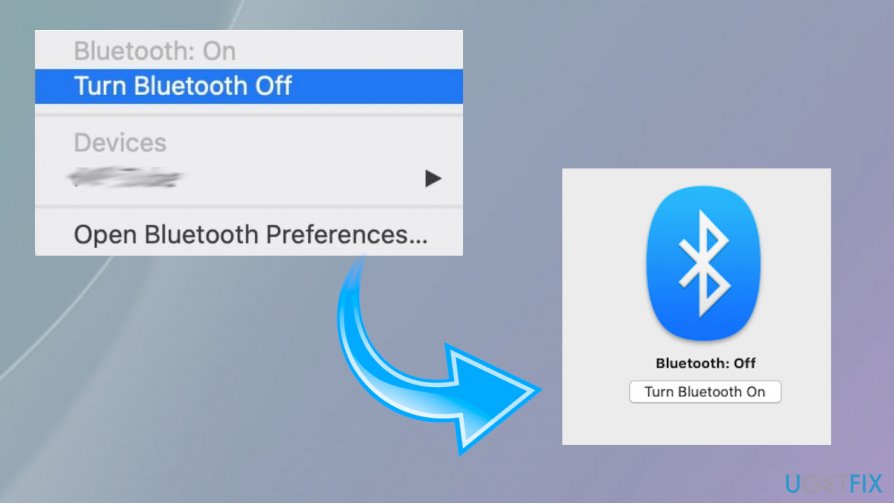
Bluetooth devices are not working after the Catalina OS update? The issue haunts people alongside other Catalina OS update issues, so going back with your operating system update might solve more than these issues with connection and devices. Rebooting the device can act as a quick solution, but when there are more issues with the machine you need some more steps to fix the problem once and for all.
This is not malware-related, so solving the problem involves troubleshooting, trial, and error, anti-malware tools are not helpful here. You might re-enable the connection, check settings, and reboot the machine to fix Bluetooth devices are not working on MacOS. If none of the solutions work - fully reinstall the OS.
Pair Bluetooth devices again
- Go to System Preferences and then to Bluetooth.
- Find the device that is problematic and click on the X. Then follow with Remove to disconnect.
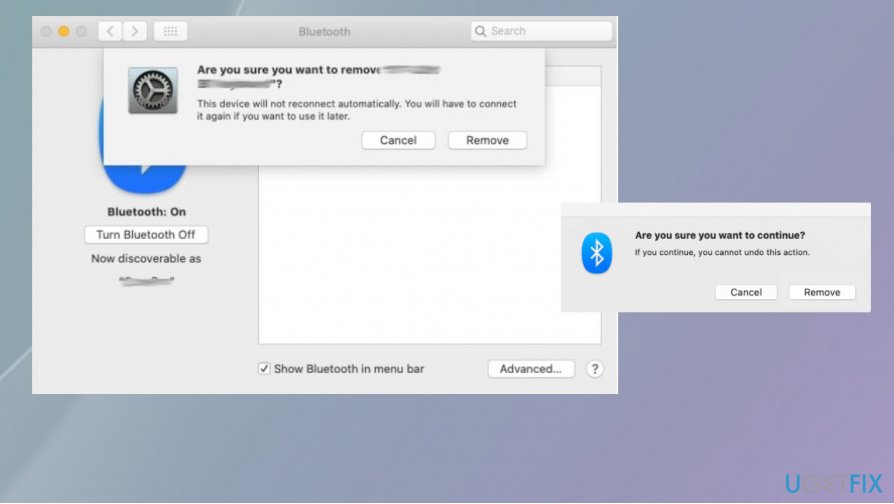
How to fix bluetooth devices are not working on macos re pairing - Pair the device again.
Delete some key PLIST files to fix Bluetooth devices are not working on MacOS
- Open Finder and click Go, then Go to Folder.
- Type /Library/Preferences.
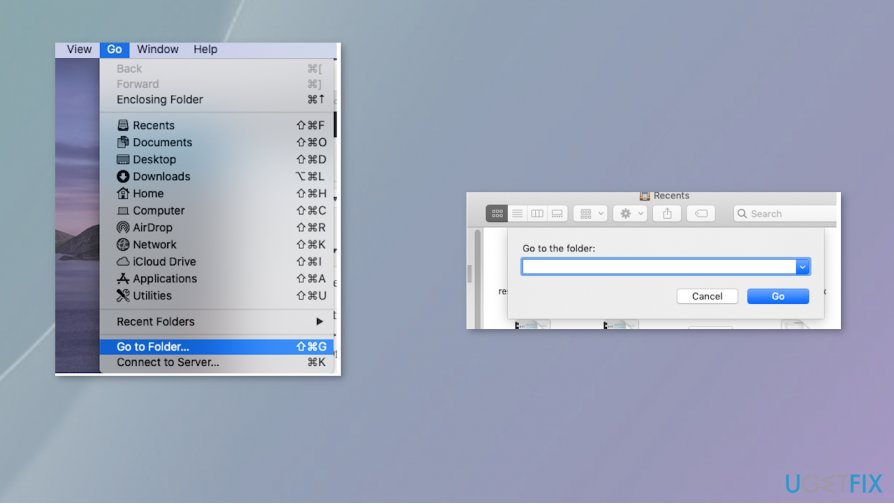
How to fix bluetooth devices are not working on macos go yo folders - Look for com.apple.Bluetooth.plist file and move that to Trash.
- Again click Go to Folder and type ~/Library/Preferences/ByHost.
- Look for file com.apple.Bluetooth that is also followed by numbers and letter and ends in .plist.
- Drag to Trash.
- Shut the computer down.
- Startup the device and enable Bluetooth again.
Reset the Bluetooth module
- Go to System Preferences and find Bluetooth.
- Check the Show Bluetooth in the menu bar.
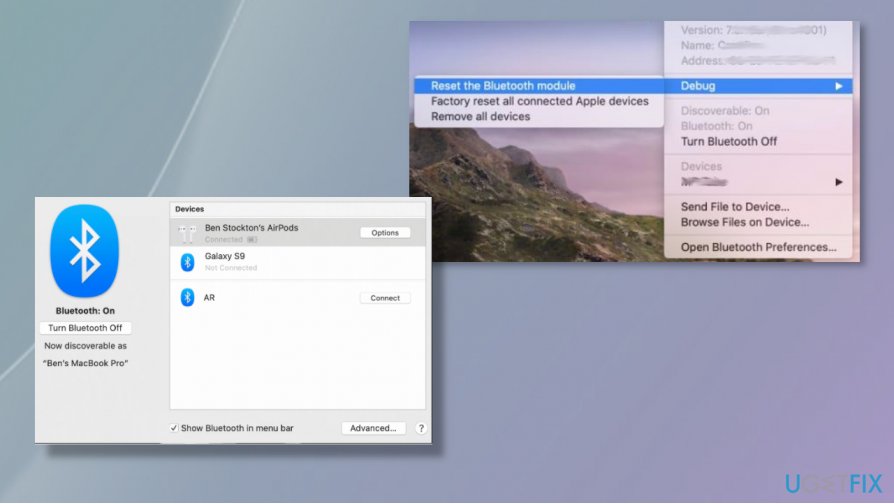
How to fix bluetooth devices are not working on macos debug - Hold Shift and Option at the same time and click Bluetooth.
- Then select Debug, and after that, Reset the Bluetooth module.
- Re-pair devices.
Bottom line
To fix Bluetooth devices not working on MacOS, users can try rebooting their device, changing specific settings, or reverting to a previous OS version. If these solutions do not resolve the issue, further troubleshooting may be necessary.
Frequently asked questions
Try removing the Bluetooth device from your Windows 10 settings and then re-pairing it. Additionally, ensure that your Bluetooth drivers are updated through Device Manager.
Make sure Bluetooth is enabled in Windows 11 settings and check if the device is in pairing mode. Restarting your computer can also help refresh the Bluetooth connections.
Check the sound settings to ensure your Bluetooth audio device is set as the default playback device. Also, make sure that the device is fully charged and within range.




Report an issue
What's wrong with this guide? We review every report and update or remove content.
Report received — thank you. We'll review and fix it.
You need a free account to submit a report.
Be the first to comment