How to fix
Call of Duty: Warzone error “WHITELIST FAILURE”
on Windows
Resolve the "WHITELIST FAILURE" error in Call of Duty: Warzone on Windows 10 or 11 effortlessly. Get back in the game with expert-tested solutions!

What causes How to fix Call of Duty: Warzone error “WHITELIST FAILURE” in Windows?
- Connectivity issues
- Instability of Activision servers
- Users' settings configuration
- Insufficient permissions for the game
- Data corruption
Repairs Windows system files, removes malware, and restores a clean OS state — without reinstalling.
Hi, Call of Duty: Warzone keeps freezing and coming up with the "WHITELIST FAILURE" error. Any tips on how to fix it, please? I run Windows 10.
Call of Duty: Warzone is a first-person shooter game developed by Infinity Ward, Raven Software, and Activision. It was released on March 10, 2020, as the second installment in the battle royale subseries of Call of Duty video games. The second installment in the series, Call of Duty: Warzone 2, was subsequently released in November 2022.
With its intense gameplay, rewarding battle pass system, and free-to-play format, Warzone has gained immense popularity since its release. It is one of the most popular video games available today and shows no signs of slowing down, despite the mixed reception from gamers themselves.
Despite its popularity, Warzone has experienced some major errors and technical issues leading to frustration among players - the "WHITELIST FAILURE" error is just another issue that they have to deal with. The error can affect both Warzone games.
Call of Duty: Warzone error "WHITELIST FAILURE" is not too common code encountered by users - at least not as common as DEV ERROR 657 or "Your profile was signed out." Nonetheless, a substantial number of people complained about it on the official Activision support page, as well as other forums such as Reddit.
In most cases, the "WHITELIST FAILURE" in COD occurs whenever users attempt to access an ongoing match, and the root cause of it is connectivity issues. While in some cases, the disconnects are related to the instability of Activision servers at the time, other instances relate to users' settings configuration or other issues on their PCs.
In order to ensure that the system is running as well as it can, we recommend checking it with [d1] - an automatic PC repair tool that can easily help you fix various Windows errors and data corruption automatically.
1. Run the game as an administrator
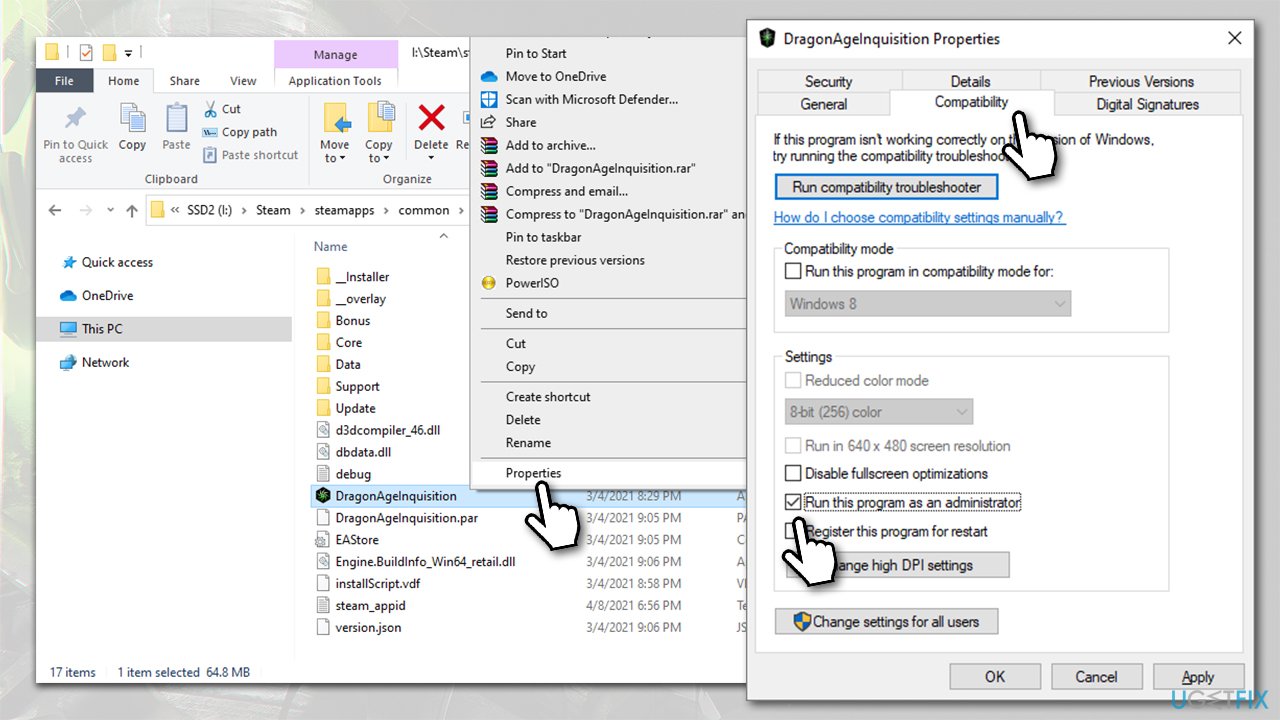
The "WHITELIST FAILURE" error might be caused by insufficient permissions for the game on your device, thus, running it as administrator might help. You can set it to be launched as admin every time:
- Press Win + E to open File Explorer and navigate to the location where the game is installed. Otherwise, you can right-click the game on Steam and select Manage > Browse local files.
- Right-click on the Call of Duty Warzone 2.0.exe file and select Properties.
- Navigate to the Compatibility tab and mark Run this program as administrator.
- Click Apply and OK, then launch the game.
2. Verify game files
Steam
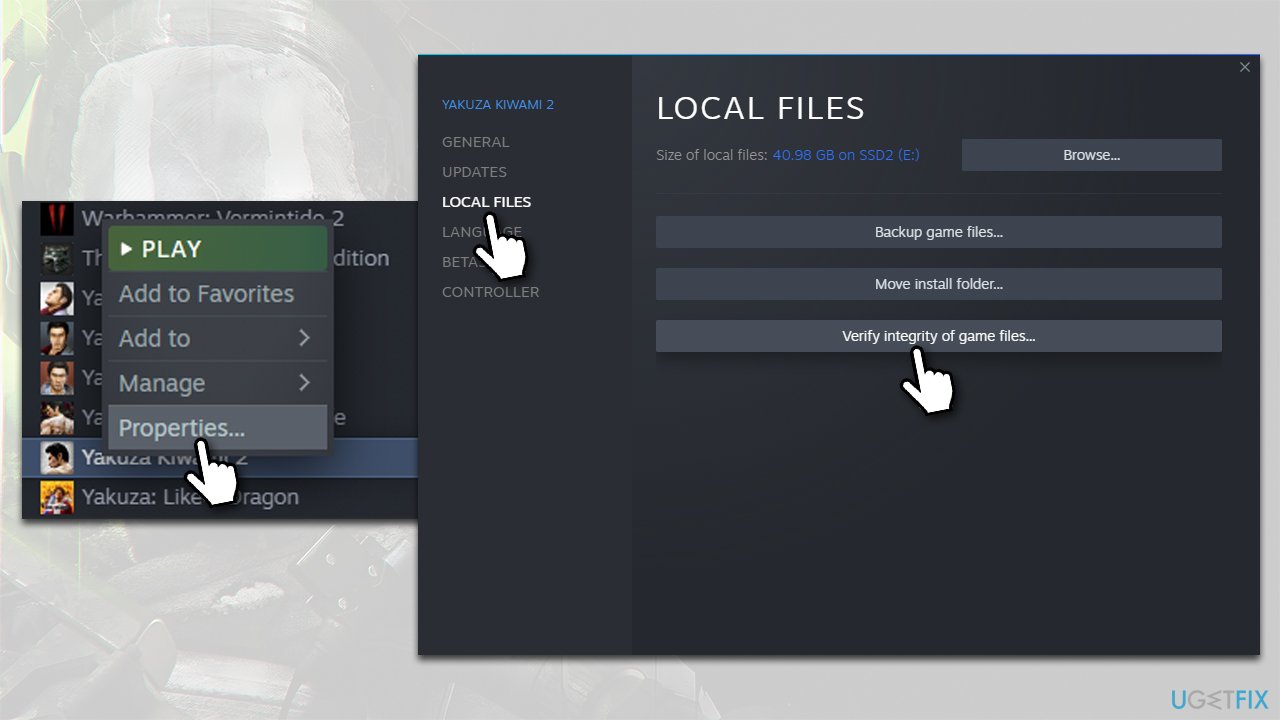
- Open Steam and pick COD: Warzone 2 from your library
- Right-click and select Properties
- Go to the Local Files tab
- Click Verify integrity of game files...
- Wait till the process is finished, and then relaunch the game.
Battle.net
- Open the Battle.net client on your PC
- Select Call of Duty Warzone 2 in the client
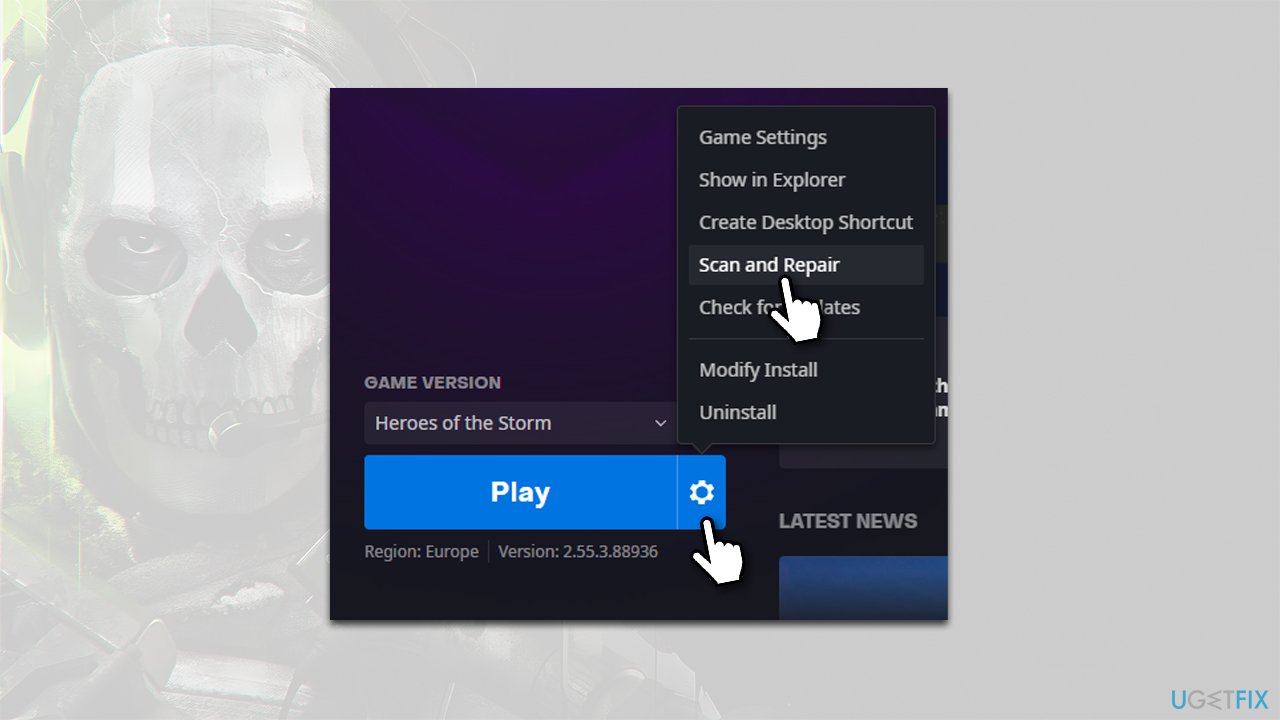
- Click on the gear icon next to the Play button and select Scan and repair from the menu.
- Wait for the scan to finish.
3. Let the game through Firewall
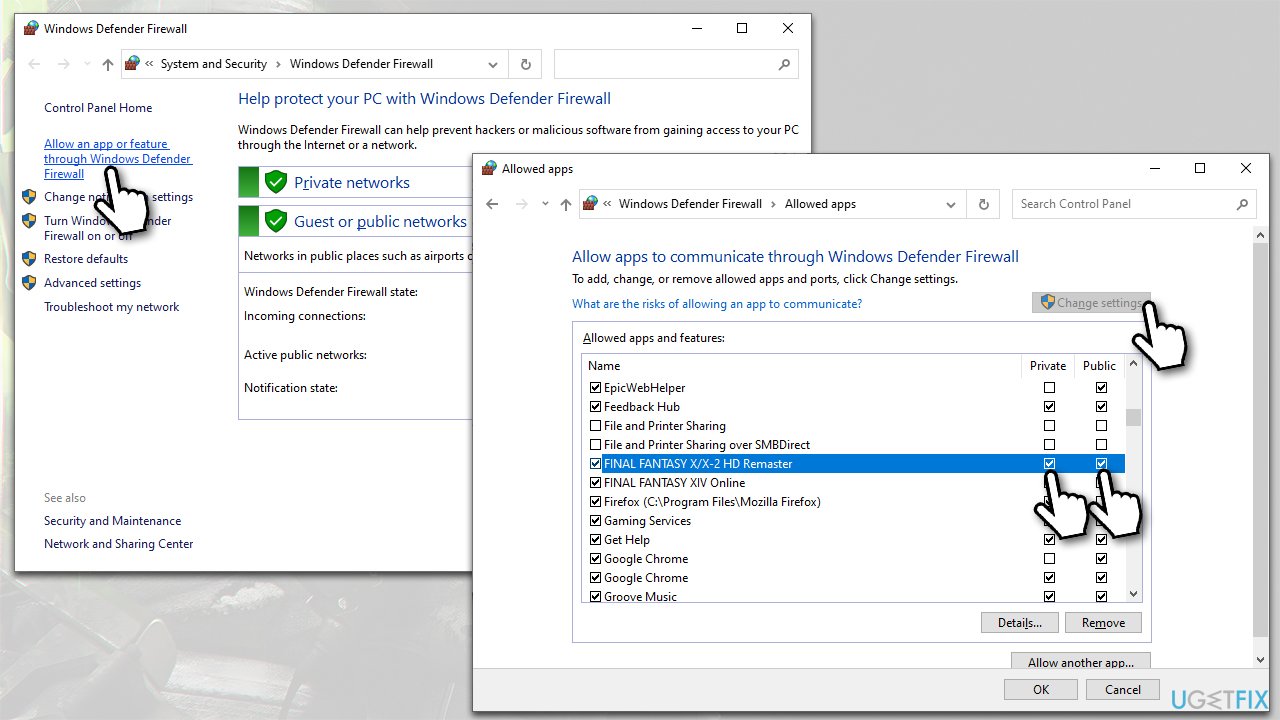
- Type in Windows Defender Firewall in Windows Search and press Enter.
- In the new window, select Allow an app or feature through Windows Defender Firewall.
- Click Change settings here (you must be logged in as an administrator).
- Scroll down to locate Call of Duty: Warzone/2 and tick both - Private and Public options.
If you can't find the game name on the list, proceed with the following steps:
- At the bottom of the window, select Allow another app...
- Under Path, click on Browse.
- Navigate to the directory where the game is installed.
- Select Call of Duty Warzone 2.0.exe and click Open.
- Pick Call of Duty Warzone and click Add.
- Allow the app through Firewall and click OK.
4. Reinstall the game
Many users managed to fix the "WHITELIST FAILURE" error in Call of Duty: Warzone after they reinstalled the game. This might not be the ideal option for those with slow internet, but if nothing else helps, it is the last resort.
You can uninstall the game via the Steam or Battle.net client and then initiate the re-download process. Alternatively, you can access Programs and Features via the Control Panel and uninstall the game that way.
Bottom line
To fix the 'WHITELIST FAILURE' error, try running the game as an administrator and checking your system with an automatic PC repair tool. If these solutions do not work, consider looking for further assistance on forums or the official Activision support page.
Frequently asked questions
The 'WHITELIST FAILURE' error indicates that the game has detected an issue with your system's security settings or third-party software interfering with its operation. This can prevent you from launching or playing the game properly.
To fix this error, ensure that your antivirus or firewall is not blocking the game by adding it to the exceptions list. Additionally, check for any pending Windows updates or game patches that may resolve compatibility issues.
Yes, you should disable any unnecessary background applications that might conflict with Warzone and also run the game as an administrator to provide it with the necessary permissions.




Report an issue
What's wrong with this guide? We review every report and update or remove content.
Report received — thank you. We'll review and fix it.
You need a free account to submit a report.
Be the first to comment