How to fix
“Can’t open AsIO3.sys” error
on Windows
Resolve the "Can’t open AsIO3.sys" error on Windows 10 or 11 quickly and easily. Expert-tested solutions available. Fixed in minutes!


What causes How to fix “Can’t open AsIO3.sys” error in Windows?
- Corrupted system files
- Outdated Universal ASIO driver
- Issues with the Asus Probe monitoring application
- Missing AsIO3.sys file
Repairs Windows system files, removes malware, and restores a clean OS state — without reinstalling.
Hello. After I restart my Windows computer I receive the "Can’t open AsIO3.sys" error. What is it and how do I fix it?
Windows is a complicated operating system that relies on thousands of processes running in the background to keep it working well. If even one of these files gets corrupted or missing, users can start experiencing bugs, freezes, and errors. Recently, some people encountered the "Can’t open AsIO3.sys" error in Windows.
AsIO3.sys belongs to the Asus Probe application. It is a system file[ref en-1] that consists of the driver and configuration of the device. These files are responsible for containing files of core functions of the operating system. Therefore, if they are corrupted they can cause serious damage.
It is unknown why exactly the error appears. However, there are a couple of options for people who want to fix it. Firstly, the error may be fixed by running a system file repair command. Secondly, the error can start appearing because of an outdated Universal ASIO driver.
The problem may also be caused by the Asus Probe monitoring application, so uninstalling it may get rid of the error. Finally, Windows has a built-in system restore tool that can revert the system to a previous point before any issues started. Running it should get rid of any problems.
In this guide, you will find 5 steps that should help you get rid of the "Can’t open AsIO3.sys" error in Windows. Manual troubleshooting can be a lengthy process. You can use a maintenance tool like [d1]. It can fix most system errors, BSODs,[ref en-2] corrupted files, and registry[ref en-3] issues automatically. Otherwise, follow the step-by-step instructions below.

Method 1. Fix Corrupted System Files
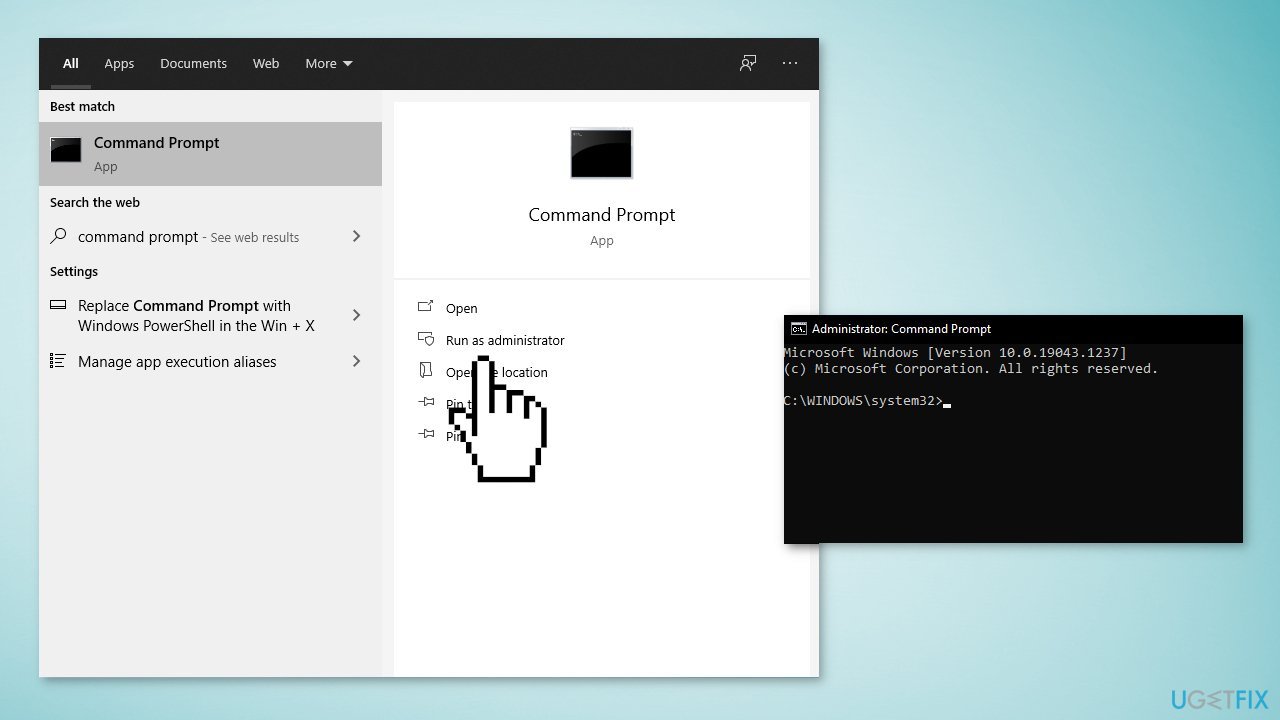
Use Command Prompt commands to repair system file corruption:
- Open Command Prompt as administrator
- Use the following command and press Enter:
sfc /scannow
- Reboot your system
- If SFC returned an error, then use the following command lines, pressing Enter after each:
DISM /Online /Cleanup-Image /CheckHealth
DISM /Online /Cleanup-Image /ScanHealth
DISM /Online /Cleanup-Image /RestoreHealth
Method 2. Update Universal ASIO Driver
- Open Device Manager by searching it out from the Start Menu
- Look for Universal ASIO driver
- Right-click on it and select Update device

- Then click Search automatically for drivers
- Restart your device and see if the issue is solved
Method 3. Reinstall Universal ASIO Driver
- Open Device Manager
- Look for Universal ASIO driver
- Right-click on it and select Uninstall device
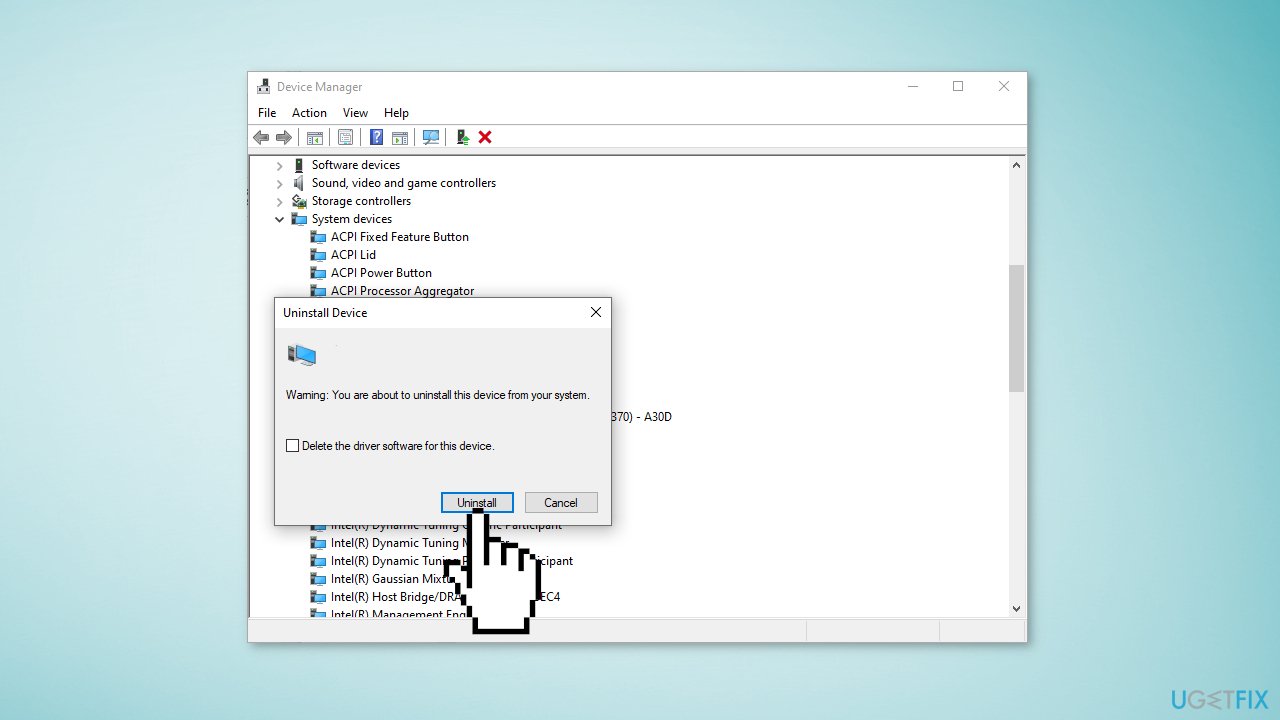
- Click Uninstall again to confirm
- Restart your device and see if the driver is reinstalled
- You can also use a dedicated utility like [rev id="DriverFix"] that can find the best drivers for your device and install them automatically
Method 4. Use System Restore
- Type in Create a System Restore Point in Windows search and hit Enter
- Click on System Restore
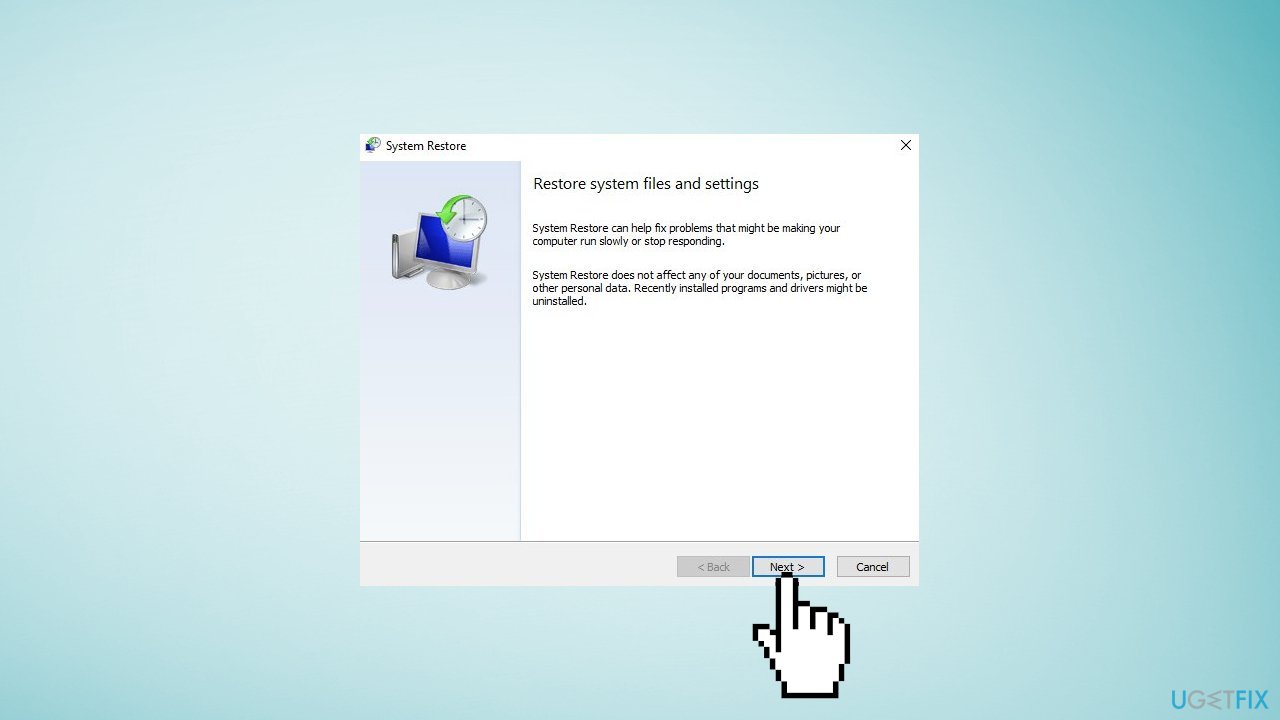
- Select Choose a different restore point (if available) and click Next
- Mark the Show more restore points checkbox
- Choose the date before you started experiencing the issue
- Click Next and reboot the system as required
Method 5. Uninstall Asus Probe
- Open Settings
- Go to Apps, then Apps & Features or Installed Apps
- Look for Asus Probe

- In Windows 11, click on the three vertical dots and select Advanced Options
- In Windows 10, Select the app and select Uninstall
Bottom line
To fix the "Can’t open AsIO3.sys" error, you can repair corrupted system files using Command Prompt, update the Universal ASIO driver, or uninstall the Asus Probe application. If these methods do not resolve the issue, consider using a maintenance tool or the Windows system restore feature.
Frequently asked questions
This error is typically caused by corrupted drivers or conflicts with security software. Ensuring that your system drivers are up to date can help resolve the issue.
You can troubleshoot this error by reinstalling the software associated with AsIO3.sys or running a system file check to repair corrupted files. Additionally, temporarily disabling your antivirus may help to identify if it's causing the conflict.
To permanently fix this issue, consider updating or reinstalling the relevant drivers and checking for Windows updates that may resolve compatibility issues. If the problem persists, you may need to uninstall the application that uses AsIO3.sys.




Report an issue
What's wrong with this guide? We review every report and update or remove content.
Report received — thank you. We'll review and fix it.
You need a free account to submit a report.
Be the first to comment