
How to fix "Can't open this item. It might have been moved, renamed, or deleted" on Windows

Prefer to fix it yourself? The manual steps follow.
- 7methods
- 2 to 20 minutes
- Easy
Applies to Windows 11 and Windows 10 when you click a taskbar pin, a Start menu entry, a jump list item or a desktop shortcut
7 methods in this guide
I've been struggling with this issue. When I want to click on any files, the message pops up saying "Can't open this item. It might have been moved, renamed, or deleted. Do you want to remove this item?" and nothing happens. I suppose it is a Windows bug or system failure? Any advice would be appreciated.
The message "Can't open this item" with "It might have been moved, renamed, or deleted" appears when a taskbar pin, Start entry or shortcut points to a program or file that Windows can no longer find. Your files are usually fine; only the link is broken. Remove the broken pin and pin the app again from the Start menu.
Windows cannot find what the icon points to, so you can't open this item from that link. If one icon fails, select Yes in the message, open Start, find the app and pin it again (Fix 1). If the app moved or lives on a USB drive, correct the shortcut's Target (Fix 2). If every shortcut fails, repair the .lnk file setting (Fix 4).
| Error | "Can't open this item. It might have been moved, renamed, or deleted. Do you want to remove this item?" with Yes and No. |
|---|---|
| Where it appears | When you click a pinned taskbar icon, a jump list entry, a Start menu tile or a desktop shortcut. Desktop shortcuts may show the related Problem with Shortcut box instead. |
| Main cause | The shortcut (.lnk file) behind the icon points to a path that no longer exists: the app was moved, updated to a new folder, uninstalled, or sits on a drive that is not connected. |
| Fastest fix | Select Yes to remove the broken pin, then pin the app again from Start (Fix 1). |
| Also written as | "It may have been moved or deleted", "File Explorer can't open this item", "The item you selected is unavailable. It might have been moved, renamed or removed". |
| Not the same message | Word and Excel: "Sorry, we couldn't find [file name]. Is it possible it was moved, renamed or deleted?". Chrome and Edge: "Your file couldn't be accessed. It may have been moved, edited, or deleted." Both are covered in their own section below. |
| Affects | Windows 7 to Windows 11. The message and the causes have not changed between versions. |
| Microsoft's status | Not a bug. It is Windows telling you a link is broken. There is no update that fixes it, because the link has to be fixed or removed. |
| Time to fix | About 2 minutes for one icon, 10 to 20 minutes when every shortcut fails. |
Facts checked on 15 October 2026. Steps written for Windows 11 (25H2 and 26H2) and Windows 10 22H2.
What "Can't open this item. It might have been moved, renamed, or deleted" means
Every pinned icon on the taskbar, every Start entry and every desktop shortcut is a small .lnk file. It stores the full path of the program or document it opens, for example C:\Program Files\Mozilla Thunderbird\thunderbird.exe. When you click the icon, Windows follows that path. If nothing is there any more, File Explorer can't open this item and shows the message.
The question "Do you want to remove this item?" is about the icon, not your files. Yes deletes only the broken pin or shortcut. No keeps it, and the next click gives the same message. Neither answer deletes the program or a document.
In most cases the app still opens from Start or from its own folder. Only the old link points to the wrong place. If the app does not open from Start either, it really is gone or damaged: go to Fix 2.
| What you click | What breaks | What the message offers |
|---|---|---|
| A pinned taskbar icon or jump list entry | The pin's .lnk file in your profile | "Do you want to remove this item?" Yes or No |
| A desktop shortcut | The shortcut file on the desktop | Often a Problem with Shortcut box that offers to delete the shortcut |
| Any shortcut at all, even a new one | The Windows setting that opens .lnk files | The same message, or every shortcut opens in the wrong app |
Why the item might have been moved, renamed, or deleted: causes in order
Most often the program has moved. An update installed it into a new folder, you reinstalled it somewhere else, or it was uninstalled while its pin stayed. Less often the target is on a USB drive, a second disk or a network share that is not connected, or its drive letter changed. Sometimes Windows Explorer itself is stuck and every taskbar icon goes blank at once. Rarely the .lnk file type setting is broken, or malware has damaged shortcuts.
| Cause | How often | How to tell | Fix |
|---|---|---|---|
| The app was updated, moved or reinstalled into another folder | Most often | One icon fails, but the app opens from Start. | Fix 1 |
| The app was uninstalled, or the target drive is not connected | Often | The app is not in Start, or the shortcut points to a drive letter you do not see. | Fix 2 |
| Windows Explorer is stuck | Sometimes | All taskbar icons turn blank at the same time, often after sleep. | Fix 3 |
The .lnk file setting was changed | Rarely | Every shortcut fails, or opens in Notepad or another app. | Fix 4 |
| Damaged system files | Rarely | System tools such as Notepad or Explorer also fail from their pins. | Fix 5 |
| Malware damaged shortcuts or blocks a security app | Rarely | Only security apps fail, and the browser or PC acts strangely. | Fix 6 |
| A damaged user profile | Rarely | Shortcuts work in another account but not in yours. | Fix 7 |
Similar messages: "It may have been moved, edited, or deleted" and "The item you selected is unavailable"
Several programs use almost the same words. They all mean the same thing: the program remembers a path, and the file is not at that path any more. The fix depends on which program shows it.
| Message | Where | What to do |
|---|---|---|
| "The item you selected is unavailable. It might have been moved, renamed or removed" | A recent item, jump list or pinned folder in Windows | Remove the entry and open the file from its folder. Fix 1 and Fix 2 apply. |
| "Sorry, we couldn't find [file name]. Is it possible it was moved, renamed or deleted?" | Word, Excel, PowerPoint recent list | Open the file with File > Open > Browse from its folder, or search for its name. Check OneDrive if you renamed or moved it there. |
"Your file couldn't be accessed. It may have been moved, edited, or deleted." (ERR_FILE_NOT_FOUND) | Chrome or Edge | The page is a local file or an extension page that no longer exists. Close the tab and open the file again from its folder; remove or reinstall the extension if the tab was one of its pages. |
| "We ran into an error. This file could have been moved or renamed" | A Windows app opening a recent file | Open the file again from File Explorer. We could not confirm which app shows this exact wording. |
If a document you need really seems to be gone, look in the Recycle Bin first, then try previous versions of its folder: Restore an earlier version of a file or folder. For a deleted file see Recover deleted files (Recycle Bin, backups, OneDrive).
How to fix "Can't open this item. It might have been moved, renamed, or deleted"
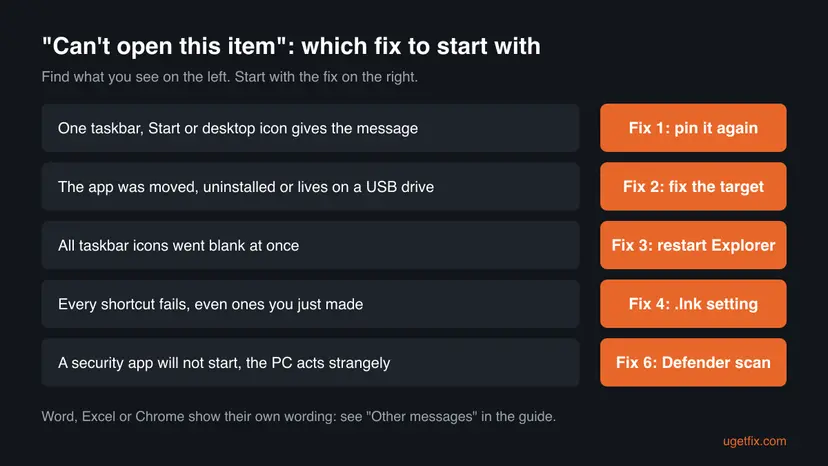
Fix 1 takes two minutes and solves most cases. Fix 2 is for apps that moved or a drive that is missing. Fix 3 and Fix 4 are for many broken icons at once. Fix 5 to Fix 7 are rarer causes.
| What you see or have | Start with |
|---|---|
| One taskbar, Start or desktop icon gives the message, the app opens from Start. | Fix 1 |
| The app is not in Start, or it lived on a USB or second drive. | Fix 2 |
| All taskbar icons turned blank at once. | Fix 3 |
| Every shortcut fails, or shortcuts open in Notepad or another app. | Fix 4 |
| Notepad, Explorer or other Windows tools fail from their pins too. | Fix 5 |
| A security app will not start and the PC acts strangely. | Fix 6 |
Fix 1. Remove the broken pin and pin the app again from Start
2 minutesLow riskOne or a few icons give the message, and the app still opens from the Start menu.
After an update or a reinstall, the app often lives in a new folder while the old pin still points to the old one. A new pin stores the current path, so the click works again.
- Click the broken icon. When the message asks "Do you want to remove this item?", select Yes. Only the icon is removed.
- Open Start and select All apps (on newer Windows 11 builds the button is called All).
- Find the app and open it once to make sure it starts.
- Right-click the app in the list and select Pin to taskbar. On Windows 11 it may be under More > Pin to taskbar.
- For a desktop shortcut, right-click the app, select More > Open file location, then right-click the shortcut there and select Send to > Desktop (create shortcut).
If many pins went blank, users report that removing them all, restarting, opening the apps from Start and pinning them again restored the taskbar. Do that after Fix 3 if a restart of Explorer alone does not help.
It worked if: The new icon shows the app's own picture and opens it on the first click.
If not: If the app is not in Start or will not open from there either, go to Fix 2.
Fix 2. Check where the shortcut points and correct the Target
5 minutesLow riskThe app was moved, uninstalled, or lives on a USB drive, a second disk or a network folder.
The Target field of the shortcut shows the exact path Windows is looking for. Comparing it with where the program really is tells you whether to fix the path, connect the drive or reinstall the app.
- For a taskbar pin, right-click the icon, then right-click the app name at the bottom of the menu and select Properties. For a desktop shortcut, right-click it and select Properties.
- Open the Shortcut tab and read the Target field, for example
"D:\Tools\App\app.exe". - Press Win + E, paste the folder part of that path into the address bar and press Enter.
- If the drive letter is missing, connect the USB drive or disk, or reconnect the network drive, then try the icon again.
- If the folder exists but the
.exehas a new name or sits in a subfolder, type the correct path in Target, select Apply and OK. - If the program is gone, reinstall it from its maker. Then pin it again as in Fix 1.
A program that is still listed in Settings > Apps > Installed apps but does not start can often be repaired from there: How to repair or reset an app in Windows. If it is half removed, uninstall it first: Uninstall a program or app in Windows.
It worked if: The path in Target opens a real file in File Explorer, and the shortcut starts the program.
If not: If the path is correct and the file exists, the problem is not the shortcut. Go to Fix 3 for blank taskbar icons or Fix 4 when every shortcut fails.
Fix 3. Restart Windows Explorer when all taskbar icons go blank
1 minuteLow riskAll pinned icons turned blank at once, often after sleep or a long time running.
Windows Explorer draws the taskbar and resolves every pin. When it loses its icon and path data, all pins can fail at once even though nothing moved. A restart reloads them.
- Open Task Manager. Press Ctrl + Shift + Esc. The Processes page opens.
- Select Windows Explorer. Find Windows Explorer in the list and select it. If it is not under Apps, look under Windows processes further down.
- Restart it. Select Restart task at the top of the window. The taskbar disappears for a moment and comes back. If you do not see Restart task, right-click Windows Explorer and select Restart.
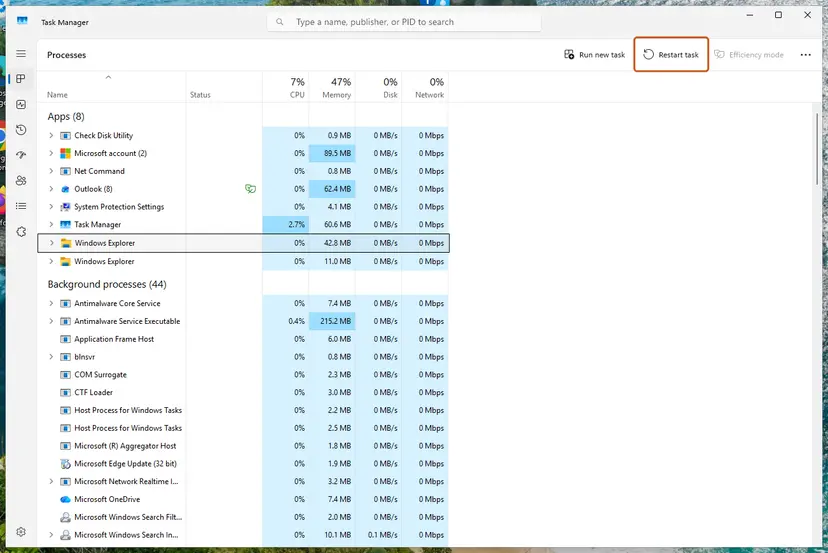
Select Windows Explorer, then Restart task. Screenshot: Windows 11 26H2.
These steps were written for Windows 11 26H2 (build 26300). The full page with the other versions and what each result means: Restart File Explorer
It worked if: The taskbar disappears for a moment, comes back with the normal icons, and the pins open their apps.
If not: Restart the PC once. If icons are still blank, remove and pin them again as in Fix 1, or go to Fix 4 if every shortcut fails.
Fix 4. Repair the .lnk file setting in the registry
10 minutesRead the warningEvery shortcut fails, even a new one, or shortcuts open in Notepad or another app.
Windows opens shortcuts through the .lnk file type. If someone chose Open with > Always for a shortcut, Windows saves a UserChoice key that sends every .lnk file to that app. Removing the key returns shortcuts to the Windows default.
A wrong registry change can stop programs from opening. Export the key below before you delete anything, so you can restore it with a double-click: Back up the registry before editing it
- Press Win + R, type
regeditand press Enter. Approve the prompt with Yes. - Go to
HKEY_CURRENT_USER\Software\Microsoft\Windows\CurrentVersion\Explorer\FileExts\.lnk. - Right-click .lnk and select Export to save a backup.
- Expand .lnk. If there is a subkey named UserChoice, right-click it and select Delete, then Yes.
- If there is no UserChoice key, the setting is not the cause: close Registry Editor and go to Fix 5.
- Close Registry Editor and restart the PC.
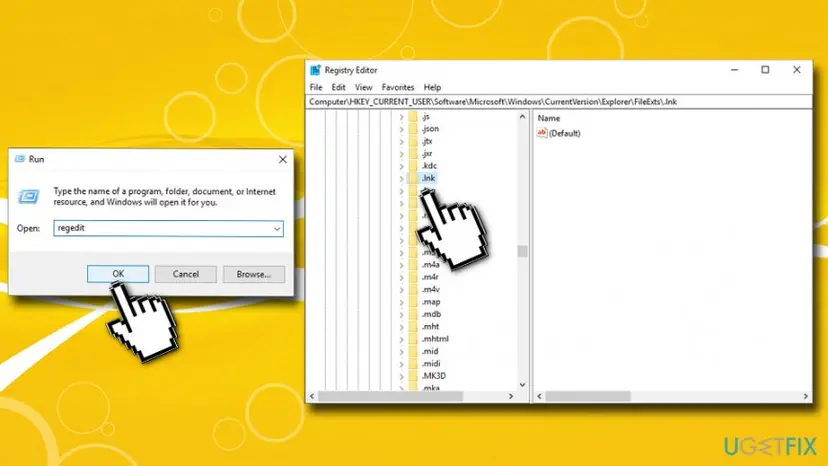
It worked if: After the restart, shortcuts open their programs again and show their own icons.
If not: If shortcuts still fail, import the backup if you want the old state back, and go to Fix 5.
Fix 5. Repair Windows system files with SFC and DISM
15 to 30 minutesLow riskPins of Windows tools such as Notepad or File Explorer fail too, and Fix 1 to Fix 4 did not help.
If a Windows file that a pin points to, such as explorer.exe, is damaged or missing, the link breaks for everyone. DISM repairs the system image and SFC restores the damaged files.
- Test the program directly: press Win + R, type
%windir%\explorer.exeand press Enter. If a File Explorer window opens, the file is fine and only the pin is broken: use Fix 1. - If it does not open, run the repair. Step by step: Run DISM and SFC to repair Windows system files
- Restart the PC and pin the tools again.
It worked if: SFC reports that it found and repaired files, or found no problems, and the Windows tools open from their new pins.
If not: If SFC reports files it could not repair, collect the facts under "Still not working" below. If only security apps fail, go to Fix 6.
Fix 6. Scan for malware with Microsoft Defender
15 minutes to over an hourLow riskOnly security apps give the message or will not start, and the browser or PC acts strangely.
Some malware deletes or redirects the shortcuts of security programs so you cannot start them. Defender is built into Windows, so the malware cannot simply remove its pin, and a full or offline scan can clean it.
- Open Windows Security. Select Start, type Windows Security and open the app.
- Open Virus & threat protection. Select Virus & threat protection. Under Current threats you see when the last scan ran, how long it took and how many files it checked.
- Run a quick scan. Select Quick scan. If Windows Security thinks a deeper scan is needed, it tells you when the quick scan is done.
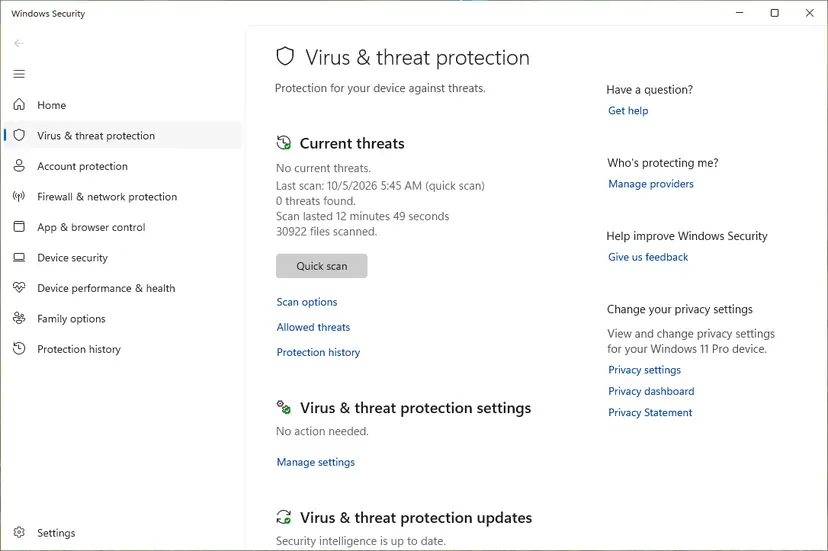
Quick scan and Scan options sit under Current threats. Screenshot: Windows 11 26H2. - Open Scan options. If the quick scan finds nothing and you still suspect an infection, select Scan options under Current threats.
- Run a full scan. Select Full scan and start it. It checks every file and program on the device, so it takes much longer than a quick scan. Leave the PC on until it ends.
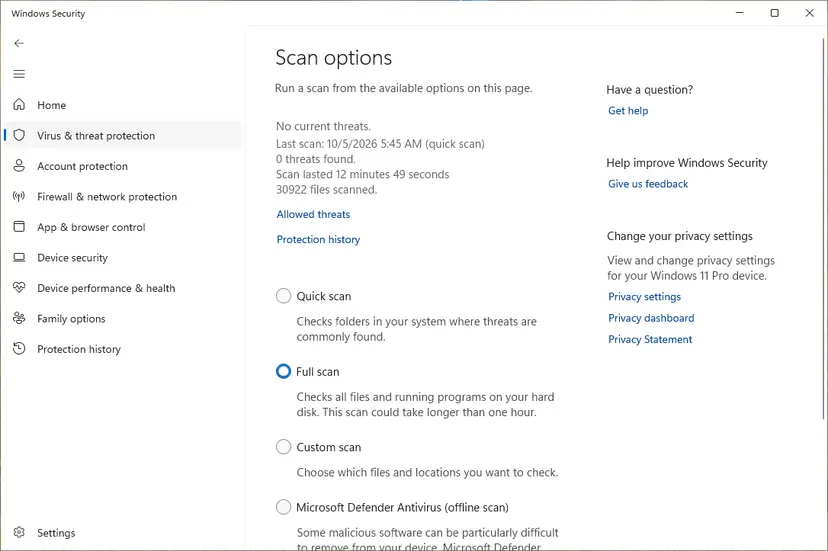
Scan options: Quick scan, Full scan, Custom scan and the offline scan. Screenshot: Windows 11 26H2.
These steps were written for Windows 11 25H2 and 26H2, Windows 10 22H2. The full page with the other versions and what each result means: How to scan for malware with Microsoft Defender
If Windows Security will not open either, start the PC in Safe Mode and run the scan there: Start Windows or a Mac in Safe Mode. Do not rename program files to .com or .scr to get past a block: that makes Windows treat them as other file types and can cause new problems.
It worked if: The scan ends with No current threats or removes what it found, and the security app starts from its pin after you pin it again.
If not: If threats keep coming back, run Microsoft Defender Antivirus (offline scan) from Scan options, then go to Fix 7.
Fix 7. Test with a new Windows user account
10 minutesLow riskShortcuts fail in your account, and nothing above helped.
Pins, jump lists and the UserChoice keys live in your user profile. If shortcuts work in a fresh account, the damage is in your profile and moving to the new account is the clean way out.
- Open Other users. Open Settings > Accounts > Other users. You can also press Windows key + R and run the command below.
ms-settings:otherusers - Add an account. Next to Add other user, select Add account.
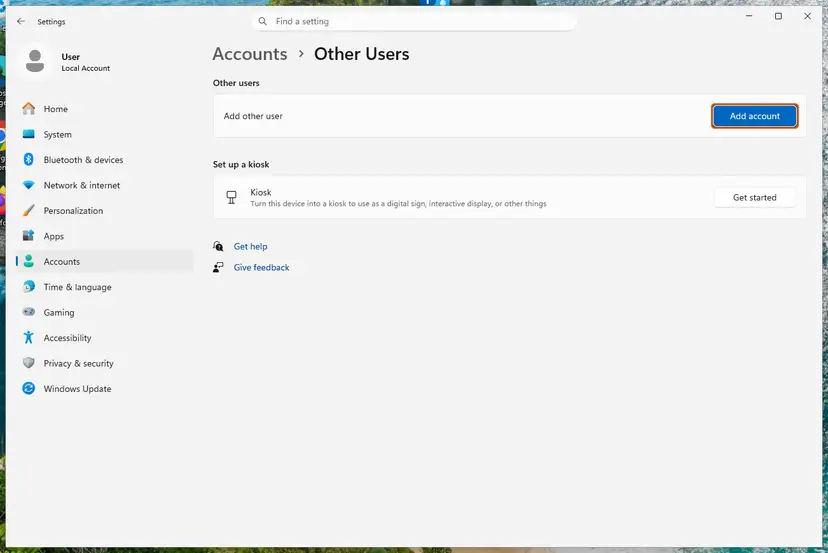
Add account is next to Add other user. Screenshot: Windows 11 26H2. - Skip the Microsoft account. Select I don't have this person's sign-in information.
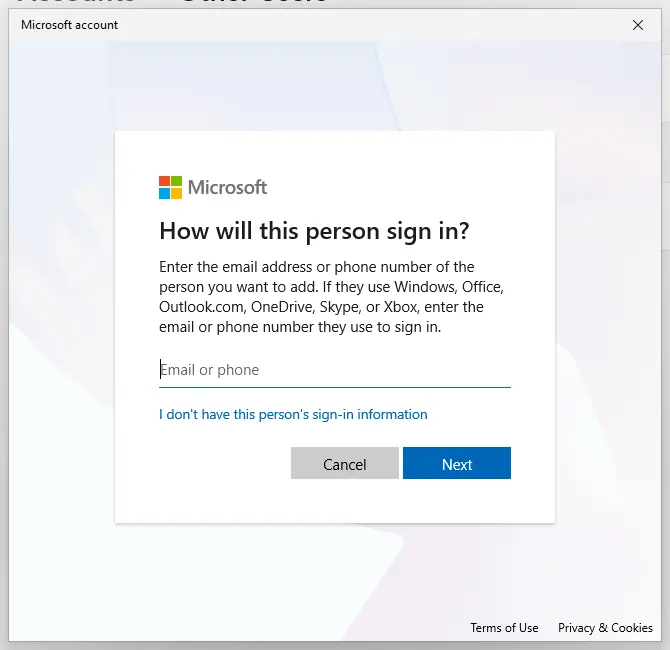
The link for a local account is under the email box. Screenshot: Windows 11 26H2. - Choose a local account. Select Add a user without a Microsoft account.
- Name the account. Type a user name and, if you want one, a password. If you set a password, Windows also asks for answers to security questions. Select Next.
- Make it an administrator (optional). Back in Other users, select the new account, then Change account type next to Account options. Choose Administrator and select OK. For testing a problem, a standard account is usually enough.
- Sign in to the new account. Open Start, select your account picture and choose the new account. The first sign-in takes a few minutes while Windows sets up the profile.
These steps were written for Windows 11 24H2, 25H2 and 26H2. The full page with the other versions and what each result means: Create a new user account to test a problem
- Sign in to the new account and pin one app from Start.
- If the pin works there, copy your files from
C:\Users\<your old name>(Documents, Desktop, Pictures) to the new account and use it from now on. - If the pin fails there too, the cause is system wide: sign back in and see "Still not working" below.
It worked if: Pins and shortcuts work normally in the new account.
If not: If the same message appears in a fresh account, a System Restore point from before the problem is the next step: Undo recent changes with System Restore.
If "Can't open this item" is still there
Collect these facts before you ask for help in Microsoft's community or from a technician. They show whether the link, the program or Windows itself is at fault.
- The Target of the broken shortcut (Fix 2) and whether that file exists.
- Whether the app opens from Start and from its own folder.
- Whether every shortcut fails, or only some, and whether they fail in a new account (Fix 7).
- Whether
HKEY_CURRENT_USER\Software\Microsoft\Windows\CurrentVersion\Explorer\FileExts\.lnkhas a UserChoice key. - The result of SFC, and your Windows version: press Win + R and type
winver. - On an old system, users report that a very long Path environment variable broke Windows tool pins; we could not confirm this with Microsoft.
This message is almost never a hardware fault. The exception is a shortcut to a disk that keeps disappearing: if the drive vanishes from File Explorer or makes noise, copy your files off it first: Back up your files (Windows Backup, File History, Time Machine).
How to stop "It might have been moved, renamed, or deleted" from coming back
- Install programs through their installer, not by copying folders around.
- Pin apps again after you reinstall them in a new folder.
- Keep drives that hold programs connected, or install those programs on C:.
- Remove pins of apps before you uninstall them.
- Choose Open with > Always use this app on a shortcut file.
- Rename or move folders under
C:\Program Filesby hand. - Rename program files to another extension to get past a block.
- Turn off your antivirus as a fix for broken shortcuts.
Frequently asked questions
What does "Can't open this item. It might have been moved, renamed, or deleted" mean?
It means the icon you clicked is a shortcut to a path where Windows finds nothing. The program or file was moved, renamed, uninstalled, or is on a drive that is not connected. Your data is usually safe; only the link is broken. Select Yes to remove the dead icon, then pin the app again from Start (Fix 1). If the app is gone from Start too, check the shortcut's Target (Fix 2).
Will selecting Yes in "Do you want to remove this item?" delete my program or files?
No. Yes removes only the pinned icon or shortcut that points to the missing path. The program, its settings and your documents are not touched. If the program still exists in another folder, you simply pin it again from Start. If you select No, the broken icon stays and gives the same message every time you click it, so Yes is the safe choice in almost every case.
Why do all my taskbar icons suddenly say "Can't open this item"?
When every pin fails at once, Windows Explorer has usually lost its icon and path data, often after sleep or a long run. Restart Windows Explorer in Task Manager (Fix 3). If the icons stay blank, users report that removing all pins, restarting and pinning the apps again from Start brings the taskbar back. If even new shortcuts fail, the .lnk file setting is broken: use Fix 4.
What does "It may have been moved, edited, or deleted" mean in Chrome or Edge?
The full message is "Your file couldn't be accessed. It may have been moved, edited, or deleted." with the code ERR_FILE_NOT_FOUND. The browser tried to show a local file or an extension page that no longer exists. Close the tab and open the file again from its folder in File Explorer. If the address starts with chrome-extension:// or extension://, the extension was removed or updated: reinstall it or ignore the old tab.
What does "The item you selected is unavailable. It might have been moved, renamed or removed" mean?
It is a close variant of the same message. Windows remembers an item in a recent list, a jump list or a pinned folder, and the item is not at that path any more. Remove the entry, then open the file or folder from its real location in File Explorer. If you do not know where it went, search for its name with Win + S. The fixes on this page apply.
Word says "Sorry, we couldn't find your file. Is it possible it was moved, renamed or deleted?" What now?
Word's recent list stores the path of the document, and the document is not there any more. Select File > Open > Browse and open it from its folder, or search for its name in File Explorer. If you saved it to OneDrive, check the OneDrive folder and its online recycle bin. If it was deleted, look in the Recycle Bin and then in previous versions of its folder: Restore an earlier version of a file or folder.
What does "The item referred to by this shortcut cannot be accessed" mean?
It is the desktop shortcut version of the same problem. The shortcut points to a program or a drive that Windows cannot reach. Open the shortcut's Properties, read the Target on the Shortcut tab and check that the file and the drive exist (Fix 2). Connect the drive, correct the path, or delete the shortcut and make a new one from Start.
I renamed a file and now it won't open from its shortcut. Why?
Shortcuts store the exact path and name of their target. After you rename or move the file, the old shortcut points to a name that does not exist, so you get the message. Delete the old shortcut and make a new one: right-click the renamed file and select Send to > Desktop (create shortcut), or pin it again. The file itself opens normally with a double-click in its folder.
Is this page about "file anda tidak dapat diakses, file mungkin telah dipindahkan, diedit, atau dihapus"?
Yes. That is the Indonesian text of the browser message "Your file couldn't be accessed. It may have been moved, edited, or deleted." The Indonesian "artinya" means "what does it mean". The cause is the same on every language version: the browser or Windows looks for a file at a path where it is no longer stored. Open the file again from its folder, as explained in the section on similar messages.
Should I turn off my antivirus to fix "Can't open this item"?
No. The message comes from a broken link, and turning protection off does not change where a shortcut points. Older advice to rename a security app's file to .com or .scr is also a bad idea. If only security apps fail and the PC acts strangely, run a Microsoft Defender full or offline scan instead (Fix 6), and pin the apps again when the scan is clean.
Sources
- Microsoft Q&A: Task bar icons have stopped working ("Can't open this item") (learn.microsoft.com)
- Microsoft Q&A: Sorry, we couldn't find your file. Was it moved, renamed or deleted? (learn.microsoft.com)
- Super User: Windows Explorer on taskbar not working (superuser.com)
Did this fix work?
One click, no account. It tells the next reader which guides are worth their time.
Questions and experiences: fix "Can't open this item. It might have been moved, renamed, or deleted" on Windows
Still broken, or found a fix we did not cover? Ask here: members and our editors answer. Reading is open; writing needs a free account.
…