
How to fix "Can't start your camera" error 0xA00F429E in Windows?

Prefer to fix it yourself? The manual steps follow.
- 9methods
- 5 to 30 minutes
- Easy
Applies to Windows 11, Windows 10; the Windows Camera app with built-in laptop cameras and USB webcams
9 methods in this guide
My old camera broke, so I bought a GUSGU G940 webcam and tried to set it up right away, but with no luck. I keep getting the 0xA00F429E<PageOpenFailed> (0x80131505) error with the message "Can't start your camera". I reconnected it several times and restarted Windows. What else can I do?
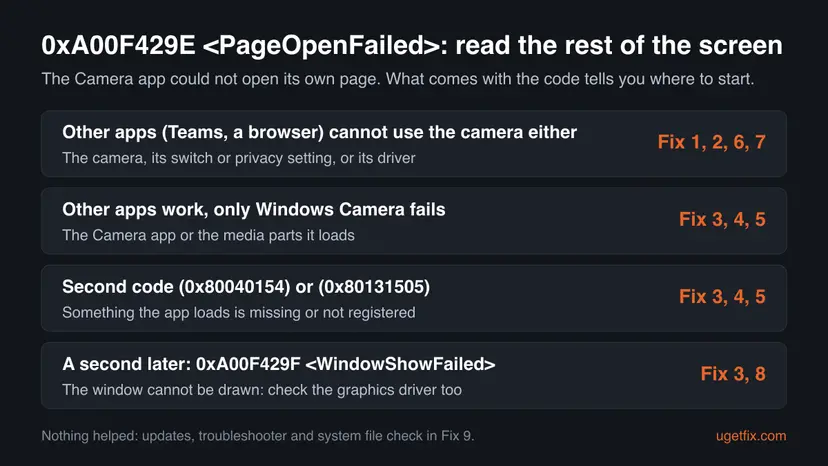
Error 0xA00F429E <PageOpenFailed> appears when the Windows Camera app cannot open its own camera page, often followed a second later by 0xA00F429F. First find out whether other apps can use the camera: if they can, repair the Camera app and its media parts; if they cannot, check camera access and the driver.
The Windows Camera app failed while opening its camera page, so you see "Can't start your camera". Close the app, reconnect the camera, check its shutter or Fn key and restart (Fix 1), then check camera access in Privacy & security (Fix 2). If Teams or a browser can use the camera but Windows Camera cannot, repair and reset the Camera app (Fix 3) and Web Media Extensions (Fix 4).
| Error | Can't start your camera, with the code 0xA00F429E<PageOpenFailed> and a second code in brackets, for example (0x80131505) or (0x80040154). |
|---|---|
| Where it appears | In the Windows Camera app, right when it opens. Users report that 0xA00F429F<WindowShowFailed> often replaces it about a second later. |
| Main cause | The Camera app cannot build its camera page: the camera is blocked or busy, or the app or a media part it loads is damaged or not registered. |
| Fastest fix | Close the Camera app, reconnect the camera, open its shutter, restart Windows (Fix 1) and check camera access (Fix 2). |
| Also written as | 0xa00f429e, 0xA00F429E PageOpenFailed, pageopenfailed, "page open failed", "camera page open failed", often together with 0xa00f429f WindowShowFailed. |
| Affects | Windows 11 and Windows 10, built-in laptop cameras and USB webcams. Reports we read come from Lenovo and Acer laptops and from a new USB webcam. |
| Microsoft's status | No public Microsoft article for 0xA00F429E. Microsoft's camera page lists other codes, such as 0xA00F4294 "Video start failed" and 0xA00F4244 "camera not detected". |
| Where the cause is logged | The second code in brackets is the best clue. The test that tells most: does the camera work in Teams, Zoom or a browser? |
| Time to fix | 5 minutes for Fixes 1 and 2, up to 30 minutes for a driver change. |
Facts checked on 15 October 2026. Steps written for Windows 11 (25H2 and 26H2) and Windows 10 22H2.
What "Can't start your camera" error 0xA00F429E <PageOpenFailed> means
The message comes from the Windows Camera app. It reads Can't start your camera, followed by the code 0xA00F429E<PageOpenFailed> and a second code in brackets. PageOpenFailed says what went wrong: the app started, but its main camera page, the screen with the live preview and the shutter button, could not open.
People search the same error as 0xa00f429e, pageopenfailed, page open failed or camera page open failed. The code is the same in every language of Windows. One user on a Lenovo laptop describes the usual sequence: first 0xA00F429E (PageOpenFailed), then about one second later 0xA00F429F (WindowShowFailed), and then nothing works.
| What you see with it | What it tells you |
|---|---|
Second code (0x80131505) | The code from our reader's screen. Microsoft does not explain it for the camera, and we could not confirm its meaning. Treat it as an app failure: Fix 3 to Fix 5. |
Second code (0x80040154) | This is the standard Windows code for "Class not registered": a component the Camera app loads is missing or not registered. Fix 3 to Fix 5. |
0xA00F429F<WindowShowFailed> a second later | The app could not show its window either. Repair the app (Fix 3) and check the graphics driver (Fix 8). |
| Teams, Zoom or a browser cannot use the camera either | The cause is shared by all apps: access, a switch or shutter, or the camera driver. Fix 1, Fix 2, Fix 6. |
Open a video call app or a browser camera test with the same camera. Microsoft's own advice is to test the camera in a different app: if it works in one app and not another, the problem lies with the app. That one test splits this error into two different repairs.
Why the Camera app cannot open its camera page
Most often the camera is not available to the app at the moment it opens: another program holds it, the privacy switch blocks it, or a shutter or Fn key has turned it off. Often the Camera app or a media component it loads is damaged. Less often the camera or graphics driver is at fault.
| Cause | How often | How to tell | Fix |
|---|---|---|---|
| Camera busy in another app, turned off with a shutter or key, or loosely connected. | Most often | A call app is still running, the laptop has a camera key or slider, or the USB plug is loose. | Fix 1 |
| Camera access turned off in Privacy & security. | Often | No app can use the camera, or Camera is switched off in the app list. | Fix 2 |
| The Camera app is damaged or outdated. | Often | Other apps use the camera normally, only Windows Camera fails. | Fix 3, Fix 5 |
| A media component the app loads is broken. | Sometimes | Second code 0x80040154, or the error started after app updates. | Fix 4 |
| Camera driver is wrong, old or damaged. | Sometimes | Warning sign in Device Manager, or a new USB webcam on its first use. | Fix 6, Fix 7 |
| Graphics driver problem. | Rarely | 0xA00F429F follows, or the error began after a display driver update. | Fix 8 |
When the camera works under another operating system on the same PC, the hardware is fine. One Lenovo owner reports that a repair depot found exactly that, and the fault turned out to be software inside Windows.
How to fix "Can't start your camera" error 0xA00F429E <PageOpenFailed>
Fixes 1 and 2 make the camera free and allowed, and take five minutes. Fixes 3 to 5 repair the Camera app and the media parts it loads, for when other apps use the camera fine. Fixes 6 to 8 deal with drivers, and Fix 9 holds the general repairs.
| What you see or have | Start with |
|---|---|
| You just plugged in a new USB webcam, or a call app was open before. | Fix 1 |
| No app at all can use the camera. | Fix 2, then Fix 6 |
| Teams, Zoom or a browser use the camera, only Windows Camera fails. | Fix 3, then Fix 4 |
| The second code is (0x80040154) or (0x80131505). | Fix 3 to Fix 5 |
| USB webcam that still fails after a driver update. | Fix 7 |
| 0xA00F429F WindowShowFailed follows, or a display driver update came first. | Fix 8 |
Fix 1. Close the Camera app, free the camera and restart Windows
5 minutesNo riskEveryone, first. Especially after a video call, with a new USB webcam, or on a laptop with a camera key or shutter.
The Camera app opens the camera as it builds its page. If another app holds the camera, a shutter or key has turned it off, or a USB webcam is half connected, the page cannot open. Microsoft lists these checks first for camera problems.
- Open Settings > Apps > Installed apps, find Camera, select the three dots and Advanced options, then select Terminate.
- Close Teams, Zoom, Skype, OBS and any browser tab that used the camera. If one hangs, end it in Task Manager with Ctrl + Shift + Esc.
- Open the camera shutter, flip a side switch to on, or press the camera key (often an Fn key in the top row).
- For a USB webcam, unplug it and plug it into another USB port directly on the PC, not into a hub.
- Restart Windows with Start > Power > Restart, then open Camera.
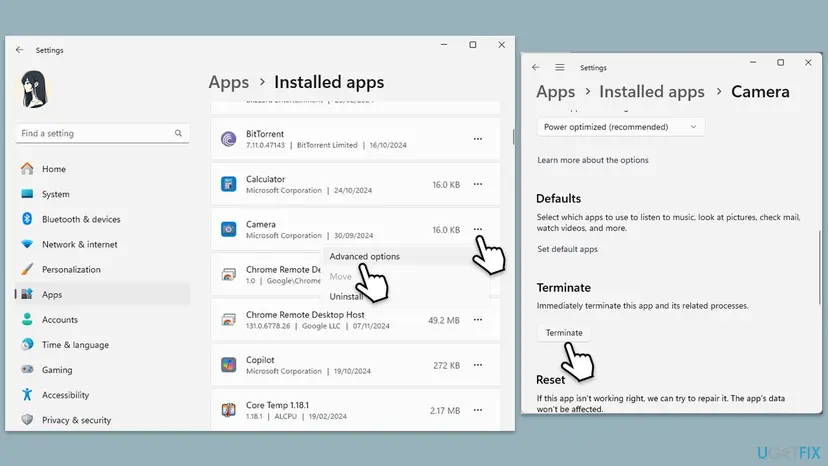
Microsoft notes that waking the PC from sleep is not the same as a restart. A frozen app that will not close: Close a frozen app (Task Manager, Force Quit)
It worked if: The Camera app opens with a live picture and no error.
If not: If the error comes back right after the restart, check camera access in Fix 2.
Fix 2. Allow camera access for the Camera app and desktop apps
3 minutesNo riskNo app can use the camera, or Windows was updated recently.
Microsoft says that after an update some apps in newer Windows 11 versions do not have camera access by default. If Camera is switched off in the list, the app has no camera to show on its page.
- Open Settings > Privacy & security > Camera.
- Turn on Camera access.
- Turn on Let apps access your camera and make sure Camera is switched on in the list below it.
- Turn on Let desktop apps access your camera so that browsers, Teams and Zoom can be used for the test.
- Open the Camera app again.
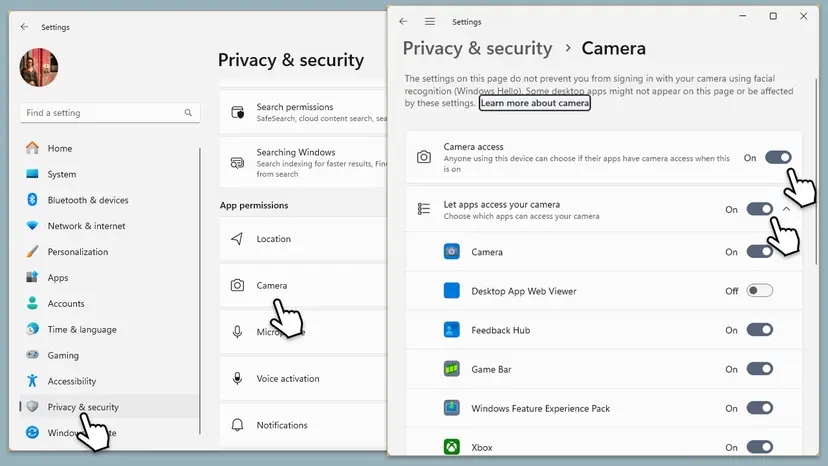
On Windows 10 the same switches are in Settings > Privacy > Camera. If Camera access is greyed out, Microsoft says an administrator or a work policy has turned it off, and only they can turn it on.
It worked if: All switches are on and the Camera app shows the picture.
If not: If other apps now use the camera but Windows Camera still fails, go to Fix 3. If no app can, go to Fix 6.
Fix 3. Repair, reset and update the Windows Camera app
5 minutesLow riskTeams, Zoom or a browser use the camera normally and only Windows Camera fails, or the second code is 0x80040154 or 0x80131505.
PageOpenFailed is the app's own failure to build its page. When other apps use the same camera, the camera and driver work, so the app's files or settings are the next suspect. Repair keeps the app's settings; Reset clears them.
- Open Settings > Apps > Installed apps, find Camera, select the three dots and Advanced options.
- Select Terminate, then Repair, and open the Camera app.
- If it still fails, select Reset. Your saved photos and videos stay in Pictures > Camera Roll.
- Open Microsoft Store > Library, select Get updates and let the Camera app update.
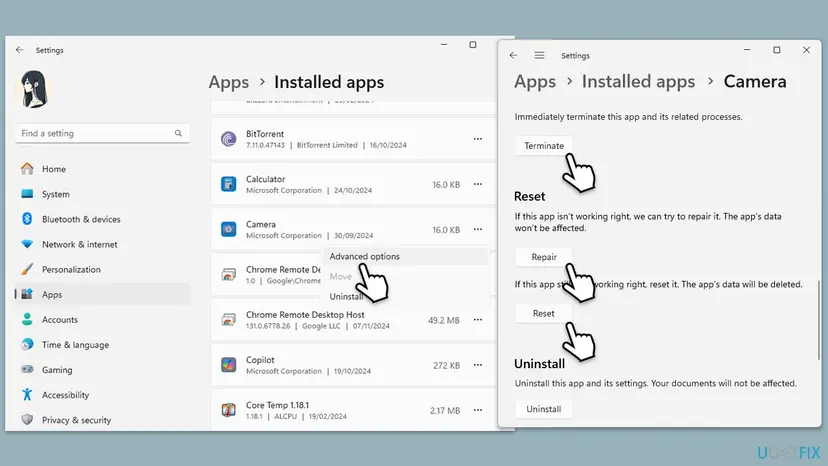
Full steps for Windows 11 and Windows 10: How to repair or reset an app in Windows
It worked if: The Camera app opens with default settings and shows the live picture.
If not: Go to Fix 4 and repair Web Media Extensions, which one user found to be the real cause.
Fix 4. Repair and reset Web Media Extensions
5 minutesLow riskRepairing the Camera app did not help, other apps may fail too, and 0xA00F429E and 0xA00F429F keep following each other.
Web Media Extensions is a Microsoft Store package of media components that comes with Windows. A Lenovo owner whose camera failed with 0xA00F429E and 0xA00F429F in every app reports that repairing and resetting it ended the error, without even a restart.
- Open Settings > Apps > Installed apps.
- Find Web Media Extensions, select the three dots and Advanced options.
- Select Repair and wait for the check mark.
- Select Reset and confirm.
- Open the Camera app again. Test a browser or call app as well.
That user changed two things at once: he also removed some unused preinstalled apps. He believes the reset was the fix but could not say for sure, and we could not confirm it either. The reset itself carries little risk, so it is worth the five minutes.
It worked if: The camera page opens and the preview starts in the Camera app and in other apps.
If not: If Web Media Extensions is not in the list or the reset changed nothing, reinstall the Camera app in Fix 5.
Fix 5. Reinstall the Camera app with PowerShell
10 minutesLow riskRepair and Reset did not help, and other apps use the camera normally.
Removing the Camera app package and installing it fresh from the Microsoft Store replaces every app file and its registration. That is the part a "Class not registered" code points at.
- Right-click Start and select Terminal (Admin) or Windows PowerShell (Admin), then select Yes.
- Run the command below and wait until the prompt returns.
- Open Microsoft Store, search for Windows Camera and select Install.
- Open the Camera app and allow camera access if asked.
Remove the Camera app package
Get-AppxPackage *windowscamera* | Remove-AppxPackageYour photos and videos are files in Pictures > Camera Roll, not app data, so removing the app does not delete them. To re-register built-in apps without removing them: How to re-register Microsoft Store apps with PowerShell
It worked if: Windows Camera is installed again from the Store and shows the picture.
If not: If the fresh app shows the same code, the app is not the cause. Check the camera driver in Fix 6.
Fix 6. Update, roll back or reinstall the camera driver
10 minutesLow riskNo app can use the camera, the camera has a warning sign in Device Manager, or the error began after an update.
If the driver does not deliver a picture, no page can open. Microsoft's order for camera drivers is: scan for hardware changes, roll back after an update, then uninstall and let Windows install the driver again.
- Right-click Start, select Device Manager and find the camera under Cameras, Imaging devices or Sound, video and game controllers.
- Right-click it, select Update driver and then Search automatically for drivers. Restart and test.
- If the error started after an update, open Properties > Driver and select Roll Back Driver if it is available.
- Otherwise select Uninstall Device, tick Attempt to remove the driver for this device and select OK.
- Select Action > Scan for hardware changes, wait for the camera to come back and restart.
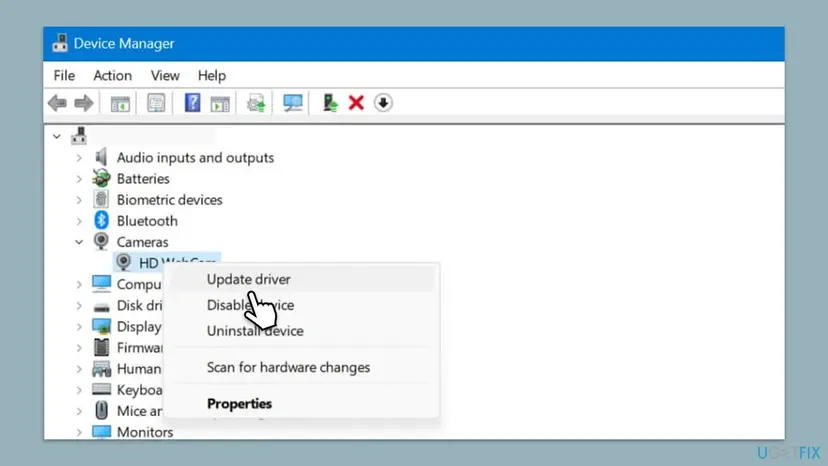
A laptop maker's support page often has a newer camera driver than Windows Update. On a Microsoft forum thread about this code, the advisor's first question was whether the driver came from the laptop maker's site. Full driver steps: Update, roll back or reinstall a driver
It worked if: The camera is listed under Cameras without a warning sign and the Camera app opens.
If not: For a USB webcam go to Fix 7. For a built-in camera, go to Fix 8.
Fix 7. Switch a USB webcam to the USB Video Device driver
5 minutesLow riskThe camera is an external USB webcam, such as a new one on its first use, and Fix 6 did not help.
Microsoft says most USB webcams are UVC compatible and work with the driver built into Windows, and that swapping to it may help when a webcam does not work correctly.
- Open Device Manager and find the webcam under Cameras or Imaging devices.
- Right-click it and select Update driver.
- Select Browse my computer for drivers.
- Select Let me pick from a list of available drivers on my computer.
- Select USB Video Device, then Next, then Close, and open the Camera app.
Microsoft warns that the built-in driver may not support every feature of your webcam, and Windows Hello face sign-in can stop working. To go back, use Roll Back Driver on the Driver tab.
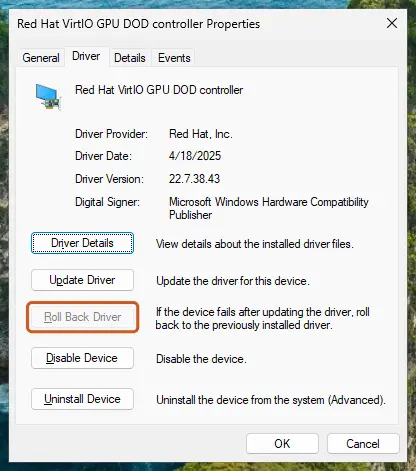
It worked if: The webcam appears under Cameras as a USB Video Device and the Camera app shows its picture.
If not: If USB Video Device is not offered, the webcam does not follow the standard. Ask its maker for a Windows 11 driver and try Fix 8.
Fix 8. Update or roll back the graphics driver
20 minutesLow risk0xA00F429F <WindowShowFailed> follows the first error, or the trouble began after a display driver update.
WindowShowFailed means the Camera app could not show its window, and the window and preview are drawn through the graphics driver. This is our reading of the code name, not something Microsoft has published, so this fix comes after the app and camera driver.
- Open Device Manager and expand Display adapters. Note the graphics chip, for example AMD Radeon or Intel Graphics.
- Right-click it, select Properties and open the Driver tab. Note the Driver Version and Driver Date.
- If the error started after a driver update and Roll Back Driver is available, select it, choose a reason and select Yes.
- Otherwise download the newest graphics driver for your exact model from the laptop maker's support page, or from AMD, Intel or NVIDIA, and install it.
- Restart the PC and open the Camera app.
The screen may flicker or go black for a moment while a graphics driver installs. That is normal. Full steps: Update, roll back or reinstall a driver
It worked if: Neither 0xA00F429E nor 0xA00F429F appears, and the preview fills the window.
If not: Go to Fix 9 for Windows updates, the troubleshooter and the system file check.
Fix 9. Install updates, run the troubleshooters and check system files
30 minutesNo riskEvery fix above has failed, or Windows has updates waiting.
Microsoft's general camera steps are its troubleshooter and the driver updates under optional updates. They are not specific to PageOpenFailed, so they come last here.
- Open Settings > Windows Update, select Check for updates and install everything.
- Select Advanced options > Optional updates and install any camera or graphics driver offered. Restart.
- Open Settings > System > Troubleshoot > Other troubleshooters and select Run next to Camera.
- In the same list, select Run next to Windows Store Apps, because Windows Camera is a Store app.
- Test the Camera app again.
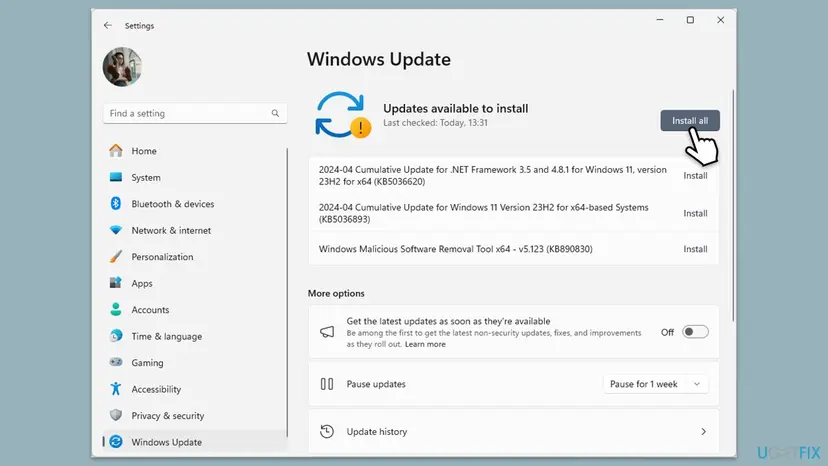
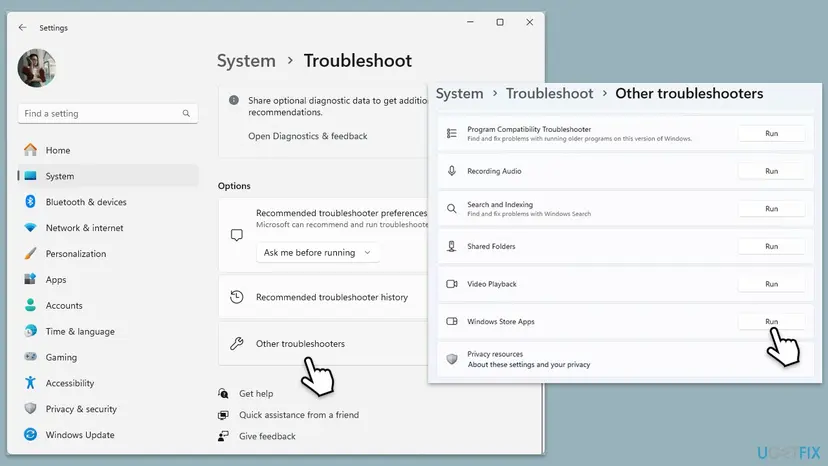
If the error still appears, check and repair Windows system files: Run DISM and SFC to repair Windows system files
It worked if: Windows is up to date, the troubleshooters report what they checked, and the Camera app opens.
If not: Read "If error 0xA00F429E is still there" below.
If error 0xA00F429E is still there
The Camera app shows only the codes, and we found no Windows log that names PageOpenFailed. Narrow the cause down with these tests instead. Each takes a minute and tells you who can help.
- Test the camera in another app, such as Teams or a browser camera test. If it works there, the problem is in the Camera app or its media parts.
- Start Windows in safe mode and try the Camera app once, to rule out third-party programs: Start Windows or a Mac in Safe Mode
- For a USB webcam, try it on a second PC. For a built-in camera, check the laptop maker's diagnostics app.
- What to send to support: the full message with both codes, the camera name and driver version from Device Manager, the graphics chip and driver version, and the Windows version from Settings > System > About.
- Who to ask: for a built-in camera, the laptop maker. For a USB webcam, its maker. For the Camera app itself, Microsoft support.
- When it is hardware: no app can use the camera, it is missing from Device Manager after Scan for hardware changes, or a USB webcam fails on a second PC too.
If other apps use the camera and only Windows Camera fails, you can keep working in those apps while you wait for a Camera app update. A full Windows reinstall is the last resort, and not needed for most readers.
How to keep the Camera app from failing again
- Close video call apps fully before you open the Camera app.
- Keep the Camera app and Web Media Extensions updated in Microsoft Store > Library.
- Take camera and graphics drivers from the laptop or webcam maker, or from Windows Update.
- Restart, not just wake from sleep, after any driver change.
- Do not install driver updater programs from unknown sites.
- Do not remove built-in Microsoft packages such as media extensions with cleanup tools.
- Do not leave camera access switched off after a privacy check and forget it.
Windows 10 left support on 14 October 2025, so its Camera app and drivers no longer get regular fixes. On Windows 10 the paths in this guide are mostly the same, with Privacy in place of Privacy & security.
Frequently asked questions
What does 0xA00F429E <PageOpenFailed> mean?
It means the Windows Camera app started but could not open its camera page, the screen with the live preview. The app then shows "Can't start your camera". Microsoft has not published a description of this code. The cause is either outside the app, when the camera is busy, blocked or switched off, or inside it, when the app or a component it loads is damaged. Test the camera in another app first: that tells you which side to fix.
What is 0xA00F429F <WindowShowFailed> and why does it follow 0xA00F429E?
0xA00F429F <WindowShowFailed> is the Camera app's next failure: after its page did not open, it could not show its window either. Users report that it replaces 0xA00F429E about a second later. Both codes come from the same problem, so fix them together. Start with Fix 1 and Fix 3, repair Web Media Extensions in Fix 4, and update or roll back the graphics driver in Fix 8 if the second code stays.
Is the fix for camera page open failed the same on Windows 11 and Windows 10?
Yes. The codes and fixes are the same on both. Only some menu names differ: on Windows 11 the camera switches are in Settings > Privacy & security > Camera, on Windows 10 in Settings > Privacy > Camera. Windows 11 users often search "page open failed camera Windows 11", but the error is the same. Windows 10 left support on 14 October 2025, so Camera app and driver fixes reach it less often.
What does the second code (0x80131505) mean?
We could not confirm what 0x80131505 means for the Camera app, and Microsoft does not explain it. It appeared on our reader's screen with a new USB webcam. Treat it as a failure inside the app: repair and reset the Camera app (Fix 3), reset Web Media Extensions (Fix 4) and reinstall the app (Fix 5). For a new USB webcam, also try another USB port (Fix 1) and the USB Video Device driver (Fix 7).
What does the second code (0x80040154) mean?
0x80040154 is the general Windows code for "Class not registered". It means the Camera app asked Windows for a component and Windows could not find it registered. An Acer Aspire 7 owner saw it with both 0xA00F429E and 0xA00F429F. The fixes that replace or re-register app parts fit best: repair and reset the Camera app (Fix 3), reset Web Media Extensions (Fix 4), and reinstall the Camera app (Fix 5).
My new USB webcam shows "Can't start your camera". Is it broken?
Usually not. Plug it straight into another USB port, not a hub, and restart (Fix 1). Check that camera access is on (Fix 2). If Windows lists it in Device Manager but the Camera app still fails, try the built-in USB Video Device driver (Fix 7). The webcam is likely faulty only if it does not appear in Device Manager at all, or it fails the same way on a second PC.
The browser says "Camera preview failed to start. Please reload the page and try again". Is it the same error?
No. That message comes from a web page, not from the Windows Camera app. The checks overlap, though. Close other apps that use the camera, turn on Let desktop apps access your camera in Settings > Privacy & security > Camera, and allow the camera for that site in the browser. Microsoft notes that browsers are desktop apps and need that setting. Then reload the page. If the Camera app shows 0xA00F429E too, follow this guide.
Should I turn off my antivirus to fix 0xA00F429E?
Not as a fix. No report we read ties this code to security software. Microsoft links security software to a different camera code, 0xA00F4246, where the camera is locked. Some security suites have their own webcam protection: look there and allow the Camera app. If you want to test with protection paused, do it for one try only and turn it back on: Turn off Microsoft Defender protection for a moment
Will resetting or reinstalling the Camera app delete my photos?
No. Your photos and videos are ordinary files in Pictures > Camera Roll. Reset clears only the app's own settings, such as photo quality and the timer. Uninstalling removes the app and its settings, and Windows states on that page that your documents will not be affected. To be safe, copy the Camera Roll folder to another drive or to OneDrive before Fix 3 or Fix 5.
None of these fixes worked. How do I fix this problem?
Use the tests in "If error 0xA00F429E is still there": another app, safe mode and, for a USB webcam, a second PC. They tell you whether to contact the laptop maker, the webcam maker or Microsoft. One user whose camera failed in every app found that the laptop maker's repair center confirmed the hardware was fine, and the reset of Web Media Extensions ended it. A Windows reinstall is the last step, not the first.
Sources
- Microsoft Support: Camera doesn't work in Windows (camera switch, app permissions, test in another app, troubleshooter, driver roll back and reinstall, USB Video Device driver, camera error code table) (support.microsoft.com)
- Microsoft Q&A: Windows Camera Error 0xA00F429E and 0xA00F429F, works on Linux but not Windows (Lenovo IdeaPad, steps tried, advice to use the maker's driver) (learn.microsoft.com)
- Brian Prom Blog: Windows 11 Camera Won't Start (0xA00F429E followed by 0xA00F429F, repair and reset of Web Media Extensions) (promincproductions.com)
Did this fix work?
One click, no account. It tells the next reader which guides are worth their time.
Questions and experiences: fix "Can't start your camera" error 0xA00F429E in Windows
Still broken, or found a fix we did not cover? Ask here: members and our editors answer. Reading is open; writing needs a free account.
…