How to fix
Clipboard history not working
on Windows
Resolve Clipboard history issues in Windows 10 and 11 with expert tips and proven solutions. Fix it in minutes with zero traces left.

What causes How to fix Clipboard history not working in Windows?
- Feature disabled in system settings
- Low-memory issue
- Software conflicts
- Recent software installation or system changes
Repairs Windows system files, removes malware, and restores a clean OS state — without reinstalling.
Hello. The Clipboard history has suddenly stopped working on my Windows computer. Is there anything I can do to fix this?
The clipboard history is a feature that allows users to access and reuse previous clipboard contents. It is a convenient tool for quickly pasting frequently used text or other content, such as images or files. However, sometimes the clipboard history may not work as expected. This can be due to a variety of reasons, including system configuration issues, software conflicts, or hardware problems.
One possible cause of the clipboard history not working is that the feature has been disabled in the system settings. In some cases, hardware problems can also cause clipboard history not to work. For example, if the user's computer has a low-memory issue, the clipboard history may not function properly. In this case, the user may need to upgrade their system's memory or free up some memory by closing unnecessary programs and files.
Another potential cause of clipboard history not working is a software conflict. If the user has recently installed any new software or made changes to their system, it is possible that the clipboard history may not be functioning properly due to a conflict with another program. In this guide, you will find 7 steps that should help you fix clipboard history not working in Windows.
Keep in mind that the manual troubleshooting process can be lengthy. You can use an automatic maintenance tool like [d1] that can fix most system errors, BSODs,[ref en-1] corrupted files, registry[ref en-2] issues, or clear cookies and cache.[ref en-3] Otherwise, follow the step-by-step instructions below.
Solution 1. Enable Clipboard History
- Right-click the Windows Start button and select Settings
- In the left-sidebar, select System
- In the right-hand pane, click on Clipboard
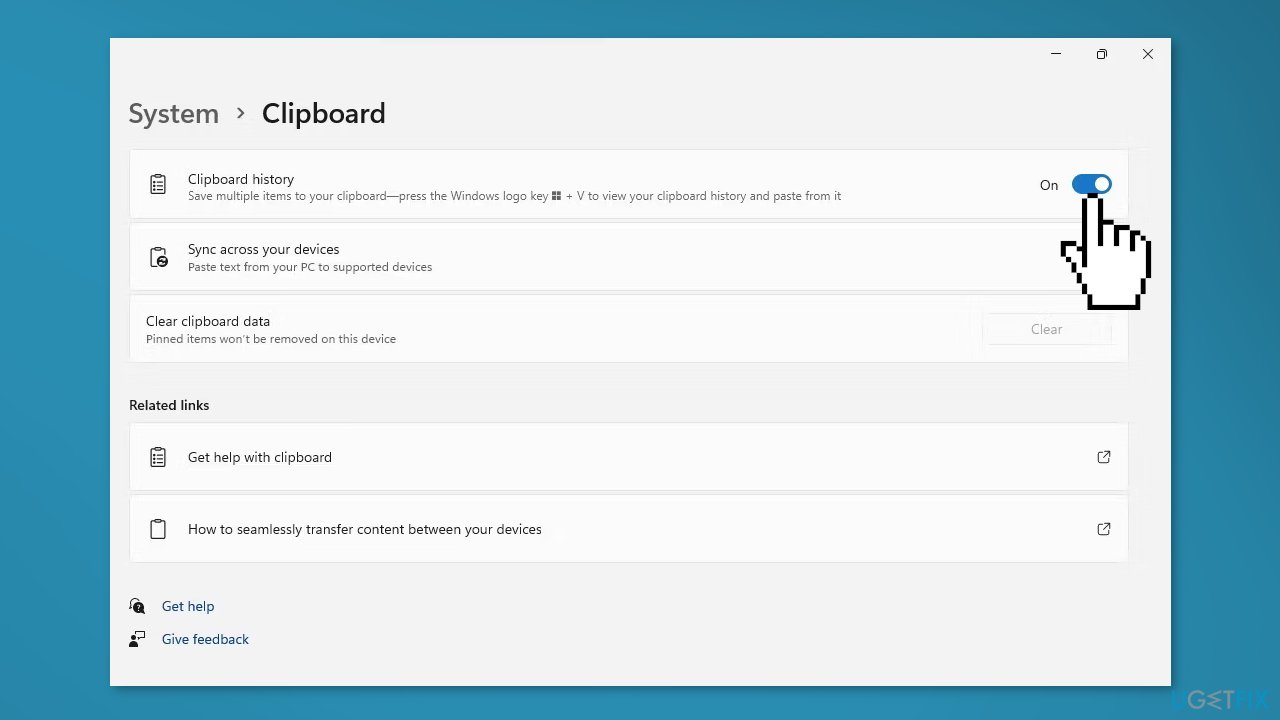
- Click the toggle next to Clipboard History to enable it
Solution 2. Restart File Explorer
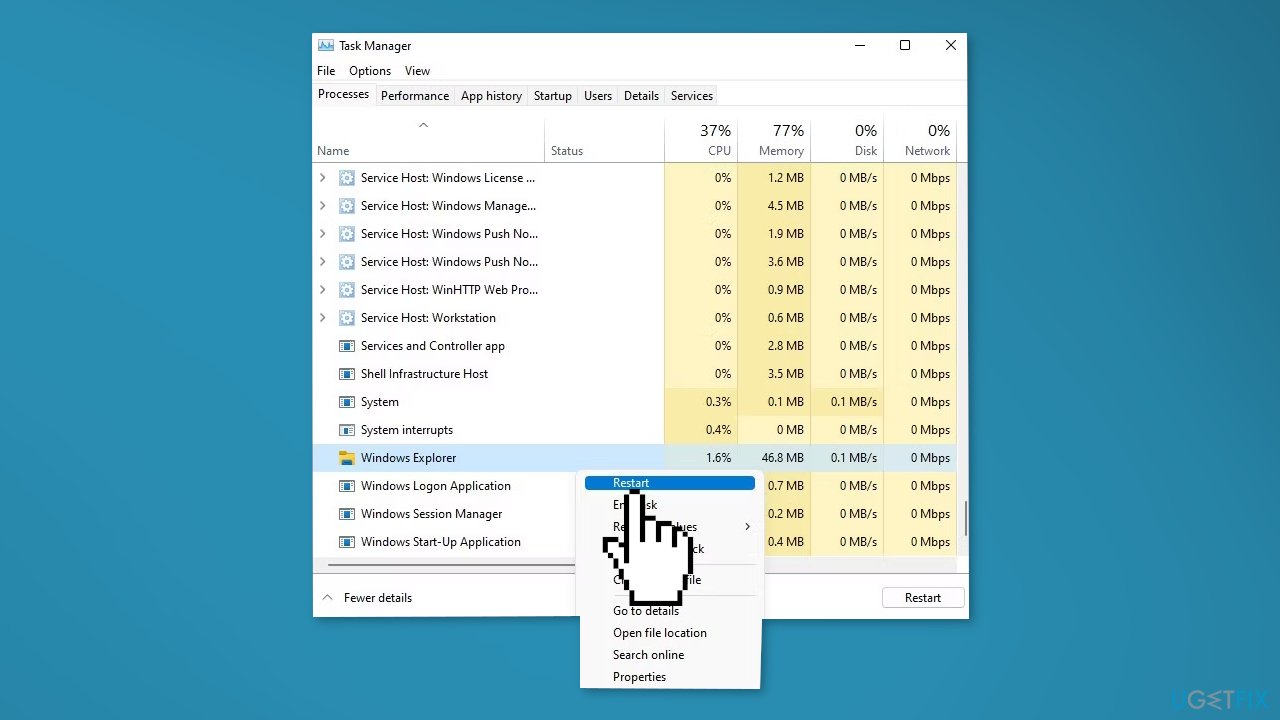
- Right-click on the Windows Start button and select Task Manager
- Locate Windows Explorer from the list
- Right-click on it and hit Restart
Solution 3. Sync Clipboard History
- Open the Settings app and go to the System > Clipboard section
- Then, click on the Get started button present under Sync across devices section
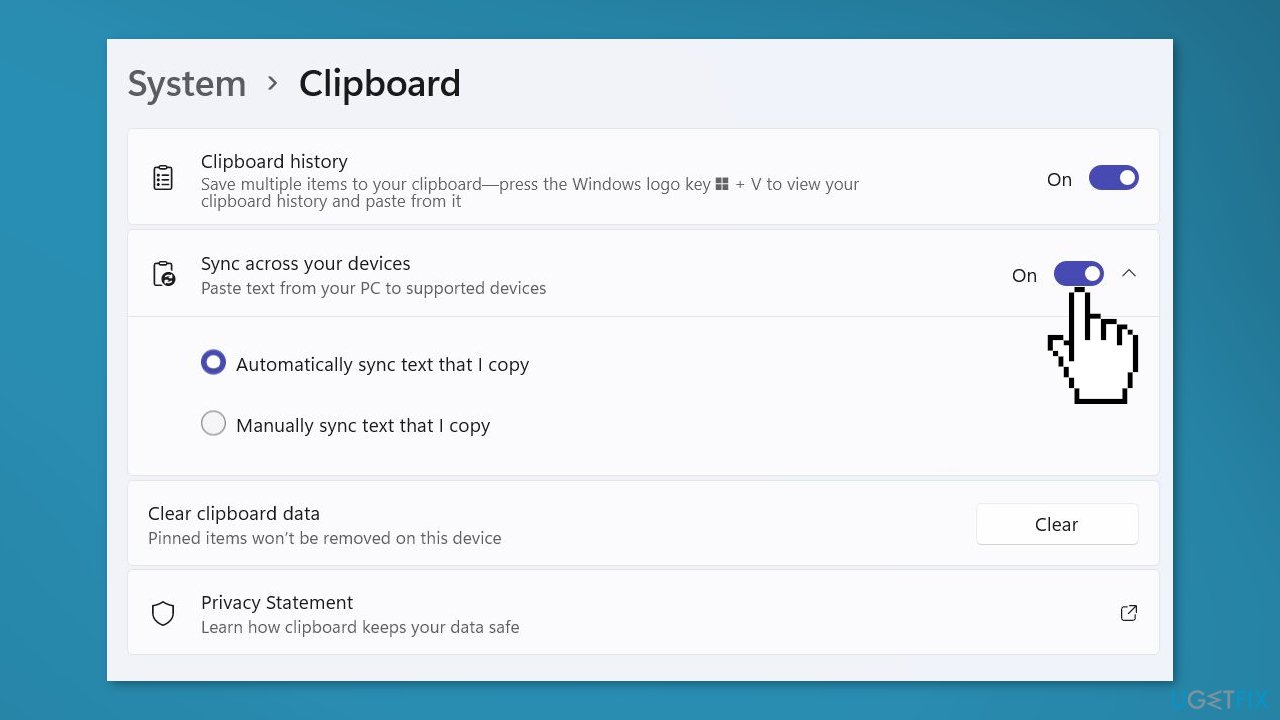
- Sign in to your Microsoft Account, and click on the Automatically sync text that I copy option
Solution 4. Enable via Registry Editor
The Registry is an important part of the Windows operating system, so it is best to back it up before any changes are made in case anything goes wrong. You can follow the steps to do that in the How to back up and restore the Windows registry? article.
- Open the Registry Editor app and go to the following address:
Computer\HKEY_LOCAL_MACHINE\SOFTWARE\Policies\Microsoft\Windows\System
- In the right pane, if there is no AllowClipboardHistory DWORD, right-click on the empty space and click on the New > DWORD 32-bit Value option
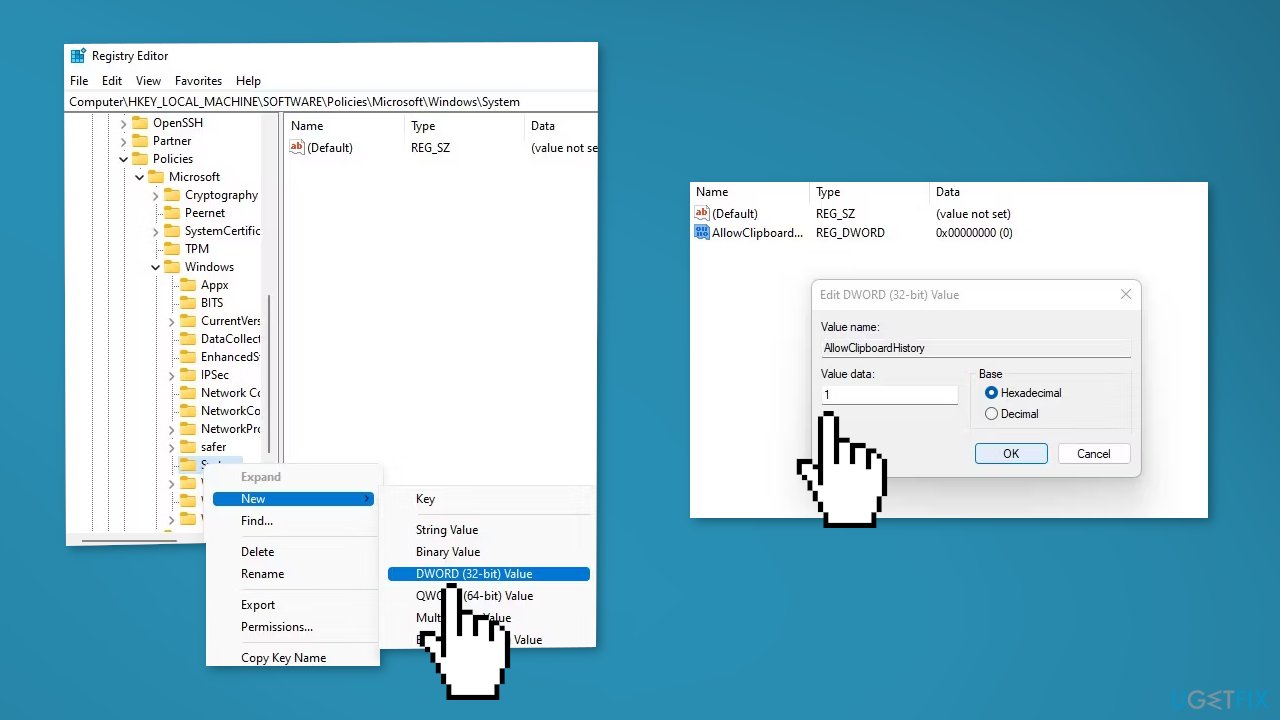
- Name this new DWORD as AllowClipboardHistory
- Double-click on the AllowClipboardHistory DWORD and enter 1 in its Value data field
- Create an AllowCrossClipboardHistory DWORD and enter 1 as its value
- Exit the Registry Editor app and restart your PC
Solution 5. Use the Group Policy Editor
- Press the Windows key + R to open the Run box
- Type gpedit.msc and click OK
- Go to the following path in the Group Policy Editor:
Computer > Configuration > Administrative Templates > System > OS Policies
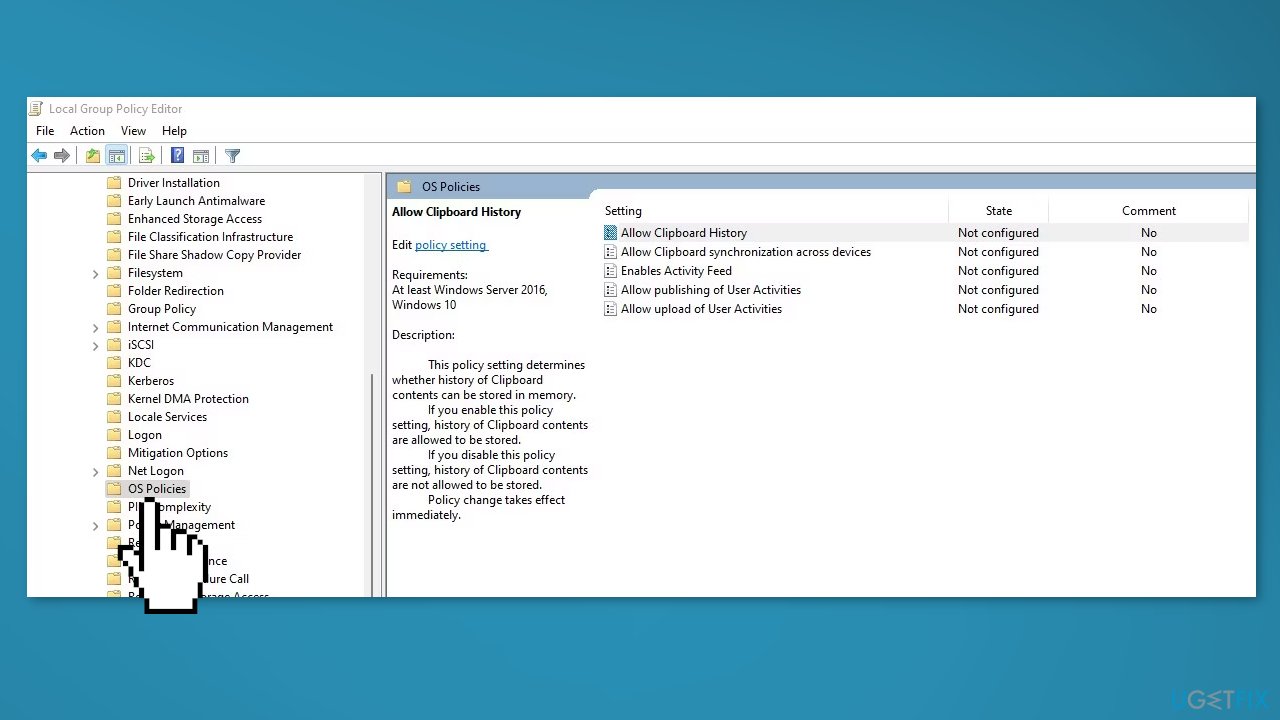
- In the right-hand pane, click on Allow Clipboard History
- Check the circle for Enabled, then hit Apply and click OK
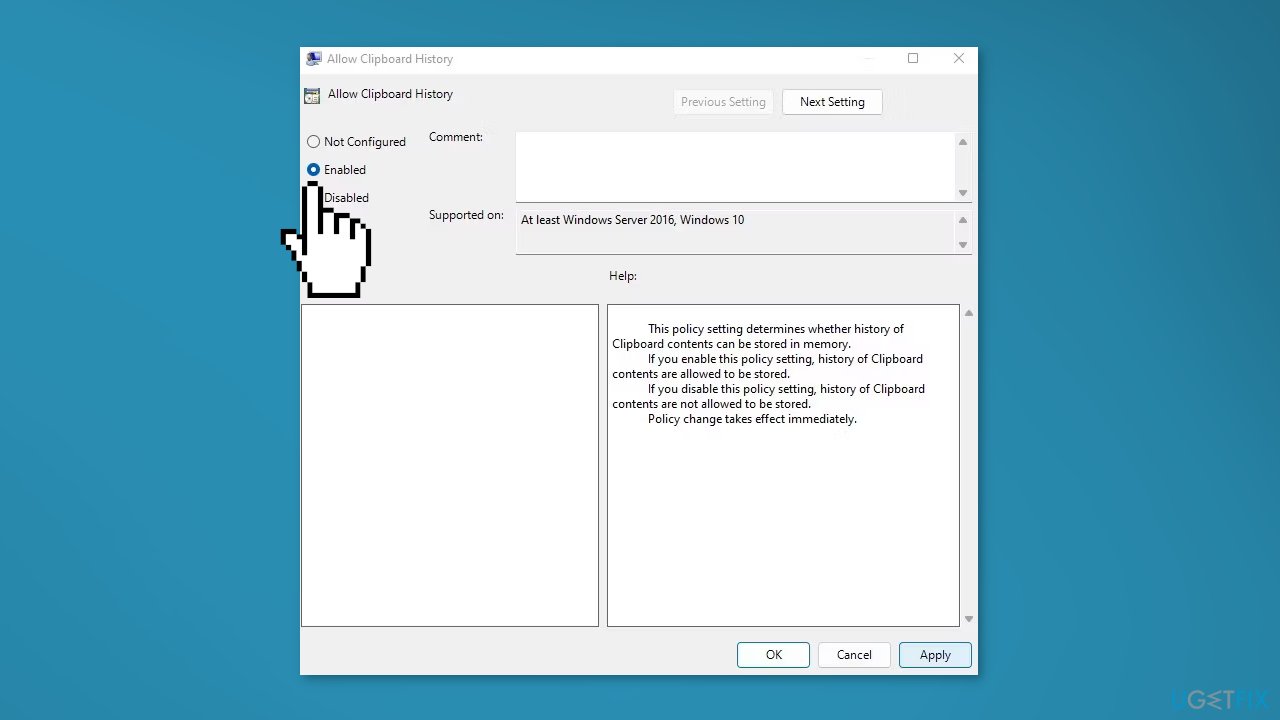
- Once enabled, open the clipboard history again to see if it works
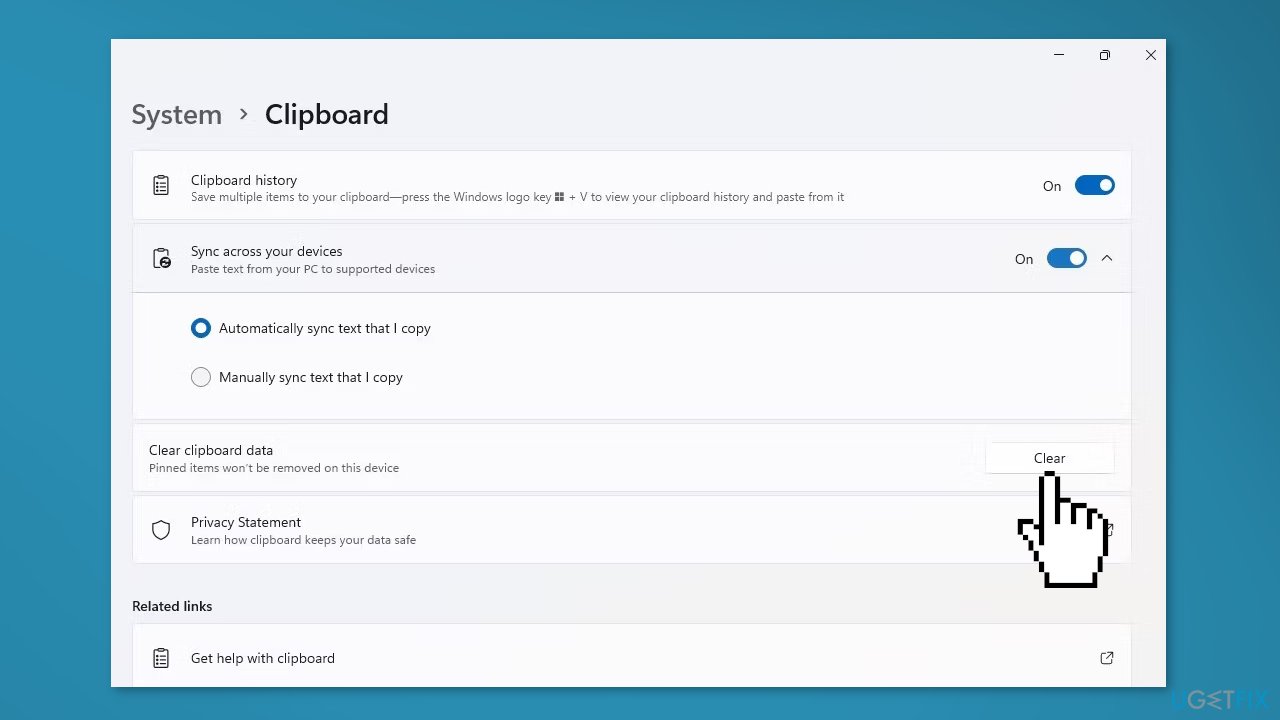
Solution 6. Clear Clipboard Data
- Right-click the Windows Start button and select Settings
- In the left-sidebar, select System
- In the right-hand pane, click on Clipboard
- Next to Clear clipboard data, click the Clear button
Solution 7. Try Clean Boot
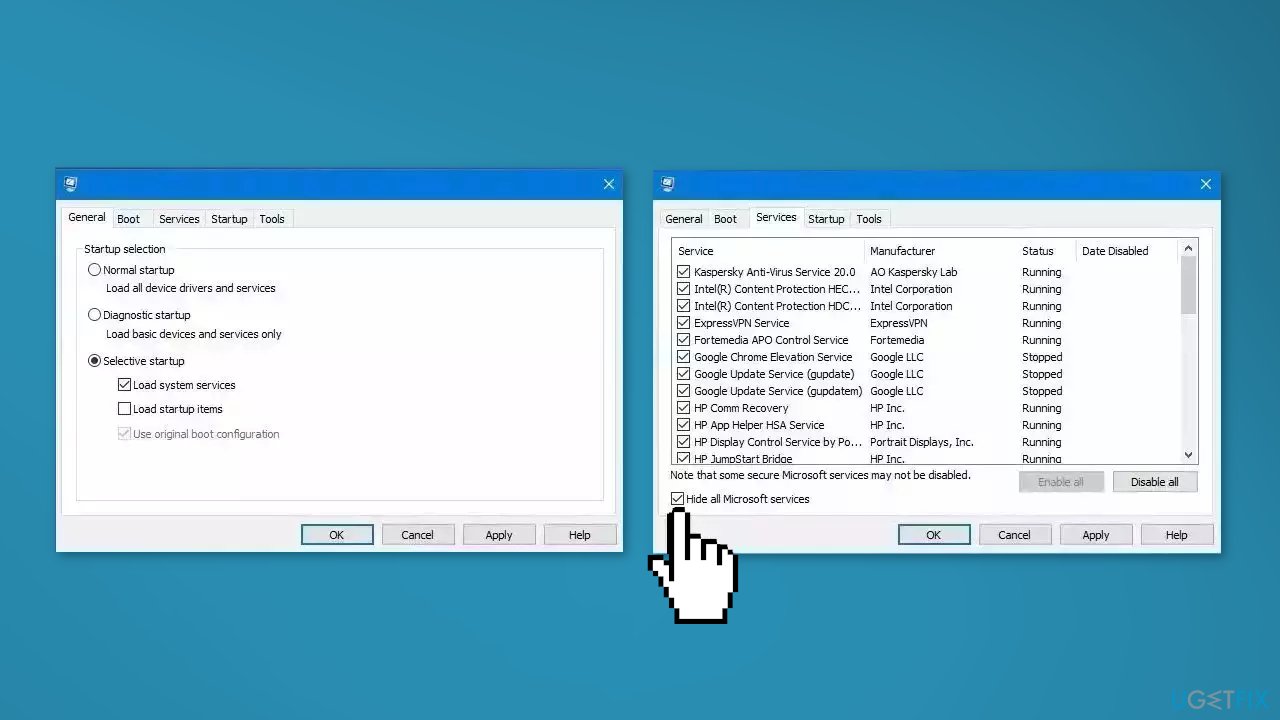
- Open the Search menu, type in system configuration, and press Enter
- Under the Services tab, tick the Hide all Microsoft services box
- Click on Disable all button
- Head over to the Startup tab and click on Open Task Manager
- Select a third-party program and click on Disable at the top
- Repeat this step to disable all third-party apps and programs
- Restart your PC to enter the clean boot state and see if the issue persists
- If the issue disappeared in the clean boot state, then you can be certain that a third-party app is causing it
- Go through all recently installed apps or programs and remove them one by one
Bottom line
To fix clipboard history not working in Windows, you can enable clipboard history, restart File Explorer, and sync clipboard history. If these steps do not resolve the issue, consider using an automatic maintenance tool to address potential system errors.
Frequently asked questions
To enable Clipboard history, go to Settings > System > Clipboard and toggle the 'Clipboard history' option to On.
If clearing the Clipboard history doesn't help, try running the Windows Troubleshooter for the Clipboard feature by going to Settings > Update & Security > Troubleshoot.
Ensure that the 'Sync across devices' option is enabled in the Clipboard settings, and confirm that you're signed in with the same Microsoft account on all devices.




Report an issue
What's wrong with this guide? We review every report and update or remove content.
Report received — thank you. We'll review and fix it.
You need a free account to submit a report.
Be the first to comment