How to fix
CLR error: 80004005 The program will now terminate
on Windows
Resolve CLR error 80004005 quickly on Windows 10 or 11 with our expert-tested solutions. Fix it in minutes and enjoy seamless performance again!

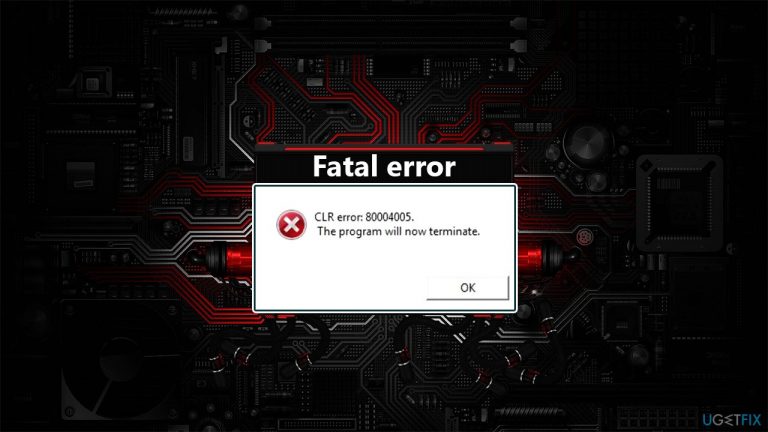
What causes How to fix CLR error: 80004005 The program will now terminate in Windows?
- Multiple versions of .NET Framework causing conflicts
- Corrupted .NET Framework installation
- Issues with Windows updates related to .NET Framework
- Installation of new applications failing due to CLR error
- Compatibility issues with certain applications
Repairs Windows system files, removes malware, and restores a clean OS state — without reinstalling.
Hi, I am getting CLR error: 80004005 The program will now terminate when I try running Discord and some other programs on my Windows 10 PC. It is pretty annoying, as my other computer runs all the programs I am having trouble with completely fine. Are any fixes available for this?
CLR error: 80004005 on Windows is a fatal error that terminates the application that is being run and prevents it from starting. The issue can also occur when trying to install new applications. While the problem is relatively old and dates back to Windows XP times, those who run the newest Windows versions still encounter it from time to time.
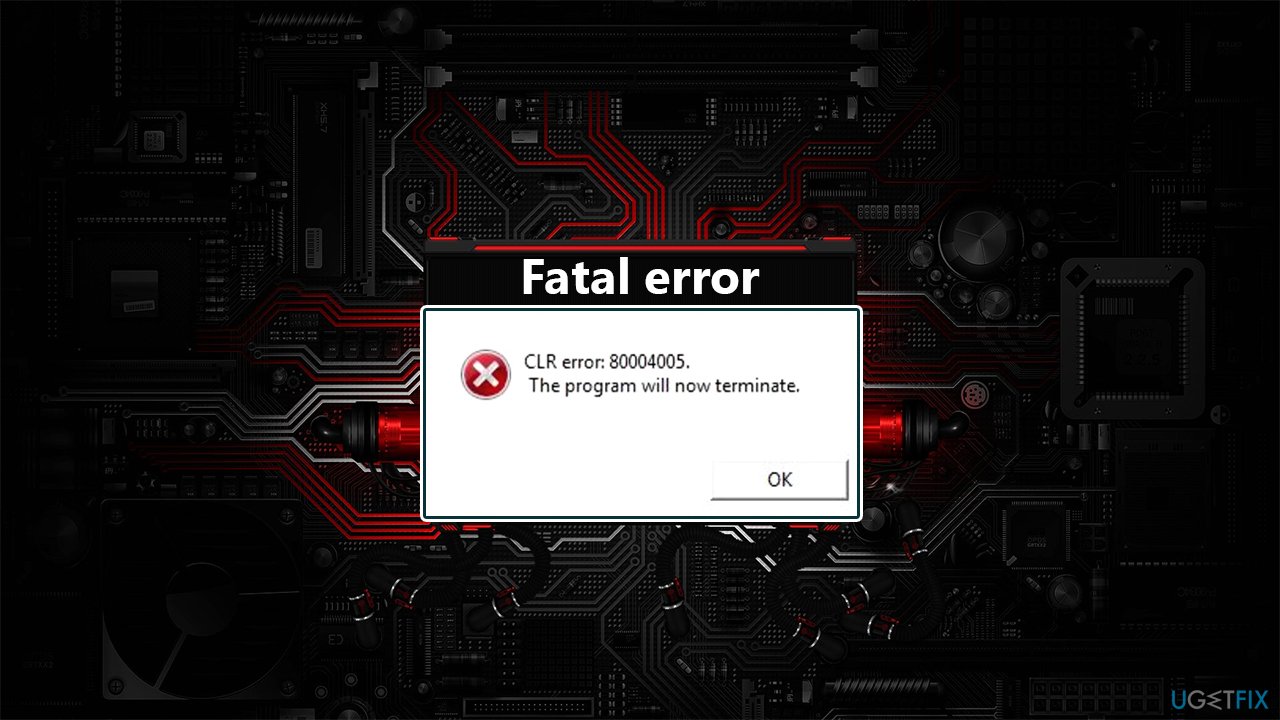
According to many user reports on various support forums,[ref en-3] they were unable to run one, some, or all programs due to the error, which reads the following:
Update.exe - Fatal error
CLR error: 80004005.
The program will not terminate
As the error message explains, the app simply fails to launch due to the fatal error. Without a doubt, this can be a very frustrating experience, especially when several apps are affected. Thus, trying to fix CLR error: 80004005 The program will now terminate can be critical.
In most cases, the root cause of the error lies within .NET Framework. According to Microsoft, "Each version of .NET Framework contains the common language runtime (CLR), the base class libraries, and other managed libraries."[ref en-1]
Some sources reported that multiple versions of the NET Framework might be causing the CLR (Common Language Runtime) error, and uninstalling them could help fix the issue. However, for a very long time now, Microsoft is shipping the framework along with Windows updates, which then becomes embedded within the system. This results in users' inability to uninstall .NET Framework in a regular way via the Programs and Features section.
There are suggestions to download third-party apps that would help you remove the framework, but it is not recommended at all. In fact, .NET Framework was designed in a way that Windows would support multiple versions of it running at the same time without conflicts,[ref en-2] and you likely have several of them running right now. Therefore, there is no need even to try uninstalling them.
Instead, the reason for CLR error: 80004005 The program will now terminate is likely to be caused by the app itself, as it is trying to run .NET Framework incorrectly. Therefore, in order to mitigate the issue, you have to fix the installation of the app, fix .NET Framework, or provide sufficient permissions for the app in question. You can find the step-by-step solution below.
If you experience a wide array of problems with your Windows 10 (or another version) PC, you should try running a scan with [d1] repair. This app can find and replace corrupted system files without your having to reinstall the operating system. Besides, it can also remove already existing malware, fix registry errors, and resolve the Blue Screen errors for good.
1. Try running the app as administrator
The CLR error: 80004005 error might be caused by insufficient permissions for the program to be launched without problems. Therefore, running as an administrator might help you fix the problem:
- Right-click on the shortcut of the app you are about to run (alternatively, most of the apps' launchers - .exe files -should be installed under the C:\\Program Files (x86) or C:\\Program Files directory)
- Select Run as administrator
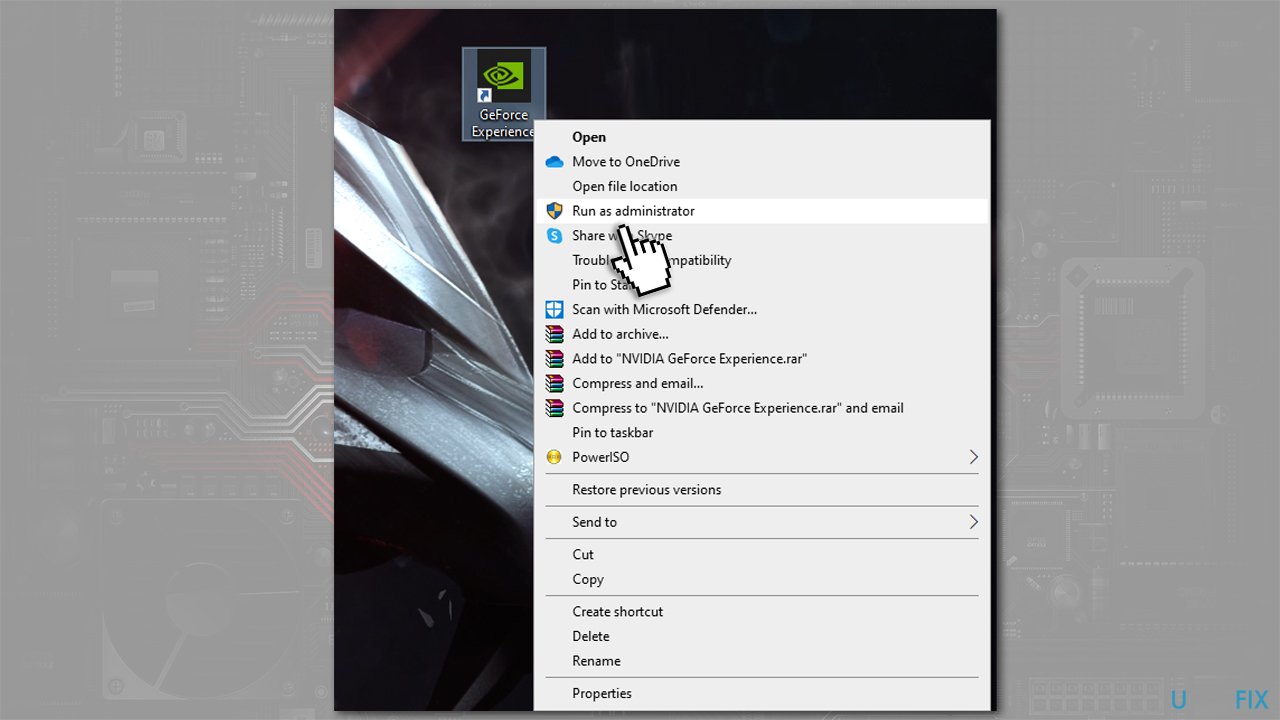
How to fix clr error 80004005 the program will now terminate in windows run as administrator - When User Account Control shows up, click Yes
- See if this solution helped. If not, proceed with the next step.
2. Repair or reinstall the app in question
- Type in Control Panel in Windows search
- Go to Programs > Uninstall a program
- Scroll down to find the problematic app
- Click it once and click Change at the top
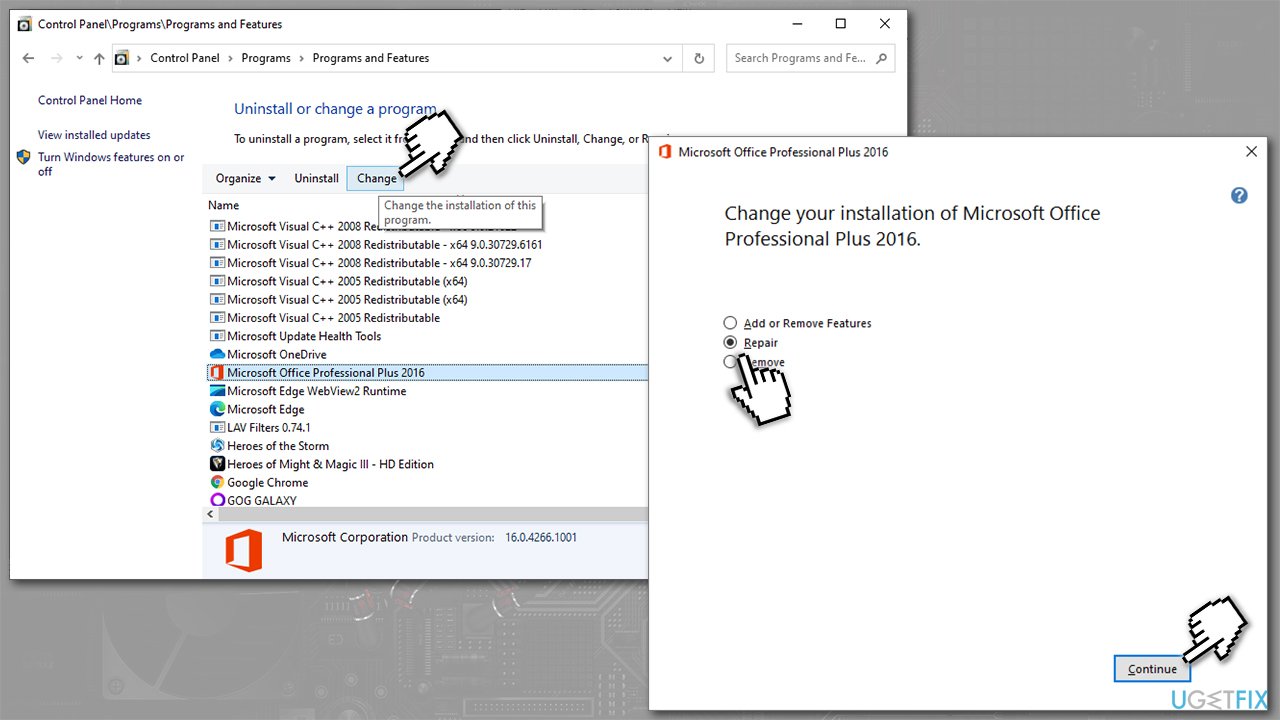
How to fix clr error 80004005 the program will now terminate in windows repair or reinstall the app - Proceed with on-screen instructions.
If the app does not have an option to be repaired, you should reinstall it. Users reported that Discord is one of the programs that frequently causes the fatal CLR error, and it could be difficult to uninstall. Follow our "How to uninstall Discord" guide for precise steps.
3. Run Microsoft .NET Framework Repair Tool
Microsoft designed n repair tool for .NET Framework issues, so running it might help you fix the error:
- Download Microsoft .NET Framework Repair Tool from the official website
- Click Download and then click NetFxRepairTool.exe at the bottom-left corner of your browser
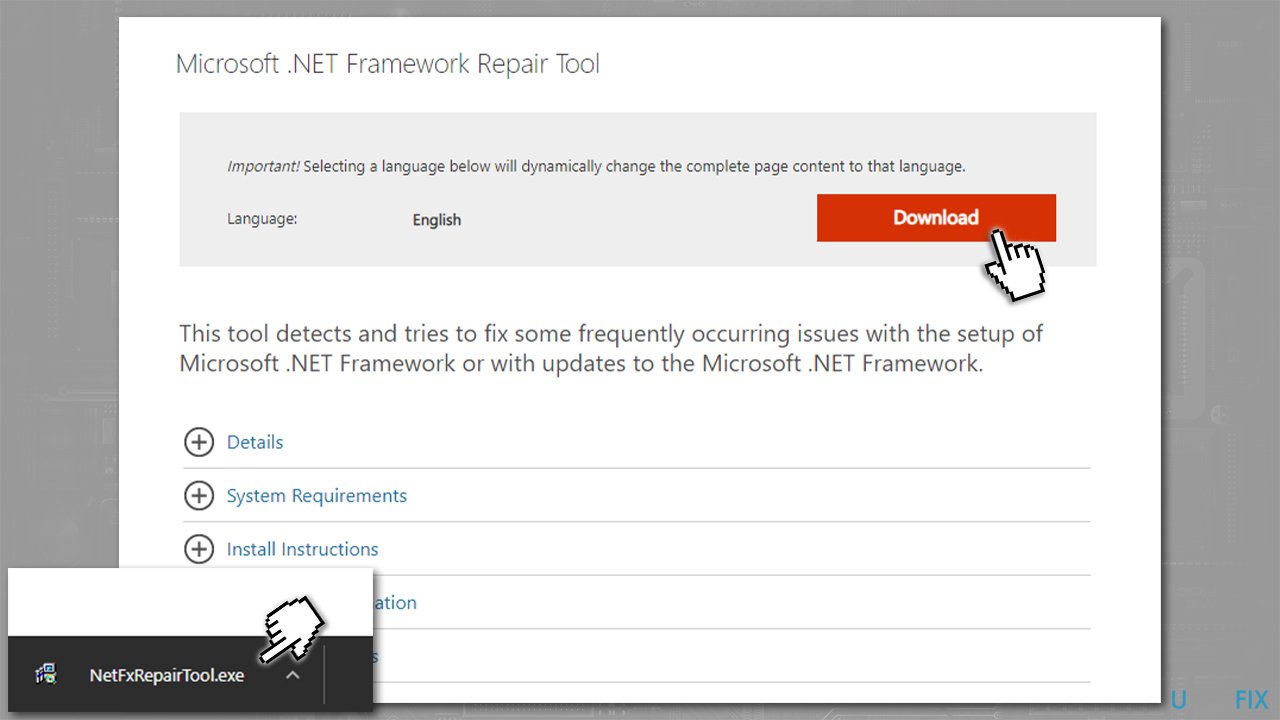
How to fix clr error 80004005 the program will now terminate in windows use net framework repair tool - When User Account Control Shows up, click Yes
- Agree to license terms and click Next
- Wait for a few seconds, and the Tool should provide recommended changes
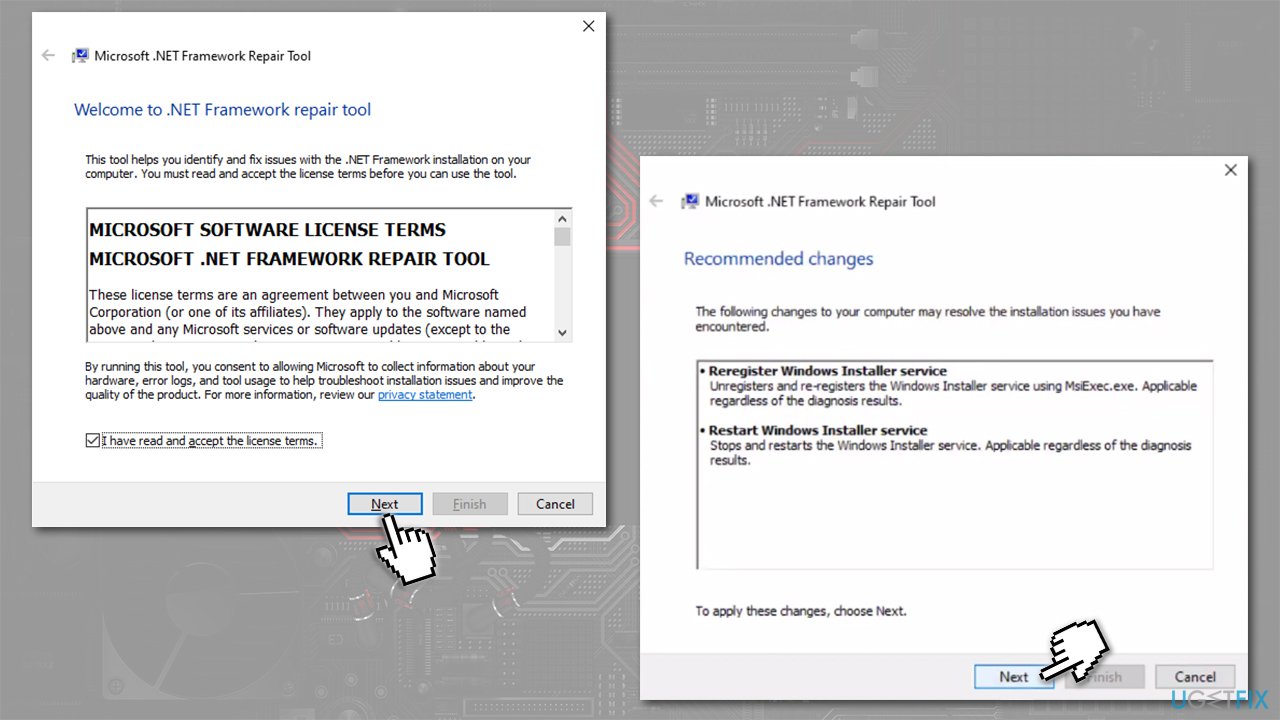
How to fix clr error 80004005 the program will now terminate in windows run net framework repair tool - Click Next, Next, and Finish
- Finally, restart your PC.
4. Use Media Creation tool
You can use Media Creation Tool to repair your Windows:
- Download Windows 10 installation media from the official Microsoft website
- Launch the installer
- Agree to Terms and click Next
- Select Create installation media (USB flash drive, DVD or ISO file) for another PC > Next
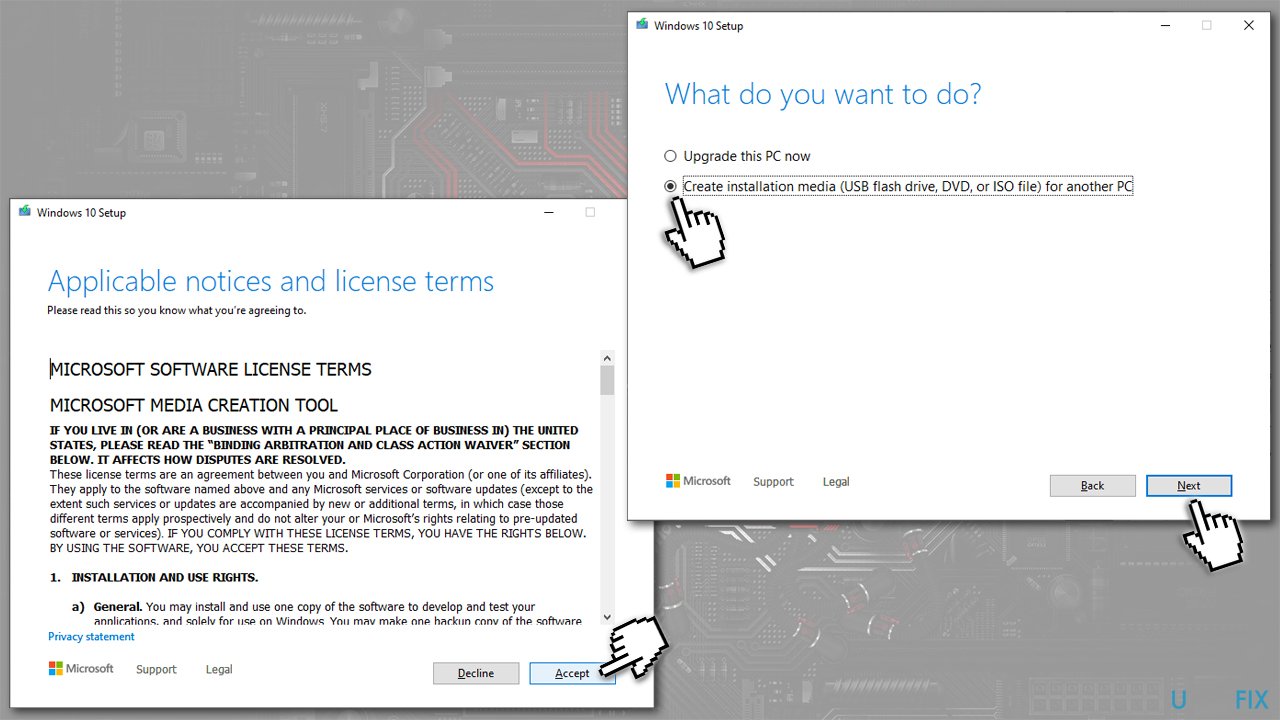
How to fix clr error 80004005 the program will now terminate in windows use media creation tool - Pick USB flash drive (make sure you have USB connected to your PC)
- Now follow on-screen instructions, and once the option to pick partition style shows up, select UEFI
- Proceed with on-screen instructions to finalize the process
- Once done, double-click the Ready to install option
- Select Keep personal files
- Wait till the installation is finished.
Fix for CLR error: 80004005 when installing programs
If you have encountered the error when trying to install an app, you should proceed with the following solutions:
5. Re-register Windows installer
- Type in cmd in Windows search
- Right-click on Command Prompt result and pick Run as administrator
- In the new window, copy and paste the following commands, pressing Enter after each:
msiexec /unreg
msiexec /regserver - Close Command Prompt and reboot your PC.
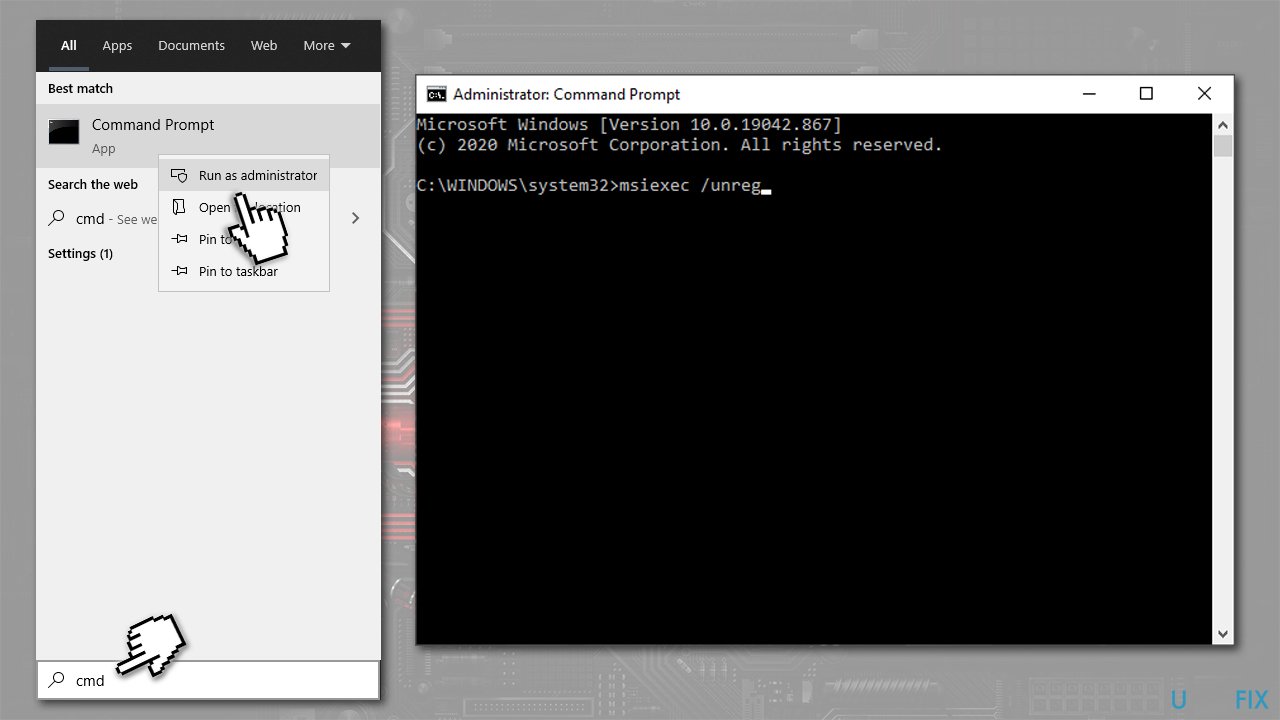
How to fix clr error 80004005 the program will now terminate in windows reregister windows installer
6. Enable Windows installer service
- Press Win + R on your keyboard
- Type in services.msc and press Enter
- Locate Windows installer service and double-click it
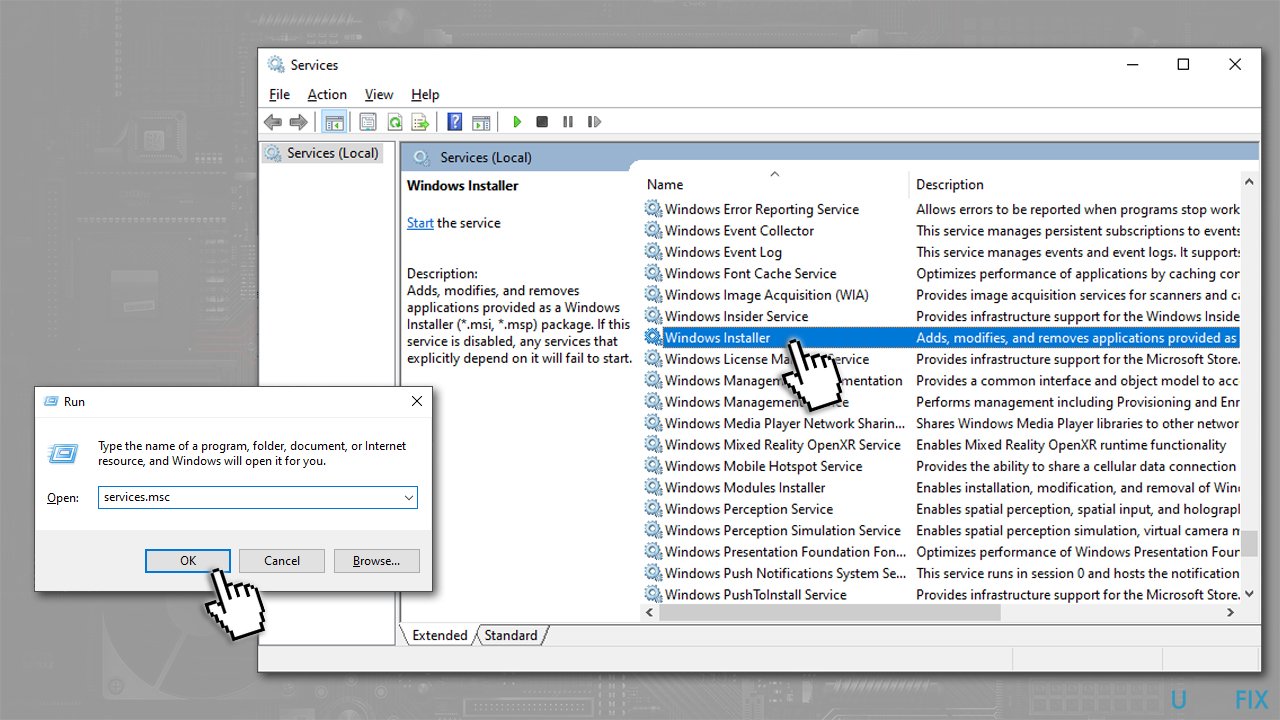
How to fix clr error 80004005 the program will now terminate in windows restart windows installer service - If the service is running, click Stop, followed up by Start after a few seconds
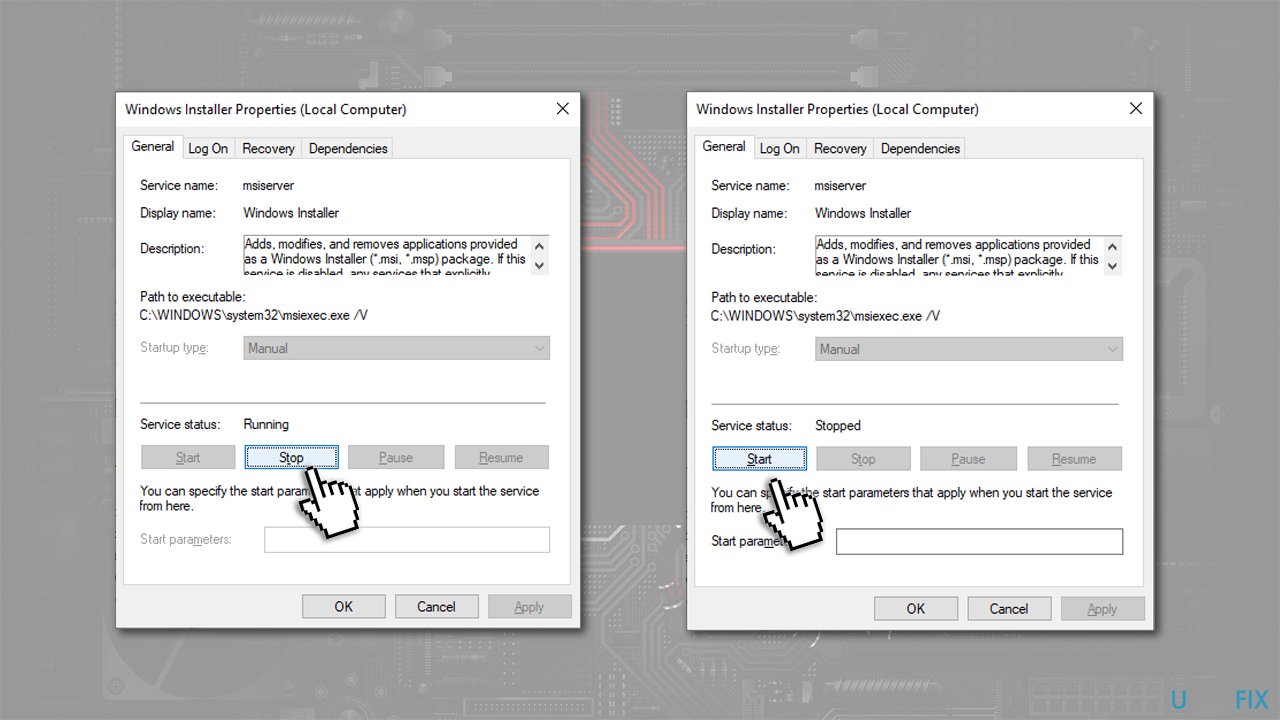
How to fix clr error 80004005 the program will now terminate in windows restart windows installer service2 - Restart your computer.
Bottom line
To fix CLR error: 80004005, consider uninstalling conflicting versions of .NET Framework, repairing the installation, or ensuring that Windows updates are properly installed. If these solutions do not resolve the issue, further troubleshooting or seeking assistance from support forums may be necessary.
Frequently asked questions
CLR error 80004005 indicates a general failure in the Common Language Runtime, often due to issues with .NET Framework or corrupted files in your Windows installation.
To fix CLR error 80004005 in Windows 11, try repairing the .NET Framework via the Control Panel or running the System File Checker tool to restore corrupted system files.
Yes, uninstalling and then reinstalling the .NET Framework can help resolve CLR error 80004005 on Windows 10, especially if the framework is damaged.




Report an issue
What's wrong with this guide? We review every report and update or remove content.
Report received — thank you. We'll review and fix it.
You need a free account to submit a report.
Be the first to comment