How to fix
Copy Paste not working in Microsoft Word
on Windows
Resolve Copy Paste issues in Microsoft Word effortlessly on Windows 10 and Windows 11. Expert-tested solutions await you, fixed in minutes!

What causes How to fix Copy Paste not working in Microsoft Word?
- Conflicts with other software running in the background
- Temporary glitches in Microsoft Word
- Issues related to the Windows clipboard functionality
- Interference from applications that access the clipboard
- Bugs or errors in the Windows operating system
Repairs Windows system files, removes malware, and restores a clean OS state — without reinstalling.
I have recently noticed that copy-paste is not working in Word. The command works perfectly fine in other apps, such as browsers or communication apps. What is causing it and how can I fix this?
Microsoft Office, which includes the widely used word processing software Microsoft Word, provides a variety of keyboard shortcuts designed to streamline users' workflows and improve productivity.
Keyboard shortcuts, such as Ctrl+C to copy and Ctrl+V to paste, are essential for efficiently managing and editing documents. There are more combinations available, and cover functions such as saving, printing, and formatting, so they are critical for a seamless user experience when creating and editing documents.
However, some users encounter a frustrating issue where the copy paste functionality in Microsoft Word stops working properly. This problem can manifest itself in different ways. Copied content may not appear when you paste it, or the paste options may not respond at all.
Copy Paste not working in Microsoft Word might be caused by numerous issues, including conflicts with other software running in the background, temporary glitches in Microsoft Word itself, and issues related to the Windows clipboard functionality.
When faced with this issue, understanding the possible causes is an important step in resolving it. Interference from other applications, especially those that access the clipboard, can affect Word's copy paste functionality. Additionally, temporary bugs or errors in Word or the broader Windows operating system may affect you.
Although specific steps to resolve these causes vary, the general approach is to check for software conflicts, ensure that both Microsoft Office and Windows are up to date, and reset the MS Office suite.
For a more comprehensive and automated solution to fundamental problems, especially those related to the Windows operating system, it is a good idea to use a PC repair tool like [d1]. It is designed to diagnose and fix common Windows problems and may resolve copy + paste issues in Microsoft Word by fixing the cause within your system.
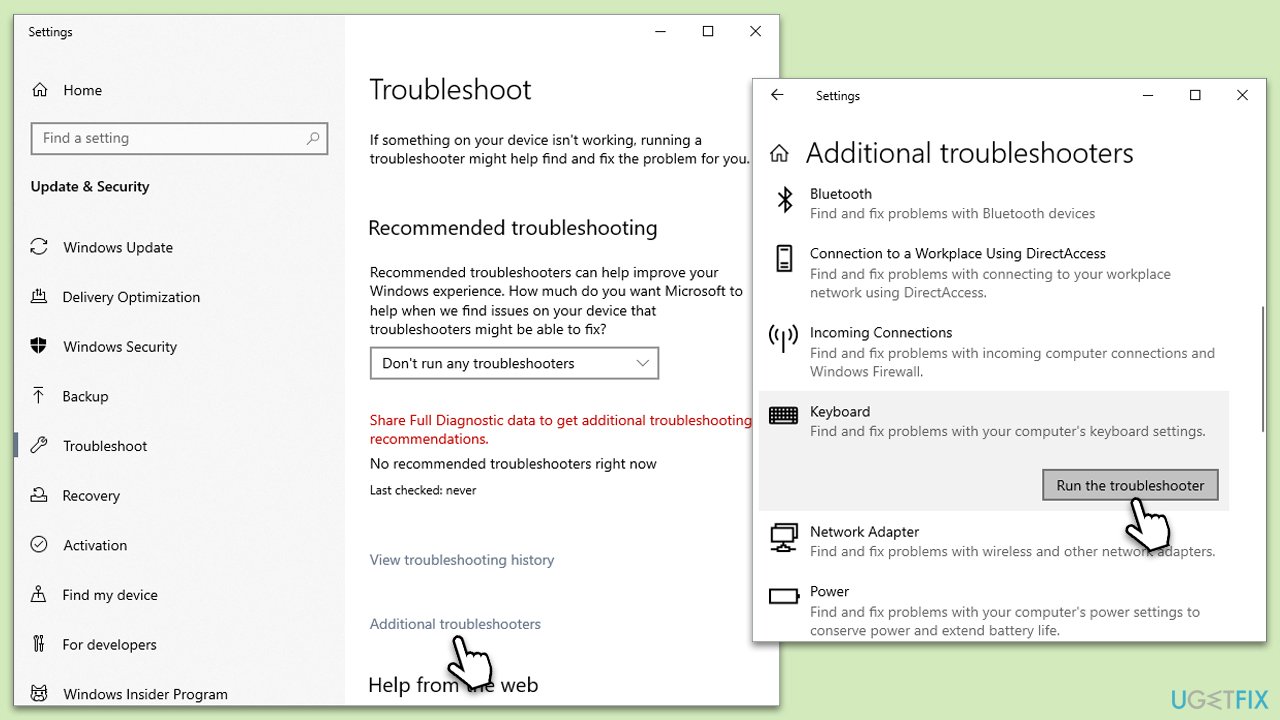
Fix 1. Run keyboard and Windows Store apps troubleshooter
The keyboard troubleshooter can resolve issues related to keyboard functionality, including the shortcuts used in Microsoft Word. The Windows Store apps troubleshooter, on the other hand, can fix problems with apps downloaded from the Windows Store, which might indirectly affect Word's performance. Running these troubleshooters can identify and fix issues automatically.
- Type troubleshoot in the Windows search box and press Enter.
- Select Additional troubleshooters/Other troubleshooters.
- Scroll down to find the Windows Store Apps entry.
- Select it and click Run the troubleshooter/Run.
- Repeat the process with the Keyboard troubleshooter.
- Wait until the scan finishes, apply the suggested fixes, and reboot your PC.
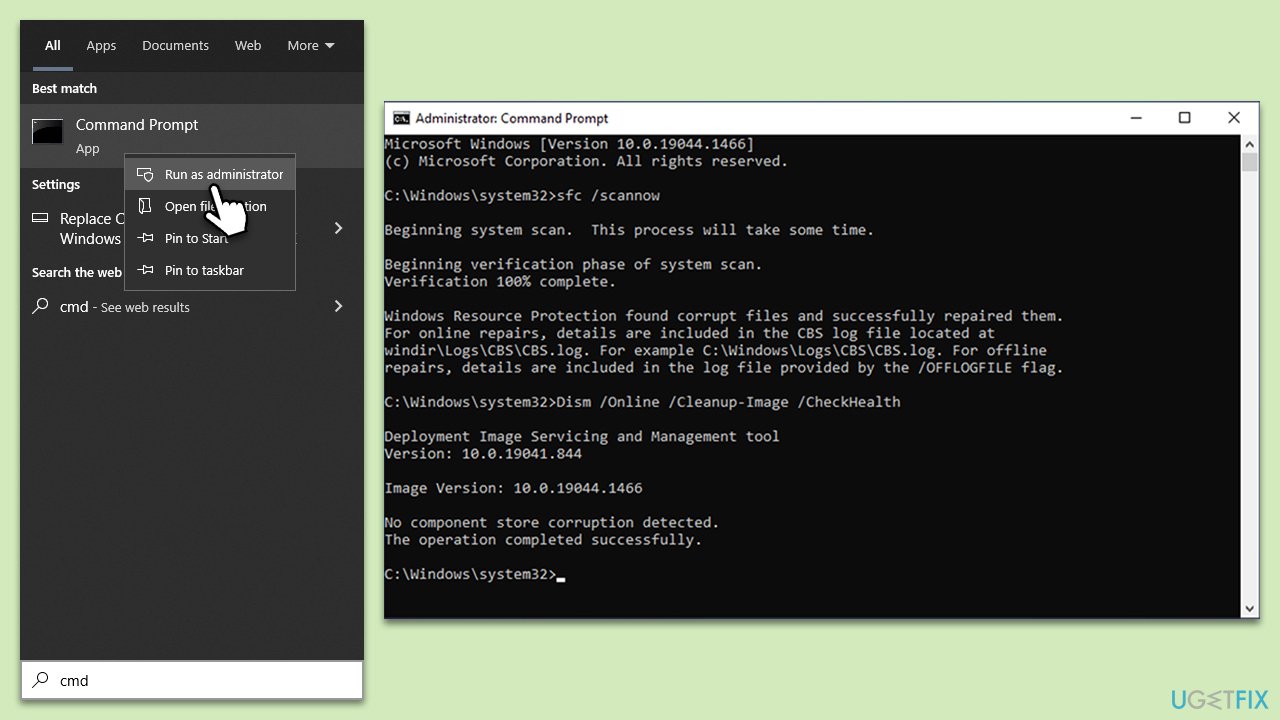
Fix 2. Perform SFC and DISM scans
SFC and DISM tools that can repair corrupted Windows system files. Corruption in these files can affect applications like Word, leading to functionalities like copy-paste not working properly.
- Type in cmd in Windows search.
- Right-click on Command Prompt and select Run as administrator.
- In the User Account Control window, click Yes.
- In the Command Prompt window, paste the following command and hit Enter:
sfc /scannow - Next, use the following commands, pressing Enter each time:
Dism /Online /Cleanup-Image /CheckHealth
Dism /Online /Cleanup-Image /ScanHealth
Dism /Online /Cleanup-Image /RestoreHealth
(Note: if you get an error executing this last command, add /Source:C:\RepairSource\Windows /LimitAccess to it and try again). - Reboot your system.
Fix 3. Open Word in Safe Mode
Opening Word in Safe Mode loads it without any add-ins or extensions that might be causing the copy-paste issue. This can help determine if the problem is with Word itself or an external factor.
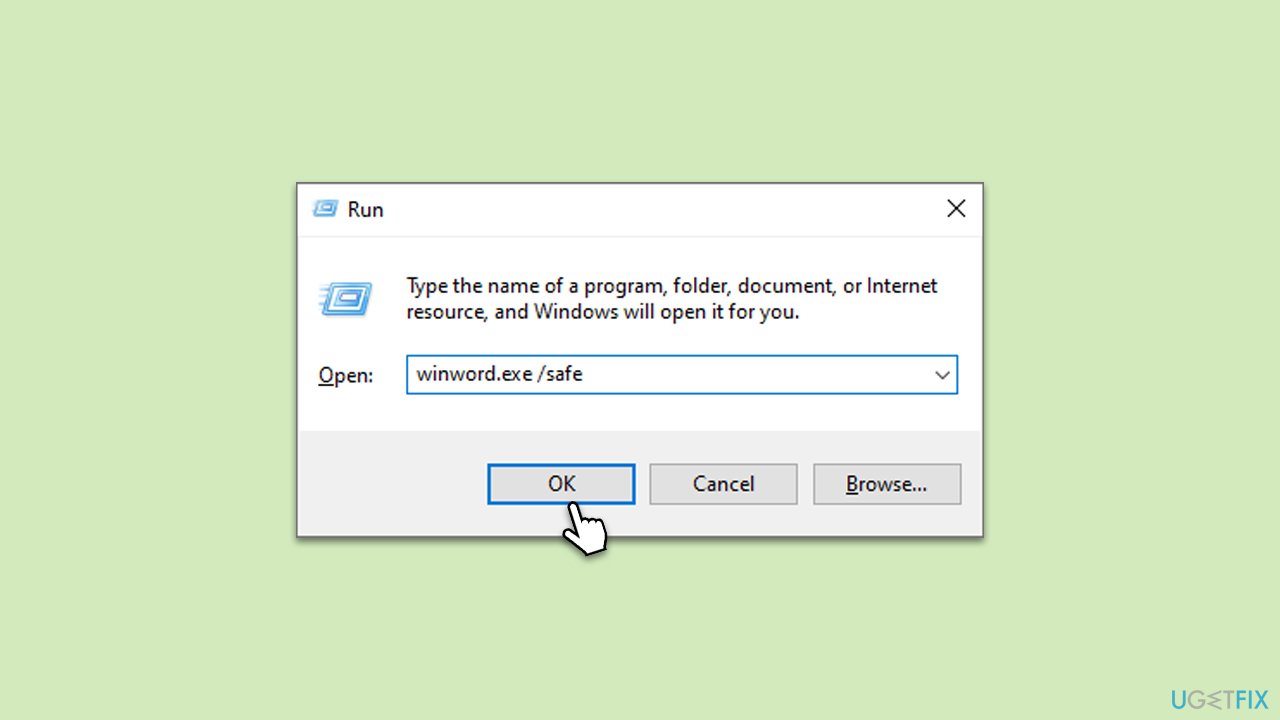
- Press Win + R on your keyboard to open the Run dialog.
- Type in winword.exe /safe and press Enter or click OK.
- See if Copy paste is working in this environment.
Fix 4. Clear Clipboard history
Clearing the Clipboard history can sometimes resolve issues where the clipboard is not functioning correctly, affecting the copy-paste functionality in Word.
- Press Win + V to open the Clipboard history.
- Click on Clear all to clear the clipboard history.
- Alternatively, restart your computer which also clears the clipboard.
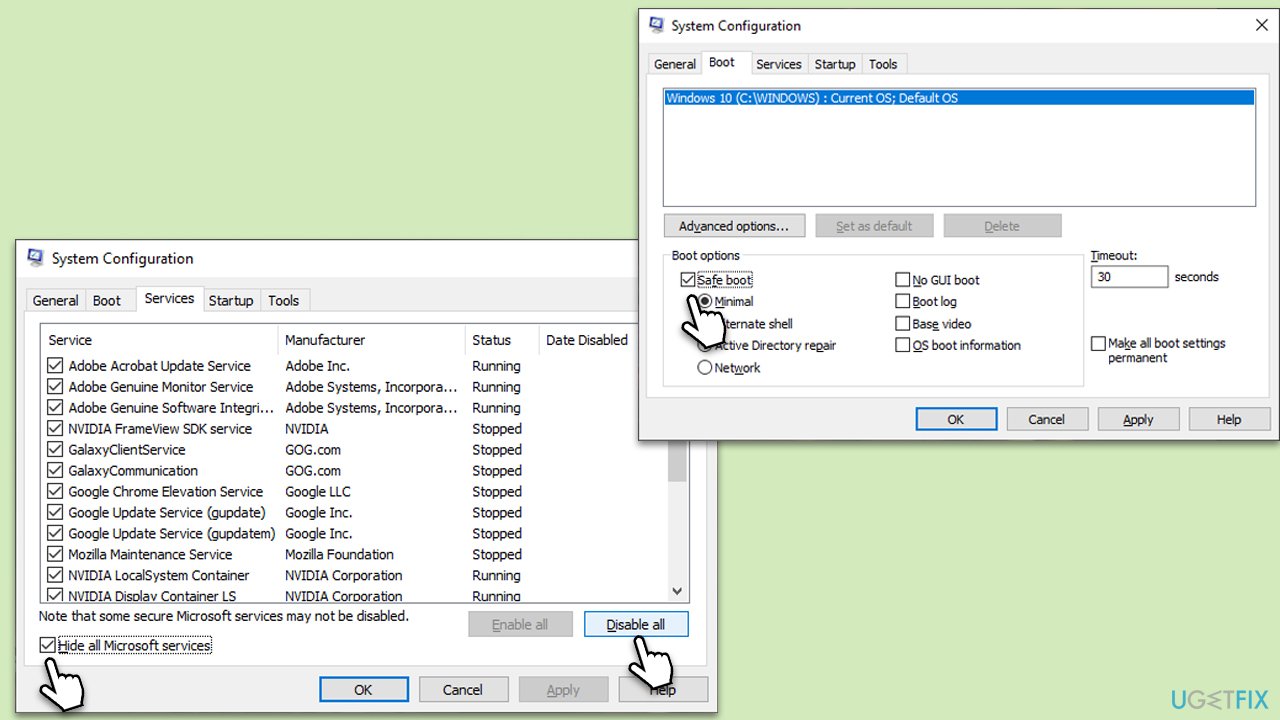
Fix 5. Perform Clean Boot
This mode starts Windows with a minimal set of drivers and startup programs. This can help identify if background applications are interfering with Word's copy-paste functionality.
- Type in Create a Restore point in Windows search and hit Enter.
- In the System Protection tab, pick System restore.
- Click Next.
- Click Show more restore points (if available).
- Pick the time before the problem occurred and click Next.
- Your computer will reboot.
Fix 6. Repair MS Office
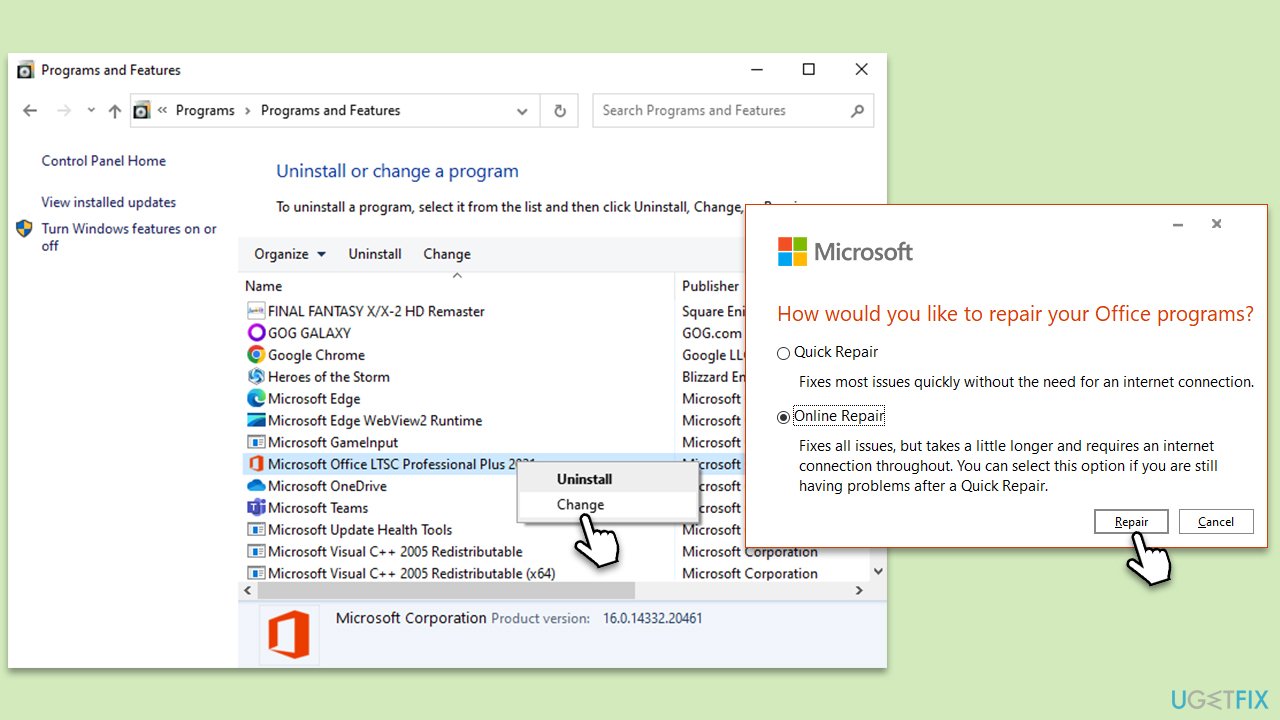
Repairing Microsoft Office can resolve issues within the suite, including Word. This process fixes any corrupted files within the Office installation.
- Open Control Panel.
- Select Programs > Programs and Features.
- Select Microsoft Office and click on Change.
- Choose the option for Online Repair and click Repair.
- Follow the prompts to finish the process.
Fix 7. Reinstall MS Office
If all else fails, reinstalling Microsoft Office can resolve persistent issues by replacing the entire suite with a fresh installation.
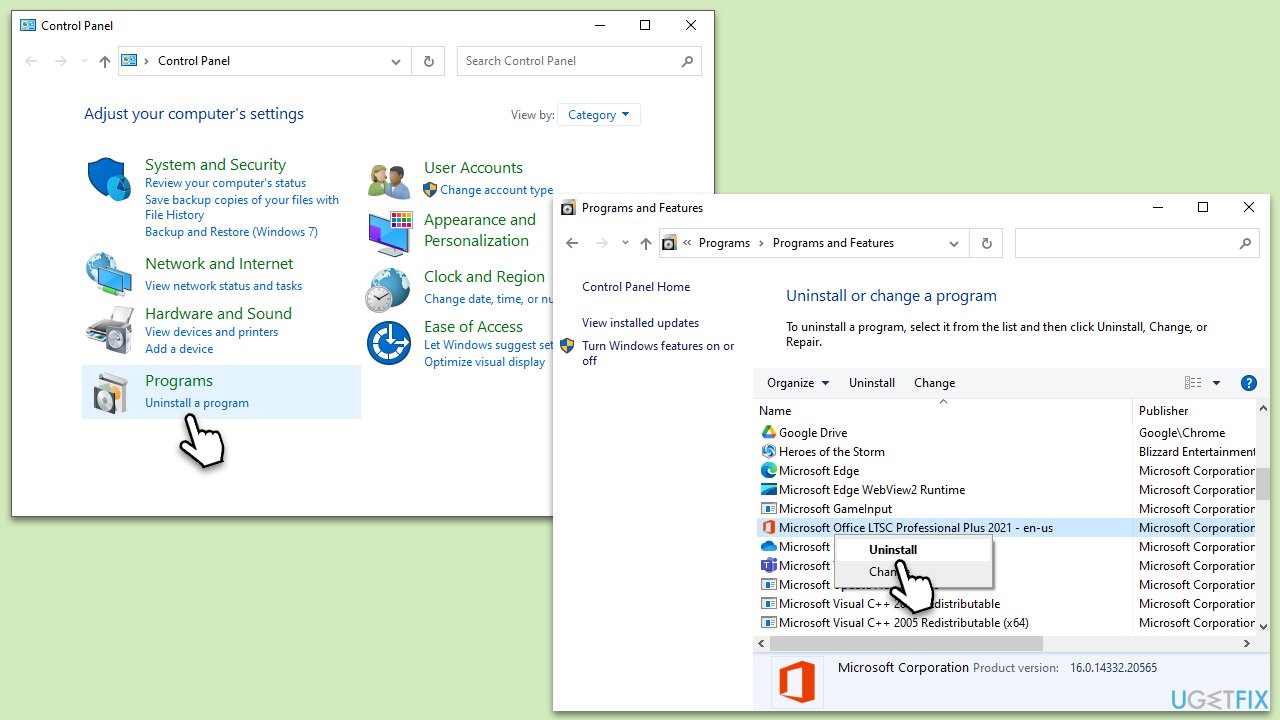
- Right-click on Start and pick Apps and Features.
- Scroll down to find the MS Office installation.
- Click Uninstall and confirm with Uninstall.
- Follow on-screen instructions to remove the app completely.
- Press Win + E to open File Explorer.
- Navigate to the following location and delete its contents:
C:\Program Files\Microsoft Office - Next, type regedit in Windows search and press Enter.
- Go to the following locations in the Registry Editor and delete these items:
Computer\HKEY_LOCAL_MACHINE\SOFTWARE\Microsoft\AppVISV
Computer\HKEY_LOCAL_MACHINE\SOFTWARE\Microsoft\Office\ClickToRun
Computer\HKEY_CURRENT_USER\Software\Microsoft\Office - Reboot the PC and then reinstall Microsoft Office.
Bottom line
To resolve the copy paste issue in Microsoft Word, you can run the keyboard and Windows Store apps troubleshooter, check for software conflicts, ensure that both Microsoft Office and Windows are up to date, and reset the MS Office suite. If these steps do not work, consider using a PC repair tool to diagnose and fix underlying Windows problems.
Frequently asked questions
Try restarting both Microsoft Word and your computer, as this can resolve temporary glitches. If the issue persists, check for updates to Word and Windows 10, as outdated software can cause functionality problems.
Ensure that the Clipboard feature is enabled in Windows 11 by going to Settings > System > Clipboard. Additionally, try clearing the clipboard history to remove any corrupted data that may interfere with copy-paste operations.
Yes, check if any third-party applications are interfering with the clipboard functionality, and consider disabling them temporarily. Also, verify that your antivirus software is not blocking Word's ability to access the clipboard.




Report an issue
What's wrong with this guide? We review every report and update or remove content.
Report received — thank you. We'll review and fix it.
You need a free account to submit a report.
Be the first to comment