How to fix
DAM WATCHDOG TIMEOUT BSOD
on Windows
Resolve the DAM WATCHDOG TIMEOUT BSOD error in Windows 10 and 11 quickly. Follow our expert-tested solutions for a smoother experience, fixed in minutes.


What causes How to fix DAM WATCHDOG TIMEOUT BSOD in Windows?
- Corrupted or outdated drivers
- Faulty system files
- Incorrect BIOS or UEFI settings
- Memory-related problems
Repairs Windows system files, removes malware, and restores a clean OS state — without reinstalling.
Every time I wake my Windows laptop from sleep, it crashes and shows a blue screen with the error DAM WATCHDOG TIMEOUT. What does it mean, and how do I stop this from happening?
The DAM WATCHDOG TIMEOUT BSOD is one of those frustrating errors that shows up as a blue screen when your computer fails to resume properly from sleep or modern standby. This issue is most often seen on laptops or tablets that use low-power sleep modes to save energy. When the system tries to wake up but can’t restore processes in time, Windows throws the DAM WATCHDOG TIMEOUT (Bug check 0x000001EB) error and restarts.
This BSOD is linked to how Windows handles background processes during sleep and wake cycles. Specifically, it means the Desktop Activity Moderator, or DAM, couldn’t unfreeze user session processes fast enough after your device resumed. Although it might sound complicated, the root of the DAM WATCHDOG TIMEOUT BSOD is usually related to drivers, system settings, or power configuration.
Several things can cause this issue. Corrupted or outdated drivers, especially for graphics or storage, can delay the resume process. Faulty system files may also interfere with how Windows handles sleep transitions. On some devices, incorrect BIOS or UEFI settings related to power management can trigger the same BSOD. Memory-related problems, like faulty RAM, are also not out of the question.
If you’ve been hit by the DAM WATCHDOG TIMEOUT BSOD, don't worry - there are ways to fix it. Manual instructions will be provided below to help you address possible causes. And if the problem continues or the exact trigger is hard to identify, using the [d1] repair tool can be an effective way to scan for hidden issues and restore normal system behavior.

Fix 1. Update your graphics and chipset drivers
Outdated or incompatible drivers are one of the most common causes of BSODs during wake-up.
- Right-click on Start and pick Device Manager.
- Expand the Display adapters section.
- Right-click your graphics card and select Update driver.
- Select Search automatically for drivers option.
- If updates are found, allow them to install.
- Restart your computer after updating all necessary drivers.
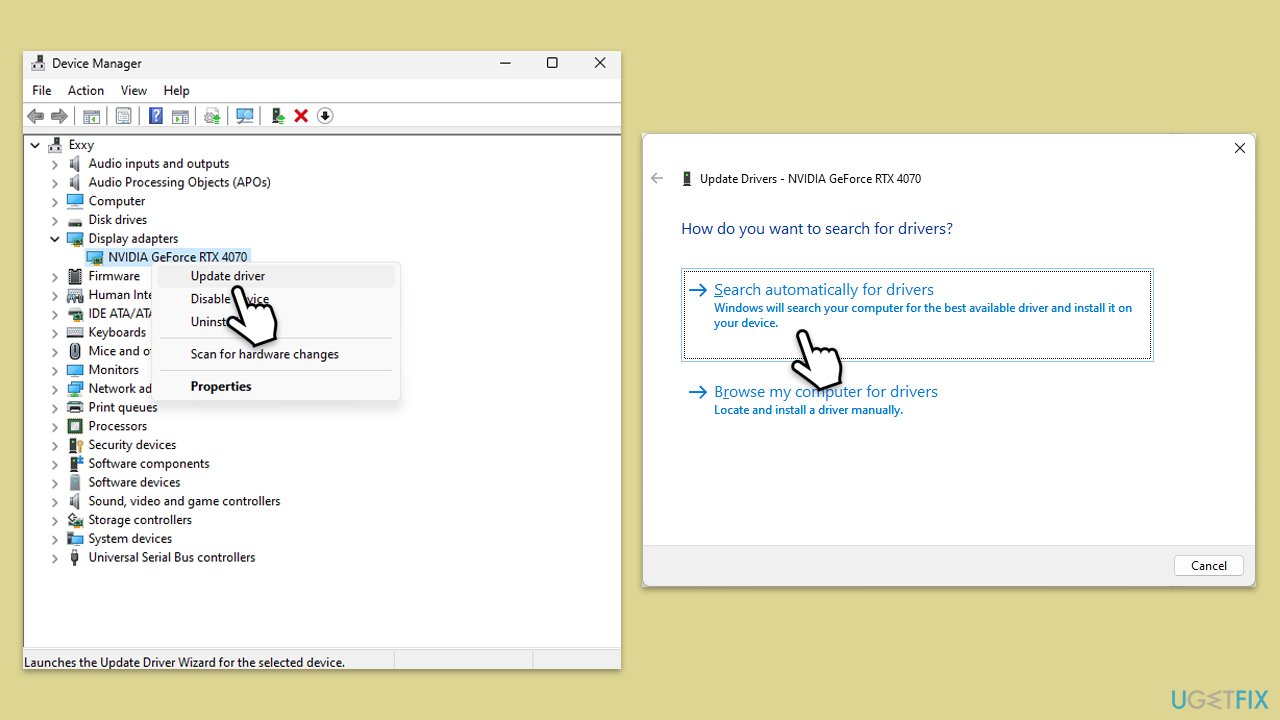
Download chipset drivers from your motherboard manufacturer's website, such as Asus, by identifying your motherboard's model. Alternatively, use automated tools like [rev id="DriverFix"] for convenience.
Fix 2. Repair corrupted files
Corrupted system files may cause Windows to crash after waking from sleep.
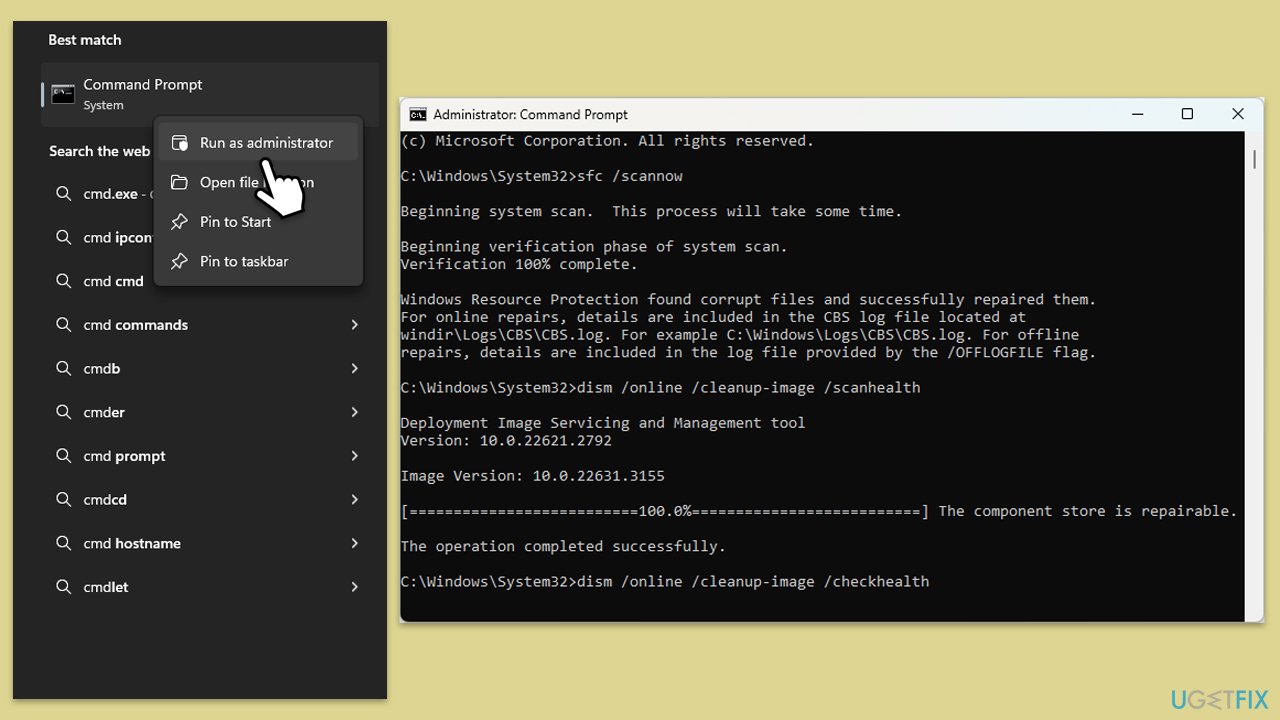
- Type cmd in Windows search.
- Right-click on Command Prompt and pick Run as administrator.
- When UAC asks you whether you want to make changes, agree by pressing Yes.
- Next, copy and paste the following commands, pressing Enter each time:
sfc /scannow
DISM /Online /Cleanup-Image /CheckHealth
DISM /Online /Cleanup-Image /ScanHealth
DISM /Online /Cleanup-Image /RestoreHealth
(Note: if you get an error executing the last command, add /Source:C:\RepairSource\Windows /LimitAccess to it and try again.) - Restart your computer.
Fix 3. Change power plan settings
Certain advanced power-saving features can interfere with resume behavior.
- Type Control Panel in Windows search and press Enter.
- Go to Power Options.
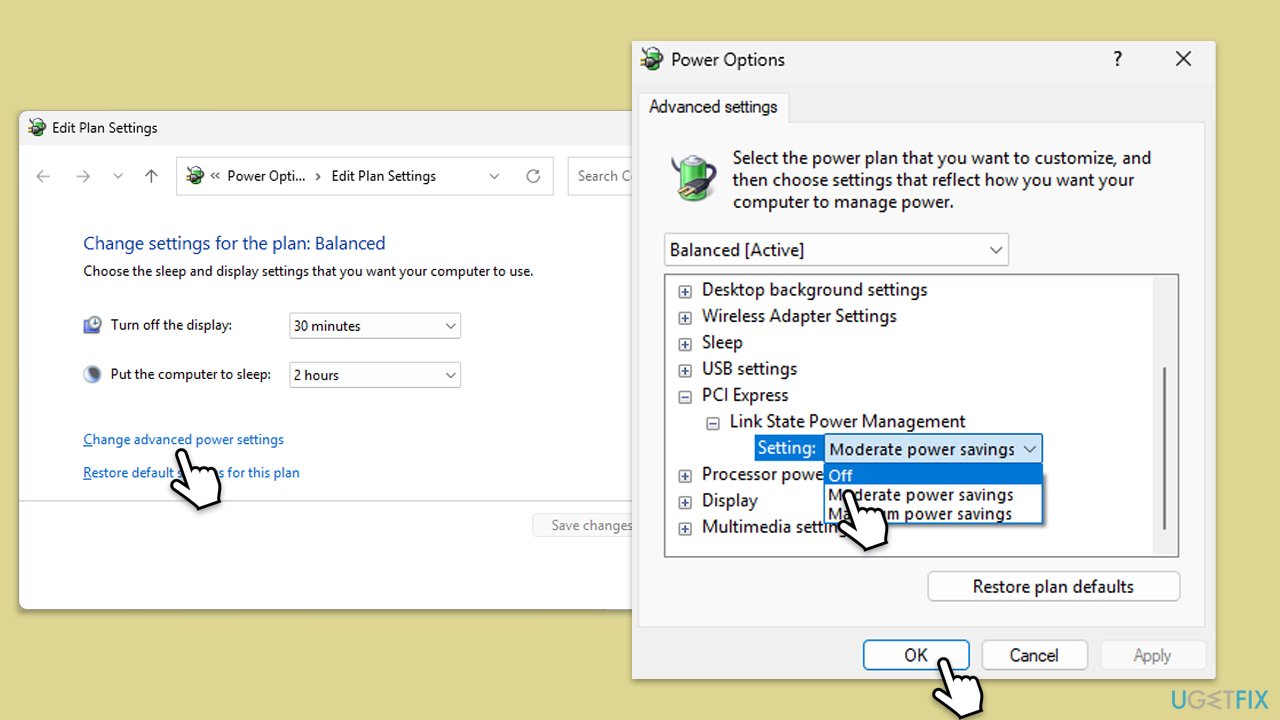
- Click on Change plan settings next to your active plan.
- Select Change advanced power settings.
- Expand PCI Express > Link State Power Management and set it to Off.
- Click Apply, then OK.
Fix 4. Reset your power plan to default
Corrupted power profiles may trigger problems after waking from sleep.
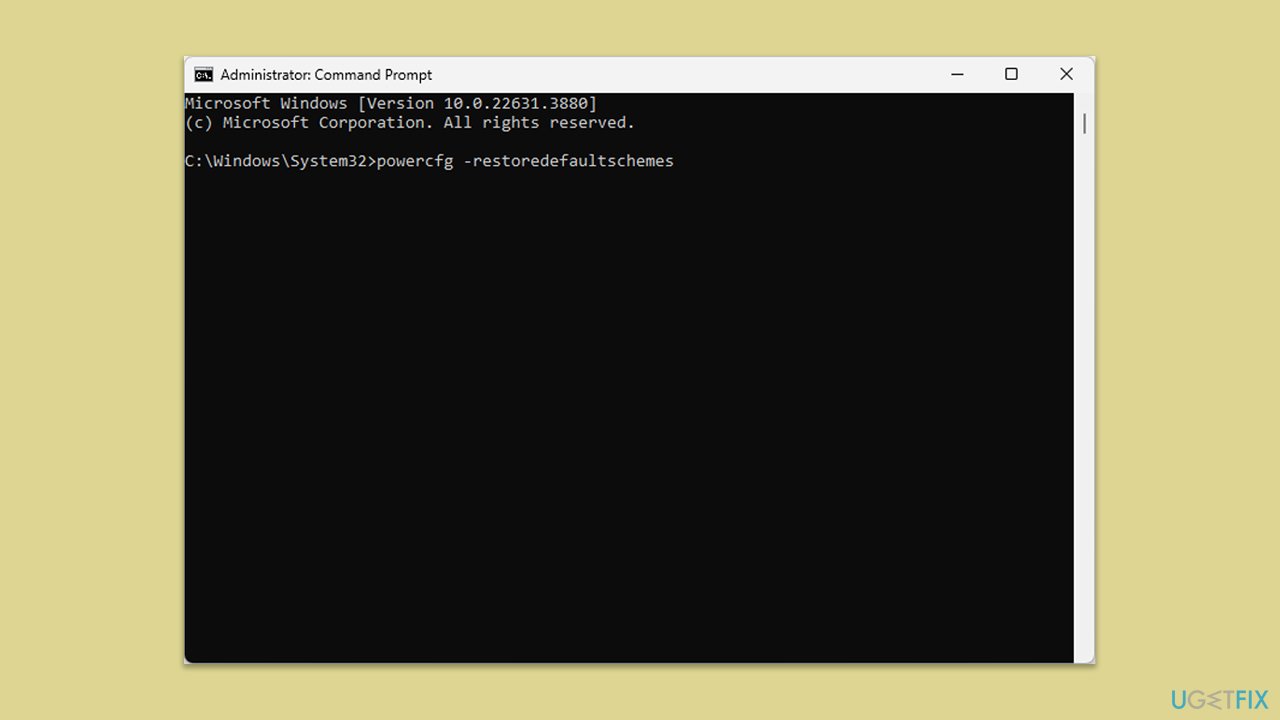
- Open Command Prompt as administrator.
- When the new window opens, copy and paste the following command:
powercfg –restoredefaultschemes - Press Enter and close down Command Prompt.
Fix 5. Disable fast startup
Fast startup can sometimes conflict with drivers during wake-up.
- Type Control Panel in Windows search and hit Enter.
- Select Small icons view and pick Power options.
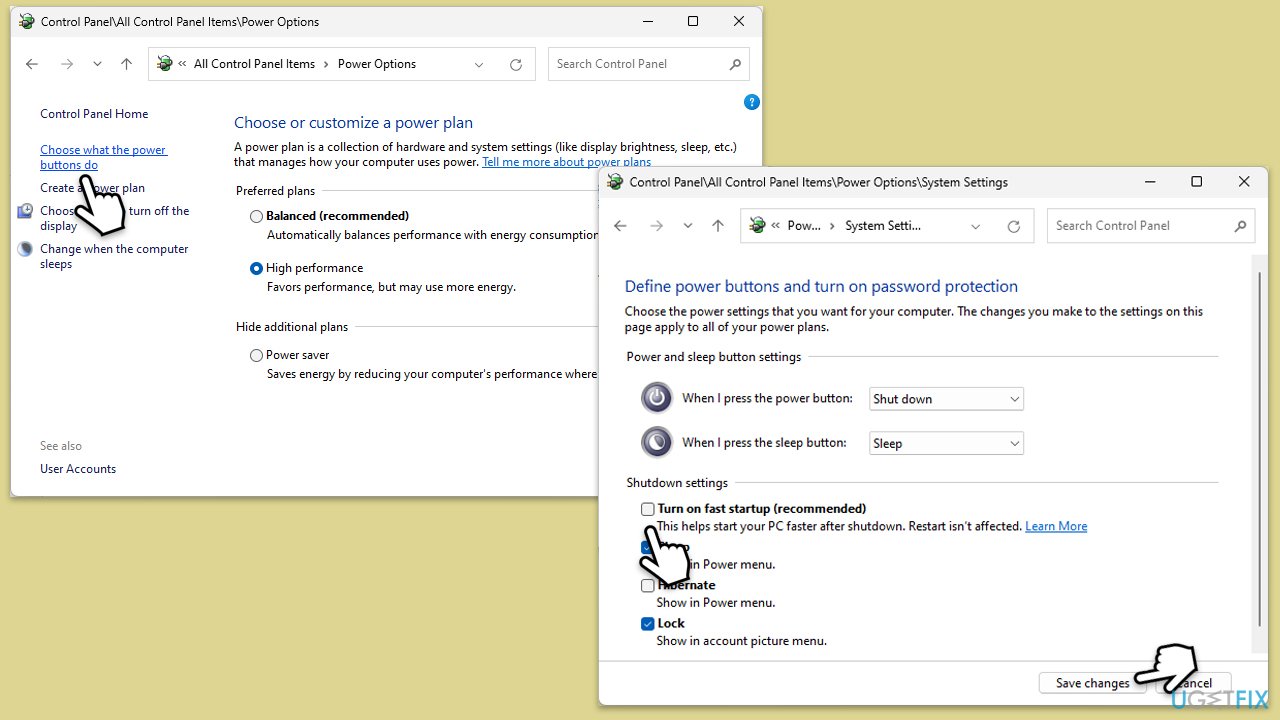
- On the left side of the window, select Choose what the power buttons do
- Pick the Change settings that are currently unavailable option at the top
- Remove the tick from the Turn on fast startup (recommended) option and select Save changes.
Fix 6. Update BIOS or UEFI firmware
Outdated firmware can lead to poor handling of modern standby modes.
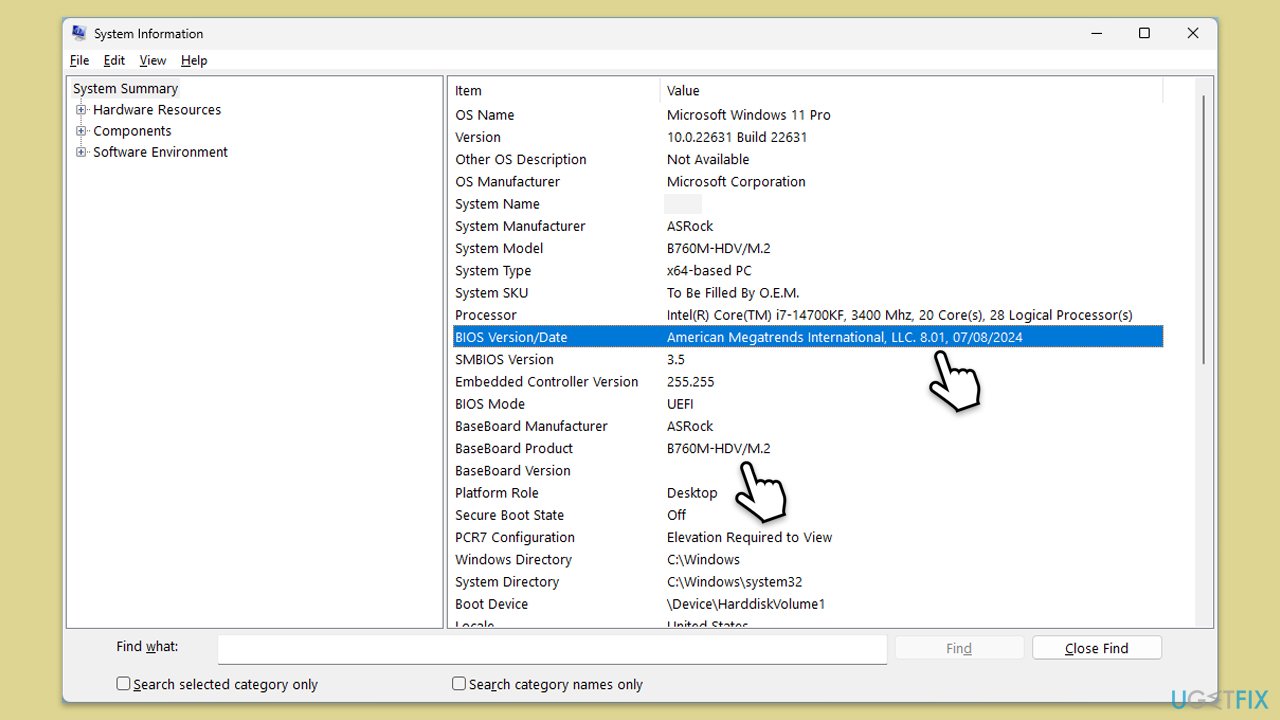
- Visit the manufacturer's website and download your specific model's latest BIOS update file (you can check which BIOS you are using by typing System information in Windows search and checking the BIOS Version/Date and BaseBoard Product entries there).
- Extract the BIOS update files and read any provided instructions or documentation.
- Create a bootable US drive with the BIOS update files, if required.
- Update the BIOS using the manufacturer's recommended method, which may be through a built-in utility or booting from a USB drive.
- Restart your computer to complete the process.
Fix 7. Test RAM for hardware issues
Faulty RAM may prevent your system from restoring sessions after standby.
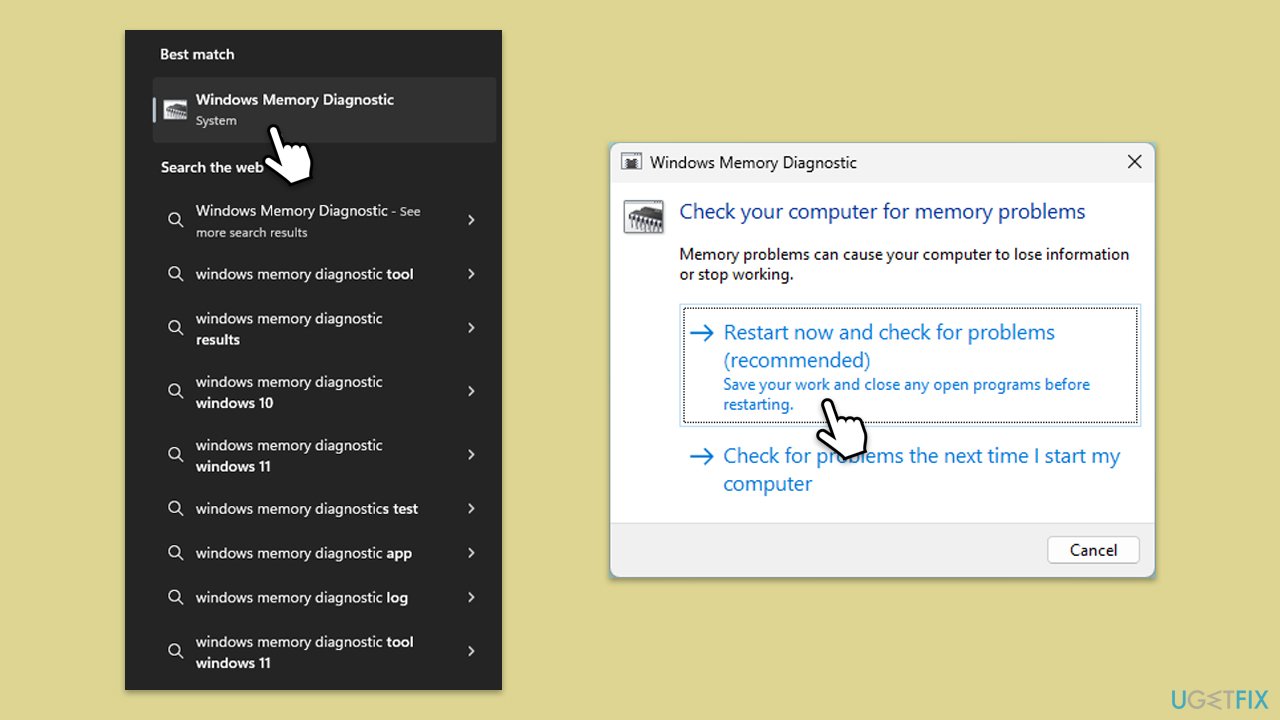
- Type Memory in Windows search and press Enter.
- Select Windows Memory Diagnostics result.
- Click Restart now and check for problems (recommended) (note that your PC will restart immediately).The
- A memory test will run during startup and display any detected errors - this might take a while.
- Replace or repair faulty RAM module(s) if errors are found.
Fix 8. Uninstall recent Windows updates
Some updates may introduce bugs affecting power states.
- Type Control Panel in Windows search and press Enter.
- Select Programs > Uninstall a program.
- Click on View installed updates on the left side of the window.
- Sort all the updates by date.
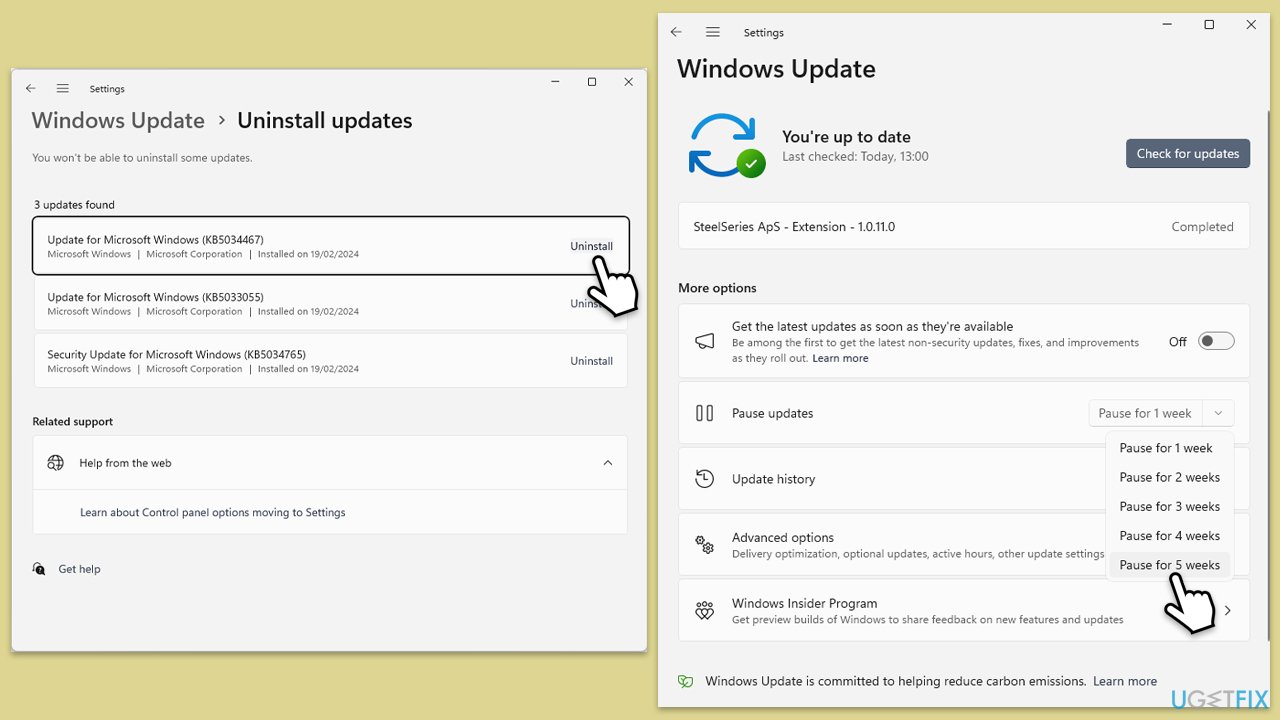
- Right-click on the recent update and select Uninstall.
- Proceed with on-screen instructions.
- Then, type Updates in Windows search and press Enter.
- Click Pause the updates for 7 days (in Windows 11, you can pick a different time period).
- Install updates only once the issue is addressed by Microsoft.
Bottom line
To fix the DAM WATCHDOG TIMEOUT BSOD, you can update your graphics and chipset drivers, check for system file issues, and review your BIOS or UEFI power management settings. If the problem persists, consider using a repair tool to scan for hidden issues and restore normal system behavior.
Frequently asked questions
This BSOD error is typically caused by driver issues, particularly with the graphics card or storage drivers, or by hardware malfunctions such as a failing SSD.
You can start by updating your graphics and storage drivers via Device Manager, and running the Windows Memory Diagnostic tool to check for RAM issues.
Yes, disabling hardware acceleration in applications can help mitigate the issue, but it may affect performance; consider this as a temporary solution while you investigate further.




Ah, this is interesting! I actually had a similar issue where my laptop would crash when waking up from sleep, but I never got the DAM WATCHDOG TIMEOUT error. Instead, it just froze and I had to force restart. I noticed it only happened after I updated my graphics drivers. Do you think that could be related? Sorry if this is a stupid question, but I’m still trying to figure out how all these parts connect!
Yes, that could be related. Drivers can cause conflicts, especially after updates. Check for newer drivers or roll back to the previous version. And remember, freezing can indicate more than just a driver issue. Check the event log first for more details.