How to fix
“Deployment failed with HRESULT” error
on Windows
Resolve the "Deployment failed with HRESULT" error on Windows 10 and 11 with expert-tested solutions. Get your system running smoothly, fixed in minutes!


What causes How to fix “Deployment failed with HRESULT” error in Windows?
- Corrupted data linked to the app
- Failed or partially completed updates of Windows or specific apps
- Compromised integrity of system files
- Interference or conflicts caused by other software
Repairs Windows system files, removes malware, and restores a clean OS state — without reinstalling.
Hi. I was having many problems with the Microsoft Store, and I found one way to fix it online is to reinstall the app via Powershell. After running the command, I received this error: "Add-AppxPackage: Deployment failed with HRESULT: 0x80073CF9, Install failed. Please contact your software vendor." Why am I getting this error, and how do I fix it?
The "Add-AppxPackage: Deployment failed with HRESULT" error is a notable concern for numerous Windows users. It is especially prevalent among those who often turn to PowerShell for executing commands, particularly when the objective is to modify, install, or reinstall Windows applications or Store itself. When one encounters this error, it indicates that there is an issue - often a malfunction or inconsistency - in the deployment or installation process of the app package.
For those unfamiliar with the nuances of Windows operating errors, the HRESULT is a way the operating system flags and identifies specific issues. The "Deployment failed with HRESULT" error is not isolated in its presentation. More often than not, it is accompanied by unique error codes that delve deeper into the root cause of the problem, including 0x80073CF9, 0x80073CF3, and 0x80073D0A. Each of these, while under the umbrella of the HRESULT error, pertains to different underlying problems, making the troubleshooting process a bit complex.
Several factors can lead to the "Deployment failed with HRESULT" error. Corrupted data linked to the app in question is a common reason. If this data, essential for the app's operation, is compromised or missing pieces, the deployment process can halt, triggering the error. Additionally, failed or partially completed updates of Windows or specific apps can also be culprits. At times, the integrity of system files, if compromised, can be the root cause. Furthermore, interference or conflicts caused by other software installed on the system can lead to this error.
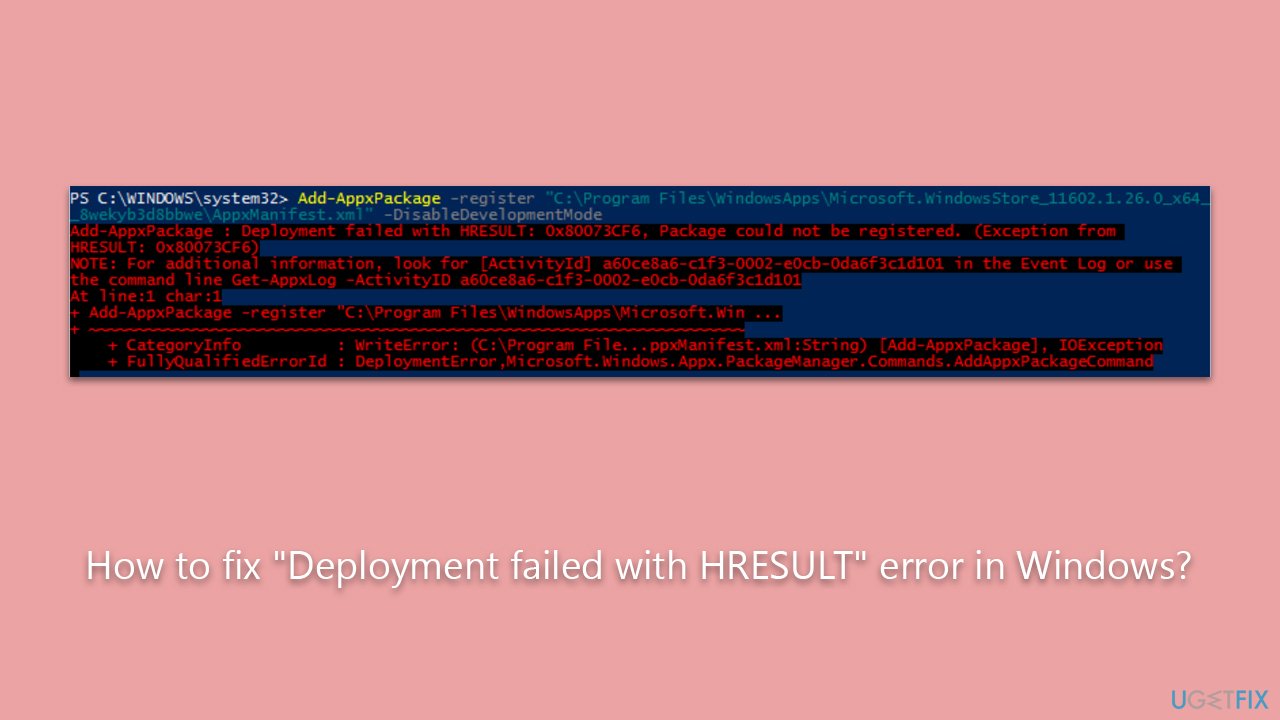
Many users, hoping for a quick fix, opt for a system restart. While this sometimes proves effective, it is not a foolproof solution and more intensive solutions may be required. This could mean diving into system tools like the System File Checker to repair damaged components, updating Windows to its latest version, or employing Windows's built-in troubleshooters.
Turning to specialized PC repair software, such as [d1], can be a game-changer for those seeking a comprehensive, all-in-one solution. It is specifically designed to handle a plethora of Windows errors, making system troubleshooting more efficient and user-friendly.
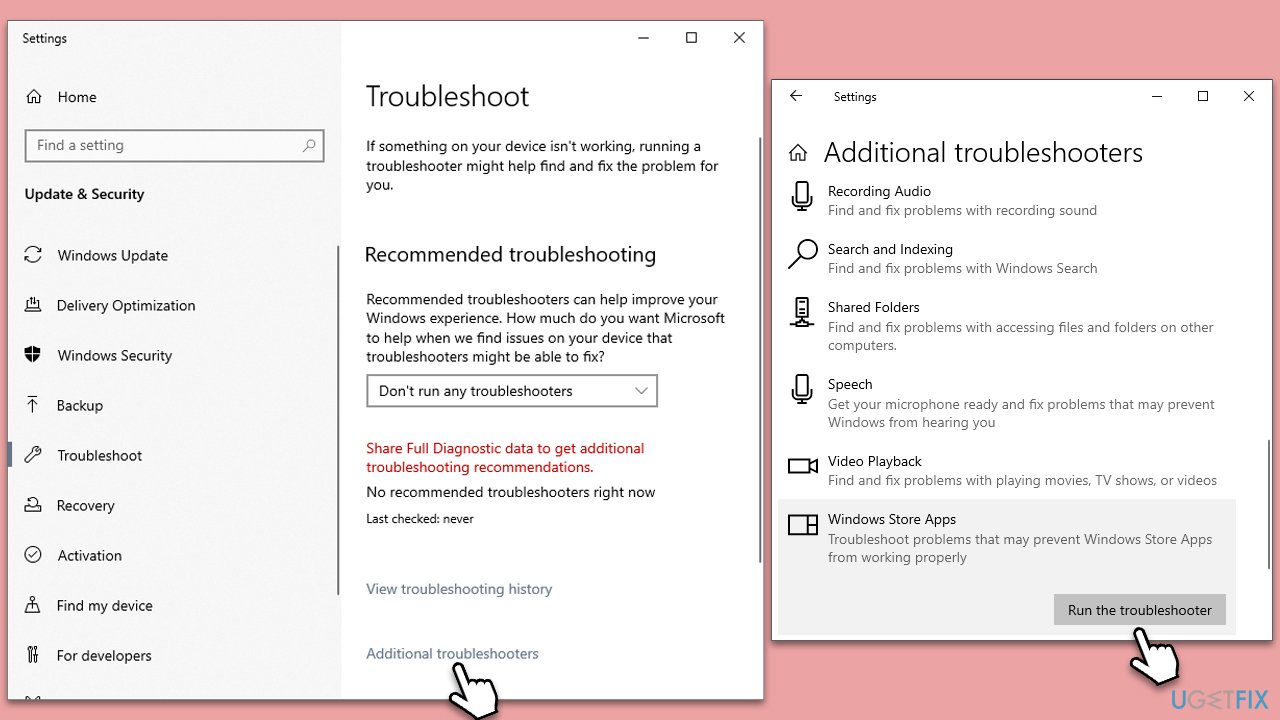
Fix 1. Run Windows Store apps troubleshooter
Windows Store apps troubleshooter is a built-in tool designed to identify and automatically resolve issues with Microsoft Store apps. It checks for common problems, such as app conflicts, incorrect settings, or corrupted files, and attempts to fix them.
- Type Troubleshoot in Windows search and hit Enter.
- Click Additional troubleshooters/Other troubleshooters.
- Scroll down to find Windows store apps and select it.
- Click Run the troubleshooter/Run.
- Wait till the process is finished and apply the fixes, then try updating again.
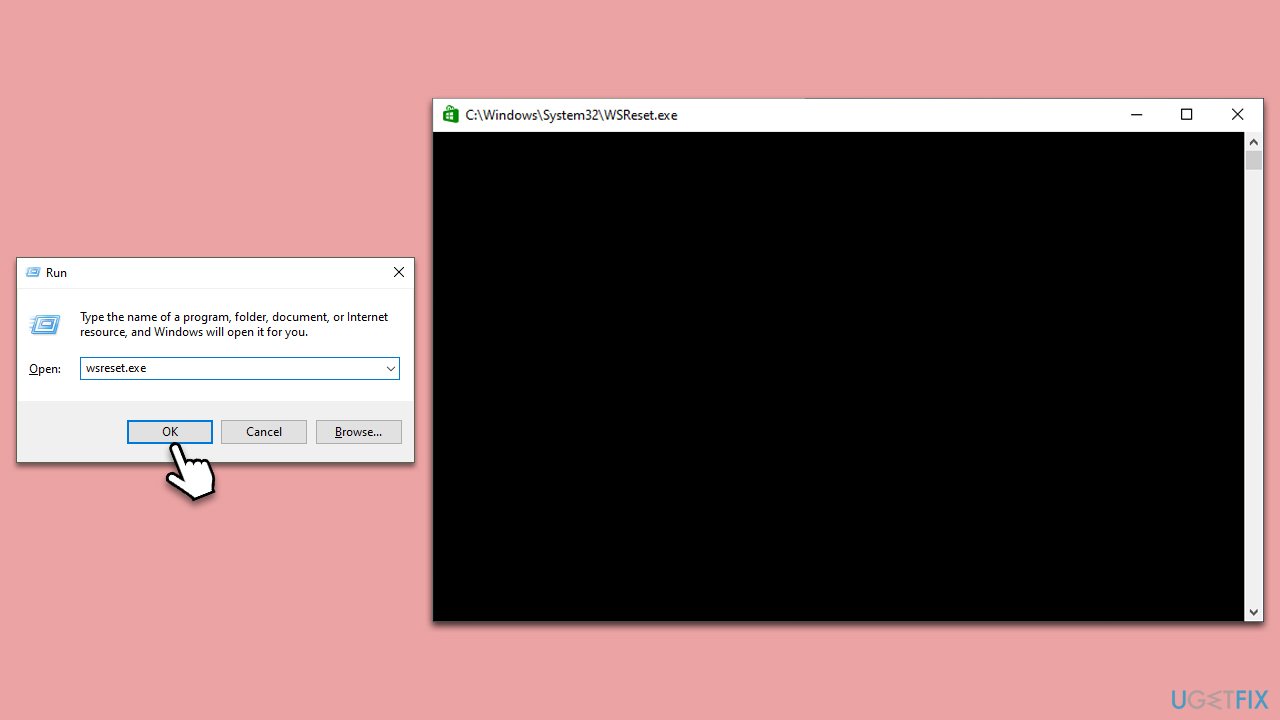
Fix 2. Clear Store cache
Sometimes, the Microsoft Store's cache can get corrupted, leading to errors. Clearing this cache can help resolve such issues by removing temporary and possibly corrupted data.
- Press Win + R to open the Run dialog.
- Type wsreset.exe and press Enter.
- Wait for the command to complete and the Store to reopen - the cache will be reset.
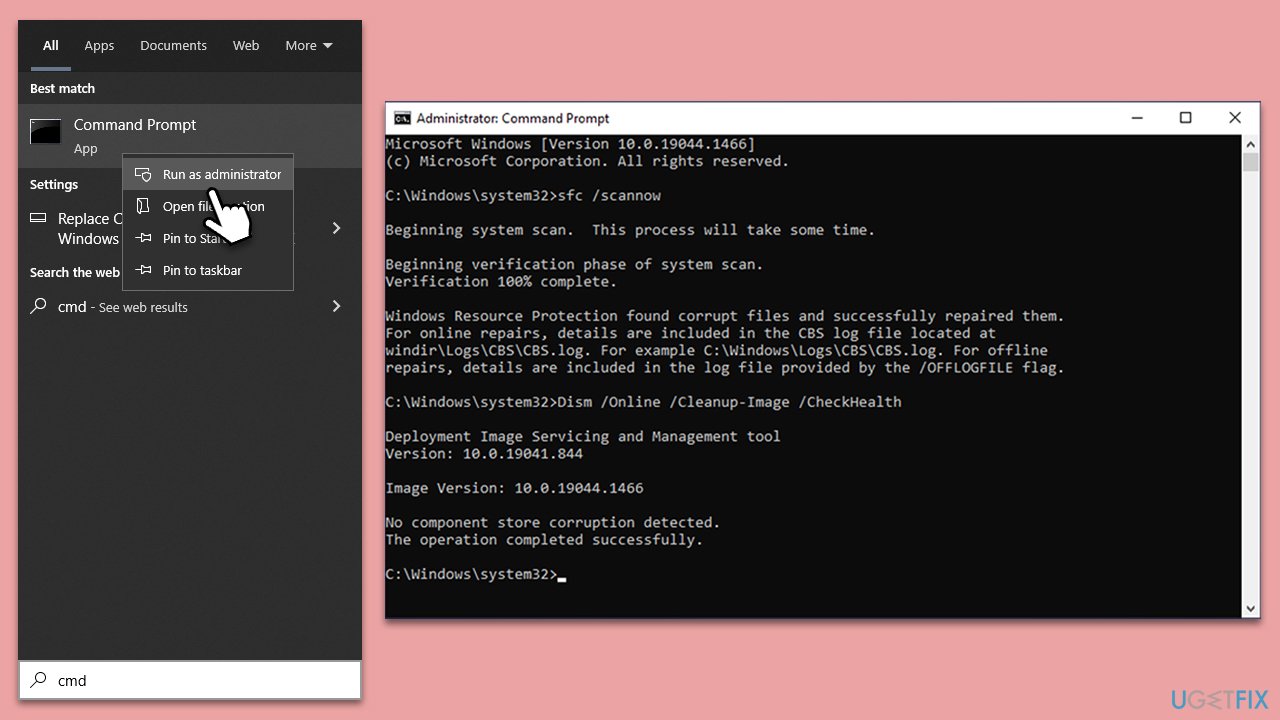
Fix 3. Run SFC and DISM
System File Checker (SFC) and Deployment Image Servicing and Management (DISM) are tools that can identify and repair corrupted or missing system files.
- To run an elevated Command Prompt, type in cmd in Windows search.
- Right-click the Command Prompt result and pick Run as administrator.
- User Account Control will ask whether you want to allow changes - click Yes.
- Copy and paste the following commands and press Enter:
DISM.exe /Online /Cleanup-image /Scanhealth
DISM.exe /Online /Cleanup-image /Restorehealth
DISM.exe /online /cleanup-image /startcomponentcleanup
sfc /scannow - Reboot your PC.
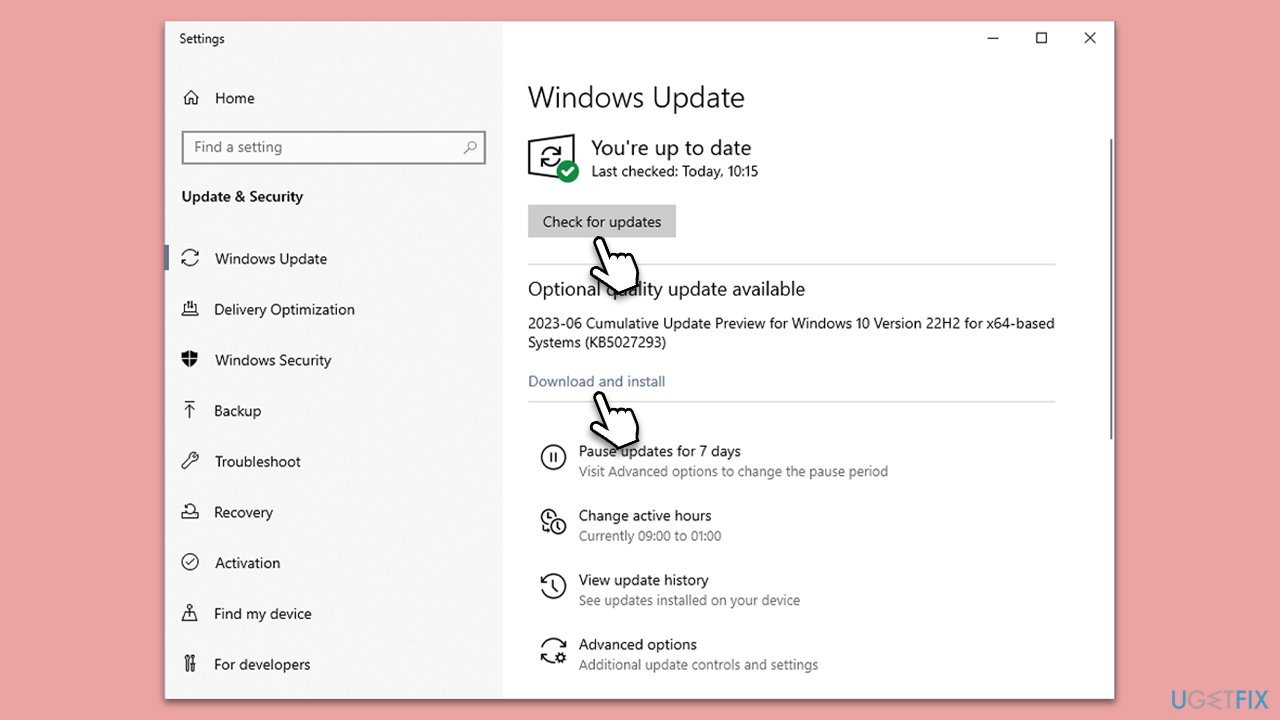
Fix 4. Install all Windows updates
Outdated Windows versions can cause conflicts with app installations. Regularly updating Windows ensures compatibility and security.
- Type Updates in Windows search and press Enter.
- Click Check for updates and wait.
- Install all the optional updates as well.
- Restart your system.
Fix 5. Run the Command in the Clean Boot state
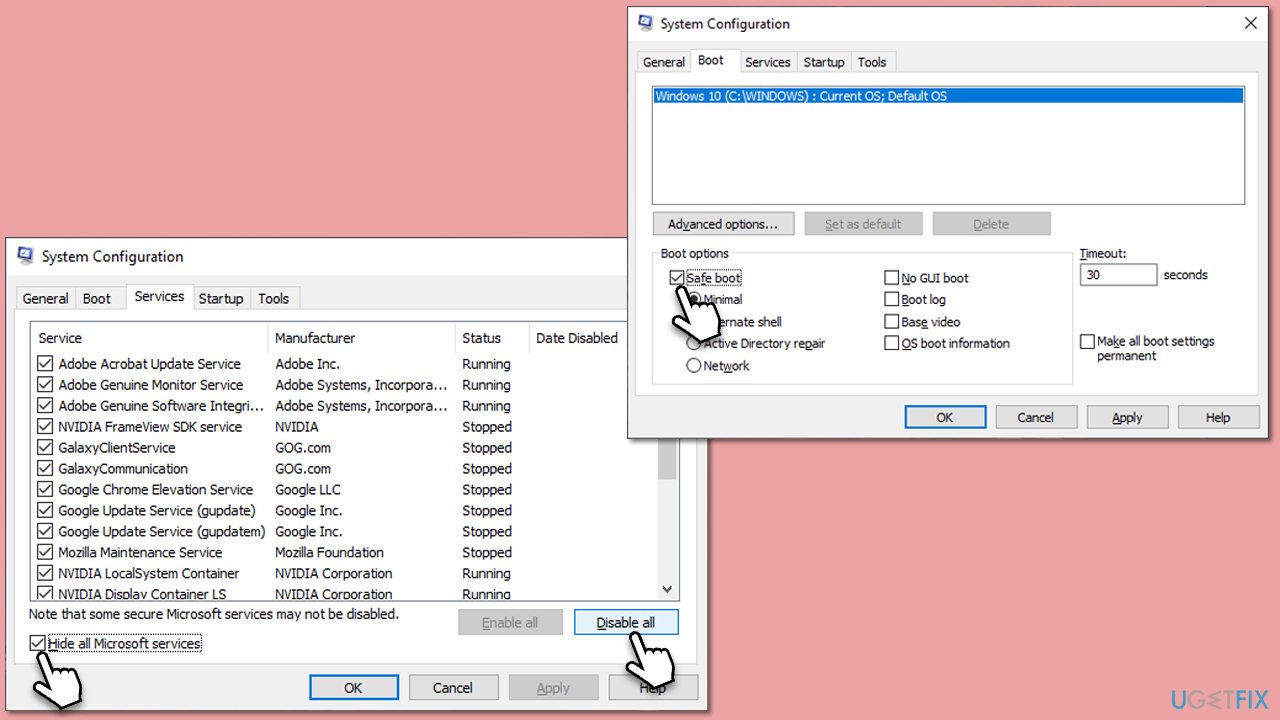
Running commands in a Clean Boot state ensures no third-party applications are interfering with the process. It starts Windows with a minimal set of drivers and services.
- Press the Win + R to open the Run dialog box.
- Type msconfig and press Enter.
- In the System Configuration window, click on the Services tab.
- Check the box that says Hide all Microsoft services, then click Disable all.
- Next, click on the Startup tab.
- Click on Open Task Manager.
- Under the Startup tab in Task Manager, for each startup item, select the item and then click Disable.
- Close Task Manager.
- On the Startup tab of the System Configuration dialog box, click OK, and then restart your computer.
Fix 6. Repair-install Windows
Repairing or reinstalling Windows can fix underlying issues by replacing corrupted system files without deleting personal data.
- Download Windows 11 Installation media from the official Microsoft website. [Windows 10 version]
- Double-click on the ISO file to open it.
- Find and select the setup.exe file within.
- Should User Account Control prompt you, choose Yes.
- Upon reaching the Install Windows screen, opt for Change how Setup downloads updates.
- Choose Not right now to avoid downloading a potentially new build. Then proceed with Next.
- Allow the setup to assess your PC's compatibility and free space.
- In the ensuing license agreement, select Accept.
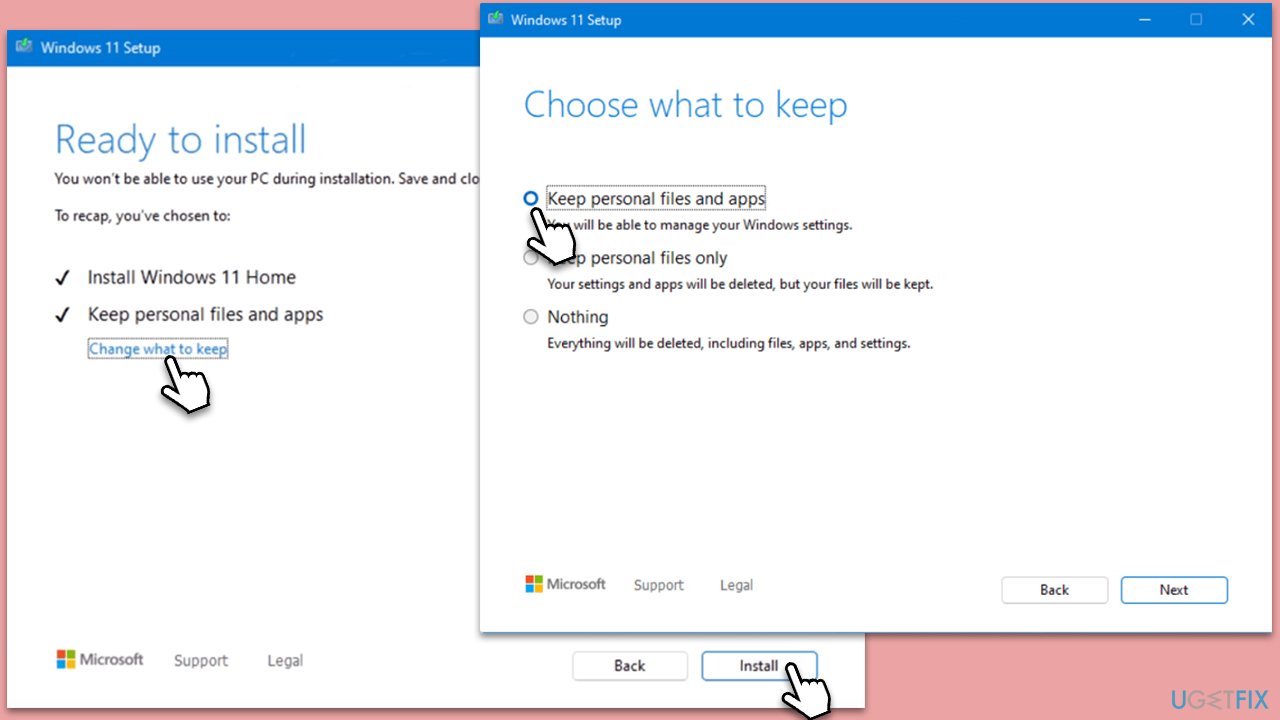
- Once on the Ready to install page, click on Change what to keep.
- You'll be presented with choices: Keep personal files and apps, Keep personal files only, or Nothing.
- Finally, click Install to begin the installation process.
Bottom line
To fix the 'Deployment failed with HRESULT' error, users can try reinstalling the app via PowerShell, performing a system restart, or checking for Windows updates. If these solutions do not resolve the issue, further troubleshooting may be necessary.
Frequently asked questions
This error typically indicates that there was a problem during the installation or update of an application, often due to corrupted files or insufficient permissions.
You can try running the Windows Store Apps troubleshooter or resetting the Microsoft Store cache using the command 'wsreset' in the Run dialog.
Yes, you can use the Windows Update Troubleshooter or perform a system file check by running 'sfc /scannow' in an elevated Command Prompt.




Report an issue
What's wrong with this guide? We review every report and update or remove content.
Report received — thank you. We'll review and fix it.
You need a free account to submit a report.
Be the first to comment