How to fix
Device encryption missing
on Windows
Resolve the Device encryption issue in Windows 10 or 11 effortlessly. Get expert-tested solutions for a secure and hassle-free experience! Fixed in minu…


What causes How to fix Device encryption missing in Windows?
- Compatibility problems with hardware setups
- Recent system updates
- Modifications to group policies
- Installation of third-party software affecting security settings
Repairs Windows system files, removes malware, and restores a clean OS state — without reinstalling.
Hello. For some reason, the Device encryption setting is missing from my Windows PC. Is there a way to get it back?
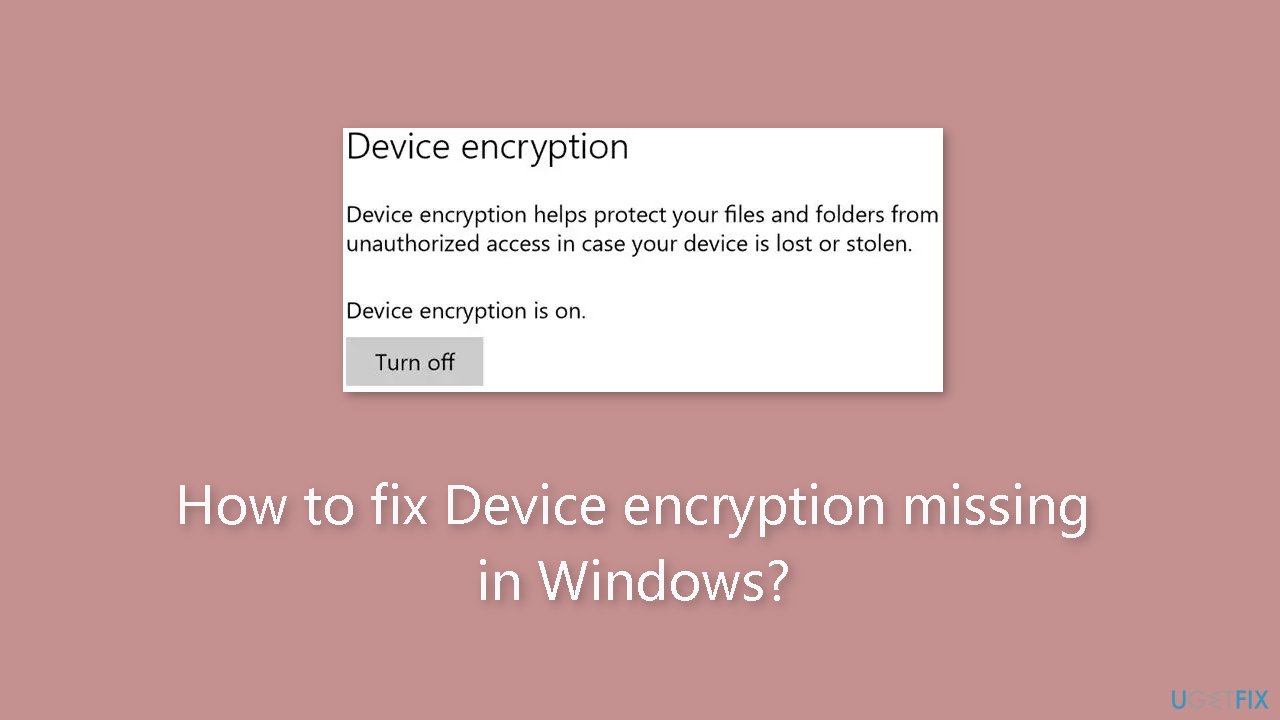
Device Encryption is a crucial security feature created to secure sensitive data, so its lack in Windows might be a big problem for consumers. Information is encrypted using this technology, which makes it unreadable to unauthorized users or possible hackers in the event that the device is lost, stolen, or otherwise compromised. However, there are a number of reasons why a Windows PC might not have this important security function.
Compatibility problems are a frequent cause of Device Encryption's absence. Device Encryption can only work properly with specific hardware setups and operating systems. These requirements must be met in order for Windows to enable Device Encryption on a user's PC. The user's data may be exposed to unauthorized access in this case, posing a serious security risk.
Recent setup adjustments or changes to the PC may also disable the Device Encryption setting. This could happen as a result of system updates, modifications to group policies, or the installation of third-party software that messes with Windows security settings. Such modifications may unintentionally jeopardize the user's data security.
Device Encryption can be severely impacted by its absence. Users may unintentionally expose their sensitive and personal data to danger. The lack of encryption makes it possible for hostile people to readily access and exploit sensitive information including personal documents, financial information, and login passwords in the event of theft or illegal access to the device. Identity theft, data breaches, and financial loss may follow from this.
Solving the issue of missing Device Encryption typically involves addressing the underlying causes, such as ensuring hardware compatibility, checking for recent system changes, and potentially reconfiguring security settings. In this guide, you will find 5 steps that should help you fix Device encryption missing in Windows.
You can also try using a maintenance tool like [d1] that can fix most system errors, BSODs,[ref en-1] corrupted files, and registry[ref en-2] issues. Otherwise, follow the step-by-step instructions below.
Method 1. Check if the Device is Compatible
- Press Windows + R to open Run.
- Type msinfo into the Run dialog and hit Ctrl + Shift + Enter.
- Scroll down on the right side of the System Information window.
- Check what it reads next to Device Encryption Support.
Meets prerequisites: Your PC supports device encryption.
Elevation required to view: You are not running System Information with administrative privileges. Make sure to launch the app as an administrator.
Any other codes: Critical settings are disabled, or the PC doesn't meet the system requirements.

Method 2. Enable Secure Boot
- Turn off the computer, and then power it on.
- As soon as the display lights up, repeatedly press the F1, F2, F10, or Del keys, depending on the system manufacturer, to launch the BIOS.
- In the BIOS, navigate to the Boot tab or the related section.
- Select Enabled for Secure Boot.
Method 3. Enable TPM
- Boot the PC into Recovery Mode and launch the BIOS, or alternatively, press the dedicated key after turning on the PC.
- In the BIOS, navigate to the Advanced tab.
- Locate the TPM entry.
- Select Enabled from the dropdown menu next to it.
Method 4. Switch to an Administrator Account
- Sign in with an administrator account on the PC.
- Press the Windows + R to open Run.
- Type netplwiz in the text field and hit Enter.
- Select the user account that doesn't show Device Encryption and click on Properties.
- Go to the Group Membership tab.
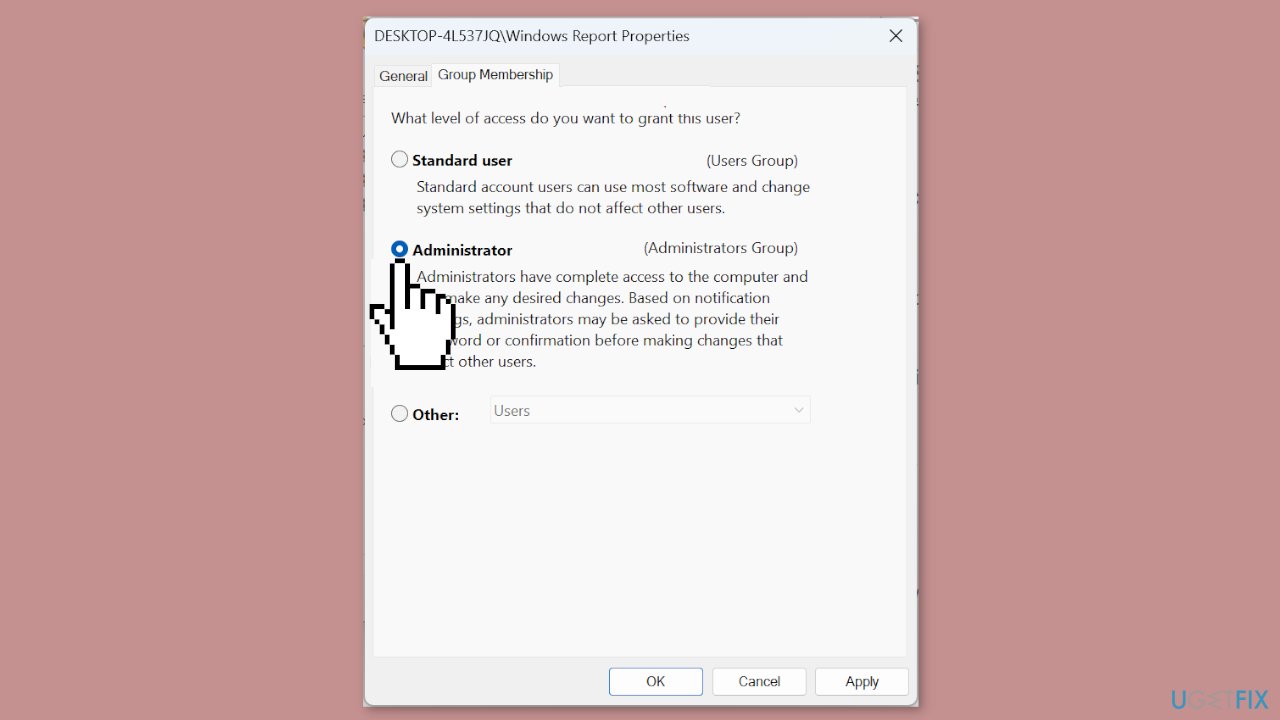
- Select Administrator and click OK to save the changes.
- Sign in with the problematic account and check whether Device Encryption is now available in Windows 11.
Method 5. Reconfigure the Local Policies
- Press the Windows key + S to open the Search menu.
- Type Local Group Policy Editor and click the relevant search result.
- Expand Administrative Templates under Computer Configuration from the left pane.
- Double-click on Windows Components.

- Select BitLocker Drive Encryption.
- Choose Operating System Drives under it.
- Double-click on Configure TPM platform validation profile for native UEFI firmware configurations on the right.
- Select Enabled.
- Untick the checkbox for PCR 2: Extended or pluggable executable code.
- Finally, click Apply and OK to save the changes, and restart the computer.
Bottom line
To fix the missing Device Encryption, ensure your hardware is compatible, check for recent system changes, and reconfigure your security settings. If these steps do not resolve the issue, consider using a maintenance tool to address potential system errors.
Frequently asked questions
Device encryption may be missing due to hardware incompatibility, such as lacking a TPM chip, or if the feature is disabled in your system's BIOS settings.
To enable device encryption on Windows 11, ensure your device meets the requirements and then go to Settings > Update & Security > Device encryption to turn it on.
If the device encryption option is greyed out in Windows 10, check if you're using a compatible edition of Windows, like Pro or Enterprise, and verify that your device has the necessary hardware support.




Report an issue
What's wrong with this guide? We review every report and update or remove content.
Report received — thank you. We'll review and fix it.
You need a free account to submit a report.
Be the first to comment