How to fix
Device not started (igfx) error
on Windows
Resolve the Device not started (igfx) error in Windows 10 and 11 quickly with expert-tested solutions that ensure zero traces left behind.


What causes How to fix Device not started (igfx) error in Windows?
- Outdated drivers
- Corrupted drivers
- Hardware malfunction
- Conflicts with other programs
- Malware
Repairs Windows system files, removes malware, and restores a clean OS state — without reinstalling.
Hello. Recently my Windows computer display has started malfunctioning. It turns off randomly or does not play videos correctly. I went to the Event Viewer and saw a Device not started (igfx) error. What does it mean and how do I get rid of this problem?
The "Device not started (igfx)" error in Windows is a common issue that can cause a variety of problems for users, including display shutdowns and issues with video playback. This error is typically caused by a problem with the Intel graphics driver,[ref en-1] which is responsible for controlling the graphics card on the user's computer.
One of the most common symptoms of this error is that the display will randomly shut off, which can be very disruptive and frustrating for users. Additionally, many videos may not play properly, which can make it difficult to enjoy videos and other multimedia content. The cause of the error can be a variety of issues such as outdated or corrupted drivers, hardware malfunction, conflicts with other programs, or even malware.
Possible solutions to this issue may include updating the graphics driver, performing a system restore, uninstalling and reinstalling the graphics driver. It's also important to note that updating the BIOS might also help. In this guide, you will find 6 steps in total that should help you fix "Device not started (igfx)" error in Windows.
If none of these solutions work, it may be necessary to seek professional help or contact the manufacturer of the computer for further assistance.
Solution 1. Install the Appropriate Driver Version
- Press the Windows key + R to open the Run dialog box
- Type msinfo32 and hit Enter
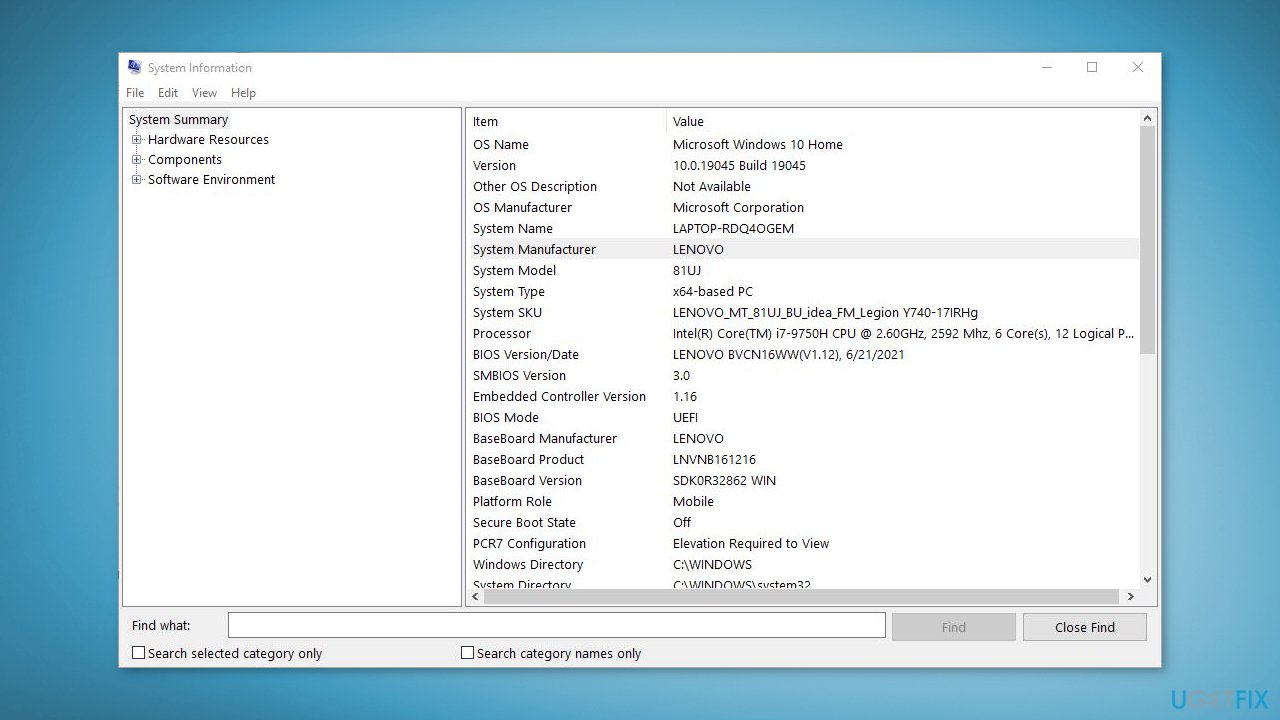
- Look for the System Model and manufacturer
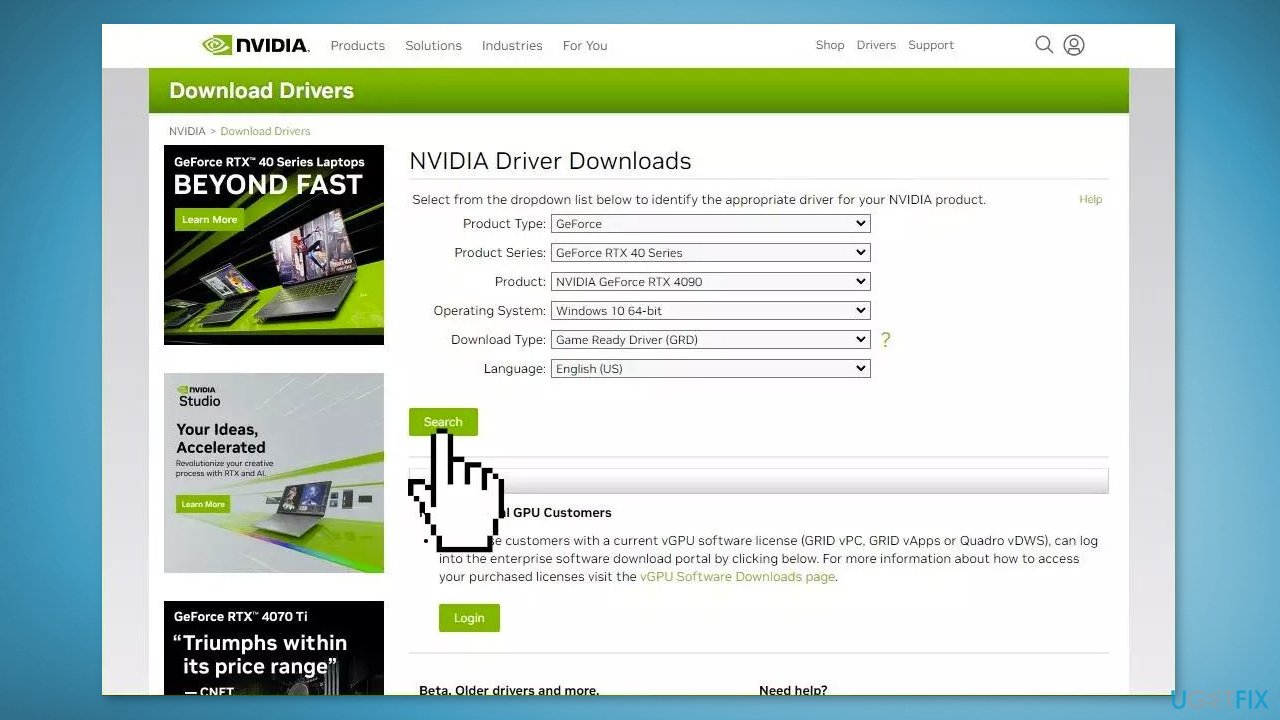
- Go to the official website of the manufacturer and download the appropriate driver
- Install the driver following the on-screen instructions
Solution 2. Install an Older Driver
- Press the Windows key + X and go to the Device Manager
- Expand Display Adapters
- Look for your graphics driver
- Right-click on it and choose Update driver
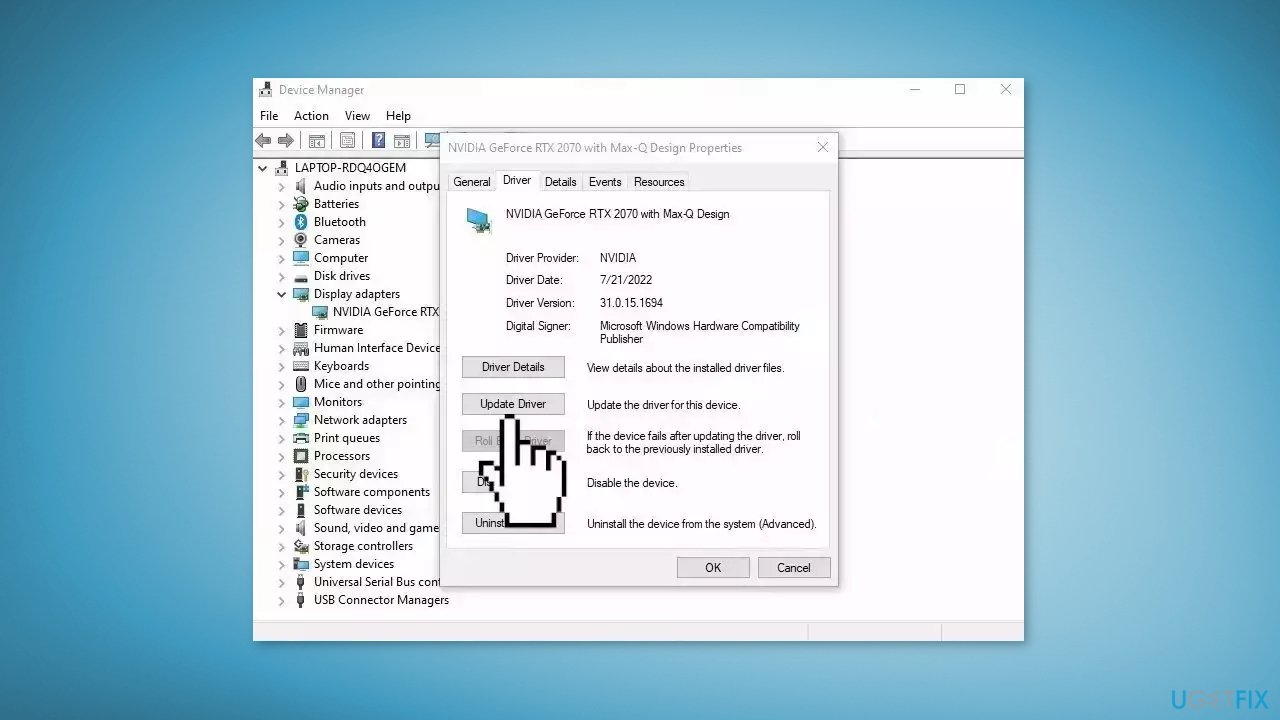
- Look for Browse my computer for drivers
- Then, click on Let me pick drivers available drivers
- Choose an old driver and use it
Solution 3. Use System Restore
System Restore is a feature in Microsoft Windows that allows users to revert their computer's state to a previous point in time. This can be helpful if you have made changes to your system that are causing problems.
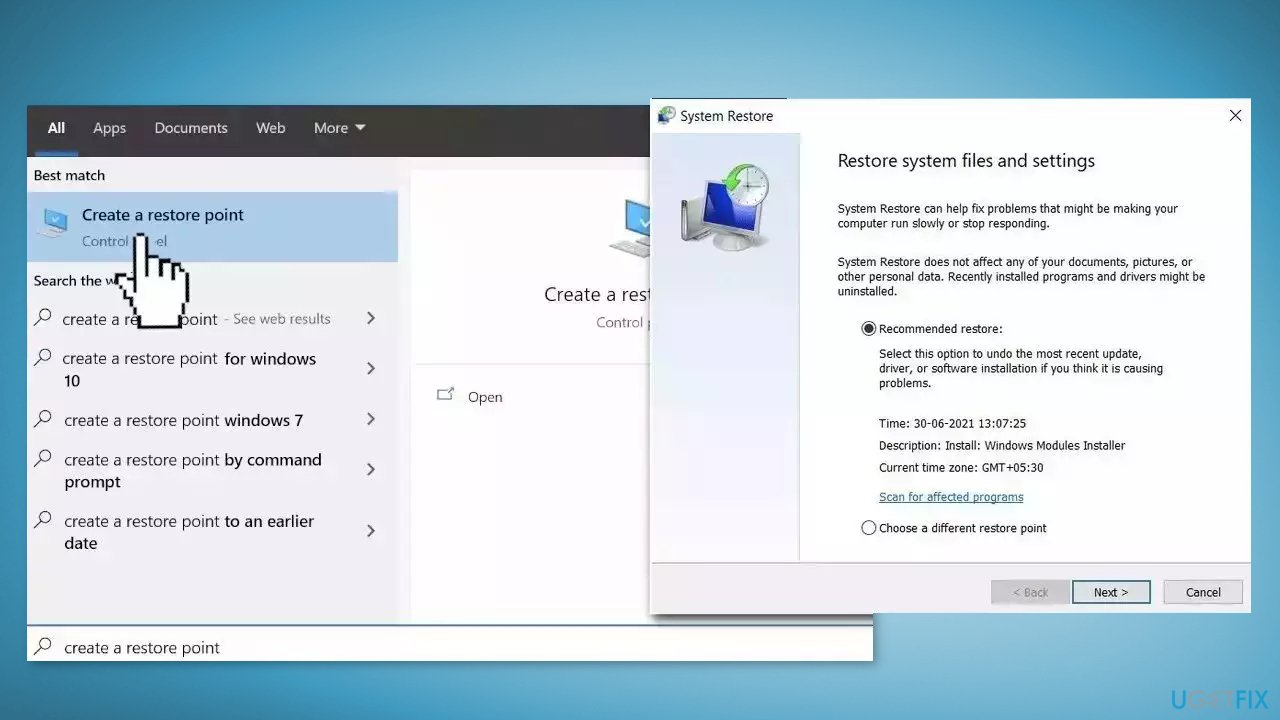
- Go to the Start menu, type restore, and click on Create a restore point
- Click System Restore, then follow the prompts until you can select a restore point
- Select the one you want (ideally before the issue started occurring) and go ahead with the process
Solution 4. Update BIOS
The "Device not started (igfx)" error in Windows is often caused by an outdated BIOS. Updating your BIOS can help resolve this issue. However, it can be a bit tricky and requires some technical know-how, but it is a relatively simple process.
You can find detailed instructions on how to update your BIOS in our article How to update BIOS in Windows? It is important to follow the instructions carefully to ensure a successful update. Keep in mind that updating the BIOS can be risky, so it is important to make sure that you have a backup of your important files before proceeding.
Solution 5. Fix System Issues
If previous methods have not resolved the issue, it may be a critical system problem. Missing or damaged system files can cause various issues on your computer. To fix the problem and maintain optimal system performance, a thorough scan and repair are recommended.
[d1] is a safe and professional repair solution that offers various functions. It can replace corrupted Windows files and components, fix BSODs,[ref en-2] registry issues, clear cookies and cache,[ref en-3] and improve stability. Importantly, it will not harm your custom settings or personal data during the process.
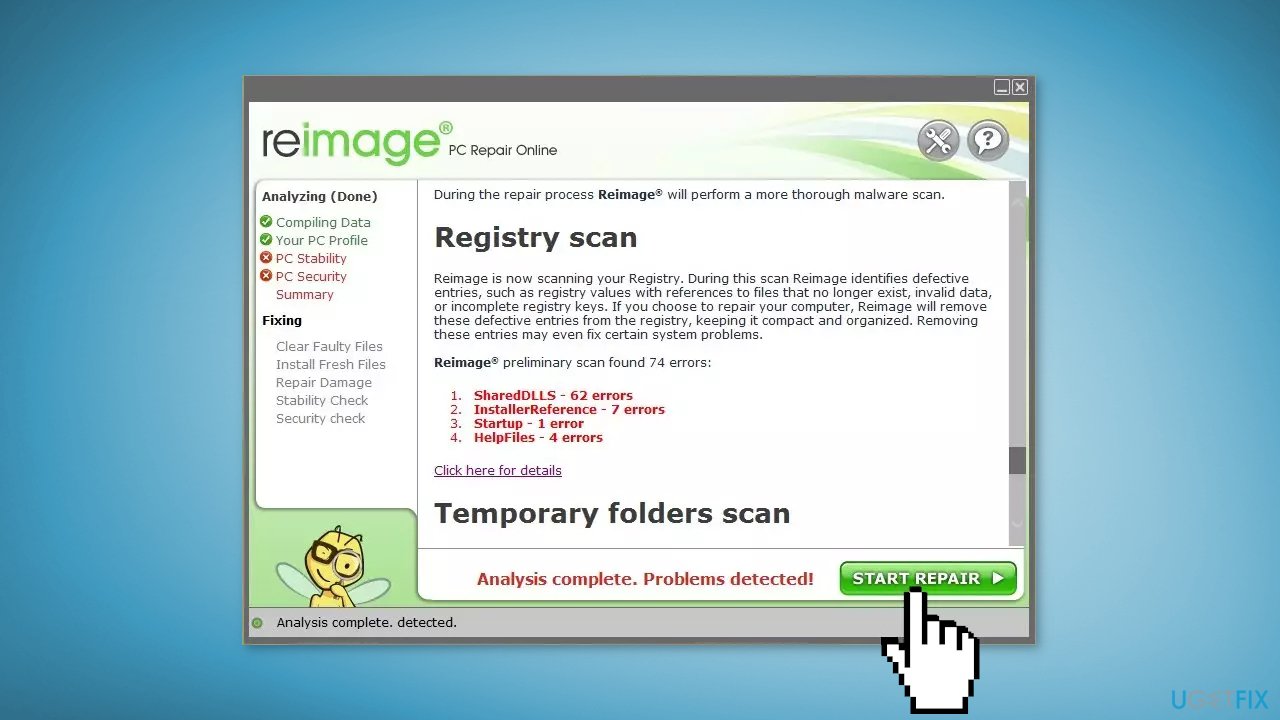
- Open Reimage and click Yes to initiate a free scan of your PC
- Wait for the scan to complete, which may take a few minutes
- Review the detailed report of all the issues on your PC
- To fix the issues automatically, click START REPAIR. This requires purchasing the full version, which comes with a 60-day money-back guarantee, allowing you to request a refund if Reimage fails to solve the issue.
Solution 6. Perform an Upgrade Install
- Download the Media Creation Tool from Microsoft for Windows 10 or Windows 11
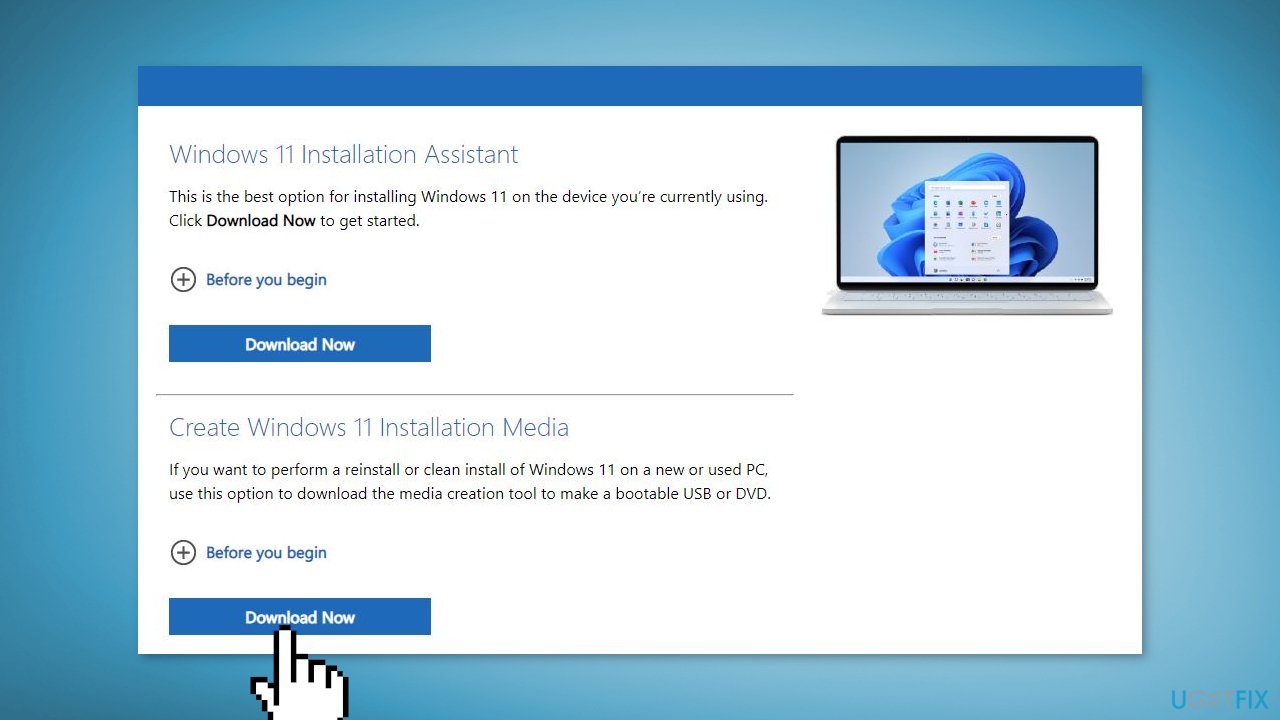
- Click Download Now
- Run MediaCreationTool.exe
- Choose Upgrade this PC now
- Select Keep personal files and apps
- Follow the on-screen instructions and let it install
Bottom line
The 'Device not started (igfx)' error can often be resolved by updating or reinstalling the graphics driver, or by installing an older version of the driver. Additionally, performing a system restore or updating the BIOS may help. If none of these solutions work, consider seeking professional help or contacting the computer manufacturer.
Frequently asked questions
The 'Device not started (igfx)' error indicates that the Intel graphics driver is not functioning properly, which can lead to display issues on your PC. This error usually arises from outdated or corrupted drivers.
To update the Intel graphics driver in Windows 10 or Windows 11, go to Device Manager, locate the Display adapters section, right-click on the Intel graphics device, and select 'Update driver'. You can choose to search automatically for updated driver software.
If updating the driver does not fix the issue, try uninstalling the device from Device Manager and then restarting your computer to allow Windows to reinstall the driver automatically. Additionally, consider rolling back the driver to a previous version if the problem started after a recent update.




Report an issue
What's wrong with this guide? We review every report and update or remove content.
Report received — thank you. We'll review and fix it.
You need a free account to submit a report.
Be the first to comment