How to fix
Diablo 4 crashes with Blue Screen
on Windows
Resolve Diablo 4 crashes and Blue Screen errors on Windows 10 and 11 effortlessly with expert-tested solutions that fix issues in minutes.

What causes How to fix Diablo 4 crashes with Blue Screen?
- Incorrect graphics settings
- Overclocking
- Driver issues
- Outdated drivers
Repairs Windows system files, removes malware, and restores a clean OS state — without reinstalling.
Hello. I was excited to finally get my hands on Diablo IV, and everything went fine at the start. After a couple of days, the game crashed, which also led to a Blue Screen. I restarted, thinking nothing of it, and continued playing. Unfortunately, now I get the same thing every 15-30 minutes - Diablo IV just keeps crashing my PC. Any ideas on what should I do to fix this?
Blizzard Entertainment has continued its acclaimed Diablo series with Diablo IV, an action role-playing game that was released on June 5, 2023. This installment enriches the gaming experience with an open world, Player versus Player interactions, and five distinct character classes: Barbarian, Druid, Necromancer, Rogue, and Sorcerer. However, a critical technical issue has been reported by some Windows users - the game crashes, leading to the infamous Blue Screen of Death (BSOD).
Blue Screen of Death is a stop or exception error screen displayed on a Windows system after a fatal system error or crash. It is essentially an indicator of a significant issue where the operating system has encountered a scenario where it can no longer operate safely and effectively. The purpose of it is not just to inform the user of a serious problem but also to protect the system and its components from potential damage, thereby preserving system integrity.
In the specific context of Diablo IV, game crashes resulting in the BSOD could be attributed to a variety of underlying issues. One potential cause could be incorrect graphics settings within the game, which could potentially overtax the hardware capabilities of the system, leading to a crash.
Overclocking, another common practice employed to enhance system performance, can, unfortunately, lead to system instability if not done correctly and could also result in game crashes.
Driver issues represent another potential cause for these problems. Inconsistencies in the drivers, or drivers that are outdated, could interfere with the game's ability to interact effectively with the hardware of the system, resulting in crashes.
While these technical issues may seem overwhelming, they are not insurmountable. In fact, there are detailed guidelines and instructions available that can help users troubleshoot and rectify these issues, effectively putting an end to the BSOD incidents while playing Diablo IV. If you would rather take an automatic approach, we highly recommend trying [d1] PC repair tool, which can quickly check for damaged system files and other common issues and rectify them for you.
Fix 1. Run SFC and DISM
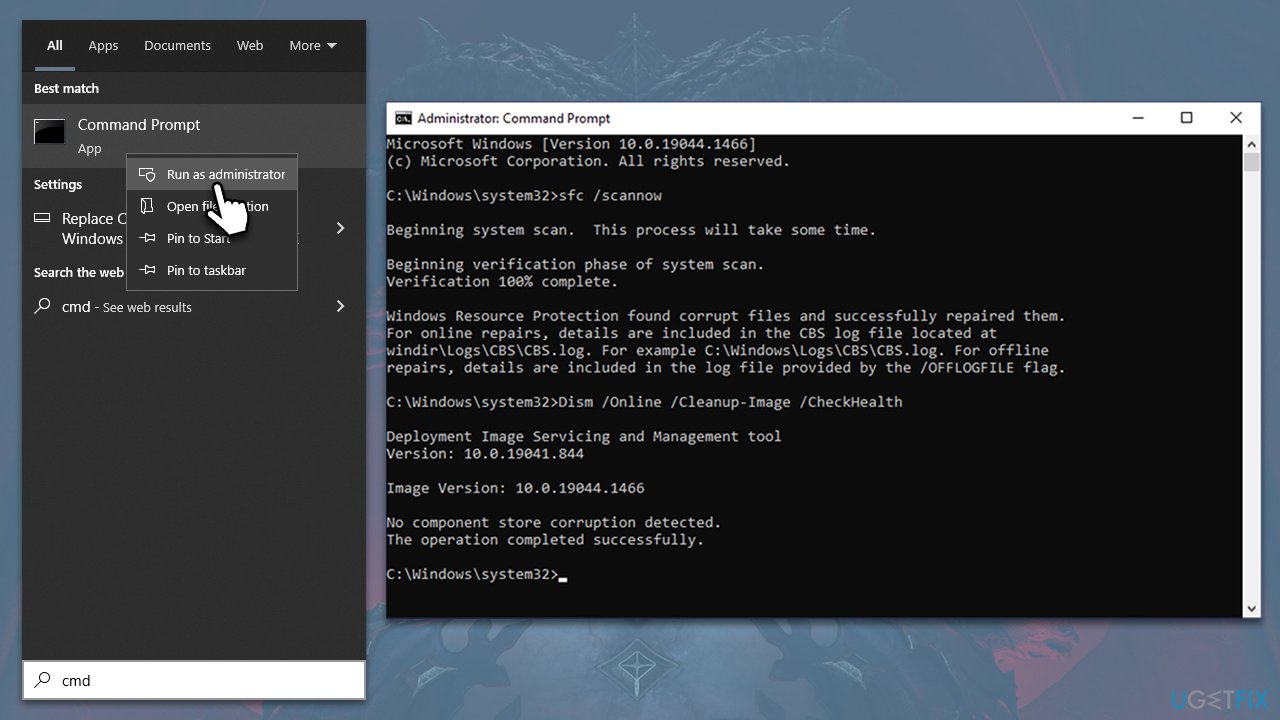
First, you should ensure that there's nothing wrong with your Windows system files - you can do that by running commands via elevated Command Prompt:
- Type cmd in Windows search.
- Right-click on Command Prompt and pick Run as administrator.
- When User Account Control (UAC) asks you whether you want to allow changes, click Yes.
- Use the following command and press Enter:
sfc /scannow - When the scan is complete, you should also run the following commands to repair Windows image files:
DISM /Online /Cleanup-Image /CheckHealth
DISM /Online /Cleanup-Image /ScanHealth
DISM /Online /Cleanup-Image /RestoreHealth - Restart your device.
Fix 2. Enable or disable Nvidia's autotuning in GeForce Overlay
Overlays are awesome tools that can help users to record gameplay, take screenshots, broadcast live, and much more when playing video games. GeForce is one of the most popular ones since it comes with the Nvidia GeForce Experience app and provides access to all these features instantaneously via the shortcut.
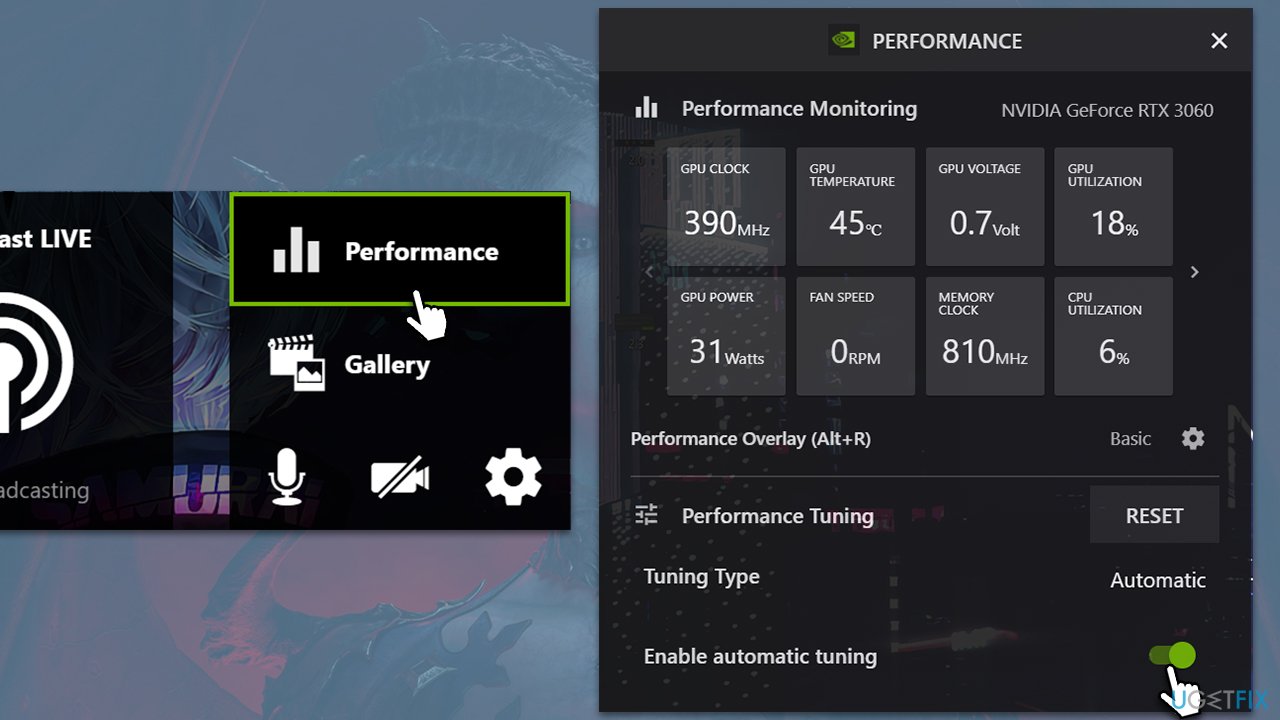
Some users said that they managed to fix Diablo IV crashes after enabling or disabling autotuning option in settings. Thus, if you have it disabled, you should enable it, or vice versa.
- Press Alt + Z on your keyboard to open GeForce Overlay.
- In the top right corner of the overlay, click Performance.
- Once the performance window opens, you will see the Performance Tuning section.
- Click the switch next to Enable automatic tuning once to enable it.
- In the warning prompt, click Agree and Continue.
- If the option was enabled, try disabling it instead.
Fix 3. Update your GPU drivers
One of the most common reasons for game crashes and BSODs is video card drivers. They might sometimes become corrupt and cause problems. Thus, we recommend installing the latest version of a video driver, which can be done in several ways.
The fastest would be using an automatic driver updater, such as [rev id="DriverFix"]. You can also download and install the latest updates from the official Nvidia, AMD, or Intel websites, although make sure you select the correct driver for your device. Finally, you could also employ the Windows update feature, although it's less reliable.
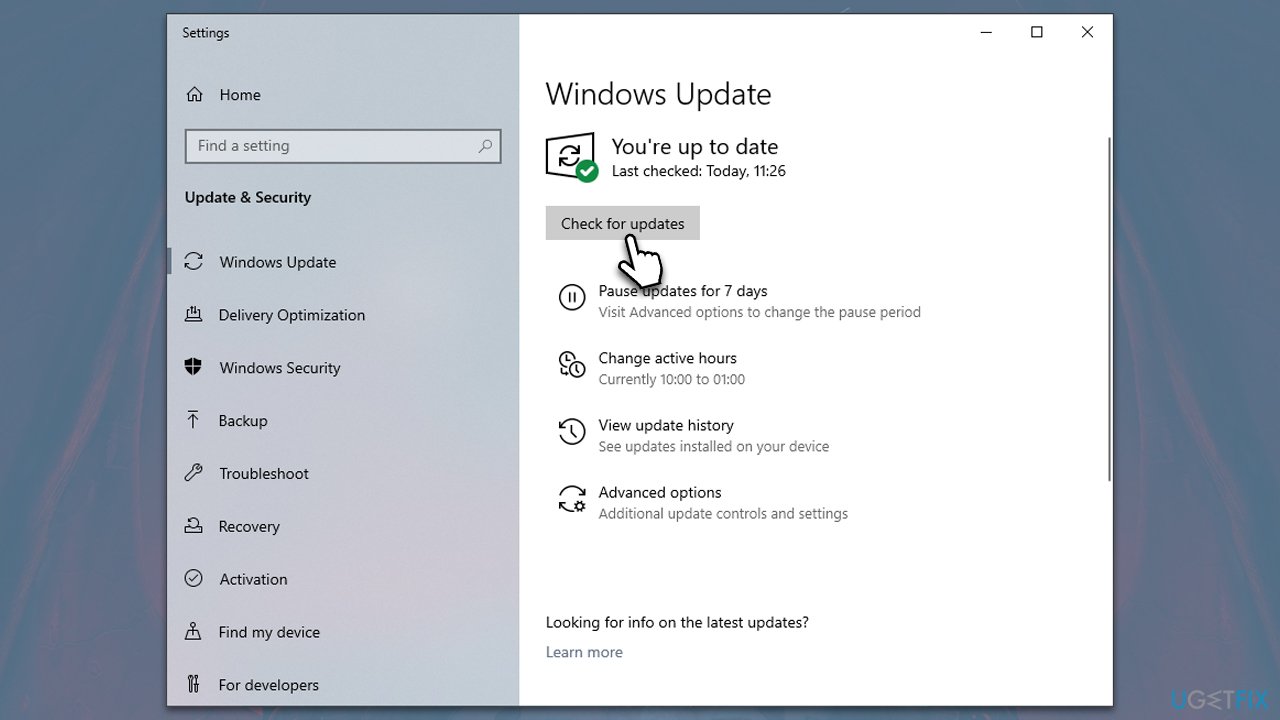
- Type Update in the Windows search box and press Enter.
- Click Check for Updates.
- Wait till all the required files are installed.
- Install all the optional updates as well.
- Restart your system.
Fix 4. Reinstall your GPU drivers
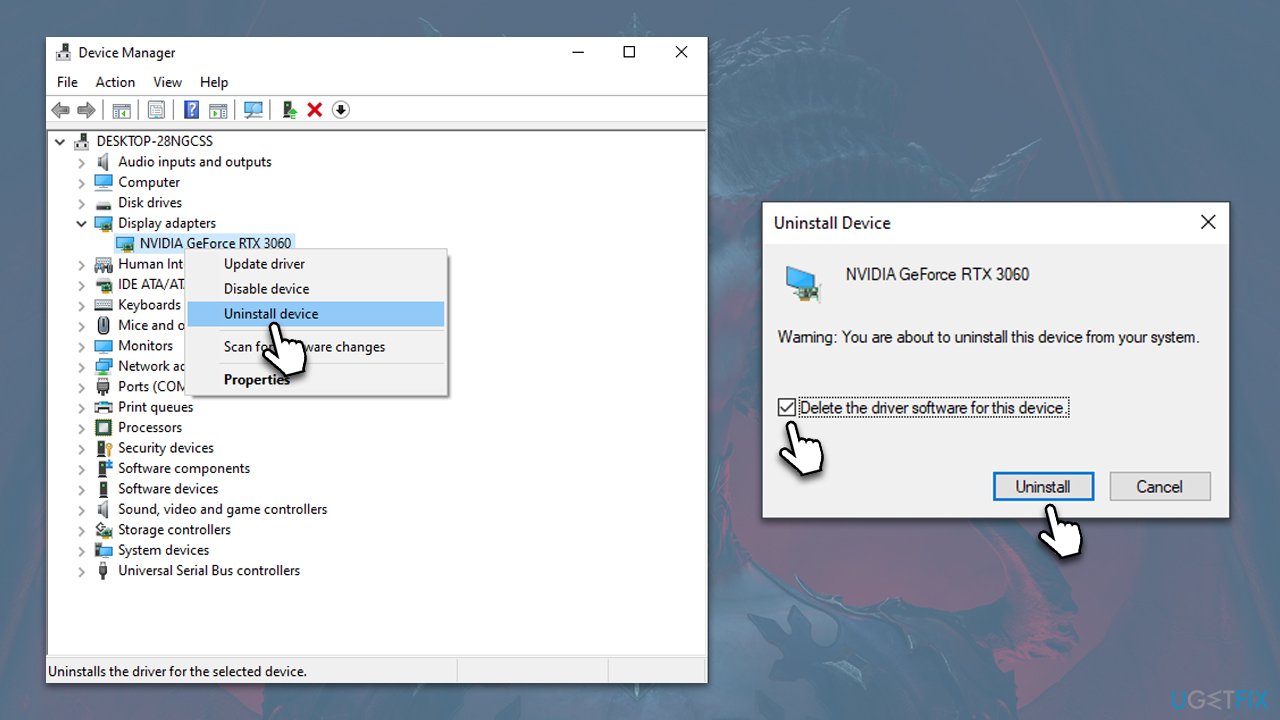
If updating drivers didn't work, reinstalling them might. To do so, you must first uninstall them as follows:
- Right-click on the Start button and select Device Manager from the context menu.
- Find the Display adapters section and expand it.
- Right-click on your device and select Uninstall device. A pop-up window will ask if you want to confirm the uninstallation - click Yes.
- After the driver is uninstalled, restart your computer.
- After a reboot, use one of the methods described above to install the latest drivers.
Fix 5. Repair game files
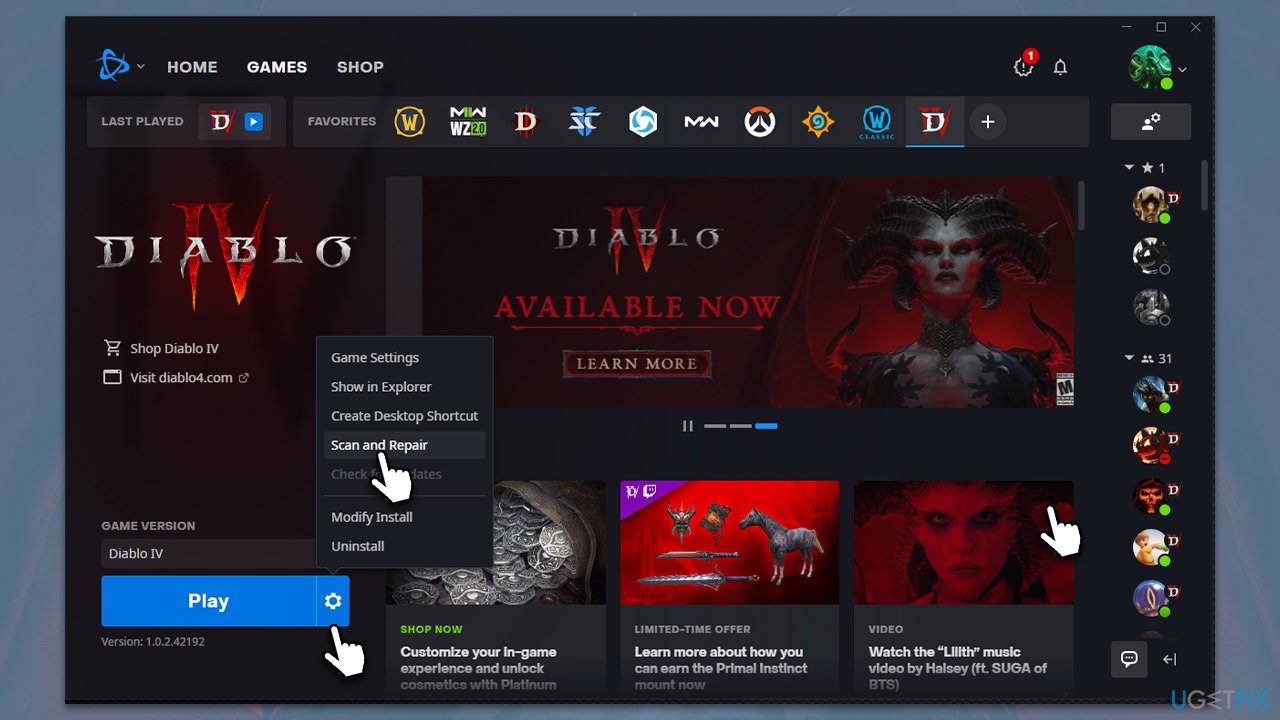
Your game files might be corrupted, which you can address using a built-in repair feature in Blizzard's launcher.
- Open the Battle.net app.
- Select Diablo 4 from your game list.
- Click the cogwheel (Options) next to the Play button.
- Select Scan and repair.
- Click Begin Scan and wait till it's finished.
- Launch the game and see if it fixed your crashes.
Fix 6. Disable Overclocking
Overclocking, while a useful technique to enhance the performance of your PC, can sometimes lead to system instability and crashes. If you suspect that overclocking is causing Diablo IV to crash and result in the BSOD, you may want to disable it. Here are some general steps to disable overclocking:
- Restart your PC and press the designated key to enter your system's BIOS. This key varies by manufacturer but is typically F2, F10, F12, or DEL.
- Once you're in the BIOS, look for settings related to CPU frequency or voltage. These settings could be under various tabs such as "Advanced," "Performance," "Overclocking," etc. The exact name and location will depend on your BIOS version and manufacturer.
- Reset these settings to their default values. There might be an option such as "Restore Defaults" or "Load Optimized Defaults," which will automatically reset all BIOS settings, including overclocking, to their factory default.
- Once you've reset these settings, save your changes and exit the BIOS. The computer will then reboot with the new settings.
Additionally, if you've used third-party software to overclock your system (like MSI Afterburner, Intel XTU, etc.), you'll need to open the respective software and reset the settings to their default or turn off any overclocking features.
Other related topics:
Bottom line
To fix Diablo IV crashes leading to Blue Screen, consider adjusting your graphics settings, avoiding overclocking, and ensuring your drivers are up to date. If these solutions do not resolve the issue, further investigation into hardware compatibility or seeking support from Blizzard may be necessary.
Frequently asked questions
First, update your graphics drivers and ensure Windows 10 is fully updated. If the issue persists, check for any recent hardware changes or run a memory diagnostic to rule out RAM issues.
You can use the Windows Event Viewer to check for error messages related to the crash and analyze the minidump files created during the Blue Screen. This information can help pinpoint the specific driver or hardware issue.
Yes, setting the game to run in compatibility mode for Windows 10 or adjusting the graphics settings to lower levels may help stabilize performance and reduce crashes.




Report an issue
What's wrong with this guide? We review every report and update or remove content.
Report received — thank you. We'll review and fix it.
You need a free account to submit a report.
Be the first to comment