How to fix
Discord audio cutting out
on Windows
Resolve Discord audio issues on Windows 10 and 11 effortlessly. Get reliable solutions and expert-tested tips to enjoy uninterrupted voice chats.

What causes How to fix Discord audio cutting out?
- Corrupt audio driver
- Issues after Windows updates
- Program not restarted
- Incorrect audio setup
- Server or channel settings
Repairs Windows system files, removes malware, and restores a clean OS state — without reinstalling.
Hello. Can you help me? I use push to talk button to talk on Discord but the audio started to cut out randomly in the past week. I tried to select different outputs and inputs, but the issue persists. It also is not different on various servers. Can I do something?
Discord audio cutting out is an issue that keeps people from normal communication on the platform. You might experience it due to a corrupt audio driver or right after Windows updates. Restarting the program itself and ensuring that all the setups are okay can also help, but users who report[ref en-1] this problem already have tried these quick and common solutions before asking for help online.
Discord is a popular Voice over IP (VoIP) platform that was adapted very well by many communities, with gamers taking a big portion of its users. Besides gaming, the app also became popular within the work environment - it is also used for online meetings - especially during the time time of a pandemic, which continues well into 2021.[ref en-2]
The app became a favorite due to many advantages over its competitors - it allows users to create their own servers and manage them themselves. Also, multiple channels can be created, with different permissions to user ranks. The customization also allows the server owner to change public visibility, making it as private as it needs to be.
That being said, audio cutting out can be a major problem for players during gaming sessions or people during work meetings. The sound cuts out during calls and on different servers or channels, and it does not matter whether you are in a private or public server, also whether you are in a video or audio call. In some cases, you might not hear others on Discord too.
Many speculations came about on various IT discussion boards, as the consistence of the problem varies. In some cases, Discord audio cutting out even triggers assumptions that the app has a virus or a bug.[ref en-3] That is not the case, though.
Most of the solutions for this issue involve restarting the device, program itself, updating the application, your operating system, or drivers that are responsible for the sound and output or input features. You might quickly fix Discord audio cutting out by changing the region of the server or altering some settings.
Also, the problem could be caused by Echo Cancellation setting, which might misinterpret your voice for an echo - disabling this feature might help in such a case. Below you will find a step-by-step instructions on how to perform these and other steps.
Automatic and quick solutions
Discord audio cutting out is disrupting gameplay and chats since communication is key on the platform. It is possible to fix the issue by repairing some issues with system updates, drivers, files, and settings. So you may benefit from [rev id="DriverFix"] since it can automatically help with outdated drivers.
You can also go for [d1] and repair any issues with OS files or alterations in system functions. Besides, the app can check whether your PC is infected with malware and remove it at once (it is a well-known fact that system file corruption can occur due to virus damage).
Before you proceed with the below solutions, you should ensure that other computer components and features work fine:
- Check your headset/mic - it might be not configured properly or simply malfunctioning. Try a different device and see if the situation gets any better.
- Make sure your internet connection is well configured and ping is low. To do that, run Internet Connections troubleshooter and then check your ping at any internet speed diagnostics website.
1. Disable Echo Cancellation
- Open Discord and go to Settings.
- Select Voice & Video at the left side of the window.
- Scroll down to find Voice Processing section.
- There, disable Echo Cancellation by toggling the switch to the left.
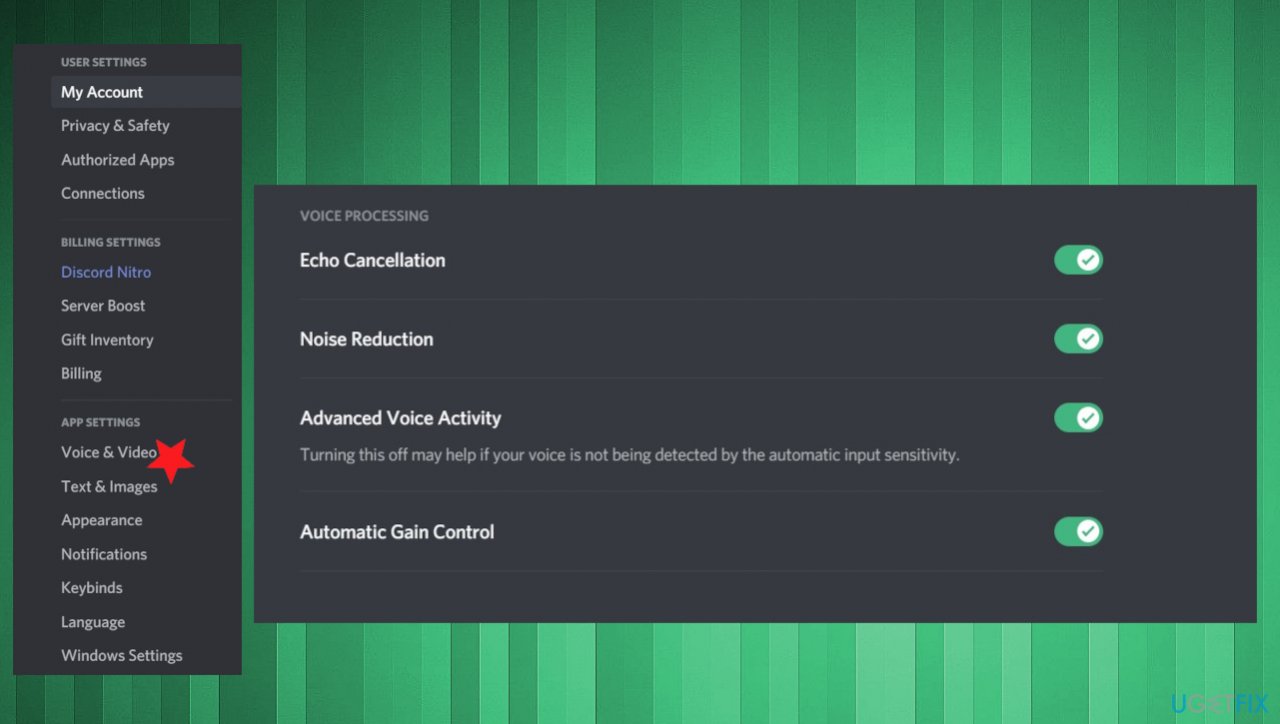
Note that this might result in louder sound from your side, so you should reduce your volume accordingly.
2. Update audio drivers
- Press Win and X keys to find Device Manager.
- Expand Sound, video and game controllers section.
- Find the system audio driver and right-click on it.
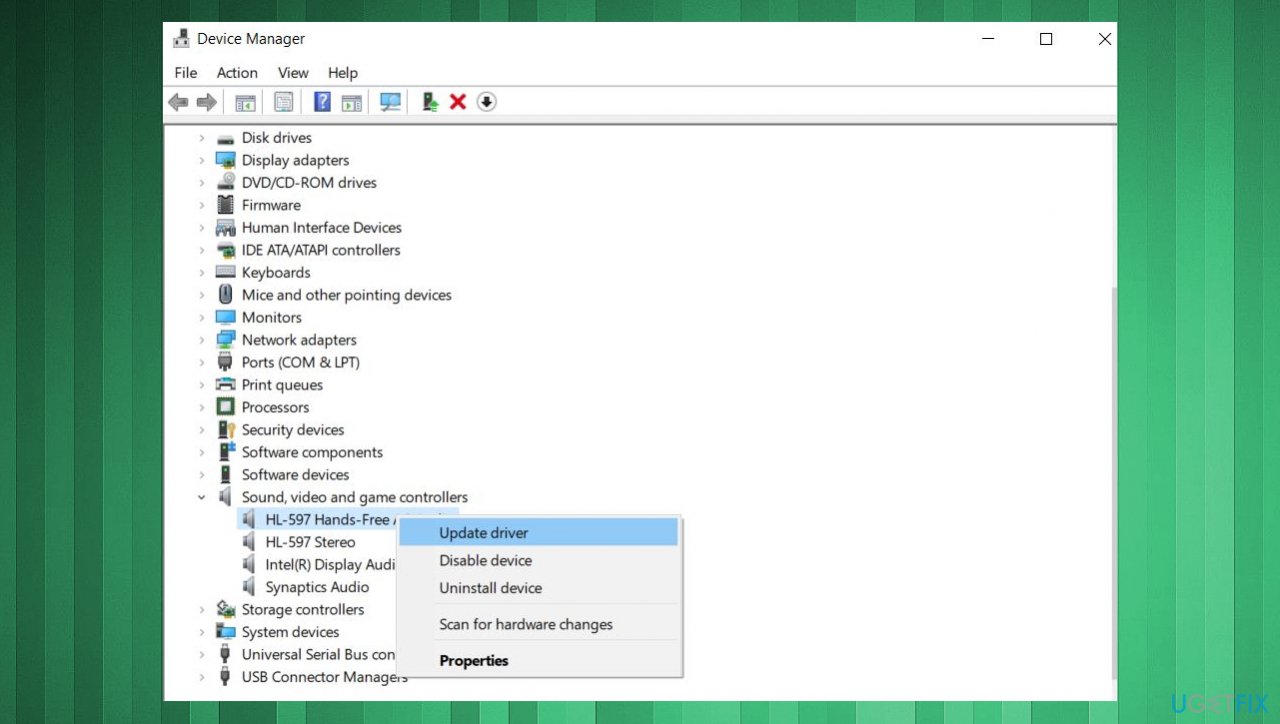
Discord audio cutting out driver update - Once the menu opens choose to Update driver.
- Select Search automatically for drivers.
- Wait for the process to finish and then restart your PC.
3. Restart Discord
- Click on Show hidden icons button in the right corner of the taskbar.
- Right-click on Discord icon and select Quit Discord.
- Restart the PC.
- You can also locate the Discord processes in Task Manager and end them to disable all the activity.
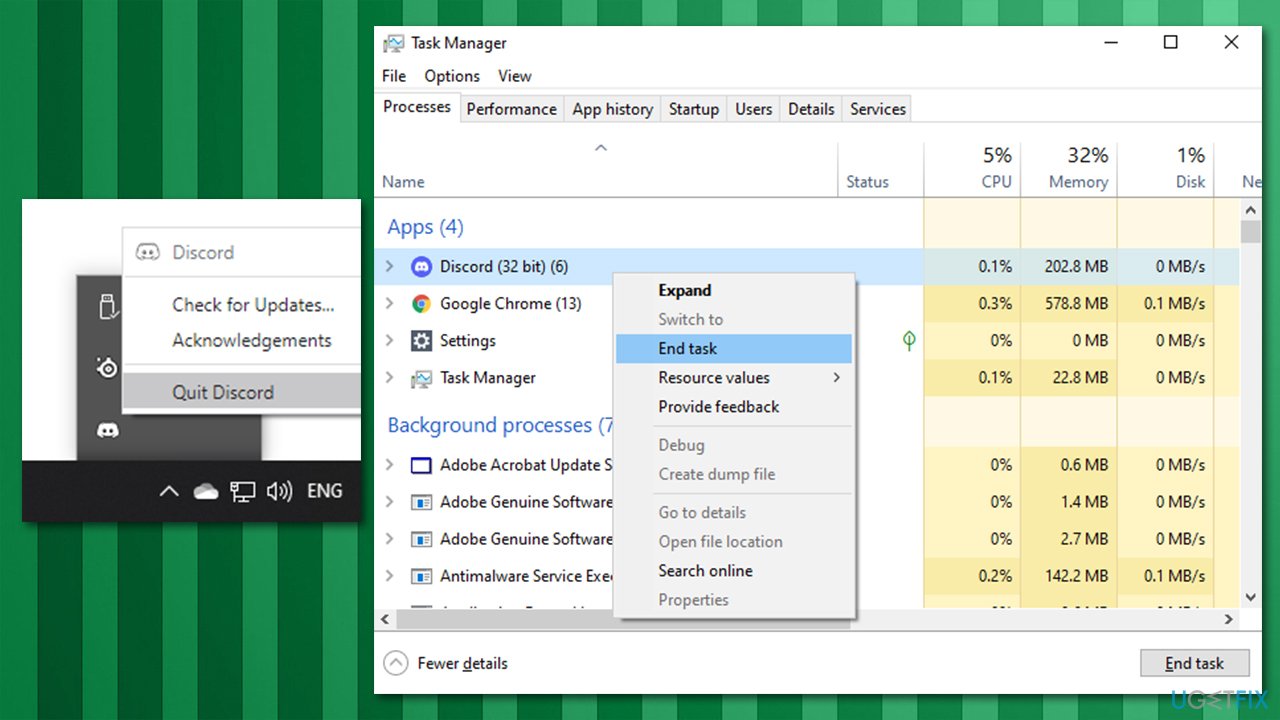
Discord audio cutting out fix restart the app
Note that can also restart your computer and see if that helps you.
4. Modify region settings
Keep in mind that this can only be used if you have adequate permissions on the server.
- Open Discord and select the arrow next to the server name.
- Select Server settings.
- In the Overview tab, locate Server Region.
- There, click on Change.
- Select the server of your choosing and finish with Save changes.
- Try different options to find the one that works.
5. Configure audio settings on Windows
- Go to Search and find Microphone privacy settings.
- Make sure to turn on Apps to access your microphone settings and Allow desktop apps to access your microphone settings options.
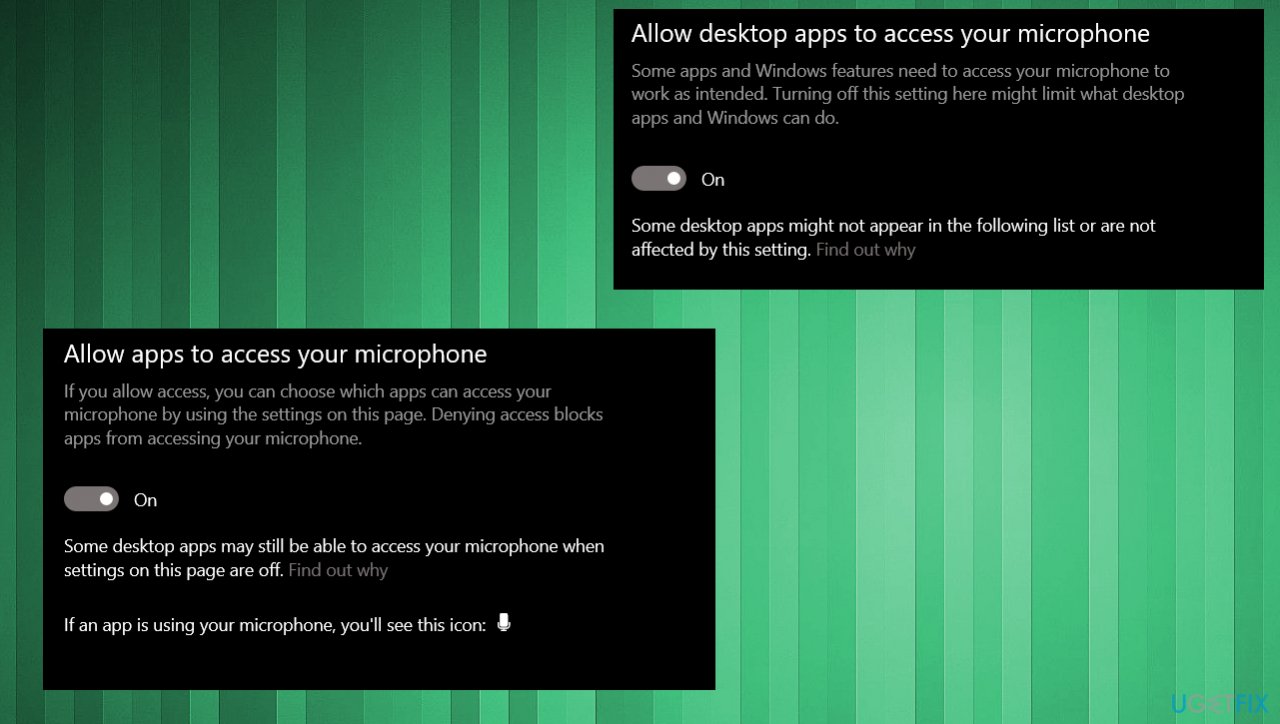
Discord audio cutting out audio privacy settings
6. Reinstall the app
- Type Control Panel in Windows search and press Enter.
- Here, select Uninstall a program (located under the Programs section).
- From the list, find Discord.
- Uninstall the app by right-clicking and choosing Uninstall.
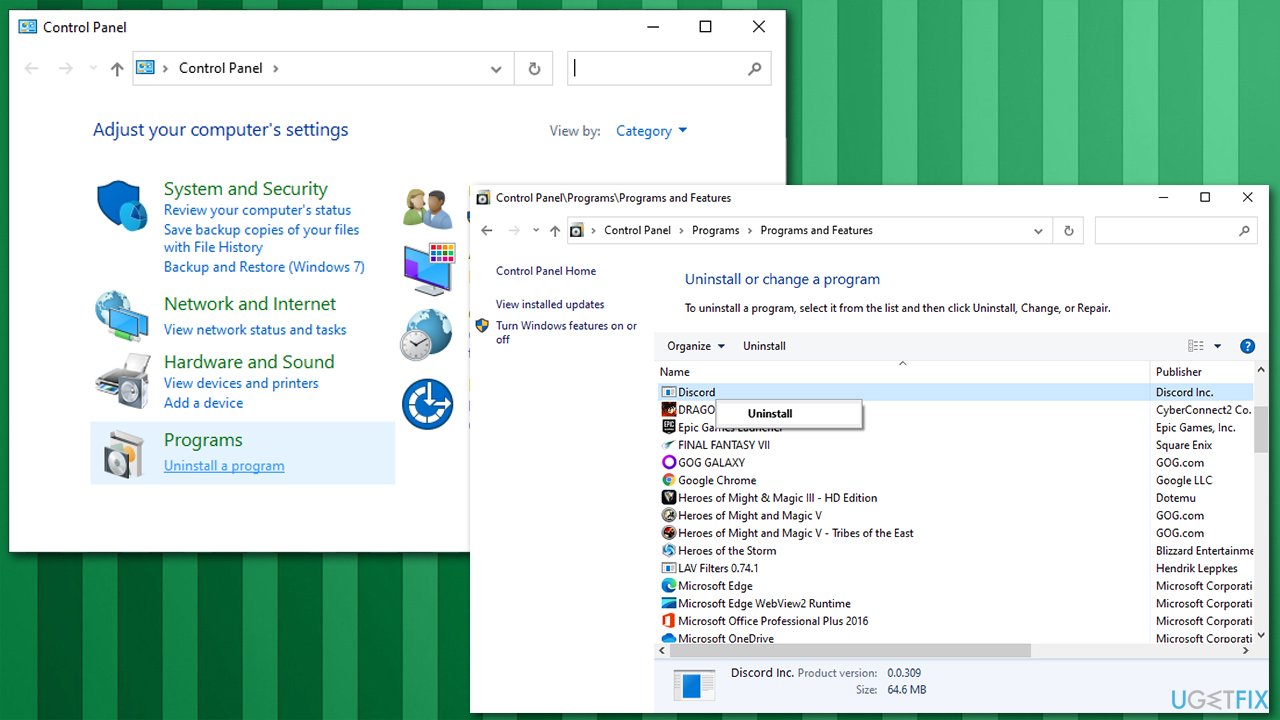
Discord audio cutting out fix reinstall the app - Restart the PC and go to the official Discord website to download the program again.
Bottom line
To fix Discord audio cutting out, try restarting the program, checking your audio inputs and outputs, and ensuring your audio drivers are up to date. If these solutions do not resolve the issue, consider seeking further assistance online.
Frequently asked questions
Audio cutting out in Discord on Windows 10 can be caused by outdated audio drivers or incorrect settings in the audio input/output options. Ensure your drivers are updated and check your Discord voice settings for any misconfigurations.
To resolve audio issues in Discord on Windows 11, try adjusting the hardware acceleration settings or resetting your voice settings in the app. Additionally, ensuring that your microphone and speakers are properly configured in the Windows sound settings can help.
If Discord keeps muting your audio on Windows, check if the 'Automatically determine input sensitivity' option is enabled in the voice settings and consider turning it off. Also, verify that no other applications are conflicting with Discord's audio output.




Report an issue
What's wrong with this guide? We review every report and update or remove content.
Report received — thank you. We'll review and fix it.
You need a free account to submit a report.
Be the first to comment