How to fix
Discord “Unable to accept invite”
on Windows
Resolve the "Unable to accept invite" issue on Discord for Windows 10 or 11 effortlessly. Get expert-tested solutions for smooth connectivity!

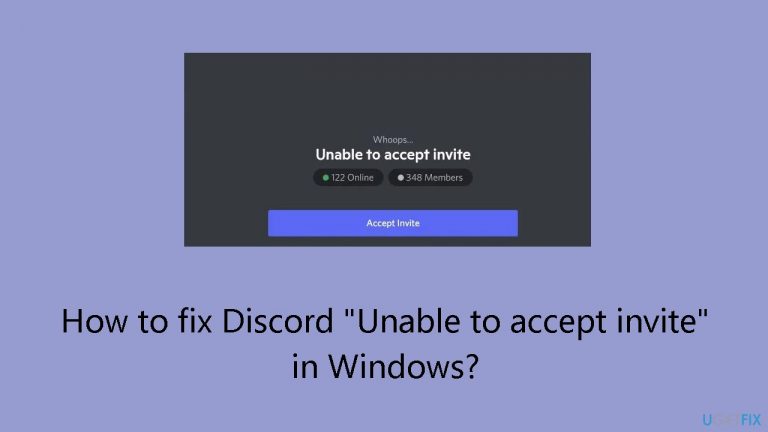
What causes How to fix Discord “Unable to accept invite” in Windows?
- Corrupted or incorrectly copied Discord invite link
- User profile linked to the maximum of 100 servers
- User banned from the specific server
- Server restrictions preventing new invites
Repairs Windows system files, removes malware, and restores a clean OS state — without reinstalling.
Hello. When I try to join a Discord server on Windows, it says "Unable to accept invite." Is there anything I can do?
Discord is a popular communication app that lets users interact with each other in communities and servers. Because it offers text, voice, and video communication capabilities, gamers, communities, and other interest groups find it to be a popular option.
On the Windows platform, a frequent problem that users could run into is the "Unable to accept invite" error. This issue may result from multiple sources. Firstly, if the Discord invite link is corrupted or copied incorrectly, attempting to join the server will be unsuccessful. To prevent any interruptions in the joining process, it is imperative to verify the correctness of the copied link.
Discord's server restrictions could also be the cause of this problem. A user won't be allowed to accept invites for more servers until they leave some of the ones they currently have if their profile is already linked to the 100 maximum permitted servers. This restriction was put in place to control server loads and guarantee a more seamless user experience.
Additionally, it's important to take into account the danger of getting banned from a specific server if a user is unable to accept an invitation to that particular server. If a user is banned, the ban will not be lifted unless the server administrators provide permission for them to rejoin.
Users may be negatively impacted by the "Unable to accept invite" error if it makes it more difficult for them to interact with communities they want to join or take part in activities held on particular servers. This could be annoying and interfere with users' ability to communicate, particularly if they're attempting to interact with study groups, gaming groups, or other interest-based platforms.
In this guide, you will find 5 steps that should help you fix Discord "Unable to accept invite" in Windows. If you experience any other OS issues, you can run a maintenance tool like [d1] that can fix most system errors, BSODs,[ref en-1] corrupted files, and registry[ref en-2] issues. Otherwise, follow the step-by-step instructions below.
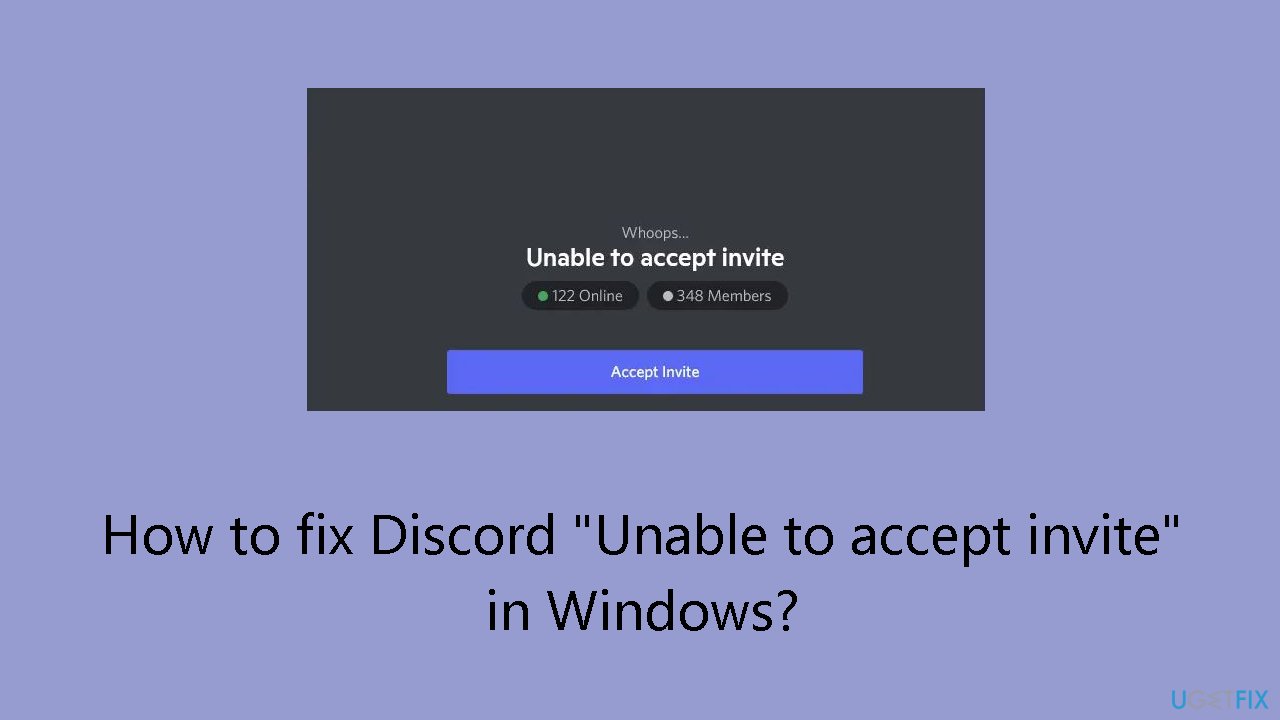
Solution 1. Ask to Resend the Link
Occasionally, when duplicating a server link, there's a tendency to overlook specific segments of the URL, resulting in a compromised link. Additionally, frequent use of the link may render it obsolete for security considerations. If you encounter such challenges, kindly request the server owner to regenerate and forward the link to you. Once the link is resent, you can proceed to join.
Solution 2. Check Server Limit
Discord restricts a profile from joining over 100 servers. If you've surpassed this limit, consider unsubscribing from a few servers to make room for the one you wish to join.
Solution 3. Check Internet Connection
Ensure to assess whether your Internet connection is sluggish and if your bandwidth is limited. Verify this by utilizing a free Internet speed testing tool. If you discover that your bandwidth is insufficient, perform a power cycle on your router. To do so, power off the device, disconnect all cables, wait for some time, reconnect the cables, and then power the device back on. If power cycling doesn't resolve the issue, contact your Internet Service Provider (ISP) for assistance.
Solution 4. Check Discord Server Status
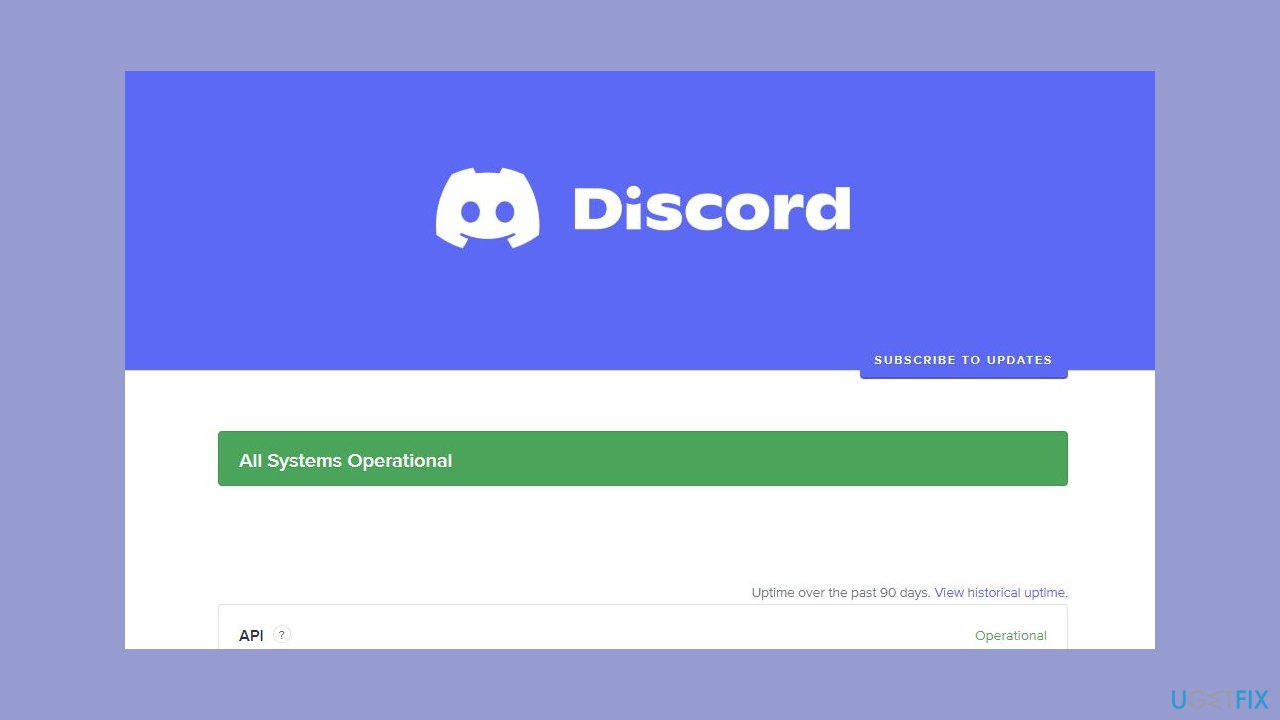
Determine whether Discord's server status is experiencing downtime. You can achieve this by visiting discordstatus.com. If the server is currently down, your only recourse is to patiently wait for the issue to be resolved.
Solution 5. Clear Cache
- Close the Discord app.
- Press the Windows key + R to open the Run window.
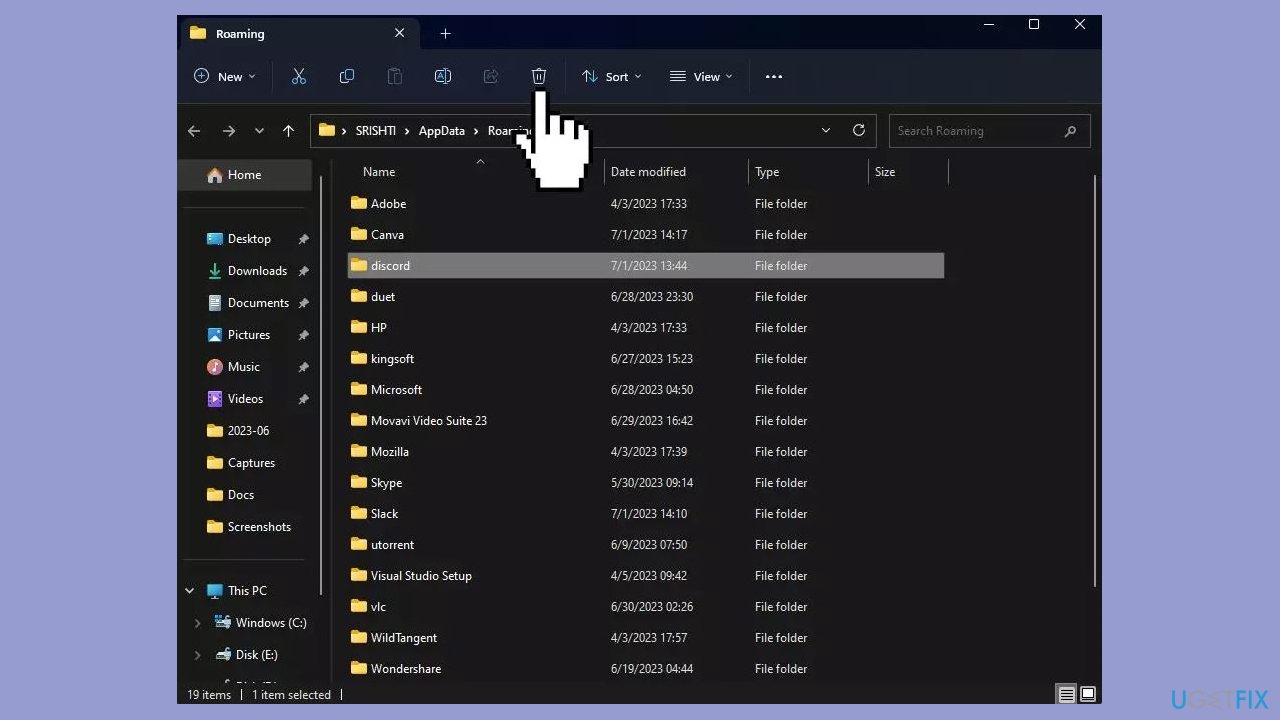
- Type %appdata% in the Run window.
- Click OK to open the Application Data folder.
- Locate the Discord folder, select it, and click Delete.
- Open the Run window again by pressing the Windows key + R.
- Type %localappdata% in the Run window.
- Click OK to open the Local folder.
- Look for the Discord folder, select it, and click the Delete button.
- Restart your computer to save the changes.
Bottom line
To fix the 'Unable to accept invite' error, verify the invite link, check server limits, and ensure you are not banned from the server. If these steps do not resolve the issue, consider running a maintenance tool to address potential system errors.
Frequently asked questions
Make sure your internet connection is stable and that Discord is not blocked by your firewall or antivirus software.
You can clear Discord's cache by closing the app, navigating to %appdata%/Discord in File Explorer, and deleting the 'Cache' folder.
Yes, you can reset Discord settings by opening the app, going to User Settings > Appearance, and selecting 'Reset Appearance' to restore default configurations.




Report an issue
What's wrong with this guide? We review every report and update or remove content.
Report received — thank you. We'll review and fix it.
You need a free account to submit a report.
Be the first to comment