How to fix
“Driver Download Failed” error in Nvidia GeForce Experience
on Windows
Resolve the "Driver Download Failed" error in Nvidia GeForce Experience for Windows 10 and 11 quickly and easily. Expert-tested solutions await!

What causes How to fix “Driver Download Failed” error in Nvidia GeForce Experience?
- Corrupted installation of the current driver
- Issues with the GeForce Experience application
- Insufficient disk space for the download
- Network connectivity problems
- Conflicts with other software
Repairs Windows system files, removes malware, and restores a clean OS state — without reinstalling.
Hi, I'm here trying to upgrade my GeForce driver with the GeForce Experience. Unfortunately, every time the download completes, it returns a "Driver Download Failed" message and restarts from the beginning again. Is there any solution for this, please?
Video drivers in Windows are software that allows the operating system to communicate with a computer's graphics card. These drivers are responsible for managing the display on a computer, including the resolution and refresh rate. They also enable the use of additional features such as 3D acceleration and video playback.
Updating video drivers can improve the performance and stability of a computer's graphics and can also fix compatibility issues with certain software - this is why it is so important to make sure that all the drivers are installed on a Windows machine. While most device drivers (such as a generic keyboard or printer) don't have to be updated every time a new version comes out, implementing GPU driver updates is quite important, especially if one uses the device for gaming.
Nvidia GeForce Experience is one of many ways that video drivers can be updated, and it is also offered in a bundle when installing drivers from the official website - many users opt to use it for this reason.
Among its various benefits, it is designed to enhance the gaming experience on laptops and desktop computers that use Nvidia graphics cards. The software allows users to optimize game settings for their specific hardware, automatically update drivers, and capture and share in-game footage. In most cases, players use it for updating drivers.
"Driver Download Failed" is an error that users might encounter whenever they initiate a GPU driver update. People described this issue as the download period lasting quite a while before failing in the end. If they repeat the process, it happens again, and they can't update Nvidia drivers.
In order to fix "Driver Download Failed," there are several things you could try, including reinstalling your currently installed driver or reinstalling the app itself. We will provide several other solutions that might be helpful for you as well. We would also like to recommend checking the system with a potent PC repair tool [d1] just to rule out some inconsistencies within the operating system.
Method 1. Check your internet connection
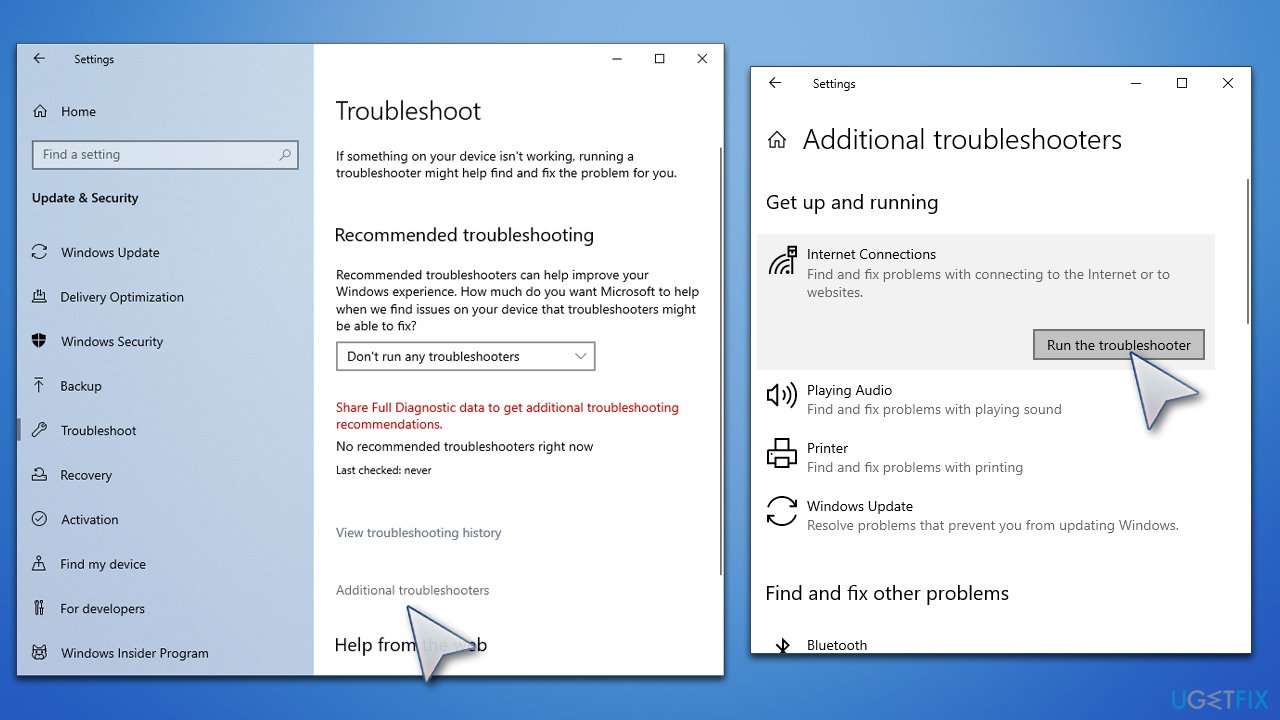
First and foremost, an unstable internet connection might cause the drivers to fail to download. The easiest way to check this is by using the built-in troubleshooter:
- Type Troubleshoot in the Windows search field and press Enter.
- Select Additional troubleshooters/Other troubleshooters.
- Pick Internet Connections and click Run the troubleshooter/Run.
- Wait till the process is finished.
- Apply the suggested fixes and restart your device.
Method 2. Reinstall your GPU drivers
Previously installed video drivers might be bugged, so doing a clean install could work.
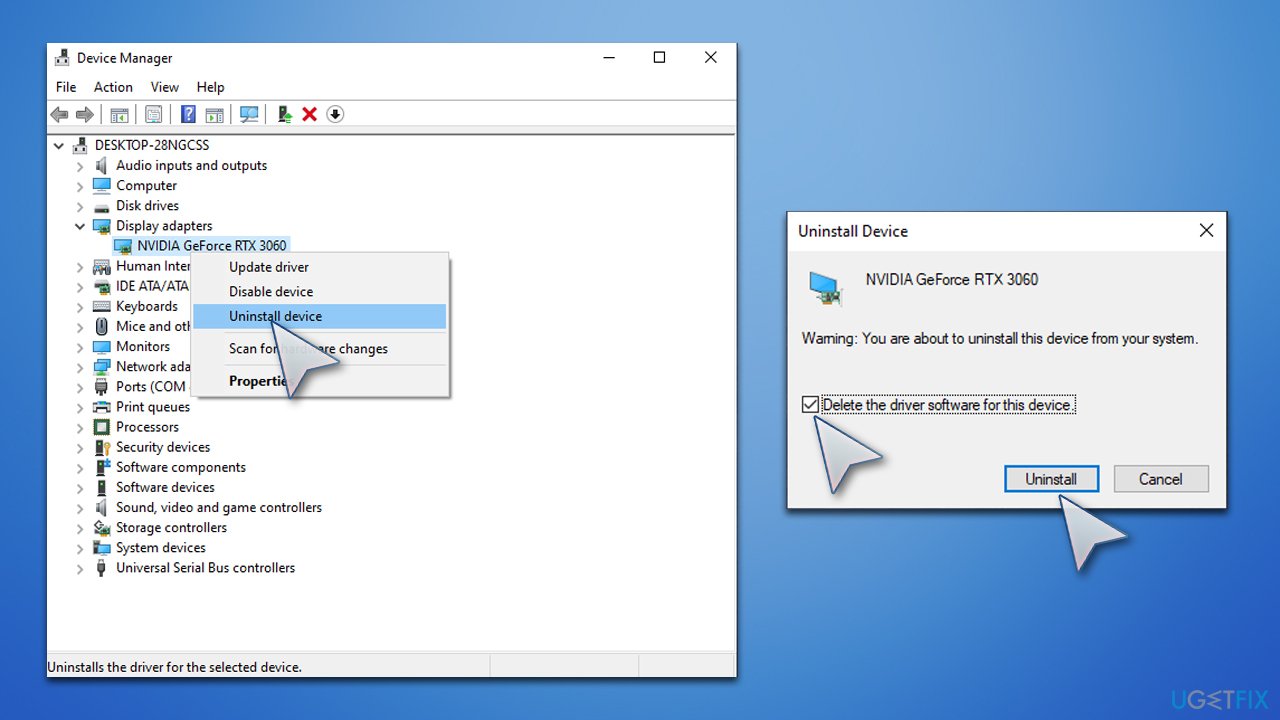
- Right-click on Start and pick Device Manager.
- From here, expand the Display adapters section.
- Right-click on your GPU and select Uninstall device.
- Mark the Delete the driver software for this device option and click Uninstall.
- Follow on-screen instructions and reboot your system once done.
For an extensive guide, please refer to our "How to uninstall Nvidia drivers?" article, which could be beneficial when dealing with driver update failures.
Once you get rid of the drivers, use GeForce to install the newest version of GPU drivers on your system.
Method 3. Try updating in alternative ways
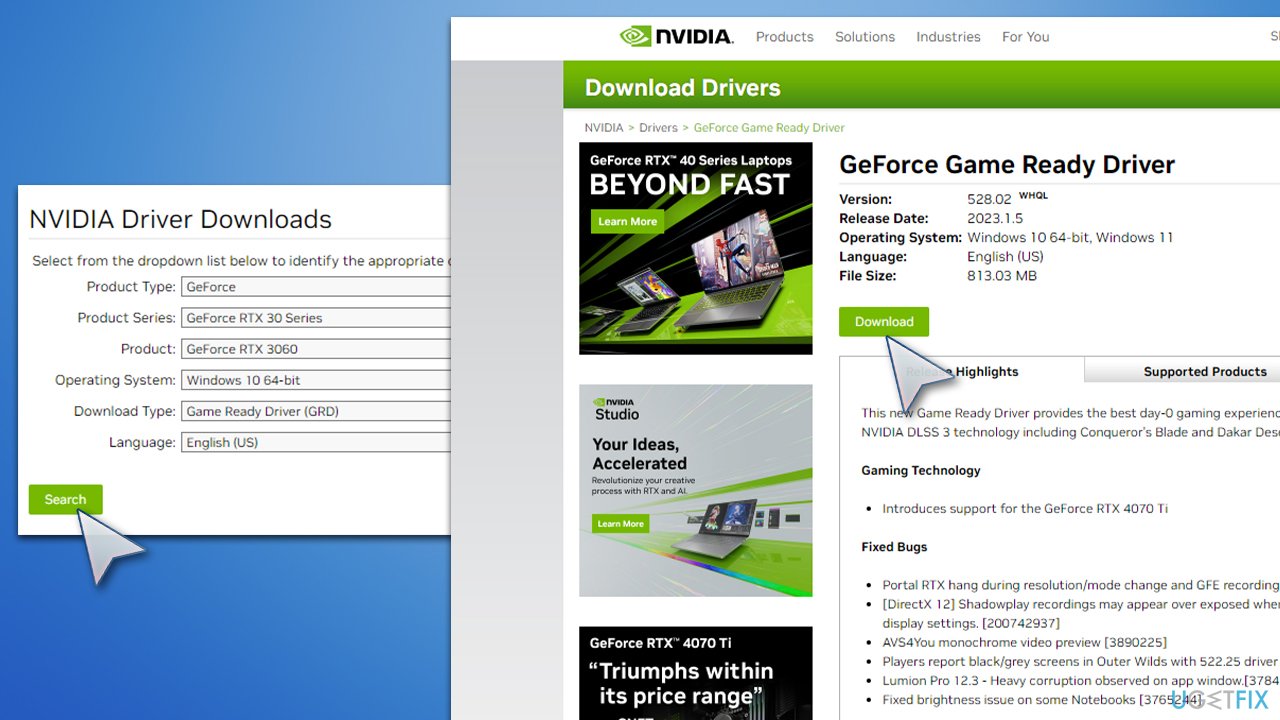
If you can't get GeForce Experience to work because of the "Driver Download Failed" error, you can update your drivers using alternative methods. First of all, you can download the latest driver from Nvidia's official website directly, although keep in mind that you need to know your GPU details for this.
- Go to the official Nvidia driver download page.
- Select the correct Product type, series, operating system, etc. Also, pick the Game Ready Driver and click Search.
- Click Download.
- Now launch the installer and proceed with on-screen instructions.
- Once done, reboot your device.
Alternatively, if you want an ultimate solution for all your driver updates and backups, you can employ an automatic driver updater such as [rev id="DriverFix"].
Method 4. Reinstall GeForce Experience
Many users said that they managed to resolve the repeated "Driver Download Failed" errors after reinstalling GeForce Experience.
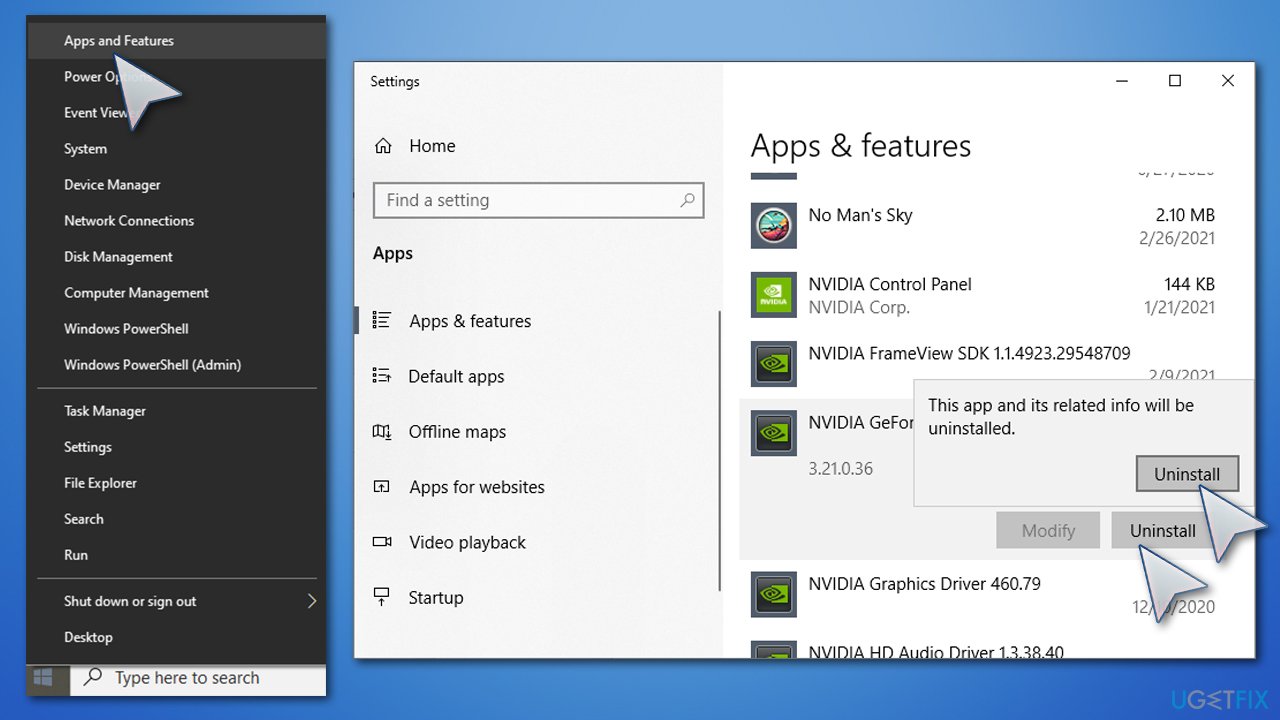
- Right-click on Start and pick Apps and Features.
- Scroll down to find GeForce Experience.
- Here, click Uninstall and then select Uninstall again.
- Follow the on-screen instructions and restart your PC.
- Once the system boots back up, go to the official website and download the app.
- Install following the instructions.
- Try downloading drivers again.
Bottom line
To fix the 'Driver Download Failed' error, you can try reinstalling your currently installed driver or the GeForce Experience app. If these solutions do not resolve the issue, consider checking your network connection or freeing up disk space.
Frequently asked questions
Try restarting your computer and then launch GeForce Experience again to see if it resolves the error. If the issue persists, ensure that your internet connection is stable and consider reinstalling the GeForce Experience application.
On Windows 11, you can attempt to run GeForce Experience as an administrator to bypass permission issues. Additionally, check for any pending Windows updates that might affect driver installations.
Yes, you can visit the Nvidia website, navigate to the drivers section, and manually download the appropriate driver for your graphics card. After downloading, install the driver directly on your Windows 10 or Windows 11 device.




Report an issue
What's wrong with this guide? We review every report and update or remove content.
Report received — thank you. We'll review and fix it.
You need a free account to submit a report.
Be the first to comment