How to fix
Driver error 0x000005B3
on Windows
Resolve driver error 0x000005B3 on Windows 10 and 11 effortlessly. Get expert-tested solutions that fix your issues in minutes, with screenshots.

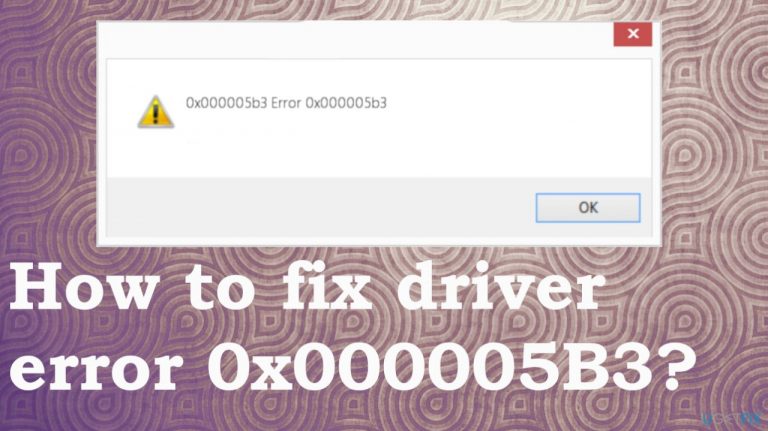
What causes How to fix driver error 0x000005B3?
- Outdated drivers
- Conflicts between drivers and Windows OS
- Failed installations of print drivers
- Issues during upgrades of third-party programs
- Specific printer installation issues
Repairs Windows system files, removes malware, and restores a clean OS state — without reinstalling.
Hello. I try to install the printer, and it fails. Various printers can be connected, but not the one I use. I get "The operation could not be completed. Error 0x000005b3". Message when I try to add printer via Devices and Printers. I think it is the issue with drivers, but other devices connect to the PC. I am desperate. Can you help?
Driver error 0x000005B3 is the issue, also known as Operation ailed error that informs about a process that failed and can't be completed. People encounter the problem during upgrades of third-party programs when installations of print drivers or different pieces fail. However, printers are the most common triggers for the problem.
Users report[ref en-1] the problem all the time, and it might come with additional issues besides the error message or failed installation, upgrade procedure. Due to all the possible scenarios, it might be difficult or easy to fix driver error 0x000005B3 depending on the particular issue with your machine.
This issue with installations and upgrades can not only be called a driver error 0x000005B3 but a Brother Printer Error with the same problem code. It appears mainly when users try to install another printer to Windows 7 devices.[ref en-2] (There are some issues with processes like that, f.e 0x00000c1 error.) It, of course, can occur on different Windows versions and trigger problems for you.
The error is a pretty typical issue, so there are a few troubleshooting steps and workarounds for the issue. It is possible to clear additional issues, too, if you experience other interference besides the error message. There are a few reasons for this, some of them include outdated files and pieces.
The full message that users encounter with this driver error:
The operation could not be completed. Error 0x000005b3
It is possible to fix driver error 0x000005B3, of course, even though different root causes trigger the issue. If the problem stems from outdated drivers and conflicts between your drivers and Windows OS, you may update them and solve the issue. Windows updates also can solve errors related to OS bugs.[ref en-2]
This is not a malware[ref en-3] issue, but a quick scan with proper system tools like [d1] can repair system data and even improve the performance or the security for you. Do not skip steps and try all the methods listed to solve "The operation could not be completed. Error 0x000005b3" issue
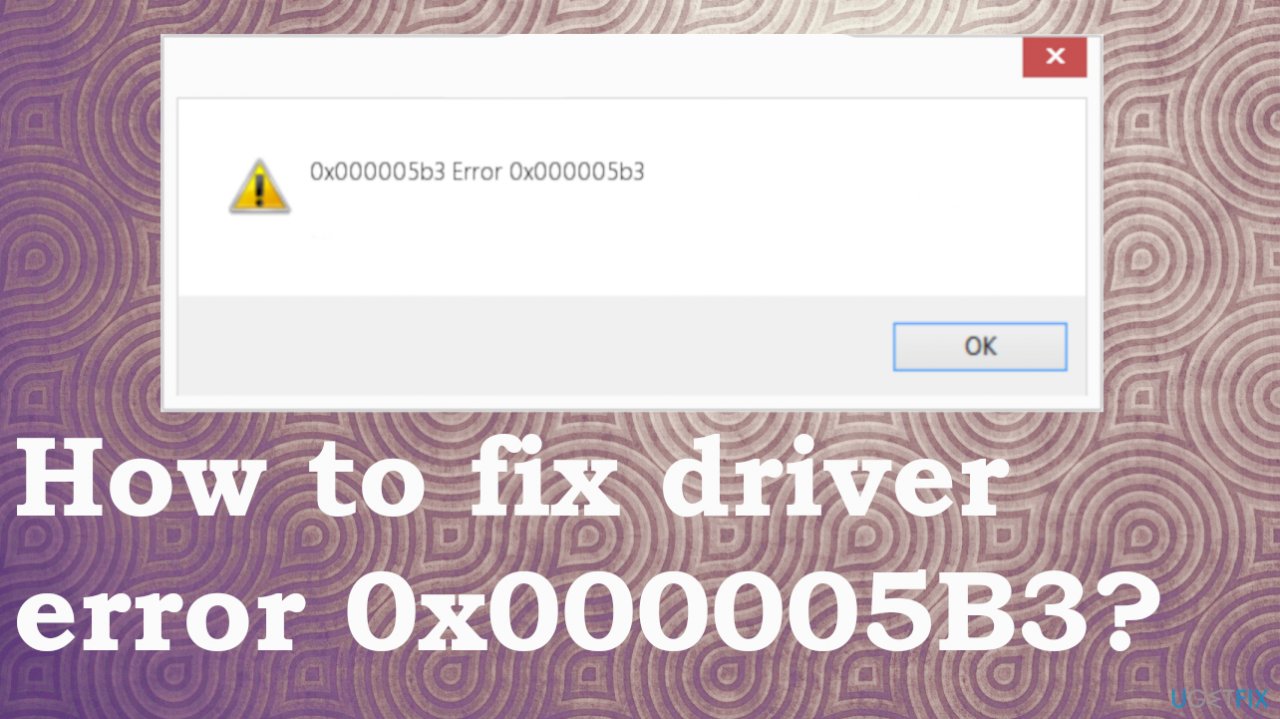
1. Check for the latest OS updates
- Right-click on Start and select Settings.
- Go to Update & Security.
- On the right side, click Check for updates.
- Install update.
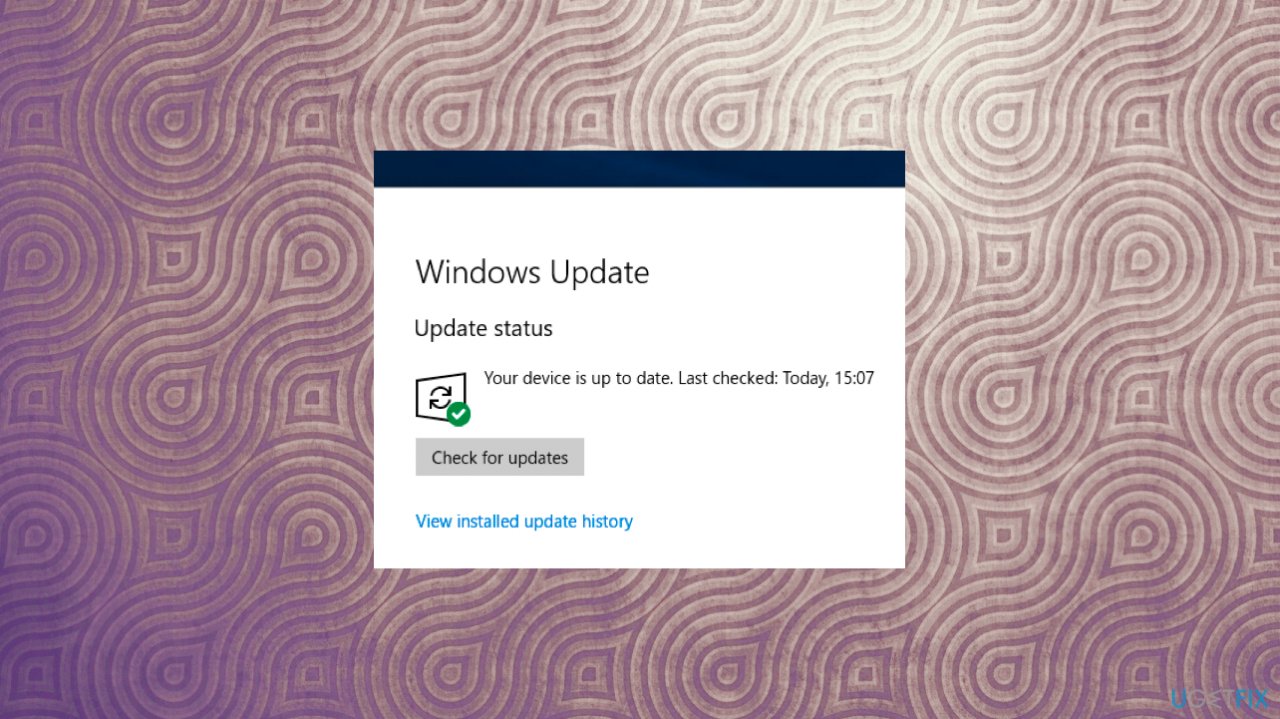
Driver error 0x000005b3 fix windows updates - Wait till Windows downloads and installs updates.
- Reboot your system.
2. Start the printer spooler service to fix driver error 0x000005B3
- Press Win logo key and R.
- Oce Run box opened, type services.msc, and run the dialog box by clicking OK.

Driver error 0x000005b3 fix services - Look for Sprint Spooler on the list and double-click.
- Once in properties, click the start button if the status is off.
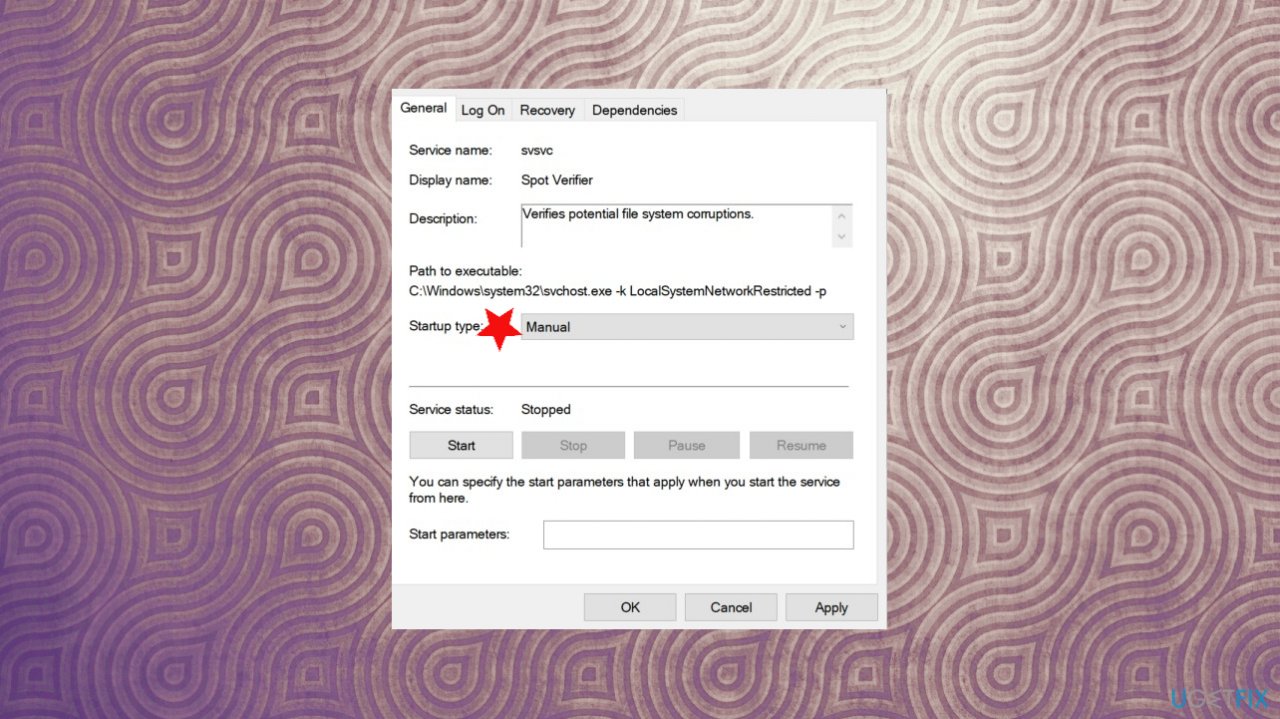
Driver error 0x000005b3 fix sratup type - Set startup to automatic type.
- Click OK to save changes.
- Restart the system.
3. Remove existing printers
- Open Device Manager.
- Right-click on the printer driver.
- Select Uninstall device.
- Tick the Delete the driver software for this device.
- Click Uninstall and reboot your PC.
- You can do that with all the printers that are not used anymore.
Also, you can:
- After a restart, open Device manager once again.
- Click on Scan for hardware changes at the top.
- Wait till Windows installs the required drivers.
- Restart the PC.
4. Update drivers
- Press the Windows key and type Device Manager into the search bar.
- Click on the Device Manager option.
- Locate the malfunctioning printer device (a problematic driver is marked with a yellow exclamation mark).
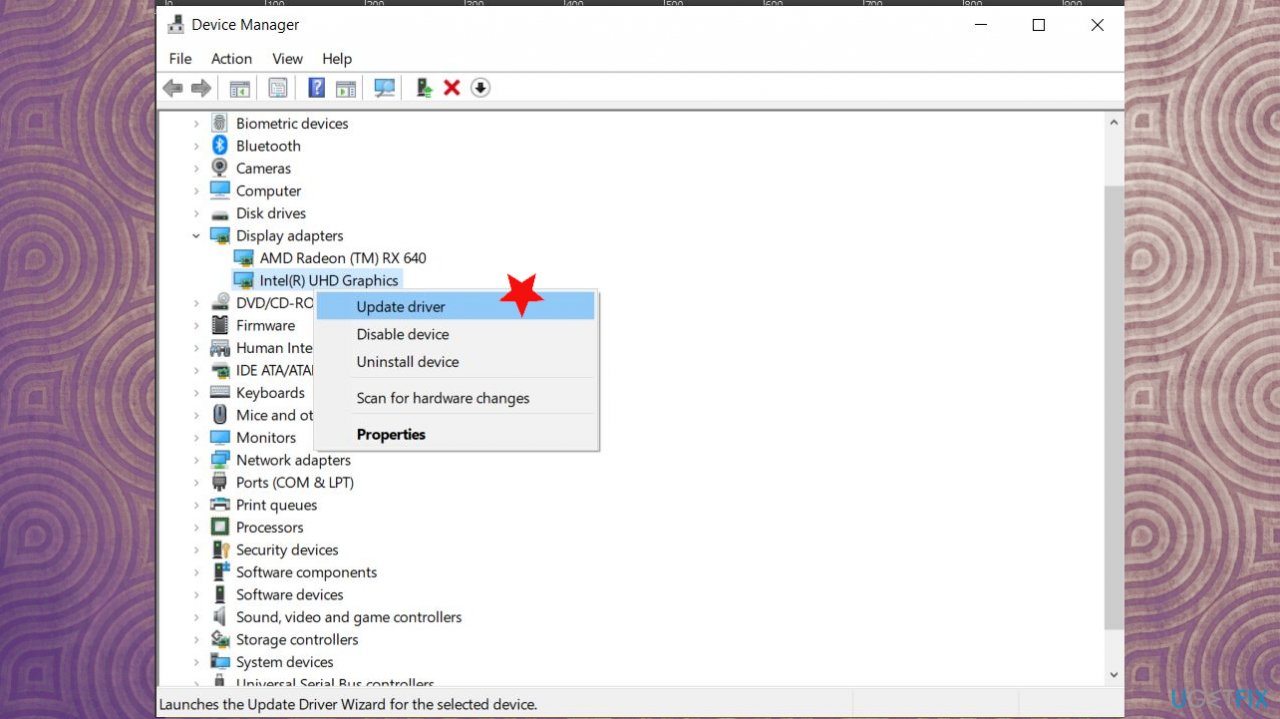
Driver error 0x000005b3 fix driver updates - Right-click on the device name and select Update Driver Software.
- Select the Search automatically for updated driver software option.
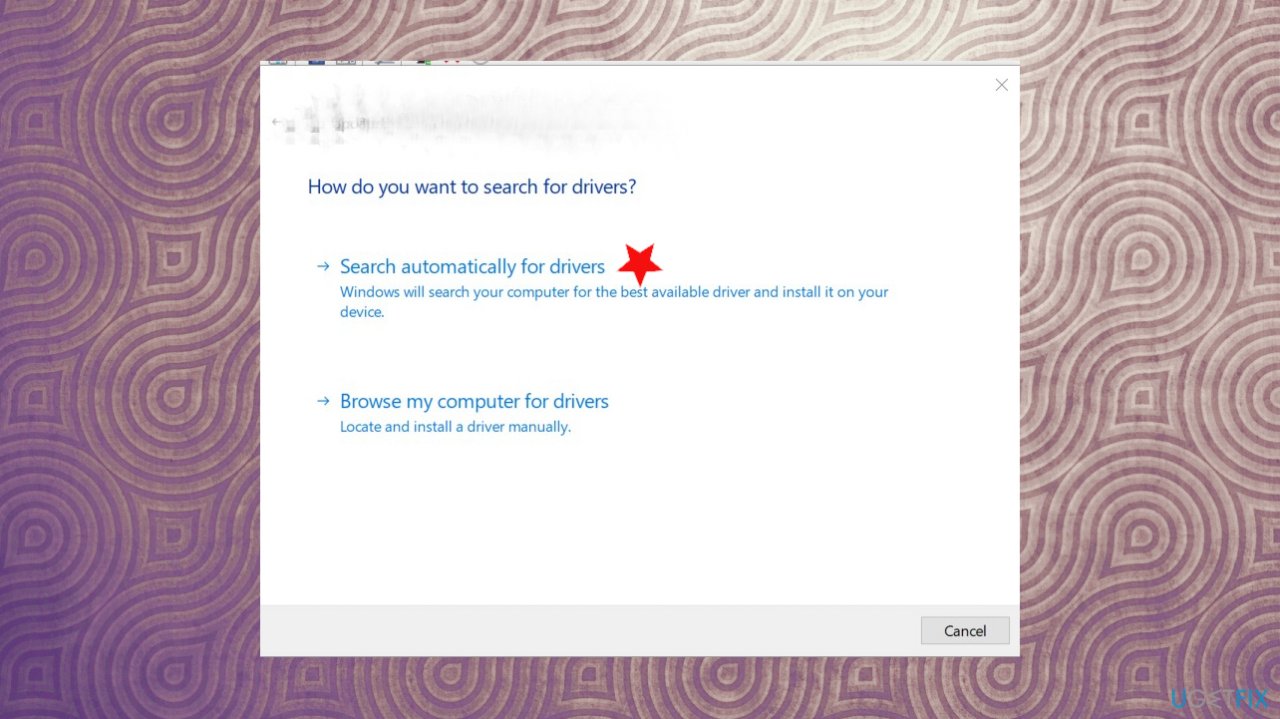
Driver error 0x000005b3 fix driver update options - The system should automatically search for available drivers, though make sure that the Internet connection is OK.
- Finally, restart Windows to finish up with the installation.
You can automatically update various drivers with [rev id="DriverFix"]. Such tools automatically check online databases for the needed driver pieces and install compatible versions. The tool is great because it quickly improves performance and solves various issues like driver error 0x000005B3. Damage caused by incorrect versions of drivers can lead to various error messages.
5. Edit registry to fix driver error 0x000005B3
- Press Windows key + R, type regedit, and press Enter/OK.
- Use the left pane to find the following registry keys:
HKEY_LOCAL_MACHINE\\\\SYSTEM\\\\CurrentControlSet\\\\Control\\\\Print\\\\Environments\\\\Windows NT x86\\\\Drivers\\\\Version-x (the number that stands for x varies on each computer) (32-bit system).
HKEY_LOCAL_MACHINE\\\\SYSTEM\\\\CurrentControlSet\\\\Control\\\\Print\\\\Environments\\\\Windows x64\\\\Drivers\\\\Version-x (the number that stands for x varies on each computer) (64-bit system).
- Open this directory to see all printer registry entries. Select the file, right-click it, and select Delete.
- Repeat these steps with each printer registry entry.
Bottom line
Driver error 0x000005B3 can be resolved by updating outdated drivers and performing Windows updates to address OS bugs. If the problem persists after trying these fixes, consider exploring additional troubleshooting steps or seeking further assistance.
Frequently asked questions
Driver error 0x000005B3 indicates an issue with a device driver that is preventing the device from functioning properly. This can occur due to outdated or corrupted drivers.
To update drivers in Windows 10, open Device Manager, locate the problematic device, right-click on it, and select 'Update driver.' Follow the prompts to search automatically for updated driver software.
Yes, in Windows 11, you can uninstall a driver by accessing Device Manager, right-clicking on the device with the error, and selecting 'Uninstall device.' Restart your computer to reinstall the driver automatically.




Report an issue
What's wrong with this guide? We review every report and update or remove content.
Report received — thank you. We'll review and fix it.
You need a free account to submit a report.
Be the first to comment