How to fix
DRIVER_IRQL_NOT_LESS_OR_EQUAL (amdkmpfd.sys) BSOD
on Windows
Resolve the DRIVER_IRQL_NOT_LESS_OR_EQUAL (amdkmpfd.sys) BSOD error in Windows 10/11 quickly and effectively. Expert-tested solutions await you!

What causes How to fix DRIVER_IRQL_NOT_LESS_OR_EQUAL (amdkmpfd.sys) BSOD in Windows?
- Driver corruption
- Incompatible driver versions
- Buggy driver releases
- Communication issues between driver and hardware
- High IRQL access attempts
Repairs Windows system files, removes malware, and restores a clean OS state — without reinstalling.
I have been having this error for a very long time now, and I think I should make some effort to solve it. Every time I restart or start my laptop, I receive a DRIVER_IRQL_NOT_LESS_OR_EQUAL Blue Screen, with a "what failed" indication of amdkmpfd.sys. Would like to have some insights on how to resolve this. Thanks.
A Blue Screen of Death also referred to as a BSOD, is an error display that appears on a Windows computer. Although it can be annoying, such an event actually protects your system from any additional damage that could occur otherwise. When a critical error happens, all activities are stopped immediately, the BSOD with an error code appears on your screen, and then your computer restarts.
DRIVER_IRQL_NOT_LESS_OR_EQUAL is among the most common codes that are encountered by users. It usually indicates that a kernel-mode[ref en-1] driver tried to access pageable memory[ref en-2] while the process IRQL was too high. To put it simply, the crash was caused by a communication issue between a driver and the hardware component running on the kernel level. This error code can represent a variety of drivers, and today we are talking of the amdkmpfd.sys.
While it may not say a lot for regular computer users (amdkmpfd.sys may sound like gibberish to many), it represents a particular driver related to AMD software - mostly related to video card (GPU)[ref en-3] components.
The reason for DRIVER_IRQL_NOT_LESS_OR_EQUAL amdkmpfd.sys Blue Screen may relate to driver corruption or whenever users download and install incompatible versions of the driver.
In some cases, the developer may release a buggy driver, resulting in many users installing them and then starting to experience sudden crashes. These can occur at any time: whenever users are starting up shutting down the PC, use graphically-intensive tasks, or during the startup or shutdown of certain apps.
Regardless of the culprit, we devised several troubleshooting steps below that should help you fix the amdkmpfd.sys Blue Screen errors at last.
Steps to take if you can't access Windows
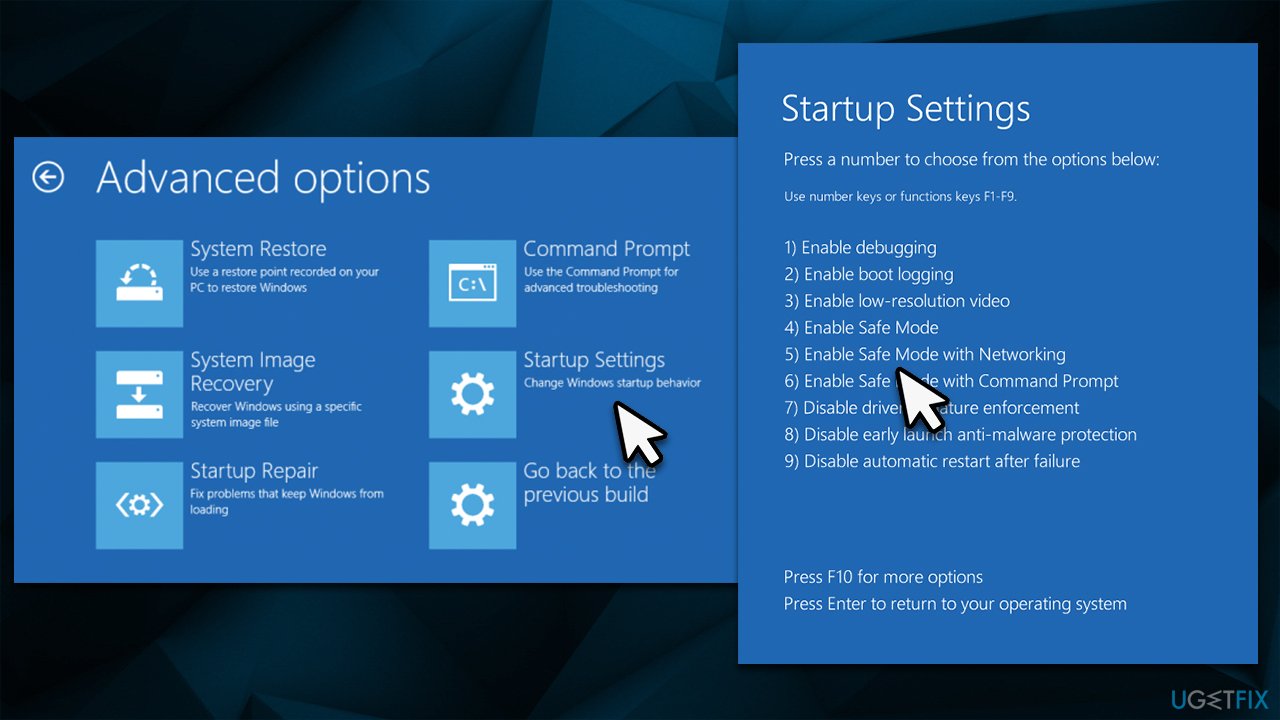
If crashes are recurring and you are unable to access Windows, you could try accessing Safe Mode as follows:
- Restart Windows
- Once the system starts booting, interrupt the loading process by pressing and holding the Power button – do this two more times
- Windows will automatically enter Advanced Startup mode
- Pick Troubleshoot > Advanced options > Startup Settings and Restart
- After a system reboot, select 4/F4 (without internet) or 5/F5 (with internet) to access Safe Mode.
Solution 1. Run an automatic PC repair application
As anyone who has had a blue screen on their computer knows, it can be a frustrating and time-consuming process to diagnose and fix the issues that caused it. With thousands of components interacting with each other on a Windows operating system, any number of things could go wrong.
A great way to fix PC problems like DLL errors, crashing, and registry errors is by using a repair and maintenance utility [d1]. This type of program can automatically scan your device for damaged system sectors and then clean them out or replace them as needed. Additionally, it can also get rid of any junk files that are taking up space unnecessarily and remove malware that might already be installed on your system.
Solution 2. Update your video driver
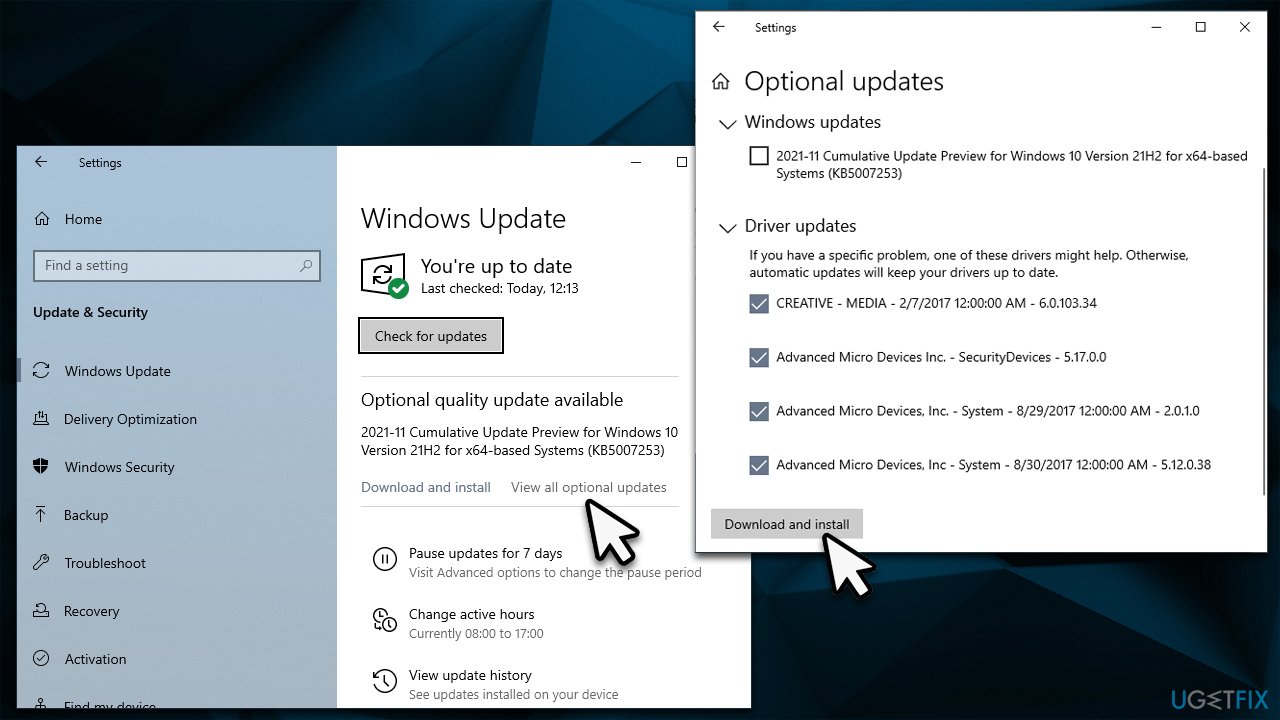
If you haven't done so yet, you should install the latest driver update for your AMD video card. To do this, you can either refer to the AMD website and download a particular driver for your hardware (you need to know the model of your GPU), employ an automatic driver updater such as [rev id="DriverFix"], or run Windows updates. Here's how:
- Type Updates in Windows search and hit Enter
- Click Check for updates
- Click View optional updates
- Find the Driver Updates section, tick the checkboxes, and click Download and Install
- Restart your system once done.
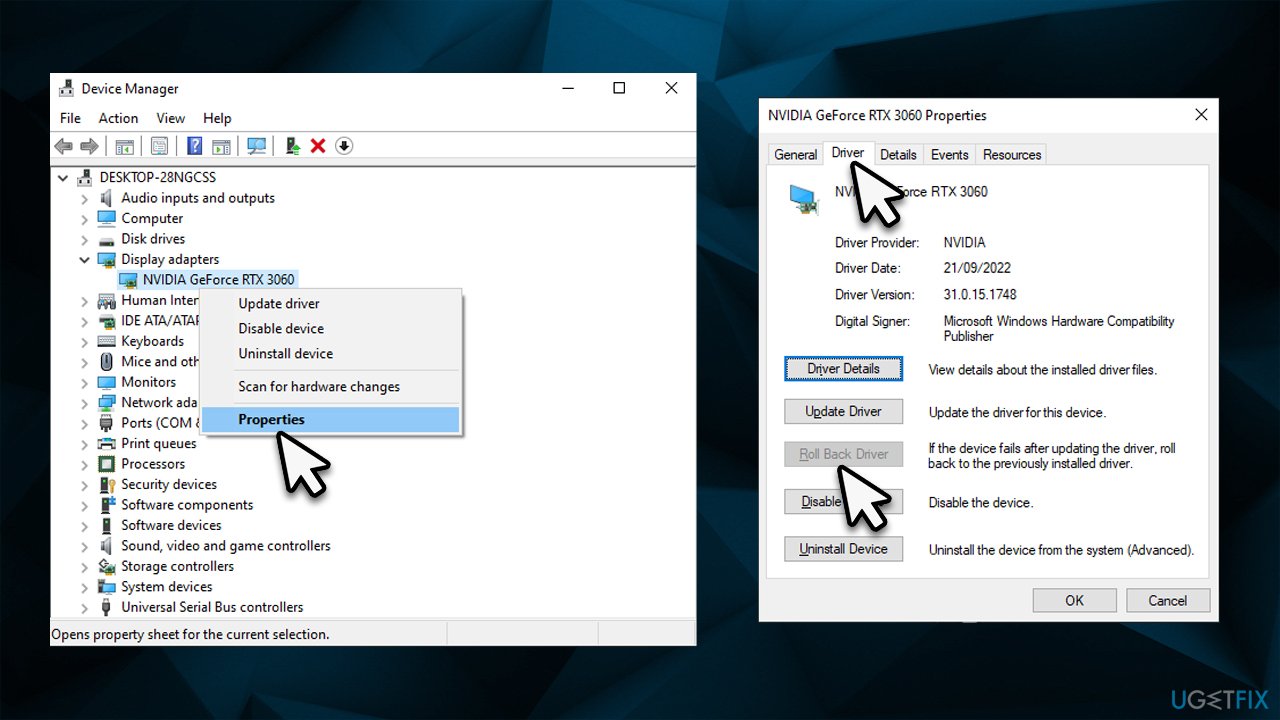
Solution 3. Revert to the previous version of the AMD driver
If you just recently installed the video driver and amdkmpfd.sys BSODs started occurring after that, you should uninstall the latest driver and return to the previous version as follows:
- Right-click Start and pick Device Manager
- Expand the Display adapters section
- Right-click on your GPU driver and select Properties
- Go to the Driver tab
- Here, click Roll Back Driver, select the reason and click Yes.
Solution 4. Reinstall your GPU drivers
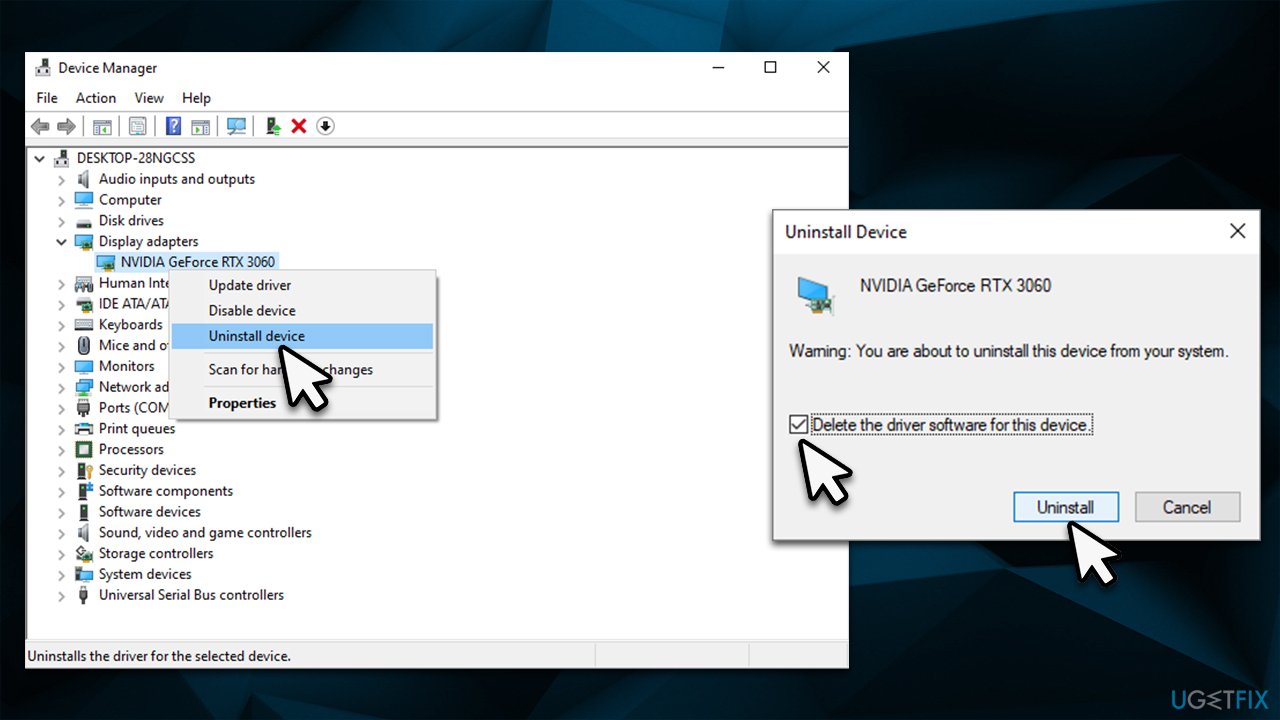
A complete reinstall of GPU drivers can also help you resolve driver issues that cause system crashes.
- Right-click Start and pick Device Manager
- Expand the Display adapters section
- Right-click on the GPU driver and select Uninstall device
- Mark the Delete the driver software for this device option
- Click Uninstall and follow the on-screen instructions
- Once done, restart your system
- Use one of the methods described in solution 2 to install the latest driver version.
Solution 5. Run SFC and DISM
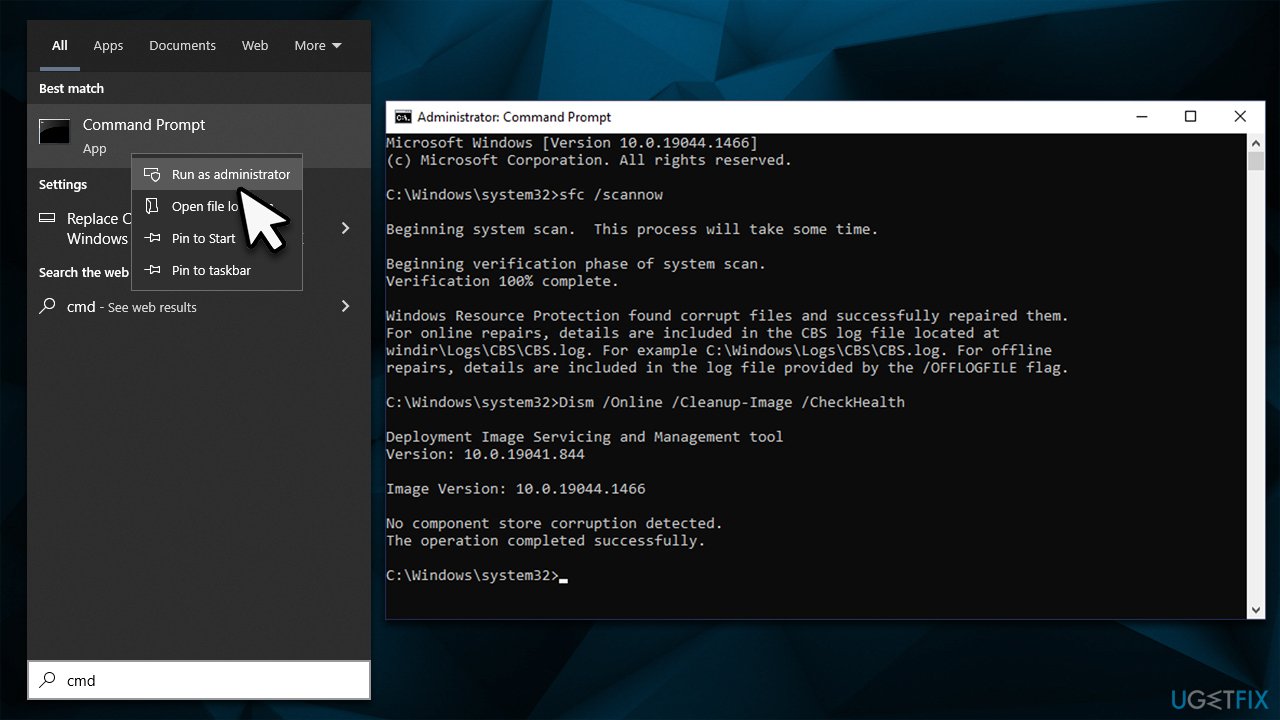
Try running commands via an elevated Command Prompt to fix Windows file corruption issues:
- Type in cmd into Windows search
- Right-click Command Prompt result and select Run as administrator
- When the User Account Control window shows up, click Yes
- In the new window, type in the following command and press Enter:
sfc /scannow - After the scan is complete, use the set of commands listed below (press Enter after each):
dism /online /cleanup-image /scanhealth
dism /online /cleanup-image /checkhealth
dism /online /cleanup-image /restorehealth - Close down Command Prompt and restart your device.
Solution 6. Use System Restore
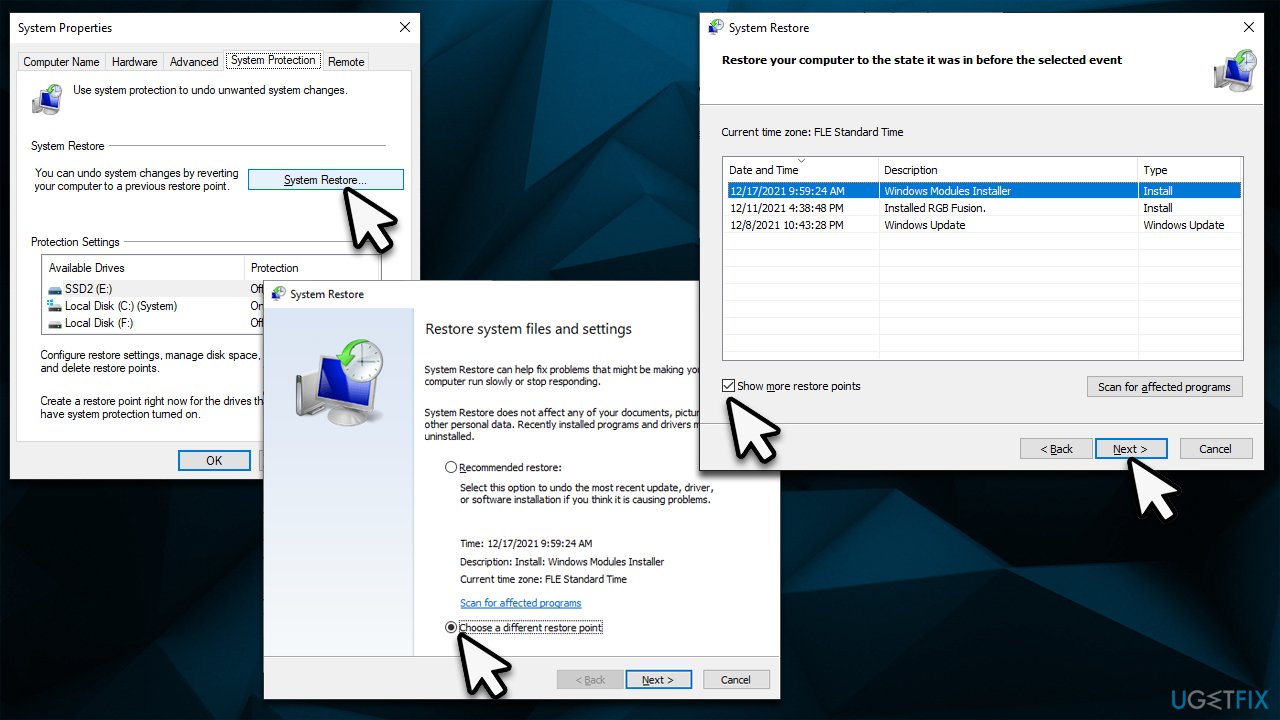
System Restore is a safe way to restore your computer to its previous state when the problem did not exist without losing your personal files.
- Type in Create a restore point in Windows search and hit Enter
- Go to System Restore
- Select Choose a different restore point (if available) > Next
- Mark the Show more restore points option
- Pick the time when the problem did not exist and click Next.
Bottom line
To resolve the DRIVER_IRQL_NOT_LESS_OR_EQUAL amdkmpfd.sys error, you can try updating or reinstalling the AMD driver, checking for Windows updates, or rolling back to a previous driver version. If these steps do not work, consider seeking additional technical support or further troubleshooting methods.
Frequently asked questions
This error typically indicates a problem with the AMD graphics driver, which can lead to system instability and crashes. It is often caused by outdated or corrupted drivers.
You can update the driver by going to Device Manager, locating your AMD graphics device, right-clicking it, and selecting 'Update driver.' Alternatively, you can download the latest driver directly from the AMD website.
If the issue persists, consider rolling back the driver to a previous version or performing a clean installation of the driver. Additionally, running Windows Update may help resolve any underlying system issues.




Report an issue
What's wrong with this guide? We review every report and update or remove content.
Report received — thank you. We'll review and fix it.
You need a free account to submit a report.
Be the first to comment