How to fix
DRIVER_VERIFIER_DMA_VIOLATION error
on Windows
Resolve the DRIVER_VERIFIER_DMA_VIOLATION error on Windows 10 or 11 effortlessly. Get expert-tested solutions and fix issues in minutes!


What causes How to fix DRIVER_VERIFIER_DMA_VIOLATION error in Windows?
- Driver Verifier causing crashes
- Drivers not updated or reinstalled
- Issues after driver updates
- Incompatibility with system updates
- Underlying hardware issues
Repairs Windows system files, removes malware, and restores a clean OS state — without reinstalling.
Hello, I recently have been getting DRIVER_VERIFIER_DMA_VIOLATION error at random times while operating my Windows 10 PC. Is there anything that could be done to fix this? Thanks in advance.
Blue screen errors can be particularly annoying to users since they interrupt everything and force the PC to restart immediately - all without warning. However, these occurrences play an important role within any Windows infrastructure, preventing fatal damage that could otherwise be caused to the system.
In most cases, users can recover from DRIVER_VERIFIER_DMA_VIOLATION or similar BSODs immediately after a computer restart. Repeated occurrences can indicate that something is wrong and needs fixing. In this case, the error code indicates that the culprit is Driver Verifier.
Driver Verifier is a tool that is included in all Windows 10 systems and can be run on demand. It is used to track drivers and their potential violations due to the operation of the operating system. However, this utility should not be used by regular computer users[ref en-1] as it can commonly cause crashes and instability issues. In this case, however, users who had to deal with this BSOD did not use Deriver Verifier or had it disabled in the first place.
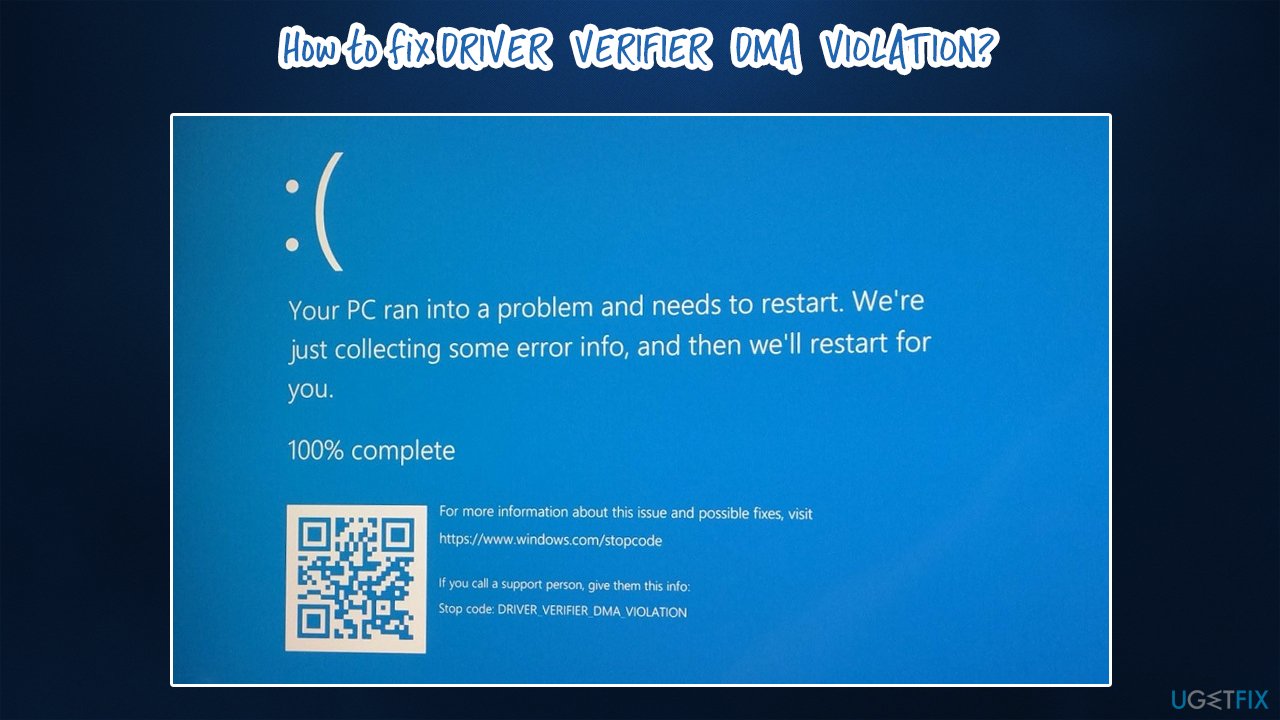
Some users reported that the problems started seemingly out of nowhere, and they kept receiving DRIVER VERIFIER DMA VIOLATION error in particular time frames. Others claimed that issues began right after updating their drivers[ref en-3] or applying other updates. The error is prevalent in laptops, although desktop users can also experience it.
In most cases, the main reason for the instability issues to start is drivers. Therefore, in order to fix DRIVER_VERIFIER_DMA_VIOLATION error, you should immediately update or reinstall your drivers. However, there are other reasons that could be causing this problem, so you might have to take on quite a bit of troubleshooting before finding which solution works for you.
Fix 1. Run automatic system repair software
Blue Screen errors, as already mentioned, can be particularly frustrating as they can cause data loss. What does not help the situation to most regular users is that the provided error code does not explain how to resolve the situation or what caused the crash in the first place.
While each of the crashes is well documented within Windows operating system and can be accessed via Event Viewer or other sources, they are full of technical information that might not be understood by most. Besides, trying to fix DRIVER VERIFIER DMA VIOLATION error manually might take quite sometime before the right solution is found.
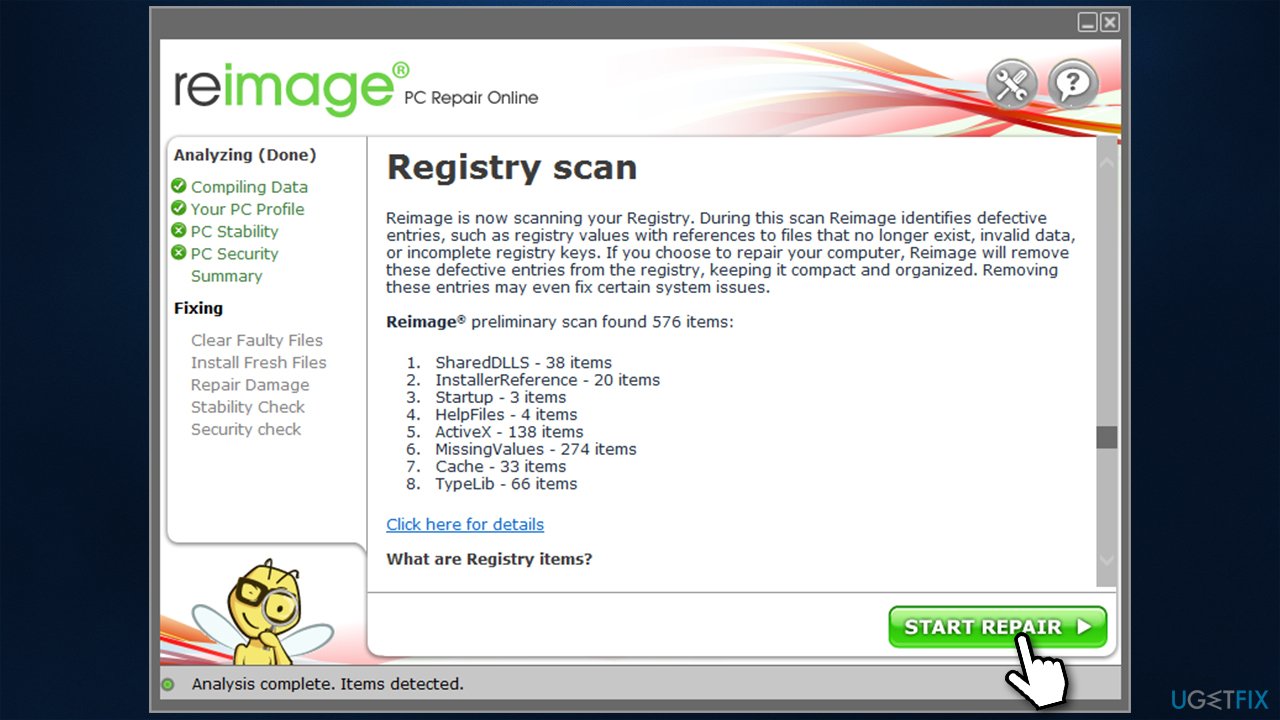
Therefore, we would like to recommend using [d1]. This repair software can scan Windows system files and check for various integrity violations and fix underlying issues automatically. By using it, you are less likely to be worried about your computer issues, as the tool can resolve issues with missing DLLs,[ref en-2] clear temp files, clean browsers, fix registry errors, remove malware, and, of course, fix BSODs.
Fix 2. Update all drivers
Since one of the main causes for this BSOD to occur are driver issues, you should update all of the third-party drivers on your computer. One of the options to do that is to use the Device Manager:
- Right-click on Start and pick Device Manager
- In this new window, expand the section that you want to update, e.g., Network adapters
- Right-click on the device and select Update driver
- Pick Search automatically for drivers
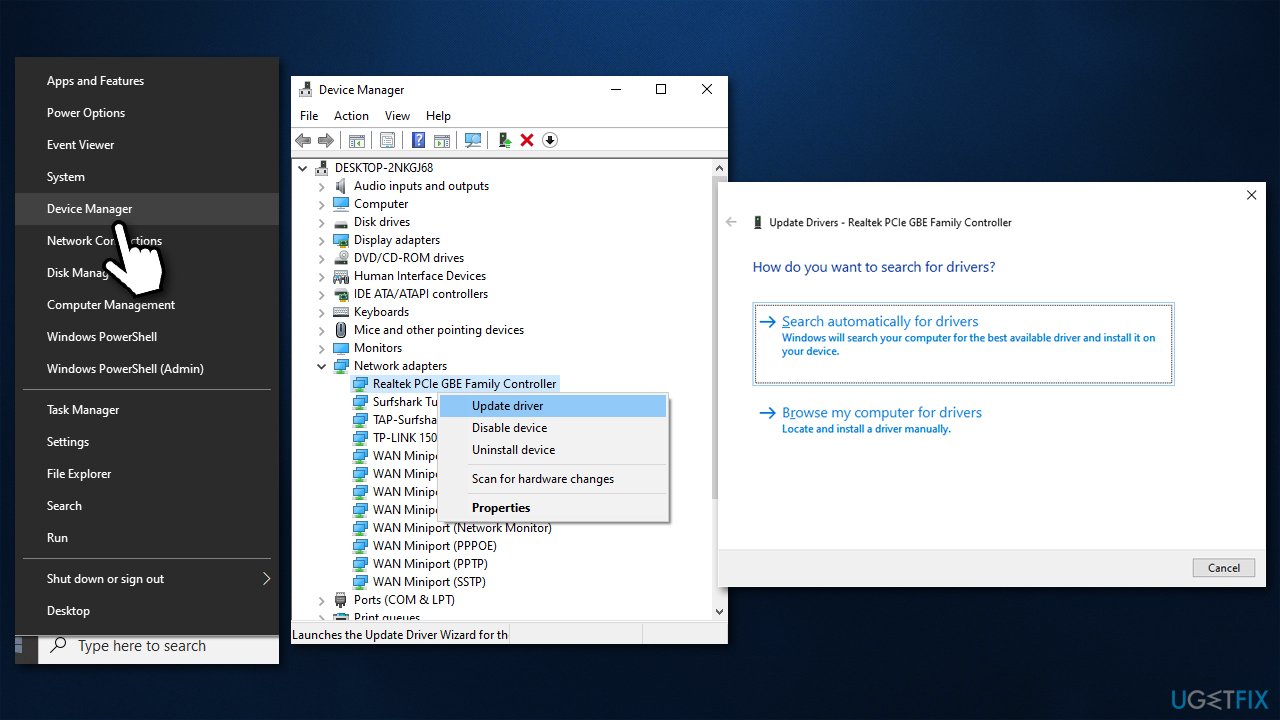
How to fix driver verifier dma violation on windows update your drivers - Once you update them all, restart the PC.
It is important to note that Device Manager is by far the least optimal solution for the driver updating process, as it can often fail to find the most recent versions. Therefore, you should either visit the manufacturer's websites and install drivers from there (which can be an extremely long process) or employ an automatic driver updater such as [rev id="DriverFix"].
Fix 3. Perform SFC and DISM scans
Corrupted system files could be causing this issue. You can run SFC and DISM and see if that brings any results.
- To open elevated Command Prompt, type in cmd in Windows search
- Right-click on the result and select Run as administrator
- In the new window type in the following command and press Enter:
sfc /scannow
- If SFC repairs corrupted files, restart your PC. If the scan was unable to fix the issues, run DISM
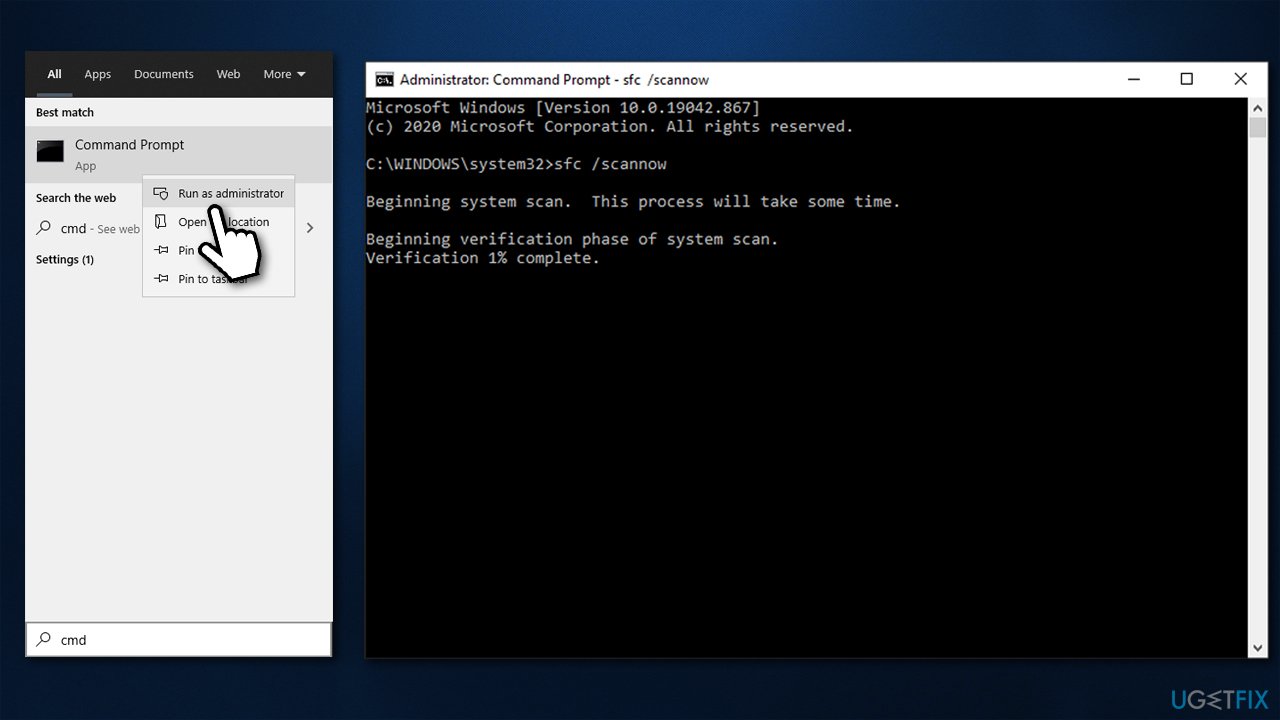
How to fix driver verifier dma violation on windows run system file checker - Open Command Prompt as administrator, copy and paste the following commands - don't forget to press Enter after each (keep in mind that scans will take some time):
DISM /Online /Cleanup-Image /CheckHealth
DISM /Online /Cleanup-Image /ScanHealth
DISM /Online /Cleanup-Image /RestoreHealth
Fix 4. Disable Driver Verifier
If you have yet not done so, you can disable Driver Verifier altogether. Here's how:
- Open Command Prompt as administrator as explained above
- Type verifier and press Enter
- When the Driver Verifier Manager opens, select Delete existing settings and click Finish
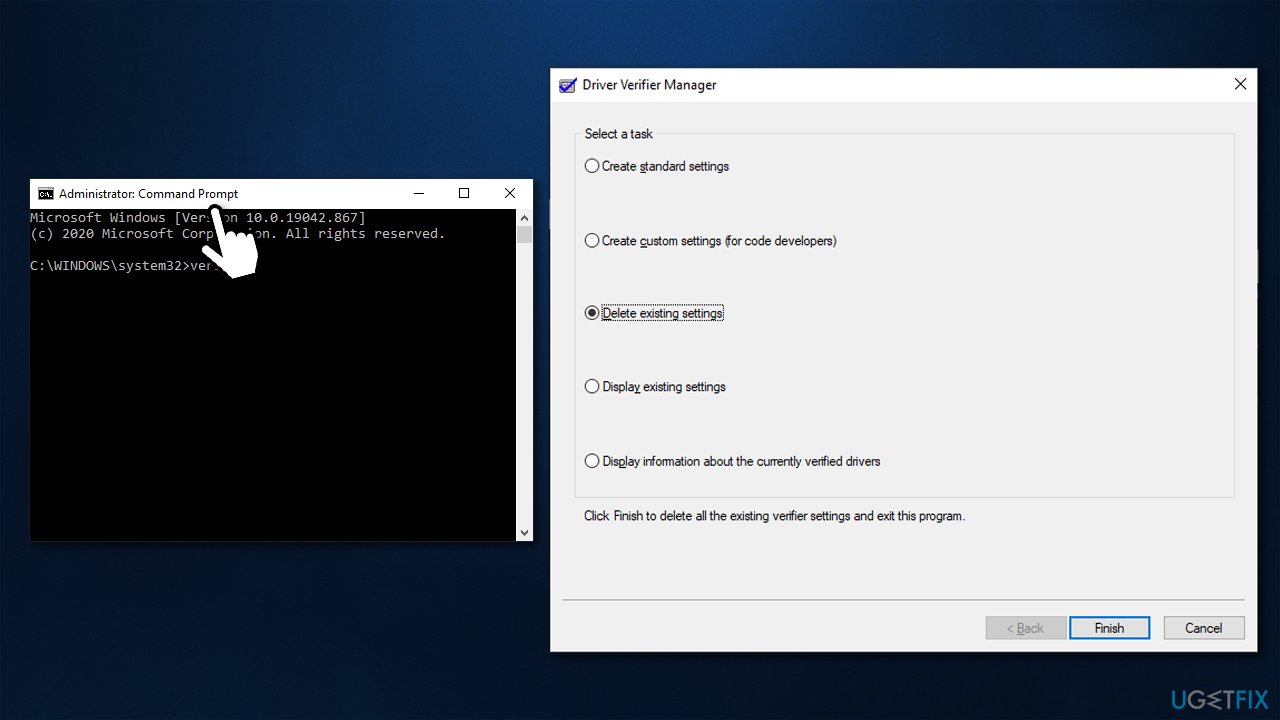
How to fix driver verifier dma violation on windows run disable driver verifier - Restart your computer.
Fix 5. Update your BIOS
Updating BIOS is a relatively risky procedure, so be cautious. If you are not sure what you are doing, skip this step.
- Type in System Information in Windows search and press Enter
- Note down the information under BIOS Version/Date and BaseBoard Product
- Navigate to your motherboard's manufacturer's website and go to the Downloads section
- Here, download the latest version of BIOS for your motherboard and launch the installer
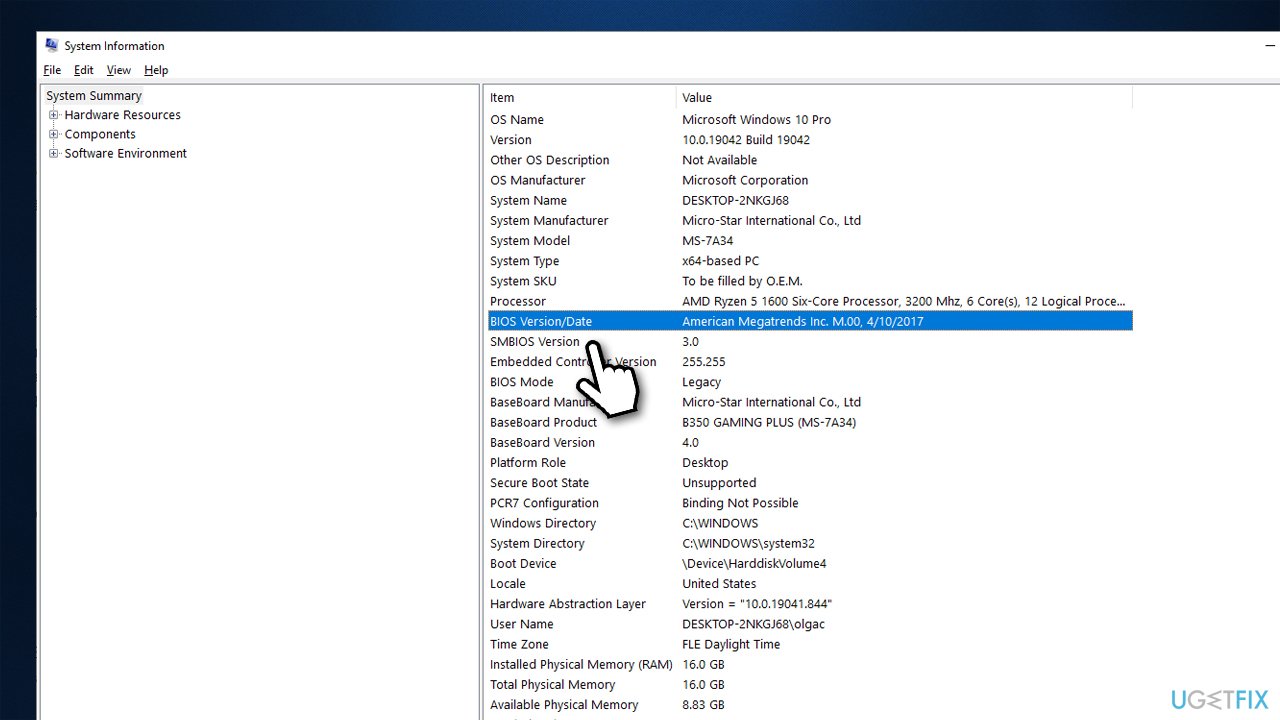
How to fix driver verifier dma violation on windows update bios - Once the process is finished, restart your PC
Some device manufacturers (especially laptops) provide utility tools that could have the BIOS update section included, so check if such software exists on your machine
Fix 6. Reset Windows
If none of the above solutions helped you fix DRIVER VERIFIER DMA VIOLATION error, reset Windows. You will not lose personal files, although you might have to reinstall apps after this process.
- Right-click on Start and pick Settings
- Go to Update & Security section
- Pick Recovery on the left
- Under Reset this PC, click Get started
- Select Keep my files and then Cloud download
- Wait till process is complete.
For more options, please visit our "How to reset Windows 10 to factory settings" article.
Bottom line
To fix the DRIVER_VERIFIER_DMA_VIOLATION error, you should update or reinstall your drivers and consider running automatic system repair software. If these solutions do not resolve the issue, further troubleshooting may be necessary to identify the root cause.
Frequently asked questions
This error typically occurs due to driver conflicts, outdated drivers, or faulty hardware that fails to comply with the DMA (Direct Memory Access) requirements.
To disable Driver Verifier, open Command Prompt as an administrator and type 'verifier /reset', then restart your computer to apply the changes.
Yes, updating your drivers to the latest version can resolve conflicts and compatibility issues that lead to the DRIVER_VERIFIER_DMA_VIOLATION error.




Report an issue
What's wrong with this guide? We review every report and update or remove content.
Report received — thank you. We'll review and fix it.
You need a free account to submit a report.
Be the first to comment