How to fix
Dxgmms2.sys BSOD
on Windows
Resolve the dxgmms2.sys BSOD on Windows 10 or 11 effortlessly. Follow our expert-tested solutions for a smoother experience. Fixed in minutes!

What causes How to fix dxgmms2.sys BSOD on Windows?
- Incorrect memory address
- System references to discharged memory
- Enabled hardware acceleration
- Integrated graphics card
- Corruption of the dxgmms2.sys file
Repairs Windows system files, removes malware, and restores a clean OS state — without reinstalling.
Hello, all. My PC randomly gives me a BSOD error PAGE_FAULT_IN_NONPAGED_AREA (dxgmms2.sys). Does anyone know how to fix this?
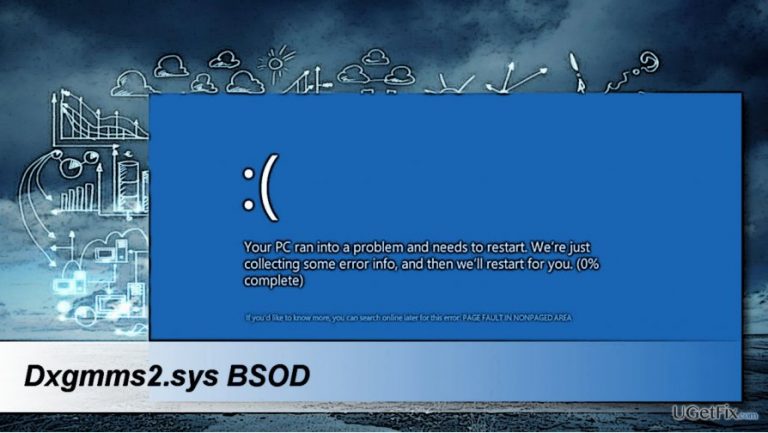
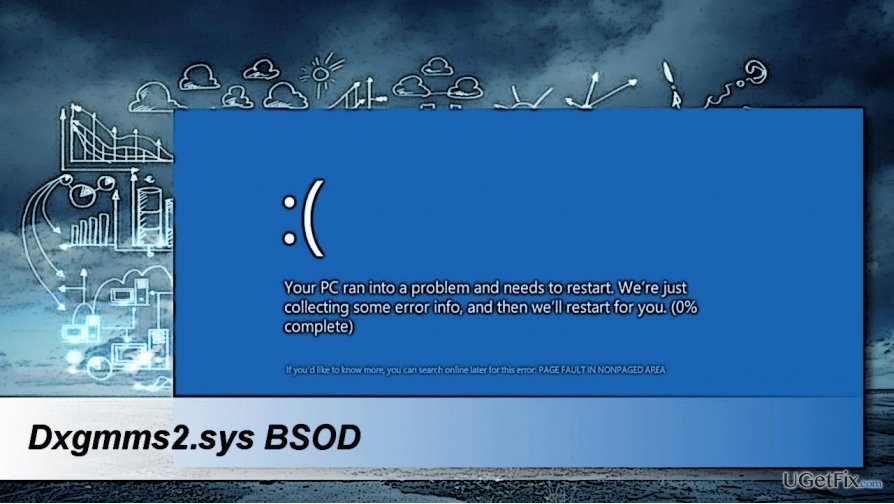
Few people reported a dxgmms2.sys error after installing Windows 10 and its updates. The error shows up in a form of a Blue Screen of Death (BSOD) and freezes the screen. The more technical name of this bug is PAGE_FAULT_IN_NONPAGED_AREA. The same error has been registered on earlier Windows versions, except that it was tied up with a value 0x00000050. Sadly, the dxgmms2.sys BSOD hasn’t been analyzed in details, so there’s not much known about its causes.
There are many assumptions why this error may occur, but according to people’s reports, it seems that the culprit may be incorrect memory address or system references to discharged memory. Besides, the PAGE_FAULT_IN_NONPAGED_AREA (dxgmms2.sys) may be caused by enabled hardware acceleration, integrated graphics card or corruption of the dxgmms2.sys file. If you this problem strikes you unexpectedly and, therefore, you have to reboot your PC despite any work being currently performed, please try to perform the following fixes:
Remove the dxgmms2.sys file
Most of the .sys files are core files for maintaining Windows stability. Therefore, removing them is not recommended. Before initiating dxgmms2.sys removal, we would recommend to run a scan with [d1] or another optimization utility that has an in-built pack of Windows system files. This might help to fix the problem. If that did not help, create the backup of the current Windows state or System Restore Point and then perform these steps:
- Open Start Menu and click on Power button.
- Press and hold the Shift key and select Restart.
- When Windows boot screen opens, select Troubleshoot and then Advanced options.
- Now open Command Prompt and enter your administrator password if required.
- Then copy and paste the following commands in the Command Prompt window and hit Enter.
C:
cd windows
attrib -s -r -h DXGMMS1.sys /s
del DXGMMS1.sys /s /q - Close Command Prompt and reboot the system.
Disable hardware acceleration
- Open your default web browser and click on Menu button.
- Select Settings and click Show advanced settings.
- Find the System section and uncheck Use hardware acceleration when available option.
- Restart your browser.
Disable the integrated graphics card
- Right-click on Windows key and select Device Manager.
- Locate the onboard graphics card, right-click on it, and select Disable.
- Finally, close Device Manager and reboot the system.
Update the graphics card driver
- Right-click on Windows key and select Device Manager.
- Find your graphics card driver and right-click on it.
- Select Update Driver Software and wait for the process to be executed.
- Finally reboot your PC.
If none of the methods provided above helped you to fix the dxgmms2.sys BSOD, we would recommend running a full system scan with a professional anti-malware tool, say [d1]. Virus infection should never been rejected when the system throws an error. This case is not an exception.
Bottom line
To fix the dxgmms2.sys BSOD error, you can try removing the dxgmms2.sys file after running a system scan, or disabling hardware acceleration in your browser settings. If these solutions do not resolve the issue, consider creating a backup of your Windows state or a System Restore Point before attempting further troubleshooting.
Frequently asked questions
The dxgmms2.sys BSOD error is typically caused by issues related to graphics drivers, corrupted system files, or hardware problems such as faulty RAM or GPU.
You can update your graphics drivers by going to Device Manager, expanding the Display adapters section, right-clicking on your graphics card, and selecting 'Update driver' to search automatically for updated driver software.
Yes, you can run the System File Checker tool by opening Command Prompt as an administrator and typing 'sfc /scannow', which will scan and repair any corrupted system files related to dxgmms2.sys.




Report an issue
What's wrong with this guide? We review every report and update or remove content.
Report received — thank you. We'll review and fix it.
You need a free account to submit a report.
Be the first to comment