I noticed that I couldn't visit certain sites via Internet Explorer and Chrome due to ERR_SSL_VERSION_OR_CIPHER_MISMATCH error. I just discovered that the problem goes away when using Firefox - but Chrome is my favorite.
Can you explain what I should do in order to fix ERR_SSL_VERSION_OR_CIPHER_MISMATCH on Chrome and IE?
The ERR_SSL_VERSION_OR_CIPHER_MISMATCH error prevents users from accessing some websites, including the most popular ones. The issue is more prevalent on older operating systems and browsers, although some users reported the error appearing on Windows 10 and the most recent Google Chrome version.
This error is otherwise known as "This site can't provide a secure connection" or "Client and server don’t support a common SSL protocol version or cipher suite." Regardless of how you look at it, it causes significant inconvenience to users, as they are unable to visit a requested website/websites.
As evident, the error is related to an SSL (Secure Sockets Layer)[ref en-2] certificate. Otherwise known as a public key certificate, an SSL is commonly used by websites in order to encrypt the connection between the user's web browser and the webserver.[ref en-1] When successfully implemented, it prevents the attackers to modify sent data or read sensitive information provided by the user. It is an extremely vital security component that most developers now use.
When you are trying to access the website after entering a URL, the browser attempts to establish the connection with the host server, checking for a valid SSL certificate. If the browser encounters issues while verifying these checks, it produces an ERR_SSL_VERSION_OR_CIPHER_MISMATCH error.
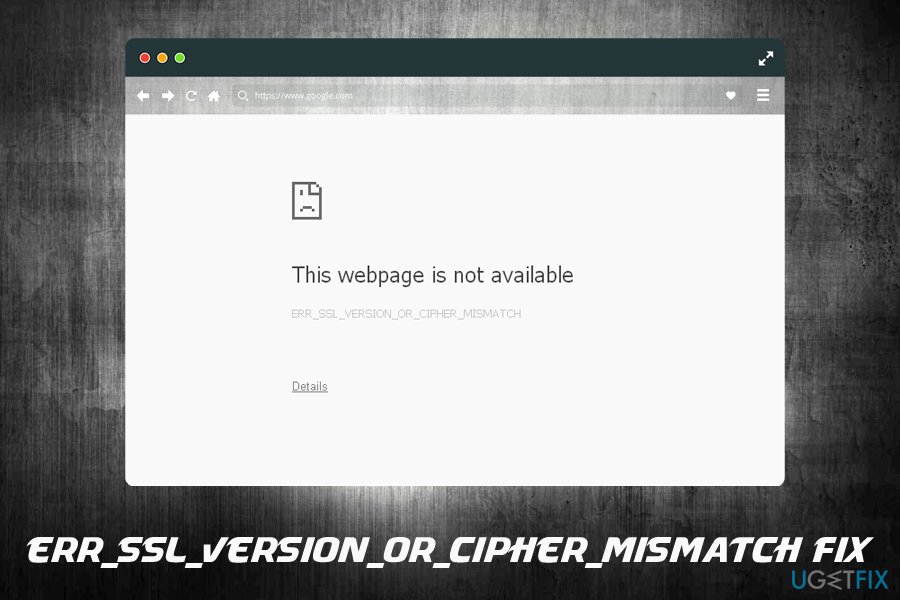
ERR_SSL_VERSION_OR_CIPHER_MISMATCH error the web browser displays the following message:
This site can’t provide a secure connection ERR_SSL_VERSION_OR_CIPHER_MISMATCH Unsupported protocol The client and server don’t support a common SSL protocol version or cipher suite.
Err ssl version or cipher mismatch fix error
ERR_SSL_VERSION_OR_CIPHER_MISMATCH is common among even the most prevalent services, including:
GoDaddy[ref en-4]
Wordpress
Chaturbate.com
Cloudflare
Sonicwall
NGINX
Apache Tomcat, etc.
The ERR_SSL_VERSION_OR_CIPHER_MISMATCH error may prevent people from accessing insecure websites, so it's advisable to double-check the domain before re-trying to access it. Another reason why this error occurs - the site you’re trying to access uses old protocols that your browser identifies as insecure.
It goes without saying that this error occurs and prevents you from visiting particular websites for your own safety. If for some reason you absolutely must access a certain website, you can try these workarounds that we prepared - they will help you fix the ERR_SSL_VERSION_OR_CIPHER_MISMATCH error.
Note that, in some cases, the error might show up because of other reasons, such as slow internet connection or overly-aggressive security software.
This video has all the information for eliminating this problem: [youtube SV2mq8Mgd8g]
Method 1. Delete Browser Cache and Cookies
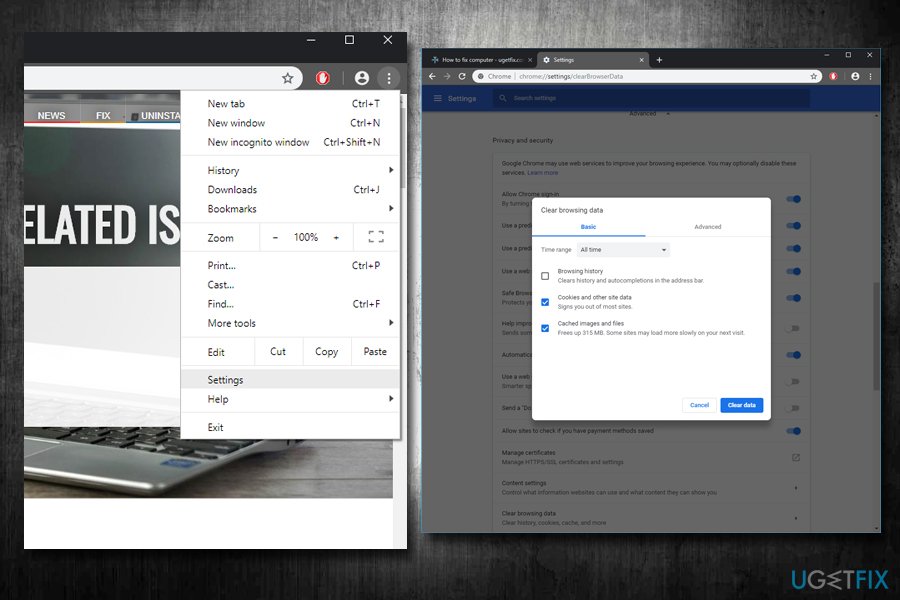
Browser cache and cookies might be the main reason you are seeing ERR_SSL_VERSION_OR_CIPHER_MISMATCH error. Make sure if is not the case by following these steps:
Open Google Chrome and go to Menu > Settings.
Scroll down and click Advanced.
Locate Clear browsing data and click on it.
Then, select Cookies and other site data and Cached images and files, and press Clear data.
Err ssl version or cipher mismatch clear cache cookies
Method 2. Deactivate SSL/HTTPS Scanning to Fix ERR_SSL_VERSION_OR_CIPHER_MISMATCH
You can temporarily deactivate one particular feature in your anti-virus or anti-malware program if you have one on your computer. Computer security software performs SSL Scan that can be turned off.
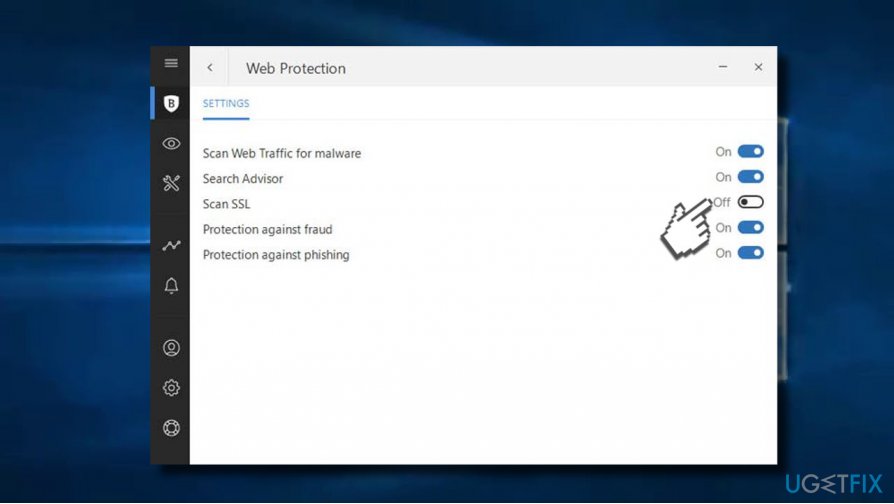
The instructions provided below are prepared for Bitdefender users because this security software is known to be the one that can causes ERR_SSL_VERSION_OR_CIPHER_MISMATCH error. Remember - it is doing so for your own safety, so consider turning the feature back after visiting your preferred website.
Open Bitdefender.
Navigate to Modules > Web Protection.
Click on Scan SSL to toggle it off.
Bitdefender
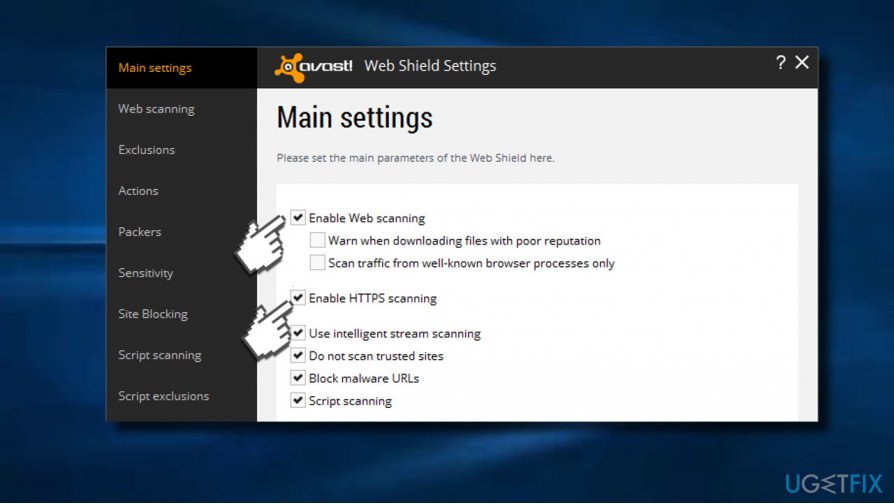
In case you are using Avast, do the following:
Open Avast. Go to Settings > Main Settings.
Deselect Enable Web scanning and HTTPS scanning. We strongly suggest that you turn these back on once you visited your desired website.
Avast
Method 3. Disable QUIC protocol
Chrome can sometimes display ERR_SSL_VERSION_OR_CIPHER_MISMATCH error when QUIC protocol is enabled. To disable it, follow these guidelines:
Open Google Chrome browser.
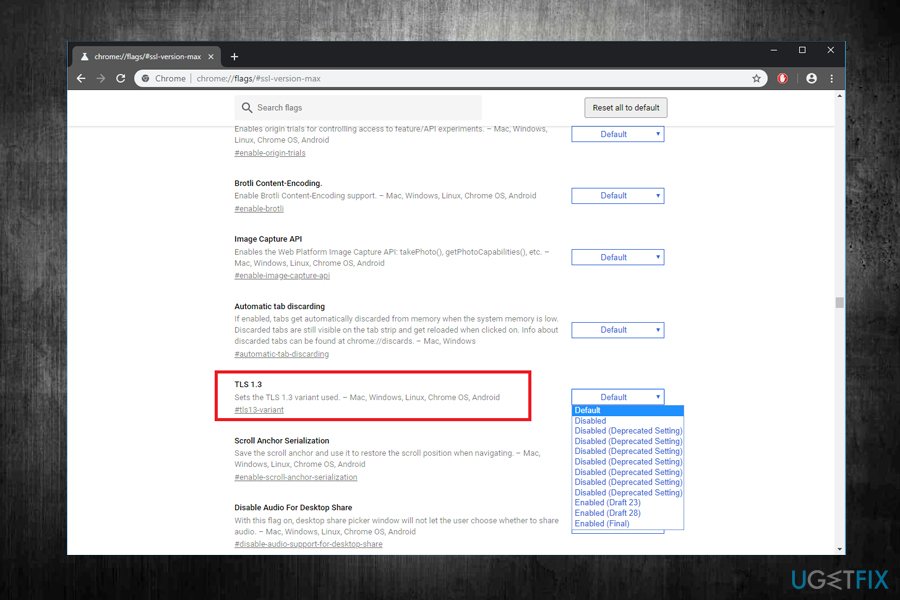
Type in chrome://flags into the address field and hit Enter.
Press CTRL + F, type TLS 1.3 and click OK.
Disable QUIC protocol from the drop down menu on the right.
Method 4. Enable TLS 1.3
Open Google Chrome browser.
Now, type chrome://flags into the address field and press Enter.
Press CTRL + F, type TLS 1.3 and press OK to locate the section.
Enable the TLS 1.3.
Err ssl version or cipher mismatch enable tls1
Method 5. Disable RC4 encryption
RC4 encryption cipher has been discouraged from use for many years now - the main reason being its lack of security. In other words, RC4 is no longer considered to be secure encryption and, if the site is trying to encrypt data using it, it might result in errors when trying to access it. Here is the fix (note: backup your registry before any modifications are made!)
type in regedit in Windows search and press Enter.
If User Account Control pop-up shows up, click Yes.
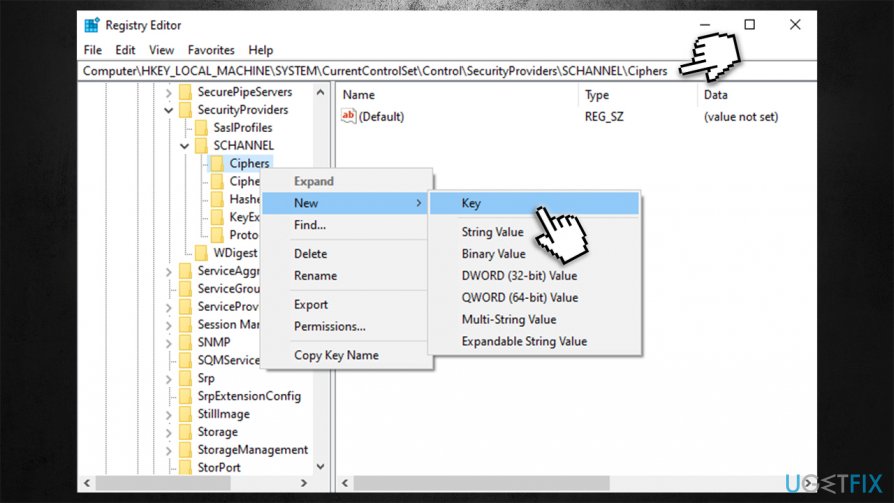
Go to the following location (you can paste it at the top):
Right-click on Ciphers and select New > Key.Fix err ssl version or cipher mismatch edit registry
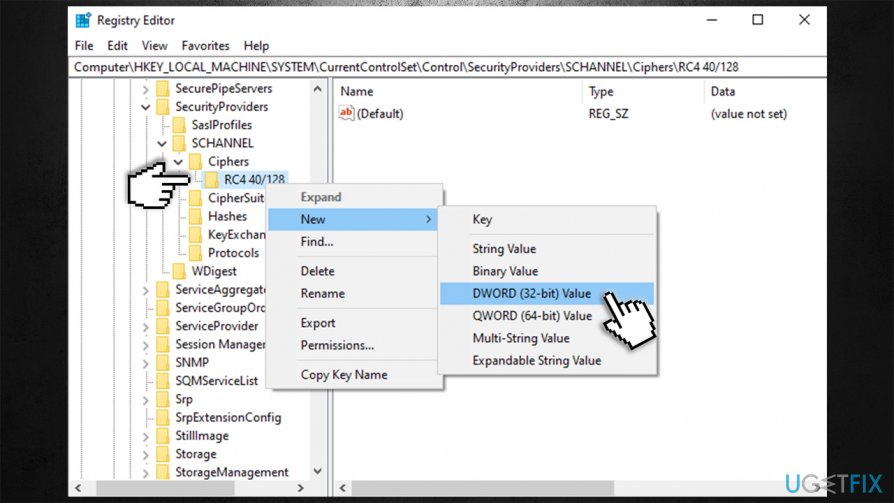
Name it RC4 40/128.
Now right-click on it and select New > DWORD (32-bit) Value.Fix err ssl version or cipher mismatch edit registry2
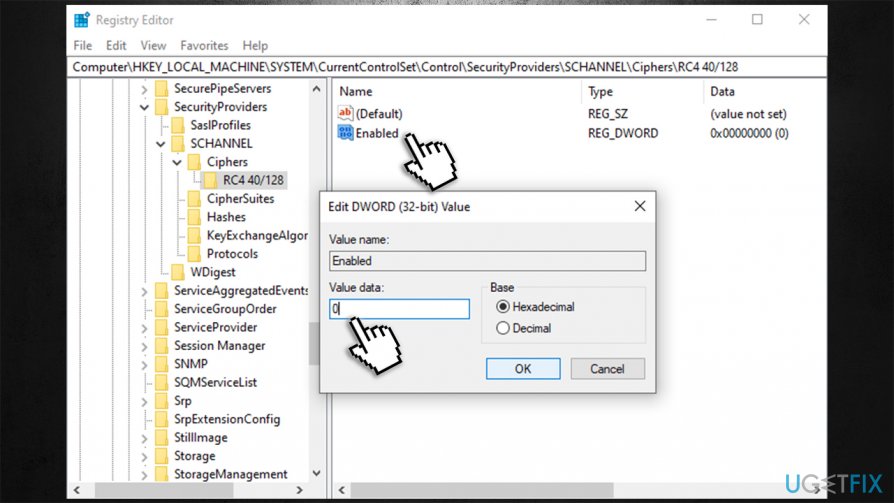
Name it Enabled and double-click it.
If the value is not set to 0, do so and press OK.Fix err ssl version or cipher mismatch disable rc4 via registry
Exit Registry Editor.
Method 6. Disable VPN
Some users reported that the error was occurring on all websites every half an hour or so. If you are using a VPN, it might be the cause of such behavior. In some cases, VPN providers switch to another IP than initially connected to for optimization reasons, but it might also stop the SSL encryption on the particular website, resulting in the ERR_SSL_VERSION_OR_CIPHER_MISMATCH error.
If you are using a VPN to bypass restrictions for Netflix, for example, we highly recommend using [rev id="Private Internet Access"] instead, as it is configured not to interrupt secure connections when users are connected.
Method 7. Use an outdated version of browser (not recommended)
Consider installing an older version of your browser. However, we do not recommend taking such drastic methods only to access a potentially dangerous website. Is it really worth the risk? The older browsers often have various security flaws that can be easily exploited by cybercriminals.
If you use an outdated browser, the simplest illegal trick can help hackers to take control of your computer.[ref en-3] Careless visits to a dangerous website may end up in a serious infection.
Instead of trying to bypass security restrictions, think about your security. The website you are trying to access is blocked by ERR_SSL_VERSION_OR_CIPHER_MISMATCH because the browser is trying to protect you from revealing sensitive data on hardly secure Internet websites. If you are sure that the Internet page you are trying to access is safe, try using [d1] and see if it fixes the issue.
Bottom line
To fix the ERR_SSL_VERSION_OR_CIPHER_MISMATCH error, you can try updating your browser, checking your system's date and time settings, and ensuring that your SSL protocols are enabled. If these steps do not resolve the issue, consider using a different browser or contacting the website's support for further assistance.
Frequently asked questions
In Windows 10, you can try clearing your browser cache, updating your browser, or adjusting the security settings to allow the latest SSL protocols.
You can check your Windows 11 system by ensuring that your system date and time are correct and that your network settings are properly configured.
Yes, in both Windows 10 and Windows 11, disabling certain security features or outdated cipher suites in your browser settings can lead to this error.
Network diagnosticsVPN troubleshootingDNS configurationWi-Fi connectivityProxy and firewall issues
Viktoras Jasinskas is a network and infrastructure expert covering connectivity issues for Windows home and business users. With a background in IT infrastructure, he approaches network problems methodically — isolating whether a fault lies in the OS network stack, driver layer, router configuration, or ISP. His guides address DNS failures, VPN connectivity problems, Wi-Fi drops, IP conflicts, proxy misconfigurations, and firewall rules that block legitimate traffic. Viktoras also contributes to the uGetFix news section, covering security vulnerabilities and network-related threat advisories.






Report an issue
What's wrong with this guide? We review every report and update or remove content.
Report received — thank you. We'll review and fix it.
You need a free account to submit a report.
Be the first to comment