
How to fix error 0x80070043 - The network name cannot be found in Windows?

Prefer to fix it yourself? The manual steps follow.
- 7methods
- 5 to 30 minutes
- Intermediate
Applies to Windows 11 and Windows 10 opening a shared folder, an admin share, a NAS or a setup file over the network (SMB)
7 methods in this guide
I can't access my files from Dropbox on my PC because I keep receiving the error code 0x80070043. The message says, "The network name cannot be found." How do I get around this?
Error 0x80070043, "The network name cannot be found", means Windows reached the other computer, but the share after the second backslash in \\server\share does not exist or was not offered to you. Check the exact share name first. Missing admin shares, a NAS on Windows 11 24H2 and installers started from a mapped drive cause the rest.
Open \\server alone, without a share name, and compare the list of shares with what you typed (Fix 1). For \\IP\c$, check that the admin shares and the Server service exist on the other PC (Fix 2). For a NAS on Windows 11 24H2 or later, give it a user account and SMB signing (Fix 3). An installer that fails this way should be copied to a local folder first (Fix 5).
| Error | Network Error: "Windows cannot access \\Name\Share." Details: Error code: 0x80070043. The network name cannot be found. |
|---|---|
| Where it appears | File Explorer or the Run box when you open \\server\share or \\IP\c$, when you map a drive, in net use as system error 67, and in setups started from a network drive. |
| Main cause | The share name does not exist on that computer: a typo, a renamed or removed share, or a hidden admin share (C$, ADMIN$) that is turned off. |
| Fastest fix | Type \\server alone to list the real shares, or run net view \\server, and use the exact name (Fix 1). |
| Also written as | 0x80070043, error 0x80070043, 80070043, 0x800700043, ox80070043, system error 67, ERROR_BAD_NET_NAME. Close relative: 0x80070035 (network path not found). |
| Affects | Windows 11 (all editions) and Windows 10. The Windows 11 24H2 SMB changes hit Pro, Enterprise and Education first. |
| Microsoft's status | Not a bug. It is a standard Windows error. QNAP lists it next to 0x80070035 for NAS access from Windows 11. |
| Time to fix | 2 minutes for a wrong share name. 15 to 30 minutes for admin shares, a NAS or Group Policy. |
| Where the cause is logged | Event Viewer: Applications and Services Logs > Microsoft > Windows > SMBClient > Security for refused NAS sign-ins (event 31017). |
Facts checked on 15 October 2026. Steps written for Windows 11 (25H2 and 26H2) and Windows 10 22H2.
What error 0x80070043 "The network name cannot be found" means
The window is titled Network Error. The blue line reads "Windows cannot access" followed by the path you typed, and under it: "Check the spelling of the name. Otherwise, there might be a problem with your network." Select See details to read the code: Error code: 0x80070043 and The network name cannot be found.
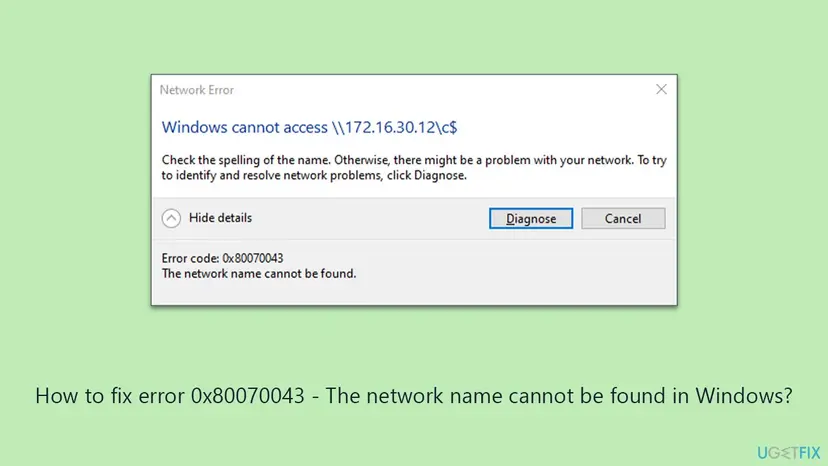
The code is easy to decode. 0x8007 marks a plain Windows error, and 0x43 is 67 in decimal. Microsoft's list of system error codes names error 67 ERROR_BAD_NET_NAME, "The network name cannot be found." That is why the same failure in Command Prompt reads "System error 67 has occurred."
In \\server\share, the part before the second backslash is the computer and the part after it is the share. With 0x80070043 the computer usually answered. With 0x80070035 ("The network path was not found") Windows did not get that far. That difference decides where you look.
| Code or text | System error | What it tells you |
|---|---|---|
| 0x80070043, "The network name cannot be found" | 67, ERROR_BAD_NET_NAME | The share name is unknown to that computer, or the device refused it. |
| 0x80070035, "The network path was not found" | 53, ERROR_BAD_NETPATH | Windows did not reach the computer, or the sign-in failed earlier. |
| "The specified network name is no longer available" | 64, ERROR_NETNAME_DELETED | The connection was there and then dropped. |
Why Windows cannot find the network name: causes in order
Most often the share name is simply wrong: it was typed differently, renamed, removed, or it is a hidden share that does not exist on that PC. Less often the admin shares (C$, ADMIN$) are turned off, or a NAS refuses Windows 11 after 24H2. Rarely, a setup or a startup policy looks for a mapped drive in a session where that drive does not exist.
| Cause | How often | How to tell | Fix |
|---|---|---|---|
| Wrong, renamed or removed share name | Most often | \\server alone opens and lists other shares, but not yours. | Fix 1 |
| Admin shares C$ or ADMIN$ missing, or the Server service stopped | Often on work and lab networks | \\IP\c$ fails, normal shares may still open. net share on that PC has no C$. | Fix 2 |
| NAS that wants guest access or cannot sign, on Windows 11 24H2 or later | Often at home | Other PCs or a phone still open the NAS. QNAP names this case. | Fix 3 |
| A stale connection or a saved password for another account | Sometimes | It worked before, then failed after a password or user change. | Fix 4 |
| A setup run from a mapped drive after a UAC prompt | Sometimes | Only installers fail; the folder itself opens fine. | Fix 5 |
| Group Policy runs before the network is ready | Rarely, on domain PCs | Software installation or folder redirection fails at startup only. | Fix 6 |
The reader question above mentions Dropbox. The Dropbox app syncs files to a local folder, so it does not use network share names. If you see this code with Dropbox, the Dropbox folder or a shortcut to it most likely points at a network drive or NAS. We could not find a Dropbox help page that names this code.
How to fix error 0x80070043 "The network name cannot be found"
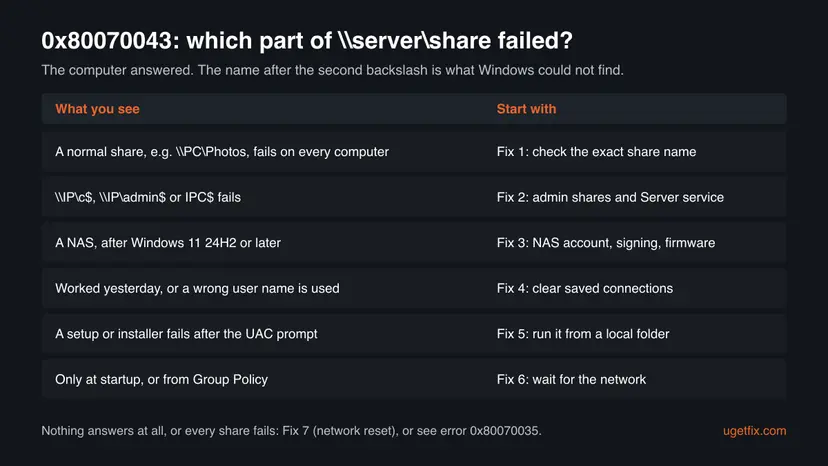
Fix 1 takes two minutes and solves the most common case. Fix 2 is for admin shares such as C$, Fix 3 for a NAS on Windows 11. Fixes 4 to 6 cover saved connections, installers and Group Policy. Fix 7 resets the network as a last step.
| What you see or have | Start with |
|---|---|
A normal share such as \\PC\Photos fails. | Fix 1 |
\\IP\c$, \\IP\admin$ or IPC$ fails. | Fix 2 |
| A NAS that stopped opening on Windows 11 24H2 or later. | Fix 3 |
| It worked before, or Windows uses an old user name. | Fix 4 |
| An installer (Office, winget, a setup.exe) fails after the UAC prompt. | Fix 5 |
| Only at startup, on a PC managed by Group Policy. | Fix 6 |
| Nothing on the network opens at all. | Fix 7 |
Fix 1. List the real shares and use the exact share name
2 minutesNo riskEveryone with this error, before changing any setting.
Error 67 means the computer answered but has no share by that name. Listing what it does share shows the typo, the rename or the removal at once.
- Press Win + R, type only the computer part, for example
\\NASor\\192.168.1.20, and press Enter. - File Explorer shows the folders that computer shares. Compare their names with what you typed, letter by letter.
- If the list does not open in Explorer, open Command Prompt and run
net view \\NASwith your computer's name or address. - On a Windows PC that holds the folder, run
net sharethere. Your share must be in the Share name column. - Open the share with the exact name from the list, for example
\\NAS\Public, and map it again if it was a drive.
List the shares of another computer (Command Prompt)
net view \\NAS
net view \\192.168.1.20- Hidden shares end with
$and never appear in the list. Type them in full, for exampleC$. - Spaces count. A share named
Team Filesneeds quotes in Command Prompt:"\\NAS\Team Files". - If the share is missing on the host, share the folder again: right-click it, select Properties > Sharing > Advanced Sharing, tick Share this folder and check the Share name.
It worked if: The share opens, and a mapped drive reconnects with the corrected path.
If not: If \\server alone also fails, the problem is reaching the computer, not the share. Go to Fix 3 for a NAS or Fix 7, and see our guide on error 0x80070035.
Fix 2. Admin shares (C$, ADMIN$): check the Server service and the AutoShare values
15 minutesRead the warning\\IP\c$ or \\IP\admin$ fails, often for remote management or a deployment tool.
Windows creates C$, ADMIN$ and IPC$ itself, through the Server service. Microsoft documents that missing admin shares return error 67, BAD_NET_NAME, and that they go missing when the AutoShare values are 0 or when malware removes them.
- On the PC you want to reach, open Command Prompt as administrator and run
net share. Look for C$, ADMIN$ and IPC$. - If they are missing, press Win + R, type
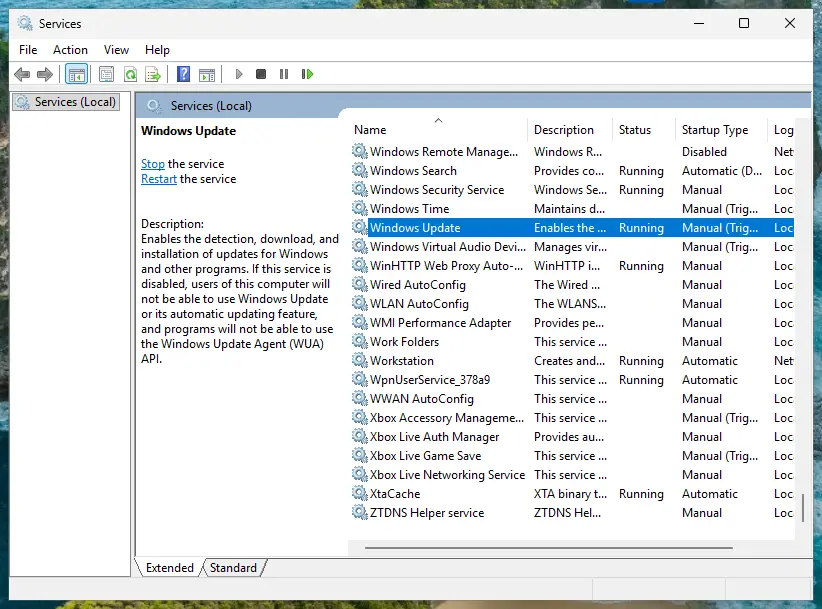
services.mscand open the Server service. Set Startup type to Automatic and select Start. - Back up the registry first: Back up the registry before editing it
- Press Win + R, type
regeditand go toHKEY_LOCAL_MACHINE\SYSTEM\CurrentControlSet\Services\LanmanServer\Parameters. - If AutoShareWks (Windows 10 and 11) or AutoShareServer (Windows Server) exists with value 0, set it to 1. If neither exists, leave the key as it is.
- Restart the PC and run
net shareagain.
A wrong registry edit can stop Windows from starting, so keep the backup from step 3. Microsoft also warns that admin shares that disappear again after a restart often mean malware removed them. Scan the PC before you rely on it: How to scan for malware with Microsoft Defender
Someone may also have turned the admin shares off on purpose, which some companies do for security. On a work PC, ask the administrator before you turn them back on.
It worked if: net share lists C$, ADMIN$ and IPC$, and the remote PC opens \\IP\c$ after asking for an administrator account of that PC.
If not: If you now get "Access is denied" instead, the share exists and the problem is the account. Use an administrator account of the target PC, written as PCNAME\username.
Fix 3. NAS on Windows 11 24H2 or later: user account, SMB signing and firmware
15 to 30 minutesLow riskThe share is on a NAS or a router disk, and it stopped opening on Windows 11 24H2, 25H2 or 26H2.
Windows 11 24H2 requires SMB signing and blocks guest sign-in by default. QNAP says Windows 11 then shows 0x80070035 or 0x80070043 for its NAS, and fixes it on the NAS side, so Windows keeps its protection.
- Open the NAS admin page in a browser and install any firmware or system update it offers.
- Create a user with a password, if the NAS only has a guest account, and give it access to the share.
- Turn off guest or anonymous access to the shared folders.
- Turn on SMB signing, or set it to required, in the SMB or Windows file service settings.
- On the PC, open
\\NAS\Shareand sign in with the NAS user name and password. Tick Remember my credentials.
- QNAP (QTS, QuTS hero)
- Control Panel > Network & File Services > Win/Mac/NFS/WebDAV > Microsoft Network (SMB) > Advanced Options. Set Restrict anonymous users from accessing SMB shared folders to Enabled (strict) and Server signing to Enforce signing.
- Business storage after a Windows update
- Users on Microsoft Tech Community report 0x80070043 on Dell EMC Unity and FluidFS storage after Windows 10 1903, solved by the storage vendor's update. Update the storage firmware before you change Windows.
- Windows 11 Home
- Microsoft Learn says Home does not require signing and still allows guest sign-in, so a Home PC may open a NAS that a Pro PC refuses.
Check Event Viewer under Applications and Services Logs > Microsoft > Windows > SMBClient > Security. Event 31017 means Windows refused a guest sign-in, which confirms this cause. If the NAS can do neither accounts nor signing, our 0x80070035 guide explains the last-resort workaround on the PC and its risks.
It worked if: Windows asks once for the NAS user name, then the share opens and stays mapped after a restart.
If not: If the NAS name opens but this one share does not, go back to Fix 1 and compare the share name on the NAS.
Fix 4. Remove stale connections and saved passwords, then reconnect
5 minutesLow riskIt worked before, a password changed, or Windows signs in as the wrong user.
Windows reuses one connection per server and the saved password for it. An old session or a stale password can make a share look missing, and starting clean takes a minute.
- Close all File Explorer windows.
- Open Command Prompt and run
net useto list your network connections. - Run
net use * /delete /y. Mapped drives disappear until you map them again. - Open Control Panel > User Accounts > Credential Manager > Windows Credentials and remove every entry with the server's name or IP address.
- Map the share again with the command below and type the password when asked.
Map the share with a named account (Command Prompt)
net use Z: \\SERVER\Share /user:SERVER\username /persistent:yesIt worked if: The command ends with "The command completed successfully" and drive Z: opens.
If not: "System error 67 has occurred" again means the share name is still wrong: go back to Fix 1.
Fix 5. Setup or installer fails: run it from a local folder
5 minutesNo riskOffice, a winget install or a setup.exe stops with 0x80070043, often right after the UAC prompt.
Drive letters for network shares belong to one sign-in session. Microsoft documents that when UAC asks for credentials, the elevated program runs in a new session where those mapped drives do not exist, so the setup cannot find its own path.
- Copy the whole installer folder from the network drive to a local folder, for example
C:\Install. - Run the setup from that local folder.
- If you must run it from the network, use the full path such as
\\server\share\setup.exeinstead of a drive letter likeZ:\setup.exe. - For Microsoft 365, download the installer again from your Microsoft account page and run it from the Downloads folder.
With winget, users on the winget GitHub project report this exact message when a standard user installs an .exe package that needs administrator rights, and another account approves the UAC prompt. The issue was closed as a duplicate of a known admin-install problem. Run the install while signed in to the administrator account, or download the installer and run it directly.
On a managed PC where UAC is set to Prompt for credentials, Microsoft's own workarounds are to set the prompt to Prompt for consent or to map the drives again inside the elevated session. Both are an administrator's decision.
It worked if: The setup runs to the end without asking for the network path.
If not: If a local copy also fails, the code comes from somewhere else in the setup. Repair the app with How to repair Microsoft 365 or Office for Office, or read the setup log in %temp%.
Fix 6. Group Policy: let Windows wait for the network at startup
10 minutesLow riskA domain PC fails to install software or redirect folders at startup, and the share works once you are signed in.
Microsoft explains that Windows normally signs you in before the network is ready. Software Installation and Folder Redirection then try to reach the share too early and need two sign-ins. The policy makes Windows wait.
- Press Win + R, type
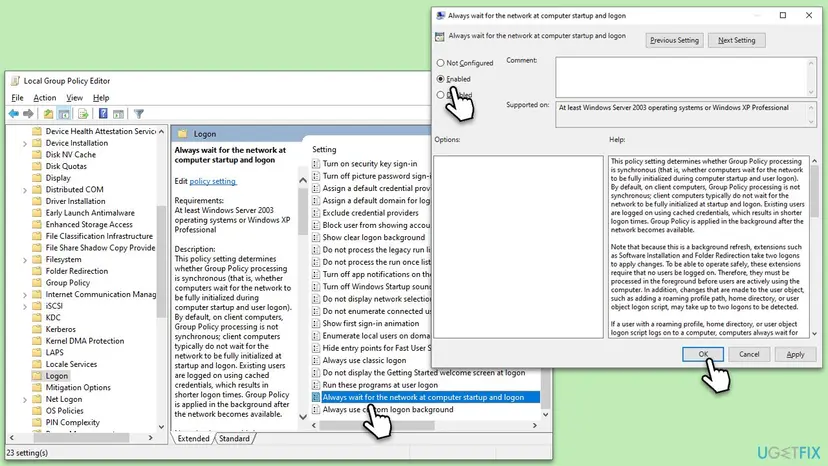
gpedit.mscand press Enter (Pro, Enterprise and Education). - Go to Computer Configuration > Administrative Templates > System > Logon.
- Open Always wait for the network at computer startup and logon.
- Select Enabled and OK, then restart the PC.
On a company PC this is set centrally, so ask the administrator. Sign-in can take a little longer with it on. More on the editor: Open the Local Group Policy Editor
It worked if: The startup software or redirected folders apply on the first sign-in, without error 67.
If not: If the share still fails after sign-in too, the cause is the share itself: go back to Fix 1.
Fix 7. Reset the network as a last step
10 minutesLow riskNothing on the network opens, or every fix above checked out and the error stays.
A reset removes and reinstalls the network adapters and clears cached names and addresses. It does not touch share names, so it helps only when the connection itself is broken.
- Open an elevated command window. Right-click Start and select Terminal (Admin), or type cmd in the search box, right-click Command Prompt and select Run as administrator. Select Yes when Windows asks for permission.
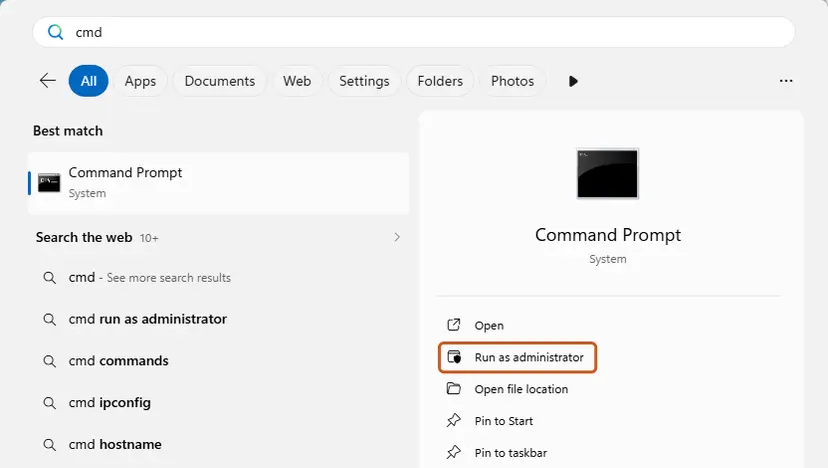
Search for cmd and choose Run as administrator. Screenshot: Windows 11 26H2. - Flush the DNS cache. Type the command below and press Enter. Windows forgets the website addresses it looked up earlier and asks for them again.
ipconfig /flushdns - Reset Winsock. Type the command below and press Enter. It returns the Windows sockets catalog to its default state.
netsh winsock reset
Both commands report success; the Winsock reset asks for a restart. Screenshot: Windows 11 26H2. - Reset TCP/IP. Type the command below and press Enter. If you entered an IP address or DNS server by hand, note it first: you may need to enter it again.
netsh int ip reset - Get a new IP address. Run these two commands one after the other. The connection drops for a moment between them.
ipconfig /release ipconfig /renew - Restart the PC. Restart Windows so the Winsock and TCP/IP resets take effect, then test the connection. If it still does not work, continue with the network reset below.
- Open Network reset. Open Settings > Network & internet > Advanced network settings and select Network reset.
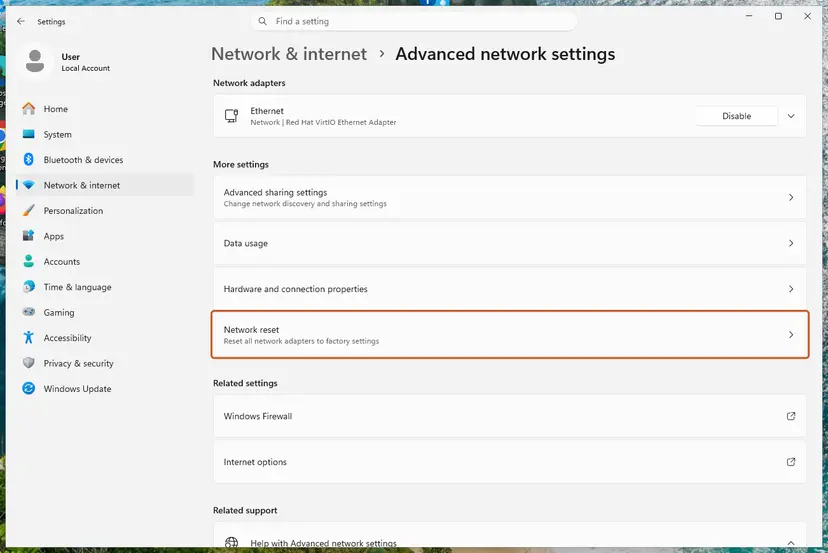
Network reset is under More settings in Advanced network settings. Screenshot: Windows 11 26H2. - Reset now. Select Reset now, then Yes to confirm. Windows removes and reinstalls all network adapters and restarts the PC.
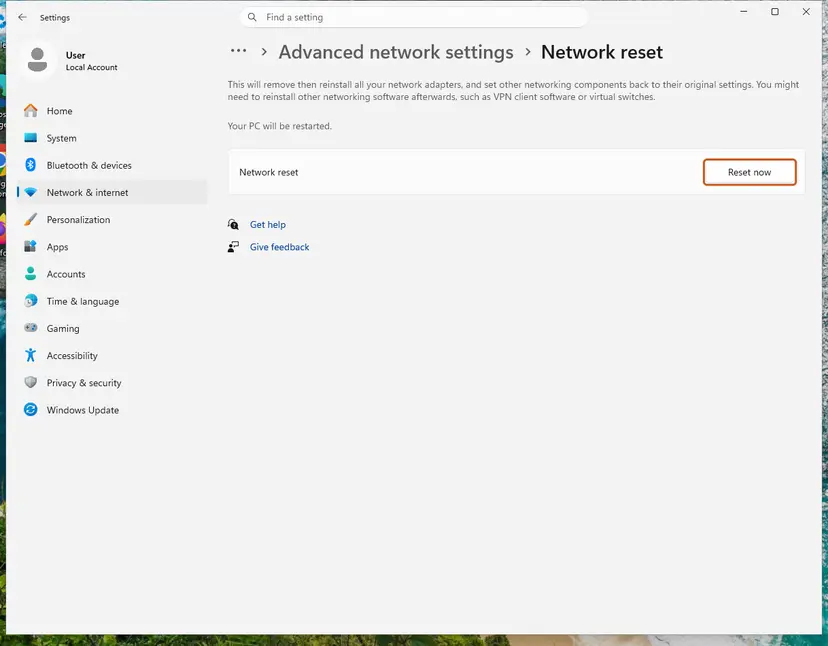
Network reset warns that VPN software or virtual switches may need to be reinstalled. Screenshot: Windows 11 26H2. - Reconnect. After the restart, connect to your Wi-Fi network again (you will need its password) and reinstall or reconfigure VPN software if it stopped working.
These steps were written for Windows 11 24H2 and later. The full page with the other versions and what each result means: Reset the network and flush DNS
Write down any VPN settings and Wi-Fi passwords first, because the reset removes them. A VPN that blocks local network access can also hide shares, so test once with the VPN disconnected.
It worked if: After the restart the PC reconnects and the share opens.
If not: Read the logs listed under "Still not working" below and send them to the device maker or your administrator.
If "The network name cannot be found" is still there
Collect these facts before you ask for help. They show whether the computer, the share or the sign-in failed.
- The output of
net view \\serverfrom your PC andnet sharefrom the other PC, if it is a Windows PC. - Your Windows version: press Win + R and type
winver. - Event Viewer, Applications and Services Logs > Microsoft > Windows > SMBClient > Security: event 31017 means a refused guest sign-in.
- For a NAS: the model, its firmware version and its SMB settings. For a work PC: the full path and the output of
net use. - When it is hardware: a NAS that does not answer
pingafter a restart, no link light on the port, or disk errors in the NAS log. No Windows setting fixes those.
How to stop 0x80070043 from coming back
- Map drives with the exact share name and Reconnect at sign-in.
- Keep a list of share names when you rename or move folders.
- Give every NAS user an account and keep SMB signing on.
- Run installers from a local folder.
- Update the NAS firmware when a Windows feature update arrives.
- Turn off admin shares on PCs that your tools manage remotely.
- Use guest access on a NAS that holds private files.
- Run setups from a mapped drive letter after a UAC prompt.
- Keep old passwords in Credential Manager after a change.
Frequently asked questions
What does error code 0x80070043 mean?
It is Windows system error 67, ERROR_BAD_NET_NAME, with the text "The network name cannot be found." Windows reached the other computer or NAS, but it does not know the share name you asked for, or it refused to offer it to you. The most common reason is a wrong, renamed or removed share name. Missing admin shares such as C$, a NAS that refuses Windows 11 24H2 and installers run from a mapped drive are the other causes. Fix 1 on this page lists the real share names in two minutes.
How do I fix 0x80070043 on Windows 11?
Start the same way as on Windows 10: type \\server alone and check the exact share name (Fix 1). What is different on Windows 11 24H2 and later is SMB security. Pro, Enterprise and Education require SMB signing and refuse guest sign-in, and QNAP reports that its NAS then shows 0x80070043 or 0x80070035. Give the NAS a user account and turn on signing (Fix 3). This applies to Windows 11 Home and Pro, 25H2 and 26H2 alike, though Home is more lenient.
What is the difference between 0x80070043 and 0x80070035?
0x80070035 is error 53, "The network path was not found". It means Windows did not get a working connection to the computer at all. 0x80070043 is error 67, "The network name cannot be found", and usually means the computer answered but the share name does not exist there. So with 0x80070043 you look at the share name first, and with 0x80070035 at the network and the sign-in. Both can appear for a NAS on Windows 11. Our 0x80070035 guide covers the second case in full.
Why does \\IP\c$ give error 0x80070043?
C$ is an admin share that Windows creates automatically through the Server service. If that service is stopped, if the AutoShareWks value in the registry is 0, or if a security tool or malware removed the share, Windows answers with error 67. Run net share on the target PC to check. Fix 2 shows how to bring the share back. Microsoft notes that admin shares that keep disappearing after a restart can be a sign of malware, so scan the PC as well.
Why does an installer show "The network name cannot be found"?
Mapped drive letters belong to your sign-in session. When a setup asks for administrator rights and you approve with different credentials, Windows starts it in another session where your mapped drives do not exist. The setup then cannot find the path it was started from. Microsoft documents this for mapped drives and elevated programs. Copy the installer to a local folder and run it from there (Fix 5). The same applies to Microsoft 365 setups and some winget installs.
Does the Diagnose button fix error 0x80070043?
Rarely. Diagnose starts the Windows network troubleshooter, which checks your adapter, address and internet connection. Error 0x80070043 usually appears while the network works and the other computer answers, so the troubleshooter often finds nothing. Run it once if no network resources open at all. Otherwise skip it and check the share name with Fix 1, which tells you more in less time.
Should I turn off the firewall to fix 0x80070043?
No. A firewall that blocks file sharing stops the connection to the computer, which gives 0x80070035 rather than 0x80070043. Turning the firewall off leaves the PC open on every network and does not fix a wrong share name. If you share folders between two Windows PCs, check that File and Printer Sharing is allowed for Private networks in Windows Security > Firewall & network protection > Allow an app through firewall, and keep the firewall on.
Does group policy cause "the network name cannot be found"?
It can on domain PCs. Windows normally signs you in before the network is fully ready and applies Group Policy in the background. Software Installation and Folder Redirection then try to reach a share too early. Microsoft says enabling Always wait for the network at computer startup and logon makes these apply in one sign-in. Fix 6 shows where the setting is. On a company PC, the administrator sets it for all computers.
Is this page about other languages of the error, such as fehlercode 0x80070043?
Yes. Fehlercode, hata kodu, código de error and lỗi all mean "error code", and the code is the same Windows error on every language version. The message text is translated, but 0x80070043 and system error 67 do not change, so every fix on this page applies. The menu names in the steps are the English ones; look for the same place in your language.
Sources
- Microsoft Learn: System Error Codes (0-499) (learn.microsoft.com)
- Microsoft Learn: Overview of problems that may occur when administrative shares are missing (learn.microsoft.com)
- Microsoft Learn: Mapped drives are not available from an elevated prompt when UAC is configured to Prompt for credentials (learn.microsoft.com)
Did this fix work?
One click, no account. It tells the next reader which guides are worth their time.
Questions and experiences: fix error 0x80070043 - The network name cannot be found in Windows
Still broken, or found a fix we did not cover? Ask here: members and our editors answer. Reading is open; writing needs a free account.
…