How to fix
Error 0x8007016A: The Cloud File provider is not running
on Windows
Resolve error 0x8007016A on Windows 10 or Windows 11 effortlessly with our expert-tested solutions. Get your Cloud File provider running again in minutes!

What causes How to fix error 0x8007016A: The Cloud File provider is not running in Windows?
- File corruption
- Bugged OneDrive folder
- Disabled syncing
- Faulty update
- Other unknown issues
Repairs Windows system files, removes malware, and restores a clean OS state — without reinstalling.
Hello, I have a major problem with OneDrive, as I can no longer copy or move any files within folders on my computer. Whenever I attempt to access my files, I receive the error message 0x8006017A as well as a notification that "The Cloud File provider is not running." Please help me with this.
OneDrive is a cloud storage service provided by Microsoft. It allows users to store and share files, as well as collaborate on documents in real time. OneDrive also provides integration with other Microsoft services, such as Office 365 and Windows.
It can be accessed via a web browser or through the OneDrive app on various platforms, including Windows, iOS, and Android. With OneDrive, users can access their files from anywhere and easily share them with others. Despite being extremely useful in many situations, users may run into issues while using it.
Many Windows users have been experiencing error 0x8007016A while attempting to delete or relocate folders and files stored within their OneDrive folder. In other cases, users may experience the error whenever they try to set up One Drive on their Windows systems as well.
Along with the error code, users can see the "Cloud Provider is not running" message, which reads as follows:
An unexpected error is keeping you from moving the file. If you continue to receive this error, you can use the error code to search for help with this problem.
Error 0x8007016A: The cloud file provider is not running.
This does not bring up any insights into the problem and prompts users tool online for ways to fix the 0x8007016A error once and for all. Luckily, we provide several solutions for it below.
There could be numerous reasons for the "The cloud file provider is not running" error to show up, including file corruption, bugged OneDrive folder, disabled syncing, a faulty update, and more. Before proceeding with the fixes below, please check your system with a powerful PC repair tool [d1] if you would like to solve Windows errors quickly and easily.
Method 1. Remove cached files
If you are trying to access OneDrive via your browser, clearing browser caches might help to resolve the 0x8007016A error.
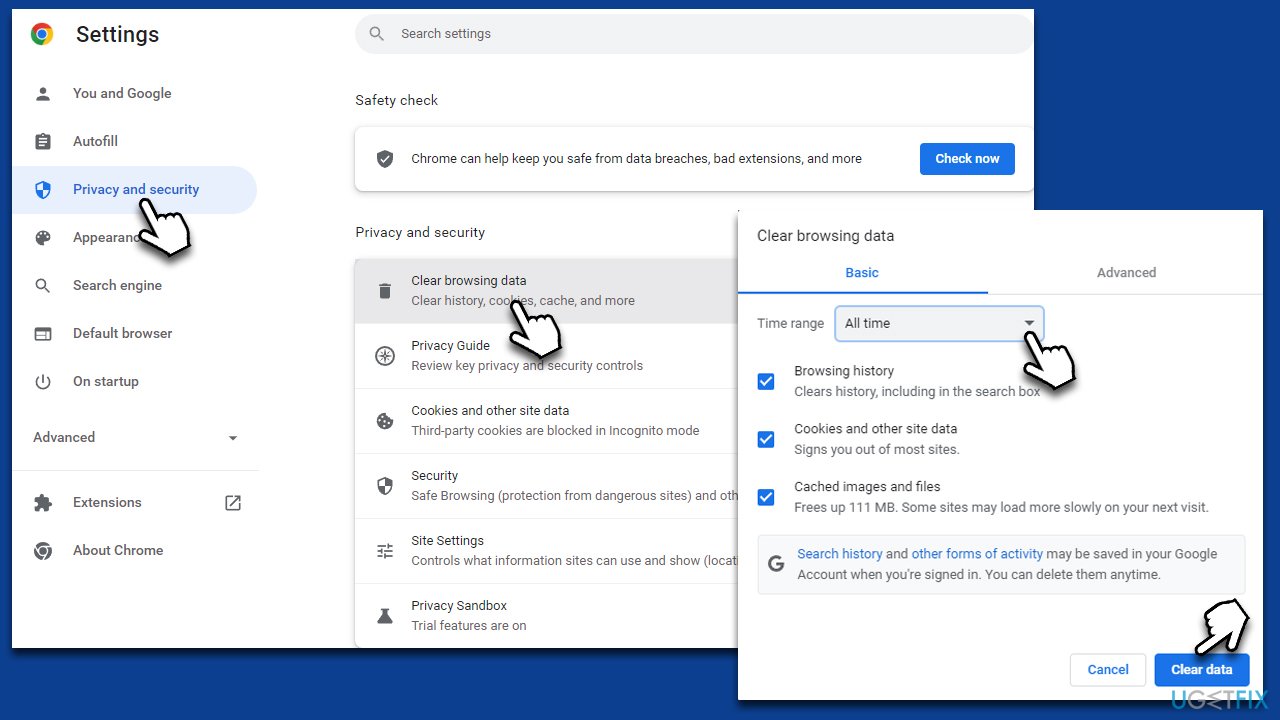
Google Chrome
- Click on Menu and pick Settings.
- Under Privacy and security, select Clear browsing data.
- Select Browsing history, Cookies and other site data, as well as Cached images and files.
- Click Clear data.
Mozilla Firefox
- Click Menu and pick Options.
- Go to Privacy & Security section.
- Scroll down to locate Cookies and Site Data.
- Click on Clear Data...
- Select Cookies and Site Data, as well as Cached Web Content, and press Clear.
MS Edge (Chromium)
- Click on Menu and go to Settings.
- Select Privacy and services.
- Under Clear browsing data, pick Choose what to clear.
- Under Time range, pick All time.
- Select Clear now.
Method 2. Enable or disable Files-on-Demand
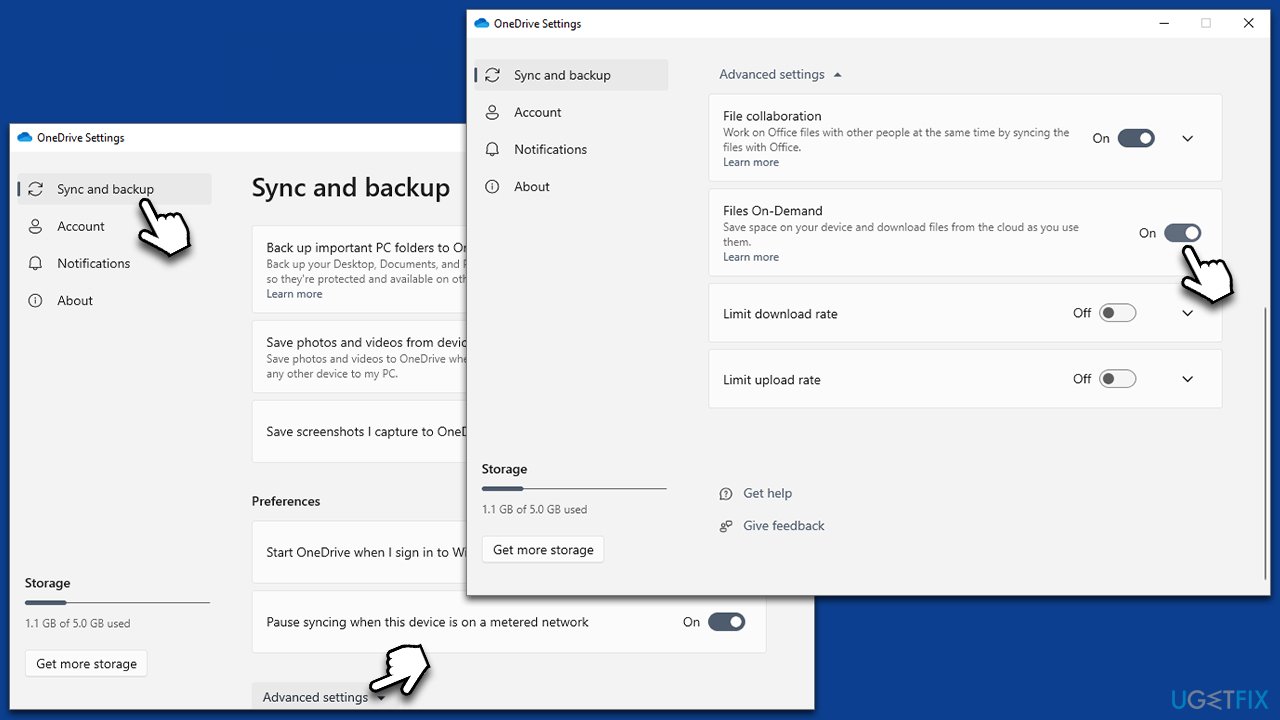
You can turn the Files-on-Demand feature on and see if that helps. For some users, switching it off helped - so try them both.
- Click on the OneDrive icon in the system tray or taskbar and click Help and Settings > Settings
- In the Sync and backup section, select Advanced Settings
- Here, find the Files On-Demand section
- Toggle the switch to the right/On position.
Note: check out our dedicated article if you can't see the OneDrive button anywhere.
Method 3. Reset OneDrive
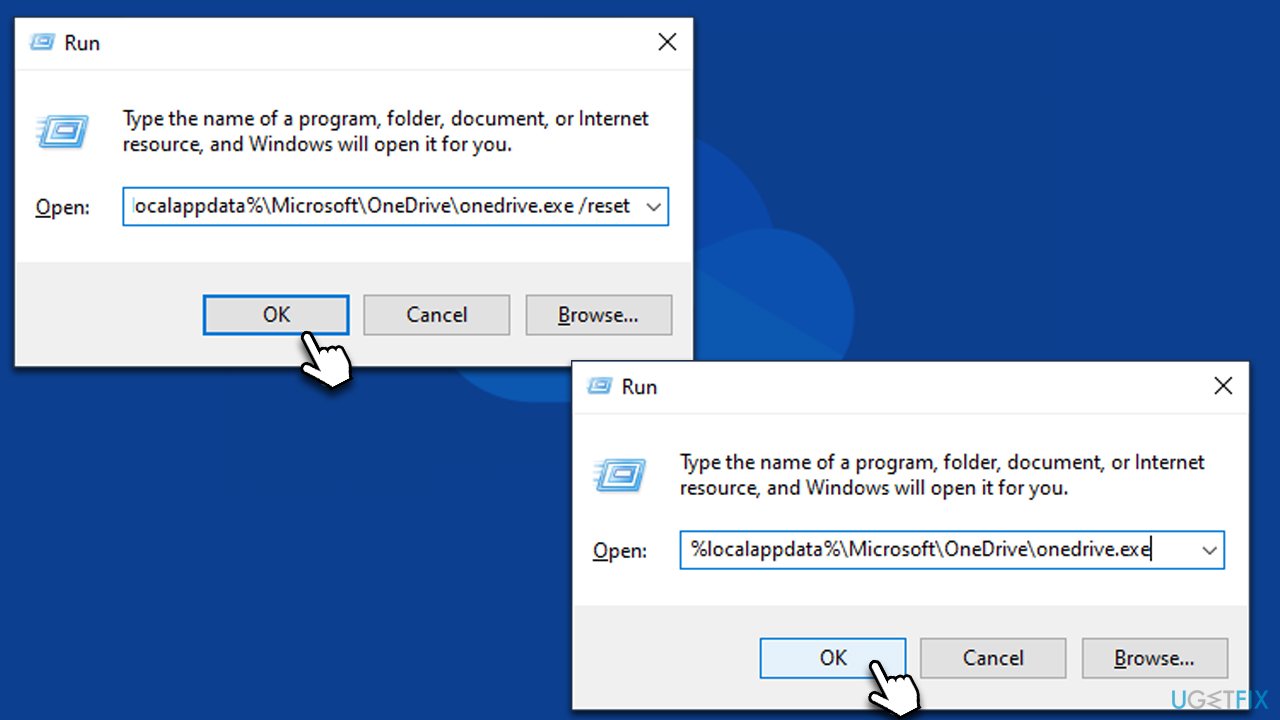
- Press Win + R on your keyboard to open the Run dialog
- Copy and paste the following command line:
%localappdata%\Microsoft\OneDrive\onedrive.exe /reset - Click OK or press Enter
- Wait a few minutes
- Open the Run dialog again and paste in the following line:
%localappdata%\Microsoft\OneDrive\onedrive.exe - Press Enter or click OK.
Method 4. Install all available Windows updates
Some buggy updates might ruin OneDrive, resulting in errors or other issues. Microsoft always addresses widespread issues with a bug fix patch, so make sure all the latest updates are installed:
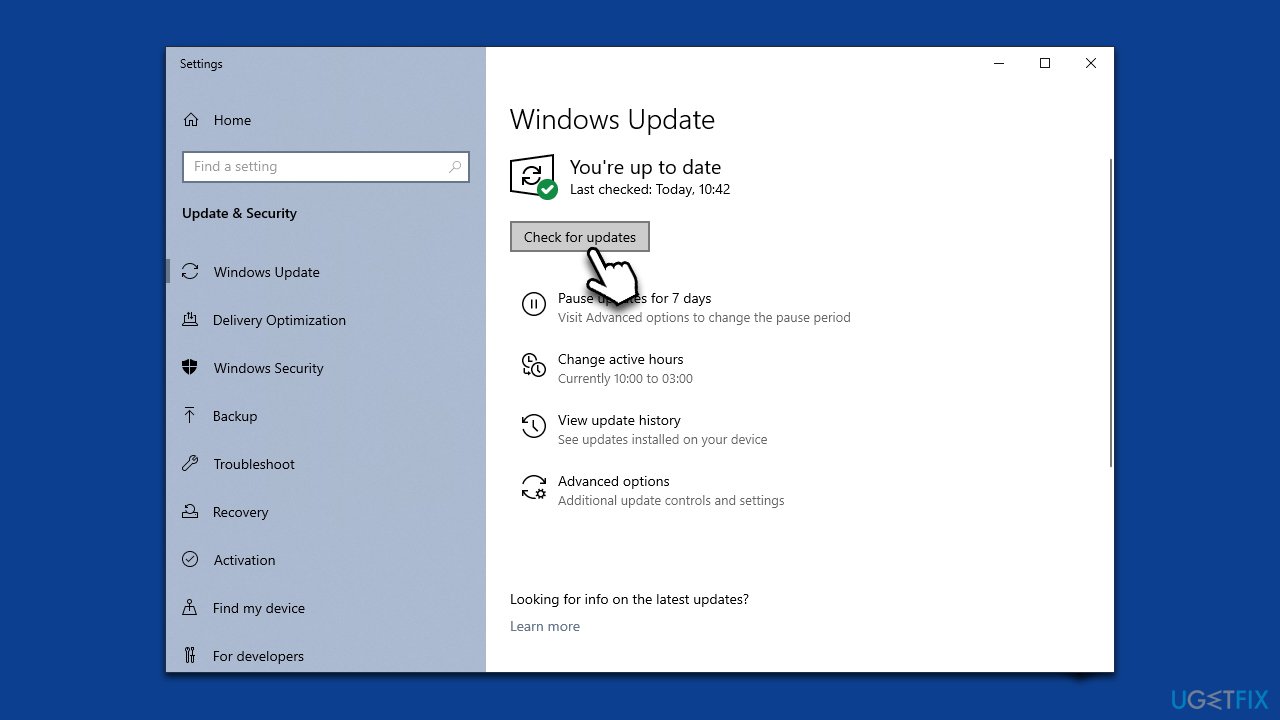
- Type Updates in Windows search and press Enter
- On the right side of the window, press Check for updates
- If optional updates are available, install them too
- Once Windows is done installing the needed files, restart your PC.
Method 5. Unpause syncing
In some cases, your sync might be paused, and you won't be able to move or copy files to/from OneDrive in such a case. Follow these simple steps to unpause it:
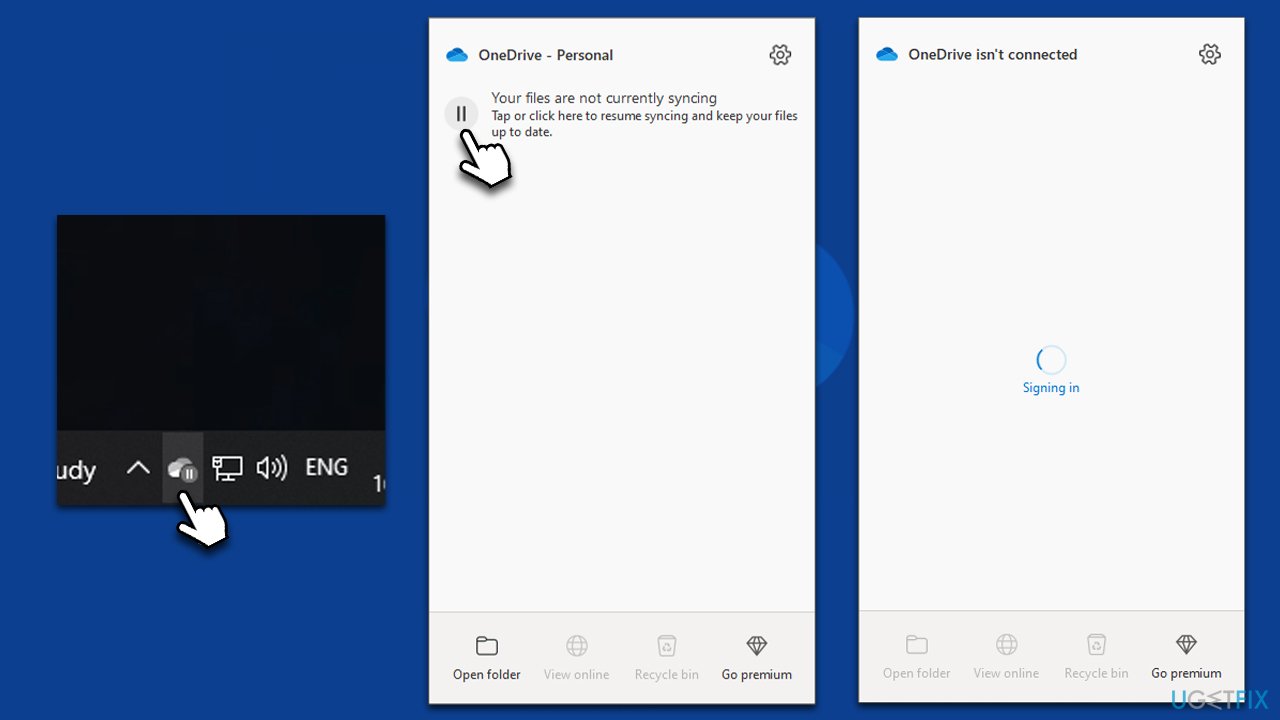
- Click on the OneDrive icon in the system tray or taskbar
- Simply click the Your files are not currently syncing button
- The syncing should resume automatically.
Method 6. Change the Power Plan settings
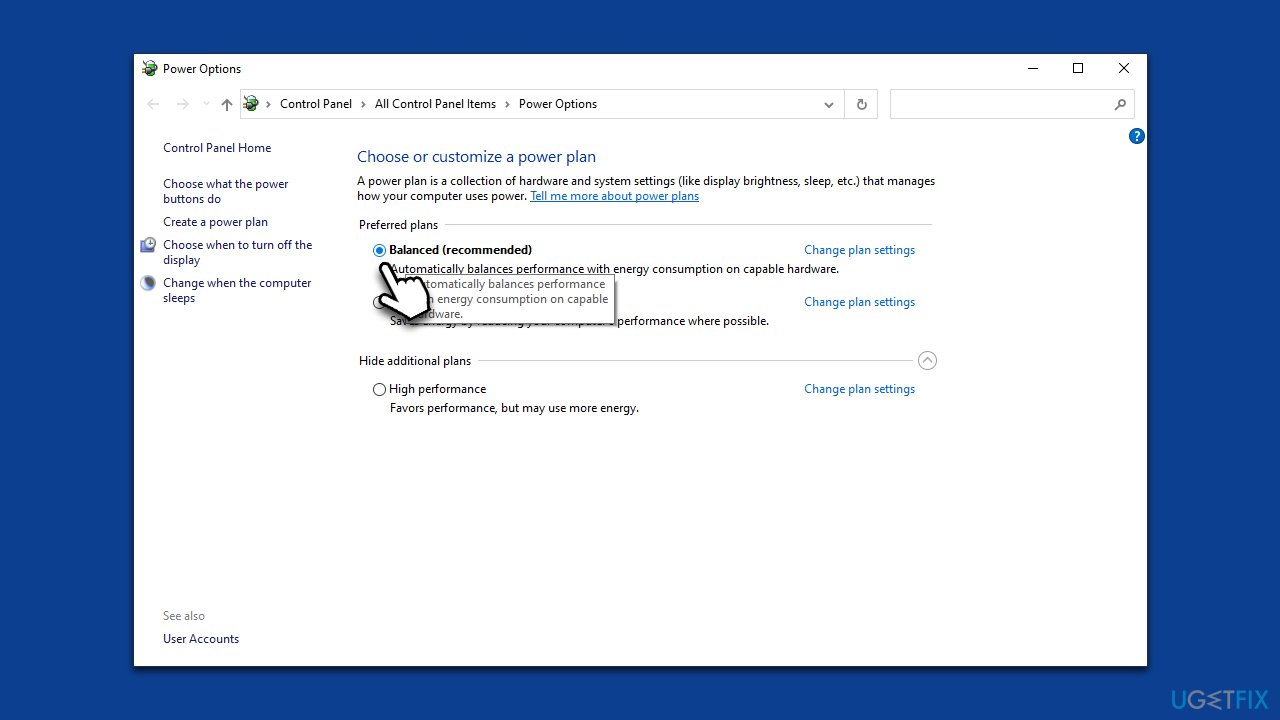
An incorrect Power Plan may restrict OneDrive from working correctly and resulting in errors. Make sure it is set to the Balanced option instead:
- Press Win + R button
- Type in powercfg.cpl and press Enter or click OK
- If your Power Plan is set to Power Saver, switch to Balanced
- Restart your device once done.
Bottom line
To fix the error 0x8007016A, users can check for file corruption, ensure syncing is enabled, and look for any faulty updates. If these solutions do not resolve the issue, consider using a powerful PC repair tool or searching online for additional help.
Frequently asked questions
Error 0x8007016A indicates that the Cloud File provider is not running, which can prevent access to cloud files stored on OneDrive or other services.
To restart the Cloud File provider, open the Task Manager, find 'Microsoft OneDrive' under the Processes tab, right-click it, and select 'Restart'.
Yes, ensure that OneDrive is running and properly configured in your Windows 10 or Windows 11 settings under 'Accounts' > 'Sync your settings'.




Report an issue
What's wrong with this guide? We review every report and update or remove content.
Report received — thank you. We'll review and fix it.
You need a free account to submit a report.
Be the first to comment