How to fix
Error code 0x80004005
on Windows
Resolve the frustrating 0x80004005 error on Windows 10 or 11 effortlessly. Our expert-tested guide provides quick fixes and solutions, updated 2025.

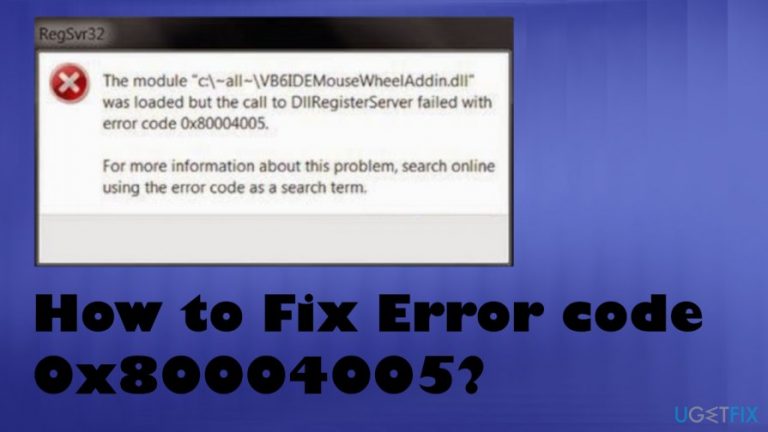
What causes How to Fix Error code 0x80004005?
- Inaccessible files in Shared Folders
- Inaccessible Drives
- Virtual machine issues
- Failed Windows OS updates
- Corrupt .dll/registry
- Missing .dll file or important system files
Repairs Windows system files, removes malware, and restores a clean OS state — without reinstalling.
Hi, I have encountered an error when I was installing Adobe Photoshop CS3. The message said error code 0x80004005 and despite my attempts to repeat the installation procedure, it still appeared on my Windows XP computer. I have no idea why there is an error since I tried to download the software from the official website and it should not be compromised. Could you please help me fix Error code 0x80004005?
Error code 0x80004005 is the unspecified error that mainly is triggered by inaccessible files in Shared Folders, Drives, Virtual machines, and when Windows OS updates fail to install. Troubleshooting the issue is important because this is the general error group and there might be particular problems that require fixing.
Before finding ways to fix Error code 0x80004005 on Windows computers, we need to find an explanation about the potential causes of this message and ways how to get rid of it. Note that there are multiple reasons why it might appear on your PC, so if you ignore the error it will continue to reappear and deteriorate your computer's performance in the long-run.
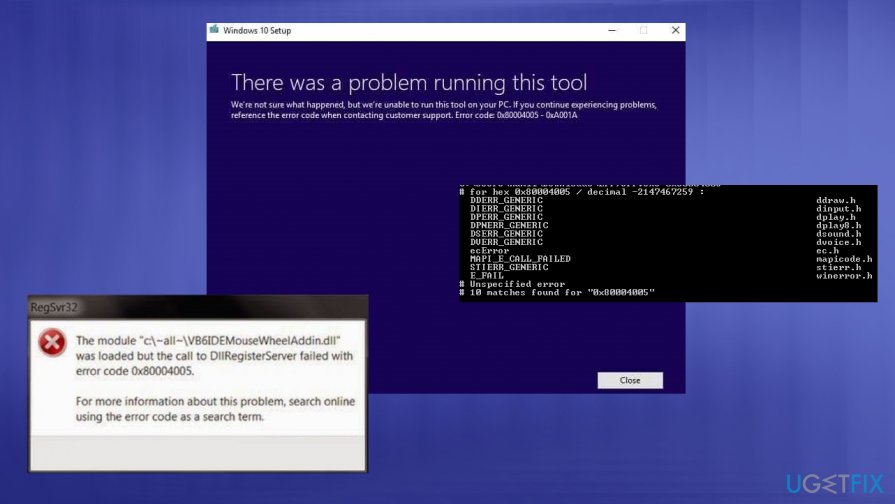
A particular version of this error code - 0x80004005 – 0xa001a for example, is related to the Media Creation Tool that allows users to create fresh installs of Windows OS. However, this issue can be fixed easier since it is clear what causes the occurrence of the error message. For a more general 0x80004005 message - more troubleshooting required.
The 0x80004005 Windows error often comes with a message stating that the error is not specified. This fact makes finding the particular solution difficult and users more frustrated when they encounter the error on their screens. The additional text with the error code can help to narrow down the cause of a problem, so pay attention o such details.
In most of the cases, 0x80004005 error shows up upon running the installer of any new software, in the case of our user - the Adobe Photoshop CS3. There are several reasons that might cause this error, including corrupt .dll/registry, missing .dll file,[ref en-1] or broken/missing important system files.
If you wonder how to fix Error Code 0x80004005, you should better first think of how to prevent it from occurring. The main reason why some files may be corrupted on your machine, why some of them may be missing, why some of them might not be working properly is related to inappropriate PC maintenance.
To keep a computer working properly, it's recommended to use not only a reputable anti-spyware but also a decent PC optimization tool, such as [d1]. This way, you will keep your PC free of unnecessary, outdated, and corrupted files/registries and prevent Error code 0x80004005 from appearing.
Thus, this 0x80004005 error code indicates that the system is incorrectly configured or a critical file is missing, which prevents the entire system from working properly. Some users have also reported that they have encountered this error when sending or receiving email messages.
Keep in mind that 0x80004005 error can appear on Windows 10 or Windows 7 as well. The error message has been displayed in such forms:
Sending and receiving reported error “0x80004005″: The operation failed.
This message could not be sent. Try sending the message again or contact your network administrator. The client operation failed. Error is [OX80004005- 0X0004B9-OXOO501].
Also, according to the analysis, experts say that you can encounter this problem if the file which is required by Windows Product Activation (WPA)[ref en-2] is missing or compromised. So, we will provide two methods showing how to fix Error code 0x80004005 on Windows XP[ref en-3] since it might be hard to determine the cause of this problem.
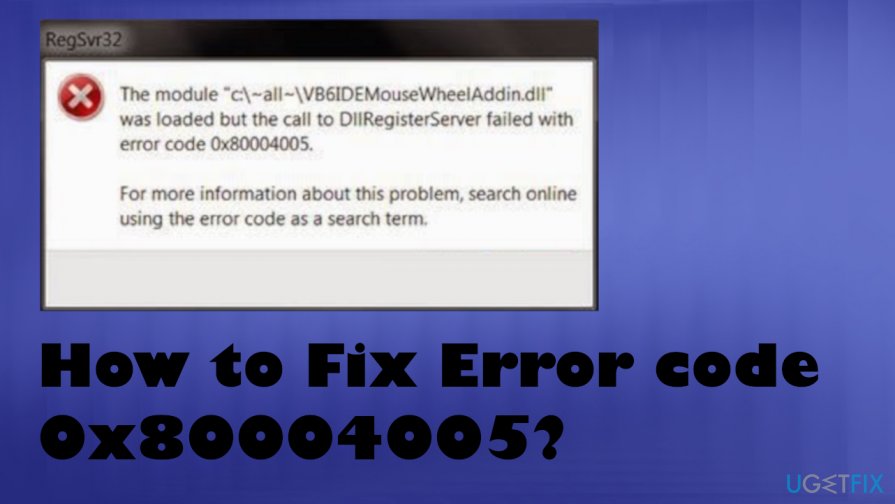
Ways to fix Error code 0x80004005 on Windows
We always recommend relying on professional software to get rid of system errors, including Error code 0x80004005. For that, our experts suggest scanning your machine with [d1] or another reputable system optimization tool, which will automatically detect and fix errors for you.
Since the main 0x80004005 error causes can differ, you might want to troubleshoot and find which one is the particular trigger in your case:
- problems with Windows Update;
- moving or renaming of files/folders;
- Windows notification issue;
- problems with extracting to compressing files/folders.
However, if you are an experienced computer user and would like to fix the 0x80004005 error by yourself, below you will find ways how to do it manually. Although be aware that one method requires modifying the registry and in case it is done improperly, you might face serious computer damage.
Delete temporary files to fix the 0x80004005 error
- Type %temp% to Windows search bar.
- Find temp folder and delete everything inside.
Restore your computer to fix Error code 0x80004005
- Switch to the Administrator mode (for that you might need a password).
- Open 'Start menu'.
- Then go to All Programs and Accessories.
- Locate System Tools and choose System Restore.
- Here you should find and select "Restore my computer to an earlier time" option and click 'Next'.
- Select the most recent system restore point from the "On this list, click a restore point" list and click Next.
- When the confirmation window shows up, click Next.
- Wait until the restoration is finished and the restart your computer.
Edit registry keys to fix 0x80004005 error
- Open Run box by clicking R and Windows key.
- Type regedit.
- Click OK.
- Find the following:
HKEY_LOCAL_MACHINE\\SOFTWARE\\Microsoft\\Windows NT\\CurrentVersion\\AppCompatFlags\\Layers
"C:\\Program Files\\Oracle\\VirtualBox\\VirtualBox.exe"="DISABLEUSERCALLBACKEXCEPTION"
- Delete those keys and try disabling your AV.
Use Windows XP CD to repair the installation of Windows XP
- Insert Windows XP CD and restart your computer;
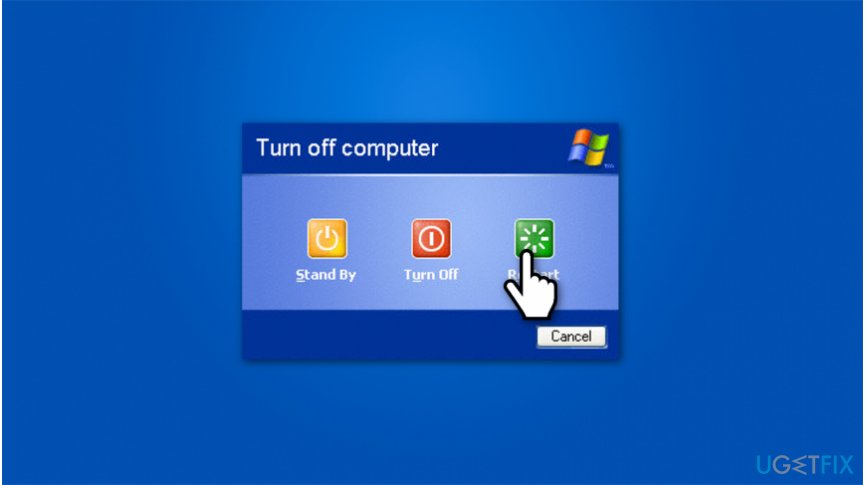
Restart windows xp - Once you see "Press any key to start from CD" message, press any key.
- After Windows XP Professional Setup window is opened, push R key to open Recovery Console;
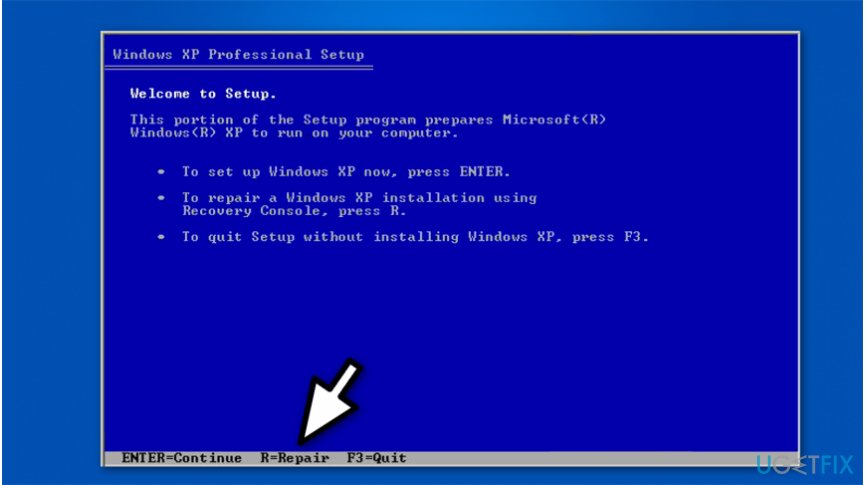
Repair computer in windows setup - You should memorize the path to Windows, like C:\\WINDOWS (your path might be different) and press 1 key.
- Enter Administrator password and if you do not have one, merely click enter;
- Submit "cd YOURPATH\\System32", like "cd C:\\WINDOWS\\System32" and press enter;
- Then, you must rename the files given below by entering the following
commands and pressing enter after each one:- REN Wpa.dbl Wpa.old
- REN Pidgen.dll Pidgen.old
- REN Actshell.htm Actshell.old
- REN Licdll.dll Licdll.old
- REN Regwizc.dll Regwizc.old
- REN Licwmi.dll Licwmi.old
- REN Wpabaln.exe Wpabaln.old
- Enter the drive letter of the CD with colon, like "D:" and click enter button;
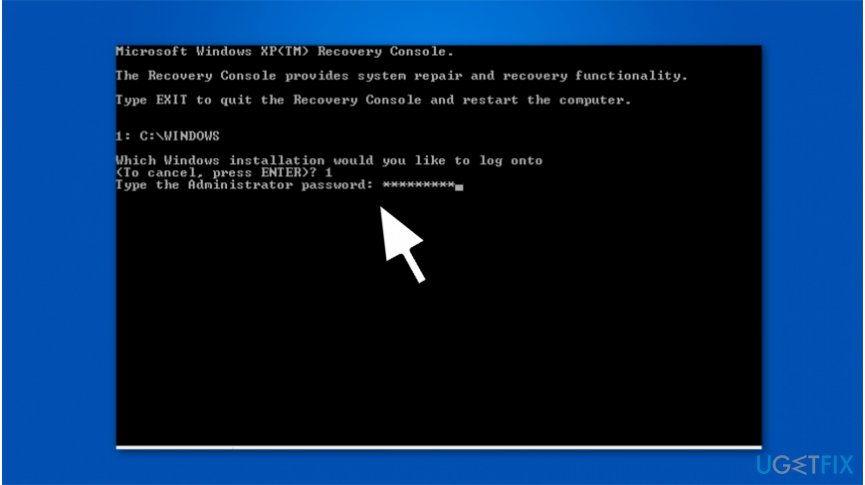
Enter administrators password in windows recovery console - Afterward, submit "cd i386" and press enter as well;
- Similar to step 7, you must submit the following commands with your windows path (the given commands contain C:\\WINDOWS path) and press enter after each one:
- Expand wpa.db_ C:\\WINDOWS\\System32
- Expand actshell.ht_ C:\\WINDOWS\\System32
- Expand licdll.dl_ C:\\WINDOWS\\System32
- Expand regwizc.dl_ C:\\WINDOWS\\System32
- Expand licwmi.dl_ C:\\WINDOWS\\System32
- Expand wpabaln.ex_ C:\\WINDOWS\\System32
- Copy pidgen.dll C:\\WINDOWS\\System3233
- Submit "exit" and click enter to restart your PC.
Bottom line
To fix Error code 0x80004005, you can check for inaccessible files, ensure your Windows OS is updated, and repair any corrupt or missing system files. If these solutions do not resolve the issue, consider seeking further assistance or exploring more specific troubleshooting steps.
Frequently asked questions
Error code 0x80004005 typically signifies an unspecified error that can occur during file operations, updates, or virtualization tasks on Windows 10 or Windows 11.
To fix this error while installing updates on Windows 10, try running the Windows Update Troubleshooter and ensure that your system is free from any corrupt files using the System File Checker tool.
Yes, third-party software, particularly security programs, can interfere with system processes and trigger error code 0x80004005 on Windows 11; disabling or uninstalling such software may help resolve the issue.




Report an issue
What's wrong with this guide? We review every report and update or remove content.
Report received — thank you. We'll review and fix it.
You need a free account to submit a report.
Be the first to comment