Need help! Xbox live on Windows10 stopped working. Error code 0x80070520. A few days ago I reinstalled Windows from scratch due to multiple problems on the system. Each time I try to log in using Microsoft Store or Xbox App, I get an error, which explains nothing. How can I fix it?
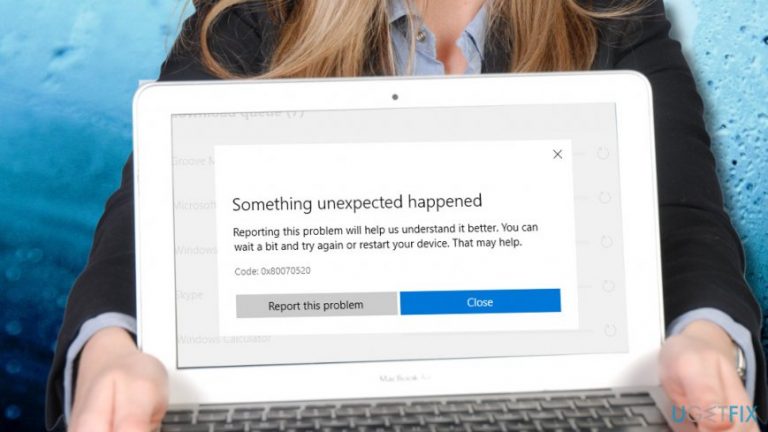
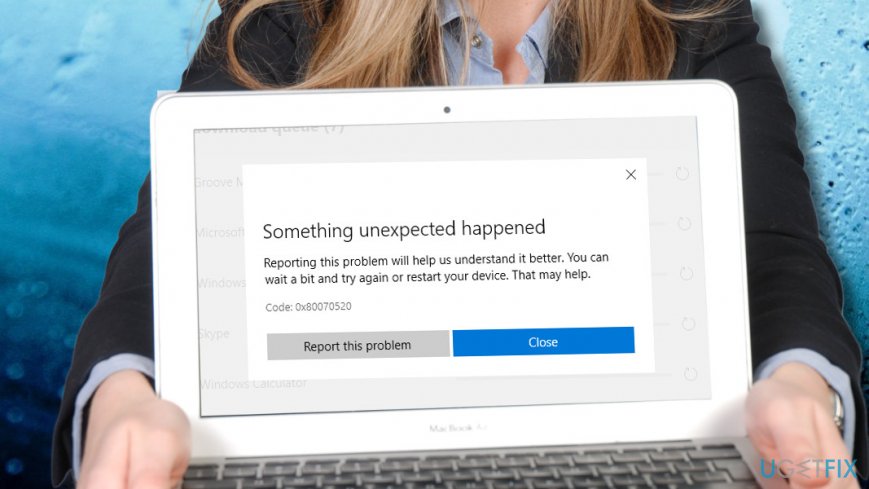
Windows 10 users receive Error Code 0x80070520 when trying to sign in to Windows Store[ref en-1] or run some of the Windows Store apps, including Xbox, Microsoft Solitaire Collection and Microsoft Ultimate Word Games, and others.
Based on the users' reports, the problem typically starts right or soon after installation of Windows 10 patches,[ref en-2] cumulative update or fresh install. As explained by experts, the issue may be triggered by corrupted Windows update components, which might have a negative effect on the update process, Windows apps, and Windows Store service.
The same error was registered soon after Windows 10 release back in 2015. At this time, the core problem of the bug turned to be corrupted Windows Update components, which is why people received:
There were some problems installing updates, but we'll try again later
In fact, Windows Update[ref en-3] and Windows Store services are closely related, and, therefore, if one fails to work, the other may either start malfunctioning or stop working in tandem. In case this error prevents you from installing updates, one of the possible ways to fix 0x80070520 error easily is to reset Windows Update components. You can find the tutorial on how to do that in this post.
0x80070520 error
Unfortunately, the current version of the 0x80070520 error is usually related to Xbox login or Windows Store apps that cannot be updated. Microsoft hasn't yet acknowledged this problem either because it's prevalence is not that high or because the culprit is not clear, however.
Anyway, UgetFix team has distinguished several methods that can help you to fix 0x80070520 error. Make sure to perform them one-by-one starting from the least difficult.
Here is a video for your convenience: [youtube 0KnouKH69x0]
Run Windows App Troubleshooter
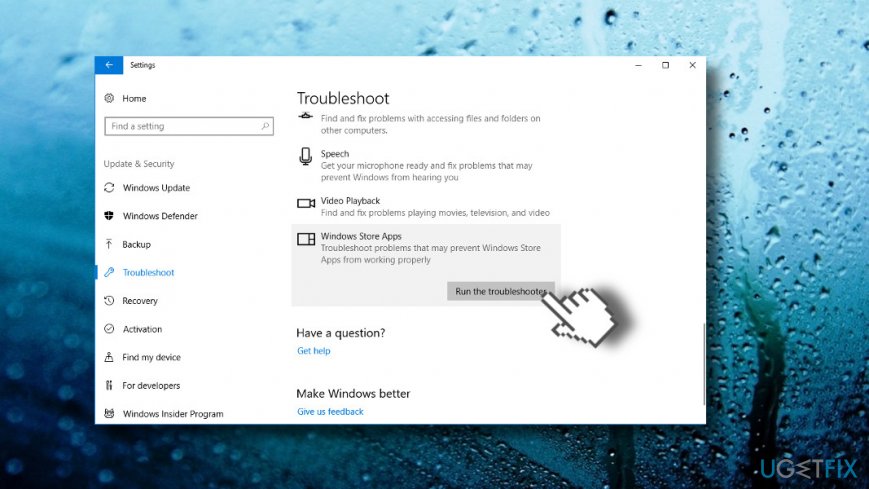
Press Windows key + I to open Windows Settings.
Open Update & Security section and select Troubleshoot.
Scroll down until you find Windows Store Apps entry.
Click on it and select Run Troubleshooter.
Wait for the scan to be completed. If any integrity violations regarding apps will be detected the system will notify you. Otherwise, it will report that no issues were found.
Run windows app troubleshooter
Clean Windows Store cache
Press Windows key or open Windows Start.
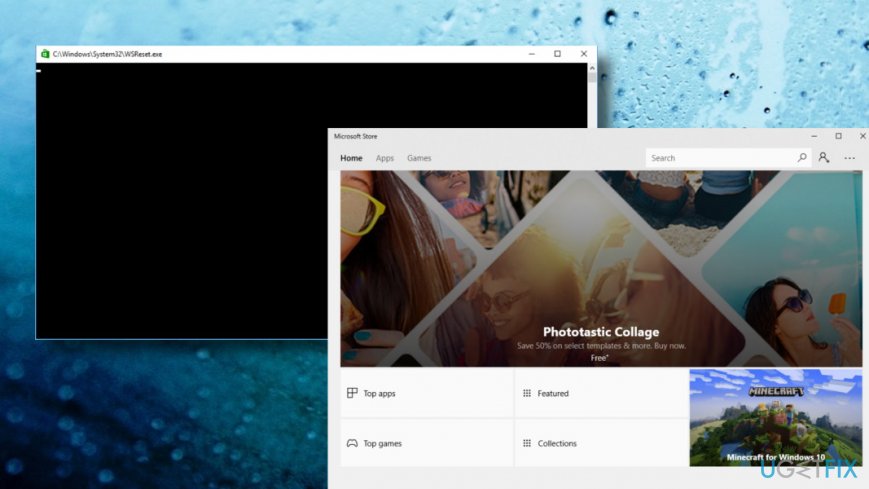
Type wsreset.
Right-click on the wsreset.exe entry and select Run as Administrator.
Store cache should not be cleaned. Do not click anything as long as you see a black Command Prompt window on the screen. Once the cache is cleaned, Windows Store will automatically open.
Reboot the PC.
Clean cache
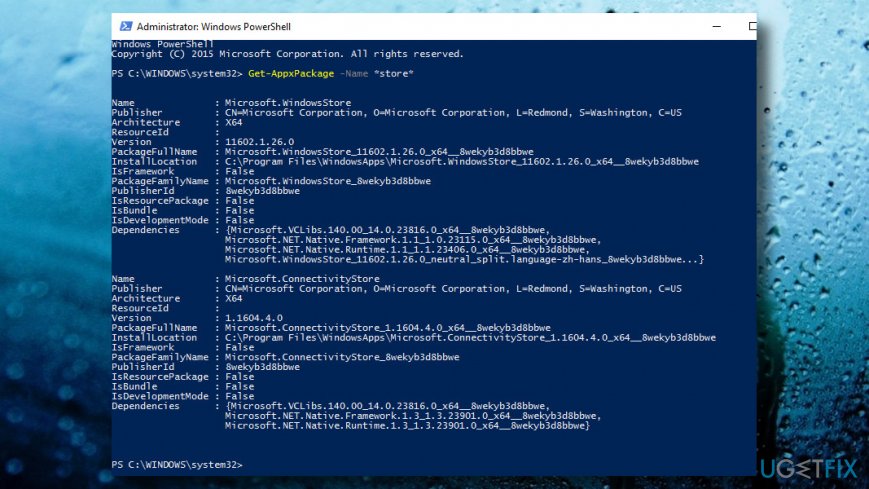
Use an elevated Command Prompt to re-register apps
Press Windows key and type PowerShell.
Right-click on PowerShell entry and select Run as Administrator.
Now copy and paste the below-given command into the PowerShell window.
Finally, restart your PC and check if the problem has been resolved.
Reinstall windows store app
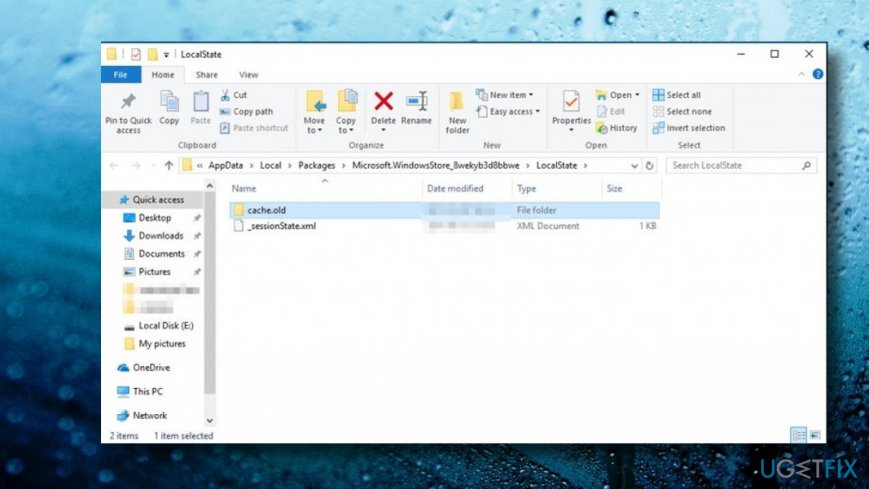
Rename the Windows Store Cache folder
According to some people, they managed to fix 0x80070520 error by renaming the Windows Store Cache folder. That's a very likely fix since this bug may be related to damaged Windows store cache. Usually, the error Windows Store Cache may be damaged error is reported to Windows 10 users when they run a scan with Windows Troubleshooter. Even if you ran Windows App Troubleshooter, but it detected no issues, try the following fix anyway:
Press Windows key + R and type C:\\Users\\\\AppData\\Local\\Packages\\Microsoft.WindowsStore_8wekyb3d8bbwe\\LocalState in the run dialog.
Press Enter to open the location.
Rename cache folder
Note: replace the C: with the letter of your root drive and with your user account name.
Check if Cache folder is placed in LocalState folder.
If it's there, right-click, select Rename, and type in Cache.old.
Now right-click on an empty space and select New -> Folder.
Name it Cache and close the window.
Restart the system.
Finally, run Windows Apps Troubleshooter (preferably downloaded from Microsoft) and check if the problem was resolved.
Reset your PC
In case you cannot log in to Xbox, update apps or Windows system because of 0x80070520 error, try to use Reset this PC function.
IMPORTANT: resetting does not affect your files unless you select otherwise.
Press Windows key + I and open Update & Security section.
Click Recovery in the left pane.
Press Get started button under Reset this PC option.
Finally, click Keep my files if you want your files, settings, and apps intact or Remove everything if you opt for a complete system's clearance.
Bottom line
To fix error code 0x80070520, you can try resetting Windows Update components, running the Windows App Troubleshooter, and checking for updates. If these methods do not resolve the issue, consider seeking further assistance or exploring additional troubleshooting steps.
Frequently asked questions
Error code 0x80070520 typically indicates that there is a permissions issue or a problem with the user account settings on your Windows 10 system.
To resolve this error, try running the Windows Update troubleshooter, or check your user account settings and permissions to ensure they are properly configured.
Yes, resetting the Windows Update components can often fix error code 0x80070520 by clearing any corrupted files or settings that may be causing the issue.
Driver troubleshootingHardware conflictsDevice Manager errorsUSB and peripheral issuesAudio and video problems
Lucia Danes is a tech support specialist focused on driver conflicts, hardware recognition failures, and device-level troubleshooting on Windows. Her guides walk users through the full diagnostic process — from reading Device Manager error codes and identifying problematic drivers to performing clean driver installations and resolving hardware compatibility issues. Lucia covers a wide range of devices including printers, audio hardware, graphics cards, USB peripherals, and external storage. Her writing is valued for its step-by-step precision and the real-world testing behind every recommended fix.





Report an issue
What's wrong with this guide? We review every report and update or remove content.
Report received — thank you. We'll review and fix it.
You need a free account to submit a report.
Be the first to comment