How to fix
Error Code 0x800F081F while installing Microsoft .NET Framework 3.5
on Windows
Troubleshoot and resolve Error Code 0x800F081F when installing Microsoft .NET Framework 3.5 on Windows 10/11 quickly and efficiently. Expert-tested.

What causes How to fix Error Code 0x800F081F while installing Microsoft .NET Framework 3.5 on Windows?
- Windows 8 and 8.1 do not have Microsoft .NET Framework 3.5 installed by default
- Error Code 0x800F081F indicates that Windows couldn't find the required files
- The error may be triggered by specific security updates (KB2966826, KB2966827, KB2966828)
- Issues with internet connectivity during installation attempts
- Interchangeable occurrence with Error Code 0x800F0906
Repairs Windows system files, removes malware, and restores a clean OS state — without reinstalling.
Hello all. I‘m running Windows 8. I need to install Microsoft .NET Framework 3.5 because several apps on the system require it. However, when I try to install it, I received an error message, which reads: „Error: 0x800F081F The source files could not be found.“ I tried both installation online and offline. Could you please tell me why am I not allowed to install Microsoft .NET Framework 3.5?
Windows operation and the amount of bugs has been drastically reduced over the past years since the release of the operating system. However, users can still encounter bugs like 0x800F081F, 0x800F0906, 0x800F0907 or 0x800F0922 - all related to .NET Framework 3.5.[ref en-1]
As explained by Microsoft, Microsoft .NET Framework 3.5 is a „technology that supports building and running the next generation of applications and Web services.“ Unlike other Windows OS version, Windows 8 and 8.1 does not have this technology installed by default, meaning that computer owners have to install it manually if some third party software running on the system requires for it.
This can be done either manually or automatically. Unfortunately, but many people cannot install Microsoft .NET Framework 3.5 anyway due to the Error Code 0x800F081F. The error message does not tell much, except that:
Windows couldn't complete the requested changes.
Windows couldn'f find the required files to complete the requested changes. Make sure you're connected to the Internet, and try again.
Error code: 0x800F081F
This bug check can sometimes be replaced by Error Code 0x800F0906, but note that they are just the same and can occur interchangeably. Since Windows 8 and 8.1 are the only versions that do not have Microsoft .NET Framework 3.5, so naturally this problem occurs on this type of OS mainly. However, Windows 10 users reported the same problem if they had to reinstall .NET Framework 3.5 for some reason.
According to IT specialists, 0x800F081F error is triggered by KB2966826, KB2966827, and KB2966828 security updates for .NET Framework 3.5. These updates are installed on Windows OS via Windows Update regardless of the type of the system, meaning that Windows 8 and 8.1, which do not contain Microsoft .NET Framework 3.5, are stuffed with these updates as well. If you are encountering this problem, we will provide a few methods on how to fix Error Code 0x800F081F while installing Microsoft .NET Framework 3.5 on Windows.
How to fix Error Code 0x800F081F while installing Microsoft .NET Framework 3.5 on Windows?
If you have tried installing Microsoft .NET Framework 3.5 both ways, i.e., manually and automatically, but each attempt ends up with an error code "The source files could not be found," there a few things that you can do to fix 0x800F081F error.
Method 1. Uninstall Microsoft .NET Framework 3.5 updates
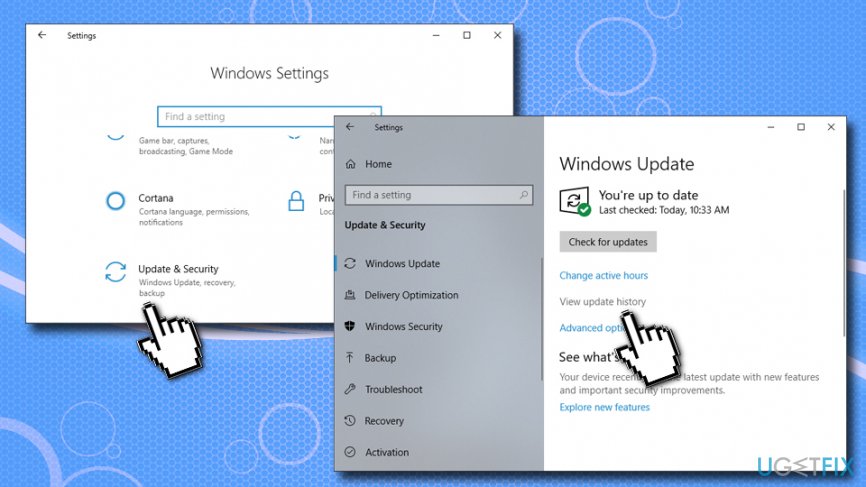
- Right-click on Start and select Settings.
- Go to Update & Security.
- On the right pane, select View update history.
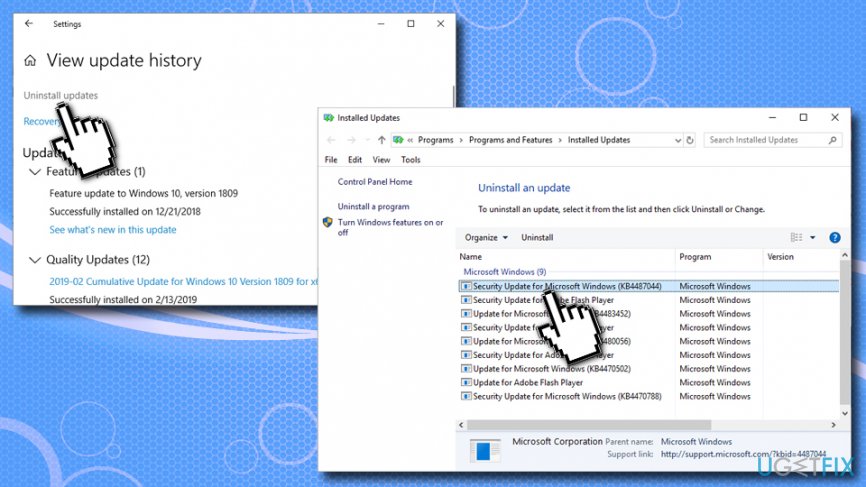
Fix net framework error code 0x800f081f go to windows update history - Go to Uninstall Updates.
- Look through the list of installed updates and try to find KB2966826, KB2966827, and KB2966828 security updates.
- Once found, right-click on each of them and select Uninstall.
Fix net framework error code 0x800f081f uninstall framework updates
Note: if you are dealing with later updates, simply check if your system is patched to the latest version.
Method 2. Run Group Policy Editor
- Press Windows key + R.
- Type in gpedit.msc and hit Enter
- Once Group Policy Editor opens, navigate to Computer Configuration -> Administrative Templates -> System.
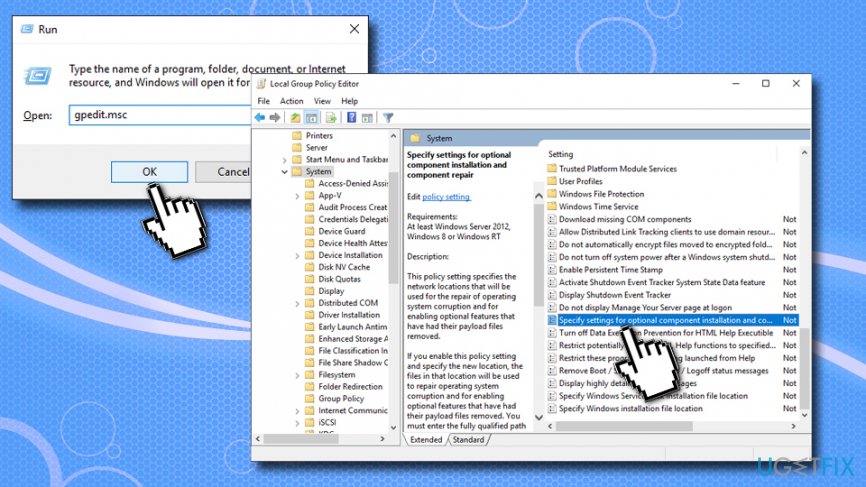
Fix net framework error code 0x800f081f go to local group policy editor - Look for Specify settings for optional component installation and component repair option on the right pane.
- If it is set to Not Configured, double-click on it, and set Enabled > click OK.
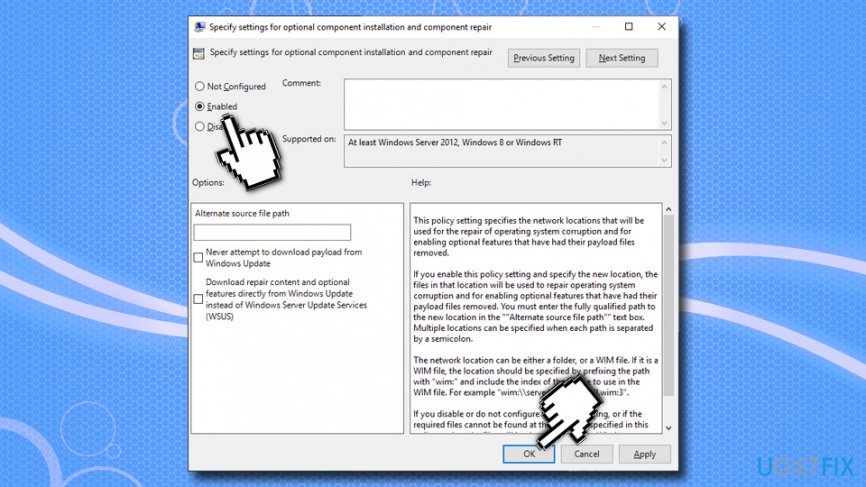
Fix net framework error code 0x800f081f enable settings - Once done, try to install .NET Framework 3.5 and error 0x800F081F should be fixed.
Method 3. Fix Error Code 0x800F081F using DISM command in Command Prompt
- Download Windows Media Creation tool.
- Create the installation image using Flash drive or the DVD.[ref en-2]
- Mount the image - note the drive letter.
- Type in cmd or Command Prompt into the search bar.
- Right-click on the search results and select Run as administrator.
- Once the new window opens, type in the following command and hit Enter:
Dism /online /enable-feature /featurename:NetFx3 /All /Source:[DRIVE LETTER]:\\sources\\sxs /LimitAccess
IMPORTANT NOTE: replace the [DRIVE LETTER] with the correct drive letter.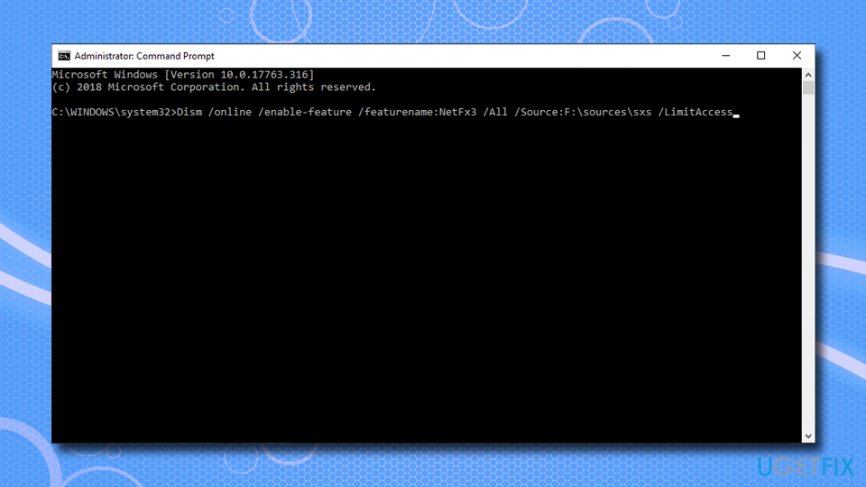
Fix net framework error code 0x800f081f use dism feature in command prompt
Install .NET Framework 3.5 and fix 0x800F081F error
Once you perform the above-mentioned steps, install the missing component as follows:
- Type in Control Panel into the search box and press Enter.
- Go to Programs > Uninstall a program.
- Click on Turn Windows features on or off (left pane).
- Tick the .NET Framework 3.5 (includes .NET 2.0 and 3.0) and click OK.
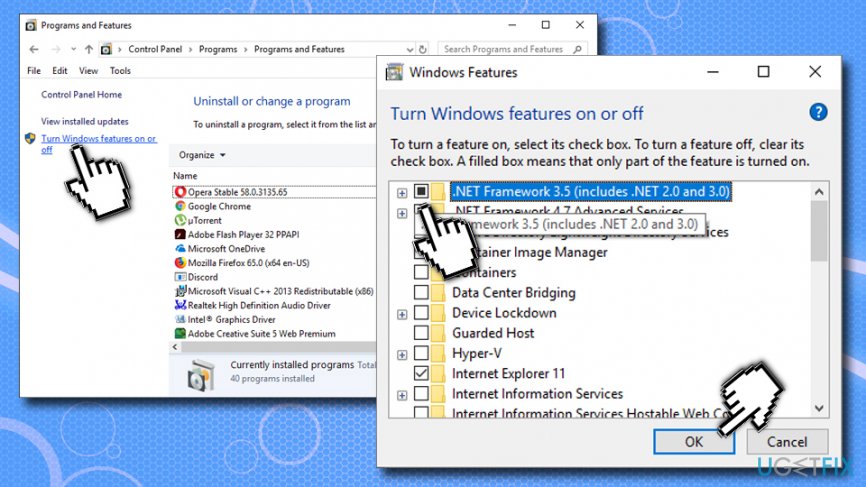
Fix net framework error code 0x800f081f install net framework
Our last piece of advice would be to take care of the registries,[ref en-3] software updates, system files, security, etc. in order to prevent errors, malware infections, file loss, crashes, and similar issues. For this purpose, you should install [d1].
Bottom line
To resolve Error Code 0x800F081F, ensure you have a stable internet connection and try reinstalling .NET Framework 3.5. If the issue persists, consider checking for the specific security updates mentioned or using offline installation methods. If none of these solutions work, further troubleshooting may be necessary.




Report an issue
What's wrong with this guide? We review every report and update or remove content.
Report received — thank you. We'll review and fix it.
You need a free account to submit a report.
Be the first to comment