How to fix
Error Code 0x80240024
on Windows
Resolve Error Code 0x80240024 in the Windows 10 Store effortlessly. Quick fixes and expert-tested solutions ensure smooth app downloads. Fixed in minutes!

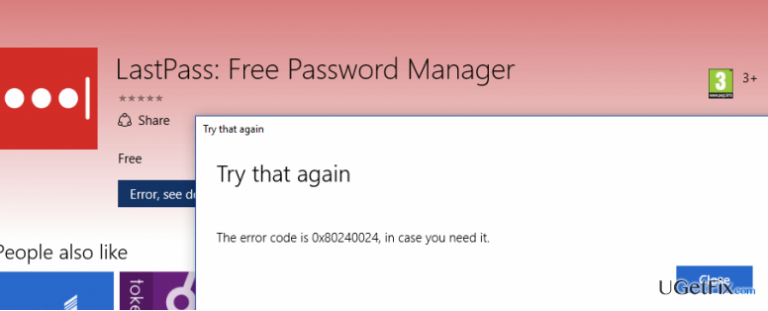
What causes How to Fix Error Code 0x80240024 on Windows 10 Store?
- Pending downloads
- Incorrect region settings
- Windows Store malfunctions
- Installation termination due to errors
- Stuck or pending apps
Repairs Windows system files, removes malware, and restores a clean OS state — without reinstalling.
I can’t install games that I download through Windows 10 Store. Yes, the download successfully completes, but the installation fails each time with an error 0x80240024. Any help?
0x80240024 error code has aroused various discussions on Microsoft forum and other well-known IT forums. People claim that after upgrading to Windows 10 they’ve started noticing Windows Store malfunctions. To be more precise, the problem occurs when the user attempts to install the apps, games or any other ‘stuff’ that has been downloaded from Windows Store. The installation is terminated immediately and throws up an error code 0x80240024. Although Microsoft has officially announced to have fixed all Windows Store related bugs, it seems that some of them have still remained. Although it’s not clear what the reason of 0x80240024 bug is, it has been noticed that Windows Store crashes for some reason, which is why a list of stuck or pending apps appears all of a sudden. Consequently, if any of the games/apps you’ve downloaded is included in that list, it will not be installed. To fix this error, you can try one of the following fixes, which have been submitted in accordance to the users’ reports.
How to fix error code 0x80240024 on Windows 10 Store?
Fix 1. Terminate all pending downloads
If you have opened your Windows Store and found a list of stuck downloads, you have to stop all download processes and then try to open the application that you wanted. For this purpose, do the following:
- Press Win key + S and select Windows Store from the list.
- Click the icon next to the search bar and select Downloads and updates.
- Select them all and cancel the downloads. After that, try to install the application that you needed before.
Fix 2. Check the settings of your region
According to people who have encountered 0x80240024 error, incorrectly set region may also trigger this bug. Therefore, check if your region is set correctly. For that, you have to:
- Go to Settings and select Time & Language.
- Navigate to Region and language tab and check if the region is set correctly.
- In case everything seems to be fine, we would recommend changing the region to United States, Canada, or UK.
Fix 3. Disable Sideload app option
If you have this option enabled, it might also be the core of Windows Store bug code 0x80240024. Thus, to disable it Sideload option, you have to:
- Go to Settings and select Update & Security.
- Select For Developers and then opt for Windows Store apps.
Fix 4. Disable Defer Upgrades
Defer Upgrades option allows postponing the download of particular features that come along with Windows updates. Therefore, if this option is turned on, it might be causing Windows Store crashes and create the list of pending downloads. Thus, to turn off Defer Upgrades option, you have to:
- Go to Settings and select Updates & Security.
- Then navigate to Windows Update tab and select Advanced options.
- Unmark the Defer upgrades option , close everything, and reboot your PC.
Bottom line
To fix the error code 0x80240024, you can terminate all pending downloads and check your region settings to ensure they are correct. If these solutions do not resolve the issue, further troubleshooting may be necessary.
Frequently asked questions
Error code 0x80240024 typically occurs due to issues with the Windows Update service or corrupted system files affecting the Microsoft Store functionality.
To fix error code 0x80240024 on Windows 11, try resetting the Microsoft Store cache using the 'wsreset' command and ensure that Windows Update services are running properly.
Yes, you can run the Windows Store Apps troubleshooter found in Settings under Update & Security to quickly identify and fix problems related to the Microsoft Store.




Report an issue
What's wrong with this guide? We review every report and update or remove content.
Report received — thank you. We'll review and fix it.
You need a free account to submit a report.
Be the first to comment