
How to fix error code 109 "Unable to connect to server" on Steam?

Prefer to fix it yourself? The manual steps follow.
- 8methods
- 2 minutes to find the side at fault, 5 to 20 minutes for the network fixes
- Easy
Applies to Steam client for Windows: Store, Community, profile and other web pages inside the client
8 methods in this guide
- What -109 means
- Not SteamVR Error 109
- Causes, ranked
- The fixes
- 1. Steam, PC or network?
- 2. VPN and kill switch
- 3. Address and gateway
- 4. Test the route to Steam
- 5. Router and other networks
- 6. Reset Windows networking
- 7. Firewall and security apps
- 8. Clean the Steam client
- Still broken: get help
- Keep it from coming back
- FAQ
I can't access Steam at all. I keep getting error code 109 "Unable to connect to server." What can I do to resolve this?
Steam's "Error Code: -109" means the page could not be loaded because your PC found no route to Steam's server address. Steam itself is rarely the cause. Check first whether Steam is up and whether a normal browser opens the store, then look at the VPN and your network address.
Error -109 is the network error ADDRESS_UNREACHABLE from the browser engine inside Steam: Windows knows no way to reach Steam's address. Start with Fix 1: check Steam's status and open the store in a normal browser. Then switch off any VPN and its kill switch (Fix 2), and check that Windows has a real IP address and gateway (Fix 3). Your games and account are not affected.
| Error | Error page in place of the Store or Community, with "Error Code: -109" and one sentence: "Unable to connect to server. Server may be offline or you may not be connected to the internet." or "Failed to load web page (unknown error)." |
|---|---|
| Where it appears | Inside the Steam client for Windows: the Store, Community, profile, news and other web pages. Often right after sign-in, while the Library may still work. |
| Main cause | No route from your PC to Steam's server: a VPN tunnel or kill switch, a network adapter without a valid address or gateway, a stuck router, or a network that blocks Steam. |
| Fastest fix | Check Steam's status and test the store in a normal browser (Fix 1), then switch off the VPN and restart Steam (Fix 2). |
| What the number is | -109 is ADDRESS_UNREACHABLE in Chromium's network error list: "The IP address is unreachable. This usually means that there is no route to the specified host or network." |
| Also written as | Steam error 109, error code 109 Steam, Steam 109, Error Code: -109. In other languages: Código do erro: -109, Code d'erreur -109, エラーコード: -109, Hata Kodu: -109, Fehlercode: -109, Código de error: -109. |
| Not the same as | SteamVR "Error 109" with a headset, which Steam Support files under "Unable to Access GPU (Error 109/Error 400)". |
| Valve's status | No Steam Support page names -109. Valve's network troubleshooting page covers the causes: server status, router, firewall, background programs and the provider. |
| Affects | The Steam client on Windows 11 and Windows 10. Windows 10 support ended on 14 October 2025, which does not change this error. |
| Time to fix | 2 minutes for the checks in Fix 1 and Fix 2, up to 20 minutes for the address, router and network fixes. |
Facts checked on 14 October 2026. Steps written for the Steam client on Windows 11 (25H2 and 26H2) and Windows 10 22H2, read against Steam Support, the Steam client's own text files, Chromium's source and Microsoft Learn.
What Steam error code -109 means: ADDRESS_UNREACHABLE, no route to Steam
The Store and Community inside the Steam client are web pages, drawn by a built-in copy of Chromium, the engine of Chrome. When such a page fails, the client shows its own Error page with "Error Code: " and the number Chromium returned. Our guide to Steam error code 2 explains how these minus numbers work in general. This page is only about -109.
- Chromium's name
ADDRESS_UNREACHABLE, number -109, in the filenet/base/net_error_list.h- Chromium's own comment
- "The IP address is unreachable. This usually means that there is no route to the specified host or network."
- Where it comes from on Windows
- Chromium's
net_errors_win.ccturns the Windows errorsWSAENETUNREACHandWSAEHOSTUNREACHinto this code. A third,WSAEAFNOSUPPORT, maps to it as well. - What Windows means by them
- 10051, "Network is unreachable": "the local software knows no route to reach the remote host". 10065, "No route to host".
- In Chrome
- The same failure is shown as
ERR_ADDRESS_UNREACHABLE.
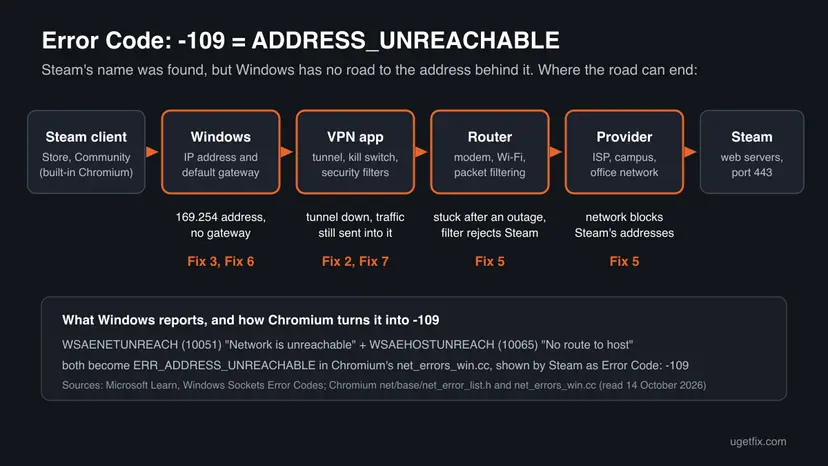
That is the useful part of the number. The name store.steampowered.com was already turned into an address, so DNS is not the problem. No connection was refused and no server timed out, because the request never got that far. Something between the client and the internet has no road for it.
| Sentence on the Error page | What users report |
|---|---|
| "Unable to connect to server. Server may be offline or you may not be connected to the internet." | The wording most guides and the title of this page use. |
| "Failed to load web page (unknown error)." | Reported with -109 in a Steam Community thread from December 2017 and still searched as "steam error code 109 failed to load web page". |
The client's text file holds both sentences, and Valve does not document which code gets which one. Treat them as the same error: the number -109 is what decides the fix, not the sentence under it.
Steam error 109 or SteamVR Error 109? Two different problems with the same number
Half of Google's first page for "steam error 109" is about virtual reality headsets. That is another error. SteamVR prints its own codes without a minus sign, and Steam Support lists "Unable to Access GPU (Error 109/Error 400)" for it.
| Steam client Error Code: -109 | SteamVR Error 109 | |
|---|---|---|
| Where you see it | Store, Community or profile page inside the Steam client | SteamVR status window while a headset is connected |
| Sign | Minus: -109 | No minus: Error 109, often next to Error 400 |
| What it means | No network route to Steam's server | Steam Support: "Your monitor may be unable to access your GPU." |
| What to check | VPN, IP address, router, network (this page) | Headset link box and main monitor on the same graphics card, other ports and cables, a headset reboot |
- Steam Support's advice for the SteamVR code: both the main monitor and the headset's Link Box must be plugged into the same GPU, into working ports. It suggests other ports of the same type, a DisplayPort cable or adapter, and Reboot Vive Headset from the headset icon.
- Other headsets on SteamVR report the same number in forums, for example on Linux and with PlayStation VR2 on PC. Those are reports, and the network fixes below do not apply to them.
What causes Steam error code -109, from most to least likely
Valve publishes no statistics for this code, so the order below is ours. It follows what -109 means in Chromium and Windows and what Steam Support's network pages name as causes.
| Cause | How to tell | Fix |
|---|---|---|
| Steam's side. An outage or maintenance. Steam Support: timeout errors on Steam's sites mean "it is very likely that there is a system-wide issue". | It started suddenly and others report it. The store also fails on a phone over mobile data. | Fix 1 |
| A VPN. The tunnel dropped, the app is reconnecting, or its kill switch blocks traffic outside the tunnel. Steam Support: VPN software "has the potential of preventing the Steam client application from accessing the Steam network". | A VPN app is installed, was just switched off, or crashed. Steam works again after a reboot without it. | Fix 2 |
| No valid address or gateway on the PC. Windows gave itself a 169.254 address, or a manual IP setting points to a gateway that no longer exists. | No website opens. ipconfig shows a 169.254 address or an empty Default Gateway. | Fix 3, then Fix 6 |
| The router or the network. A router stuck after an outage, a filter in the router, or a campus, office or provider network that blocks Steam. | It fails at home and works on a phone hotspot, or it fails only on one network. | Fix 4, then Fix 5 |
| Security software. A firewall or web filter that blocks the client's traffic, often after a Steam update. | A browser on the same PC opens the store, the client does not. | Fix 7 |
| The client itself. Damaged files of the built-in browser. | Everything else checks out and only the client fails, on every network. | Fix 8 |
Changing DNS to 8.8.8.8 helps with name errors, but -109 comes after the name was found. Turning off IPv6 is also repeated often. When we looked up Steam's web hosts on 14 October 2026, they returned IPv4 addresses only, so IPv6 is unlikely to be the route that fails.
How to fix Steam error code -109 "Unable to connect to server"
Fix 1 tells you whose side the fault is on and takes two minutes. Fixes 2 to 4 follow the route out of your PC: the VPN, the address and gateway, then a direct test of the road to Steam. Fixes 5 and 6 are for the router, the network and Windows networking. Fixes 7 and 8 are for the case where a browser works and only the client fails.
| What you see | Start with |
|---|---|
| -109 a moment ago and you have not checked anything yet. | Fix 1 |
| A VPN app is on, was just switched off, or is reconnecting. | Fix 2 |
| No website opens on this PC, or Windows says No internet. | Fix 3, then Fix 6 |
| Other sites open in the browser, Steam's pages fail in the browser and the client. | Fix 4, then Fix 5 |
| It fails at home, school or work and works on a phone hotspot. | Fix 5 |
| A normal browser opens the Steam store, the client still shows -109. | Fix 7, then Fix 8 |
| "Error 109" in SteamVR while a headset is connected. | Not this error: see the SteamVR section above |
Fix 1. Find out whose side it is: Steam's status, a browser and a phone
2 minutesNo riskEveryone with -109 starts here, before changing any setting.
The client's message offers two causes, a server that is offline or a PC that is not online. Three quick loads from three places tell you which one you have, and which fix to skip.
- Note the full text of the Error page: the number with its minus and the sentence under it.
- In the client, right-click the page and select Reload once. A short drop of the connection clears this way.
- Open a normal browser on the same PC and go to
https://store.steampowered.com/. - On a phone, switch Wi-Fi off and open the same address over mobile data.
- In the browser, open
https://store.steampowered.com/stats/. Steam Support links this address as its server status page. - Compare the results with the table below and go to the fix it names.
| Result | What it means | Next |
|---|---|---|
| Phone over mobile data fails too, others report problems. | Steam's side. Nothing on the PC will help. | Wait and reload later |
Phone works, the PC browser shows an error such as ERR_ADDRESS_UNREACHABLE. | The route from this PC or this network is broken. | Fix 2, Fix 3 |
| No website at all opens in the PC browser. | The PC has no working connection. | Fix 3 |
| The PC browser opens the store, the client shows -109. | The network works, something stops the client only. | Fix 2, then Fix 7 |
The address Steam Support gives opened Steam Charts with the number of players online when we loaded it, not a board of lights. A count that falls sharply hints at an outage. Valve says planned downtime "usually lasts less than an hour".
It worked if: You know whether the fault is with Steam, with this PC or with this network, and which fix to open next.
If not: If the results change from one try to the next, the connection is unstable. Go to Fix 5 and test with a cable or another network.
Fix 2. Switch off the VPN and its kill switch, then restart Steam
3 minutesLow riskA VPN app is installed on the PC, even if you believe it is off.
A VPN replaces the PC's route to the internet with its tunnel. When the tunnel is down or reconnecting, Windows still sends traffic into it, and a kill switch blocks every other road on purpose. That is a missing route, which is exactly what -109 reports.
- Open the VPN app and select Disconnect.
- In the app's settings, switch off the feature that blocks traffic when the VPN drops. Apps name it differently, often kill switch or network lock.
- Quit the VPN app from its icon next to the clock, so it cannot reconnect by itself.
- Press Win + I, open Network & internet, then VPN, and check that no connection there shows Connected.
- In Steam, open the Steam menu and select Exit. Closing the window only hides it.
- Start Steam again and open the Store.
- It works without the VPN. Steam Support's advice is to configure the network so it allows Steam's traffic. In a VPN app that usually means a split tunnel rule or another server, if the app offers them.
- A school or work VPN. Do not change it. Its owner decides what may pass through it, and Steam may be blocked there on purpose.
- No VPN, but a proxy is set. A broken proxy shows its own sentence on the same Error page: "Unable to connect to HTTP Proxy. Your proxy may be misconfigured or offline." That case is not -109.
Many VPN apps start with Windows and set up their routes before you sign in. If -109 disappears after a restart and comes back later, watch whether it returns when the VPN reconnects.
It worked if: The Store and Community load in the client after Steam restarts, and -109 does not return when you click between pages.
If not: If no VPN is involved or the error stays without it, check the PC's address and gateway with Fix 3.
Fix 3. Check that Windows has a real IP address and a default gateway
5 minutesLow riskNo website opens on the PC, or Windows shows No internet or an unidentified network.
Without a default gateway Windows has no road to anything outside your home network. Microsoft documents that a PC which gets no answer from the router's DHCP service gives itself a 169.254 address and then "cannot communicate with computers on other subnets", which includes Steam.
The first three steps read the address and the gateway and test the road to the router. Step by step from our library:
- Open Command Prompt as administrator. Type command prompt in the search box on the taskbar. Next to Command Prompt, select Run as administrator, then Yes.
- Find the address of your router. Type the command below and press Enter. Under the name of your network connection, note the address next to Default gateway, for example 192.168.1.1.
ipconfig - Ping the router. Type ping followed by that address and press Enter. Four lines that start with Reply from mean the PC reaches the router.
ping 192.168.1.1
These steps were written for Windows 11 25H2 and 26H2. The full page with the other versions and what each result means: How to check your internet connection in Windows
| What ipconfig shows | What it means | What to do |
|---|---|---|
IPv4 Address starts with 169.254 | Windows got no address from the router (APIPA). | Restart the router, then renew the address below |
| Default Gateway is empty | Windows knows no road out of the local network. | Check the IP assignment below |
| A gateway is shown but the ping gets no reply | The router does not answer. | Fix 5 |
| Address and gateway look normal, the ping replies | The PC side is fine. | Fix 4 |
- In the same window, get a new address from the router. The connection drops for a moment between the two commands.
ipconfig /release ipconfig /renew - Press Win + I and open Network & internet, then select Properties of your Ethernet or Wi-Fi connection.
- Find IP assignment. If it says Manual, select Edit next to it.
- Choose Automatic (DHCP) and select Save, unless your provider or administrator gave you fixed values on purpose.
- Run
ipconfigagain, check the gateway, exit and restart Steam.
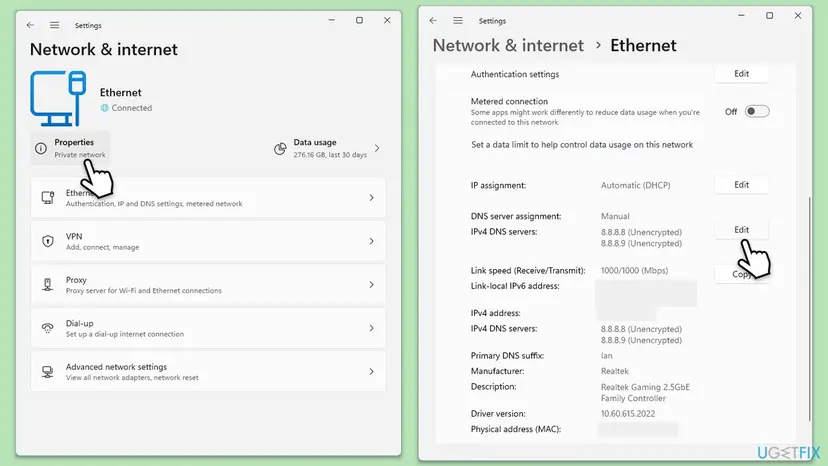
- Windows 10: the same setting is under Settings > Network & Internet, your Ethernet or Wi-Fi connection, then IP settings and Edit.
- A user report: in May 2025 a poster in a Steam Community thread about -109 wrote that resetting the Wi-Fi's IP address fixed it. That matches this fix, but it is one report.
It worked if: ipconfig shows an address from your router, such as 192.168.x.x, and a Default Gateway, and the Store loads after Steam restarts.
If not: If the address stays at 169.254 after a router restart, reset the Windows network settings with Fix 6. If the address is fine, test the route to Steam with Fix 4.
Fix 4. Test the route to Steam's web server from Windows
5 minutesNo riskOther websites open on the PC, but Steam's pages fail in the client, and you want proof of where.
Test-NetConnection is built into Windows and tries the same kind of connection the client makes, to port 443 of Steam's store. Its output names the address, the network adapter Windows chose and whether the connection succeeded.
- Right-click Start and select Terminal. On Windows 10 select Windows PowerShell.
- Type the command below and press Enter.
Test-NetConnection store.steampowered.com -Port 443 - Read the line TcpTestSucceeded. True means Windows reaches Steam's web server.
- Read InterfaceAlias. It names the adapter Windows used, for example Ethernet, Wi-Fi or the name of a VPN.
- Read SourceAddress. An address that starts with
169.254sends you back to Fix 3. - If the test failed, see where the road ends. This lists the routers on the way and takes a minute.
Test-NetConnection store.steampowered.com -TraceRoute - Repeat the first command with
steamcommunity.comin place of the store name, if the Community is the page that fails.
| Result | Meaning | Next |
|---|---|---|
| TcpTestSucceeded : True | Windows reaches Steam. The block sits in the client or in a filter that watches only the client. | Fix 7, then Fix 8 |
| False, and InterfaceAlias names a VPN or a virtual adapter | Windows sends Steam's traffic into an adapter that does not lead out. | Fix 2 |
| False, and the trace route stops at the first hop | The road ends at your router. | Fix 5 |
| False, and the trace route stops further out | The road ends at the provider or the network's firewall. | Fix 5, the network part |
Many routers and servers do not answer trace route requests at all, so missing lines alone prove nothing. The TcpTestSucceeded line is the reliable part of this test.
It worked if: You see True and the store loads in the client after a restart of Steam, or you see False and know which part of the road to fix.
If not: If the result is False and you cannot tell where the road ends, do Fix 5 with a second network. That test settles it.
Fix 5. Restart the router, test another network and check router filters
10 to 15 minutesLow riskThe route test failed, or Steam fails only on one network: home, campus, office or hotel.
Steam Support says to reboot the modem and router "before trying anything else" and names router services that can cause problems with Steam. A second network shows at once whether the block belongs to your network or to your PC.
- Exit Steam through the Steam menu and Exit.
- Switch the modem and the router off, wait at least 30 seconds and switch the modem on first, then the router.
- When the internet is back, start Steam and open the Store.
- If -109 stays, connect the PC to your phone's hotspot and open the Store once more.
- If it works on the hotspot, connect the PC by cable straight to the modem, if they are separate devices, and test again.
- If it works on the modem but not through the router, open the router's settings and switch off, for a test, any of the services listed below that are on.
- Test once more, then switch back on what did not help.
| Situation | Steam Support's words | What it means for you |
|---|---|---|
| Router services | "Stateful inspection, Dynamic packet filtering, QoS (Quality of Service), UPnP (Universal Plug 'n Play)" | Try them off one at a time |
| Wireless links | "Wireless and powerline connections can cause intermittent failures due to interference." | Test once with a cable |
| University networks and proxies | "Many university networks and proxies block required ports for Steam operation" | Ask the network administrator |
| Provider at certain hours | Your ISP may be "blocking or 'shaping' your connection" | Test at another time, then call the provider |
- A network that blocks Steam on purpose. A firewall can reject Steam's addresses with a "no route" answer, and the client then shows -109. Only the network's owner can change that.
- Ports cannot be moved. Steam Support: "Ports required for Steam can not be re-mapped to HTTP or reconfigured to a custom port range."
- Parental controls or content filters in the router can block game stores. Check them if the router has such a feature.
It worked if: The Store loads after the router restart, or you have found the one network or router service that blocks Steam.
If not: If Steam fails on every network, the cause is on the PC. Reset its network settings with Fix 6.
Fix 6. Reset the Windows network settings
10 minutes plus a restartRead the warningThe PC keeps a 169.254 address, or Steam fails on every network you tried.
Old VPN adapters, broken filter drivers and stale routes stay in Windows after their programs are gone. The resets rebuild the network stack and the adapters, which removes routes that lead nowhere.
The commands keep your settings. The full Network reset at the end removes saved Wi-Fi networks, VPN adapters and manual IP settings. Write down your Wi-Fi password and any fixed IP values before you use it. Your files are not touched.
Run the commands first: they renew the address, clear cached entries and reset Winsock and TCP/IP. Use the full network reset only when the commands did not help. Step by step: Reset the network and flush DNS

- Restart the PC after the commands, as the Winsock reset asks.
- Reinstall or reconnect your VPN only after you have tested Steam without it.
- Start Steam and open the Store.
It worked if: After the restart ipconfig shows a normal address and gateway, and the Store and Community load in the client.
If not: If the browser now opens the store but the client still shows -109, the block sits in a program on the PC. Go to Fix 7.
Fix 7. Check the firewall and security software that filter the client
10 minutesLow riskA normal browser on the same PC opens the store, but the client keeps showing -109.
Steam Support says firewalls and security applications "may prevent Steam from talking to its servers", and that this can begin right after a Steam update. A filter that rejects one program's traffic leaves the browser working and the client without a road.
- Exit Steam through the Steam menu and Exit.
- Open your firewall program and remove its entries for
steam.exeandsteaminstall.exe. These are Steam Support's file names. - Start Steam. The firewall should ask for new permissions for
steam.exe. - Allow Steam on all TCP and UDP ports, as Steam Support advises, then restart the PC.
- In your antivirus or internet security program, add the Steam folder to its exceptions. The default folder is
C:\Program Files (x86)\Steam. - If the product has web or traffic filtering, allow the domains in the table below.
- Start Steam and open the Store.
| Purpose | Ports or domains |
|---|---|
| Signing in and downloading content | HTTP (TCP remote port 80) and HTTPS (443), UDP and TCP remote ports 27015 to 27050 |
| Web requests through a proxy or filter | steampowered.com, steamcommunity.com, steamgames.com, steamusercontent.com, steamcontent.com, steamstatic.com, akamaihd.net |
- One test with protection paused. Pause the protection, open the Store once and switch it back on at once: Turn off Microsoft Defender protection for a moment
- If it works only while paused, the answer is an exception in that program, not leaving it off. Steam Support: "We do not recommend leaving your firewall disabled."
- A filter you did not install. Steam Support also names aggressive anti-spyware tools and IP filtering programs. If a proxy or filter appeared on its own, scan the PC: How to scan for malware with Microsoft Defender
It worked if: The Store opens in the client with the firewall and the antivirus running, and stays open after a restart of the PC.
If not: If no security program explains it, clean the Steam client with Fix 8.
Fix 8. Delete the client's web data and repair the Steam client
5 to 20 minutesRead the warningWindows reaches Steam (Fix 4 shows True) and only the client's pages still fail.
The odds are lower here, because -109 is a network answer and not a cache problem. Still, the client's built-in browser keeps its own data and files, and a damaged copy can fail where Chrome on the same PC works.
Deleting web data signs you out of the store pages inside the client. The file repair below keeps your games in steamapps. Copy the userdata folder to another drive first if you keep settings or saves there without Steam Cloud. Do not uninstall Steam through Windows for this: it removes installed games.
- In the client, open the Steam menu and select Settings, then the In Game page.
- Next to Delete Web Browser Data, select Delete and confirm.
- Exit Steam through the Steam menu, start it again and open the Store.
- If -109 stays, exit Steam and open
C:\Program Files (x86)\Steamin File Explorer. - Delete everything except
steam.exe, thesteamappsfolder and theuserdatafolder. - Start
steam.exefrom that folder and let it download its files again, then sign in.
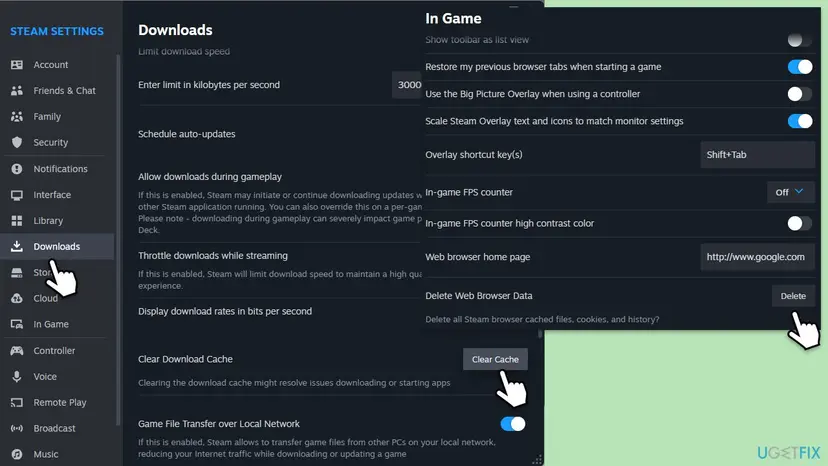
Steam Support's page "Steam Servers Are Currently Unavailable or Too Busy" describes deleting everything except steam.exe and steamapps. We also keep userdata, because it holds local settings and some saves. Keeping it does not weaken the repair.
It worked if: Steam starts, updates itself, shows your games in the Library without a new download, and the Store loads.
If not: If a freshly repaired client on a second network still shows -109, collect the details in the next section and contact Steam Support.
If Steam error code -109 is still there: what to collect and what to send to Steam Support
Valve documents no log file for a page that fails inside the client. The Error page and the Windows tests are the evidence. Collect them once, and the person helping you can see at a glance which part of the road is missing.
- Take a screenshot of the Error page with the number and the sentence.
- Save the output of
ipconfig /alland ofTest-NetConnection store.steampowered.com -Port 443from Fix 4 into a text file. - Note your network: home, VPN, campus, office or hotspot, and whether a browser on the same PC opens the store.
- Sign in at
https://help.steampowered.comin a browser and describe the problem with what you tried. - Add the files only if Support asks for them. Remove your public IP address from them first if you prefer.
- It is the provider: it fails at home and works on a hotspot, after a router restart and without router filters. Steam Support keeps a list of providers found to block Steam traffic and says to contact your provider.
- It is the network's owner: campus, office, hotel and some public Wi-Fi block Steam on purpose. No setting on your PC changes that.
- It is another program: Steam Support names VPNs, peer-to-peer clients, IP filters and download managers. Start Windows once without them: How to perform a clean boot in Windows
- It is Steam: others report it at the same time, and it ends without any change on your side.
How to keep Steam error code -109 from coming back
- Exit Steam through the Steam menu before you switch a VPN on or off, then start it again.
- Leave IP assignment on Automatic (DHCP) unless someone gave you fixed values.
- Give Steam a permanent exception in the firewall and check it after big Steam updates.
- Use a cable for the gaming PC if Wi-Fi drops often.
- Keep your password and Steam Guard at hand, so a sign-in after a client repair is quick.
- Do not leave a VPN kill switch on while you use Steam outside the tunnel.
- Do not leave the firewall or antivirus off after a test.
- Do not uninstall Steam through Windows to cure a network error. It removes your games.
- Do not copy IP or gateway values from a guide. They belong to someone else's network.
While the pages are broken, the store, the Community and Steam Support all work in a normal browser with the same account. If you need to play, the client's Offline Mode lets you start installed games while the connection to the Steam network is down.
Frequently asked questions
What does error code -109 mean on Steam?
It means the page could not be loaded because your PC found no route to Steam's server. The Store and Community inside the client are drawn by a built-in Chromium engine, and -109 is Chromium's ADDRESS_UNREACHABLE: "The IP address is unreachable. This usually means that there is no route to the specified host or network." On Windows it comes from the system errors "Network is unreachable" and "No route to host". The usual reasons are a VPN, a network adapter without a valid address or gateway, a stuck router, or a network that blocks Steam.
Why does Steam show "Failed to load web page (unknown error)" with error code -109?
The client's Error page has a small set of sentences and puts one of them under the number. Its text file holds both "Unable to connect to server. Server may be offline or you may not be connected to the internet." and "Failed to load web page (unknown error)." Users report -109 with either one. Valve does not document which number gets which sentence. The fix depends on the number, so treat both versions as the same error and start with Fix 1 on this page.
Is Steam down when I get error code 109?
Sometimes, but less often than with codes for timeouts. The number says your PC knew no road to Steam's address, which usually points at your side. Check it in two minutes: open store.steampowered.com in a normal browser on the PC, and on a phone over mobile data. If the phone fails as well and others report trouble, Steam is down and you can only wait. Valve says planned downtime usually lasts less than an hour. If the phone works, follow Fixes 2 to 5.
What is erro 109 Steam, code erreur 109 Steam, Steam エラーコード109 or Steam hata kodu 109?
They are the same Error Code: -109 in a translated client. The client's language files give the heading as "Código do erro:" in Brazilian Portuguese, "Code d'erreur" in French, "エラーコード:" in Japanese, "Hata Kodu:" in Turkish, "Fehlercode:" in German and "Código de error:" in Spanish. The sentence under it is a translation of "Unable to connect to server" or of "Failed to load web page (unknown error)". The meaning and the fixes on this page do not change with the language.
Is Steam error 109 the same as SteamVR Error 109?
No. The Steam client shows -109 with a minus sign on its web pages when the network has no route to Steam. SteamVR shows Error 109 without a minus while a headset is connected, and Steam Support files it under "Unable to Access GPU (Error 109/Error 400)". Its advice there is to plug the main monitor and the headset's Link Box into the same graphics card, to try other ports or cables, and to reboot the headset. None of the network fixes on this page help with the SteamVR error.
What is the difference between Steam error -109, -118 and -105?
They fail at different stages of loading a page. Code -105 is NAME_NOT_RESOLVED, so the name could not be turned into an address at all, a DNS problem with a guide of its own coming. Code -109 means the address was known but Windows had no route to it. Code -118 is CONNECTION_TIMED_OUT: a route existed, the request left your PC, and no answer came back in time, which fits an overloaded Steam or a slow link. That is why -118 calls for waiting first, and -109 for checking the VPN, the address and the router.
Does changing DNS to 8.8.8.8 or disabling IPv6 fix Steam error -109?
Usually not, and the older version of this page recommended the DNS change. A DNS server turns names into addresses, and -109 is reported after that step succeeded. When we looked up Steam's web hosts on 14 October 2026, they answered with IPv4 addresses only, so a broken IPv6 setup is an unlikely cause too. Either change may seem to help because it reconnects the network adapter. Check the VPN and the default gateway first, which address the missing route directly.
Can I still play my games while Steam shows error -109?
Usually yes. The error affects the web pages inside the client, such as the Store and Community, not your installed games. If the client cannot reach the Steam network at all, use Offline Mode from the Steam menu: Steam describes it as useful "when you want to play games, but can't maintain a connection to the Steam network". It works only if you signed in on this PC before and did not turn on the option not to save account credentials. Online games still need a working connection.
I see error 109 outside Steam. Is it the same problem?
Not necessarily, because many products use 109 for unrelated things. In Windows, system error 109 is ERROR_BROKEN_PIPE, "The pipe has been ended.", a problem between two programs on the same PC. Chrome shows the same network failure as this page as ERR_ADDRESS_UNREACHABLE, and the fixes for the VPN, address and router apply there too. Error 109 on a TV, a water heater or in another game is a different code with its own manual. This page covers Steam's Error Code: -109 only.
Sources
- Chromium source: net/base/net_error_list.h (ADDRESS_UNREACHABLE, -109, and its comment) (github.com)
- Chromium source: net/base/net_errors_win.cc (WSAENETUNREACH and WSAEHOSTUNREACH mapped to ERR_ADDRESS_UNREACHABLE) (github.com)
- Microsoft Learn: Windows Sockets Error Codes (10051 Network is unreachable, 10065 No route to host) (learn.microsoft.com)
Did this fix work?
One click, no account. It tells the next reader which guides are worth their time.
Questions and experiences: fix error code 109 "Unable to connect to server" on Steam
Still broken, or found a fix we did not cover? Ask here: members and our editors answer. Reading is open; writing needs a free account.
…