
How to fix Event ID 6008 "The previous system shutdown was unexpected" in Windows?

Prefer to fix it yourself? The manual steps follow.
- 9methods
- 10 minutes to find the cause, longer to fix it
- Intermediate
Applies to Windows 11, Windows 10, Windows Server
9 methods in this guide
- What event 6008 means
- The events around 6008
- Causes and how to tell
- The fixes
- 1. List the events together
- 2. Read event 41 details
- 3. Crash: undo the last change
- 4. Keep the crash evidence
- 5. Check the power
- 6. Check for overheating
- 7. Test the memory
- 8. Hang and forced power-off
- 9. Servers and virtual machines
- If the shutdowns continue
- Check for damage afterwards
- Keep it from coming back
- FAQ
My PC recently shut down and I don't know why. I checked the Event Viewer and it just says "The previous system shutdown was unexpected" with the Event ID 6008. Any idea how to fix this?
Event ID 6008 from the source EventLog says "The previous system shutdown was unexpected". It is a record of the symptom: Windows went off without a clean shutdown, and the event does not say why. The cause is in the events logged around it, so list those first and fix what they point to.
You cannot fix event 6008 itself, because it only reports that the last shutdown was not clean. Open PowerShell as administrator and list events 41, 1001, 1074 and 6008 together (Fix 1). A 1001 event with a bug check means Windows crashed. Event 41 with only zeros points to lost power or failing hardware. A power button timestamp means the PC hung and was forced off. Event 86 means overheating.
| Error | Event ID 6008, source EventLog, level Error: "The previous system shutdown at [time] on [date] was unexpected." |
|---|---|
| Where it appears | In Event Viewer under Windows Logs > System. Windows writes it at the next start, not at the moment the PC went off. |
| Main cause | None of its own. It follows a crash (stop error), a loss of power, overheating, a hang ended with the power button, or a virtual machine reset by its host. |
| Fastest fix | List events 12, 13, 41, 1001, 1074, 6008 and 6009 together with one Get-WinEvent command and read what stands next to 6008 (Fix 1). |
| Also written as | Event 6008, EventID 6008, Event Log 6008, error 6008, error code 6008, "the previous shutdown was unexpected", dirty shutdown. |
| Logged together with | In our Windows 11 test the next start logged Kernel-General 12, Kernel-Power 41, then EventLog 6008, 6009, 6005 and 6013. After a crash, WER-SystemErrorReporting 1001 joins them. |
| Affects | Windows 11, Windows 10 and Windows Server. The event and its text are the same on all of them. |
| Microsoft's status | Not a bug. Microsoft describes 6008 as the record of an "improper or dirty shutdown" and says such shutdowns are mostly caused by components outside the operating system. |
| Where the cause is written | The details of event 41, event 1001, %SystemRoot%\MEMORY.DMP, %SystemRoot%\Minidump and Reliability Monitor (perfmon /rel). |
| Time to fix | About 10 minutes to read the log. The repair takes from a few minutes (a driver rollback) to a hardware replacement. |
Facts checked on 13 October 2026. Steps written for Windows 11 (25H2 and 26H2) and Windows 10 22H2, with notes for Windows Server.
What Event ID 6008 means and why it is not the cause
Event ID 6008 is an entry in the System log from the source EventLog, with the level Error. Its full text is "The previous system shutdown at [time] on [date] was unexpected." Microsoft describes it as the record of an improper or dirty shutdown, logged when the most recent shutdown was unexpected.
Windows writes it at the next start. During a clean shutdown Windows closes files, tells services and apps to stop and notes that it ended properly. When the PC goes off without those steps, the next start finds no such note and logs 6008.
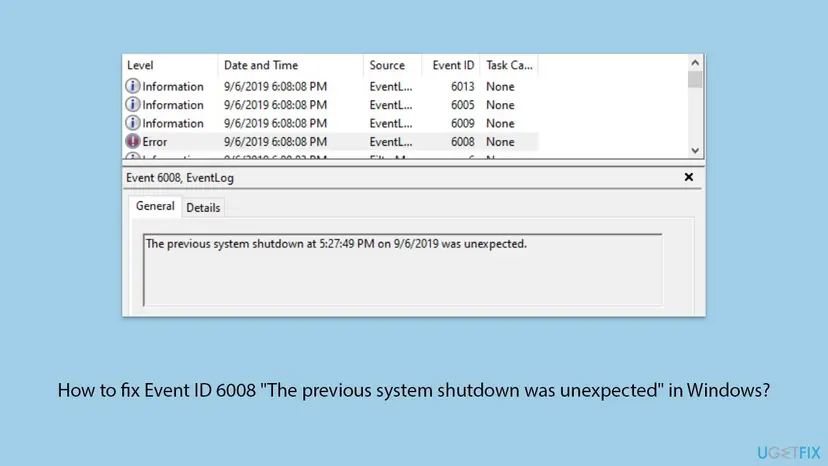
The event holds two facts only: that the shutdown was not clean, and roughly when. It names no driver, no program and no hardware part. Any advice that claims to fix "error 6008" with one setting is guessing. The reason is in the events next to it.
- Two times in one event. The time in the text is when Windows was last known to be running. The Date and Time column is when the event was written, which is the next start.
- Other spellings. Event 6008, EventID 6008, Event Log 6008, error 6008 and error code 6008 all mean this one entry. It is an event number, not a Windows error code.
- Dirty shutdown. Microsoft uses this name for any shutdown that skips the normal process, such as a power cut or a held power button.
- The registry trace. Windows keeps the values
DirtyShutdown,LastAliveStampandTimeStampIntervalunderHKEY_LOCAL_MACHINE\SOFTWARE\Microsoft\Windows\CurrentVersion\Reliability. We could not confirm from Microsoft how often the time stamp is refreshed, so treat the time in the text as approximate.
The events around 6008 and what each one tells you
Microsoft's guide to unexpected restarts reads 6008 together with a fixed set of neighbours. A normal restart shows event 1074, then 13, then 6009. An unexpected one shows 41 and 6008, usually without any 1074 before it.
| Event ID | Source | What it says | What it tells you |
|---|---|---|---|
| 6008 | EventLog | The previous system shutdown at [time] on [date] was unexpected. | The shutdown was not clean, and when. Nothing more. |
| 41 | Kernel-Power | The system has rebooted without cleanly shutting down first. | Critical level. Its details can hold a bug check code or a power button timestamp. |
| 1001 | WER-SystemErrorReporting | The computer has rebooted from a bugcheck. | Windows crashed. The text gives the stop code and where the dump was saved. |
| 1074 | User32 | The process [name] has initiated the restart of computer [name] on behalf of user [name]. | A requested shutdown or restart: which process, which account, which reason. |
| 13 | Kernel-General | The operating system is shutting down at system time [time]. | A clean shutdown was in progress. |
| 6006 | EventLog | No text is quoted in the Microsoft pages we read. | Microsoft: Windows was adequately turned off. |
| 12 | Kernel-General | The operating system started at system time [time]. | The moment of the next start. |
| 6005 and 6009 | EventLog | The Event log service was started. Microsoft (R) Windows (R) [version]. | Start markers. Good for counting how often the PC restarts. |
| 86 | Kernel-Power | The system was shut down due to a critical thermal event. | Overheating. It names the thermal zone that caused the shutdown. |
| 46 | volmgr | Crash dump initialization failed! | Windows had no dump file configured, so a crash could leave no code and no dump. |
| 19 and 7045 | WindowsUpdateClient, Service Control Manager | An update was installed. A service was installed in the system. | What changed shortly before the first unexpected shutdown. Both IDs are noisy, so they are listed apart in Fix 3. |
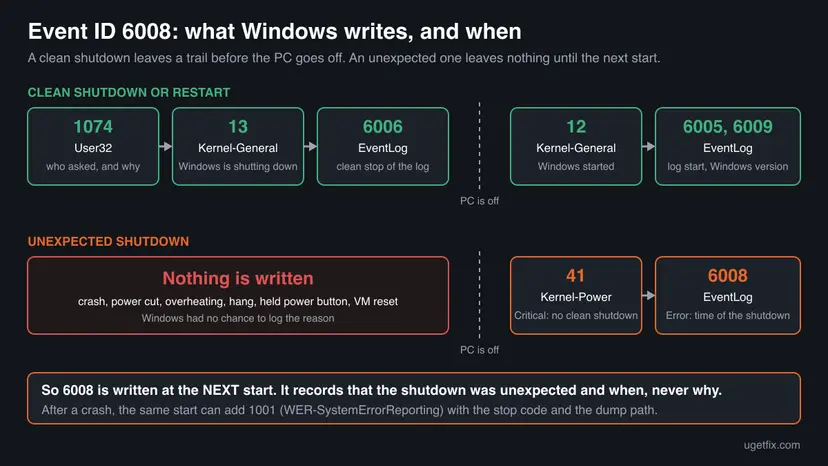
Event 6013 from EventLog, "The system uptime is [n] seconds", closes the group at each start. Our Windows 11 test showed it with 8 seconds right after 6008, 6009 and 6005. We found no Microsoft page that documents it, so read it only as a start marker. Event 1076 from User32, which other sites tie to the Shutdown Event Tracker, we could not confirm at all.
Event numbers repeat across sources. Microsoft warns that an ID can belong to several sources, so always read the Source column too. In our test, IDs 12 and 19 also came from Microsoft-Windows-Wininit with unrelated messages. An event 1001 from another source is not a crash record.
Why the previous system shutdown was unexpected: the causes
Microsoft names two main reasons for a shutdown that is not clean: an interruption in the power supply and a stop error. It adds that unexpected shutdowns are mostly caused by components outside the operating system. We have no numbers on how often each cause occurs, so the table is ordered by how clearly the log shows each one.
| Cause | What the log shows | Other signs | Fix |
|---|---|---|---|
| Windows crashed with a stop error (blue screen). | Event 41 with a BugcheckCode above 0, and event 1001 with the stop code. | A blue screen, then a restart. A dump file in %SystemRoot%. | Fix 3 |
| Power was cut: outage, loose cable, drained or removed battery, weak or faulty power supply. | Event 41 with BugcheckCode 0 and PowerButtonTimestamp 0, or no event 41 at all. No 1001. | The PC goes black at once, often under load or after new hardware was added. | Fix 5 |
| A crash that could not record itself. | Event 41 with all zeros and an event 46 from volmgr. | You saw a blue screen, but the log has no stop code. | Fix 4 |
| The PC hung and was switched off by hand. | Event 41 with a PowerButtonTimestamp above 0, or all zeros if the plug was pulled. | Frozen picture, no reaction to keys before the power-off. | Fix 8 |
| Overheating. | Kernel-Power event 86 at the next start. | Shutdowns under heavy load, loud fans, a hot case. | Fix 6 |
| Faulty memory or an overclock. | Event 41 with zeros, or stop codes that change from crash to crash. | Random timing, also when the PC is idle. | Fix 7 |
| A virtual machine or server restarted from outside. | Events 41 and 6008 in the guest, nothing before them. | The host or a recovery tool logged a reset at the same time. | Fix 9 |
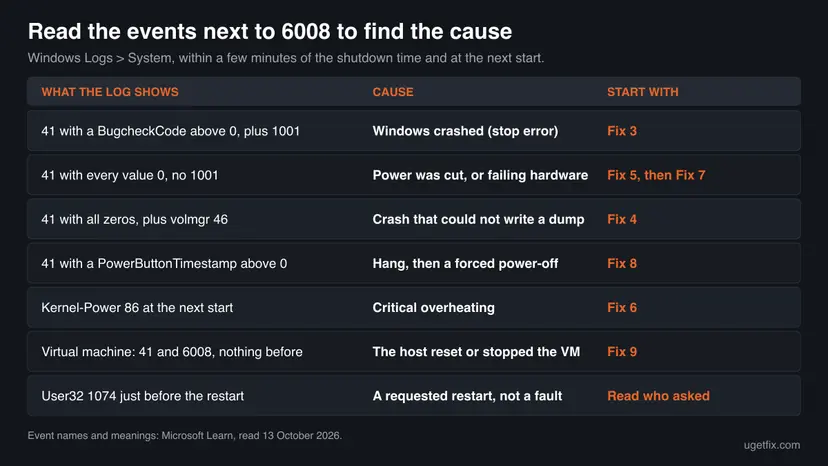
A single event after a known power cut, or after you held the power button on a frozen PC, needs no repair. Start the search when the events repeat, when you did nothing to cause them, or when the machine is a server.
How to find and fix the cause of Event ID 6008
Fixes 1 and 2 are the diagnosis and take about ten minutes: they tell you which of the later fixes is yours. Fixes 3 to 8 each repair one cause. Fix 9 is for Windows Server and virtual machines. Do not work through all of them in order.
| What you see or have | Start with |
|---|---|
| You found 6008 and do not know what happened. | Fix 1, then Fix 2 |
| An event 1001 that says the computer has rebooted from a bugcheck, or you saw a blue screen. | Fix 3 |
| You saw a blue screen, but the log shows no stop code and no dump was saved. | Fix 4 |
| Event 41 with only zeros: the PC went black at once, with no blue screen. | Fix 5, then Fix 7 |
| Kernel-Power event 86, or shutdowns only under heavy load. | Fix 6 |
| The PC froze and you held the power button. | Fix 8 |
| A Windows Server or a virtual machine restarted with nobody at the console. | Fix 9 |
| An event 1074 right before the restart. | Fix 1: read which process asked for it. This was a requested restart. |
Fix 1. List the shutdown events together with one command
5 minutesNo riskEveryone who found event 6008 and wants to know what happened before it.
Event 6008 only makes sense next to its neighbours. One filter puts every start, clean shutdown, crash record and requested restart of the last two weeks in one list, in the order they happened.
- Right-click Start and select Terminal (Admin). On Windows 10, type
PowerShellin the search box, right-click Windows PowerShell and select Run as administrator. - Select Yes when Windows asks for permission.
- Paste the command below and press Enter.
- Find the row with ID 6008 and read the time inside its text. That is when the PC went off.
- Read the rows above it. They show what Windows logged before that time: a 1074, a 13, or nothing at all.
- Read the rows with the same start time as 6008: an event 41, and after a crash an event 1001.
- Ignore rows whose ProviderName is
Microsoft-Windows-Wininit. It also uses ID 12, for a message about LSASS.exe that has nothing to do with a shutdown.
PowerShell (as administrator): the shutdown history of the last 14 days, oldest first
Get-WinEvent -FilterHashtable @{ LogName='System'; Id=12,13,41,46,86,1001,1074,6005,6006,6008,6009,6013; StartTime=(Get-Date).AddDays(-14) } |
  Sort-Object TimeCreated |
Format-Table TimeCreated, Id, ProviderName, Message -WrapWe ran this command on Windows 11 (build 26300) on 13 October 2026, after forcing a virtual machine off. The next start logged, in this order: Kernel-General 12, Kernel-Power 41, then EventLog 6008, 6009, 6005 and 6013 ("The system uptime is 8 seconds."). No 1074 and no 13 came before them.
Microsoft's own list for a restart history also has IDs 19 and 7045. We left them out here, because in our test their rows outnumbered the shutdown rows: 7045 lists every installed service. Fix 3 uses them where they help. Change -14 to look further back, and run the command as administrator, or it can show errors about logs it may not read.
- Prefer Event Viewer? Press Win + R, type
eventvwrand select OK. - Expand Windows Logs and select System.
- Select Filter Current Log in the right pane.
- In the event ID box, type
12,13,41,46,86,1001,1074,6005,6006,6008,6009,6013and select OK.
The steps for Event Viewer follow the filtered views in Microsoft's article on unexpected restarts. That article shows the result, not each click, and we wrote the clicks from the Event Viewer in Windows 11.
It worked if: You see event 6008 in one list with events 12, 41, 6009, 6005 and 6013 of the same start, and you can tell whether a 1074 or a 1001 belongs to it.
If not: If the list is empty, the System log may have been cleared or may not reach back that far. Raise the number of days, then go on to Fix 2.
Fix 2. Read the details of event 41 to tell a crash from a power loss
5 minutesNo riskYour list from Fix 1 shows a Kernel-Power event 41 at the same start as event 6008.
If Windows can, it records error codes while it goes down and puts them into event 41 at the next start. Three values in its details separate a crash, a held power button and a plain loss of power.
- Open Event Viewer (Win + R,
eventvwr) and go to Windows Logs > System. - Double-click the Kernel-Power event with ID 41 that has the same date and time as your event 6008.
- Open the Details tab.
- Read BugcheckCode, PowerButtonTimestamp and SleepInProgress under EventData.
- Compare the values with the table below.
| Values in event 41 | What Microsoft says it means | Go to |
|---|---|---|
| BugcheckCode is not 0 (for example 159). | A stop error. The number is the stop code in decimal form. | Fix 3 |
| BugcheckCode 0, PowerButtonTimestamp is a long number. | The power button was pressed and held to restart the PC. | Fix 8 |
| Every value is 0, and an event 46 from volmgr exists. | A crash is still possible, but Windows had no dump file to write to. | Fix 4 |
| Every value is 0, no event 46. | Windows could not write any code: usually lost power or a hardware problem. | Fix 5, Fix 6, Fix 7 |
| There is no event 41 at all. | The same as all zeros: this might indicate a power supply problem. | Fix 5 |
- The code is decimal. Stop codes are documented in hexadecimal. Open Calculator, switch it to Programmer mode, enter the number with DEC selected and read the HEX line. Microsoft's example: 159 becomes 0x0000009F.
- Eight digits. Fill the hex value with zeros in front until eight digits follow the
0x, because that is how Microsoft's reference lists the codes. - SleepInProgress. Microsoft's article shows this value but does not explain it. We could not confirm what a value other than 0 means for the diagnosis.
It worked if: You know which of four cases you have: a stop code, a held power button, a crash with no dump file, or all zeros.
If not: If no event 41 exists next to 6008, treat it as the all zeros case and start with Fix 5.
Fix 3. After a crash: find the stop code and undo the change that came before it
20 minutesLow riskEvent 41 holds a bug check code, or an event 1001 says the computer has rebooted from a bugcheck.
Here the unexpected shutdown was a Windows crash. Microsoft's method is to find the first crash in the history and look at what was installed shortly before it: a driver, an update or an application.
- In the list from Fix 1, open the event 1001 from WER-SystemErrorReporting. Note the bug check code and the path after "A dump was saved in".
- Look the code up in Microsoft's Bug Check Code Reference. The page of the code often names the kind of driver or hardware involved.
- Scroll back to the first unexpected shutdown in the list and note its date.
- Run the second command below. Read only the rows of the days just before that date: 7045 from Service Control Manager (a service or driver was installed) and 19 from Microsoft-Windows-WindowsUpdateClient (an update was installed).
- If a driver arrived just before: right-click Start, open Device Manager, double-click the device, open the Driver tab and select Roll Back Driver.
- If a Windows update arrived just before: open Settings > Windows Update > Update history > Uninstall updates and remove it.
- Use the PC as usual and run the command from Fix 1 again after a few days.
PowerShell (as administrator): what was installed in the last 30 days
Get-WinEvent -FilterHashtable @{ LogName='System'; Id=19,7045; StartTime=(Get-Date).AddDays(-30) } |
  Sort-Object TimeCreated |
Format-Table TimeCreated, Id, ProviderName, Message -WrapThis list is long, because 7045 shows every service that was installed. Rows with ID 19 from Microsoft-Windows-Wininit are not updates and can be skipped.
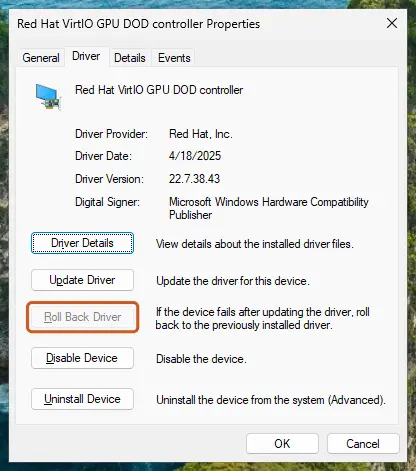
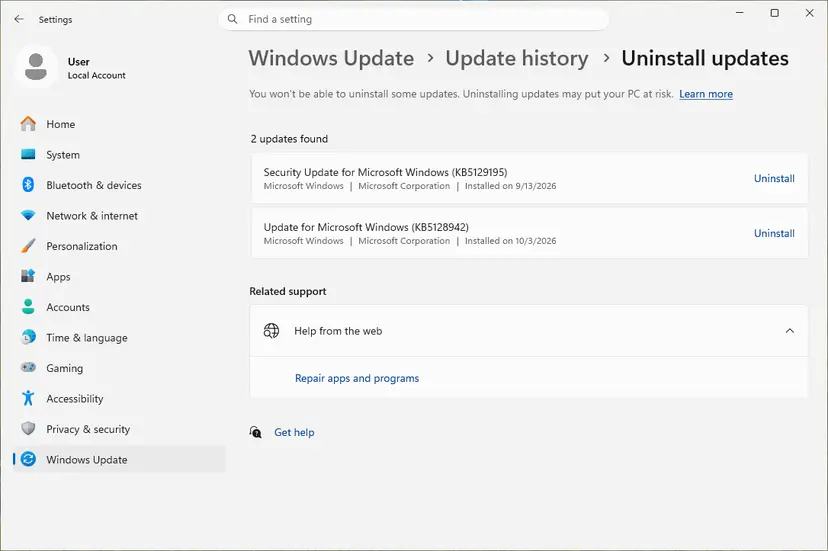
Every step of the driver rollback, also for Windows 10: Update, roll back or reinstall a driver Removing an update and pausing it so it does not come straight back: How to uninstall a Windows update
If the change was an application and not a driver, uninstall or update that application. If several things changed on the same day and you cannot tell them apart, a restore point from before that day undoes them together: Undo recent changes with System Restore
It worked if: The command from Fix 1 shows no new event 1001 and no new 6008 after the day you rolled the change back.
If not: If the stop codes keep changing from crash to crash, suspect hardware and go to Fix 7. If the same code returns, keep the dump file and see "If the shutdowns continue" below.
Fix 4. Make the next crash leave a stop code and a dump file
10 minutesLow riskYou saw a blue screen or suspect a crash, but event 41 shows only zeros, or the log has an event 46 from volmgr.
By default Windows restarts straight after a stop error, so the code is on screen for a moment only. Without a usable paging file it also cannot write a dump, and then event 41 stays empty.
- Open Control Panel and select System and Security > System. On Windows 11 this opens Settings > System > About.
- Select Advanced system settings and open the Advanced tab.
- In the Startup and Recovery area, select Settings.
- Under System failure, keep Write an event to the system log ticked and clear Automatically restart.
- Under Write debugging information, choose Automatic memory dump. This is the Windows default.
- Check that Dump file shows
%SystemRoot%\MEMORY.DMPand select OK. - Make sure the paging file is on the Windows drive and set to System managed size.
- Restart the PC.
- Kernel and automatic dump
%SystemRoot%\MEMORY.DMP, normallyC:\Windows\MEMORY.DMP. Overwritten by the next crash while Overwrite any existing file is ticked.- Small memory dumps
%SystemRoot%\Minidump. One new file for each crash. Needs a paging file of at least 2 MB on the boot volume.- Paging file
- Must be on the boot volume. With System managed size and Automatic memory dump, Windows sizes it for a kernel dump by itself.
- Free space
- Microsoft's general advice for unexpected restarts is to keep 10% to 15% of the drive free.
- Registry key behind the dialog
HKEY_LOCAL_MACHINE\SYSTEM\CurrentControlSet\Control\CrashControl. The dialog is the safe way to change it.
With the box cleared, the machine stays on the blue screen until someone restarts it by hand. That is what you want on a desk PC you can see. On a remote server it turns a short outage into a long one, so leave the box ticked there and rely on the dump file.
It worked if: At the next crash the blue screen stays, you can read the stop code, and a new file appears in %SystemRoot% or in %SystemRoot%\Minidump.
If not: If the PC goes off again with no blue screen and no dump, it is not a Windows crash. Go to Fix 5.
Fix 5. Check the power when event 41 shows only zeros
15 to 30 minutesLow riskThe PC goes black at once with no blue screen, and event 41 has BugcheckCode 0 and PowerButtonTimestamp 0, or is missing.
When power is interrupted, Windows cannot write a code. Microsoft lists the cases for this pattern: a removed or drained battery, an unplugged PC or an outage, and a power supply that is underpowered or faulty.
- Compare the time in the 6008 text with what else happened: lights that flickered, other devices that restarted, a tripped breaker.
- Shut the PC down, then check that the power cable sits firmly at both ends. On a laptop, check the charger plug and the battery.
- If you added hardware shortly before the shutdowns began, remove it again and test. Microsoft names this step first for unexpected restarts.
- If you added memory, a newer processor, drives or external devices, check that the power supply has enough wattage for them.
- If the PC is overclocked, set it back to its standard speed and test again.
- On a laptop, run the battery report below and open the HTML file it creates.
- Where outages are common, put the PC on an uninterruptible power supply (UPS).
Terminal: battery report, saved as an HTML file in the current folder
powercfg /batteryreport- What the battery report is. Microsoft describes it as a report of battery usage characteristics over the lifetime of the system. A battery that drains far faster than it used to fits a laptop that dies without warning.
- What we could not confirm. Windows has no event that says "the power supply is failing". A weak supply is found by exclusion, or by testing with another one.
It worked if: The shutdowns stop after you fix the cable, remove the new hardware, undo the overclock or add a UPS, and no new 6008 appears.
If not: If power looks fine, go to Fix 6 for heat and Fix 7 for memory. Microsoft lists overclocking, memory, power supply and overheating together for this pattern.
Fix 6. Look for a critical thermal event and deal with the heat
20 minutesLow riskThe PC goes off under heavy load such as games or rendering, or the System log holds a Kernel-Power event 86.
When a thermal zone reaches its critical temperature, the PC is shut down to protect the hardware. Windows records that as Kernel-Power event 86 after the shutdown, and the event names the thermal zone that caused it.
- Open Event Viewer (Win + R,
eventvwr) and go to Windows Logs > System. - Select Find in the right pane, type
critical thermal eventand select Find Next. - If an event 86 from Kernel-Power turns up, compare its time with your event 6008 and note the thermal zone it names.
- Shut the PC down and unplug it.
- Clear dust from the air vents and fans, and make sure nothing blocks the vents where the PC stands.
- Start the PC and check that the fans turn.
- Remove any overclock and test under the same load again.
- Event 125 is normal. Windows logs Kernel-Power event 125, an ACPI thermal zone being enumerated, at every start for every thermal zone. It is not a sign of overheating.
- No event 86 does not clear the PC. Microsoft's hardware documentation ties the event to firmware that defines a critical temperature for Windows. We could not confirm that every PC reports it.
- Reading temperatures. Microsoft says to examine the internal temperature of the hardware but names no Windows tool for it. Use the diagnostics or the firmware setup screen of your PC maker.
It worked if: No new event 86 appears and the PC gets through the same load that used to switch it off.
If not: If the PC still overheats with clean vents and working fans, the cooling needs service by the maker or a workshop. Without event 86, go to Fix 7.
Fix 7. Test the memory
20 minutes or moreNo riskEvent 41 shows only zeros, or the stop codes differ from crash to crash, and power and heat are ruled out.
Microsoft's hardware checks for an event 41 without codes include the memory: test its health and check that every module runs at the same speed and is set up correctly. Faulty memory can stop a PC without leaving a record.
Press Win + R and run the Windows memory test
mdsched.exe- Choose when to test. Select Restart now and check for problems (recommended) to test right away. Select Check for problems the next time I start my computer if you want to finish your work first: the test then runs at the next start.
- Let the test run. The PC restarts into a blue screen that shows the progress of the test. You do not have to do anything. When the test ends, the PC restarts by itself and Windows loads.
- Look for the notification. Sign in. After a short while Windows shows a notification with the result, also when no errors were found. If you missed it, read the result in Event Viewer.
- Open the System log. Press Windows + R, type eventvwr and select OK. In Event Viewer, expand Windows Logs and select System.
- Find the result. Right-click System and select Find. Type MemoryDiagnostics-Results and press Enter. Select the event that is found: its text says whether the test detected errors.
These steps were written for Windows 11 25H2 and 26H2, Windows 10 22H2. The full page with the other versions and what each result means: How to test your RAM with Windows Memory Diagnostic
The whole procedure with its result messages: How to test your RAM with Windows Memory Diagnostic If you use a memory profile from the firmware setup to run the modules faster than their base speed, set it back to default for the test.
It worked if: The result notification and the MemoryDiagnostics-Results event in the System log report no memory errors.
If not: If errors are reported, test the modules one at a time and replace the faulty one. If the test is clean and shutdowns go on, see "If the shutdowns continue" below.
Fix 8. After a hang: find what froze before you forced the power off
20 minutesLow riskThe PC froze and you held the power button, so event 41 holds a PowerButtonTimestamp, or you pulled the plug.
Here the unexpected shutdown was your own hand, and the real problem is the hang before it. Reliability Monitor shows, day by day, which failures and installs came before the freeze, and a clean boot tells you whether background software causes it.
- Press Win + R, type
perfmon /reland press Enter. Reliability Monitor opens. - Select the day of the event 6008 in the chart.
- Read the entries of that day and of the days before it, critical ones first.
- Select View technical details next to an entry to see the faulting application and module.
- In Event Viewer, read the System and the Application log for the minutes before the time named in event 6008.
- If one program or driver keeps showing up, update it or remove it.
- If nothing stands out, start Windows with a clean boot and use it for a day.

The clean boot step by step, and how to bring the services back afterwards: How to perform a clean boot in Windows If Windows hangs so early that you cannot work, start it in Safe Mode first: Start Windows or a Mac in Safe Mode
The next time the PC seems frozen, press Caps Lock. If the light on the keyboard does not change, Microsoft calls it a hard hang. Hard hangs point to hardware or drivers more than to an app, so also work through Fix 5 to Fix 7.
It worked if: The hang no longer happens in a clean boot, or after you removed the program or driver that failed before each freeze.
If not: If the PC hangs in a clean boot too, software you can turn off is not the cause. Go to Fix 5, Fix 6 and Fix 7, then to the section below.
Fix 9. Windows Server and virtual machines: look for a reset from outside
30 minutesNo riskA Windows Server or a virtual machine logged 6008 and nobody was at the console when it restarted.
A server can be restarted by something that is not inside its own Windows: the virtualization host, a recovery feature of the hardware, or the power feed. The guest then logs only 41 and 6008, and the reason is in another log.
PowerShell: the same history, read from another computer (replace SERVER01)
Get-WinEvent -ComputerName SERVER01 -FilterHashtable @{ LogName='System'; Id=12,13,41,46,86,1001,1074,6005,6006,6008,6009,6013; StartTime=(Get-Date).AddDays(-14) } |
  Sort-Object TimeCreated |
Format-Table TimeCreated, Id, ProviderName, Message -Wrap- Run the command above from your own PC.
-ComputerNametakes one NetBIOS name, IP address or full domain name at a time. - Look for an event 1074 before the restart. It names the process, the account and the reason, so it shows a requested restart such as an update or a management tool.
- No 1074 and the machine is a Hyper-V guest outside a cluster: check the heartbeat feature. If the host gets no heartbeat from the guest, Hyper-V restarts the virtual machine.
- In a Hyper-V cluster, check the option Enable heartbeat monitoring for the virtual machine.
- On a VMware guest, Microsoft points to the VMware heartbeat feature or a third-party cluster. Read the host's log for the time in the 6008 text.
- On a physical server, check for Automatic Server Recovery (ASR) software that restarts a machine it finds unresponsive.
- Read the log of the server's management controller for power and hardware faults at that time.
- The real question after a heartbeat reset is why the guest stopped answering. Treat it as a hang: read the guest's System and Application log before the time in the 6008 text.
- Time zones. Microsoft notes that times in a saved
.evtxfile are shown in your own system's time. Check the server's time zone before you compare logs of two machines. - Hardware logs. On Dell PowerEdge servers the iDRAC records which component faulted in its Lifecycle Log. Other makers have a log of the same kind.
- Shutdown Event Tracker. On servers this dialog asks for a reason after an unexpected shutdown. It is a result of the same dirty shutdown, not a second problem.
- A hung server and no dump. Microsoft describes a dump triggered by a non-maskable interrupt (NMI) from the server hardware. On Windows Server 2012 and later no registry change is needed for it.
We could not confirm from a current Microsoft page which events a Hyper-V host writes when it resets a guest. Search the host's logs by the time of the reset, not by an event number.
It worked if: You find a matching entry outside the guest: a 1074 with the process that asked, a host action at the same minute, or a power or hardware fault in the controller's log.
If not: If nothing outside the machine matches, handle it like any PC: Fix 2 for the event 41 values, then Fix 3 for a bug check or Fix 4 to capture the next one.
If the shutdowns continue: what to collect and when it is hardware
When 6008 keeps coming back after the fix that matched your pattern, stop changing settings and collect evidence. A repair shop, the PC maker or Microsoft Support can work with facts, not with "it shuts down sometimes".
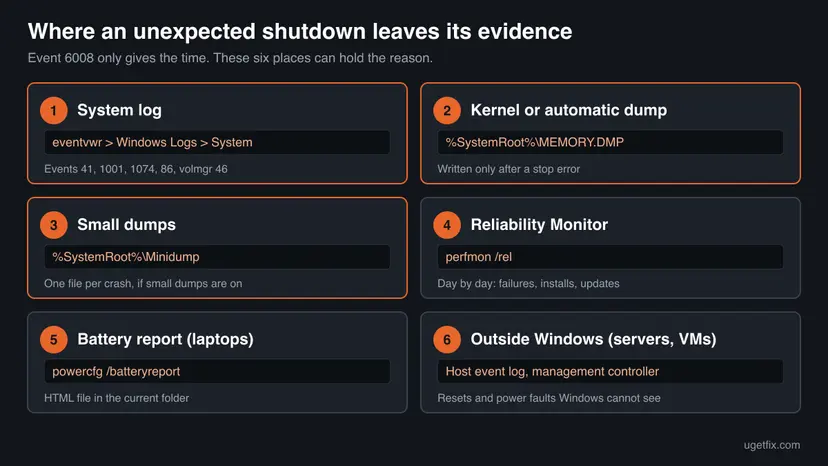
- The history. The output of the two commands in Fix 1 and Fix 3 for 30 days or more. It shows how often the shutdowns happen and what was installed before the first one.
- Event 41 details. BugcheckCode, PowerButtonTimestamp and SleepInProgress of each event 41.
- Dump files.
%SystemRoot%\MEMORY.DMPand the files in%SystemRoot%\Minidump. Microsoft Support may ask for the memory dump when you report a stop error. - What was going on. Microsoft stresses that event 41 alone is often not enough: note what the PC was doing each time, such as a game, a backup, sleep or nothing.
- Reliability Monitor. The days around each shutdown from
perfmon /rel.
| Sign | Why it points to hardware |
|---|---|
| Event 41 with all zeros every time, no 1001, a working dump setup (Fix 4). | Windows never got to write a code. Microsoft says these symptoms typically indicate a hardware problem. |
| Shutdowns also happen in the firmware setup screen or while Windows is installing. | Windows is not running, so no driver or app of Windows can be the cause. |
| Shutdowns in a clean boot and in Safe Mode. | Third-party software is switched off there. |
| Stop codes that differ from crash to crash. | One faulty driver usually repeats one code. Changing codes fit memory, power or heat. |
| Shutdowns only under load, or a Kernel-Power event 86. | Heat or a power supply at its limit. |
If the hardware checks find nothing, Microsoft's advice is to set the system to its default configuration and see whether the issue still occurs. In practice: default firmware settings, no overclock, and only the hardware the PC needs to start.
Check what the unexpected shutdowns left behind
Microsoft warns that a dirty shutdown can cause data loss or corruption and can lead to startup problems, because files were open and caches were not written. These checks do not remove the cause of event 6008. They repair what the shutdowns may have damaged, so run them once the cause is fixed.
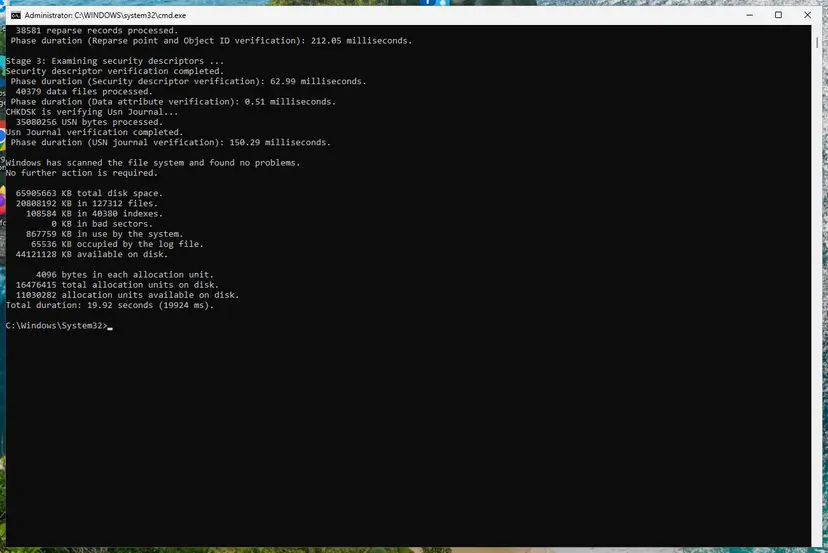
- Open a command window as administrator and run
chkdsk C:to scan the Windows drive without changing anything. - If chkdsk reports errors, run the repair as described here: Check a disk for errors (chkdsk)
- Check the Windows system files with DISM and
sfc /scannow: Run DISM and SFC to repair Windows system files - Open the documents you were working on when the PC went off and check that they are complete.
- If Windows no longer starts after a shutdown, use the recovery environment: Run Startup Repair
A PC that goes off without warning can do so in the middle of a save. Until the cause is fixed, keep a current copy of your important files on another drive or in the cloud: Back up your files (Windows Backup, File History, Time Machine)
How to keep Event ID 6008 from coming back
- Shut down from Start. Microsoft calls this the preferred way, because Windows then closes files and lets services and apps save their data.
- Hold the power button only when the PC truly does not respond, and try Caps Lock first to check.
- Put a desktop PC or a server on a UPS where the power is unreliable.
- Leave the dump settings at Automatic memory dump with a system managed paging file, so that a crash can explain itself.
- After each driver or hardware change, run the command from Fix 1 a few days later and look for new 41 and 6008 events.
- Do not clear the System log to make the error go away. The history is the only thing that shows a pattern.
- Do not move or remove the paging file from the Windows drive. Windows then cannot write a dump.
- Do not keep an overclock while you are looking for the cause of random shutdowns.
- Do not treat 6008 as the problem to remove. Remove the cause and the event stops by itself.
Frequently asked questions
What does Event ID 6008 mean?
It means Windows found at startup that its previous session did not end with a clean shutdown. The event comes from the source EventLog in the System log, has the level Error and reads "The previous system shutdown at [time] on [date] was unexpected." Microsoft calls this an improper or dirty shutdown. The event tells you that it happened and roughly when. It does not tell you why. The reason can be a crash, lost power, overheating, a hang that ended with the power button, or a virtual machine reset by its host.
Is error 6008 in Event Viewer something I have to fix?
Not the event itself. People search for error 6008 or error code 6008, but 6008 is an event number in the System log, not a Windows error code, and no setting repairs it. What may need fixing is the reason the PC went off. A single event after a known power cut, or after you held the power button on a frozen PC, needs no action. Repeated events that you did not cause do: list them together with events 41, 1001 and 1074 as in Fix 1 and follow the pattern you find.
What is the difference between Event ID 41 and Event ID 6008?
Both report the same shutdown from two sides. Event 6008 comes from EventLog, is an Error and gives the time the PC went off. Event 41 comes from Kernel-Power, is Critical and says that the system has rebooted without cleanly shutting down first. Event 41 is the more useful one, because its details can hold a bug check code after a crash, or a power button timestamp after a forced power-off. Microsoft notes that a PC that lost power may log no event 41 at all, so 6008 can also appear alone.
How do I see what caused an unexpected shutdown?
Read the events around it. Run the Get-WinEvent command from Fix 1 in PowerShell as administrator, or filter the System log in Event Viewer by the IDs 12, 13, 41, 1001, 1074, 6008 and 6009. Then open the event 41 of the same start and read BugcheckCode and PowerButtonTimestamp on its Details tab. A code above zero means a crash, and event 1001 gives the path of the dump file. A power button timestamp means a forced power-off. All zeros point to lost power or hardware. Reliability Monitor, opened with perfmon /rel, shows what failed or was installed in the days before.
Why does event 6008 show a different time than the moment it was logged?
Because Windows cannot write anything while it is going down unexpectedly. The event is created at the next start, so its Date and Time column shows when the PC came back. The time inside the text is when Windows was last known to be running. In our screenshot the event was logged at 6:08:08 PM and its text names 5:27:49 PM. Use the time in the text when you search other logs for the cause. We could not confirm from Microsoft how exact that time is, so look a few minutes to either side of it.
Is Event ID 6008 the same on Windows 10, Windows 11 and Windows Server?
Yes. The source, the number and the text are the same, and Microsoft's troubleshooting articles for Windows client and for Windows Server use the same set of events: 41, 1001, 1074, 6008 and 6009. The differences are around it. On Windows 11 you open PowerShell through Terminal (Admin), on Windows 10 through the search box. Windows 10 left support on 14 October 2025. On servers and virtual machines, a restart from outside is an extra cause, covered in Fix 9. In another display language the event text is translated, but the number stays 6008.
Can Event ID 6008 appear after a normal shutdown?
It can. Microsoft documented one case for Windows 2000 only: a locked computer shut down by a program with the force flag logged 6008, because the Event Log service was not told about the shutdown. For current Windows, Microsoft writes that a dirty shutdown event is logged when an application does not answer the shutdown request or ends abnormally. So a 6008 right after a shutdown you started yourself suggests that something was cut off during it. Check for an event 1074 just before, and for a bug check during shutdown in event 41.
Why does a server ask why it shut down unexpectedly after every restart?
That dialog is the Shutdown Event Tracker, and it appears because Windows has a dirty shutdown on record. If it shows after every restart, either each restart really is unclean, which Fix 1 will show as a new 6008 every time, or the record is stale. Microsoft notes that clearing the values under HKEY_LOCAL_MACHINE\SOFTWARE\Microsoft\Windows\CurrentVersion\Reliability, such as DirtyShutdown, LastAliveStamp and TimeStampInterval, can help prevent the tracker from appearing after an unexpected shutdown. Export the key first, and do it only after the real cause is known, because it removes a symptom and not the cause.
Will a system file check, a Windows update or a driver update fix Event ID 6008?
Only when the pattern in the log fits. Updating or rolling back a driver helps when event 1001 shows a bug check that started after a driver change. A Windows update can help with a crash caused by a known bug. A system file check repairs damage that unclean shutdowns left behind, but it does not stop a PC from losing power or overheating. Microsoft states that unexpected shutdowns are mostly caused by components outside the operating system. That is why this guide starts with the log and not with general repairs.
Sources
- Microsoft Learn: Troubleshoot unexpected reboots using system event logs (Windows Server) (learn.microsoft.com)
- Microsoft Learn: Advanced troubleshooting for Event ID 41, The system has rebooted without cleanly shutting down first (learn.microsoft.com)
- Microsoft Learn: Configure system failure and recovery options in Windows (learn.microsoft.com)
Did this fix work?
One click, no account. It tells the next reader which guides are worth their time.
Questions and experiences: fix Event ID 6008 "The previous system shutdown was unexpected" in Windows
Still broken, or found a fix we did not cover? Ask here: members and our editors answer. Reading is open; writing needs a free account.
…