
How to fix EXCEPTION_ACCESS_VIOLATION error on Windows 10?

Prefer to fix it yourself? The manual steps follow.
- 9methods
- 5 minutes to find the module, 5 to 30 minutes for the fix
- Intermediate
Applies to Windows 11, Windows 10, desktop programs, games, Python scripts, STAAD.Pro
9 methods in this guide
- What the error means
- Causes, most common first
- The fixes
- 1. Find the faulting module
- 2. Update or reinstall it
- 3. Repair Visual C++
- 4. STAAD.Pro analysis aborts
- 5. Python fatal exception
- 6. Games: verify files
- 7. Test with a clean boot
- 8. Test the memory
- 9. Repair system files
- If it still appears
- Keep it from returning
- FAQ
Hello. How can I fix the EXCEPTION_ACCESS_VIOLATION error? Usually, it shows up when I play a game, but yesterday I received the same message on Facebook. I'm using Windows 10. Please help!
EXCEPTION_ACCESS_VIOLATION (0xC0000005) means a program tried to read, write or run memory it had no right to use, so Windows stopped it. It is almost always a fault of that one program or one of its add-ons, not of Windows. Find the module that crashed first, then update or repair that program.
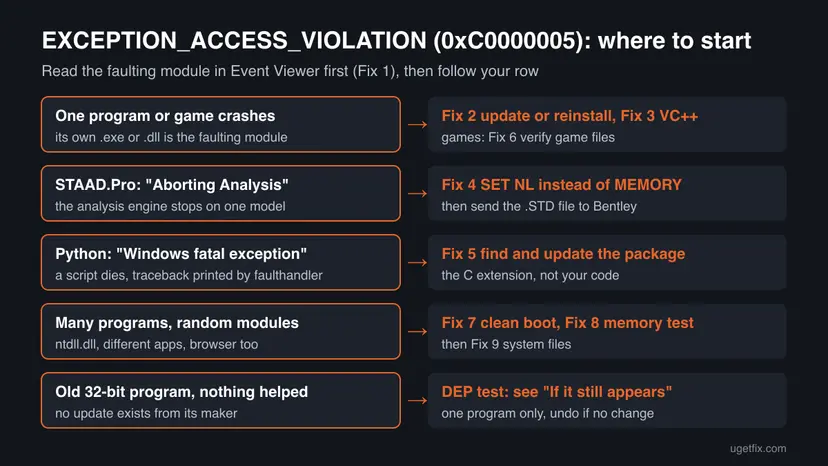
EXCEPTION_ACCESS_VIOLATION (0xC0000005) is a crash of one program that used memory it may not use. Open Event Viewer and read the faulting module of the crash (Fix 1). If it is the program's own file, update or reinstall it (Fix 2). If many programs crash with ntdll.dll or random modules, test without third-party software and test the RAM (Fixes 7 and 8).
| Error | EXCEPTION_ACCESS_VIOLATION, Windows status STATUS_ACCESS_VIOLATION, code 0xC0000005. |
|---|---|
| Where it appears | In a pop-up of the program that crashed, in a game's crash reporter, in a Python console, in STAAD.Pro's analysis window, and always as Event ID 1000 in Event Viewer > Windows Logs > Application. |
| Main cause | A bug or a damaged file in the crashing program, its plug-in, mod or overlay. Less often a driver, damaged runtime files or faulty RAM. |
| Fastest fix | Update or reinstall the program named in the Event Viewer entry (Fix 2). |
| Also written as | exception_access_violation, Exception Access Violation, Unhandled Exception: Access Violation, 0xc0000005, Access violation at address, EAccessViolation, Windows fatal exception: access violation. |
| Affects | Windows 11 and Windows 10, 32-bit and 64-bit programs. Windows 10 left support on 14 October 2025. |
| Microsoft's status | Not a Windows bug. Microsoft documents it as the exception a program receives when it breaks memory protection, for example Data Execution Prevention (DEP). |
| Time to fix | 5 minutes to read the log. 5 to 15 minutes to update or reinstall. Up to an hour for a memory test. |
Facts checked on 15 October 2026. Steps written for Windows 11 (25H2 and 26H2) and Windows 10 22H2.
What EXCEPTION_ACCESS_VIOLATION means
Every program on Windows gets its own memory, and every page of that memory has rights: read, write, or run. An access violation happens when the program breaks those rights. It reads an address that does not exist, writes to a read-only page, or runs code from a page marked as data. Windows then raises the exception STATUS_ACCESS_VIOLATION, number 0xC0000005. If the program does not handle it, Windows closes the program.
Microsoft's page on Data Execution Prevention describes one case exactly: if an application tries to run code from a protected data page, it receives an exception with the status code STATUS_ACCESS_VIOLATION, and if the exception is not handled, the process is terminated. The same code covers every other bad memory access too.
- EXCEPTION_ACCESS_VIOLATION and Unhandled Exception: Access Violation are the names debuggers, crash reporters and Java or Visual Studio windows show.
- 0xC0000005 is the same thing as a number. Event Viewer writes it as
Exception code: 0xc0000005. - Access violation at address ... in module ... is how programs written in Delphi word it, and EAccessViolation is that language's name for the error. The module named in the text is the file that crashed.
- Windows fatal exception: access violation is printed by Python when its fault handler is on and a script crashes inside a compiled module.
- Exception Access Violation Raised, Aborting Analysis is STAAD.Pro's message when its analysis engine crashes on a model.
0xC0000005 is the same for a game, a browser and an engineering tool. The name of the faulting module in the same crash entry tells you which file broke the rule, and that decides the fix. It is not a virus warning and not a sign that Windows is broken.
Why EXCEPTION_ACCESS_VIOLATION happens
Most access violations are bugs in the crashing program or in something it loads. That is why the order below starts with the program itself and ends with Windows and hardware.
| How often | Cause | Signs | Fix |
|---|---|---|---|
| Most often | A bug or damaged file in the program, or a version that does not match Windows. | One program crashes, at start or at the same action. Its own .exe or .dll is the faulting module. | Fix 2 |
| Often | A damaged or missing Visual C++ runtime the program needs. | The faulting module is msvcp140.dll, vcruntime140.dll or ucrtbase.dll. | Fix 3 |
| Often | A mod, plug-in, overlay or extension module loaded into the program. | Crashes started after a mod, a plug-in or a Python package update. | Fixes 5, 6 |
| Often in one tool | STAAD.Pro's analysis engine runs out of its set limits on a large model. | Exception Access Violation Raised, Aborting Analysis during analysis. | Fix 4 |
| Less often | Third-party software that hooks into other programs, such as security suites, overlays and tuning tools. | Many programs crash, often with ntdll.dll as the module. | Fix 7 |
| Rarely | Faulty RAM or an unstable overclock. | Random programs crash with random modules, sometimes with blue screens. | Fix 8 |
| Rarely | Damaged Windows system files. | Built-in Windows tools crash too. | Fix 9 |
Changing User Account Control does not stop access violations: UAC controls administrator prompts, not memory rights. Running a hardware troubleshooter does not help either, and Windows 11 no longer has one in Settings. Neither is on this page.
How to fix the EXCEPTION_ACCESS_VIOLATION error
Fix 1 tells you which file crashed. Fixes 2 and 3 solve most crashes of a single program. Fixes 4 to 6 are for STAAD.Pro, Python and games. Fixes 7 to 9 are for crashes in many programs. Test the program after each fix.
| What you see or have | Start with |
|---|---|
| You do not know which file crashed | Fix 1 |
| One program crashes, its own file is the module | Fix 2 |
| msvcp140.dll, vcruntime140.dll or ucrtbase.dll is the module | Fix 3 |
| STAAD.Pro: Exception Access Violation Raised, Aborting Analysis | Fix 4 |
| Python: Windows fatal exception: access violation | Fix 5 |
| A game crashes, maybe after a mod | Fix 6 |
| Many programs crash, often with ntdll.dll | Fix 7, then Fix 8 |
| Built-in Windows tools crash too | Fix 9 |
Fix 1. Find the faulting module in Event Viewer
5 minutesNo riskEveryone. The rest of the page depends on this name.
The pop-up rarely names the culprit, but Windows logs every unhandled crash as Event ID 1000. That entry names the program and the exact file (module) in which the violation happened, so you fix the right thing instead of trying everything.
- Right-click Start and select Event Viewer.
- Open Windows Logs > Application.
- In the right pane select Filter Current Log, type
1000in the Event IDs box and select OK. - Open the newest Application Error entry from the time of the crash.
- Read Faulting application name, Faulting module name and Exception code. Note the module's path, shown as Faulting module path.
Log Name:      Application
Source:        Application Error
Event ID:      1000
Faulting application name: <program>.exe
Faulting module name: <module>.dll
Exception code: 0xc0000005A module inside the program's own folder points to that program (Fix 2). A module in a plug-in, mod or package folder points to that add-on (Fixes 5 and 6). ntdll.dll is where many crashes surface in Windows, so it rarely is the cause itself: if it appears in many programs, go to Fix 7.
It worked if: You know which program and which file crashed, and whether it is one program or many.
If not: If there is no entry, start the program again, wait for the crash and refresh the log. If the program has its own crash log, read that. Then go to Fix 2.
Fix 2. Update or reinstall the program that crashes
10 to 15 minutesLow riskOne program or game crashes, and its own .exe or .dll is the faulting module.
An access violation is in most cases a bug or a damaged file in that program. A newer version often fixes the bug, and a clean reinstall replaces damaged files. This is also what the old reader's case needs: one game, one browser tab.
- Open the program's own Help > Check for updates, its launcher, or the maker's website, and install the newest version.
- If the crash started right after an update, look for a fix release or the maker's known issues page.
- If updating did not help, back up the program's settings, projects or saves.
- Uninstall the program and restart the PC. Step by step: Uninstall a program or app in Windows.
- Download a fresh installer from the maker's site and install it.

For a browser, update it first and then open it with extensions turned off: a crashing extension gives the same code. The reader who saw it on Facebook is most likely in this case.
It worked if: The program starts and does the action that crashed before, and no new Event ID 1000 entry with 0xc0000005 appears.
If not: If the module is a Visual C++ file, go to Fix 3. If the program loads mods, plug-ins or packages, go to Fix 5 or Fix 6.
Fix 3. Repair the Microsoft Visual C++ runtimes
10 minutesLow riskThe faulting module is a runtime file such as msvcp140.dll, vcruntime140.dll or ucrtbase.dll, or several older programs crash.
Most Windows programs and games are built with Visual C++ and load its runtime libraries at start. A damaged or outdated runtime makes every program that uses it read bad memory, so the program crashes even though its own files are fine.
- Open Programs and Features. Type control panel in the search box on the taskbar and select Control Panel. Select Programs > Programs and Features.
- Find the installed versions. Look for the entries that start with Microsoft Visual C++. Each one shows a year and an architecture, x64 or x86. Several entries side by side are normal: older versions stay installed next to newer ones.
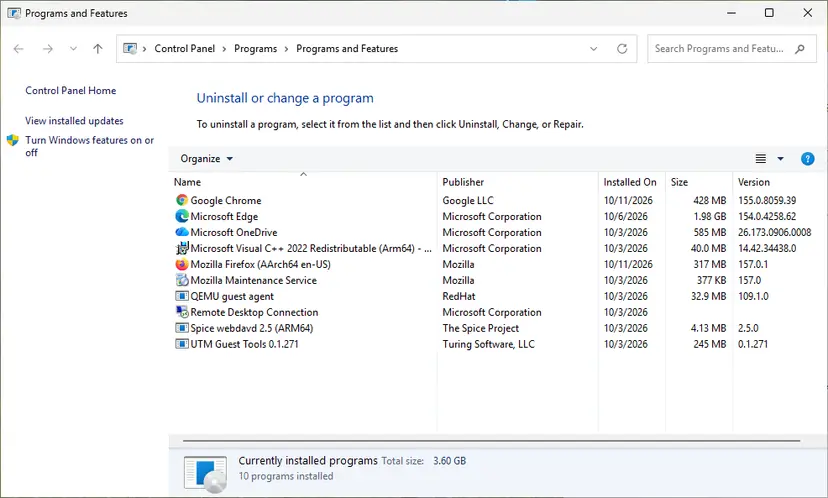
Each Visual C++ version is its own entry in Programs and Features. Screenshot: Windows 11 26H2. - Repair each Visual C++ entry. Right-click an entry and select Change, then select Repair in the window that opens. Do the same for every Microsoft Visual C++ entry.
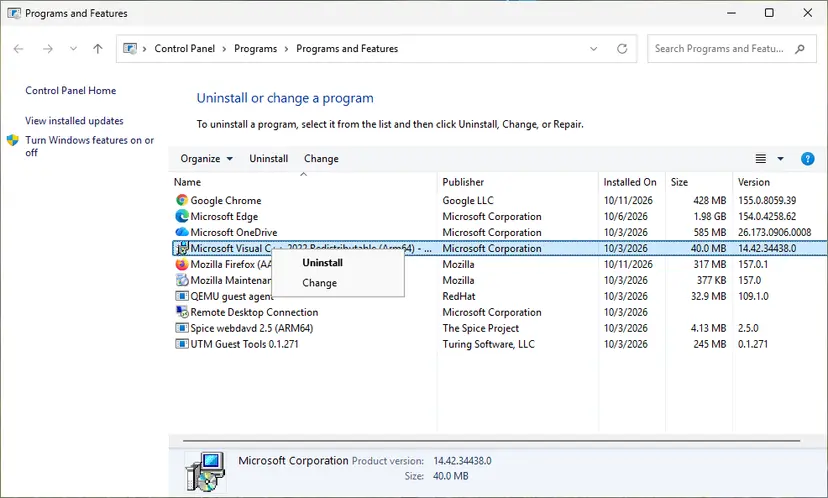
Right-click the entry and select Change to reach the repair option. Screenshot: Windows 11 26H2. - Install the latest supported version. Download the latest Visual C++ v14 Redistributable from Microsoft: Visual C++ Redistributable latest supported downloads and run it. On a 64-bit PC install both X64 and X86, because 32-bit programs need the x86 package. On an ARM64 PC install ARM64. This one version serves programs built with Visual Studio 2017 to 2026.
These steps were written for Windows 11 25H2 and 26H2, Windows 10 22H2. The full page with the other versions and what each result means: How to repair Microsoft Visual C++ Redistributable and .NET Framework
It worked if: Each Visual C++ entry reports that the repair finished, and the program starts after a restart.
If not: If the program still crashes, go back to Fix 2 and reinstall it after the runtimes are repaired.
Fix 4. STAAD.Pro: use SET NL when the analysis aborts
5 minutesLow riskSTAAD.Pro shows Exception Access Violation Raised, Aborting Analysis while it analyses one model.
This message comes from STAAD.Pro's own analysis engine, not from Windows. In a case on Bentley's forum, the model failed even after a MEMORY command was added; a Bentley expert deleted the MEMORY command, added SET NL 100, and the model then ran without the error.
- Save a copy of your
.STDinput file. - Open the input file in STAAD.Pro's editor.
- Delete the
MEMORYline if you added one. - Add the line
SET NL 100near the top of the input, where the MEMORY line was. - Save and run the analysis again.
STAAD SPACE
SET NL 100
...
Bentley's wiki article "What is the SET NL command" explains the value; we did not read it for this page, so check it if your model has very many load cases. The STAAD.Pro version in the forum case was 2023.
It worked if: The analysis runs to the end and the output file has no access violation line.
If not: Install the newest STAAD.Pro update, then send the .STD file to Bentley support. In the forum case, Bentley staff ran the user's model to find the cause.
Fix 5. Python: find the module behind "Windows fatal exception: access violation"
10 minutesLow riskA Python script stops with Windows fatal exception: access violation, often in a package such as a GUI, imaging, machine learning or database library.
Pure Python code cannot cause an access violation. It comes from a compiled extension module of a package, or from ctypes code that passes a bad pointer. Python's faulthandler module prints the traceback at the moment of the crash, so you see which package was running.
- Run the script with the fault handler on:
python -X faulthandler your_script.py, or set the environment variablePYTHONFAULTHANDLER=1. - Read the traceback under the error line. The most recent call is shown first, so the top
Fileline is where it crashed. - Note the package that owns that file, for example a path inside
site-packages. - Update it:
python -m pip install --upgrade <package>. - If the crash started after an update, install the previous version instead:
python -m pip install <package>==<version>.
python -X faulthandler your_script.py
Windows fatal exception: access violation

Current thread 0x... (most recent call first):
File "...\site-packages\<package>\...", line ... in ...Python's documentation says that since version 3.6 the fault handler also installs a handler for Windows exceptions. Tracebacks go to the console (sys.stderr), so run the script from a terminal, not by double-click, or pass a log file to faulthandler.enable().
It worked if: The script runs with the updated or rolled-back package, and no fatal exception is printed.
If not: Report the traceback to the package's issue tracker with your Python version and Windows build. Check that the package supports your Python version.
Fix 6. Verify the game files and remove mods and overlays
10 to 20 minutesLow riskA game crashes with EXCEPTION_ACCESS_VIOLATION, at start or at the same point, or after you added a mod.
Games load their own data files, mods and overlay DLLs into the same memory. A damaged game file or an outdated mod written for another game version is the usual cause of an access violation in one game.
- Restart and open Steam. Restart your computer and launch Steam.
- Open the game's menu. Right-click the game in your Library, or open the game's Library page and select the gear icon on the far right.
- Open Properties. Select Properties in the menu.
- Verify the files. Select the Installed Files tab and select Verify integrity of game files.
- Wait for the result. Steam checks the game's files. This can take several minutes.
These steps were written for Steam on Windows. The full page with the other versions and what each result means: How to verify game files in Steam, Epic Games, Xbox app, EA app, Battle.net and GOG Galaxy
- Move mods out of the game's mod folder and start the game without them. Put them back one by one.
- Turn off overlays (the launcher's in-game overlay, recording and FPS tools) for one test.
- Remove an overclock of the graphics card or CPU for one test: crashes that move between modules point there.
It worked if: The launcher reports that files were checked or reacquired, and the game runs past the point where it crashed.
If not: If the crash stays without mods and overlays, update the graphics driver: Update, roll back or reinstall a driver. Then go to Fix 7.
Fix 7. Find interfering software with a clean boot
15 minutesLow riskMany programs crash with 0xc0000005, often with ntdll.dll as the module.
Security suites, overlays, mouse and RGB tools and tuning utilities inject code into other programs. If that code is faulty, every program it enters can crash with an access violation. A clean boot starts Windows without them, so you know whether one of them is the cause.
- Open System Configuration. Select Search on the taskbar, type msconfig and select System Configuration from the results.
- Hide Microsoft services. On the Services tab, select the Hide all Microsoft services check box. Only services from other companies stay in the list.
- Disable the remaining services. Select Disable all, then select Apply.
- Open Task Manager. On the Startup tab of System Configuration, select Open Task Manager.
- Disable the startup apps. On the Startup apps tab in Task Manager, select each item whose status is Enabled and select Disable. Write down or take a screenshot of the items you disable: you need the list to turn them back on.
- Confirm the changes. Close Task Manager. On the Startup tab of System Configuration, select OK.
- Restart and test. Restart the PC. Windows now starts in a clean boot environment: try again the thing that failed (run the app, install the update, uninstall the program).
These steps were written for Windows 11 25H2 and 26H2. The full page with the other versions and what each result means: How to perform a clean boot in Windows

If the crashes stop, turn services and startup apps back on in small groups until they return. Users often report a third-party antivirus as the cause; if that is your case, update it or ask its maker, and keep Microsoft Defender running meanwhile.
It worked if: The program runs without crashing in the clean boot, and you can name the service or app that causes it.
If not: If crashes continue in a clean boot, go to Fix 8. Remember to undo the clean boot when you are done.
Fix 8. Test the RAM with Windows Memory Diagnostic
20 to 60 minutesNo riskRandom programs crash with different modules, sometimes with blue screens, and a clean boot did not help.
A faulty RAM module or an unstable memory overclock flips bits in data and addresses. Programs then read addresses that make no sense, which Windows reports as access violations in many unrelated programs.
- Open Windows Memory Diagnostic. Press Windows + R, type mdsched.exe and select OK. You can also search for Windows Memory Diagnostic and open it from the results.
- Choose when to test. Select Restart now and check for problems (recommended) to test right away. Select Check for problems the next time I start my computer if you want to finish your work first: the test then runs at the next start.
- Let the test run. The PC restarts into a blue screen that shows the progress of the test. You do not have to do anything. When the test ends, the PC restarts by itself and Windows loads.
- Look for the notification. Sign in. After a short while Windows shows a notification with the result, also when no errors were found. If you missed it, read the result in Event Viewer.
- Open the System log. Press Windows + R, type eventvwr and select OK. In Event Viewer, expand Windows Logs and select System.
- Find the result. Right-click System and select Find. Type MemoryDiagnostics-Results and press Enter. Select the event that is found: its text says whether the test detected errors.
These steps were written for Windows 11 25H2 and 26H2, Windows 10 22H2. The full page with the other versions and what each result means: How to test your RAM with Windows Memory Diagnostic
If you set a memory profile (XMP or EXPO) or an overclock in the BIOS, set the memory back to its default speed for a few days. If crashes stop, the memory was not stable at the higher speed.
It worked if: The result in the System log reads that no errors were detected.
If not: If the test finds errors, test one RAM module at a time and replace the faulty one. That is a hardware fault, and no software fix will stop the crashes.
Fix 9. Repair Windows system files with DISM and SFC
20 to 30 minutesNo riskBuilt-in Windows tools crash too, or nothing above helped.
Every program loads Windows libraries such as ntdll.dll and kernel32.dll. If one of them is damaged, programs can crash inside it. DISM repairs the Windows image and SFC replaces damaged system files from it.
- Open an elevated command window. Right-click Start and select Terminal (Admin), or type cmd in the search box, right-click Command Prompt and select Run as administrator. Select Yes when Windows asks for permission.

Search for cmd and choose Run as administrator. Screenshot: Windows 11 26H2. - Run DISM first. Type the command below and press Enter. DISM downloads clean copies of damaged components from Windows Update, so it can take several minutes. Wait until it says The operation completed successfully.
DISM.exe /Online /Cleanup-Image /RestoreHealth
DISM /RestoreHealth running. Screenshot: Windows 11 26H2. - Run System File Checker. In the same window, type the command below and press Enter. Do not close the window until the verification reaches 100%.
sfc /scannow
sfc /scannow at 100%. Screenshot: Windows 11 26H2. - Read the result and restart. Compare the last message with the table below this guide, then restart the PC so that repaired files are loaded.

The result line tells you what SFC did. Screenshot: Windows 11 26H2.
These steps were written for Windows 11 24H2 and 25H2. The full page with the other versions and what each result means: Run DISM and SFC to repair Windows system files
It worked if: SFC reports that it repaired damaged files or found no integrity violations. Restart and test the program.
If not: Read "If the access violation still appears" below.
If the access violation still appears
When one program keeps crashing after a clean reinstall, the bug is in that program's current version and only its maker can fix it. Send them the facts, not just the code: the code is the same for every crash.
- Copy the Event ID 1000 entry: faulting application, faulting module, their versions and the Fault offset.
- Note what you did when it crashed, and whether it happens every time.
- Run
winverand note the Windows version and OS build. - Attach the program's own crash log or dump file if it makes one, and send it all to the maker's support.
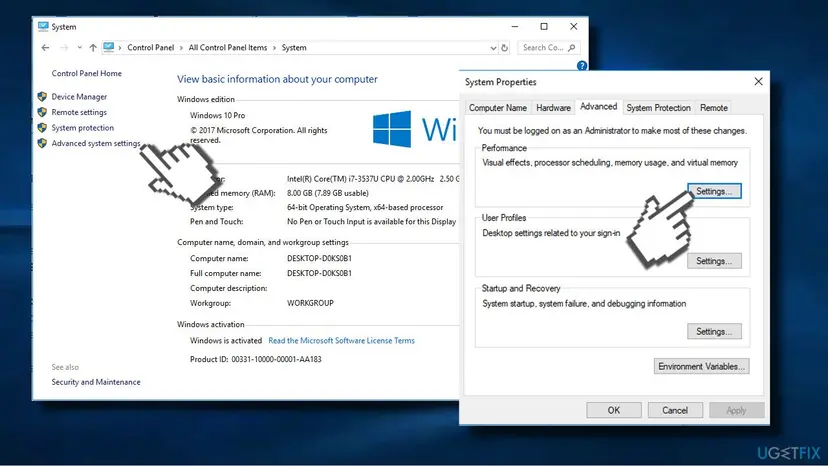
Last test for an old 32-bit program: a DEP exception. Some old programs run code from memory marked as data, which Data Execution Prevention stops with this exact exception. Microsoft says most such programs must be updated to work, and an exception turns that protection off for one program. Use it only for an old 32-bit program you trust, as a test.
With an exception, an attack against that program is easier. Add only the one program you trust, never a Windows file. If the crash does not change, remove the exception at once. Windows refuses exceptions for 64-bit programs, which shows you DEP is not your cause.
- Press Win + R, type
SystemPropertiesAdvancedand select OK. - Under Performance select Settings and open the Data Execution Prevention tab.
- If Turn on DEP for all programs and services except those I select is chosen, select Add and pick the program's
.exefile. - Select Apply, then OK, restart and test. If nothing changed, return, select the program and choose Remove.
How to keep EXCEPTION_ACCESS_VIOLATION from coming back
Most access violations come from one program or what it loads. Keeping those parts current and adding them one at a time makes the cause easy to find next time.
- Keep programs, games and Python packages updated from their makers.
- Add mods, plug-ins and packages one at a time and test after each.
- Keep the Visual C++ runtimes installed and updated.
- Check Event Viewer for the faulting module after the first crash.
- Lower User Account Control or DEP for all programs.
- Download single DLL files from DLL sites to replace a module.
- Keep an unstable memory or CPU overclock.
- Run several security suites at once.
Frequently asked questions
What is EXCEPTION_ACCESS_VIOLATION?
It is the error Windows raises when a program reads, writes or runs memory it has no right to use. Its status name is STATUS_ACCESS_VIOLATION and its code is 0xC0000005. If the program does not handle it, Windows closes the program, and you see a crash window or the program simply disappears. The error almost always comes from that program, a plug-in or a runtime it loads, not from Windows itself.
What does Exception Access Violation Raised, Aborting Analysis mean in STAAD.Pro?
It means STAAD.Pro's analysis engine crashed while it analysed your model, so the analysis stopped. In a case on Bentley's own forum, adding a MEMORY command did not help. A Bentley expert deleted the MEMORY command and added SET NL 100, and the model ran. Try that in Fix 4, update STAAD.Pro, and send the .STD file to Bentley if it still fails.
How do I fix Windows fatal exception: access violation in Python?
That line comes from Python's fault handler and means a compiled module crashed, not your Python code. Run the script with python -X faulthandler from a terminal, read the top File line of the traceback, and find the package it belongs to. Update that package with pip, or go back to the version that worked. If it still crashes, report the traceback to the package's maintainers.
Is exception access violation the same on Windows 11?
Yes. The code 0xC0000005, its meaning and the fixes are the same on Windows 11 and Windows 10. Only a few paths differ, such as where Installed apps sits in Settings. Windows 10 left support on 14 October 2025, so new versions of programs and games may stop supporting it, which can make crashes there more frequent over time.
What does Access violation at address mean?
It is the same error worded with details: the address where the program crashed and often the module, for example Access violation at address 00401234 in module program.exe. This wording is typical of programs written in Delphi, where the error class is called EAccessViolation. The module named in the message is the file to update or reinstall. The addresses only help the program's developer.
Why do I get access violations in many programs and in my browser?
When unrelated programs crash with the same code, the cause is something they share. Most often it is third-party software that injects into every program, such as a security suite, overlay or tuning tool, which a clean boot shows (Fix 7). Next comes faulty or overclocked RAM (Fix 8), then damaged Windows files (Fix 9). A single bad program cannot crash other programs.
Can a virus cause exception access violation errors?
Malware can crash programs, but the error itself is a normal crash code and not a sign of infection. If crashes started together with unknown programs, browser changes or pop-ups, run a full scan: How to scan for malware with Microsoft Defender. Do not turn off your antivirus as a fix. If a clean boot points to your security software, update it or contact its maker.
Should I download a DLL to fix the faulting module?
No. A module named in the crash, such as ntdll.dll or a program's own DLL, is where the crash happened, rarely what is broken. Single DLL files from download sites can be the wrong version or contain malware. Reinstall the program that owns the file, repair the Visual C++ runtimes, or run DISM and SFC for Windows files.
I get EXCEPTION_ACCESS_VIOLATION in a game like Hidden Deep or in PaintTool SAI. Is there a special fix?
The methods are the same for every program: read the faulting module, update the game or app, verify or reinstall its files, and remove mods and overlays. We did not find a separate fix from those makers for this page. If the newest version still crashes, send the Event Viewer entry to the maker's support, since the bug is in their code.
Sources
- Microsoft Learn: Data Execution Prevention (STATUS_ACCESS_VIOLATION when code runs from a protected page, application compatibility) (learn.microsoft.com)
- Bentley Systems Communities, RAM | STAAD Forum: Exception Access Violation Raised, Aborting Analysis (expert answer: SET NL instead of MEMORY) (bentleysystems.service-now.com)
- Python documentation: faulthandler, dump the Python traceback (Windows exception handler since 3.6, -X faulthandler) (docs.python.org)
Did this fix work?
One click, no account. It tells the next reader which guides are worth their time.
Questions and experiences: fix EXCEPTION_ACCESS_VIOLATION error on Windows 10
Still broken, or found a fix we did not cover? Ask here: members and our editors answer. Reading is open; writing needs a free account.
…