How to fix
ExFAT drive not showing up
on Windows
Resolve exFAT drive visibility issues in Windows 10 and 11 effortlessly with expert-tested solutions and clear screenshots for quick fixes.

What causes How to fix exFAT drive not showing up in Windows?
- Bad or loose connection
- Broken USB cable
- Broken USB port
- Loose connection between the disk and the port
- Driver issues or conflicts
Repairs Windows system files, removes malware, and restores a clean OS state — without reinstalling.
Hello. When I plug in my exFAT drive in Windows it is not showing up. Why would that be? Any tips would be appreciated.
For users who depend on the exFAT file system for its compatibility and support for big storage sizes, it can be a fairly disappointing experience when an exFAT drive fails to appear on a Windows machine. These external drives are a popular option for people who use both operating systems because they can often be used to transfer files easily between Windows and macOS. However, the connection between the drive and the computer is frequently to blame when this problem arises.
One of the most frequent causes of an exFAT drive not being recognized by a Windows machine is a bad or loose connection. A broken USB cable, a broken USB port, or a loose connection between the disk and the port are just a few causes of this. The problem could occasionally potentially be caused by issues or conflicts with the driver.
Users may experience considerable effects, particularly if the afflicted drive houses important files or data. Important papers, media files, or backup data may not be accessible to users, which could result in data loss or disrupted workflow. Additionally, it can be a headache to be unable to use a drive that is advertised to be flexible and compatible with several platforms.
Users might think about a few potential fixes to fix the exFAT drive not showing up in Windows issue. These consist of verifying the drive is correctly attached, checking and replacing the USB cable, attempting a new USB port, and upgrading or reinstalling the USB drivers. Users might also need to examine the drive physically for any damage and, if necessary, think about data recovery methods.
Method 1. Check Disk
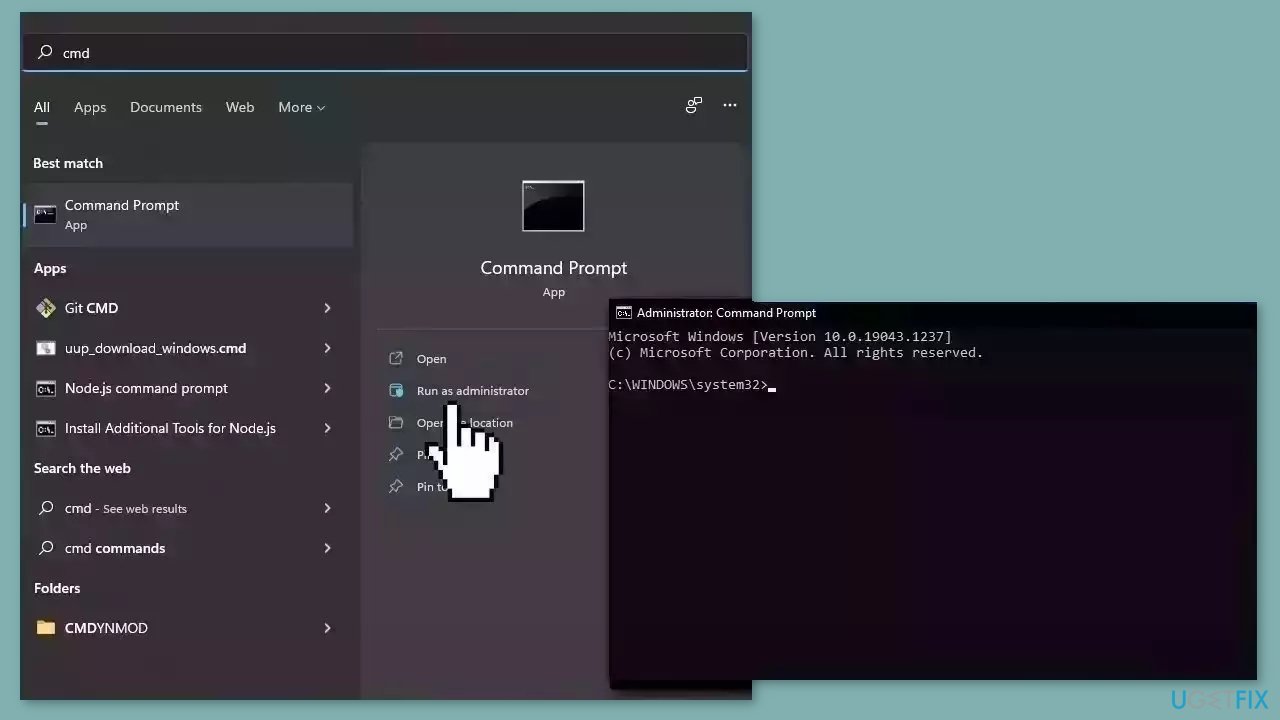
- Press the Windows key + S to initiate the Search function.
- Type Command Prompt in the search field.
- Right-click on the relevant Command Prompt result.
- Select Run as administrator.
- Confirm the action by clicking Yes in the prompt that appears.
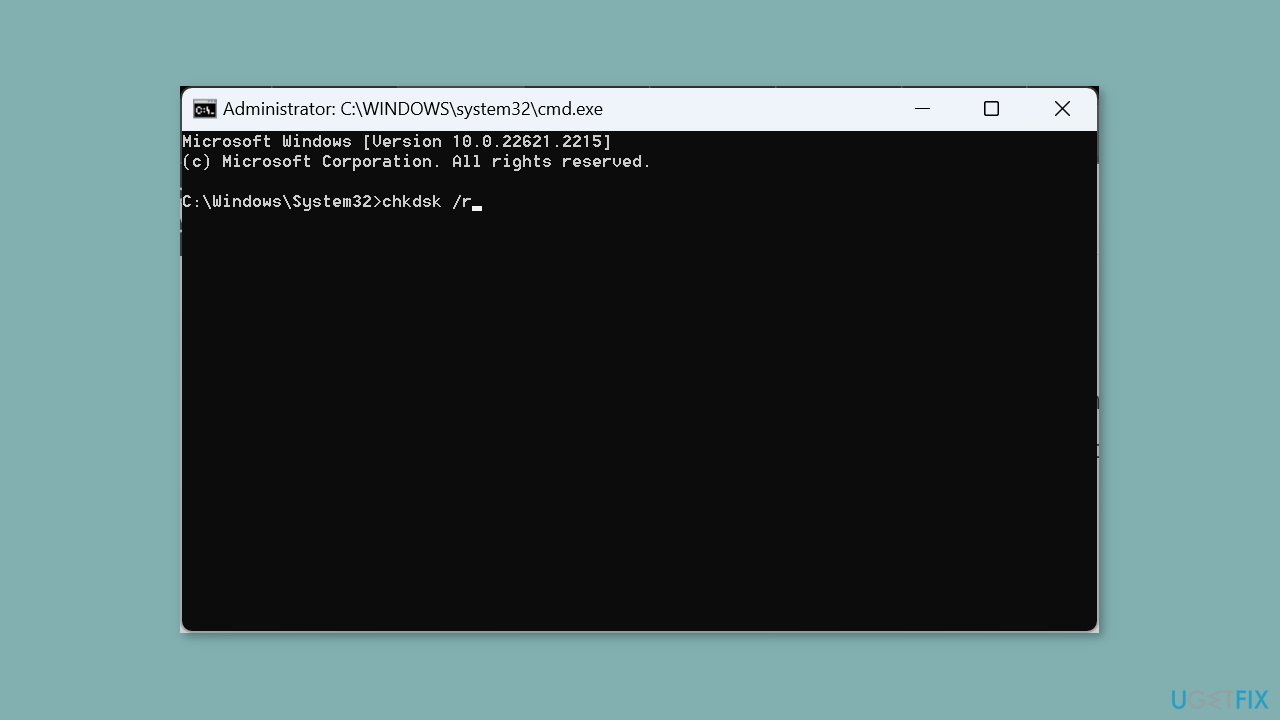
- In the elevated Command Prompt window, paste the following command and press Enter:
chkdsk /r
- If prompted to schedule a scan for the next PC restart, press Y and then hit Enter.
- Now, proceed to reboot the computer.
Method 2. Fix Corrupted System Files
Use Command Prompt commands to repair system file corruption:
- Open Command Prompt as administrator
- Use the following command and press Enter:
sfc /scannow
- Reboot your system
- If SFC returned an error, then use the following command lines, pressing Enter after each:
DISM /Online /Cleanup-Image /CheckHealth
DISM /Online /Cleanup-Image /ScanHealth
DISM /Online /Cleanup-Image /RestoreHealth
Method 3. Mark the Drive as Active and Assign a Drive Letter
- Press the Windows key + S to open the Search bar.
- Type Create and format hard disk partitions in the search field and click on the relevant result.
- Locate the exFAT formatted external drive in the Disk Management window.
- Right-click on the external drive.
- Select Mark Partition as Active from the context menu.
- Respond appropriately if a confirmation prompt appears.
- Right-click on the external storage device again.
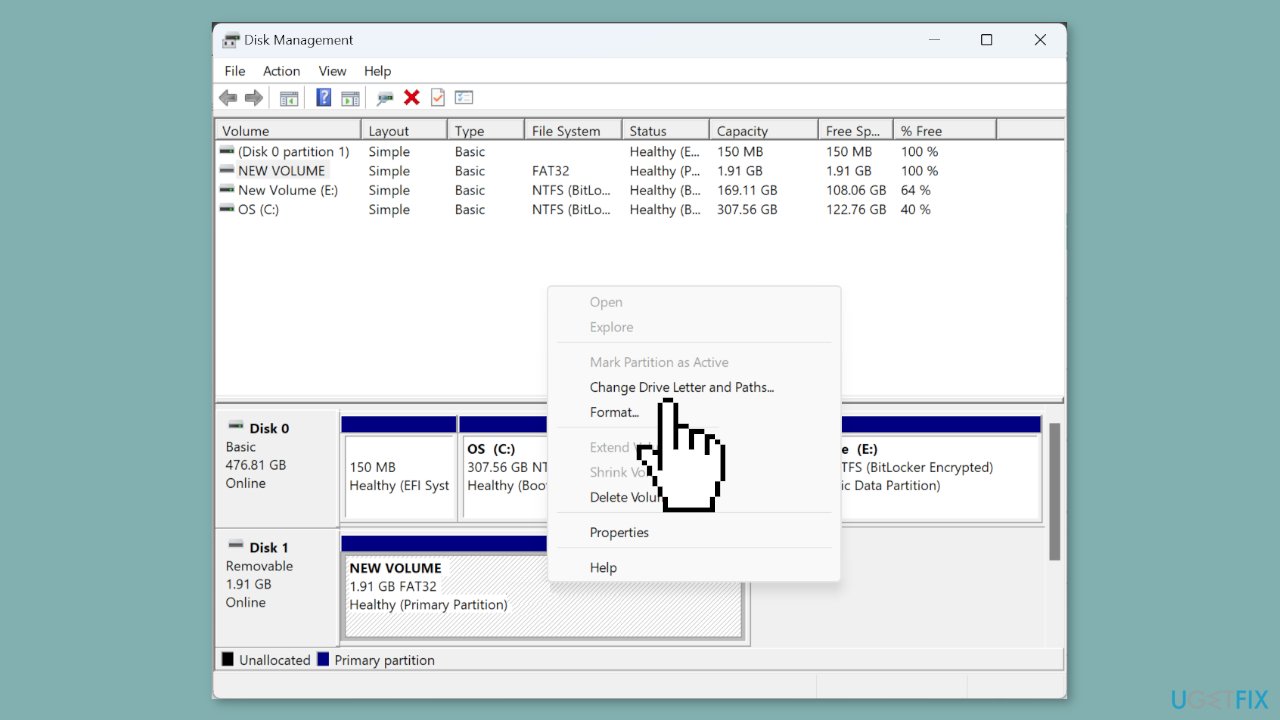
- Choose Change Drive Letter and Paths.
- Click the Add button.
- Select Assign the following drive letter.
- Choose a drive letter from the default menu or stick with the default choice.
- Click OK to confirm your selection.
Method 4. Reformat the Drive
Windows Disk Management:
- Press the Windows key + R to open the Run dialog.
- Type diskmgmt.msc into the text field and press Enter.
- In the Disk Management window, locate the problematic external drive.
- Right-click on the external drive.
- Select Format from the context menu.
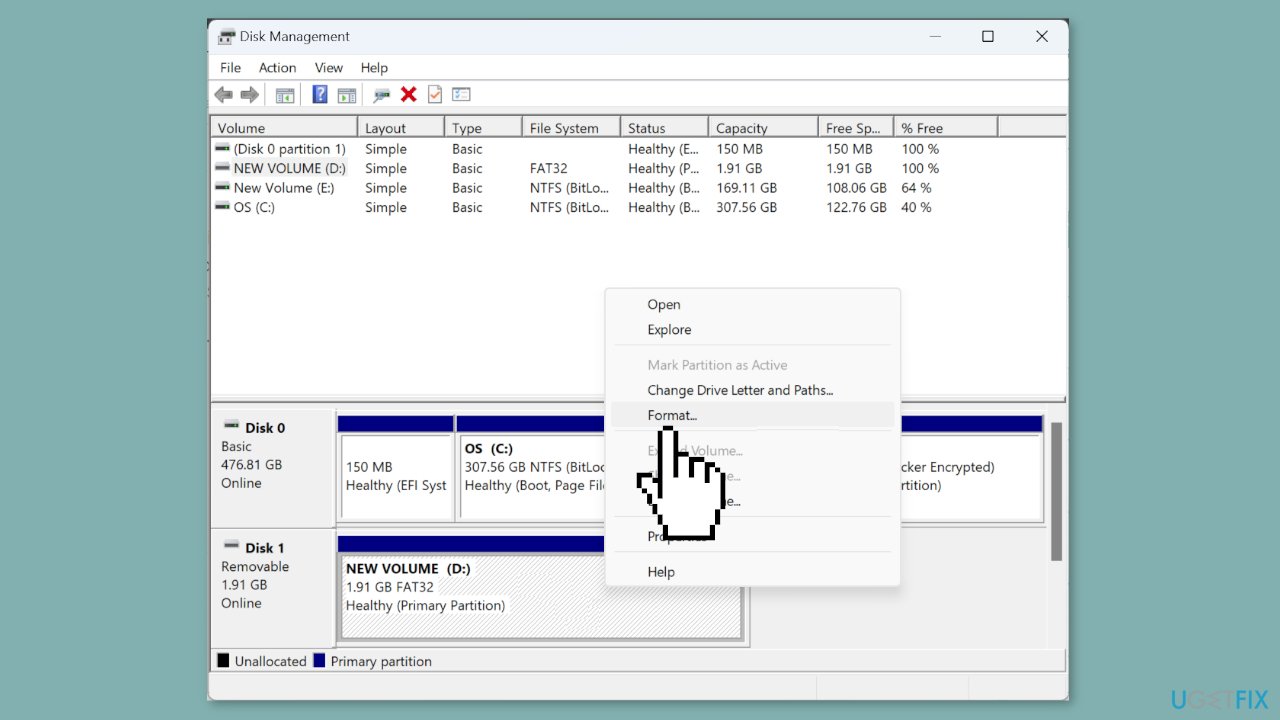
- Enter a Volume label in the provided text field.
- Choose exFAT from the File system dropdown menu.
- Select 128K as the Allocation unit size.
- Untick the checkbox for Perform a quick format.
- Click the OK button to start the formatting process.
- After the drive has been formatted, check if it is now readable on Windows.
Diskpart:
- Press the Windows key + R to open the Run dialog.
- Type cmd and press Ctrl + Shift + Enter.
- Click Yes in the UAC prompt to grant administrative access.
- Paste the following command into the Command Prompt and press Enter:
diskpart
- To view the available disks, run this command:
list disk
- Identify the ID assigned to the external drive.
- Execute the following command, replacing "X" with the assigned number:
select disk X
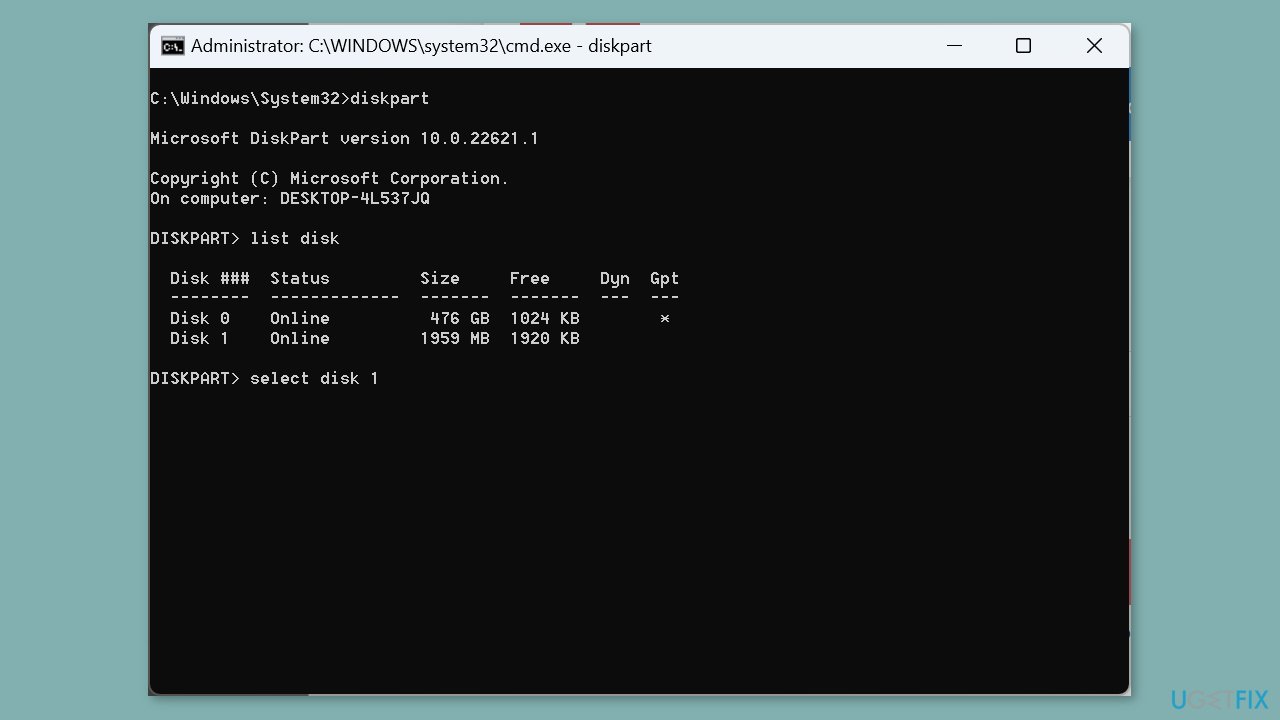
- To clear the disk and delete any files, run this command:
clean
- Create a partition using this command:
create partition primary
- Set the file system to exFAT with this command:
format fs=exFAT
- Assign a drive letter using this command:
assign
Method 5. Update the Driver
- Press the Windows key + X to access the Power User menu.
- From the list of options, select Device Manager.
- Within Device Manager, expand the Disk drives entry.
- Right-click on the USB drive that's experiencing issues.
- Choose Update driver from the context menu.
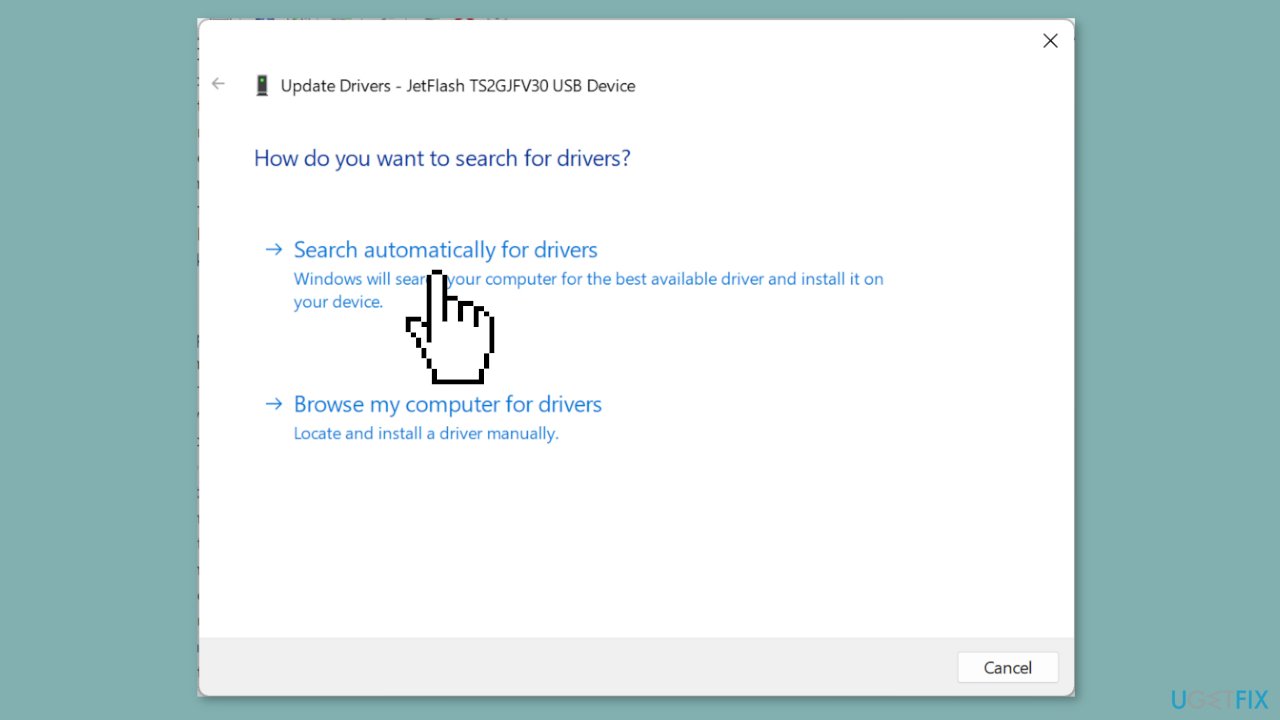
- Opt for Search automatically for drivers.
- Wait while Windows searches and installs the best available driver stored locally.
Bottom line
To fix the exFAT drive not showing up in Windows, users should verify the drive is correctly attached, check and replace the USB cable, try a new USB port, and upgrade or reinstall the USB drivers. If these steps do not resolve the issue, users may need to examine the drive for physical damage and consider data recovery methods.
Frequently asked questions
This issue can occur due to driver problems, file system corruption, or incorrect drive letter assignments. Ensure your system recognizes the drive in Disk Management and check for any updates to your USB drivers.
To assign a drive letter, open Disk Management, right-click on your exFAT drive, and select 'Change Drive Letter and Paths.' Choose a letter from the list and click OK to save the changes.
If the drive is still not recognized, try connecting it to a different USB port or computer, and consider running a disk check using the Command Prompt to detect and repair any issues.




Report an issue
What's wrong with this guide? We review every report and update or remove content.
Report received — thank you. We'll review and fix it.
You need a free account to submit a report.
Be the first to comment