How to fix
EXtensible Host Controller preventing Windows from sleeping
on Windows
10 minutes Hello. I need help with the computer because I have an issue with the sleep mode. My laptop wakes up randomly every time I put it to sleep mode. I cannot stop this. I tried to see the reason in Event Viewer, and there it is stated about eXtensible Host Controller and the…

What causes How to fix eXtensible Host Controller preventing Windows from sleeping?
- Compatibility issues
- Improper USB connections
- System file corruption
- Processes running in the background
- Windows OS problems
Repairs Windows system files, removes malware, and restores a clean OS state — without reinstalling.
Hello. I need help with the computer because I have an issue with the sleep mode. My laptop wakes up randomly every time I put it to sleep mode. I cannot stop this. I tried to see the reason in Event Viewer, and there it is stated about eXtensible Host Controller and the sleep and wake time. I think this is the issue. Can you offer a solution?
eXtensible Host Controller preventing Windows from sleeping is the problem that people notice quite often.[ref en-1] This sleep issue appears to be related to compatibility issues and can be triggered by improper USB connections. Disconnecting USB controllers and order devices might fix the issue, but temporarily.
Since this issue is keeping the computer out awake and active, it can affect the performance significantly. There are other issues related to sleep that Windows operating system users might encounter, like the general sleep mode wake-up problem. eXtensible Host Controller preventing Windows from sleeping might trigger problems with the system, and then you will need to solve additional problems. Malware[ref en-2] or security flaws are not the triggers, in this case.
When putting the PC in sleep mode, the user allows it to hibernate and automatically rest, so once it is activated, all the processes can be launched newly. It is important to fix the eXtensible Host Controller preventing Windows from sleeping issue, so no additional system problems occur.
Such automatic wake-up can be caused by various issues related to system file corruption, processes running in the background, Windows OS problems,[ref en-3] other issues like compatibility. This is why you can find methods that help fix eXtensible Host Controller preventing Windows from sleeping below that show various changes.
When it comes to Windows systems, there are various things related to other processes, so issues might occur in one place and aspect of the OS, but the root cause is related to other parts. To rule out the system corruption, run [d1] and check for affected pieces in system folders. Then, move on with solutions for the eXtensible Host Controller preventing Windows from sleeping issue.
Method 1. Run the Power troubleshooter
- Press Windows logo + W to open the search box or find it at the bottom in the taskbar.
- Type troubleshooting.
- Hit enter.
- Now click System and Security.
- Click Power.
Method 2. Perform a clean boot to fix eXtensible Host Controller preventing Windows from sleeping
- Open the Run box by pressing Win and R keys.
- Type MSConfig.
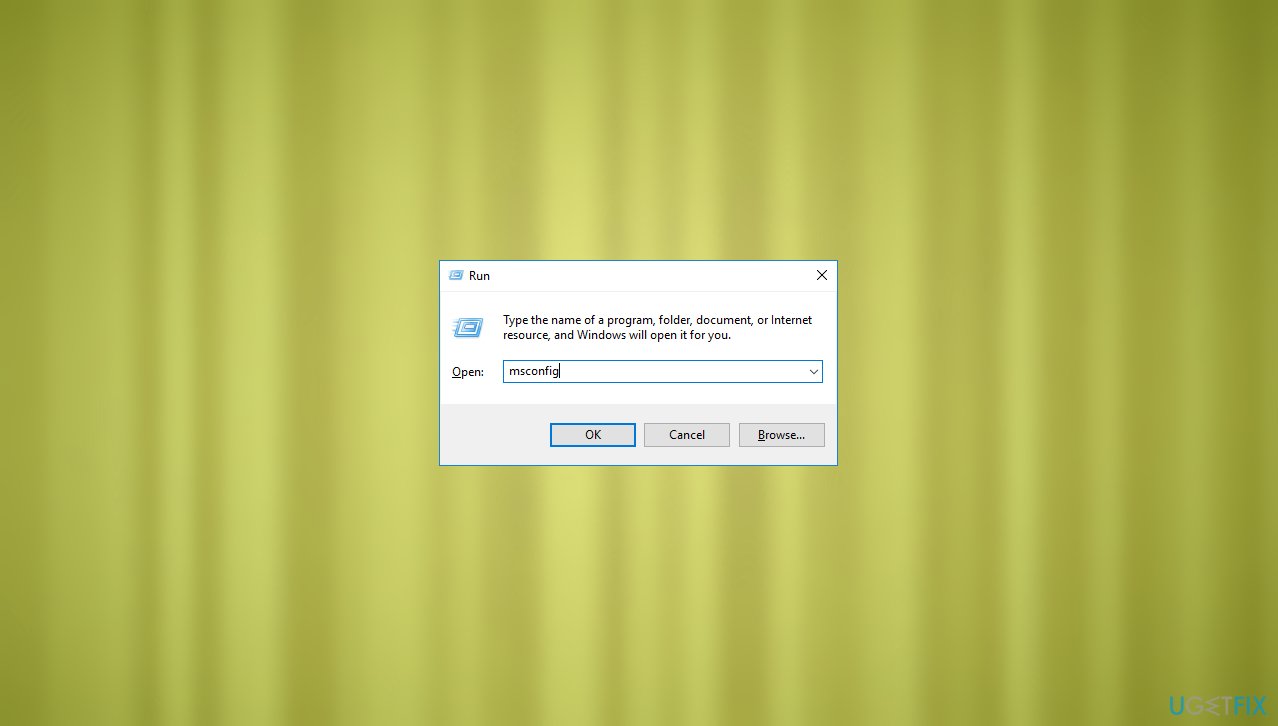
Fix host controller keeping computer from sleeping msconfig - Select System Configuration.
- Go to the Services tab.
- Put a checkmark on Hide all Microsoft services.
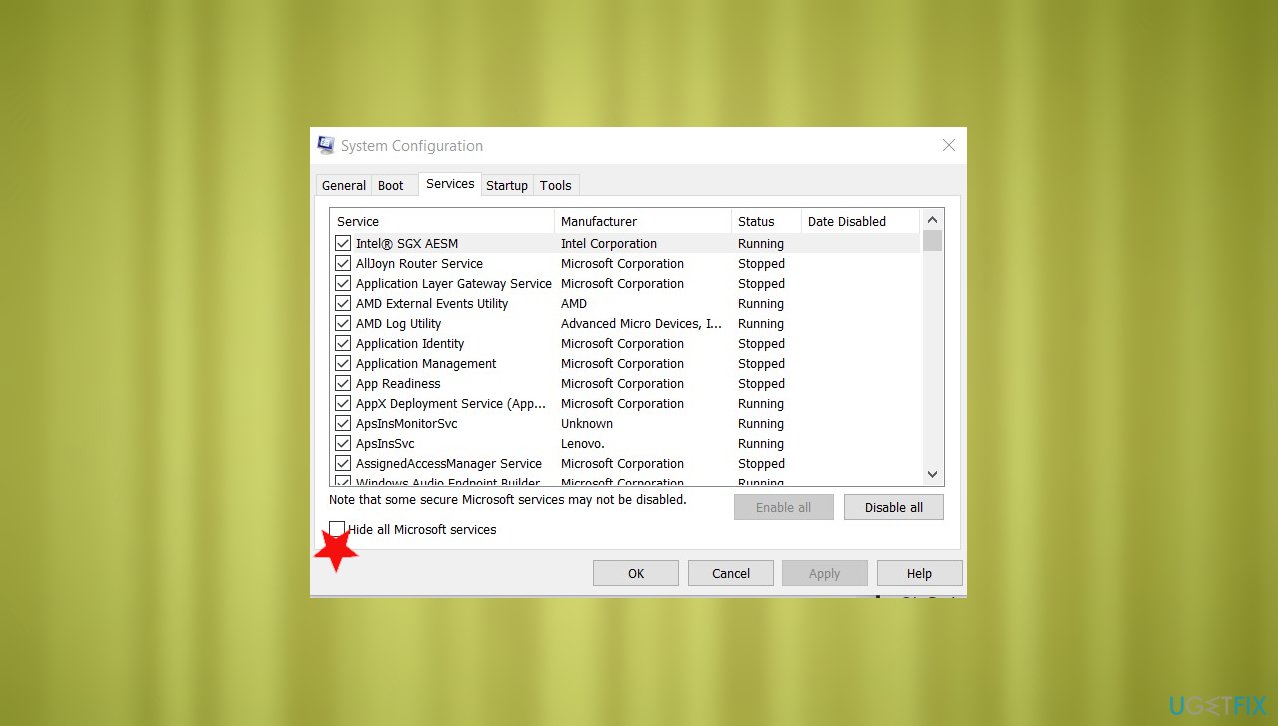
Fix host controller keeping computer from sleeping hide services - Click Disable all.
- Go to the Startup tab.
- Open Task Manager.
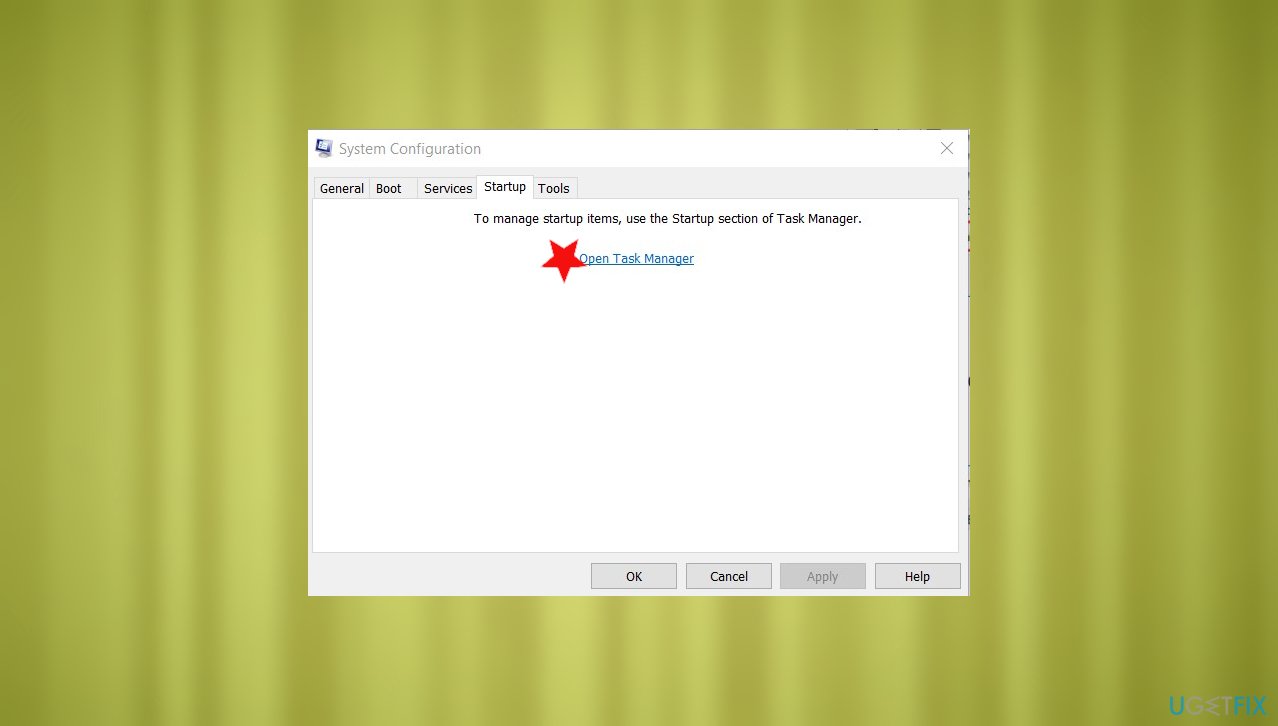
Fix host controller keeping computer from sleeping opentaskmanager - Disable all the unnecessary services.
- Restart your computer and check if the issue persists.
Method 3. Restore Power plans
- Right-click on the Start button and click on Command Prompt (Admin).
- In the command prompt, type powercfg –restoredefaultschemes and hit Enter.
- Exit command prompt.
Method 4. Disable timer to fix eXtensible Host Controller preventing Windows from sleeping
- Put Power Options in the search.
- Choose the first result and open settings.
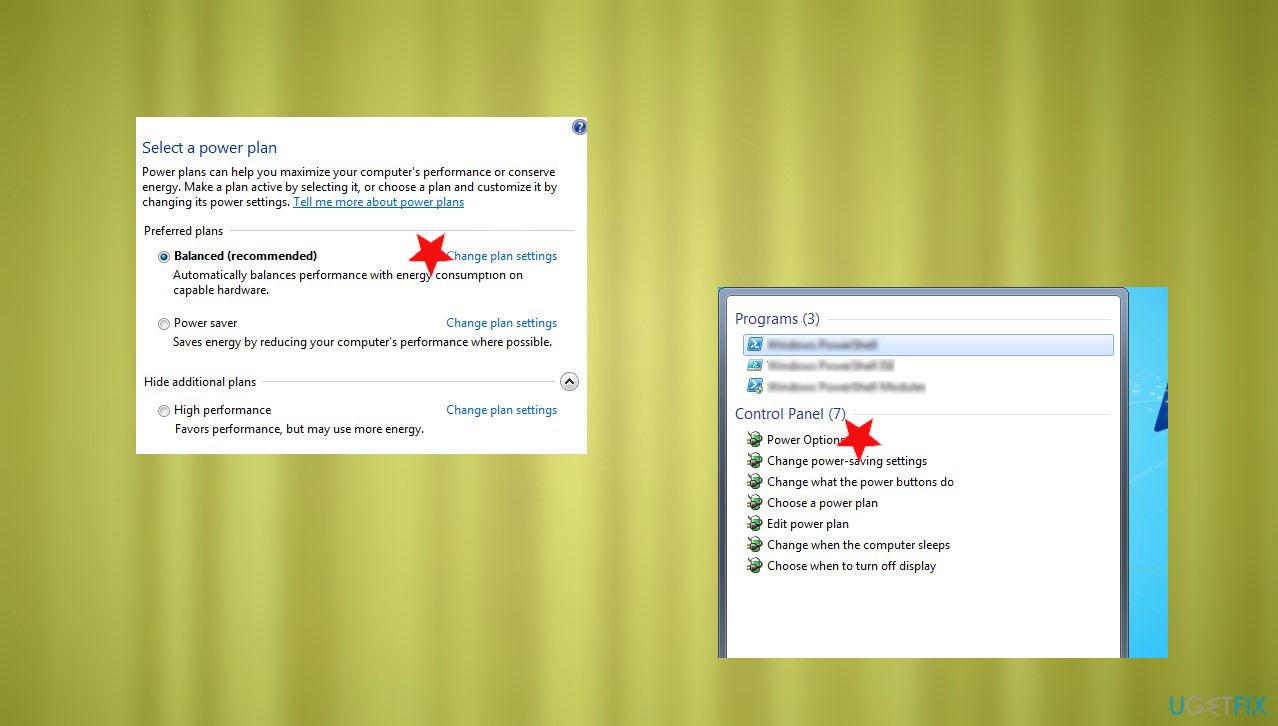
Fix host controller keeping computer from sleepiing power options - In the current plan window, choose the Change plan settings.
- Choose Change advanced power settings.
- Click the plus sign to expand options under the Sleep.
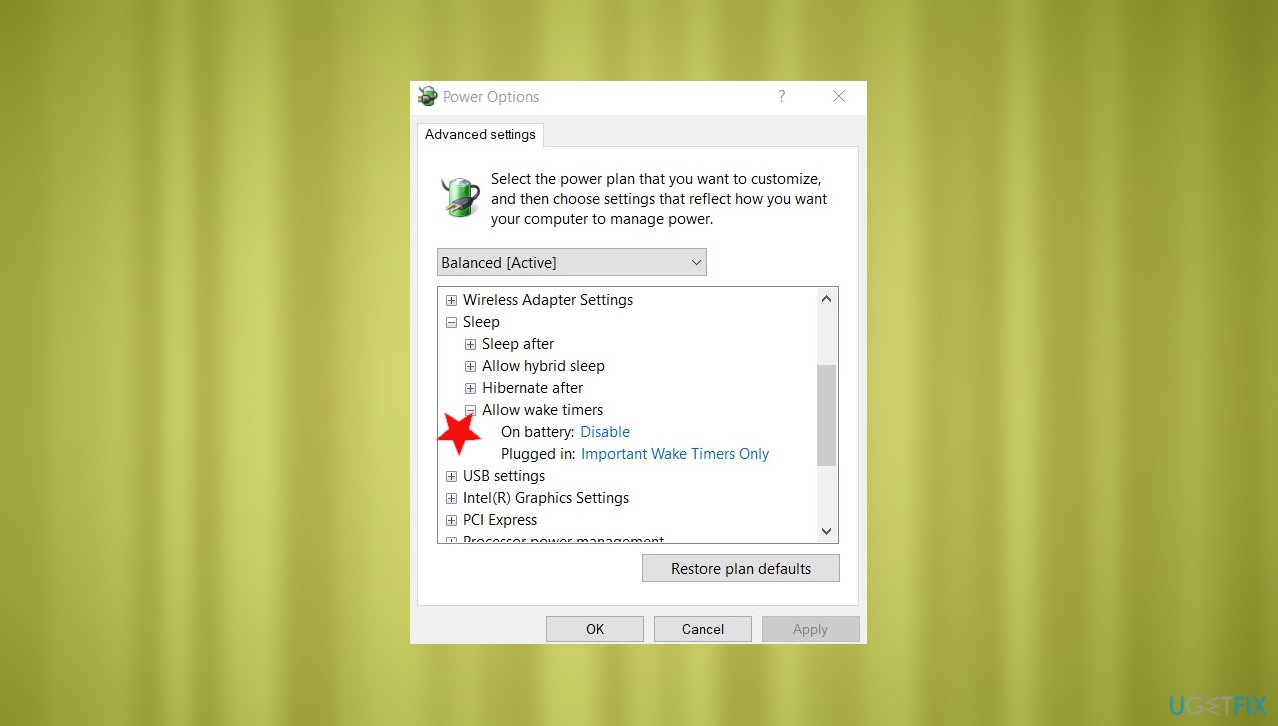
Fix host controller keeping computer from sleeping power plans - Choose Allow wake timers.
- Change preferences and Disable timers.
- Click OK.
Method 5. Check for driver updates
- Press the Win and R keys to open the Run window.
- Enter devmgmt.msc.
- Hit Enter and open Device Manager.
- Expand the driver section.
- Find the one with the exclamation point - that requires fixing.
- Choose to Update driver.
- Select browse my computer for driver software and choose the location you downloaded the piece.
- Press Browse and then Next to install the driver.
- You can do the same automatically with a tool like [rev id="DriverFix"].
Bottom line
To fix the eXtensible Host Controller preventing Windows from sleeping issue, you can try disconnecting USB controllers and devices, running system checks, and addressing any compatibility problems. If these methods do not resolve the issue, further investigation into system settings and configurations may be necessary.
Frequently asked questions
You can disable the eXtensible Host Controller by going to Device Manager, expanding the Universal Serial Bus controllers section, right-clicking the controller, and selecting 'Disable'. This should help your PC enter sleep mode without issues.
To update the drivers, open Device Manager, right-click on the eXtensible Host Controller, select 'Update driver', and choose 'Search automatically for updated driver software' to ensure you have the latest version.
If the eXtensible Host Controller is not functioning properly, it can prevent your computer from going to sleep, causing power management issues and increased energy consumption.




Report an issue
What's wrong with this guide? We review every report and update or remove content.
Report received — thank you. We'll review and fix it.
You need a free account to submit a report.
Be the first to comment