How to fix
File Explorer drop-down menu not working
on Windows
Resolve the File Explorer drop-down menu issue in Windows 10 and 11 effortlessly. Get expert-tested solutions that work fast and efficiently!


What causes How to fix File Explorer drop-down menu not working in Windows?
- Recent Windows updates introducing bugs
- Corrupted system files
- Outdated drivers
- Display setting mismatches
- Conflicts with third-party apps
Repairs Windows system files, removes malware, and restores a clean OS state — without reinstalling.
Hey, I’m on Windows 11, and the drop-down menus in File Explorer - like the ‘See more’ one - keep glitching out. They either won’t open, go the wrong way, or disappear. Anyone know how to fix it?
If you are running Windows 11 and suffering from your File Explorer drop-down menu not functioning, you are not alone - this issue can be really annoying. From the "See more" menu (three dots at the top) not opening, to opening in the wrong direction, or simply not responding, this glitch can get in the way of how you open and manage files. Let's dive into what's going on with the File Explorer drop-down menu not working, why it happens, and how to go about getting it repaired.
The problem of the File Explorer drop-down menu not working correctly also exhibits itself as menus popping up instead of dropping down, auto-collapse before you can select anything, or simply not responding at all. This can make tasks such as sorting files or navigating to settings a challenge, especially if you utilize File Explorer on a daily basis.
Causes include recent Windows updates, like the 24H2 release, introducing bugs in how the system handles screen edges. Corrupted system files, outdated drivers, or display setting mismatches can also mess with File Explorer’s functionality, while third-party apps, like explorer tweaks or antivirus software, might cause conflicts. Even a cluttered cache or temporary system glitch can be to blame.
The impact can be from mildly annoying to disruptive, especially for heavy users who are managing workflows. Restarting File Explorer, updating, adjusting display settings, clearing caches, or disabling conflicting apps are likely fixes, and for more tenacious cases, software like [d1] repair can normalize File Explorer.
Fix 1. Restart File Explorer
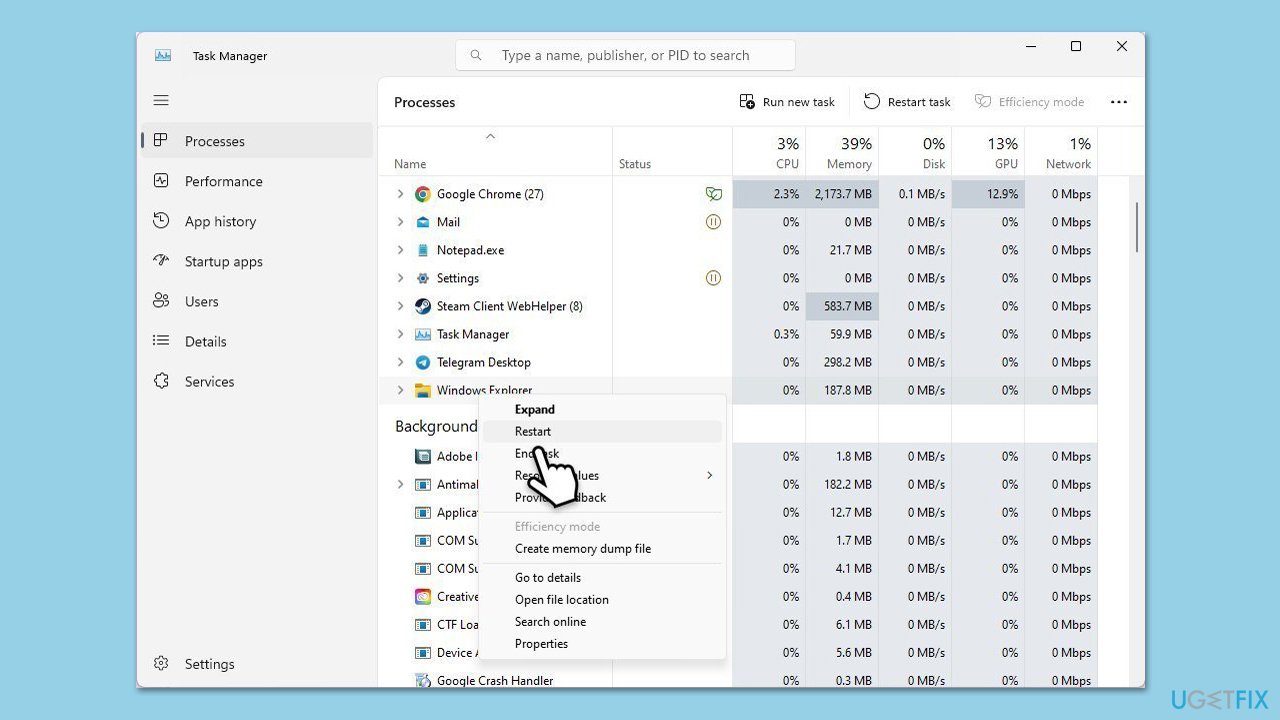
Temporary glitches in File Explorer’s process can cause menu issues, and restarting it refreshes the app without affecting other programs.
- Press Ctrl + Shift + Esc to open Task Manager.
- In the Processes tab, find Windows Explorer.
- Right-click on Windows Explorer and select Restart.
- Wait for a few seconds as the taskbar and desktop icons disappear and reappear.
Fix 2. Check for Windows updates
Recent updates, especially for Windows 11 24H2, may include fixes for known File Explorer bugs, like menus opening incorrectly.
- Right-click on Start and select Settings.
- Go to Update & Security/Windows Update (depending on Windows version).
- If updates are pending, click Install updates.
- Otherwise, click Check for updates and wait.
- If there are optional updates available, install them as well.
- Restart your system to implement the changes.

Fix 3. Adjust display scaling
Incorrect scaling settings can confuse menu positioning, causing them to open off-screen or in the wrong direction.
- Right-click the desktop and select Display settings.
- Scroll to Scale & layout and set scaling to 100%.
- Apply the changes.
- Test the File Explorer drop-down menus.
Fix 4. Clear File Explorer history
A cluttered cache of File Explorer settings can lead to erratic behavior, and clearing it resets the app’s preferences.
- Press Win + E to open File Explorer.
- Click on the View tab, then select Options to open Folder Options. If drop-down menu is not working, simply type File Options in Windows search and press Enter.
- In the General tab, under Privacy, click on the Clear button next to Clear File Explorer history.
- Click OK to apply the changes.

Fix 5. Update graphics drivers
Outdated or corrupted graphics drivers can interfere with how menus are displayed, leading to positioning or responsiveness issues. For a quicker and more effective way of upgrading drivers, you could try [rev id="DriverFix"].
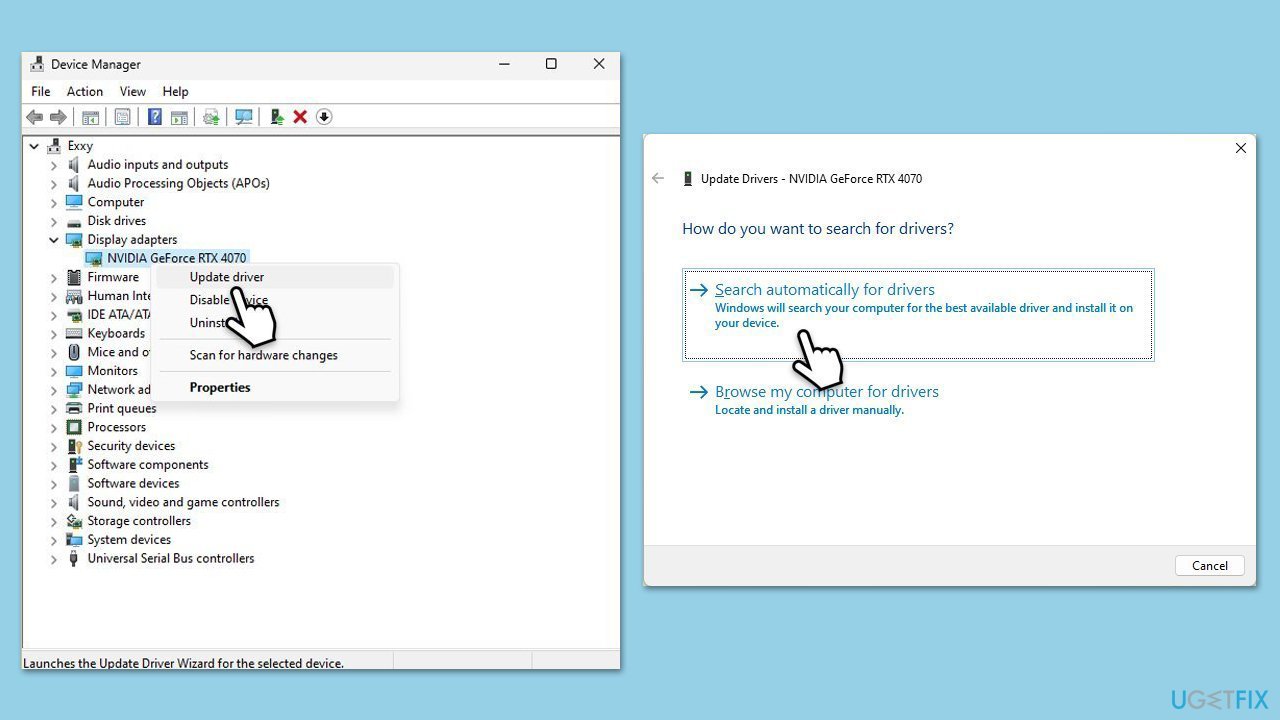
- Right-click on the Start button and select Device Manager from the menu.
- Expand the Display adapters section.
- Right-click on your graphics card and select Update driver.
- Pick Search automatically for drivers.
- If updates are found, allow them to install.
- Restart your computer after updating all necessary drivers.
Fix 6. Repair corrupted system files
Corrupted system files can disrupt File Explorer’s functionality, and scanning can repair missing or damaged files.
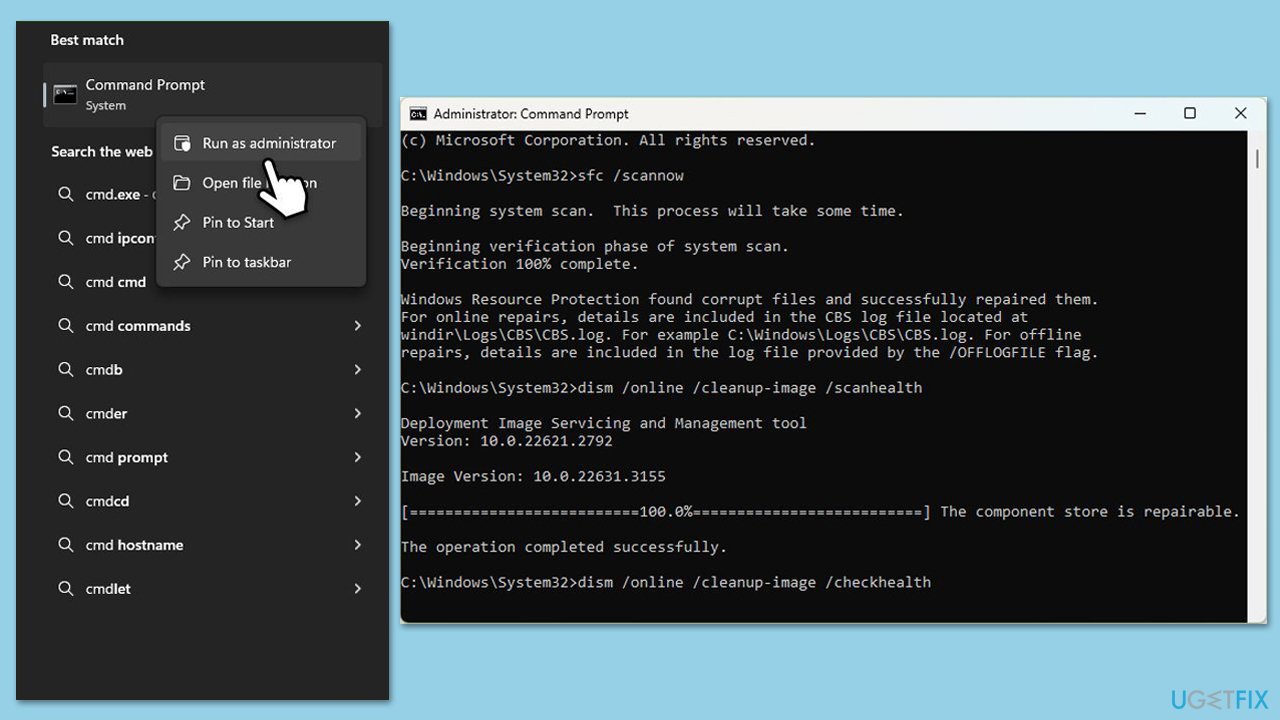
- Type cmd in Windows search.
- Right-click on the Command Prompt result and select Run as administrator.
- At this point, you should be asked by UAC (User Account Control) if you want to allow changes - click Yes.
- In the Command Prompt window, type in this command and hit Enter:
Sfc /scannow - Once this command is executed, you should check Windows image files - use the following commands:
Dism /Online /Cleanup-Image /CheckHealth
Dism /Online /Cleanup-Image /ScanHealth
Dism /Online /Cleanup-Image /RestoreHealth - Close down the Command Prompt and restart your computer.
Fix 7. Reset File Explorer settings
If File Explorer’s configuration is corrupted, resetting it to default can fix menu issues, though it clears customizations.
- Open File Explorer.
- Click on the View tab.
- Click on Options, then Change folder and search options.
- In the Folder Options window, go to the View tab.
- Click on Reset Folders, then click Yes to confirm.
- Click on Restore Defaults, then click OK.
Bottom line
To fix the File Explorer drop-down menu not working, you can try restarting File Explorer, updating your system, adjusting display settings, clearing caches, or disabling conflicting apps. If these solutions do not resolve the issue, consider using repair software to normalize File Explorer.
Frequently asked questions
Try restarting the File Explorer process through the Task Manager, and check if the issue persists after that. If it does, consider running the System File Checker tool to repair any damaged system files.
Yes, ensuring that Windows 11 is up to date can fix bugs and glitches related to the File Explorer drop-down menu. Go to Settings > Windows Update and check for any available updates.
You can reset File Explorer settings by going to Folder Options, selecting the 'View' tab, and clicking on 'Reset Folders' to restore default settings. This may help resolve the drop-down menu issue.




Report an issue
What's wrong with this guide? We review every report and update or remove content.
Report received — thank you. We'll review and fix it.
You need a free account to submit a report.
Be the first to comment