How to fix
Windows 11 24H2 update fails to install
on Windows
Resolve Windows 11 24H2 update installation failures quickly with our expert-tested solutions. Get your PC running smoothly again in minutes!


What causes How to fix Windows 11 24H2 update fails to install?
- Incompatible drivers, particularly Intel Smart Sound Technology drivers on Intel 11th Gen Core processors
- Insufficient disk space
- System file corruption
- Conflicts from other applications
- Outdated drivers for sound and system components
Repairs Windows system files, removes malware, and restores a clean OS state — without reinstalling.
Hey. I need you to help me a problem I have with my relatively new Windows 11 laptop. I can't install 24H2 update, and I've been trying for a week now. Not only that, but I keep getting the same error code - 0x80070002. Any idea why this is happening and how to address this?
The Windows 11 version 24H2 update, which began rolling out on October 1, 2024, introduces several enhancements designed to improve user experience. This feature update includes all features and fixes from previous cumulative updates to Windows 11, version 23H2. Notable additions encompass Live Captions, Cocreator in Paint, Windows Studio Effects, Auto Super Resolution, and Image Creator and Restyle Image.
Some users are reporting issues where the 24H2 update fails to install. Error codes commonly linked with this problem are 0xC1900101, 0x8007001F, 0x800f0991, 0x800f0922, and others.
These errors can stop or roll back the installation process and display a message saying that "Updates failed". It's quite frustrating, especially if you've been waiting for the new features and improvements.
There are quite a few possible reasons why 24H2 would not install on your device. One of the major problems with drivers is their incompatibility, particularly on Intel 11th Gen Core processors where there is an incompatibility in the Intel Smart Sound Technology drivers. Other issues can be related to disk space, system file corruption, or conflicts from other applications and may not be able to install the Windows 11 version 24H2 at all.
If you encounter a problem where the Windows 11 24H2 update is not installing, there are some steps you can follow to troubleshoot. First, make sure that all drivers are updated, especially for sound and system components.
Running the Windows Update Troubleshooter will also help find and fix common issues that might prevent the installation of the update. It is sometimes possible to eliminate conflicts blocking the update by temporarily disabling antivirus software and performing a clean boot.
If you continue facing difficulties with the Windows 11 24H2 update fails to install issue, using the [d1] repair app is a recommended solution. This automatic tool is designed to diagnose and fix underlying Windows problems, potentially allowing the 24H2 update to be successfully installed without the need for extensive manual intervention.

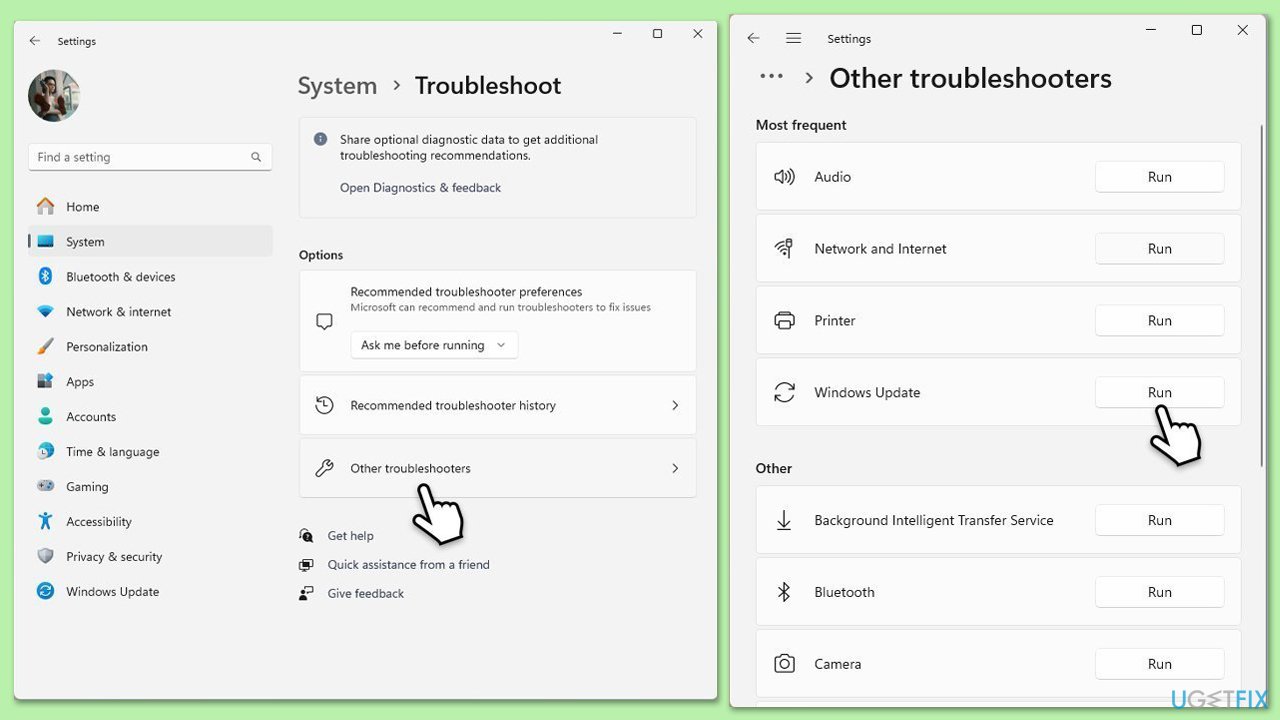
Fix 1. Run Windows update troubleshooter
Perhaps the easiest way to fix update issues is by running the update troubleshooter.
- Type Troubleshoot in Windows search and hit Enter.
- Select Other troubleshooters.
- Find Windows Update from the list and click Run.
- The troubleshooter will automatically scan your system for potential problems and display any issues it finds.
- If the troubleshooter finds any issues, it will provide recommended solutions - follow the instructions.
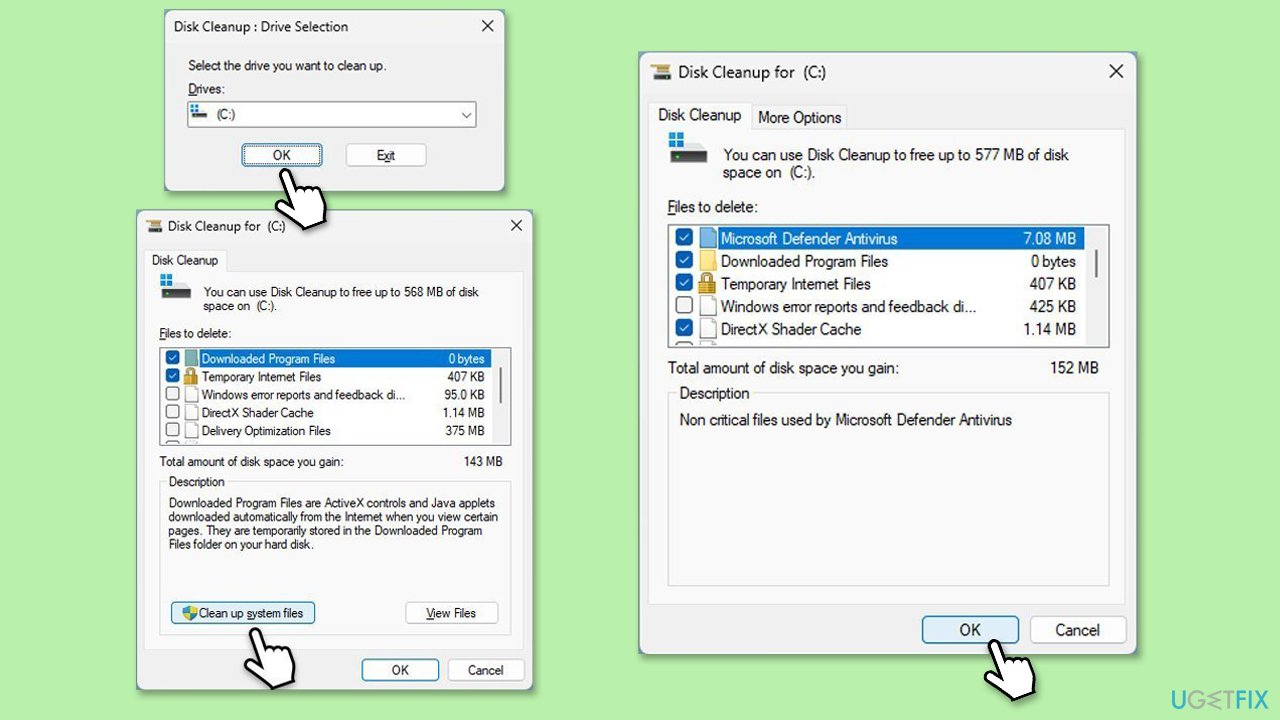
Fix 2. Perform Disk Cleanup
- Type Disk Cleanup in Windows search and press Enter.
- Select your main drive (C: by default).
- Select appropriate fields (Temporary files, Recycle Bin, etc.) and click OK.
- If you want a more thorough cleanup and require even more space, select Clean system files in the Disk Cleanup window.
- Select your main drive again - Windows will compute how much space can be retrieved.
- The largest data dumps are usually accumulated in Windows Update and Delivery Optimization sections, although Temp files can also take a lot if it hasn't been cleaned.
- Select appropriate fields and click OK - Windows will remove all these files from your device and free up space.
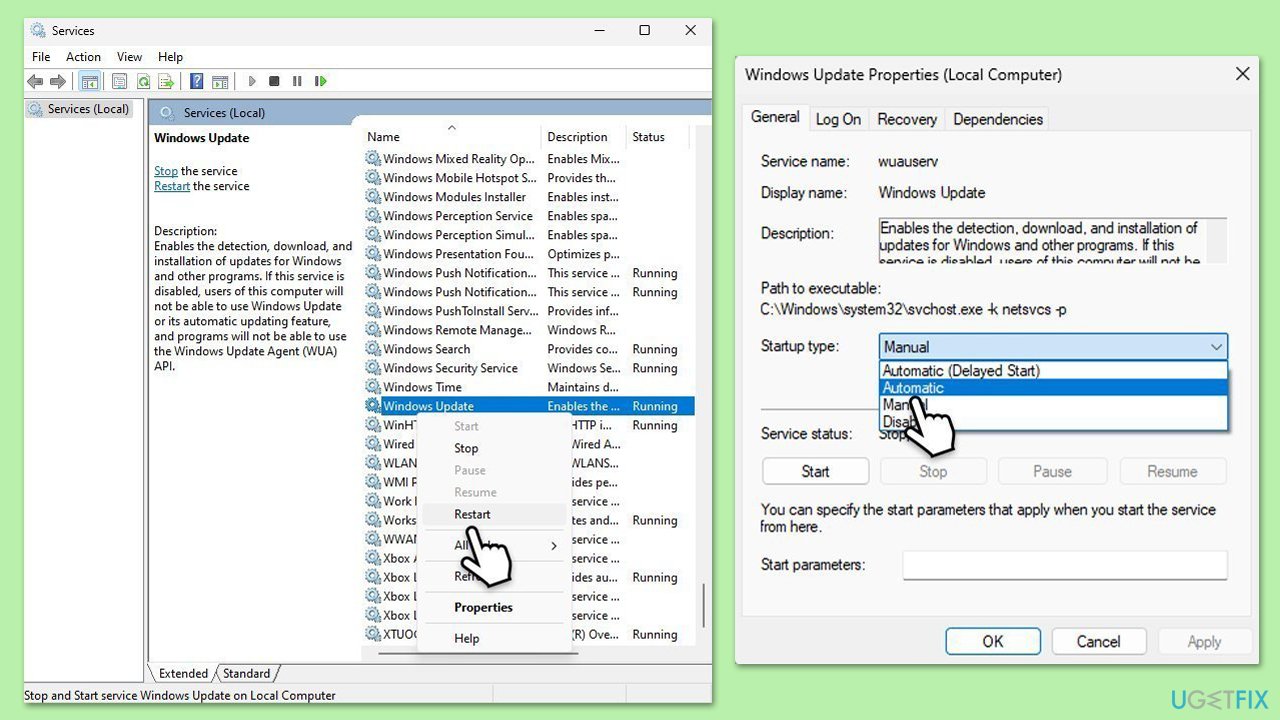
Fix 3. Check relevant services
- Type in Services in Windows search and hit Enter.
- Scroll down a bit to find Windows Update.
- If it is already running, right-click and select Restart.
- If the service is not running, double-click it, and pick Automatic under the Startup type drop-down menu.
- Click Start, Apply, and OK.
- Repeat the process with the Background Intelligent Transfer Service (BITS), Cryptographic, and Windows Installer services.
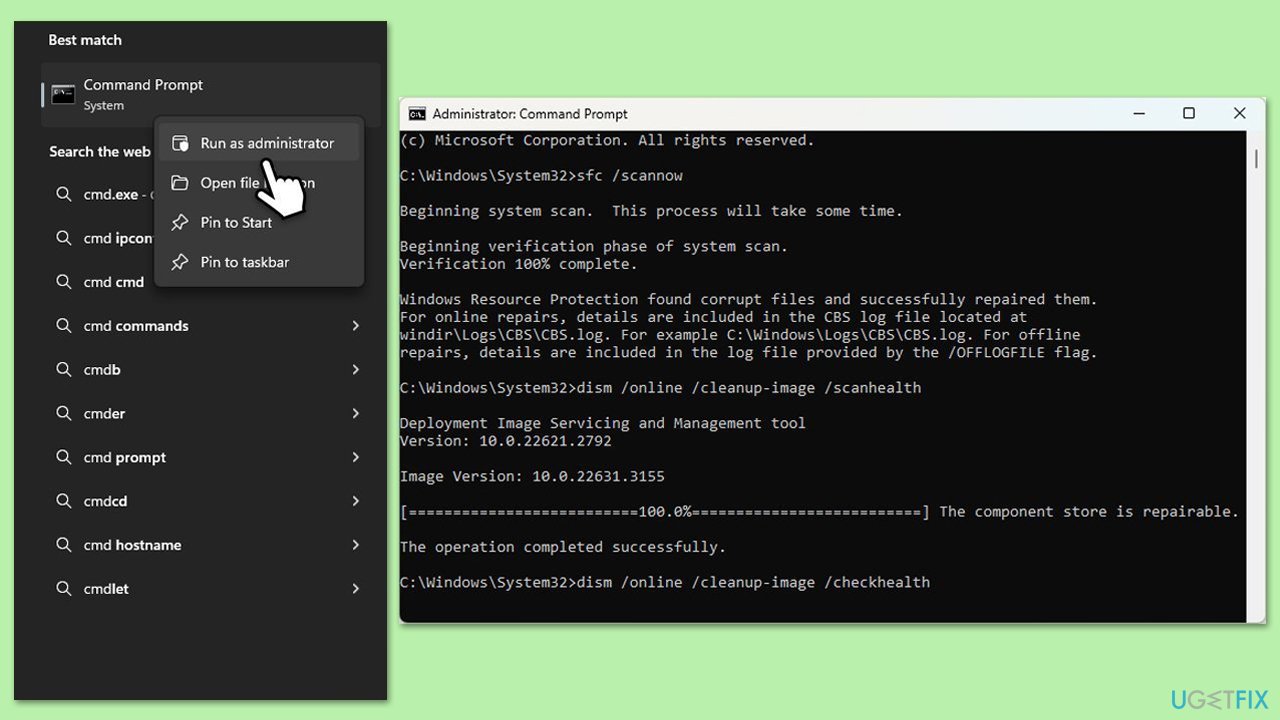
Fix 4. Run SFC and DISM
- Type cmd in Windows search.
- Right-click on Command Prompt and select Run as administrator.
- When User Account Control window shows up, click Yes.
- Paste the following command into the new window:
sfc /scannow - Press Enter and wait till the scan is executed.
- Once done, run this set of commands, pressing Enter after each:
DISM /Online /Cleanup-Image /CheckHealth
DISM /Online /Cleanup-Image /ScanHealth
DISM /Online /Cleanup-Image /RestoreHealth
(Note: if you get an error executing this last command, add /Source:C:\RepairSource\Windows /LimitAccess to it and try again). - Restart your computer.
Fix 5. Check your disk for errors
- Open Command Prompt as administrator.
- When User Account Control shows up, click Yes.
- In the new window, type in the following command and press Enter after:
chkdsk c: /f
(Note: use chkdsk c: /f /r /x command if you are using SSD as your primary partition) - If you receive an error, type in Y, close down Command Prompt and restart your device.
- Wait until the scan is finished - you can find the results in the Event Viewer.
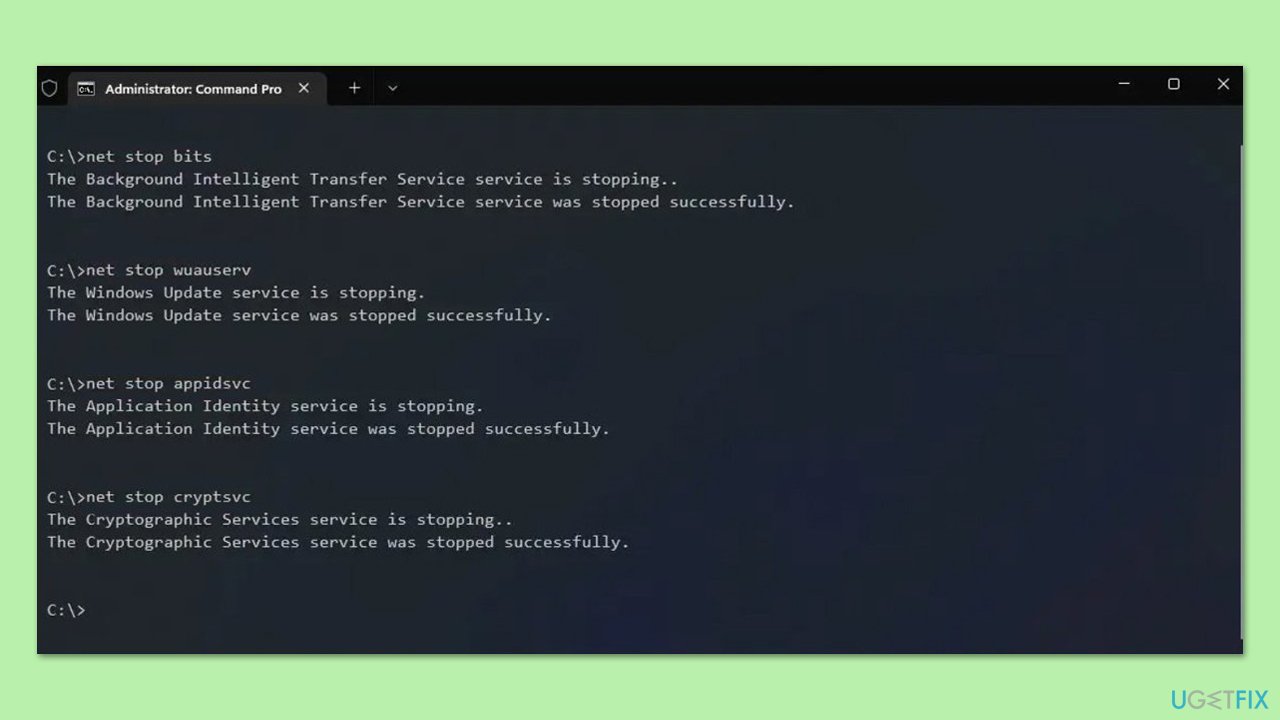
Fix 6. Reset Windows update components
- Open Command Prompt as administrator, as previously explained
- Copy and paste each of these commands, pressing Enter each time:
net stop bits
net stop wuauserv
net stop appidsvc
net stop cryptsvc
Del “%ALLUSERSPROFILE%\Application Data\Microsoft\Network\Downloader\*.*”
rmdir %systemroot%\SoftwareDistribution /S /Q
rmdir %systemroot%\system32\catroot2 /S /Q
regsvr32.exe /s atl.dll
regsvr32.exe /s urlmon.dll
regsvr32.exe /s mshtml.dll
netsh winsock reset
netsh winsock reset proxy
net start bits
net start wuauserv
net start appidsvc
net start cryptsvc - Reboot your system.
Fix 7. Perform Clean Boot
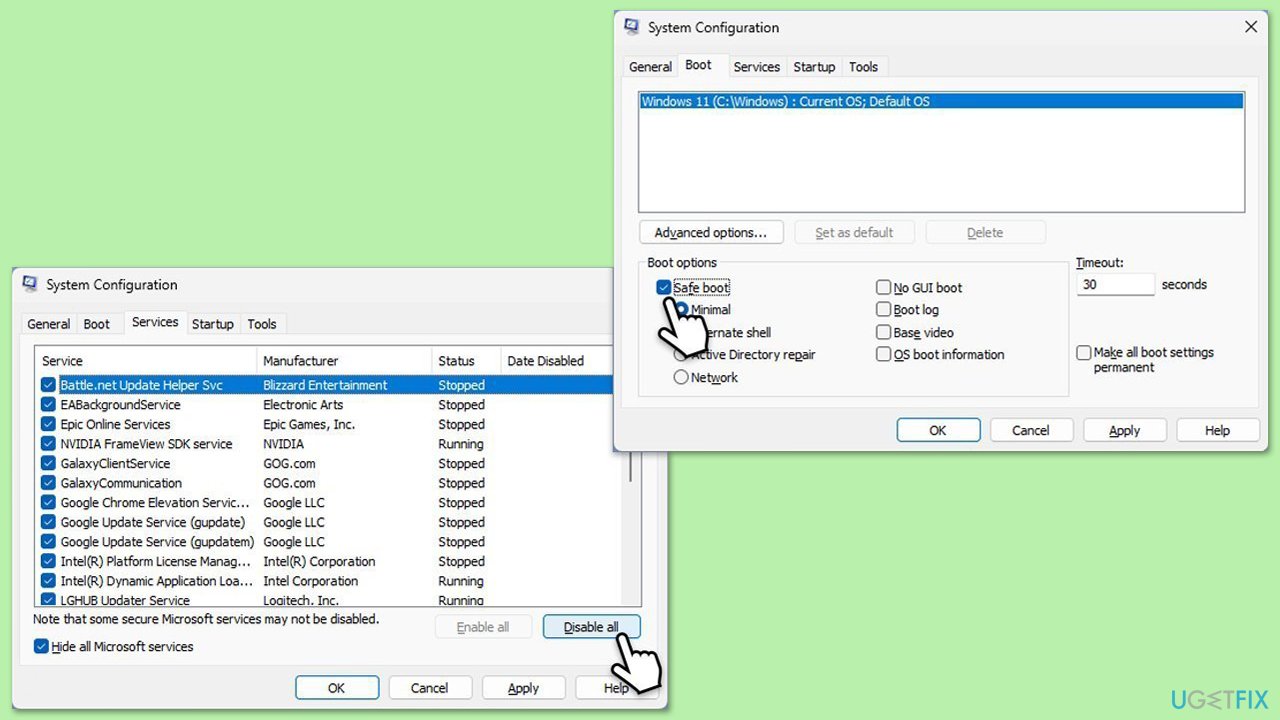
- Type msconfig in the Windows search box and press Enter.
- Pick the Services tab.
- Mark Hide all Microsoft services and select Disable all.
- Select the Startup tab and click Open Task Manager.
- In the Task Manager, right-click on each of the items and select Disable, then close the Task Manager.
- Go to the Boot tab, mark the Safe Boot option, then click Apply and OK.
- On the System Configuration window, click OK.
- Restart your computer and attempt to update again.
Fix 8. Use Windows Installation Assistant
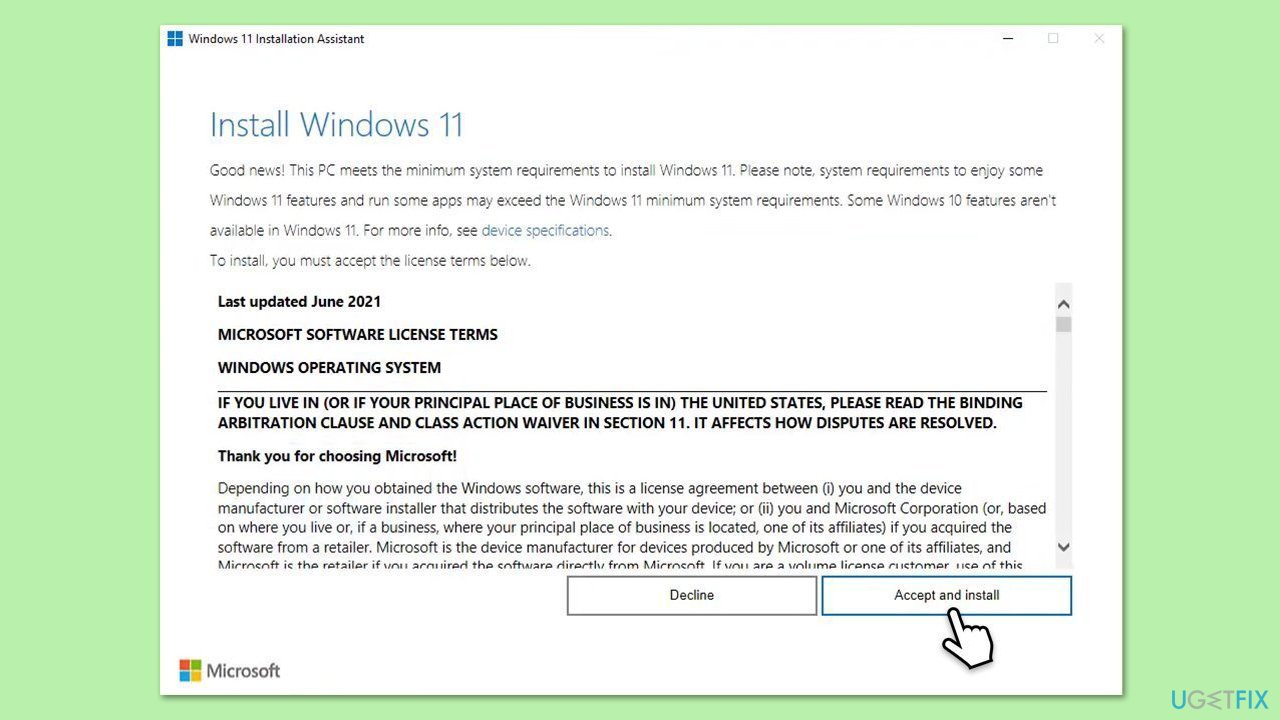
- Visit the official Windows 11 Installation Assistant page.
- Under Windows 11 Installation Assistant, click Download Now.
- Double-click on the downloaded file to launch it.
- After launching the app, simply click Accept and install.
- Wait till the process is finished, then restart your computer.
Bottom line
To troubleshoot the Windows 11 24H2 update installation issue, ensure all drivers are updated, run the Windows Update Troubleshooter, and consider temporarily disabling antivirus software and performing a clean boot. If these steps do not resolve the problem, using the repair app is recommended.
Frequently asked questions
Check the specific error code displayed during the update process, then refer to Microsoft's support page for troubleshooting steps tailored to that error. Additionally, running the Windows Update Troubleshooter can help resolve common issues.
To free up space, you can use the Disk Cleanup tool to remove temporary files or uninstall unused applications via the Settings app under 'Apps'. Ensure you have at least 20 GB of free space for the update to install smoothly.
Yes, you can manually download the Windows 11 24H2 update from the Microsoft Update Catalog or use the Windows 11 Installation Assistant for a direct installation. This method can bypass some common issues encountered during the automatic update process.




Report an issue
What's wrong with this guide? We review every report and update or remove content.
Report received — thank you. We'll review and fix it.
You need a free account to submit a report.
Be the first to comment