How to fix
File Explorer not responding
on Windows
Resolve File Explorer not responding issues on Windows 10 with our expert-tested solutions. Get quick fixes and regain access in minutes!

What causes How to fix File Explorer not responding on Windows 10?
- Corrupted system files
- Outdated operating system
- Lack of space on the hard drive
- Incorrect display settings
- File Explorer history
Repairs Windows system files, removes malware, and restores a clean OS state — without reinstalling.
Hi, my programs randomly crash sometimes, and File Explorer is not responding quite often. I have not done anything that I can think of that could be causing all this. I hope there is something that can be done about this, as the problem is constant and is not going away.
File Explorer not responding is a very common Windows issue when users are unable to operate the app, and are forced to either wait or close/restart it. While this annoying issue can likely be fixed with a restart, many complained that the issue is more prevalent, and it keeps recurring frequently.
File Explorer is one of the main user interface (UI)[ref en-1] components in Windows 10, as it allows an easy navigation through files and folders. Since this system element is also used to represent other UI elements (Task Manager, Taskbar, etc.), its malfunctions can greatly impact user experience and the ability to operate the device overall. Hence, there is a great need to fix File Explorer not responding issue as soon as possible - and we are here to help you with that.
While this problem might occur after upgrading to Windows 10,[ref en-2] it is also not uncommon for users start facing it seemingly at random, e.g., when trying to open a program or when they are watching a video online.
Some also complained that along this error, they also experience File Explorer crashes and freezes. However, everything happens for a reason, even if that reason might not be immediately visible to the user.
There could be several reasons why users experience the problem, they include:
- Corrupted system files
- Outdated operating system
- Lack of space on the hard drive
- Incorrect display settings
- File Explorer history, etc.
Below you will find some methods which might help you fix File explorer[ref en-3] not responding on Windows 10 error. Make sure you complete each step exactly as described.
Furthermore, if you have already tried all the below-given methods and none of them worked, you can try reinstalling your Windows operating system. If you do not wish to go that way, we highly recommend running a scan with [d1] - this automated tool can find and fix underlying Windows issues by replacing corrupted or virus-damaged files in minutes.
Method 1. Modify the Display settings
Try the following steps to fix File explorer not responding on Windows 10 error code on your computer. Make sure you complete everything as described to reach the best results.
- Go to your Windows search bar and type in Settings;
- Then open Settings and click on the System option;
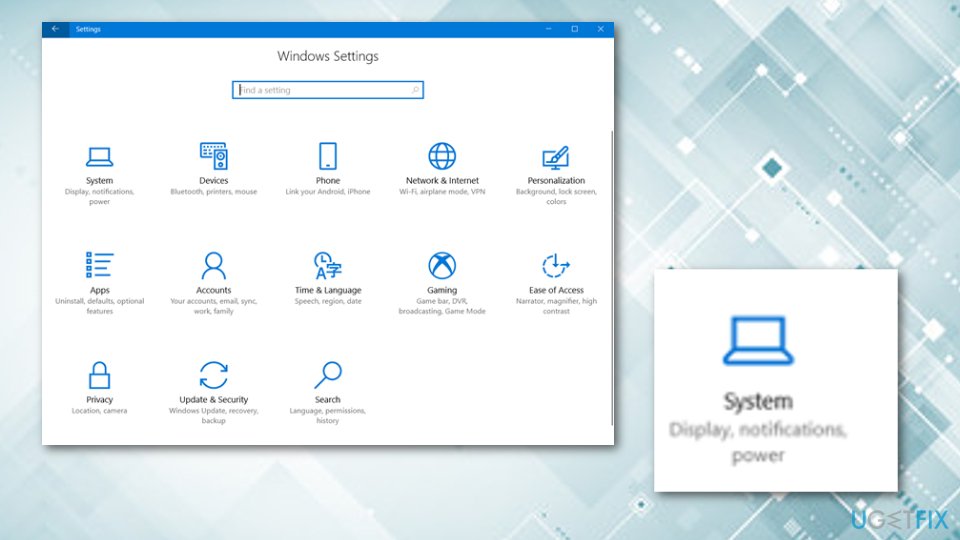
Fix 1 - Once you access the Display panel, set the text to any size but just not 175% as this size appears to be trouble-causing sometimes.
When you perform all of these steps and accomplish the entire method, check if the File Explorer program is running correctly now. If it is not, continue with the next method.
Method 2. Restart the File Explorer process by using the Task Manager
- Press Ctrl + Shift + Esc on your keyboard to open the Task Manager;
- Find Windows Explorer;
- Right click on the Windows Explorer icon and select Restart;
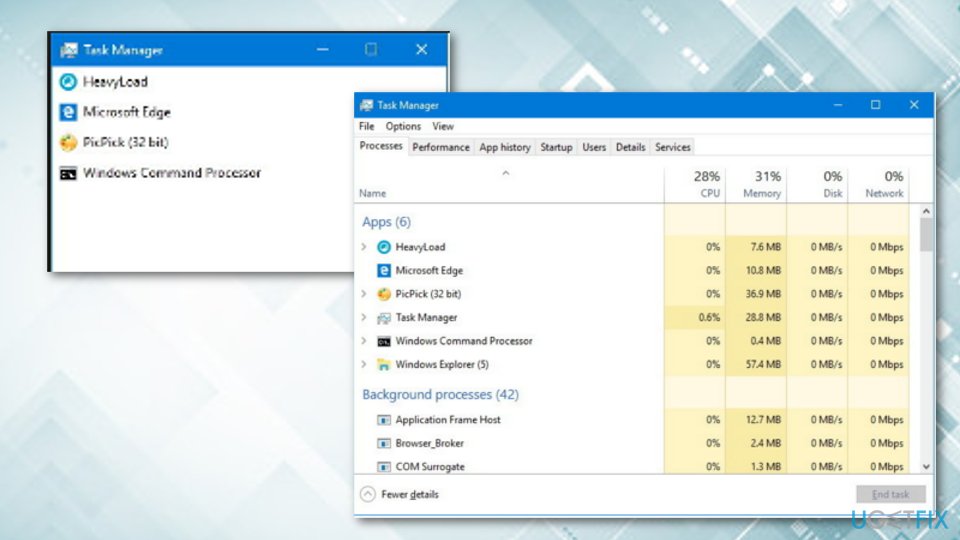
Fix 2 - Wait till the process restarts and see if problems persist.
Method 3. Delete the history cache and create a new path
- Right-click on the File Explorer icon on your taskbar ---> select Unpin from taskbar;
- Select Windows key and X button on your keyboard;
- After that, choose File Explorer from the menu;
- Click Quick access ---> Options;
- Choose Clear to clear the File Explorer history;
- Right-click on an empty spot on your desktop and select New ---> Shortcut;
- Type in explorer.exe and select Next.
Fix 2
Method 4. Run System File Checker
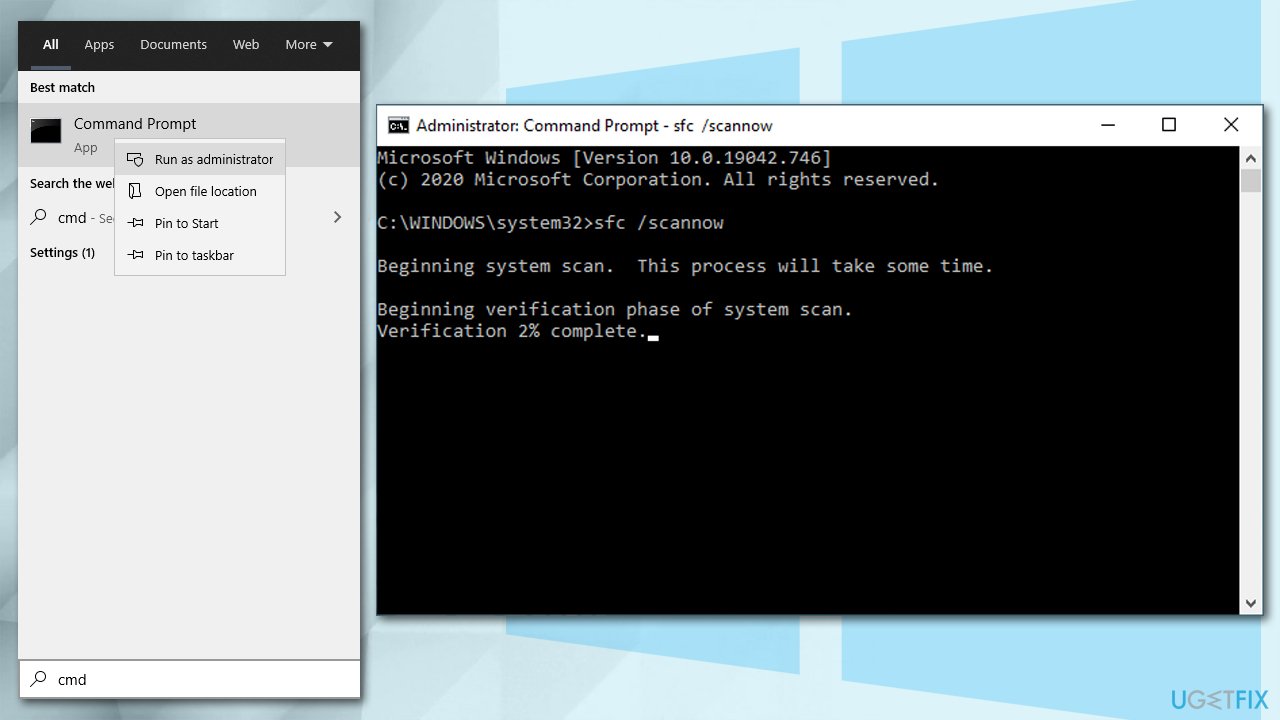
SFC scan can check whether your Windows system files are not damaged in any way. If so, System File Checker can usually fix them:
- Type in cmd in Windows search;
- Right-click on Command Prompt result and pick Run as administrator;
- In the new window, type in the following command and press Enter:
sfc /scannow
- Wait till SFC scan finishes - Windows should report its findings and whether something was fixed or not.
How to fix file explorer not responding on windows 10 run sfc scam
Method 5. Clean your disk from junk
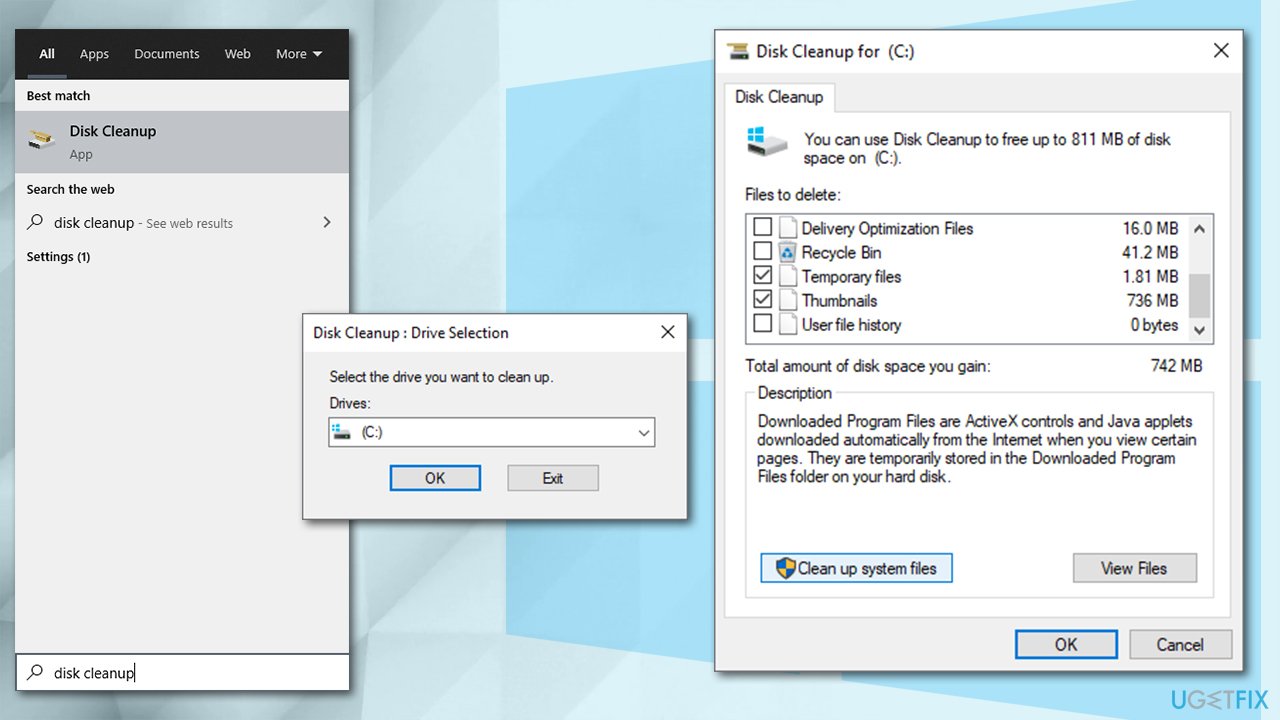
If your computer is relatively old, it might be running out of space due to older hardware capacity limitations. Therefore, you should clean the system with the built-in tools such as Disk Cleanup app:
- Type in Disk Cleanup in Windows search and press Enter;
- Pick the main drive (C: by default) and click OK;
- Select Temporary Internet Files, Temporary Files, Thumbnails and other relevant fields;
- Click Clean up system files;
How to fix file explorer not responding on windows 10 use disk cleanup - Select your main drive once again;
- Pick relevant fields and finally click OK.
Method 6. Reset Windows
If none of the methods above helped you, you should consider resetting your system. It is really easy to do and you will not lose your personal files while doing so (although, you might have to reinstall some programs):
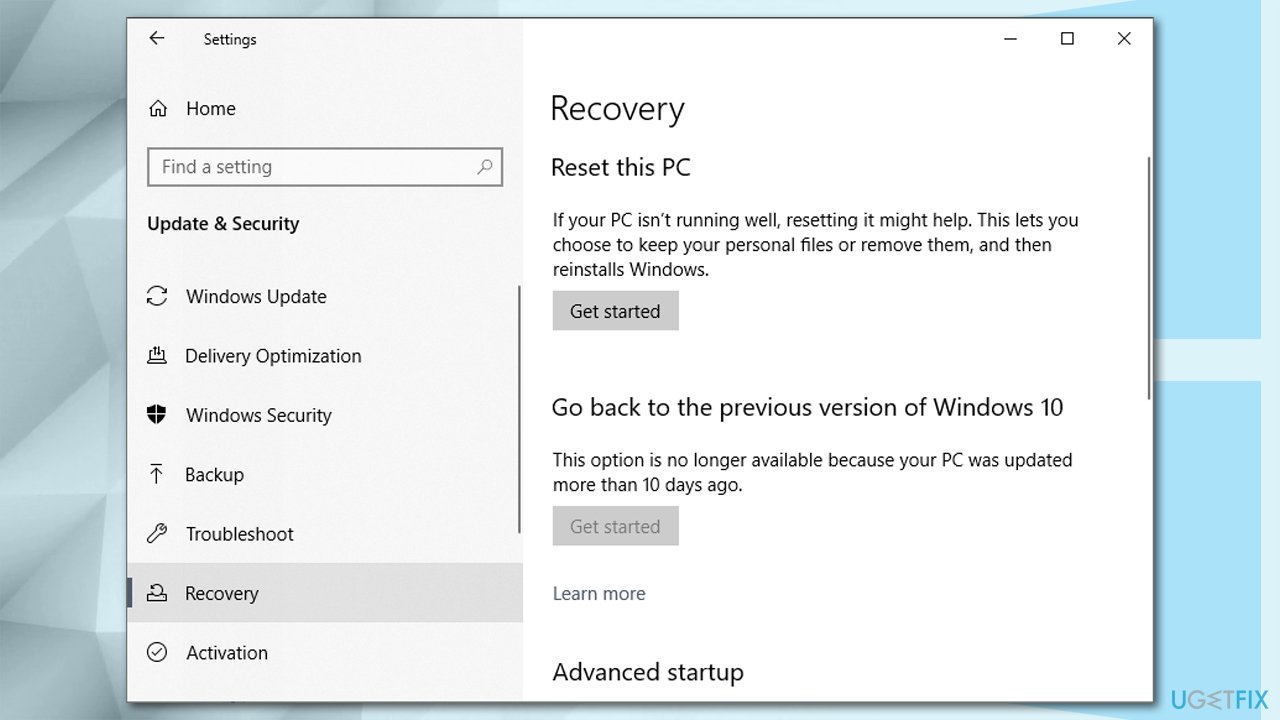
- Right-click on Start button and pick Settings;
- Go to Updates & Security and pick Recovery;
- Under Reset this PC, select Get Started;
How to fix file explorer not responding on windows 10 go to system recovery - Opt for Keep my files;
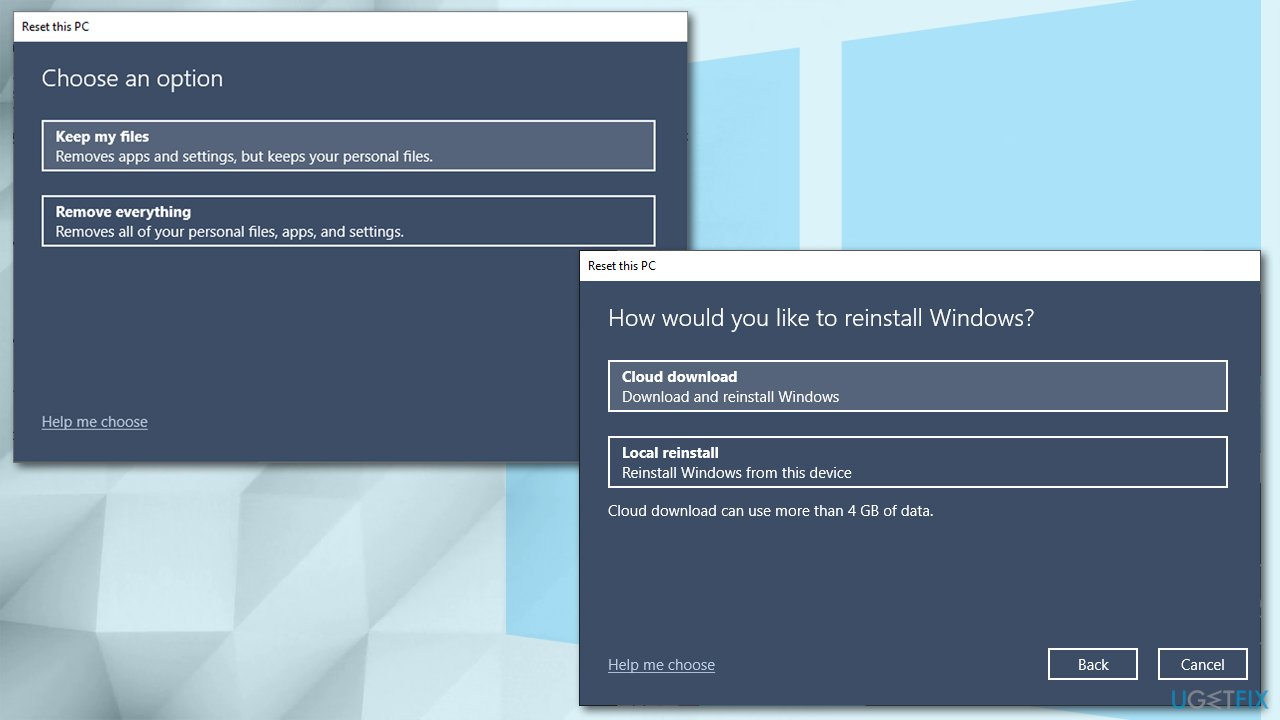
How to fix file explorer not responding on windows 10 reset windows - Pick Cloud download and proceed with on-screen instructions to finalize the process.
Bottom line
To fix the File Explorer not responding issue on Windows 10, you can try methods such as clearing File Explorer history, checking display settings, and ensuring your operating system is up to date. If these methods do not resolve the issue, consider reinstalling your Windows operating system.
Frequently asked questions
Try restarting File Explorer through the Task Manager by right-clicking on it and selecting 'Restart'. If the issue persists, consider running the System File Checker to repair corrupt system files.
You can disable Quick Access and clear File Explorer history in the Options menu, which may help resolve the issue. Additionally, ensure that your Windows 10 is up to date with the latest patches.
Yes, you can reset File Explorer settings by going to 'Folder Options', clicking on the 'View' tab, and selecting 'Reset Folders'. This can help in fixing any configuration-related issues.




Report an issue
What's wrong with this guide? We review every report and update or remove content.
Report received — thank you. We'll review and fix it.
You need a free account to submit a report.
Be the first to comment