How to fix
Graphical artifacts or flickering on Google Chrome
on Windows
Resolve graphical artifacts and flickering on Google Chrome with effective solutions for Windows 10 and 11. Expert-tested for quick fixes!

What causes How to fix graphical artifacts or flickering on Google Chrome?
- Outdated or corrupted GPU drivers
- Enabled hardware acceleration in Chrome
- Missing Windows updates
- Default OpenGL settings in the ANGLE graphics engine
Repairs Windows system files, removes malware, and restores a clean OS state — without reinstalling.
I don't know why, but sometimes, especially when I watch some video on Google Chrome, it starts flickering/showing graphical artifacts for a bit and then stops, only to repeat in a short while. Mind you, this does not happen all the time, so I am not sure what is causing it. Do you know if there is anything I can do to fix this? I am using Windows 11.
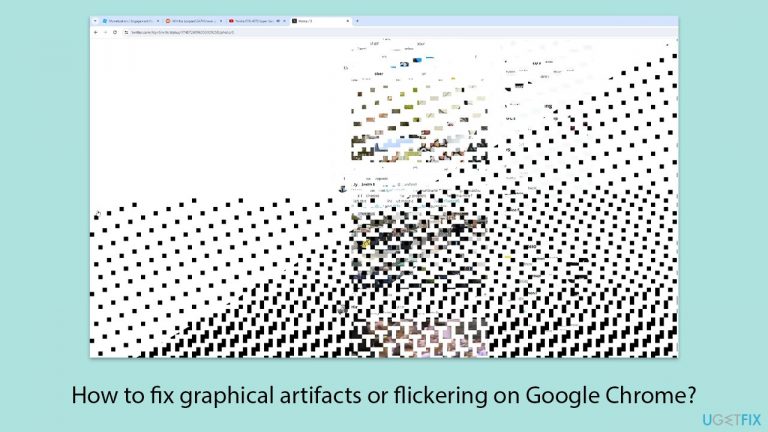
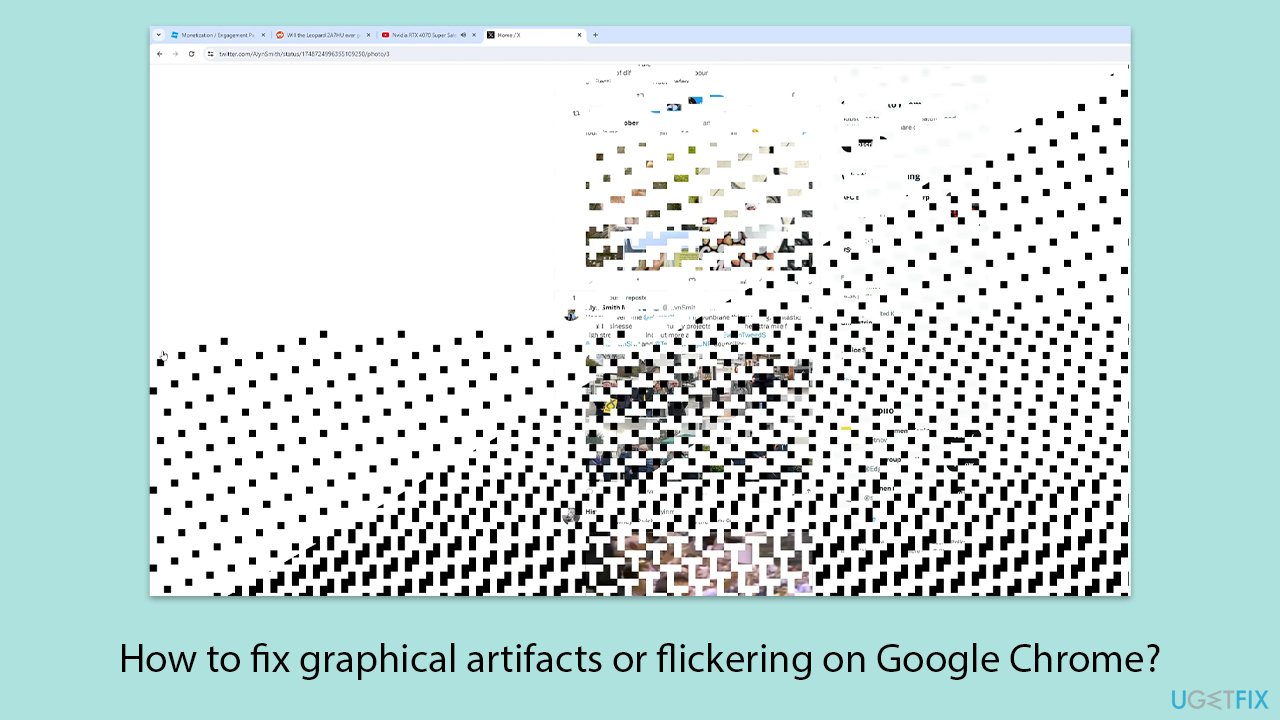
Graphical artifacts and flickering are visual disturbances that can appear on your screen. Artifacts may look like lines, dots, or areas of distortion while flickering involves the rapid flashing of the display or parts of the display.
Some users experience these issues specifically when using Google Chrome (or any Chromium-based browser or application) browser, particularly during video playback. This problem is unique to the apps based on Chromium and does not affect other activities on the PC.
Possible causes of graphical artifacts and flickering in Chrome
The occurrence of graphical artifacts and flickering in Chrome could be linked to several factors. One common cause relates to the graphics processing unit (GPU) drivers, which may be outdated or corrupted. Another factor is hardware acceleration in Chrome, which, when enabled, uses the GPU to load webpages more smoothly but can sometimes lead to graphical issues. Additionally, missing Windows updates can contribute to this problem by leaving essential system components outdated.
A specific setting within Chrome that frequently causes these issues is the OpenGL setting in the ANGLE graphics engine, accessible via the chrome://flags settings. Most users do not touch this area at all, leaving the settings at default parameters, which is what causes flickering and other graphical issues on Google Chrome.
Addressing graphical issues in Chrome
It is recommended that you update your GPU drivers and make sure your Windows system is up to date in order to resolve these graphical problems in Google Chrome. The flickering and abnormalities may go away if you disable Chrome's hardware acceleration option, which you can check in the browser's settings. Furthermore, you could return everything to normal by changing the OpenGL settings in the chrome://flags menu to a more reliable setup.
Use a PC repair and maintenance tool [d1] for a comprehensive analysis and resolution of any potential underlying problems, such as corrupted files or registry errors. These apps may automatically identify and resolve issues, assisting in robust system functionality.
Fix 1. Switch to OpenGL in chrome://flags menu
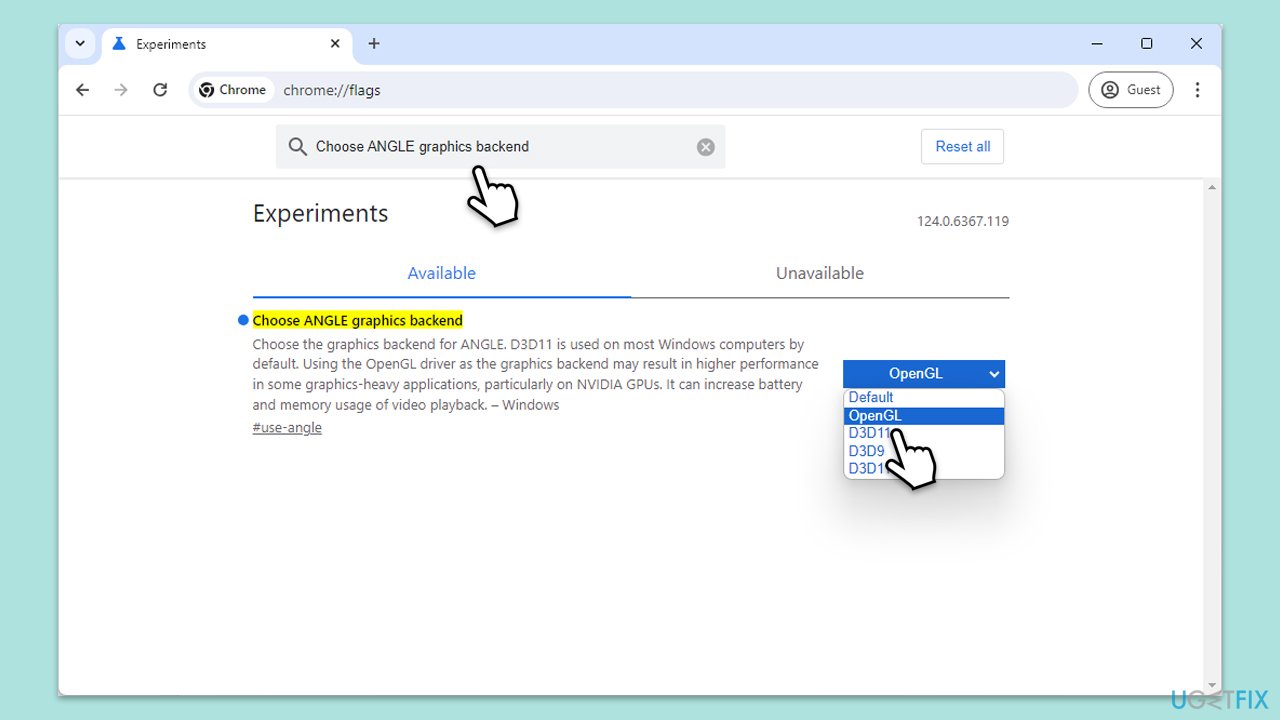
Changing how Chrome handles graphics rendering to OpenGL can sometimes resolve issues with flickering and artifacts.
- Open Google Chrome.
- Type chrome://flags in the address bar and press Enter.
- Type Choose ANGLE graphics backend in the search bar and select it.
- Change the setting to OpenGL from the dropdown menu.
- Relaunch Chrome to apply the changes.
Fix 2. Install all available Windows updates
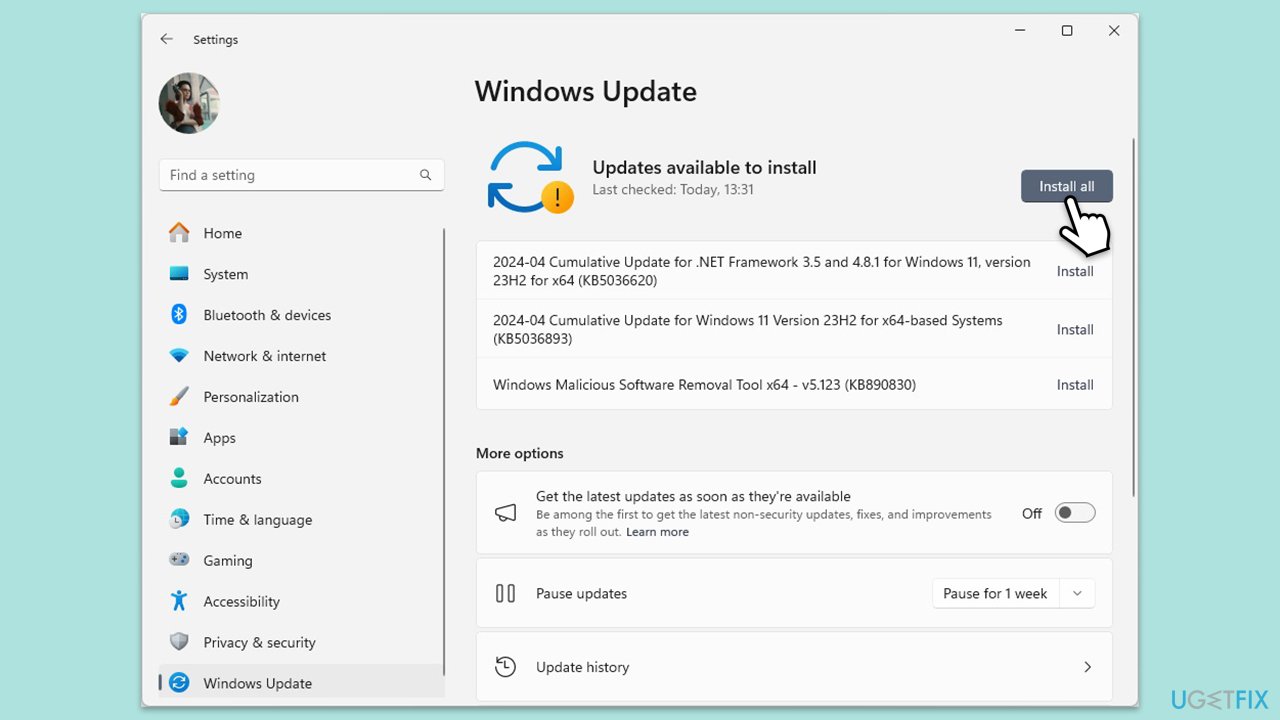
Some of the graphical glitching in Chrome was addressed by Microsoft in December 2023, so make sure you have all the updates applied.
- Type Updates in Windows search and press Enter.
- In the new window, click Check for updates.
- If updates are available, click Install all.
- If optional updates are available, install them too.
- Once done, restart your computer.
Fix 3. Update Chrome
Ensuring you have the latest version of Google Chrome can help resolve known bugs and improve browser stability.
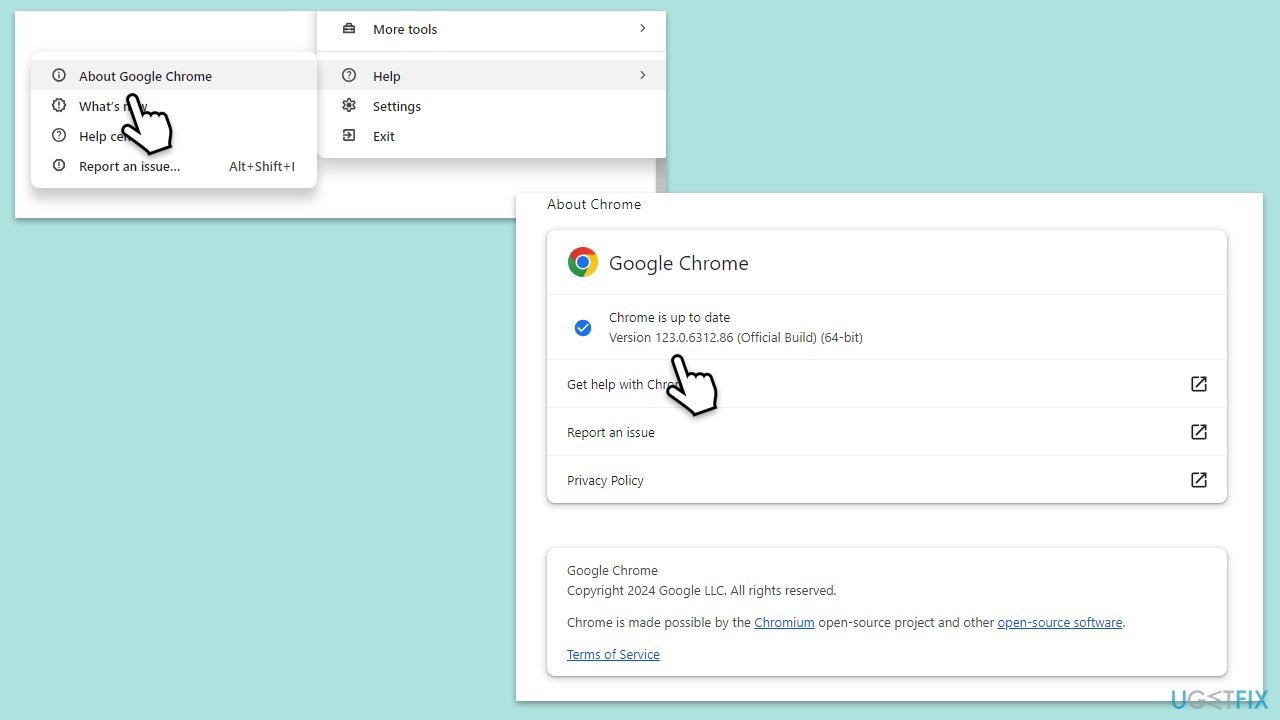
- Open Google Chrome.
- Click the three dots in the upper-right corner to open the menu.
- Select Help, then About Google Chrome.
- Chrome will check for updates.
- If any are found, they will be installed automatically.
- Finally, Relaunch the browser.
Fix 4. Disable the Hardware Acceleration option in Google Chrome
Turning off hardware acceleration can help if your GPU or its drivers are causing graphical issues in Chrome.
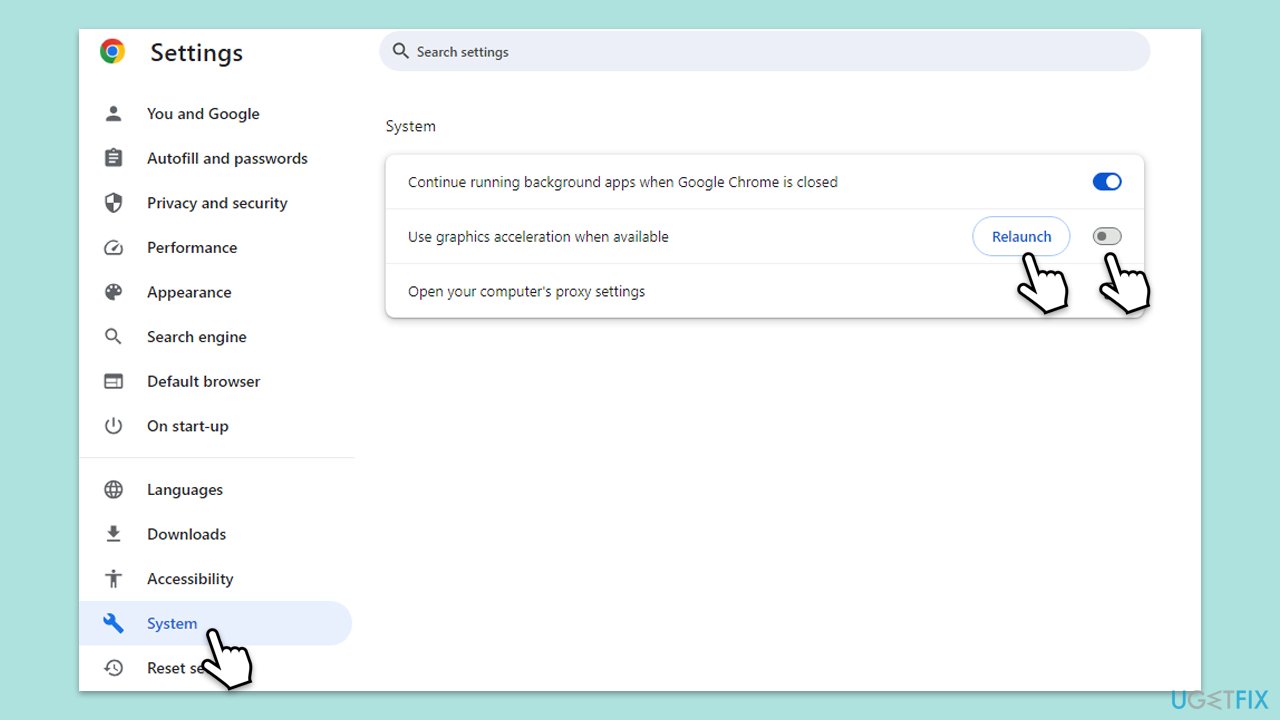
- Open Google Chrome.
- Click the three dots in the upper-right corner and select Settings.
- On the left side, select System.
- Disable the Use hardware acceleration when available option on the right.
- Relaunch Chrome to apply the changes.
Fix 5. Update your GPU drivers
Outdated or corrupt GPU drivers can cause graphical issues. Updating them can provide improvements and fixes for your graphics handling.
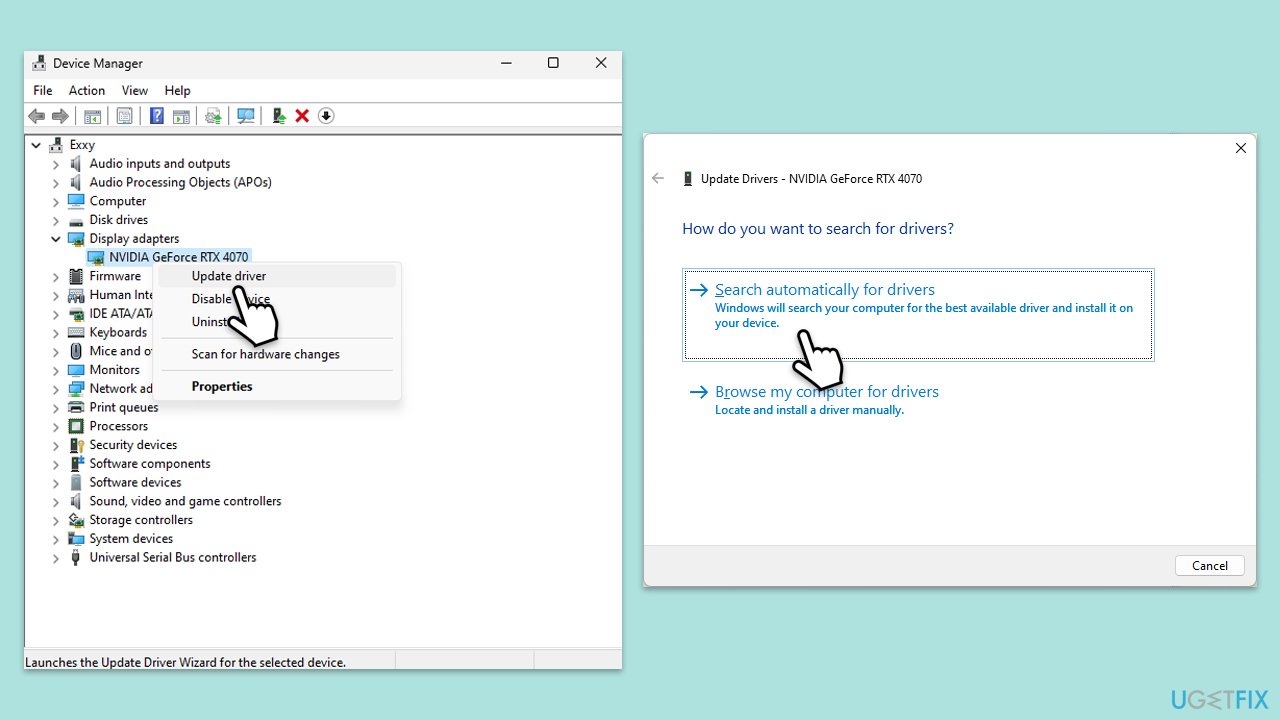
- Right-click on the Start button and select Device Manager from the menu.
- Expand the Display adapters section.
- Right-click on your graphics card and select Update driver.
- Pick Search automatically for drivers.
- If updates are found, allow them to install.
- Restart your computer after updating all necessary drivers.
To simplify the resolution of your driver issues, we suggest using [rev id="DriverFix"].
Bottom line
To resolve graphical artifacts and flickering in Google Chrome, it is recommended to update your GPU drivers and ensure your Windows system is up to date. Disabling hardware acceleration in Chrome's settings and adjusting the OpenGL settings in the chrome://flags menu may also help. If these solutions do not work, consider seeking further technical support.
Frequently asked questions
Start by updating your graphics drivers and ensuring Windows 10 is up to date. You can also try disabling hardware acceleration in Chrome's settings to see if that resolves the issue.
To fix flickering, try clearing your browser cache and cookies, and check for any Chrome updates. Additionally, disabling any conflicting extensions might help improve the situation.
Yes, you can adjust the display settings in Windows 11, such as turning off 'Game Mode' and ensuring the graphics performance settings are optimized for Chrome.




Report an issue
What's wrong with this guide? We review every report and update or remove content.
Report received — thank you. We'll review and fix it.
You need a free account to submit a report.
Be the first to comment