How to fix
“Hard drive not detected”
on Windows
Resolve the "Hard drive not detected" issue on Windows 10 with our expert-tested solutions. Get your PC running smoothly again in minutes!

What causes How to fix “Hard drive not detected” on Windows 10?
- Hard drive not showing up in BIOS or Disk Management
- Drive letter is missing
- Hard drive cannot be detected with an error
- Hard drive shows a yellow exclamation mark
- Recent Windows 10 updates causing issues with drivers
Repairs Windows system files, removes malware, and restores a clean OS state — without reinstalling.
Hi, I have reinstalled Windows 10 recently, and the process was fairly smooth, but right now Windows doesn't recognize my second hard drive. I had no issues before. I hope that there is something that can be done about it. How to repair hard disk not detected on Windows? Thank you a lot!
Windows not detecting a hard drive has been an issue that has been bothering mostly Windows 10 OS users for some time now.[ref en-1] It affects internal and external drives and also occurs under many different circumstances. If you are dealing with this problem, we strongly recommend you check the information below to better understand it and then apply the solutions to help you with the hard drive not showing up on Windows.
As we mentioned, there are numerous circumstances under which the problem could manifest. Here are a few examples that are most prevalent among the community on multiple IT forums:
- A hard drive not showing up in BIOS or/and Disk Management
- Drive letter is missing
- The hard drive cannot be detected with an error
- The hard drive shows a yellow exclamation mark, etc.
Some people are convinced that this problem is related to the recent Windows 10 updates that have been causing issues with drivers and other system components.[ref en-2]
However, the external hard disk not detected an error in Windows 10 can occur at any time anywhere and might not always be related to system updates. If you ever run into this problem, the bug will display one of two particular informative messages. It can look like this:
"We couldn't find any drives. To get a storage driver, click Load driver."
Or you can be provided with this type of message:
"No drives were found. Click Load Driver to provide a mass storage driver for installation."
This time, the upgrade might have caused a hard drive problem that somehow cannot be detected by the system, but it does not have to refer exactly to the Windows 10 upgrading activity. After all, some good news is that it doesn’t mean that the missing drivers on the Windows machine have been lost permanently along with the data stored on it.
In most of the cases, the particular Windows Anniversary Update[ref en-4] bug occurs on PCs that have several different drives installed on the same system, e.g., PATA, SATA, SDD,[ref en-5] M.2, etc. This problem emerges because the Windows system skips the secondary drive during the upgrade, which is why it disappears from the list.
System version upgrades or updates are not the main reasons for the problem to arise in most cases, however. Usually, users complain that a new hard drive simply is not recognized by Windows. The reasons for this could be plenty, including connectivity issues, incorrect drive settings, drivers, and more.
Of course, it is possible that your hard drive is damaged, so the system cannot find it. For those issues, you might want to check how to recover data from an erased hard drive or how to restore data from a damaged hard drive.
All in all, the issues can be fixed by bringing back to the surface the hidden hard drive and re-enabling it. It’s not difficult to perform this task on Windows 10, even if you are not considering yourself an IT specialist or advanced computer user. Below you will find multiple solutions that hopefully will help you fix the problem once and for all.
How to fix "Hard drive not detected" on Windows 10?
Keeping in mind how many bugs related to Windows 10 updates have caused issues to users these days, software capable of detecting and fixing drivers and similar components automatically would be a great solution.
If you have never tried PC repair software before, then you have to know that these programs are designed to clean up registries, fix startup problems, take care of the updates, delete malware, and so on. Our recommendation would be to try [d1], as you might avoid all the troubleshooting steps below.
1. Re-enable the missing drive in the Disk Management
The main thing that you have to do in order to get rid of the "Hard drive not detected" error is to re-enable the missing hard disk using Disk Management. Complete each step exactly as shown in the instructions to achieve the best results possible:
- Right-click the Windows key at the left bottom corner and select Disk Management.
- Now, you should see the list of drives that are connected to your PC/laptop. Pick the one that cannot be detected by your machine. It should be indicated as an Unallocated partition.
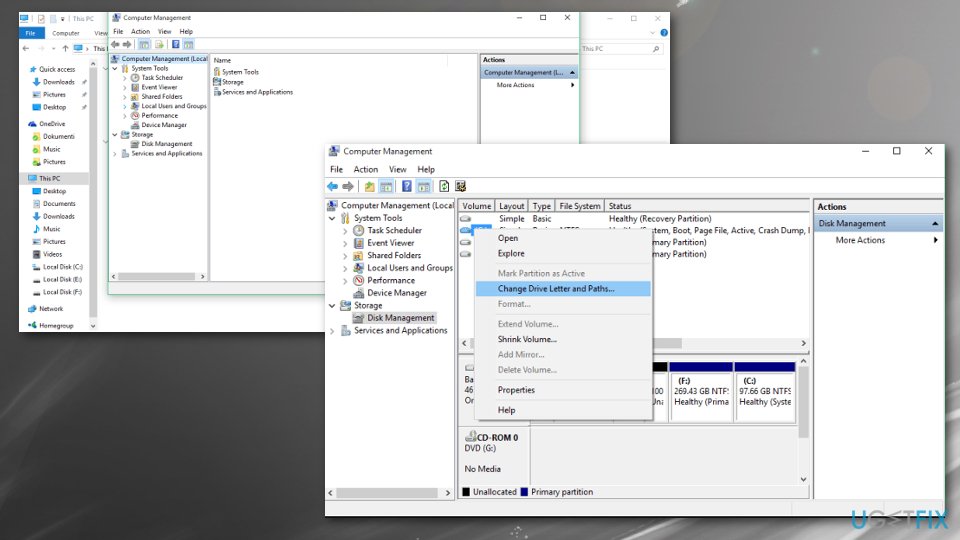
How to fix hard drive not detected disk management - Right-click on it and select Change drive letter and paths.
- Click on Add to open the Add Drive Letter or Path window.
- Choose Assign the following drive letter and click the letter to name your drive.
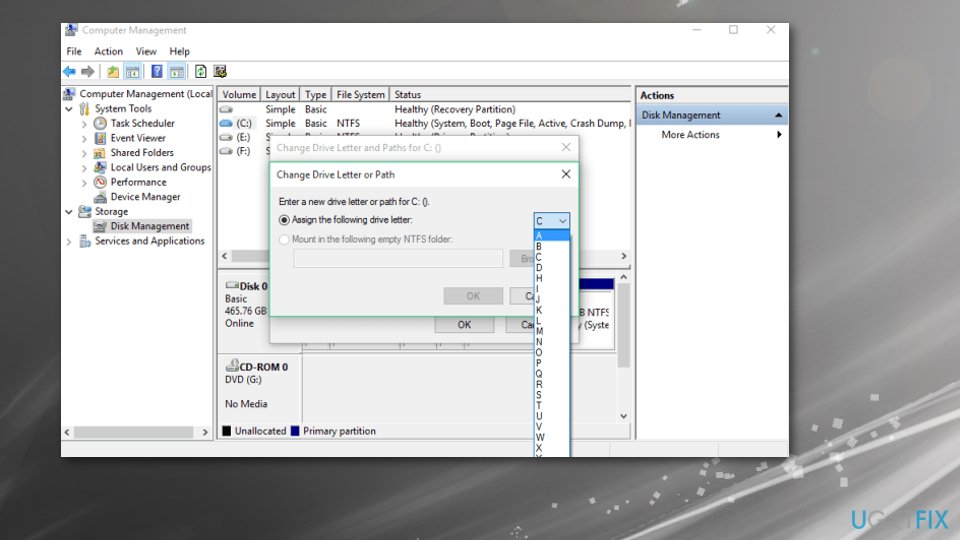
How to fix hard drive not detected disk management by letter - Finally, click OK and close all active windows.
- Reboot your PC and navigate to This PC section. Check if the drive has been added to the list.
2. Reconnect the external hard drive
Try uninstalling and reconnecting the external hard drive:
- Go to the Start menu and select Device Manager.
- Double-click to expand Disk Drives.
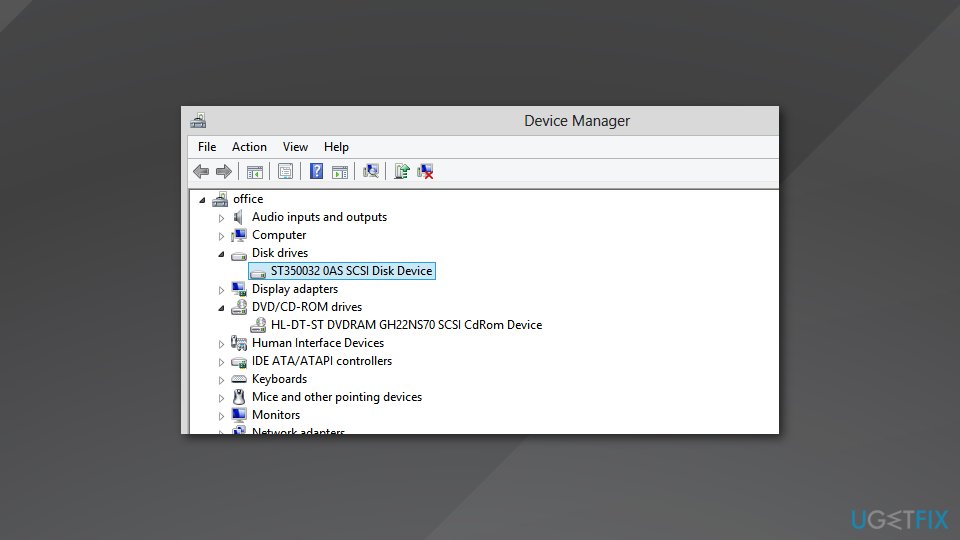
Expand disk drives in device manager - Right-click on each of them and select Uninstall.
- Reboot the computer after the uninstalling is finished and plug in the hard drive again.
3. Format the drive
- Go to Disk Management.
- When you see the list of connected hard drives, find the Disk 1 or Disk 10.
- Right-click the partition and select Initialize Disk from the context menu.
- The process gets initiated, you need to choose between Master Boot Record or GUID Partition Table. Click OK when you selected.
- New added device is going to be listed as basic and Online, so you need to right-click the stripped box and choose New simple volume.
- Select next and then format the new drive.
4. Check the status of the hard drive
- Press the Windows Key and R on your keyboard at the same time.
- Then type devmgmt.msc and press Enter.
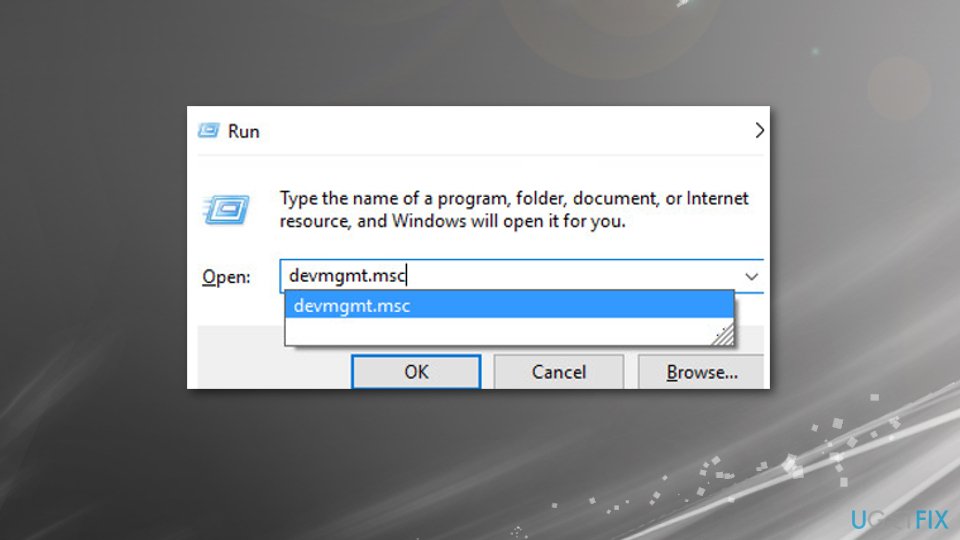
How to fix hard drive not detected run search - Expand Disk Drive and right-click on the drive.
- Go to Properties and check the status.
5. Update the driver
- Right-click on Start and select Device Manager.
- Expand Disk drives, find the second disk drive (it might be marked with yellow exclamation mark)
- Right-click and select Update driver software.
- Follow the provided instructions.
Note that the Device Manager might not be able to find the latest updates for your drive. Thus, you should either visit the manufacturer's website and get software from there or, for a quicker solution, employ [ref id="DriverFix"].
6. Update Windows
If a "broken" Windows version has been somehow installed on your computer system, you can opt for all new updates that are in the pending items' list. Take a look at these steps for a clearer view of the process:
- Type in Updates in Windows search and hit Enter.
- Click Check for updates and wait till the needed update files are downloaded.
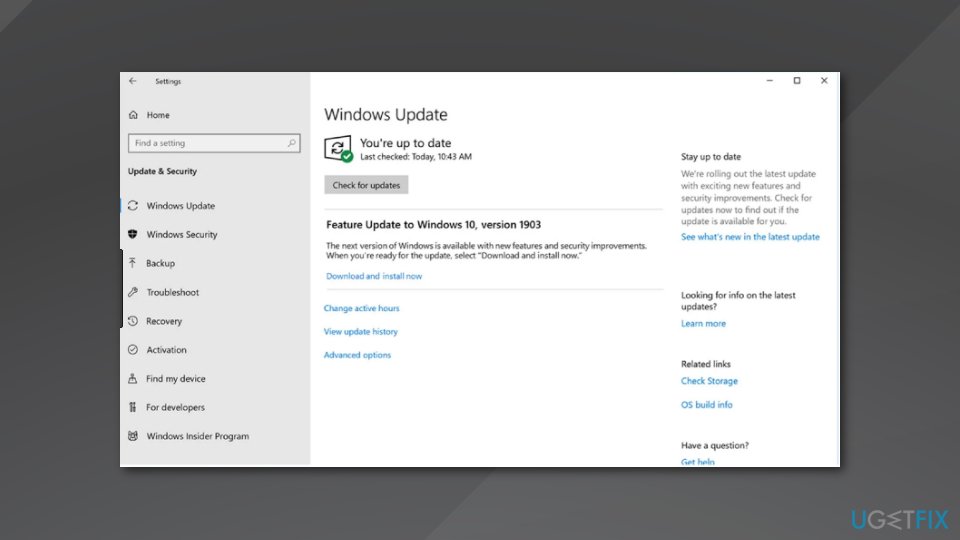
Check for windows updates - Restart your PC.
7. Reinstall USB controllers to make the second hard drive recognized
- Locate to Device Manager.
- Expand Universal Serial Bus controllers.
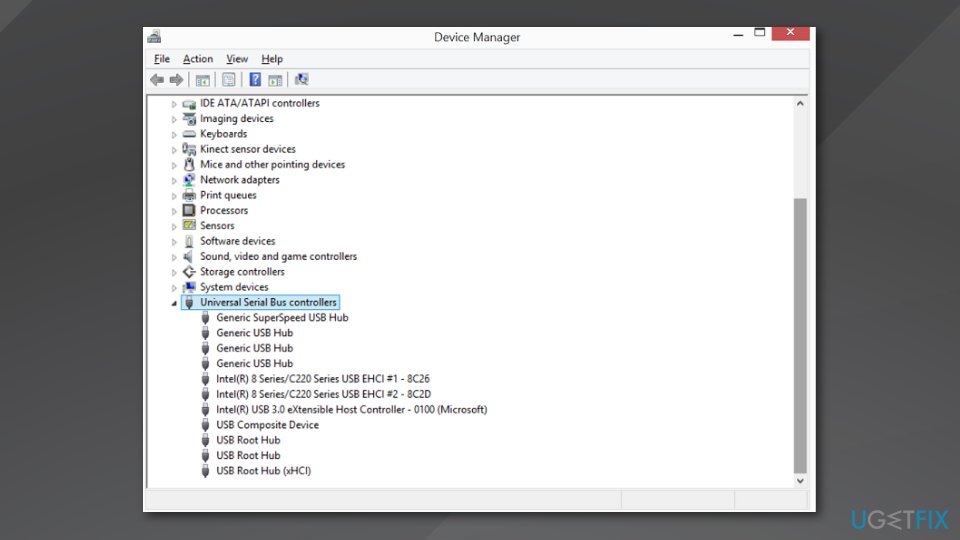
Use device manager to fix error - Right-click on each of the drives and choose Uninstall.
- Reboot the computer and USB controllers will install automatically.
Bottom line
To fix the 'Hard drive not detected' issue, you can check BIOS settings, assign a drive letter, update drivers, or troubleshoot hardware connections. If none of these solutions work, consider seeking professional assistance or checking for hardware failures.
Frequently asked questions
First, ensure that the hard drive is properly connected to your computer and that all cables are secure. You can also check for any visible damage to the drive or ports.
Right-click on the Start button and select 'Disk Management' from the menu. This will allow you to see if the hard drive appears there and if it needs to be initialized or formatted.
Restart your computer and enter the BIOS setup, then check if the hard drive is listed under the storage devices. If it's not recognized, you may need to enable certain settings like AHCI or check for any disabled ports.




Report an issue
What's wrong with this guide? We review every report and update or remove content.
Report received — thank you. We'll review and fix it.
You need a free account to submit a report.
Be the first to comment