How to fix
High CPU usage by Videosubscriptionsd
on Windows
Struggling with high CPU usage by Videosubscriptionsd on Windows 10 or 11? Discover quick fixes and expert-tested solutions for smooth performance.

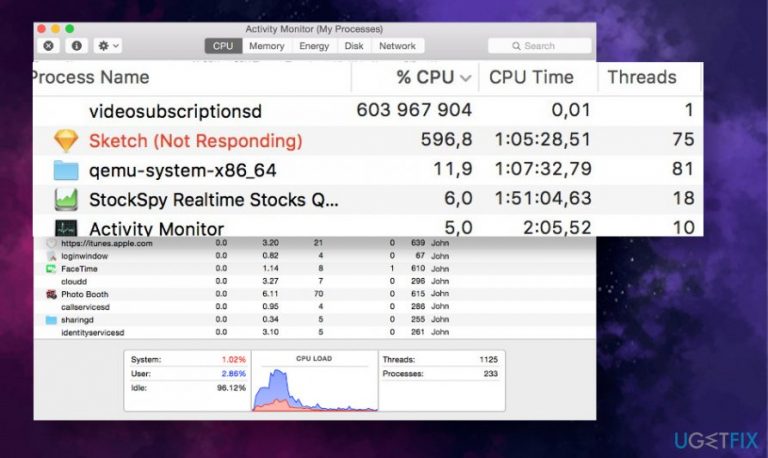
What causes How to fix high CPU usage by Videosubscriptionsd?
- High CPU usage reported since 2017
- Process respawns itself when disabled via Activity Monitor
- Possible triggers from iTunes changes for unified playback
- System Integrity Protection (SIP) prevents modifications
- No official fixes provided by Apple for version 10.12
Repairs Windows system files, removes malware, and restores a clean OS state — without reinstalling.
Hello. I've noticed that the process named Videosubscriptionsd is using up to 85% of CPU or sometimes it's taking an entire processor. My Mac runs 10.12.6 version. Is there anything I could do to fix that?
Videosubscriptionsd is in-built system software that has been introduced in the 10.12.5 update for iOS and Mac OS. Although there's not much information on the process of Mac support or other official sources, this process single sign-on video subscription service, which is a part of the Video Subscriber Account[ref en-1] framework (VideoSubscriberAccount.framework). It is specifically related to the authentication of video streaming/playback services, like iTunes.
Originally, the Videosubscriptionsd process is located under one of these directories:
- /Users/[username]/Library/Application Support/videosubscriptionsd/
- /usr/libexec/videosubscriptionsd
- /Library/Application Support/videosubscriptionsd/
The run of this process keeps the VSSubscriptions.sqlite, VSSubscriptions.sqlite-shm, and VSSubscriptions.sqlite-wal processes running by default. The problem is that the functionality of the Videosubscriptionsd has been reporting as hazardous since 2017 as the process uses too much CPU, which sometimes reaches nearly 90% of the processor's power.
According to Mac users, it's not possible to fix Videosubscriptionsd CPU usage by simply disabling the process via Activity Monitor since the process respawns itself all the time. Therefore, many people consider this process to be malware-related. If you have suchlike suspicions, you should scan the machine with a reputable Mac-compatible anti-malware tool and eliminate suspicious third-party apps.
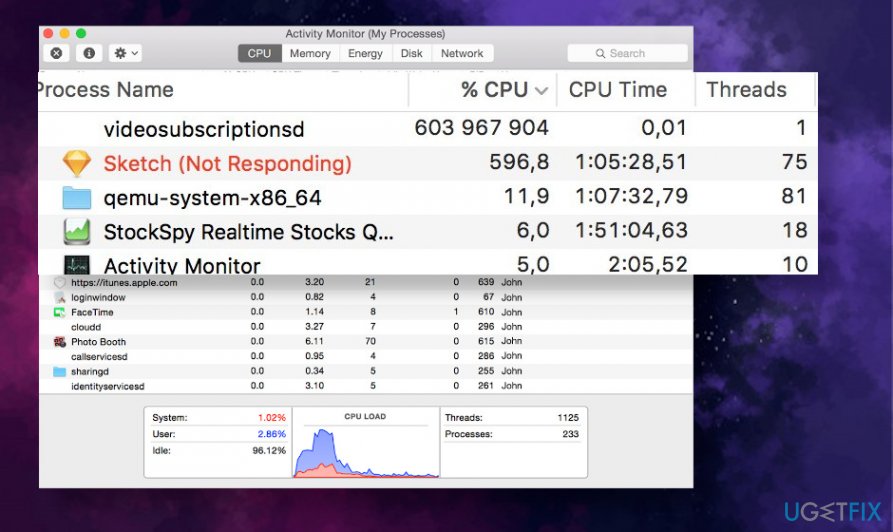
Nevertheless, the high CPU usage[ref en-2] by Videosubscriptionsd on Mac 10.12 is not very likely to be malware-related. The location of this process is protected by System Integrity Protection (SIP) in macOS 10.12, which means that the process is managed by Apple and cannot be installed/modified by any third-party app or the user himself.
The problem emerged in 2017 but seems to be relevant up till now. Unfortunately, they're no official reports on why this process misuse CPU or how to fix Videosubscriptionsd high CPU provided by Apple or other official sources. Nevertheless, Apple has confirmed that the issue has been resolved with the 10.13 version.
According to Mac enthusiasts, the Videosubscriptionsd CPU usage on Mac 10.12 versions can be triggered by iTunes changes to support unified playback of video purchases on multi-platforms. As a consequence, the process may be trying to sync some purchased videos across the platforms and failing to do so.
Sometimes, the Videosubscriptionsd process CPU consumption may be accompanied by processor usage by Spotlight, Coreduetd, and other Mac-based processes. Some people reported the DropBox for being the culprit, so disabling Dropbox would be one of the easiest ways to fix this issue.
Important! Do not delete components found in /Library/ folder by yourself
Some shardy websites may try to convince you that it's possible to fix Videosubscriptionsd CPU usage by simply deleting this process and the content from the associated /Library/ folder. 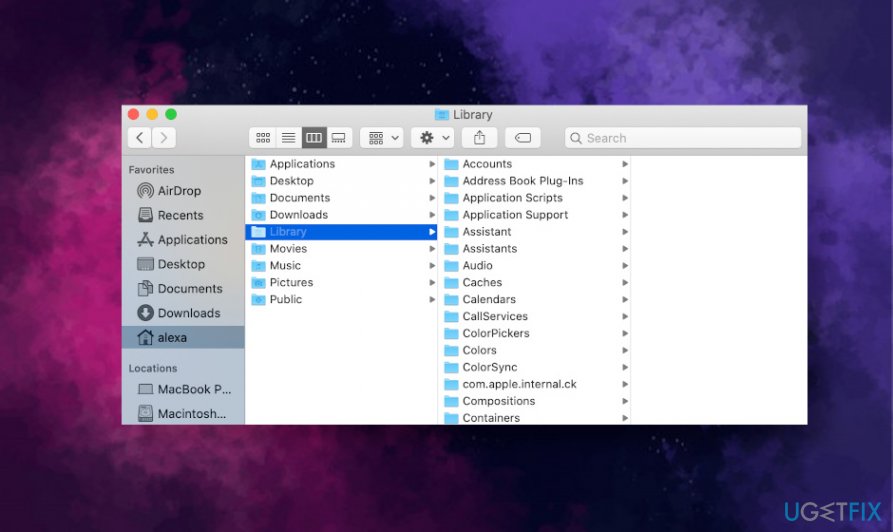
Do not fall for such unprofessional recommendations because the Videosubscriptionsd process is a legitimate service managed and installed on Mac by Apple. In general, you should never delete legitimate components for OS X located in the /Library/ folder as you can cause damage to the machine.
If you need to make some free space or if you suspect that the system might be affected by Mac malware, you can run anti-malware tool for a checkup of using a professional optimization utility, such as [d1] to see what improvements can be done to increase your machine's performance.
Method 1. Restart Mac
The first thing that you should do to fix high CPU by Videosubscriptionsd is to restart your Mac. According to people, this option can help to bypass the issue for several hours, though it keeps reappearing sooner or later.
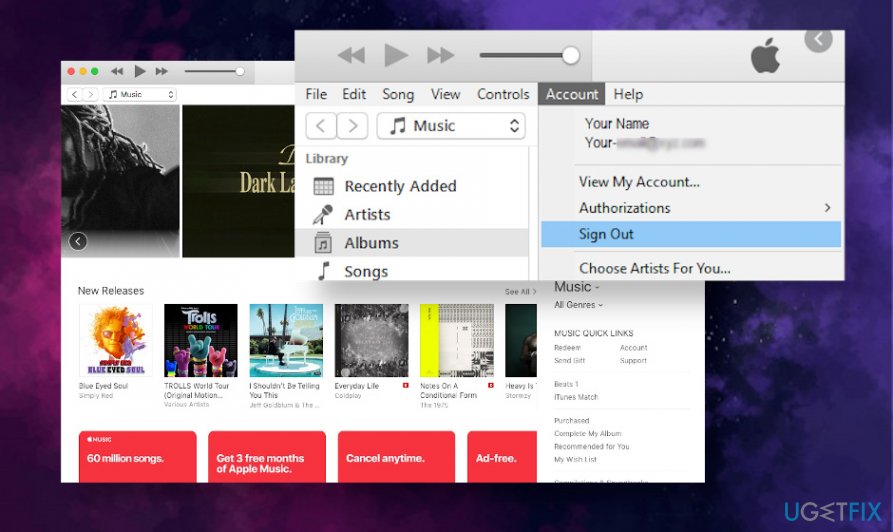
In addition, to restart, we recommend you sign out from your iTunes account and then sign in again. That may help if the Videosubscriptionsd process fails some iTunes syncing procedures.
Method 2. Kill the process via terminal
If you are not using iTunes, iCloud[ref en-3], and other video streaming services that may be using the process, then try to disable Videosubscriptionsd process via the Terminal.
As we have already pointed out, this process runs three processes by default VSSubscriptions.sqlite, VSSubscriptions.sqlite-shm, and VSSubscriptions.sqlite-wal. All of these processes and related services have to be disabled at once to fix high CPU usage by Videosubscriptionsd:
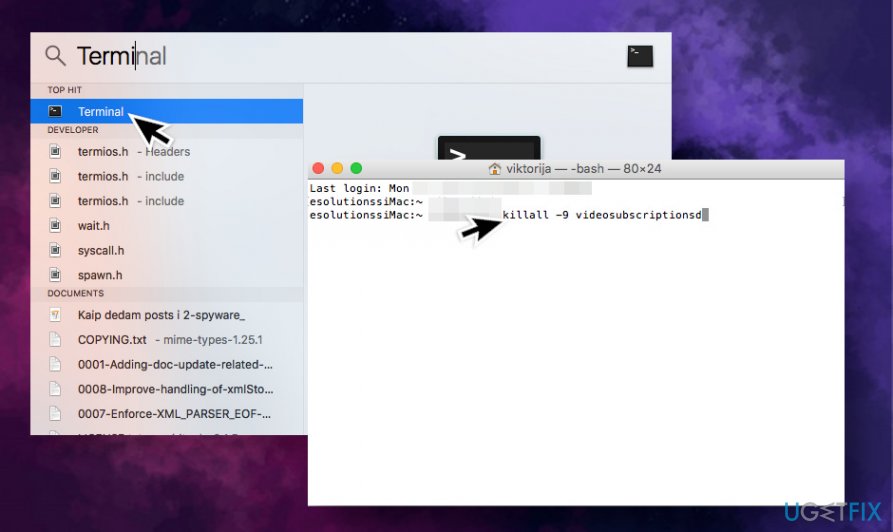
- Press Command and spacebar to open the Spotlight;
- Type Terminal in the Spotlight's search and press Enter;
- Now, if the Videosubscriptionsd process is using processors memory, copy and paste the following line in the Terminal;
killall -9 videosubscriptionsd
- Press Enter to activate the command.
Method 3. Prevent Videosubscriptionsd from respawning after the restart
- First of all, disable SIP (System Integrity Protection).
- Restart mac while holding Command + R keys simultaneusly.
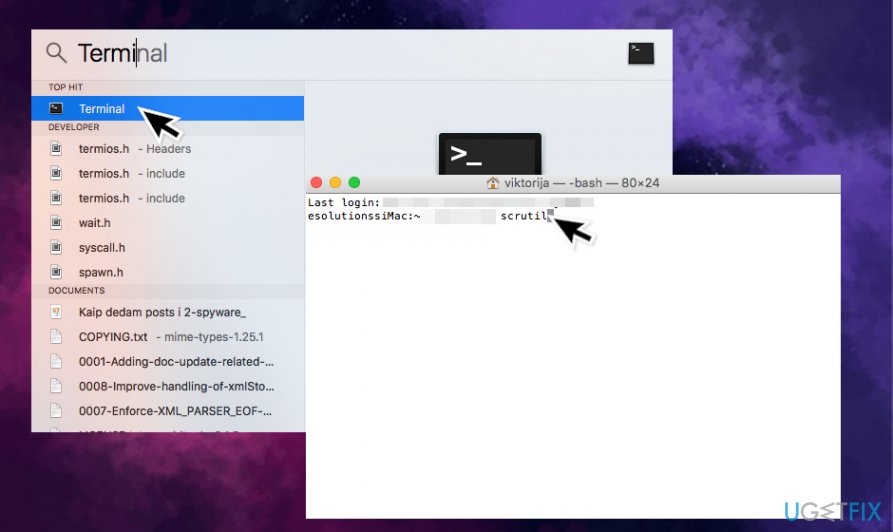
- Now press Command and spacebar simultaneously to open Terminal.
- Type scrutil and press Enter.
- Restart your Mac for SIP disablement to take effect.
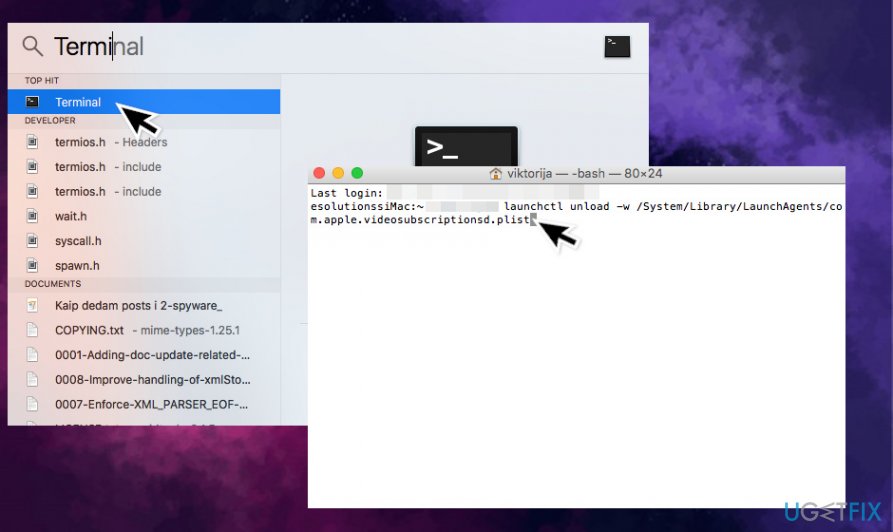
- After that, open Terminal as explained above.
- Type the launchctl unload -w /System/Library/LaunchAgents/com.apple.videosubscriptionsd.plist command.
- Press Enter to enable it.
After that, launch the Activity Monitor and check if the Videosubscriptionsd error has been fixed.
Method 4. Disable Dropbox
The videosubscriptionsd error on Mac 10.12 can also happen due to the Dropbox getting into an infinite loop.
- Right-click on the Dropbox icon positioned on the system tray or menu bar;
- Select Quit Dropbox;
- Check if the High CPU usage has stopped.
Method 5. Upgrade to the 10.13 version
If you are facing the problems with the Videosubscriptionsd process on Mac 10.12 version and the previous methods did not help you to solve it, the only solution may be to update your Mac to the 10.13 version as it has a fix for the Videosubscriptionsd error.
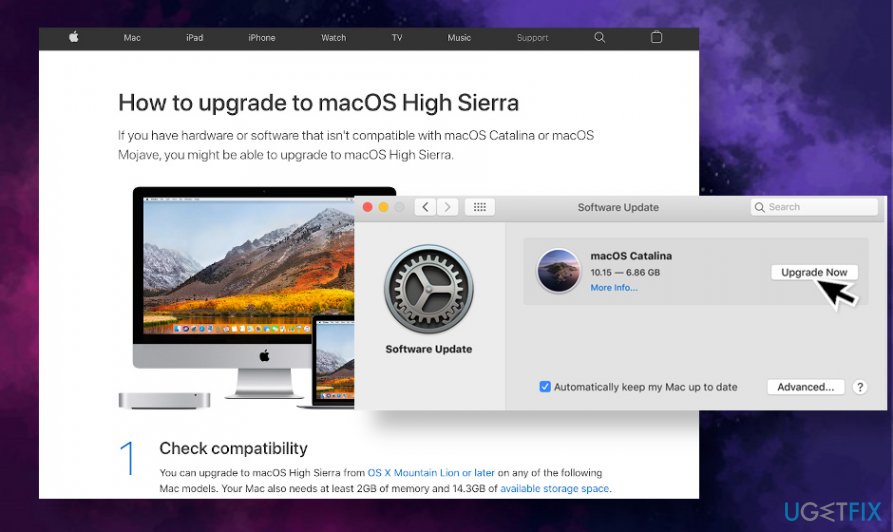
- Before installing the update, check the compatibility of your device with the OS version;
- Make a backup copy of your Mac using the Time Machine function;
- After that, navigate to the official Apple website and download the required update;
- Upon installation, the installer should launch automatically, so wait for the installation process to be complete.
Bottom line
To address high CPU usage by Videosubscriptionsd, users should scan for malware and eliminate suspicious third-party apps. If the issue persists, upgrading to macOS 10.13, where Apple has confirmed the problem is resolved, is recommended. If none of these solutions work, further investigation into system settings or contacting Apple support may be necessary.
Frequently asked questions
High CPU usage by Videosubscriptionsd is often caused by a corrupted app cache or background processes related to video subscriptions. This can lead to excessive resource consumption, affecting system performance.
To reduce CPU usage, try resetting the app by going to Settings > Apps > Apps & features, locating Videosubscriptionsd, and selecting 'Advanced options' to reset it. If the issue persists, consider uninstalling and reinstalling the app.
Yes, you can disable unnecessary startup programs and background apps through Task Manager to lower CPU usage. Additionally, ensure your Windows 10 is updated to the latest version, which may include performance enhancements.




Report an issue
What's wrong with this guide? We review every report and update or remove content.
Report received — thank you. We'll review and fix it.
You need a free account to submit a report.
Be the first to comment