How to fix
Hogwarts Legacy autosave not working
on Windows
Resolve Hogwarts Legacy autosave issues on Windows 10 or 11 effortlessly. Get expert-tested solutions to enjoy seamless gameplay, fixed in minutes!


What causes How to fix Hogwarts Legacy autosave not working?
- Autosave feature malfunction
- Game performance issues on PCs
- Corrupted game files
- Insufficient storage space
- Software conflicts
Repairs Windows system files, removes malware, and restores a clean OS state — without reinstalling.
Hello, I've just been playing Hogwarts Legacy and died, thinking I could reload from my recent autosave. However, I have noticed that no autosaves are available, and I had to lose a lot of progress because of this. Any idea why this is going on?
Hogwarts Legacy was a highly anticipated action role-playing game set in the Harry Potter universe. Developed by Avalanche Software and published by Warner Bros., it was released on February 10, 2023, for PC and current-generation consoles. The game is set to release on May 5 on older consoles (PS4/Xbox One) and Switch as well.
The game is set in the late 1800s, a hundred years before the events of the Harry Potter novels. Players take on the role of a student at Hogwarts School of Witchcraft and Wizardry, where they will explore the vast and mysterious Hogwarts Castle, attend classes, and learn spells and potions.
Despite the controversy surrounding its creator Rowling, the game was very well received - Warner Bros announced they had sold over 12 million copies with $850 million in sales in mere two weeks of its release.[ref en-1]
While the game's success is undeniable, it does not mean that everything goes smoothly for all the players. With known performance issues on PCs,[ref en-2] users now notice that the Hogwarts Legacy autosave function is not working, which can be a rather frustrating experience for many.
With Autosave not working, gamers might lose precious game progress and would have to replay portions of the game, which can be tedious and reduce the overall gaming quality.

Users described a problem where they suddenly noticed that autosaves would simply not show up whenever they wanted to load a game. In other cases, Hogwarts Legacy autosaves would simply not load at all. Both issues are equally as frustrating and can occur both on PCs and consoles alike.
Below we compiled several solutions that should help you fix the Hogwarts Legacy autosave issue. Before proceeding with the instructions, we recommend checking the system with a PC repair tool [d1] to repair any underlying issues that could arise on Windows computers.
Method 1. Update the game
Just like many other games with technical issues, Hogwarts Legacy is deemed to receive patches meant to address them. Thus, if you haven't done so, make sure your game is running the latest version.
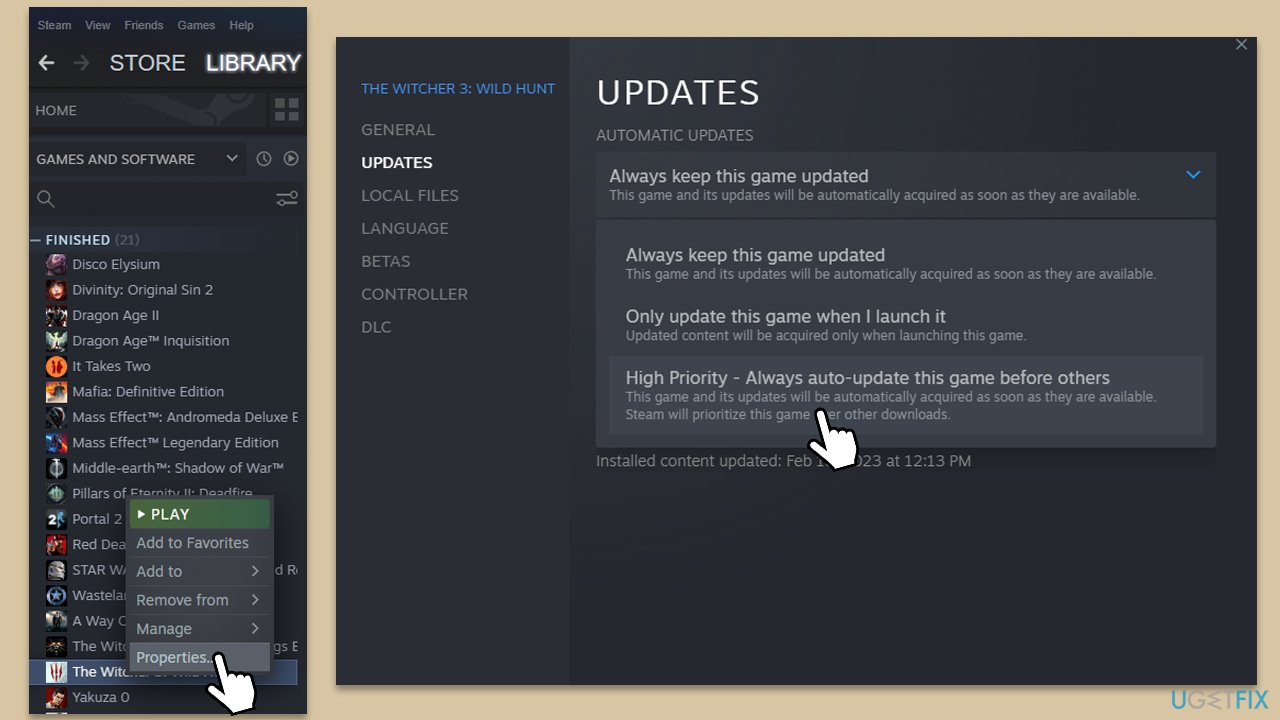
Steam
- Go to your Library.
- Right-click on Hogwarts Legacy and select Properties.
- Go to the Updates section
- Under Automatic Updates, pick High Priority option.
PlayStation
- Go to Game Library and select Hogwarts Legacy.
- Press the Options button on your controller.
- From the side menu, pick Check for Update.
Xbox
- Select My games and Apps.
- Select Hogwarts Legacy and pick Manage game.
- On the left, select Updates and download everything available.
Method 2. Verify game files
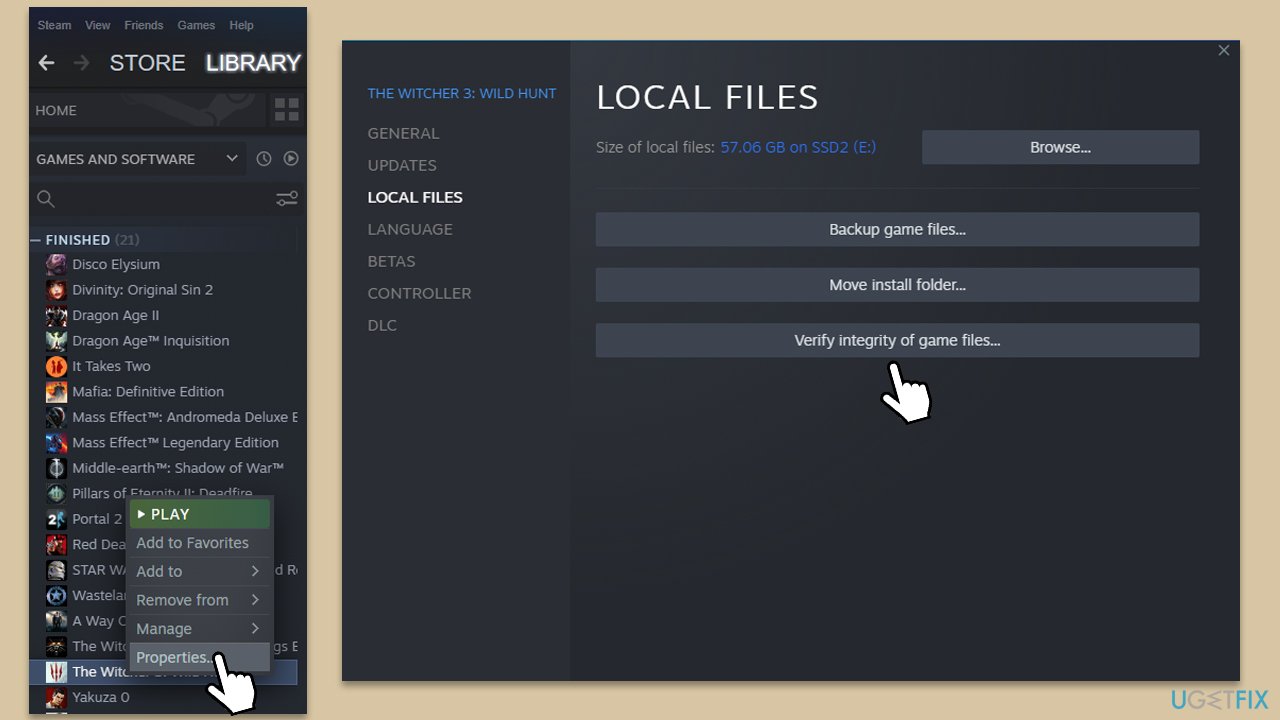
- Go to Library, and right-click on the game entry.
- Select Properties.
- Go to the Local Files section.
- Here, pick Verify integrity of game files.
- Wait till the process is finished.
Method 3. Replace the autosave manually
- Open the Run window by pressing WIN + R on your Desktop, then type %AppData% and press Enter.
- Navigate to C:\Users\USERNAME\AppData\Local\Hogwarts Legacy\Saved\SaveGames\ and locate a folder with numbers on it. Press CTRL + X to cut the folder.
- Go back to your Desktop and press CTRL + V to paste the folder there. Open the folder.
- Identify your last autosave file by checking the Date Modified column. Look for a file named HL-00-XX that was saved around the time of the crash. Press CTRL + C to copy the file.
- Launch Hogwarts Legacy and create a new character with the same name as your previous character.
- As soon as the first cutscene begins, go to C:\Users\USERNAME\AppData\Local\Hogwarts Legacy\Saved\SaveGames\ and enter the folder with the numbers. Locate the HL-00-XX file and delete it. Take note of the file name.
- Press CTRL + V to paste the original autosave file from your Desktop into the save game folder.
- Rename the pasted autosave file with the name of the deleted file from Step 6.
- Close and relaunch Hogwarts Legacy by pressing ALT + F4 and reopening the game.
- Load the game and select the new character you created. Start playing, and you should resume where you left off before the game crashed.
Bottom line
To address the Hogwarts Legacy autosave issue, users can try checking their system with a PC repair tool, ensuring sufficient storage space, and verifying game files for corruption. If these solutions do not resolve the problem, consider reinstalling the game or reaching out to customer support for further assistance.
Frequently asked questions
The autosave feature may not work due to insufficient permissions or corrupted game files. Try running the game as an administrator and verify the integrity of the game files through the game launcher.
Autosave is usually enabled by default, but check your game settings to ensure it’s not turned off. If it’s still not functioning, consider reinstalling the game to reset the settings.
A recent Windows update may disrupt game functionalities; ensure your graphics drivers are updated and consider rolling back the update if issues persist. Additionally, check for any game patches that may address compatibility problems.




Report an issue
What's wrong with this guide? We review every report and update or remove content.
Report received — thank you. We'll review and fix it.
You need a free account to submit a report.
Be the first to comment