How to fix
Icons keep disappearing from taskbar
on Windows
Resolve taskbar icon issues in Windows 11 quickly and easily. Get expert-tested solutions that keep your icons where they belong. Fixed in minutes!


What causes How to fix icons keep disappearing from taskbar in Windows 11?
- Corrupted system files
- Issues with Windows Explorer
- Bugs in Windows 11
- Problems after upgrading from Windows 10
Repairs Windows system files, removes malware, and restores a clean OS state — without reinstalling.
Hello. I recently upgraded from Windows 10 to Windows 11 and I noticed an issue - application icons keep disappearing from the taskbar. How do I fix this?
Windows is one of the most popular operating systems. The newest version - Windows 11 was released by Microsoft at the end of 2021. Windows 11 came with a new user interface, updated design, and new features. Unfortunately, it came with various bugs as well.
We previously wrote about Windows 11 issues such as the headphone jack not recognized, stuck in Dark Mode, WiFi icon missing, and many more. Usually, people experience various problems after upgrading from Windows 10. Recently, some people reported a bug where icons keep disappearing from the taskbar.
Users say that the icons disappear while using their machines as well as when they come out of hibernation. The issue also appears several times a day which can get annoying quickly. In this guide, you will find 4 steps that should help you fix this issue.
Keep in mind that the manual troubleshooting process can be lengthy. If you want to avoid it, you can use a maintenance tool like [d1]. It can automatically fix most system errors, BSODs,[ref en-1] corrupted files, registry[ref en-2] issues, or clear cookies and cache.[ref en-3] Otherwise, follow the step-by-step instructions below.
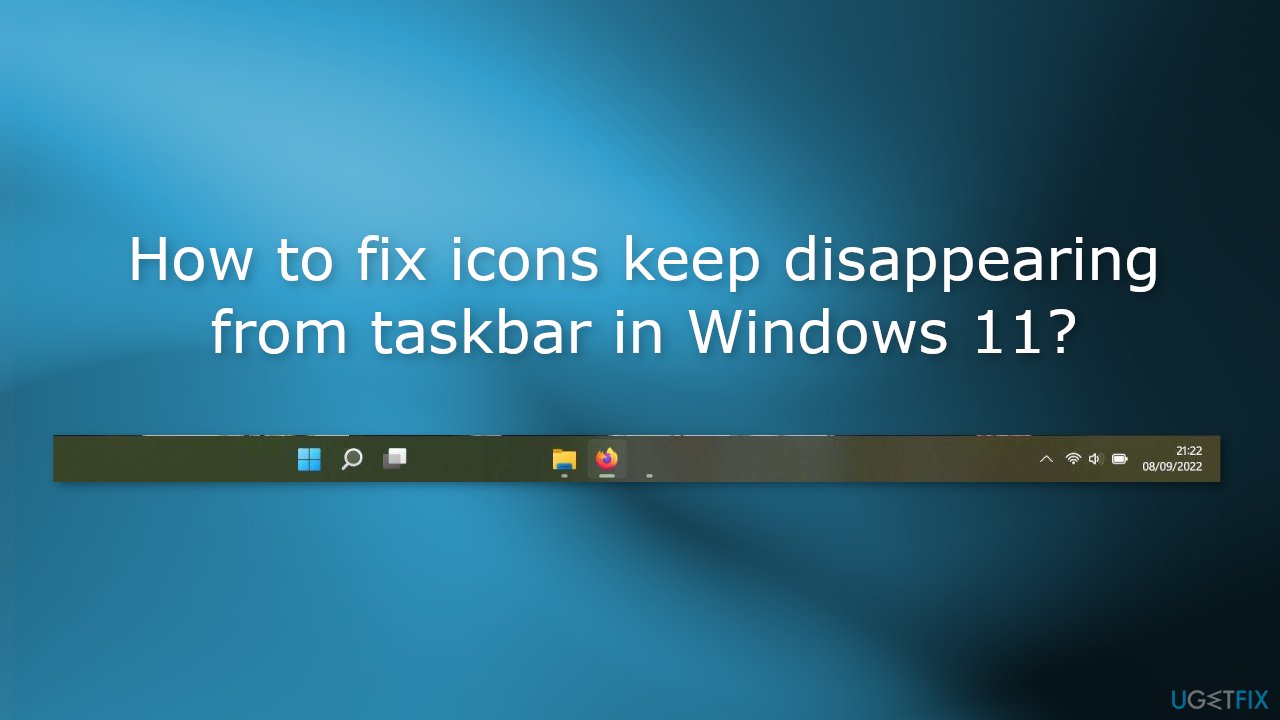
Method 1. Restart Windows Explorer
Users found a simple workaround that should get rid of the issue temporarily:
- Open the Task Manager app by pressing Ctrl + Shift + Esc keys together on your keyboard
- Then, Select the Processes tab and right-click on the Windows Explorer process
- Click on the Restart option from the context menu
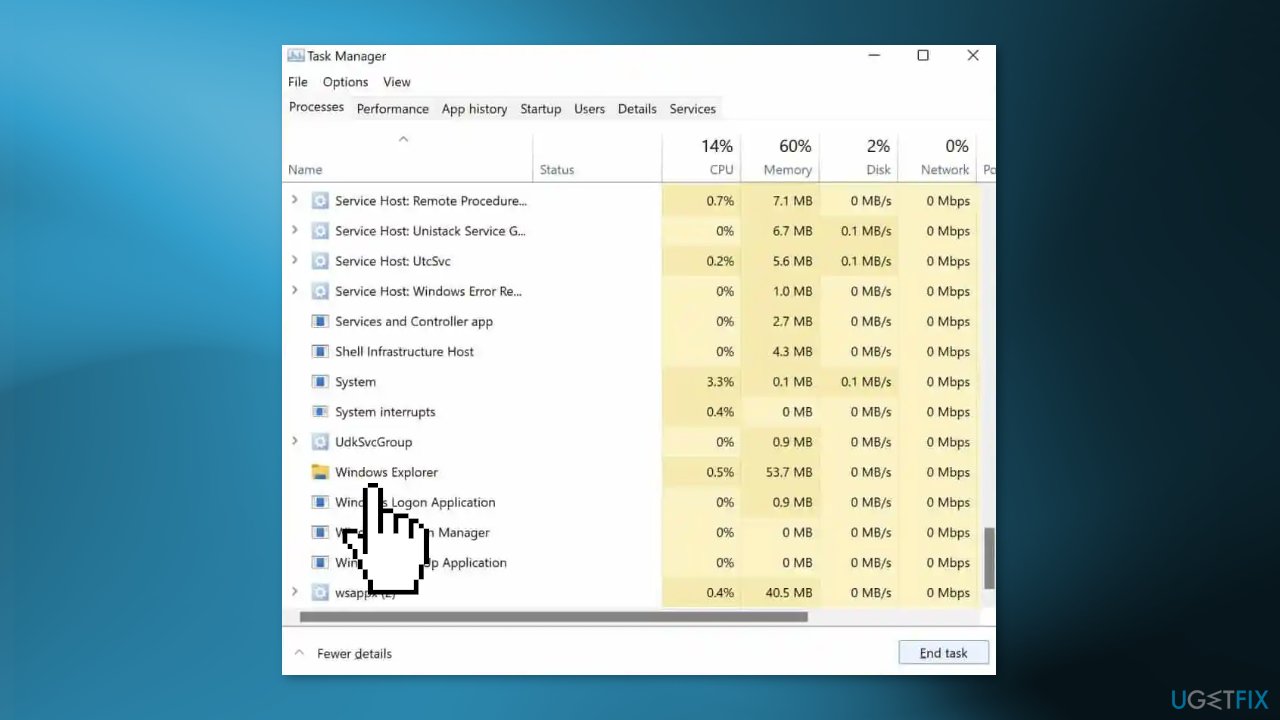
- Check now if the issue is resolved
Method 2. Fix Corrupted System Files
Use Command Prompt commands to repair system file corruption:
- Open Command Prompt as administrator
- Use the following command and press Enter:
sfc /scannow
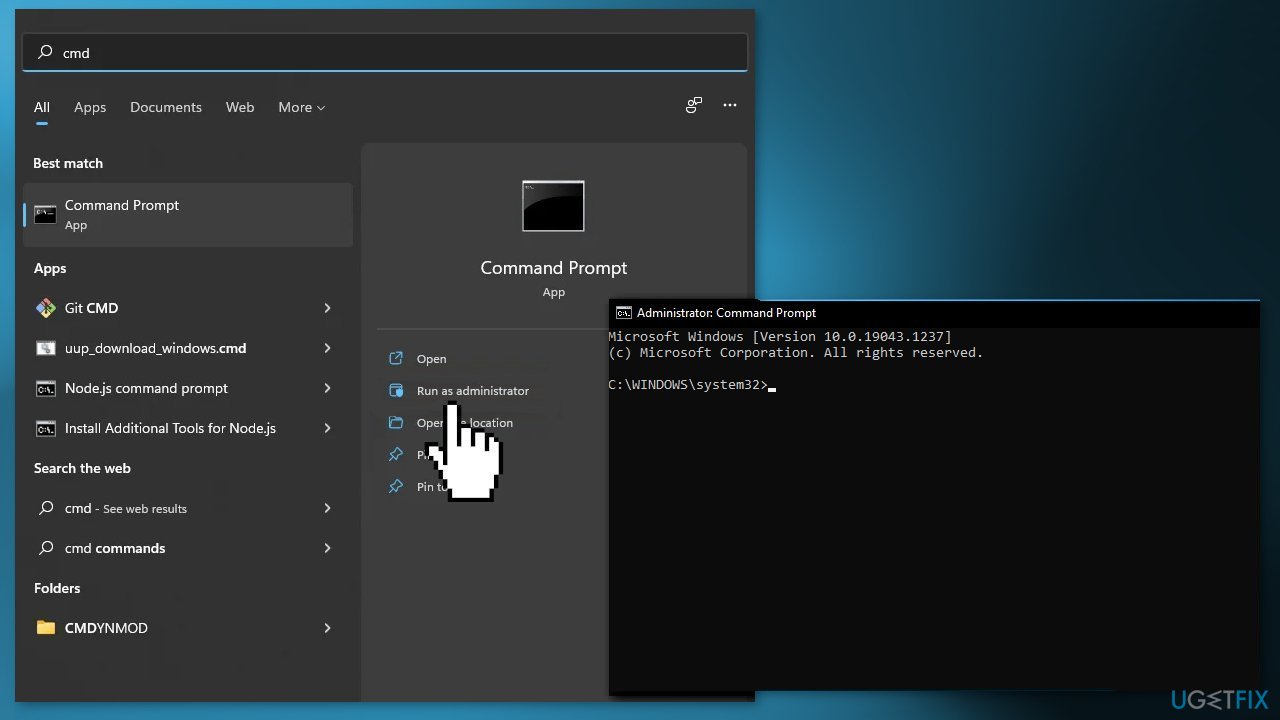
- Reboot your system
- If SFC returned an error, then use the following command lines, pressing Enter after each:
DISM /Online /Cleanup-Image /CheckHealth
DISM /Online /Cleanup-Image /ScanHealth
DISM /Online /Cleanup-Image /RestoreHealth
Method 3. Reinstall Graphics Drivers
- Press the Windows key + R at the same time to open the Run box
- Type devmgmt.msc and press Enter to open the Device Manager
- Double-click on Display adapters to view the devices in the category
- Right-click on the graphics card name, and select Uninstall device
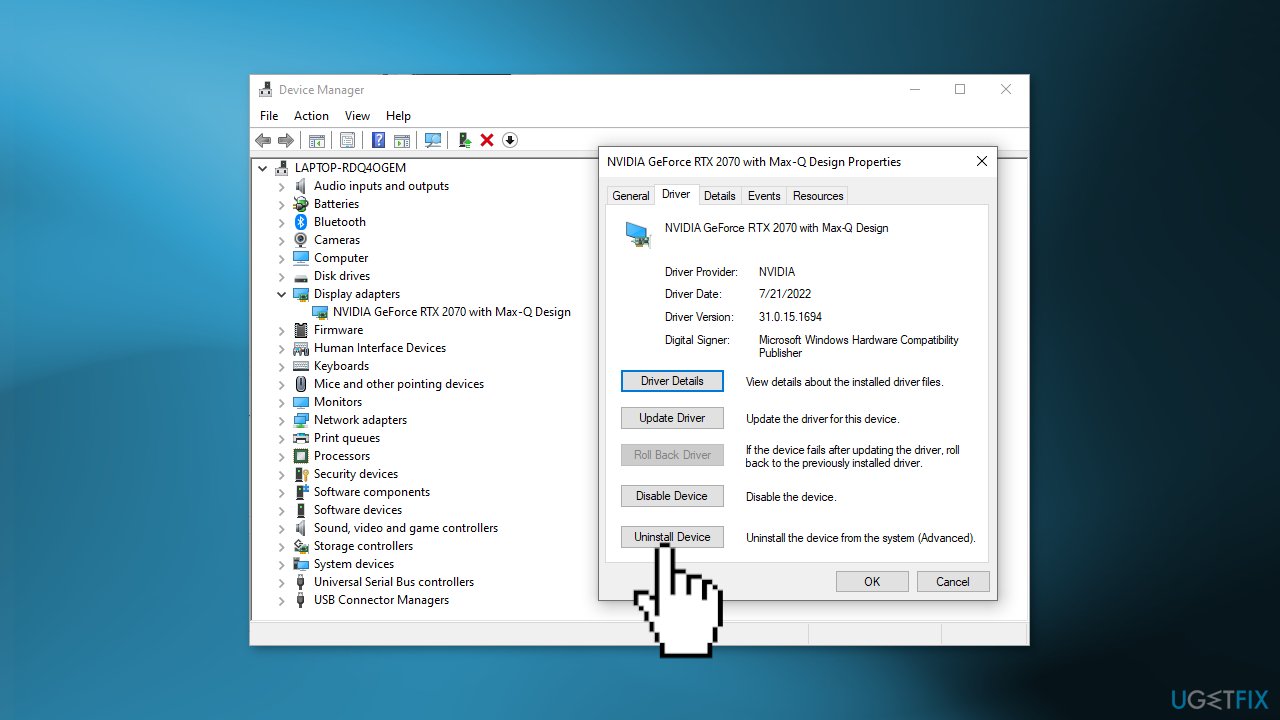
- On the Uninstall confirm dialog box, click the Delete the driver software for this device option, then click Uninstall
- Now you can allow Windows to install drivers automatically by restarting your computer or you can use a dedicated utility like [rev id="DriverFix"] that can find the best drivers for your device
- There is also an option to download the drivers you want from the manufacturer's website. Find the manufacturer of your GPU and go to their official website to install the newest drivers.
Method 4. Uninstall Recent Windows Updates
If you noticed that the problem started appearing after installing a Windows update, try to uninstall it to see if it helps to get rid of the issue.
- Open the Settings app
- Click on Windows Update
- Click the Update history page on the right side
- Under the Related settings section, click the Uninstall updates option
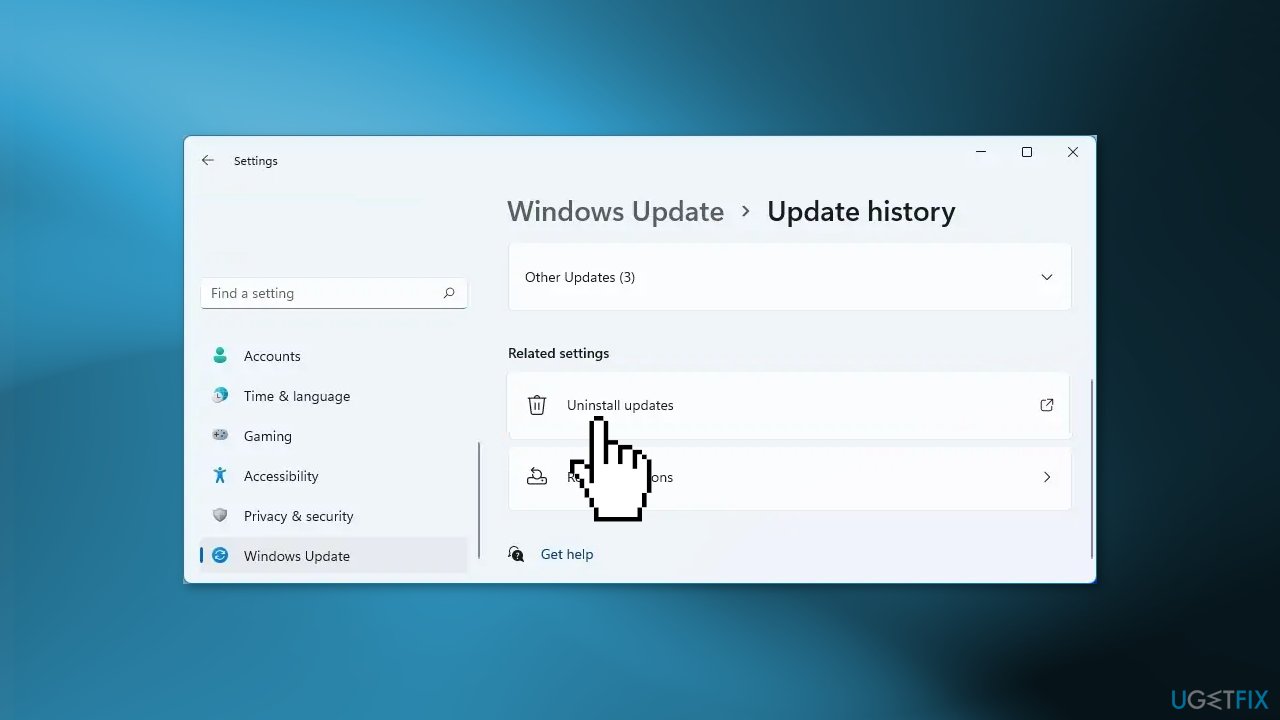
- Select the update you wish to remove
- Click the Uninstall button
- Click the Yes button to confirm the action
- Restart the computer
Bottom line
To fix the issue of disappearing icons from the taskbar, you can restart Windows Explorer, repair corrupted system files using Command Prompt, or use a maintenance tool. If these methods do not resolve the problem, consider seeking further technical assistance.
Frequently asked questions
Icons may disappear due to system glitches, corrupted user profiles, or issues with Windows Explorer. Regular updates or system settings may also impact taskbar icon visibility.
You can restore missing icons by restarting Windows Explorer through the Task Manager or by resetting your taskbar settings in the Personalization menu. Ensure that your Windows 11 is updated to the latest version for optimal results.
If icons keep disappearing after an update, try rolling back the update or performing a system restore to a point before the update. Additionally, check for any pending updates that might fix the issue.




Report an issue
What's wrong with this guide? We review every report and update or remove content.
Report received — thank you. We'll review and fix it.
You need a free account to submit a report.
Be the first to comment